Page 149 of 298
149
1. USEFUL INFORMATION
Camry_Navi_U
INFORMATION
5
3. DATA SERVICES SETTINGS*
1Press the “APPS” button.
2Select “Setup” .
3Select “HD Data” .
4Select the desired item to be set.
Select a checkbox on the right to set.
SETTING DOWNLOAD
METHODS
Data service information, which is
comprised of traffic information and
weather information, can be received
via HD Radio broadcast and by the En-
tune App Suite application on a
Bluetooth
® phone. The receiving meth-
od can be set to both or only via HD
Radio broadcast. For details about the
Entune App Suite application: P.273
*: With navigation function
No.Function
Select to receive data service infor-
mation via both HD Radio broadcast
and the Entune App Suite applica-
tion on a Bluetooth
® phone. When
both methods are available, HD Ra-
dio broadcast will be selected.
Select to receive data only via HD
Radio broadcast.
INFORMATION
● These settings are available in the 48
states, D.C. and Alaska of the United
States.
Page 153 of 298
153
1. REAR VIEW MONITOR SYSTEM
PERIPHERAL MONITORING SYSTEM
Camry_Navi_U
6
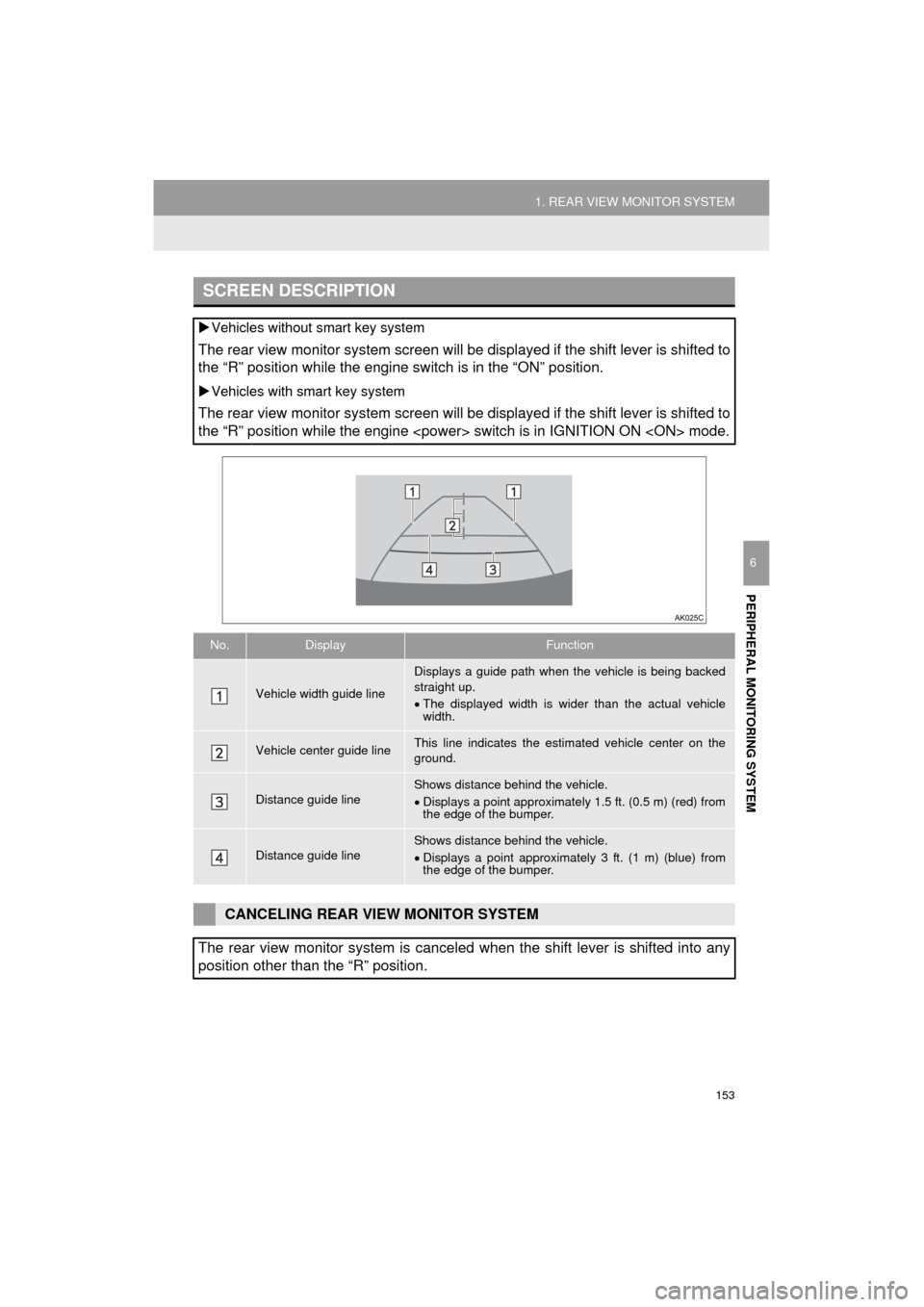
SCREEN DESCRIPTION
Vehicles without smart key system
The rear view monitor system screen will be displayed if the shift lever is shifted to
the “R” position while the engine switch is in the “ON” position.
Vehicles with smart key system
The rear view monitor system screen will be displayed if the shift lever is shifted to
the “R” position while the engine switch is in IGNITION ON mode.
No.DisplayFunction
Vehicle width guide line
Displays a guide path when t he vehicle is being backed
straight up.
The displayed width is wider than the actual vehicle
width.
Vehicle center guide lineThis line indicates the estimated vehicle center on the
ground.
Distance guide lineShows distance behind the vehicle.
Displays a point approximately 1.5 ft. (0.5 m) (red) from
the edge of the bumper.
Distance guide lineShows distance behind the vehicle.
Displays a point approximately 3 ft. (1 m) (blue) from
the edge of the bumper.
CANCELING REAR VIEW MONITOR SYSTEM
The rear view monitor system is canceled when the shift lever is shifted into any
position other than the “R” position.
Page 161 of 298

7
161
Camry_Navi_U
4
5
6
8
9
1
2
3
7
1. QUICK REFERENCE ................... 162
2. SOME BASICS ............................ 163
REGISTERING/CONNECTING A Bluetooth® PHONE ........................... 163
USING THE PHONE SWITCH/MICROPHONE .................. 164
VOICE COMMAND SYSTEM.............. 165
ABOUT THE CONTACTS IN THE CONTACT LIST ................... 166
WHEN SELLING OR DISPOSING OF THE VEHICLE............................. 166
3. CALLING ON THE Bluetooth®
PHONE....................................... 167
BY FAVORITES LIST .......................... 168
BY CALL HISTORY ............................. 168
BY CONTACTS LIST .......................... 169
BY DIAL PAD ...................................... 171
BY OFF HOOK SWITCH ..................... 171
BY “Home” SCREEN ........................... 172
4. RECEIVING ON THE Bluetooth®
PHONE....................................... 173
INCOMING CALLS .............................. 173
5. TALKING ON THE Bluetooth®
PHONE ...................................... 174
INCOMING CALL WAITING ................ 176
6. Bluetooth® PHONE
MESSAGE FUNCTION ............. 177
RECEIVING A MESSAGE ................... 178
CHECKING MESSAGES ..................... 178
REPLYING TO A MESSAGE
(QUICK REPLY) ................................ 179
CALLING THE MESSAGE SENDER ........................................... 180
1. PHONE/MESSAGE SETTINGS ................................. 182
PHONE/MESSAGE SETTINGS
SCREEN ........................................... 182
“Sound Settings” SCREEN .................. 183
“Contact/Call History Settings” SCREEN ........................................... 184
“Messaging Settings” SCREEN ........... 192
“Phone Display Settings” SCREEN ..... 193
1. TROUBLESHOOTING ................ 194
1
PHONE OPERATION
(HANDS-FREE SYSTEM FOR
CELLULAR PHONES)
2SETUP
3WHAT TO DO IF...
PHONE
Page 162 of 298
162
Camry_Navi_U
1. PHONE OPERATION (HANDS-FREE SYSTEM FOR CELLULAR PHONES)
1. QUICK REFERENCE
The phone top screen can be used to make a phone call. To display the hands-free
operation screen, press the “APPS” button and select “Phone”, the switch on
the steering wheel or switch on the instrument panel.
Several functions are available to operate on each screen that is displayed by se-
lecting the 4 tabs.
FunctionPage
Phone operation
Registering/connecting Bluetooth® phone43
Calling on the Bluetooth® phone167
Receiving on the Bluetooth® phone173
Talking on the Bluetooth® phone174
Message functionUsing the Bluetooth® phone message function177
Setting up a phonePhone settings182
Bluetooth® settings50
Page 163 of 298
163
1. PHONE OPERATION (HANDS-FREE SYSTEM FOR CELLULAR PHONES)
Camry_Navi_U
PHONE
7
2. SOME BASICS
The hands-free system enables calls
to be made and received without hav-
ing to take your hands off the steering
wheel.
This system supports Bluetooth
®.
Bluetooth® is a wireless data system
that enables cellular phones to be used
without being connected by a cable or
placed in a cradle.
The operating procedure of the phone
is explained here.
WA R N I N G
● While driving, do not use a cellular
phone or connect the Bluetooth® phone.
● Your audio unit is fitted with Bluetooth
®
antennas. People with implantable car-
diac pacemakers, cardiac resynchroni-
zation therapy-pacemakers or
implantable cardioverter defibrillators
should maintain a reasonable distance
between themselves and the Bluetooth
®
antennas. The radio waves may affect
the operation of such devices.
● Before using Bluetooth
® devices, users
of any electrical medical device other
than implantable cardiac pacemakers,
cardiac resynchronization therapy-pace-
makers or implantable cardioverter
defibrillators should consult the manu-
facturer of the device for information
about its operation under the influence
of radio waves. Radio waves could have
unexpected effects on the operation of
such medical devices.
NOTICE
● Do not leave your cellular phone in the
vehicle. The temperature inside may rise
to a level that could damage the phone.
INFORMATION
● If your cellular phone does not support
Bluetooth®, this system cannot function.
● In the following conditions, the system
may not function:
• The cellular phone is turned off.
• The current position is outside the
communication area.
• The cellular phone is not connected.
• The cellular phone has a low battery.
● When using Bluetooth
® audio and
hands-free at the same time, the follow-
ing problems may occur:
• The Bluetooth
® connection may be
cut.
• Noise may be heard on the Bluetooth
®
audio playback.
REGISTERING/CONNECTING
A Bluetooth® PHONE
To use the hands-free system for cellu-
lar phones, it is necessary to register a
cellular phone with the system.
( P.43)
Bluetooth® PHONE CONDITION
DISPLAY
The condition of the Bluetooth
® phone
appears on the upper right side of the
screen. ( P.18)
Page 167 of 298
167
1. PHONE OPERATION (HANDS-FREE SYSTEM FOR CELLULAR PHONES)
Camry_Navi_U
PHONE
7
3. CALLING ON THE Bluetooth® PHONE
1Press the “APPS” button.
2Select “Phone” .
3Select the desired tab to call from.
The phone top screen can be displayed by
pressing the
switch on the steering
wheel or switch on the instrument
panel.
After a Bluetooth® phone has been
registered, a call can be made using
the hands-free system. There are sev-
eral methods by which a call can be
made, as described below.How to make a call listPage
By favorites list168
By call history168
By contacts list*1169
By dial pad*1171
By e-mail/SMS/MMS180
By POI call*2214
By off hook switch171
By Entune App Suite*1, 2280
By voice command system138
By “Home” screen172
*
1: The operation cannot be performed while driving.
*
2: With navigation function
Page 170 of 298

170
1. PHONE OPERATION (HANDS-FREE SYSTEM FOR CELLULAR PHONES)
Camry_Navi_U
■FOR PBAP COMPATIBLE
Bluetooth
® PHONES
When “Automatic Transfer” is set to on
(P.184)
Contacts are transferred automatically.
When “Automatic Transfer” is set to off
(P.184)
1Select the desired item.
2Check that a confirmation screen is
displayed when the operation is com-
plete.
■FOR PBAP INCOMPATIBLE BUT
OPP COMPATIBLE Bluetooth
®
PHONES
1Select the desired item.
When “Transfer” is selected
2Follow the steps in “FOR PBAP IN-
COMPATIBLE BUT OPP COMPATI-
BLE Bluetooth
® PHONES” from
“STEP 2”. ( P.185)
When “Add” is selected
2Follow the steps in “REGISTERING A
NEW CONTACT TO THE CONTACT
LIST” from “STEP 2”. ( P.186)
WHEN THE CONTACT IS
EMPTY
No.Function
Select to transfer new contacts from
a cellular phone, select “Always”
and then enable “Automatic Trans-
fer”.
Select to transfer all the contacts
from a connected cellular phone
only once.
Select to cancel transferring.
No.Function
Select to transfer the contacts from
the connected cellular phone.
Select to add a new contact manual-
ly.
Select to cancel transferring.
Page 171 of 298
171
1. PHONE OPERATION (HANDS-FREE SYSTEM FOR CELLULAR PHONES)
Camry_Navi_U
PHONE
7
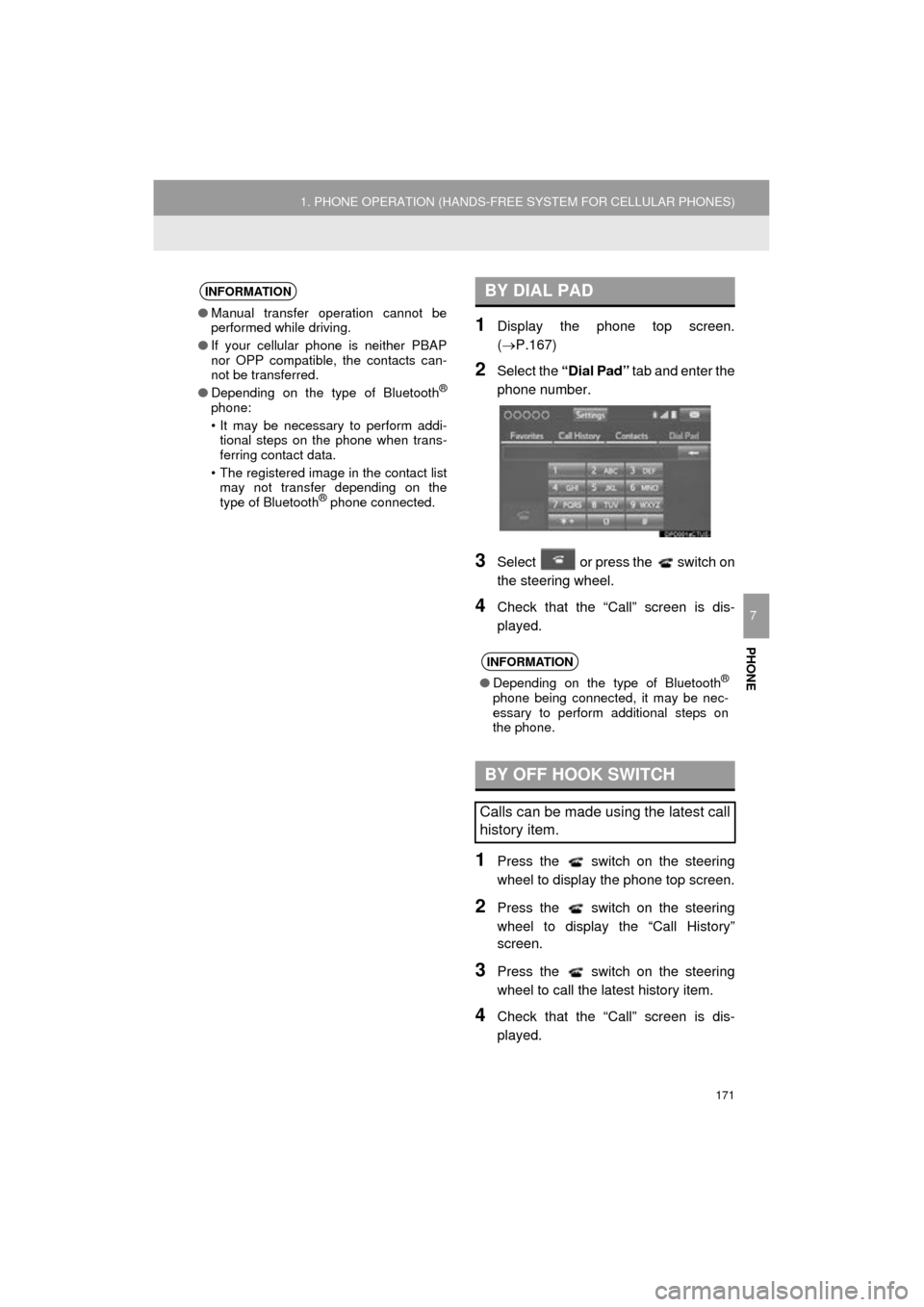
1Display the phone top screen.
(P.167)
2Select the “Dial Pad” tab and enter the
phone number.
3Select or press the switch on
the steering wheel.
4Check that the “Call” screen is dis-
played.
1Press the switch on the steering
wheel to display the phone top screen.
2Press the switch on the steering
wheel to display the “Call History”
screen.
3Press the switch on the steering
wheel to call the latest history item.
4Check that the “Call” screen is dis-
played.
INFORMATION
● Manual transfer operation cannot be
performed while driving.
● If your cellular phone is neither PBAP
nor OPP compatible, the contacts can-
not be transferred.
● Depending on the type of Bluetooth
®
phone:
• It may be necessary to perform addi-
tional steps on the phone when trans-
ferring contact data.
• The registered image in the contact list may not transfer depending on the
type of Bluetooth
® phone connected.
BY DIAL PAD
INFORMATION
● Depending on the type of Bluetooth®
phone being connected, it may be nec-
essary to perform additional steps on
the phone.
BY OFF HOOK SWITCH
Calls can be made using the latest call
history item.


