Page 242 of 594
damage the conductors printed
on the window.
NOTE . Turn on the defogger and deicer
system if the wipers are frozen to the
windshield.
. If the windshield is covered with
snow, remove the snow so that the
windshield wiper deicer works effec-
tively.
. While the defogger and deicer sys-
tem is in the continuous operation
mode, if the vehicle speed remains at
9mph(15km/h)orlowerfor15
minutes, the windshield wiper deicer
automatically stops operating, though
the rear window defogger and outside
mirror defogger maintain continuous
operation in this condition.
. While the defogger and deicer sys-
tem is in the continuous operation
mode, if the battery voltage drops
below the permissible level, continu-
ous operation of the defogger and
deicer system is canceled and the
system stops operating. Tilt/telescopic steering wheel WARNING. Do not adjust the steering wheel
tilt/telescopic position while driv-
ing. This may cause loss of
vehicle control and result in
personal injury.
. If the lever cannot be raised to
the fixed position, adjust the
steering wheel again. It is dan-
gerous to drive without locking
the steering wheel. This may
cause loss of vehicle control
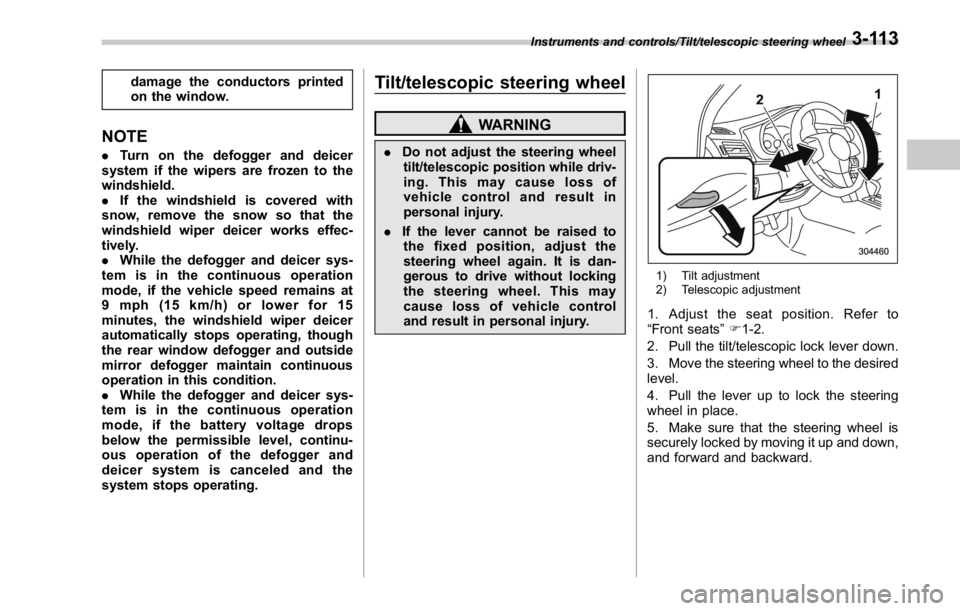
and result in personal injury. 1) Tilt adjustment
2) Telescopic adjustment
1. Adjust the seat position. Refer to
“ Front seats ” F 1-2.
2. Pull the tilt/telescopic lock lever down.
3. Move the steering wheel to the desired
level.
4. Pull the lever up to lock the steering
wheel in place.
5. Make sure that the steering wheel is
securely locked by moving it up and down,
and forward and backward.Instruments and controls/Tilt/telescopic steering wheel
3-113
Page 245 of 594
Climate control/Ventilator control
Ventilator control & Center and side ventilators
Center ventilators
1) Open
2) Close Side ventilators
1) Open
2) Close
To adjust the flow direction, move the tab.
To open or close the ventilator, turn the
thumb-wheel up or down.4-2
Page 266 of 594

Gear wheel symbol tab
Item Function
System
Language Select to change the language.
Button
Beeps Select to set the sound beeps
on/off.
System
Software Select to update software ver-
sions. This menu is not used in
usual operation.
Reset to
Factory
Setting Select to reset the device to
factory settings. This menu is not
used in usual operation.
When reset to factory setting,
turn ignition off and on again. Bluetooth symbol tab
Item Function
BT De-
vices Con-
nection Select to pair/connect the Blue-
tooth devices.
In-Car-De-
vice setting Select to enter the Bluetooth
device name or PIN-code. Note symbol tab
Item Function
Balance/
Fader Select to adjust speaker volume
balance (right/left and front/rear).
Speed Vo-
lume Con-
trol Select to adjust speaker volume
coupled to vehicle speed.
Graphic
Equalizer Select to adjust sound quality in
each frequency band.
Sound Re-
storer Select to add high-pitched tone
to the compressed audio file.
Volume
Smoother Select to adjust volume differ-
ence between audio sources.
Virtual
Bass Select to add harmonic tone so
that low-pitched tone is
strengthened. Audio/Other settings
– CONTINUED –5-11
Page 273 of 594
Audio/Audio/visual remote controls
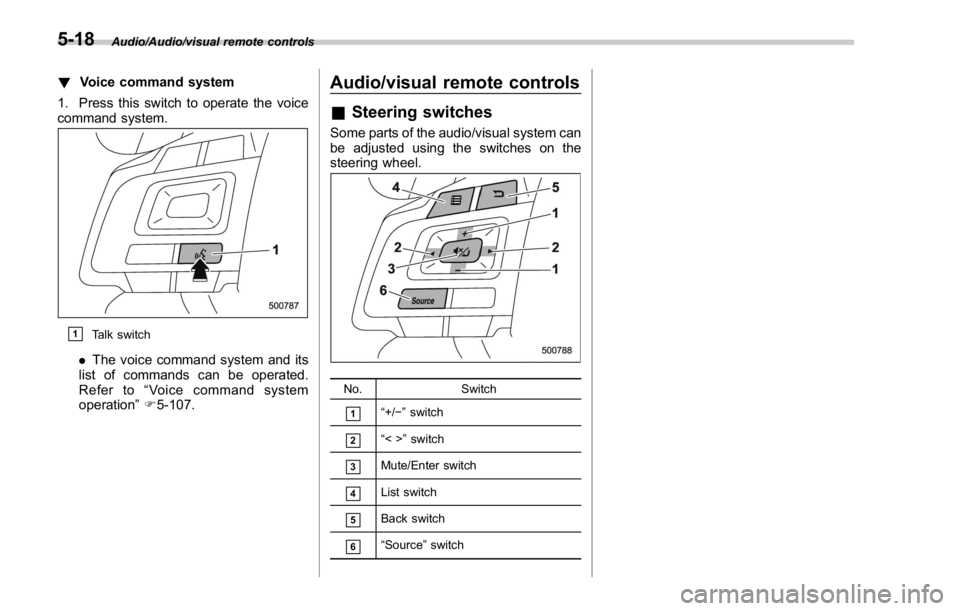
! Voice command system
1. Press this switch to operate the voice
command system.
& 1
Talk switch
. The voice command system and its
list of commands can be operated.
Refer to “ Voice command system
operation ” F 5-107. Audio/visual remote controls & Steering switches Some parts of the audio/visual system can
be adjusted using the switches on the
steering wheel.
No. Switch
& 1
“ +/ − ” switch
& 2
“ <> ” switch
& 3
Mute/Enter switch
& 4
List switch
& 5
Back switch
& 6
“ Source ” switch5-18
Page 307 of 594
Audio/Media operation
Control screen (Trick Play)
Left: Audio CD, Right: MP3/WMA/AAC disc No. Function
& 1
Select to start 1 Track Repeat.
& 2
Select to start Repeat All.
& 3
Select to start Shuffle All.
& 4
Return to the control screen.
& 5
Select to start Folder Repeat.
& 6
Select to start Shuffle Folder.
NOTE . If a disc contains CD-DA files and
MP3/WMA/AAC files, only the CD-DA
files can be played back.
. If a CD-TEXT disc is inserted, the
title of the disc and track will be
displayed. Up to 32 characters can be
displayed.
. If the disc contains no CD-TEXT,
only the track number would be dis-
played on the screen.
. If you press the “ Mute ” switch on
the steering wheel during playback, the
track pauses. If you press the “ Mute ”
switch once again, the playback will
resume.5-52
Page 311 of 594
Audio/Media operation
CAUTION. Do not leave your portable player
in the car. In particular, high
temperatures inside the vehicle
may damage the portable player.
. Do not push down on or apply
unnecessary pressure to the por-
table player while it is connected
as this may damage the portable
player or its terminal.
. Do not insert foreign objects into
the port as this may damage the
portable player or its terminal.
NOTE If you press the “ Mute ” switch on the
steering wheel during playback, the
track pauses. If you press the “ Mute ”
switch once again, the playback will
resume. & iPod ! Overview
TheiPodoperationscreencanbe
reached by the following methods:
. Connect an iPod. Refer to “ Connecting
and disconnecting a USB memory/porta-
ble device ” F 5-6.
. Select
USB/iPod (USB/iPod) on the
“ Select Audio Source (Select Audio
Source) ” screen. Refer to “ Selecting an
audio source ” F 5-13.5-56
Page 315 of 594

Audio/Media operation
WARNINGDo not operate the player ’ s controls
or connect the iPod while driving.
CAUTION. Do not leave your portable player
in the car. In particular, high
temperatures inside the vehicle
may damage the portable player.
. Do not push down on or apply
unnecessary pressure to the por-
table player while it is connected
as this may damage the portable
player or its terminal.
. Do not insert foreign objects into
the port as this may damage the
portable player or its terminal.
NOTE . When an iPod is connected using a
genuine iPod cable, the iPod starts
charging its battery.
. When an iPod is connected and the
audio source is changed to iPod mode,
the iPod will resume playing from the
same point it was last used.
. Depending on the iPod that is con-
nected to the system, certain functions may not be available.
. Files/tracks selected by operating a
connected iPod may not be recognized
or displayed properly.
. If you press the “ Mute ” switch on
the steering wheel during playback, the
track pauses. If you press the “ Mute ”
switch once again, the playback will
resume.
& Bluetooth audio The Bluetooth audio system enables
users to enjoy listening to music that is
played on a portable player on the vehicle
speakers via wireless communication.
This audio system supports Bluetooth, a
wireless data system capable of playing
portable audio music without cables. If
your device does not support Bluetooth,
the Bluetooth audio system will not func-
tion.
! Overview
Select
BT Audio (BT Audio) on the “ Select
Audio Source (Select Audio Source) ”
screen. Refer to “ Selecting an audio
source ” F 5-13.
Depending on the type of portable player
connected, some functions may not be
available and/or the screen may look
differently than shown in this manual.5-60
Page 342 of 594
! When the cursor is at the “ Device
Name Display Area ”
. Thedevicenamecanbesetor
changed.
. Press the “ PIN ” key to enter a pass-
code.
. If the “ PIN ” key is already selected, the
“ Alphabet ” key is cross-hatched and dis-
abled.
! When the cursor is at the “ Pass-
code Display Area ”
. The passcode can be set/changed.
. Press the “ Name ” key to enter a device
name. Phone operation (Hands-free
system for cellular phones) & Quick reference The phone top screen can be used to
make a phone call. To display the hands-
free operation screen, select
and then
select
PHONE (PHONE), or press the
switch on the steering wheel.
Several functions are available to operate
on each screen that is displayed by
selecting the 4 tabs. PHONE (Menu) screen
PHONE (Dialpad) screenAudio/Phone operation (Hands – free system for cellular phones)
– CONTINUED –5-87