2016 SUBARU WRX service
[x] Cancel search: servicePage 255 of 594
Climate control/Air filtration system
and remove the hinge portion. When
doing this, be careful not to damage
the hinge.
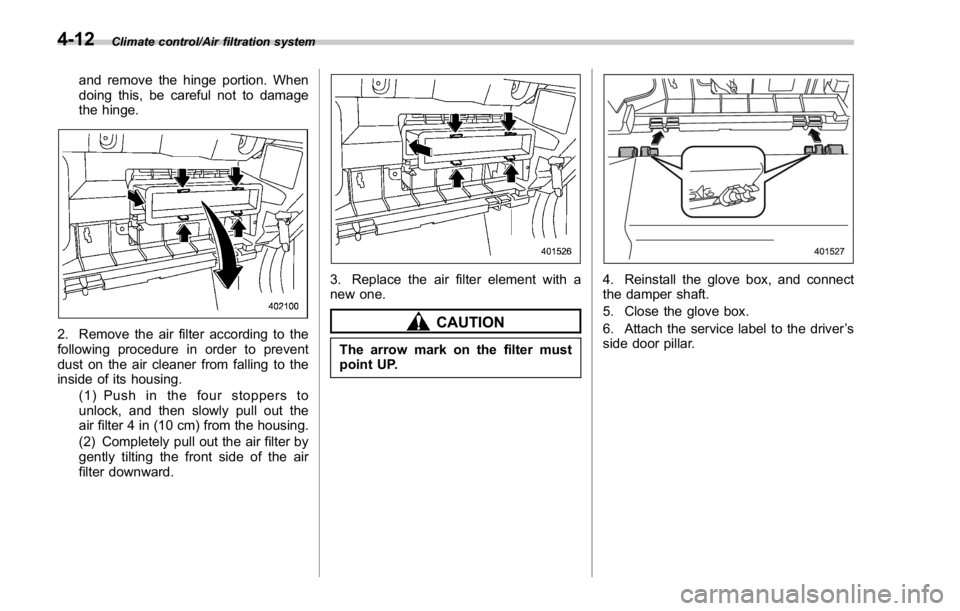
2. Remove the air filter according to the
following procedure in order to prevent
dust on the air cleaner from falling to the
inside of its housing.
(1) Push in the four stoppers to
unlock, and then slowly pull out the
air filter 4 in (10 cm) from the housing.
(2) Completely pull out the air filter by
gently tilting the front side of the air
filter downward. 3. Replace the air filter element with a
new one.
CAUTIONThe arrow mark on the filter must
point UP. 4. Reinstall the glove box, and connect
the damper shaft.
5. Close the glove box.
6. Attach the service label to the driver ’ s
side door pillar.4-12
Page 256 of 594

Antenna system .................................................. 5-2Roof antenna ...................................................... 5-2
FM reception ....................................................... 5-2
Installation of accessories .................................. 5-3
Audio set ............................................................. 5-3Audio set ............................................................ 5-4
Basic information before use ............................. 5-5Initial screen ....................................................... 5-5
Loading and unloading a disc .............................. 5-5
Connecting and disconnecting a USB memory/
portable device ................................................. 5-6
Touch screen gestures ........................................ 5-7
Touch screen operation ....................................... 5-7
Entering letters and numbers/list screen
operation .......................................................... 5-8
Screen adjustment .............................................. 5-9
Other settings ..................................................... 5-10
Basic operation .................................................. 5-12Some basics ...................................................... 5-12
Audio/visual remote controls ............................ 5-18Steering switches ............................................... 5-18
Tips for operating the audio/visual system ...... 5-21Operating information. ........................................ 5-21
Useful information .............................................. 5-28
SiriusXM Data Service* ....................................... 5-28
STARLINK .......................................................... 5-30
Radio operation .................................................. 5-33
AM/FM radio ....................................................... 5-33
SiriusXM Satellite Radio ..................................... 5-45 Media operation ................................................. 5-50CD .................................................................... 5-50
USB memory ..................................................... 5-53
iPod .................................................................. 5-56
Bluetooth audio ................................................. 5-60
aha TM
by HARMAN ............................................ 5-64
AUX .................................................................. 5-73
Pandora ®
........................................................... 5-76
Bluetooth ®
settings ........................................... 5-81Registering/connecting Bluetooth ®
device .......... 5-81
Setting Bluetooth details .................................... 5-84
Phone operation (Hands-free system for
cellular phones) .............................................. 5-87Quick reference ................................................. 5-87
Some basics ...................................................... 5-88
Calling on the Bluetooth phone .......................... 5-91
Receiving on the Bluetooth phone ...................... 5-98
Talking on the Bluetooth phone .......................... 5-99
Setup ................................................................ 5-101 Phone settings ................................................ 5-101
What to do if.... ................................................. 5-103Troubleshooting ............................................... 5-103
Voice command system operation ................. 5-107
Voice command system ................................... 5-107
Command list ................................................... 5-110
Appendix .......................................................... 5-114
Certification ..................................................... 5-114
Certification for the Hands-free system ............. 5-115
Certification for Mexico models ........................ 5-115Audio
5
Page 283 of 594

Audio/Useful information
Useful information & SiriusXM Data Service*Data service information, which is com-
prised of traffic information and weather
information, can be received via the
SiriusXM Radio.
To receive the data service information in
the vehicle, a subscription to the SiriusXM
Satellite Radio service is necessary. Refer
to “ SiriusXM Satellite Radio ” F 5-45.
Content set to use the SiriusXM data
service is reset when personal information
is initialized. No. Function
& 1
Option key: Perform the SXM
setting. See below.
& 2
Scan key: Search for a channel
which the direction of higher fre-
quency from current frequency. Re-
produce the channel that can re-
ceive by five seconds.
& 3List key: A list is displayed. There
are three types of lists ( “ Presets ” ,
“ Categories ” ,or “ All Channels ” ) are
available.
“ Presets ” : Preset channels are dis-
played in a list.
“ Categories ” : The channels of the
selected category are displayed in a
list.
“ All Channels ” : All selectable chan-
nels are displayed in a list.
& 4
Info key: Display the contents in-
formation of a channel receiving. No. Function
& 5
Presets tab: Presets list (30 chan-
nels max.) is displayed.
& 6
Categories tab: Categories list is
displayed.
& 7
All Channels tab: All channels list is
displayed.
& 8
Direct Tune tab: Change to the
Direct Tune display. See below.
& 9
Return to the previous display.
& 10
Return to the playback display.
! SXM setting option
1. A option menu screen is displayed
when touch the Option key.5-28
Page 286 of 594

STARLINK disclaimer error screen
The error screen will be displayed due to
one of the following possible reasons.
. Your smartphone and the system
has not been connected via USB (for
iPhone) or Bluetooth (for Android).
. STARLINK APPS has not been
activated.
3. If you press
Check (Check) on the
STARLINK disclaimer screen, the APPS
main screen will be displayed. No. Function
& 1
Select to go to the Music APPS
screen.
& 2
Select to go to the News APPS
screen.
& 3
Select to go to the Calendar APPS
screen.
& 4
Select to go to the Weather APPS
screen.
& 5
Select to go to the iHeartRadio
APPS screen. Error screen that is displayed while using
STARLINK
The error screen will be displayed while
using STARLINK due to one of the
following possible reasons.
. When your smartphone has no service
or the Bluetooth communication is not
possible.
. When your smartphone is turned off.
. When the STARLINK APPS is quit.
. When connection to the STARLINK
server is not possible.
. When a problem occurs other than a
server error.
NOTE
When using the STARLINK function, a
disclaimer screen will be displayed. Be
sure to fully read the contents before Audio/Useful information
– CONTINUED –5-31
Page 298 of 594
. Program Service Data: Presents song
name, artist, station IDs, and other rele-
vant data streams.
. iTunes Tagging provides you the op-
portunity to discover a wide range of
content and the means to “ tag ” that
content for later review and purchase from
the iTunes Store. Also refer to the Apple
Automotive specifications for implement-
ing iTunes Tagging.
. Visual information related to content
being played on your HD Radio receiver,
such as Album Art, historical photographs,
still art from live broadcasts, among other
related content. Audio/Radio operation
– CONTINUED –5-43
Page 299 of 594

Audio/Radio operation
! Troubleshooting guide Experience Cause Action
Mismatch of time alignment - a user may hear
a short period of programming replayed or an
echo, stutter or skip. The radio stations analog and digital volume is
not properly aligned or the station is in ballgame
mode. None, radio broadcast issue. A user can contact
the radio station.
Sound fades, blending in and out. Radio is shifting between analog and digital
audio. Reception issue, may clear-up as the vehicle
continues to be driven. Turning the indicator of the
“ HD Radio TM
” button off can force radio in an
analog audio.
Audio mute condition when an HD2/HD3
multicast channel had been playing. The radio does not have access to digital
signals at the moment. This is normal behavior, wait until the digital signal
returns. If out of the coverage area, seek a new
station.
Audio mute delay when selecting an HD2/
HD3 multicast channel preset. The digital multicast content is not available until
HD Radio TM
broadcast can be decoded and
make the audio available. This takes up to 7
seconds. This is normal behavior, wait for the audio to
become available.
Text information does not match the present
song audio. Data service issue by the radio broadcaster. Broadcaster should be notified. Complete the form;
www.ibiquity.com/automotive/report_radio
_station_experiences.
No text information shown for the present
selected frequency. Data service issue by the radio broadcaster. Broadcaster should be notified. Complete the form;
www.ibiquity.com/automotive/report_radio
_station_experiences.5-44
Page 301 of 594

Audio/Radio operation
No. Function
& 1
Select to display the audio source
selection screen.
& 2
Display the contents information of a
channel receiving.
& 3
Select to display each list.
& 4
Search for a channel from the
direction of a higher frequency than
the current frequency and play each
channel that can be received for five
seconds.
& 5
Option key. Select to open the
Option screen.
& 6
Return to the control screen.
& 7
Select to display the sound setting
screen. Refer to “ Basic operation ”
F 5-12.
& 8
Turn to adjust volume.
Press to turn the audio system on/
off.
& 9
Turn right to step up channels and
turn left to step down channels.
& 10
Select to step up/down channels.
Select and hold to step up/down
channels fast. No. Function
& 1
Return to the previous screen.
& 2
Return to the control screen.
& 3Press each tab key to switch the list
screen.
Presets tab: Presets list is displayed.
Categories tab: Categories list is
displayed.
All Channels tab: All channels list is
displayed.
Direct Tune tab: Change to the
Direct Tune display. ! How to subscribe to SiriusXM Sa-
tellite Radio
To listen to a satellite radio broadcast in
the vehicle, a subscription to the SiriusXM
Satellite Radio service is necessary.
A SiriusXM Satellite Radio is a tuner
designed exclusively to receive broad-
casts provided under a separate subscrip-
tion.
! How to subscribe
It is necessary to enter into a separate
service agreement with SiriusXM Satellite
Radio in order to receive satellite broad-
cast programming in the vehicle. Addi-
tional activation and service subscription
fees apply that are not included in the
purchase price of the vehicle and digital
satellite tuner.
. For complete information on subscrip-
tion rates and terms, or to subscribe to
SiriusXM Satellite Radio:
Refer to www.siriusxm.ca or call
1-877-209-0079.5-46
Page 302 of 594

WARNING. SiriusXM Satellite Radio Services
— Legal Disclaimers and Warn-
ings
– Fees and Taxes — Subscrip-
tion fee, taxes, one time acti-
vation fee, and other fees may
apply. Subscription fee is con-
sumer only. All fees and pro-
gramming subject to change.
Subscriptions subject to Cus-
tomer Agreement available at
www.siriusxm.ca XM service
only available in Canada.
Explicit Language Notice —
Channels with frequent expli-
cit language are indicated
with an “ XL ” preceding the
channel name. Channel block-
ing is available for SiriusXM
Satellite Radio receivers by
notifying XM at;
Visit www.siriusxm.ca or call-
ing
1-877-209-0079 CAUTION. It is prohibited to copy, decom-
pile, disassemble, reverse engi-
neer, hack, manipulate, or other-
wise make available any technol-
ogy or software incorporated in
receivers compatible with the
SiriusXM Satellite Radio System
or that support the XM website,
the Online Service or any of its
content. Furthermore, the
AMBE ®
voice compression soft-
ware included in this product is
protected by intellectual property
rights including patent rights,
copyrights, and trade secrets of
Digital Voice Systems, Inc.
. Note: this applies to SiriusXM
Satellite Radio receivers only
and not XM Ready devices.
NOTE . SiriusXM Satellite Services — De-
scriptions
– Only SiriusXM Satellite Radio ®
brings you more of what you love,
all in one place. Get over 175
channels, including commercial-
free music, plus the best sports,
news, talk, comedy and entertain- ment. Welcome to the world of
satellite radio. More information
about SiriusXM Satellite Radio is
available online at www.siriusxm.
ca.
. SiriusXM Satellite Services — Sub-
scription Instructions
– For SiriusXM Services requiring
a subscription (such as SiriusXM
Satellite Radio, and some Infotain-
ment & data services), the following
applies.
Required SiriusXM Satellite Radio
and some Infotainment & data ser-
vices monthly subscriptions sold
separately after trial period. Sub-
scription fee is consumer only. All
fees and programming subject to
change. Subscriptions are subject
to the Customer Agreement avail-
able at www.siriusxm.ca. Sirius, XM
and all related marks and logos are
trademarks of Sirius XM Radio Inc.
All other marks, channel names and
logos are the property of their
respective owners.
For more information, program
schedules, and to subscribe or
extend subscription after compli-
mentary trial period; more informa-
tion is available at:
Visit www.siriusxm.ca or calling Audio/Radio operation
– CONTINUED –5-47