Page 222 of 594
5. The system will notify you that the
setting is complete. ! Lifetime fuel consumption resetting
1. Perform the preparation steps accord-
ing to “ Preparation for initialization ” F 3-
92.
2. Operate the “ ” or “ ” switch to
select the “ Lifetime Fuel Consumption
Resetting ” item. Then push the
button. 3. The system will prompt a Yes/No
dialogue ( “ No ” is selected first). To reset
the lifetime fuel consumption, select “ Ye s ”
by operating the “
” switch.
4. Confirm the setting by pushing the
button.Instruments and controls/Multi function display
– CONTINUED –3-93
Page 230 of 594

Wiper and washer WARNINGIn freezing weather, do not use the
windshield washer until the wind-
shield is sufficiently warmed by the
defroster.
Otherwise the washer fluid can
freeze on the windshield, blocking
your view.
CAUTION. Do not operate the washer con-
tinuously for more than 10 sec-
onds, or when the washer fluid
tank is empty. This may cause
overheating of the washer motor.
Check the washer fluid level
frequently, such as at fuel stops.
. Do not operate the wipers when
the windshield or rear window is
dry. This may scratch the glass,
damage the wiper blades and
might cause the wiper motor to
fail. Before operating the wiper
on a dry windshield or rear
window, always use the wind-
shield washer. . In freezing weather, be sure that
the wiper blades are not frozen to
the windshield or rear window
before switching on the wipers.
Attempting to operate the wiper
with the blades frozen to the
window glass could cause not
only the wiper blades to be
damaged but also might cause
the wiper motor to fail. If the
wiper blades are frozen to the
window glass, be sure to operate
the defroster, windshield wiper
deicer (if equipped) or rear win-
dow defogger before turning on
the wiper.
. If the wipers stop during opera-
tion because of ice or some other
obstruction on the window, this
might cause the wiper motor to
fail even if the wiper switch is
turned off. If this occurs,
promptly stop the vehicle in a
safe place, turn the ignition
switch to the “ LOCK ” / “ OFF ” po-
sition and clean the window
glass to allow proper wiper op-
eration.
. Use clean water if windshield
washer fluid is unavailable. In
areas where water freezes in
winter, use SUBARU Windshield Washer Fluid or the equivalent.
Refer to “ Windshield washer
fluid ” F 11-38.
Also, when driving the vehicle
when there are freezing tempera-
tures, use non-freezing type wi-
per blades.
. Do not clean the wiper blades
with gasoline or a solvent, such
as paint thinner or benzine. This
will cause deterioration of the
wiper blades.
NOTE . The windshield wiper motor is pro-
tected against overloads by a circuit
breaker. If the motor operates continu-
ously under an unusually heavy load,
the circuit breaker may trip to stop the
motor temporarily. If this happens, park
your vehicle in a safe place, turn off the
wiper switch, and wait for approxi-
mately 10 minutes. The circuit breaker
will reset itself, and the wipers will
again operate normally.
. Clean your wiper blades and win-
dow glass periodically with a washer
solution to prevent streaking, and to
remove accumulations of road salt or
road film. Operate the windshield
washer for at least 1 second so that Instruments and controls/Wiper and washer
– CONTINUED –3-101
Page 266 of 594

Gear wheel symbol tab
Item Function
System
Language Select to change the language.
Button
Beeps Select to set the sound beeps
on/off.
System
Software Select to update software ver-
sions. This menu is not used in
usual operation.
Reset to
Factory
Setting Select to reset the device to
factory settings. This menu is not
used in usual operation.
When reset to factory setting,
turn ignition off and on again. Bluetooth symbol tab
Item Function
BT De-
vices Con-
nection Select to pair/connect the Blue-
tooth devices.
In-Car-De-
vice setting Select to enter the Bluetooth
device name or PIN-code. Note symbol tab
Item Function
Balance/
Fader Select to adjust speaker volume
balance (right/left and front/rear).
Speed Vo-
lume Con-
trol Select to adjust speaker volume
coupled to vehicle speed.
Graphic
Equalizer Select to adjust sound quality in
each frequency band.
Sound Re-
storer Select to add high-pitched tone
to the compressed audio file.
Volume
Smoother Select to adjust volume differ-
ence between audio sources.
Virtual
Bass Select to add harmonic tone so
that low-pitched tone is
strengthened. Audio/Other settings
– CONTINUED –5-11
Page 271 of 594
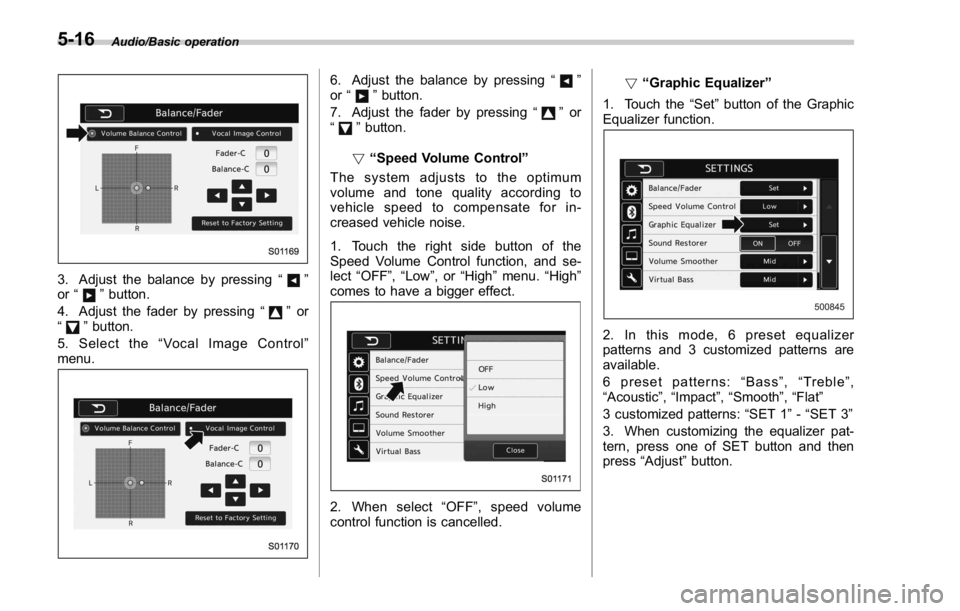
Audio/Basic operation
3. Adjust the balance by pressing “ ”
or “
” button.
4. Adjust the fader by pressing “
” or
“
” button.
5. Select the “ Vocal Image Control ”
menu. 6. Adjust the balance by pressing “ ”
or “
” button.
7. Adjust the fader by pressing “
” or
“
” button.
! “ Speed Volume Control ”
The system adjusts to the optimum
volume and tone quality according to
vehicle speed to compensate for in-
creased vehicle noise.
1. Touch the right side button of the
Speed Volume Control function, and se-
lect “ OFF ” , “ Low ” ,or “ High ” menu. “ High ”
comes to have a bigger effect.
2. When select “ OFF ” , speed volume
control function is cancelled. ! “ Graphic Equalizer ”
1. Touch the “ Set ” button of the Graphic
Equalizer function.
2. In this mode, 6 preset equalizer
patterns and 3 customized patterns are
available.
6 preset patterns: “ Bass ” , “ Treble ” ,
“ Acoustic ” , “ Impact ” , “ Smooth ” , “ Flat ”
3 customized patterns: “ SET 1 ” - “ SET 3 ”
3. When customizing the equalizer pat-
tern, press one of SET button and then
press “ Adjust ” button.5-16
Page 274 of 594
“ +/- ” switch Mode Operation Function
Except list screen Press Volume up/down
Press and hold Volume up/down continuously
List screen Press Move cursor up/down
“ <> ” switch Mode Operation Function
AM/FM Radio, SiriusXM Press Preset channel up/down
Press and hold Seek up/down continuously
while the switch is being
pressed
aha Press Content up/down
Press and hold Reverse the current content
item for 15 seconds/Fast for-
ward the current content item
for 30 seconds
Audio CD, MP3/WMA/AAC
disc, USB, iPod, BT audio Press Select a track/file
Press and hold Fast forward/rewind
Pandora Press and hold Thumbs up
List screen Press Move cursor left/right Audio/Audio/visual remote controls
– CONTINUED –5-19
Page 283 of 594

Audio/Useful information
Useful information & SiriusXM Data Service*Data service information, which is com-
prised of traffic information and weather
information, can be received via the
SiriusXM Radio.
To receive the data service information in
the vehicle, a subscription to the SiriusXM
Satellite Radio service is necessary. Refer
to “ SiriusXM Satellite Radio ” F 5-45.
Content set to use the SiriusXM data
service is reset when personal information
is initialized. No. Function
& 1
Option key: Perform the SXM
setting. See below.
& 2
Scan key: Search for a channel
which the direction of higher fre-
quency from current frequency. Re-
produce the channel that can re-
ceive by five seconds.
& 3List key: A list is displayed. There
are three types of lists ( “ Presets ” ,
“ Categories ” ,or “ All Channels ” ) are
available.
“ Presets ” : Preset channels are dis-
played in a list.
“ Categories ” : The channels of the
selected category are displayed in a
list.
“ All Channels ” : All selectable chan-
nels are displayed in a list.
& 4
Info key: Display the contents in-
formation of a channel receiving. No. Function
& 5
Presets tab: Presets list (30 chan-
nels max.) is displayed.
& 6
Categories tab: Categories list is
displayed.
& 7
All Channels tab: All channels list is
displayed.
& 8
Direct Tune tab: Change to the
Direct Tune display. See below.
& 9
Return to the previous display.
& 10
Return to the playback display.
! SXM setting option
1. A option menu screen is displayed
when touch the Option key.5-28
Page 289 of 594

Audio/Radio operation
No. Function
& 1
Select to display the audio source
selection screen.
& 2
Select to change the FM band.
& 3
HD Radio indicator.
The indicator on the top right of the
screen changes according to the
reception condition of HD Radio.
& 4
Select to display a station list.
& 5
Select to scan radio channels.
This function enables searching for
receivable stations automatically,
and tunes in to a frequency for 5
seconds if a station is found. When
the 5-second period has elapsed, the
system searches for the next recei-
vable station again, and tunes in to
the frequency for 5 seconds.
& 6
Option key. Select to open the
Option screen.
& 7 If you press a key for less than 1.5
seconds, the system tunes to the
stored frequency.
If you press a key for more than 1.5
seconds, the system stores the
frequency to the selected preset
channel. Refer to “ Presetting a sta-
tion ” F 5-37.
& 8
Select to display the sound setting
screen. Refer to “ Basic operation ”
F 5-12.
& 9
Turn to adjust volume.
Press to turn the audio system on/
off. No. Function
& 10
Turn to step up/down frequencies.
Press to select an audio mode.
& 11
Select to seek for a station/channel.
Select and hold for continuous seek.
NOTE . The radio automatically changes to
stereo reception when a stereo broad-
cast is received.
. The radio automatically blends to an
HD Radio signal in AM or FM where
available.
. Digital, CD-quality sound. HD Radio
Technology enables local radio stations to
broadcast a clean digital signal. AM
sounds like today ’ s FM and FM sounds
like a CD.5-34
Page 292 of 594

! Presetting a station
The AM band can store up to 12 stations
(AM1 and AM2, 6 stations each).
The FM band can store up to 18 stations
(FM1, FM2 and FM3, 6 stations each).
. AM2andFM3canstoreupto6
stations when performing the auto store
function.
The SAT band can store up to 30 stations.
Refer to “ Presetting a channel ” F 5-48.
1. Tune in the desired station.
2. If you press a key for more than 1.5
seconds, the system stores the frequency
to the selected preset channel.
. To change the preset station to a
different one, select and hold the
preset station. ! Selecting a station from the list
A station list can be displayed.
1. Select
.
2. Select the desired station and then
select
Back (Back) or
Close (Close).
! Update the station list
1. Select
Update Station List (Update
Station List) on the station list screen and
the following screen will be displayed. .
Cancel (Cancel): Select to cancel
the manual update.
.
OK (OK): Select to execute the
manual update.
NOTE . The audio system sound is muted
during refresh operation.
. In some situations, it may take some
time to update the station list.
! Bookmark the list
1. Select
Bookmark (Bookmark) on the
station list screen and the following screen
will be displayed. Audio/Radio operation
– CONTINUED –5-37

