Page 228 of 308
ROUTE GUIDANCE
226
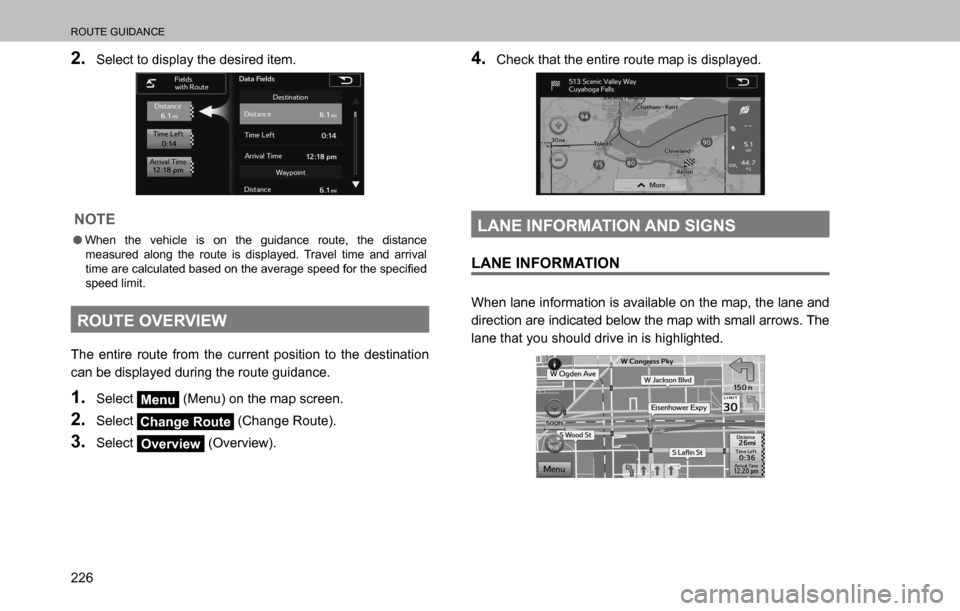
2. Select to display the desired item.
NOTE
OWhen the vehicle is on the guidance route, the distance
measured along the route is displayed. Travel time and arrival
<0057004c005000480003004400550048000300460044004f00460058004f004400570048004700030045004400560048004700030052005100030057004b0048000300440059004800550044004a0048000300560053004800480047000300490052005500
030057004b004800030056005300480046004c00bf00480047>�
speed limit.
ROUTE OVERVIEW
The entire route from the current position to the destination
can be displayed during the route guidance.
1. Select Menu (Menu) on the map screen.
2. Select Change Route (Change Route).
3. Select Overview (Overview).
4. Check that the entire route map is displayed.
LANE INFORMATION AND SIGNS
LANE INFORMATION
When lane information is available on the map, the lane and
direction are indicated below the map with small arrows. The
lane that you should drive in is highlighted.
Page 229 of 308
ROUTE GUIDANCE
227
NAVIGATION SYSTEM
8
SIGNS
When detailed information is available, the arrows are
removed and signs are displayed. Signs are displayed
at the top of the map. The color and design of the signs is
the same as signs actually found at the side of the road or
overhead signs. These signs show the district and the route
number for the lane direction.
�”All signs are displayed in the same manner even
when driving without using the navigation system.
During navigation, only the sign that shows the lane in
which you should drive is highlighted, the other signs
are toned down.
HIGHWAY SERVICES
When driving on the expressway, this displays information
on up to the next three highway service areas. By default,
“Gas Station (Gas Station)”, “Restaurant (Restaurant)”,
“Rest Area (Rest Area)”, and “Car Service (Car Service)” are
displayed. You can change the items displayed by setting
WKH�
Page 230 of 308
ROUTE GUIDANCE
228
4. Select one from the list to display more details.
�”You can check it on the map and set it as a waypoint
or as a destination.
JUNCTION DISPLAY
When approaching an expressway exit or a complicated
intersection, the map switches to a 3D display if the
necessary information can be displayed. An arrow indicates
the lane in which you should drive. Signs are also displayed
if the information is available.
TYPICAL VOICE GUIDANCE
PROMPTS
As the vehicle approaches an intersection, or point, where
maneuvering the vehicle is necessary, the system’s voice
guidance will provide various messages.
WARNING
O%H� VXUH� WR� REH\� WKH� WUDI
Page 231 of 308
ROUTE GUIDANCE
229
NAVIGATION SYSTEM
8
ROUTE RELATED FUNCTIONS
DISPLAYING CHANGE ROUTE
You can check a variety of route settings recommended by
the software.
1. Select Menu (Menu) on the map screen.
2. Select Change Route (Change Route).
3. Check that the list is displayed, or select the desired
item.
No. Information/Function
‡�Destination Name/Address
‡�Displays detailed information (unpaved roads, toll
roads, and so on) on the warning icons (depending on
conditions) for the current route.
‡�Total time for route
‡�Total distance for route
Page 234 of 308
ROUTE GUIDANCE
232
No. Function
Select whether or not to use the expressway when
creating the route.
Select whether or not to use toll roads (Period Charge)
in the route.
Select whether or not to use toll roads (Per-use Toll) in
the route.
Select whether or not to use ferries when creating the
route. (However, ferries might not always be selected for
the route.) However, information on temporary service
ferries may not be displayed on the map. There may be
a fee for using the ferry.
Select whether or not to use Carpool/HOV lanes when
creating the route.
Select whether or not to use unpaved roads when
creating the route.
Select to search for the best green alternative route. If
this alternative route is much better than the selected
method, you can quickly switch to Green mode.
�”The route is searched again, and the new
recommended route is indicated by a blue line.
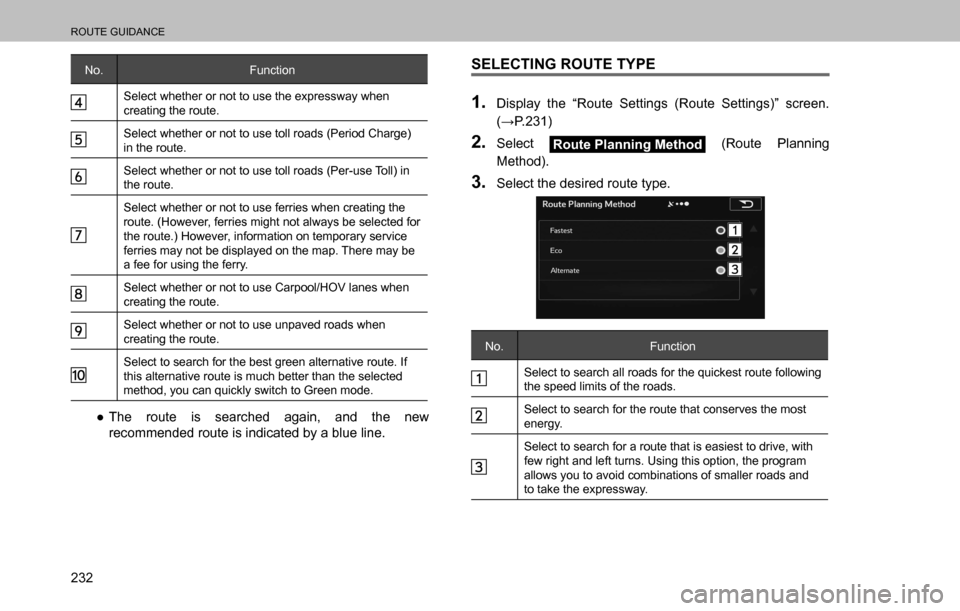
SELECTING ROUTE TYPE
1. Display the “Route Settings (Route Settings)” screen.
��:3�����
2. Select Route Planning Method (Route Planning
Method).
3. Select the desired route type.
No. Function
Select to search all roads for the quickest route following
the speed limits of the roads.
Select to search for the route that conserves the most
energy.
Select to search for a route that is easiest to drive, with
few right and left turns. Using this option, the program
allows you to avoid combinations of smaller roads and
to take the expressway.
Page 235 of 308

ROUTE GUIDANCE
233
NAVIGATION SYSTEM
8
AVOIDANCES SETTING
The avoidances feature allows you to remove any of the
roads or special sections on the planned route.
1. Display the “Change Route (Change Route)” screen.
��:3�����
2. Select Avoidances (Avoidances).
3. Select the item to be set.
No. Function
Select to remove any special road types (e.g. highways
or ferries) from your route. This feature is only available
if there are special sections along the planned route.
<00360048004f00480046005700030057005200030056004e004c00530003004400030056005300480046004c00bf004600030055005200440047000300490055005200500003005c005200580055000300460044004f00460058004f004400570048004700
03005500520058005700480011>
<00360048004f00480046005700030057005200030056004e004c00530003004400030053005500480047004800bf0051004800470003004f00480051004a0057004b00030052004900030057004b004800030053004f004400510051004800470003005500
520058005700480003>
(500m, 1000m, etc.) right ahead of the current position.
No. Function
Select to delete the avoid route being navigated.
�”In each case, the result of the selected avoidance is
shown on the map with an indication of additional or
saved time and distance. The user can review and
FRQ¿UP�WKH�DYRLGDQFH�RQ�WKLV�VFUHHQ�
NOTE
OAvoidances are not permanent. They are only applied for the
active route.
CHANGING ROUTE
When navigation has already begun, you can change
the route being navigated by using one of the following
methods.
If a recommended route is already available, and a new
destination has been selected using the method described
in the previous section, the start new route, add a new
waypoint (midway point), and add the destination you
<00560048004f0048004600570048004700030044005600030057004b0048000300bf00510044004f00030047004800560057004c005100440057004c0052005100030045005800570057005200510056000300440055004800030047004c00560053004f00
44005c004800470011>
Page 240 of 308
MEMORY POINTS
238
SAVING DESTINATIONS
The destination list is a list of frequently used destinations.
Up to 100 destinations can be stored in the favorites list.
1. Select the desired item to search for the location.
��:3�����
�”The map is displayed in full-screen mode with the
selected point at the center.
2. Select More (More).
3. Select Add to Favorites (Add to Favorites).
4. Enter a name and then select OK (OK).
Page 241 of 308
SETUP
239
NAVIGATION SYSTEM
8
SETUP
NAVIGATION SETTINGS
OPTIONAL FUNCTIONS
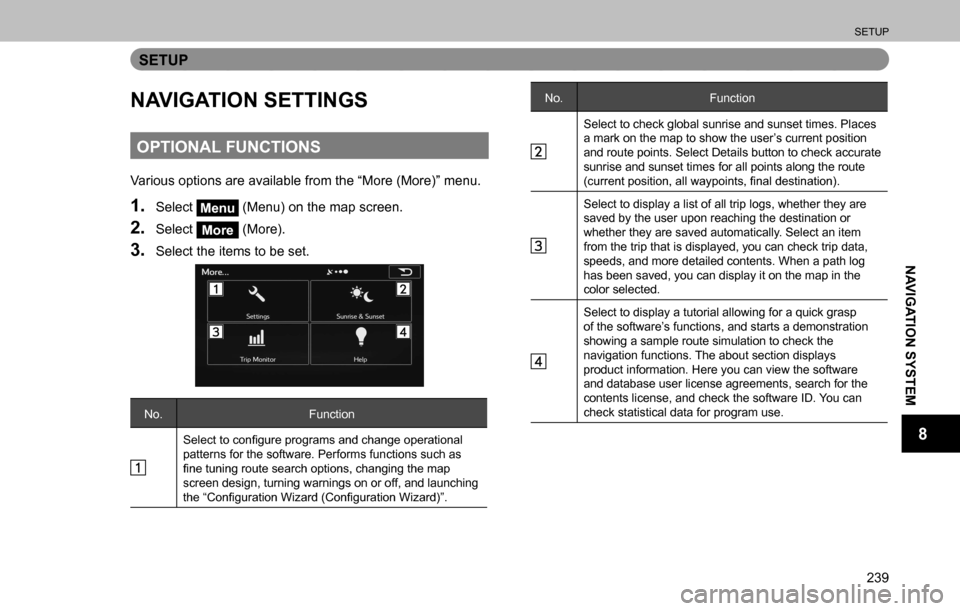
Various options are available from the “More (More)” menu.
1. Select Menu (Menu) on the map screen.
2. Select More (More).
3. Select the items to be set.
No. Function
<00360048004f004800460057000300570052000300460052005100bf004a0058005500480003005300550052004a0055004400500056000300440051004700030046004b00440051004a00480003005200530048005500440057004c005200510044004f00
03>
patterns for the software. Performs functions such as
¿QH�WXQLQJ�URXWH�VHDUFK�RSWLRQV��FKDQJLQJ�WKH�PDS�
screen design, turning warnings on or off, and launching
WKH�³&RQ¿JXUDWLRQ�:L]DUG��&RQ¿JXUDWLRQ�:L]DUG�´�
No. Function
Select to check global sunrise and sunset times. Places
a mark on the map to show the user’s current position
and route points. Select Details button to check accurate
sunrise and sunset times for all points along the route
<000b00460058005500550048005100570003005300520056004c0057004c00520051000f00030044004f004f0003005a0044005c00530052004c005100570056000f000300bf00510044004f00030047004800560057004c005100440057004c0052005100
0c0011>
Select to display a list of all trip logs, whether they are
saved by the user upon reaching the destination or
whether they are saved automatically. Select an item
from the trip that is displayed, you can check trip data,
speeds, and more detailed contents. When a path log
has been saved, you can display it on the map in the
color selected.
Select to display a tutorial allowing for a quick grasp
of the software’s functions, and starts a demonstration
showing a sample route simulation to check the
navigation functions. The about section displays
product information. Here you can view the software
and database user license agreements, search for the
contents license, and check the software ID. You can
check statistical data for program use.