2016 SKODA KODIAQ reset infotainment system
[x] Cancel search: reset infotainment systemPage 134 of 344

Voice control settings›
Press the button, then tap on the function surface
Tap →
Voice control
.
■
Example commands (infotainment system)
- Turn on/off the menus containing basic
voice commands when voice control is activated
■
Voice control session start tone
- Switch on/off the audible signal when turning on
the voice control
■
Voice control session end tone
- Switch on/off the audible signal when voice con-
trol ends
■
Input tone in voice dialogue
- Switch on/off the audible signal for the voice input
■
End tone in voice dialogue
- Switch on/off the audible signal for the voice input
Safe removal of the external device
›
Press the button, then tap on the function surface
→
Remove safely
and
select the external device to be removed.
Reset to factory settings
›
Press the button, then tap on the function surface
→
Factory settings
.
In this menu, all or only chosen settings can be restored.
Bluetooth ®
Settings
›
Press the button, then tap on the function surface
Tap on
→
Bluetooth
.
■
Bluetooth
- Switch on/off Bluetooth ®
function
■
Visibility:
- Switch on/off the visibility of the Bluetooth ®
device for Bluetooth ®
devices
■
Name:
- Changing the name of the Bluetooth ®
unit
■
Paired devices
- Display the list of coupled Bluetooth ®
devices
■
Find devices
- Searches for available Bluetooth ®
devices
■
Bluetooth audio (A2DP/AVRCP)
- Turn on/off the ability to connect a Bluetooth ®
audio device (e.g. MP3 player, tablet etc...)
Wireless settings
Applies to Infotainment Columbus, Amundsen.
›
Press the button, then tap on the function surface
Tap on
→
WLAN
.
■WLAN - List of available hotspots of external devices
■WLAN
- Turn on / off Infotainment wireless
■
WPS quick connection (WPS button)
- Establishing a secure connection to the
hotspot of the external device using WPS (applies to Infotainment Amund- sen)
■
Manual settings
- Setting the parameters for search and connection to the
hotspot of the external device ■
Network name
- Enter the Hotspot name
■
Network key
- Setting the access password
■
Security level:
- Adjustment of the hedging
■
WPA2
- WPA2 security
■
WPA
- WPA security
■
No security level
- No coverage (without required entry of the access pass-
word)
■
Connect
- Connection establishment
■
Search
- Search / Restore the list of available hotspots
■
Mobile hotspot
- Setting Infotainment hotspot (in the function surface the sym-
bol displayed with the number of connected external devices)
■
Mobile hotspot
- Switching on / off Infotainment hotspot
■
WPS quick connection (WPS button)
- Establishing a secure connection to the In-
fotainment hotspot via WPS (applies to Amundsen)
■
Hotspot (WLAN) settings
- Setting the parameters for the connection to Info-
tainment hotspot
■
Security level:
- Setting the connection security
■
WPA2
- WPA2 security
■
WPA
- WPA security
■
No security level
- No coverage (without required entry of the access pass-
word)
■
Network key
- Entering the access password
■
SSID:
- Name of the infotainment Hotspots
■
Do not send network name (SSID)
-Turn Infotainment hotspot visibility on/off
■
Store
- Storage of Infotainment hotspot parameters
Settings
Applies to the infotainment Columbus with seated in the external module SIM
card as well as for the Infotainment Amundsen with the connected Carstick-
Device.
›
Press the button, then tap on the function surface
→
Network
.
132Infotainment
Page 135 of 344

■Network settings - Setting of the data connection from the associated tele-
phone service provider (APN settings) ■Access point name: ...
- Setting of the access point name
■
User name: …
- Setting of user name
■
Password: ...
- Password setting
■
Authentication
- Setting for the type of verification
■
Normal
- Without verification
■
Safe
- Verification required
■
Reset Access Point (APN)
- Delete the parameters for the network setting
■
Store
- Storage of the parameters for the network setting
■
Network provider: ...
- Selecting the data service provider (the menu item is visi-
ble when the data services of the SIM card inserted in the external module
are active)
■
Data roaming
- Enable / disable the use of data roaming connection
■
Current connection details
- Display of information on data downloaded (by tap-
ping the function button
Reset
the data information is deleted)
■
Data Connection:
- Settings of the data services of the SIM card inserted in the
external module
■
Off
- The data services are turned off
■
Ask
- The data services are active after confirmation
■
On
- The data services are turned on
Settings of online services ŠKODA Connect
›
Press the button, then tap on the function surface
→
ŠKODA Connect (on-line services)
Tap or press press, then the function surface
→
.
■
network
- Settings of the data connection of the telephone service provider
(not applicable to the infotainment Bolero) » page 132, Settings
■
WIRELESS INTERNET ACCESS
- WLAN settings of the Infotainment system (does
not apply to the infotainment Bolero) » page 132, Wireless settings
■
Services Management
- Information on licensing of the respective online services
and the option to switch them on / off
■
registration
- Enter the activation PIN code for online services (in the user pro-
file on the website ŠKODA Connect Portal receive)
System information
›
Press the button, then tap on the function surface
Tap on
→
System in-formation
.
›
To perform a Software Update (Z. B. Bluetooth®
or radio station logo) Tap
the function surface
Update software
.
Displaying system information.
▶ Device part number: - Infotainment part number
▶ Hardware: - Hardware version
▶ Software: - Software version
▶ Navigation database: - Version of the navigation data
▶ “Gracenote” database: ... - Version of the Gracenote multimedia database (ap-
plies to Infotainment Columbus)
▶ Media Codec: ... - Version of media codecs
▶ Bluetooth version: ... - Version of the Bluetooth ®
software
The information on available software updates is obtained from a ŠKODA part-
ner or from the following ŠKODA Internet pages.
http://go.skoda.eu/updateportal
Radio menu settings
Settings for all broadcasting areas
›
Tap on the function surface in the Radio main menu
.
■
Sound
- sound settings
■
Scan
- Automatic play short portions of all available stations in the current
frequency range
■
Arrow buttons:
- Setting the function of the function surfaces
■
Preset list
- Change between stations stored under the preset buttons
■
Station list
- Change between all available stations of the selected broad-
casting range
■
Traffic programme (TP)
- Switches TP traffic programme on/off
■
Delete presets
- Deletes the preset buttons
■
Station logos
- Manual management of station logos
■
Radio text
- Switching the text display radio (FM and DAB) on and off
■
Advanced settings
- Other settings that are different depending on the selected
broadcasting range (FM and DAB)
Advanced settings (FM)
›
Select the FM band in the Radio main menu and tap on the function surface
→
Advanced settings
.
■
Auto-save station logos
- Automatic storage of the station logos
■
Region for station logo:
- Setting the region for station logos
■
Automatic frequency control (AF)
- Search for alternative frequencies of the station
currently being played to on/off
133Infotainment settings - Columbus, Amundsen, Bolero
Page 142 of 344

Radio menu settings
Settings for all broadcasting areas
›
Tap on the function surface in the Radio main menu
.
■
Scan
- Automatic play short portions of all available stations in the current
frequency range
■
Arrow buttons:
- Setting the function of the function surfaces
■
Presets
- Switch between stations stored under the preset buttons
■
Stations
- Switch between all available stations of the selected broadcasting
range
■
Traffic programme (TP)
- Switches traffic programme on/off
■
Radio text
- Switching the text display radio (FM and DAB) on and off
■
Station list:
- Sort types of radio stations in the station list (FM)
■
Group
- Sort by transmitted program type
■
Alphabetically
- Alphabetically order according to station name
■
Station logos
- Manual management of station logos
■
Delete presets
- Delete the stations stored under preset buttons
■
Advanced settings
- Other settings that are different depending on the selected
broadcasting range (FM and DAB)
Advanced settings (FM)
›
Select the FM band in the Radio main menu and tap on the function surface
→
Advanced settings
.
■
RDS Regional:
- Switch on/off the automatic tracking of related regional sta-
tions
■
Automatic
- Auto-selects the station with the best reception at the moment.
If you lose reception in the given the region, Infotainment will automatical-
ly set another available region.
■
Fixed
- Maintains the selected regional station continuously. When the sig-
nal is lost, another station must be set manually.
■
Automatic frequency control (AF)
- Search for alternative frequencies of the station
currently being played to on/off
■
Radio Data System (RDS)
- enable/disable RDS function (receiving additional in-
formation from the station) 1)
■Station list: - Sort types of radio stations in the station list
■Group
- Sort by transmitted program type
■
Alphabet
- Alphabetically order according to station name
Advanced Settings (DAB)
›
In the Radio main menu, select the DAB range and tap on the function sur-
face
→
Advanced settings
.
■
DAB traffic messages
- Turn on / off DAB messages
■
Other DAB messages
- Switch on/off other announcements (e.g., warnings, re-
gional weather, sports reports, financial news)
■
DAB station tracking
- Switch on/off automatic DAB station tracking on another
frequency or in other station groups
■
Aut. DAB - FM switching
- switches on/off auto-switching from DAB to the FM
frequency band if the DAB signal is lost
Automatic change from DAB to FM
In the event of bad DAB reception, the device tries to find an FM station.
The station name is followed by ( ) while the station is being received on the
FM band. When the corresponding DAB station is received again, the system
automatically switches from FM to DAB.
If a DAB station is also not available in the FM band due to poor reception, In-
fotainment will be switched to mute.
Media menu settings
›
Tap the function surface in the Media main menu
.
■
Sound
- sound settings
■
Mix/repeat including subfolders
- Switching the title display including subfolders
■
Bluetooth
- Settings for the Bluetooth ®
function
■
Traffic programme (TP)
- Switches traffic programme on/off
■
Activate AUX
- Enables / disables the AUX input
■
Remove safely:
- Safe removal of the external device
Import contactsTelephone menu settings
›
In the Telephone main menu, tap on the function surface
.
1)
Only valid for some countries.
140Infotainment
Page 143 of 344

■Hands-free - Switching a call to the phone / back to Infotainment (the menu
item is displayed during a call)
■Select telephone
- Search for available telephones/list of paired telephones/se-
lect telephone
■
Find
- search for available phones
■
Bluetooth
- Bluetooth ®
settings
■
User profile
- user profile settings
■
Manage favourites
- set the function surfaces for your favourite contacts
■
Sort by:
- Arrangement of the phone contact list
■
Surname
- Sort by contact name
■
Name
- sort by contact first name
■
Import contacts
- Import phone contacts
■
Select ring tone
- Selecting the ring tone
■
Reminder: remember your mobile phone
- Turn on/off the warning against forget-
ting the phone in the vehicle (if the phone was connected to the Infotain-
ment)
■
Simultan. calls
Simultaneous calls - enable/disable the option to hold two con-
current calls
SmartLink menu settings
›
In the SmartLink main menu, tap on the function surface
.
■
Activate data transfer for ŠKODA apps
- Turning data transfer on and off for ŠKODA
applications
■ MirrorLink® - Settings of the system MirrorLink ®
■
Allow Bluetooth automatic pairing
- Turn on / off option, which is to be connected
external device via Bluetooth ®
to pair and connect to
■
Allow MirrorLink® notification to be shown
- Turn on / off the display of messages
of Mirror link ®
applications on the Infotainment screen
Radio
service
Introduction to the subject
Infotainment allows analogue radio reception of FM and AM frequency ranges
as well as DAB digital radio reception.
CAUTION
■ For vehicles with window antennas do not stick foil or metal coated stickers
to the window - Radio signal reception could be affected.■
Car parks, tunnels, tall buildings or mountains can interfere with the radio
signal even causing it to fail completely.
main menu
Fig. 174
Radio: Main Menu (DAB)
›
To display the main menu, press the button.
Main menu » Fig. 174
The selected radio station (description or frequency)
Radio Text (FM) / Description of the group (DAB)
Preset station buttons for favourite channels
Choice of radio range (FM / AM / DAB) Choice of storage group for the preferred station Changing the station
List of available stations
Manual / semi-automatic station search
ABCDE
141Radio
Page 255 of 344
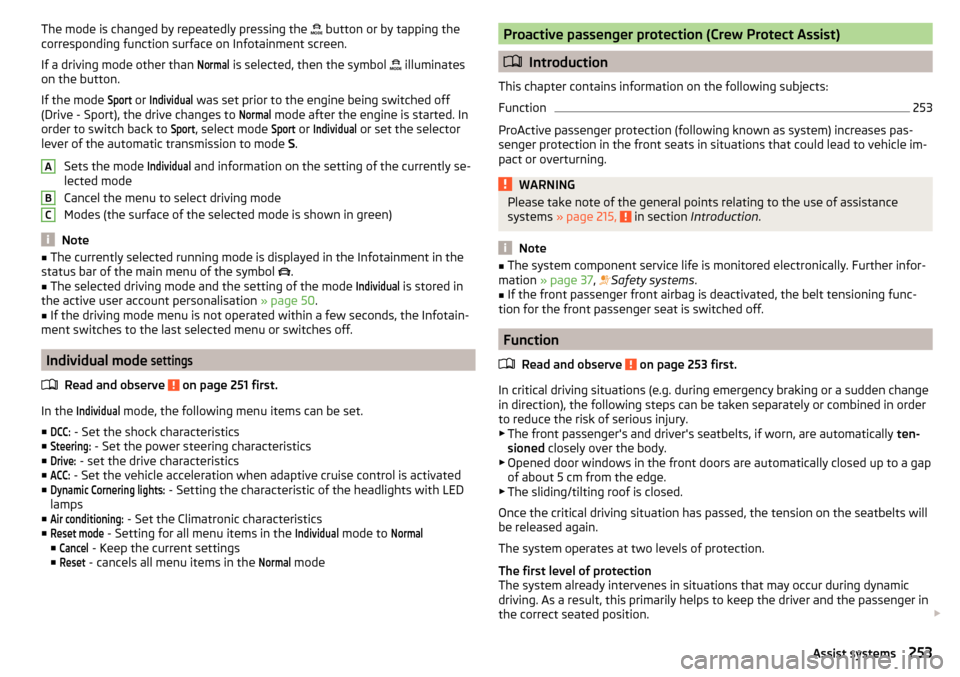
The mode is changed by repeatedly pressing the button or by tapping the
corresponding function surface on Infotainment screen.
If a driving mode other than Normal
is selected, then the symbol
illuminates
on the button.
If the mode
Sport
or
Individual
was set prior to the engine being switched off
(Drive - Sport), the drive changes to
Normal
mode after the engine is started. In
order to switch back to
Sport
, select mode
Sport
or
Individual
or set the selector
lever of the automatic transmission to mode S.
Sets the mode
Individual
and information on the setting of the currently se-
lected mode
Cancel the menu to select driving mode
Modes (the surface of the selected mode is shown in green)
Note
■ The currently selected running mode is displayed in the Infotainment in the
status bar of the main menu of the symbol .■
The selected driving mode and the setting of the mode
Individual
is stored in
the active user account personalisation » page 50.
■
If the driving mode menu is not operated within a few seconds, the Infotain-
ment switches to the last selected menu or switches off.
Individual mode
settings
Read and observe on page 251 first.
In the
Individual
mode, the following menu items can be set.
■
DCC:
- Set the shock characteristics
■
Steering:
- Set the power steering characteristics
■
Drive:
- set the drive characteristics
■
ACC:
- Set the vehicle acceleration when adaptive cruise control is activated
■
Dynamic Cornering lights:
- Setting the characteristic of the headlights with LED
lamps
■
Air conditioning:
- Set the Climatronic characteristics
■
Reset mode
- Setting for all menu items in the
Individual
mode to
Normal
■
Cancel
- Keep the current settings
■
Reset
- cancels all menu items in the
Normal
mode
ABCProactive passenger protection (Crew Protect Assist)
Introduction
This chapter contains information on the following subjects:
Function
253
ProActive passenger protection (following known as system) increases pas-
senger protection in the front seats in situations that could lead to vehicle im-
pact or overturning.
WARNINGPlease take note of the general points relating to the use of assistance
systems » page 215, in section Introduction .
Note
■
The system component service life is monitored electronically. Further infor-
mation » page 37 , Safety systems .■
If the front passenger front airbag is deactivated, the belt tensioning func-
tion for the front passenger seat is switched off.
Function
Read and observe
on page 253 first.
In critical driving situations (e.g. during emergency braking or a sudden changein direction), the following steps can be taken separately or combined in order
to reduce the risk of serious injury.
▶ The front passenger's and driver's seatbelts, if worn, are automatically ten-
sioned closely over the body.
▶ Opened door windows in the front doors are automatically closed up to a gap
of about 5 cm from the edge.
▶ The sliding/tilting roof is closed.
Once the critical driving situation has passed, the tension on the seatbelts will
be released again.
The system operates at two levels of protection.
The first level of protection
The system already intervenes in situations that may occur during dynamic
driving. As a result, this primarily helps to keep the driver and the passenger in
the correct seated position.
253Assist systems
Page 334 of 344

SeatsElectrical adjustment78
Folding front passenger seat80
Front78
Front armrest80
Headrests83
Heating85, 86
Manually adjusting78
Memory Function of the electrically adjustable seat
79
Rear80
Setting78
Storing in memory of remote control key79
Ventilation86
Second row of seats Headrests
84
Second seat row Easy Entry
81
Fold forward seat backrests82
Fold seat backrests forward81
Setting81
see Instrument cluster see Instrument cluster
32
Selector lever210
Selector lever control210
Selector lever lock38
service media
144
radio141
Service266
Service interval display49
Warning light43
Service Interval269
Service interval display49
Service intervals268
Service Plan270
Setting Headrests
83
Mirror76
Positions of the variable loading floor107
Seat belt height16
Seats78
settings Basstöner
130
DAB134, 140
equalizer130
FM133, 140
Images134
infotainment130, 138
Infotainment language131, 139
Infotainment screen131, 138
Reset to factory settings201
Software Update129
sound130
sound system130
surround130
system information129
ŠKODA Connect133, 139
vehicle201
Video DVD134
Settings Additional keyboard languages
131, 139
Advanced settings138
AUX134
Bluetooth132, 134, 139
Codecs134
Configuration wizard126
Data connection132
External device data transfer131, 139
Fuel options137
Information regarding the version of the navi- gation data
137
Manage favourites166
Manage memory137
Map136
Media134, 140
Navigation136
Nav. announcements137
Network132
Phone134
Pin code134
Radio133, 140
Reset to factory settings132
Restore factory settings139
Route options136
SmartLink136, 141
Software updates139
Sound138
System information133, 139
Telephone140
Time and date131, 138
Top speeds137
Units131, 139
Update software133
User profile166
Voice control132
Volume125
WLAN132
Settings Call Clear calls SettingsText messages
134
Setting the Clock
44
Set to Auxiliary heating (auxiliary heating and ventila- tion)
115
Show POIs on the map189
Side compartments in the luggage compart- ment
105
SIM card Change PIN code
162
Data Connection171
Insert162
PIN code162
Remove162
Sleep package Blanket
96
Headrest84
Sliding/tilting roof Activate operation
64
Activating operation of the sunshade65
332Index