2016 Seat Alhambra ECO mode
[x] Cancel search: ECO modePage 217 of 324

Driver assistance systems
Note
Contact a specialised workshop with any sys-
tem f au
lts. SEAT recommends taking your car
in for technical service. Parking using the park assist system
Fig. 213
Detailed view of the centre console:
b utt
on t
o switch the park assist system on
manually Fig. 214
Gap detected: engage the reverse
g e
ar t
o park (parallel or nose/tail to the kerb) Preparing to park
● The Traction control system ASR must be
t urned on ›
›
› page 189.
● Parallel parking: pres
s the button at
s peed
s
up to 50 km/h (31 mph) once. When
the function is enabled, the button
››› Fig. 213 will light up. ●
Perpendicu
lar parking: press the button at speeds up to 50 km/h (31 mph) tw
ic
e .
When the function is enabled, the button
››› Fig. 213 will light up.
● If necessary, press the button once
mor e t
o c
hange parking mode.
● Apply the turn signal for the side on which
a gap is
to be detected for parking. The in-
strument panel displays the side correspond-
ing to the road.
Parking
● Parking parallel to the road: drive next
to
the gap at a speed of no more than 40 km/h
(25 mph) and at a distance of between 0.5 m
and 2 m.
● Parking perpendicular to the road: drive
next
to the gap at a speed of no more than
20 km/h (12 mph) and at a distance of be-
tween 0.5 m and 2 m.
● The best parking results will be achieved if
you pos
ition the vehicle as parallel as possi-
ble to the line of parked cars or the kerb.
● When a suitable parking place is displayed
on the instrument
panel, stop and select re-
verse gear.
● Follow the instructions given on the instru-
ment panel
display
● Then, release the steering wheel when the
warning s
ignal sounds ››› : The system
will move the steering wheel! Ob-
serve the surrounding area. »
215
Technical data
Advice
Operation
Emergencies
Safety
Page 219 of 324

Driver assistance systems
● Fo
l
low the instructions given by the park
assist system.
● When the next indication appears, release
the steerin
g wheel ››› in Parking using the
p ark
a
ssist system on page 216: The sys-
tem will move the steering wheel!
Observe the surrounding area.
● Observe the surrounding area and acceler-
ate car
efully at a maximum of 7 km/h
(4 mph).
● The park assist system is only r
esponsible
for moving the steering wheel during the ma-
noeuvre. The driver applies the accelerator,
the clutch, the gears and the brake.
● When it is possible to leave the parking
spac
e, the Park Assist system will stop. Take
control of the steering and when traffic condi-
tions permit, leave the parking space.
Automatic stoppage of the manoeuvre
The park assist system stops the manoeuvre
in the event of one of the following:
● Driving faster than 7 km/h (4 mph).
● The driver moves the steering wheel.
● A sliding door is opened. To restart the ma-
noeuvre, c
lose the sliding door and press the
button again.
● There is a system malfunction (system tem-
por ari
ly
unavailable).
● The ASR system is switched off or the ASR
or ESC i
s working. WARNING
The steering wheel turns quickly automatical-
ly when l e
aving a parking space using the
park assist system. Placing your hand be-
tween the steering wheel spokes could lead
to injuries. Park Assist brake operation
The Park Assist system helps the driver by
brak
in
g automatically. Automatic braking
does not relieve the driver of responsibility
for controlling the accelerator, brake and
clutch ››› .
Br ak
in
g to avoid damage at excess speed
It is possible that the system operates the
brakes to reduce excess speed. The parking
manoeuvre can then continue. The brakes
will intervene during each parking process.
Braking to minimise damage
When approaching an obstacle, the vehicle
may brake automatically. In certain circum-
stances (e.g. storm, detection of ultrasounds,
vehicle status, load, inclination), the Park As-
sist system may stop the vehicle completely
before an object.
● Press the foot brake ››
›
!Following the intervention of the brakes, the
P
ark
As
sist will stop. WARNING
Despite the assistance provided by the park
as s
ist system, do not run any risks when
parking. The system is not a replacement for
driver awareness.
● Always be ready to brake.
● Automatic brake intervention will end after
1.5 seconds
approximately. Following auto-
matic intervention of the brakes, stop the ve-
hicle yourself. Rear assist* (Rear View Cam-
er
a)
Intr oduction The camera fitted to the rear lid helps drivers
durin
g p
ark
ing or reversing manoeuvres. The
camera image and certain orientation points
generated by the system are indicated on the
factory-fitted radio or navigation system
screen.
Two types of location point (modes) can be
selected:
● Mode 1: reverse parking perpendicular to
the ro
ad (e.g. in a car park). »
217
Technical data
Advice
Operation
Emergencies
Safety
Page 220 of 324

Operation
● Mode 2: r ev
er
se parking parallel to the
curb.
The mode can be changed by pressing the
button on the radio or navigation system
screen. Only the mode to which the points
can be changed will be displayed. WARNING
Use of the camera to calculate the distance
from o b
stacles (people, vehicles, etc.) is inac-
curate and may cause accidents and severe
injuries.
● The camera lens expands and distorts the
field of
vision and displays the objects on the
screen in a different, vague manner.
● Some objects may not be displayed or may
not be v
ery clear (e.g. very thin posts or fen-
ces), due to the resolution of the monitor or if
the light is dim.
● The camera has blind spots in which obsta-
cle
s and people are not detected.
● Keep the camera lens clean and clear of
snow and ic
e. Do not cover it. WARNING
The intelligent technology in the rear assist
sys t
em cannot change the limits imposed by
the laws of physics and by the system itself.
Careless or uncontrolled use of the rear assist
system may result in severe injuries and acci-
dents. The system is not a replacement for
driver awareness. ●
Adjus t
your speed and driving style to visi-
bility, road, traffic and weather conditions.
● Always keep a close eye on the area around
the vehic
le and always look towards where
you are parking. The display shows the path
of the rear end of the vehicle using the cur-
rent steering angle. The front of the vehicle
turns more in comparison with the rear.
● Do not be distracted from the traffic when
looking at
the screen.
● Always observe the area around the vehi-
cle, a
s the cameras do not always detect chil-
dren, animals or objects.
● The system might not show all areas clear-
ly.
● Only
use the rear assist system when the
boot hat
ch is completely closed. CAUTION
● The camer a on
ly displays 2D images on the
screen. Due to the lack of depth, it might be
difficult or impossible to recognise protrud-
ing objects or cracks in the road.
● The cameras may not always be able to de-
tect o
bjects such as thin rails, fences, posts
and trees, etc. This could result in damage to
your car. Instructions for use
Fig. 215
On the rear lid: location of the rear
a s
s
ist camera Fig. 216
Rear assist display: mode 2 connec-
t ed Function buttons on the screen:
di s
p
lay the menu; hide the menu.
Turning off the reversing camera im-
ages
1 2
218
Page 221 of 324

Driver assistance systems
Display help. The help list explains the
s ur
f
aces and lines on the camera image.
Press to exit help.
Mute the sound.
Adjust the display: brightness, contrast,
colour.
Switching on the orientation points for
rear parking perpendicular to the road
(mode 1).
Displaying the optical parking system.
Operations in vehicles with no optical parking
system (OPS)
Switching the dis-
play on automati-
cally:Select reverse gear with the igni-
tion switched on or the engine run-
ning. Mode 1 will be displayed.
Switching the dis-
play off manually:
Press a button to select the area on
the radio or the navigation system
››› Booklet Radio or ››› Booklet Navi-
gation system.
OR: press the button
on the
screen.
OR: after switching off the ignition,
the rear assist image remains on
the screen for a short period.
Switching off the
display by disen-
gaging reverse
gear:The image will switch off after
around 10 seconds.
Switching off the
display by driving
forwards:Drive forwards at more than ap-
prox. 15 km/h (9 mph). 3
4
5
6
7
Operations in vehicles with the optical parking
system (OPS)
Switching the dis-
play on automati-
cally:Select reverse gear with the igni-
tion switched on or the engine run-
ning. Mode 1 will be displayed.
Switching the dis-
play off manually:
Press a button to select the area on
the radio or the navigation system
››› Booklet Radio or ››› Booklet Navi-
gation system.
OR: press the button
on the
screen.
OR: after switching off the ignition,
the rear assist image remains on
the screen for a short period.
Press button .
Switching off the
display by disen-
gaging reverse
gear:The OPS display will immediately
be shown.
Switching off the
display by driving
forwards:Drive forwards at more than ap-
prox. 10 km/h (6 mph). Things to note
1) Do not use the rear assist system in the fol-
lowing cases:
– If there is a fault in the dynamic chassis control (DCC).
– If the image displayed is not very clear or reliable (low
visibility or dirty lens).
– If the space behind the vehicle cannot be clearly or
completely recognised.
1) Do not use the rear assist system in the fol-
lowing cases:
– If the vehicle has been overloaded at the rear.
– If the driver is not familiar with the system.
– If the rear lid is open.
– If the position and installation angle of the camera
have been changed, e.g. in a rear-end collision. Have a
specialised workshop check the system.
2) Optical illusions of the camera (examples)
The rear assist camera produces two-dimensional im-
ages. Any cracks in or objects protruding from the
ground or from other vehicles are more difficult to spot
or cannot be seen due to a lack of depth in the image
displayed.
Objects or other vehicles may seem to be closer or fur-
ther away than what they really are:
– On changing from a flat surface to a slope or gradient.
– On changing from a slope or gradient to a flat surface.
– If the vehicle has been overloaded at the rear.
– On approaching protruding objects. These objects
may be outside the angle of vision of the camera when
reversing.
Cleaning the camera lens
K
eep the c
amer
a lens clean and clear of snow
and ice:
● Moisten the lens using a commercially
avail
able, alcohol-based glass cleaning »
219
Technical data
Advice
Operation
Emergencies
Safety
Page 222 of 324
Operation
agent and clean the lens with a dry cloth
› ›
›
.
● Remove snow using a small brush.
● Use de-icing spray to remove any ice ››
›
.
CAUTION
● Never u se abr
asive cleaners to clean the
camera lens.
● Never remove snow or ice from the camera
lens
using warm or hot water. This could
damage the lens. Note
● SEA T r
ecommends that you practise park-
ing with the rear assist system in a quiet lo-
cation or in a car park to become familiar with
the system, including the orientation lines
and their function.
● The orientation lines will not be displayed
on the scr
een if the rear lid is open or the fac-
tory-fitted towing bracket is electrically con-
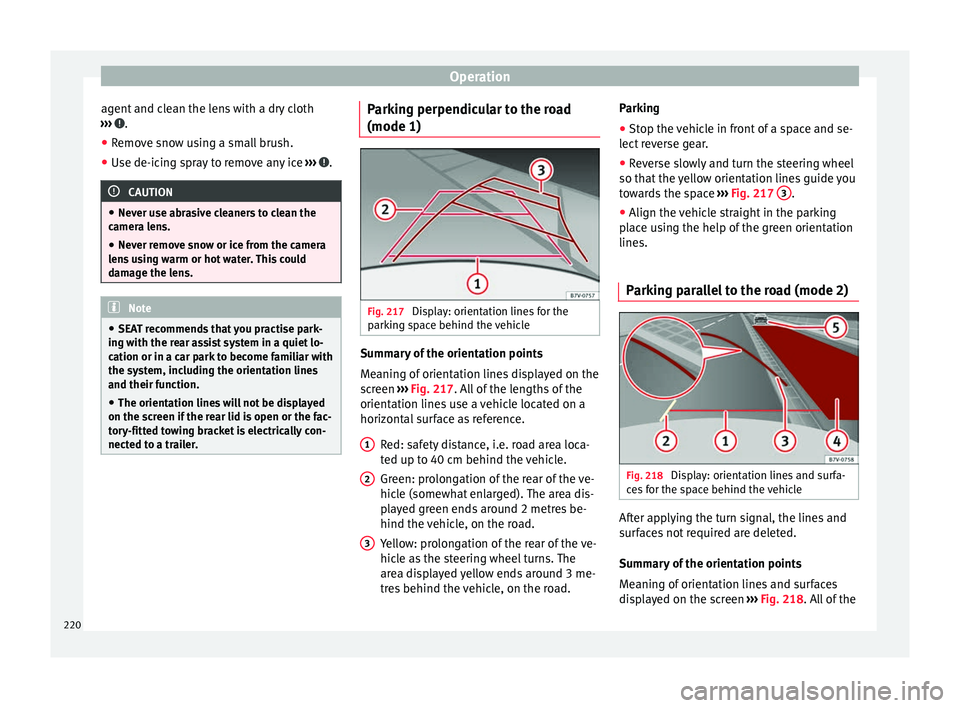
nected to a trailer. Parking perpendicular to the road
(mode 1)
Fig. 217
Display: orientation lines for the
p ark
in
g space behind the vehicle Summary of the orientation points
M
e
anin
g of orientation lines displayed on the
screen ››› Fig. 217. All of the lengths of the
orientation lines use a vehicle located on a
horizontal surface as reference.
Red: safety distance, i.e. road area loca-
ted up to 40 cm behind the vehicle.
Green: prolongation of the rear of the ve-
hicle (somewhat enlarged). The area dis-
played green ends around 2 metres be-
hind the vehicle, on the road.
Yellow: prolongation of the rear of the ve-
hicle as the steering wheel turns. The
area displayed yellow ends around 3 me-
tres behind the vehicle, on the road.
1 2
3 Parking
●
Stop the vehicle in front of a space and se-
l ect
r
everse gear.
● Reverse slowly and turn the steering wheel
so that the
yellow orientation lines guide you
towards the space ››› Fig. 217 3 .
● Align the vehicle straight in the parking
p l
ac
e using the help of the green orientation
lines.
Parking parallel to the road (mode 2) Fig. 218
Display: orientation lines and surfa-
c e
s
for the space behind the vehicle After applying the turn signal, the lines and
s
ur
f
aces not required are deleted.
Summary of the orientation points
Meaning of orientation lines and surfaces
displayed on the screen ››› Fig. 218. All of the
220
Page 223 of 324

Driver assistance systems
lengths of the orientation lines use a vehicle
loc at
ed on a horiz
ontal surface as reference.
Safety distance: road area located up to
around 40 cm behind the vehicle.
Vehicle side limit.
Turning point when parking. When the
yellow line touches the curb or another
limit of the parking space, the point for
changing direction (magnifying glass)
will have been reached.
Free space required to parallel park the
vehicle. The surface displayed must com-
pletely fit in the space.
Possible vehicle parked next to the curb.
Parking
● Stop the vehicle 1 m away parallel to the
parkin
g space and select reverse gear.
● Switch on mode 2 on the navigation system
scr
een for parallel parking.
● Slowly reverse and turn the steering wheel
so that the s
urface displayed yellow on the
screen stops in front of any obstacles 5(e.g. another vehicle).
●
Turn the steering wheel fully towards the
s p
ac
e and reverse slowly.
● When the yellow line 3 touches the side
limit of
the s
pace, e.g. the border or curb
(magnifying glass), turn the steering wheel
fully in the opposite direction. 1 2
3
4
5 ●
Continue r
ev
ersing until the vehicle is in-
side the space, parallel to the road. Correct
the position if necessary.
Cruise control* (Cruise control
syst
em - CCS)
Warning and control lamp Fig. 219
Instrument panel display: CCS status
indic ation
s
It lights up
This cruise control system maintains the set speed of
the vehicle.
Several warning and indication lamps light
up f
or a f
ew sec
onds when the ignition is switched on, signalling that the function is
being v
erified. They will switch off after a few
seconds.
Indication on display
There are different versions of the cruise con-
trol system. In vehicles with the multifunction
display (MFI), the set speed is displayed on
the instrument panel screen.
Status Fig. 219:
CCS temporarily switched off. The set
speed is displayed in small figures.
System error. Contact a specialised work-
shop.
CCS switched on. The speed memory is
empty.
The CCS is switched on. The set speed is
displayed in large figures. WARNING
Observe the safety warnings ›››
in Warning
and indication l amp
s on page 105. Cruise control system operation
Read the additional information carefully
› ›
›
page 32
The cruise control system (CCS) is able to
maintain the set speed when driving for-
wards from approx. 20 km/h (12 mph). »
A B
C
D
221
Technical data
Advice
Operation
Emergencies
Safety
Page 225 of 324

Driver assistance systems
Control lamps Blinks or lights up yellow:
Lane assist sys-
tem connected
but inactive.The system cannot clearly detect the
lane. See
page 223, The lane assist
system is inactive (control lamp lit
in yellow) .
Blinks or lights up green:
Lane assist system connected and active.
Several warning and indication lamps light
up f
or a f
ew sec
onds when the ignition is
switched on, signalling that the function is
being verified. They will switch off after a few
seconds. WARNING
Observe the safety warnings ›››
in Warning
and indication l amp
s on page 105. Operation mode
Fig. 220
In the windscreen: field of vision of
the l ane a
s
sist system camera. Using the camera located in the sun visor,
the l
ane a
s
sist system detects the possible
lines dividing it. When the vehicle involuntar-
ily approaches a dividing line it has detected,
the system will notify the driver with a correc-
tive intervention. It is possible to over-regu-
late the corrective intervention at any time.
If the turn signal is connected, there will be
no warning as the lane assist system under-
stands that you wish to change lanes volun-
tarily.
Steering wheel vibration
The following situations cause the steering
wheel to vibrate and require the driver to take
active control of the steering: ●
If the limits inher
ent to the system are
reached.
● If the maximum rotational torque during
the correctiv
e intervention is not enough to
keep the vehicle inside the lane.
● If during the corrective intervention by the
syst
em the lane is no longer detected.
Switching the lane assist system on or off
● Select the corresponding menu option us-
ing the butt
on for the driver assist systems
››› page 26.
● OR: activate or deactivate the system in the
menu Settings , sub-menu Assist sys-
tems , menu
Lane Assist ›››
page 26.
The “confirmation sign” indicates that the
driver assist system is switched on.
Automatic deactivation: the lane assist sys-
tem can be deactivated automatically if there
is a system malfunction. Control lamp
switches off.
The lane assist system is inactive (control
lamp lit in yellow)
● When driving speed drops to approx.
65 km/h (40 mph).
● When the Lane Assist system does not de-
tect the div
iding lines of the road. For exam-
ple, in the event of road works, and snow,
dirt, moisture or reflections.
● When the radius of a curve is too small. »
223
Technical data
Advice
Operation
Emergencies
Safety
Page 234 of 324

Operation
CAUTION
Failure to heed the control lamps and text
mes s
ages when they appear may result in ve-
hicle faults. Operation mode
Sign Assist does not work in all countries.
This
mu
st be taken into account when travel-
ling abroad.
Display of traffic signs
Speed limits or overtaking prohibitions to-
gether with the corresponding additional
signs are shown on the instrument panel dis-
play ›››
Fig. 226. Depending on the naviga-
tion system installed in the vehicle, traffic
signs will be shown as above and also in the
navigation system's map display.
When Sign Assist is connected, the vehicle
records the traffic signs with a camera in the
base of the interior rear vision mirror. After
checking and evaluating the information
from the camera, the navigation system and
the current vehicle data, up to three valid
traffic signs are displayed in conjunction with
the corresponding additional signs. The traf-
fic sign that is currently valid for the driver is
shown first, in the left side of the screen. A
traffic sign of only limited validity,
e.g. 90 km/h (56 mph) is shown second, to-
gether with the additional sign “if the road is wet”. If the vehicle's rain sensor detects rain
during tr
av
el, the traffic sign valid at this mo-
ment will move to the first position along the
additional sign “if the road is wet”.
The permanent display on the instrument
panel screen is shown as you pass the real
traffic signs. The signs for entering and leav-
ing towns activate the display of the usual
speed limits for that country on roads in
populated areas and national highways, even
if the speed is not limited by an actual traffic
sign.
The end of a prohibition or limitation is not
displayed. If you exceed the speed limits
shown, a warning will not appear. The system
does not detect areas with little traffic. The
current legal provisions apply.
Connection and disconnection
● Connect or disconnect the assist system in
the Settings menu in the SEA
T information
system ›››
page 26.
● OR: press the button for the driver assist
sys
tems on the main beam lever.
Trailer
Connect or disconnect the secondary display
for speed limits and overtaking bans that ap-
ply to trailers (trailer mode) in the Settings
menu in the SEAT information system
››› page 26. Tiredness detection (recom-
mendation to t
ake a break)
Introduction WARNING
Do not let the extra convenience afforded by
the tiredne s
s detection function tempt you
into taking any risks when driving. When
making long trips, conveniently long breaks
must be taken.
● The driver is responsible for determining
their capac
ity to drive.
● Never drive when tired.
● The system does not always detect the
tirednes
s of the driver. Please read the infor-
mation provided in the section ››› page 233,
Limited operation.
● In some situations the system may incor-
rectly int
erpret an intended manoeuvre as a
sign of tiredness of the driver.
● In the event of the an episode called “mi-
cro
sleep” at the wheel, a strong warning is
not in place!
● Observe the indications on the display of
the instrument
panel and act in accordance
with them. 232