Page 307 of 669
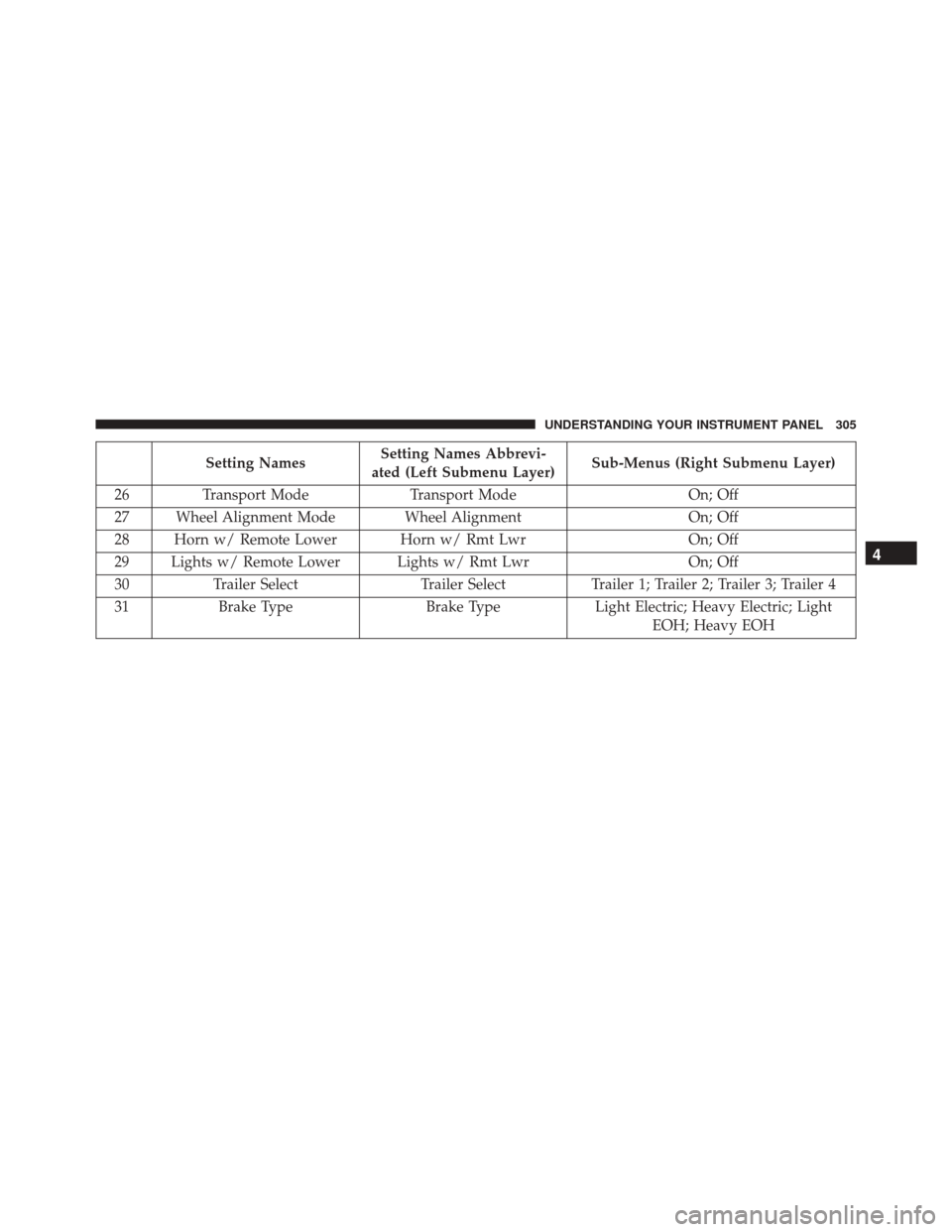
Setting NamesSetting Names Abbrevi-
ated (Left Submenu Layer) Sub-Menus (Right Submenu Layer)
26 Transport Mode Transport ModeOn; Off
27 Wheel Alignment Mode Wheel Alignment On; Off
28 Horn w/ Remote Lower Horn w/ Rmt Lwr On; Off
29 Lights w/ Remote Lower Lights w/ Rmt Lwr On; Off
30 Trailer Select Trailer SelectTrailer 1; Trailer 2; Trailer 3; Trailer 4
31 Brake Type Brake TypeLight Electric; Heavy Electric; Light
EOH; Heavy EOH
4
UNDERSTANDING YOUR INSTRUMENT PANEL 305
Page 308 of 669
Setting NamesSetting Names Abbrevi-
ated (Left Submenu Layer) Sub-Menus (Right Submenu Layer)
32 Trailer Name Trailer Name
•Trailer # (# is equal to slot position)
• Boat
• Car
• Cargo
• Dump
• Equipment
• Flatbed
• Gooseneck
• Horse
• Ta g
• Motorcycle
• Snowmobile
• Travel
• Utility
• 5th Wheel
33 Compass Variance Compass Var1-15 increments of 1
34 Calibrate Compass Compass CalCancel; Calibrate
306 UNDERSTANDING YOUR INSTRUMENT PANEL
Page 311 of 669

Buttons On The Touchscreen
Buttons on the touchscreen are accessible on the
Uconnect display.
Customer Programmable Features — Uconnect
5.0 Personal Settings
Push the MORE or SETTINGS button on the faceplate,
then press the “Settings” button on the touchscreen (if
equipped) to display the settings menu screen. In this
mode the Uconnect system allows you to access pro-
grammable features that may be equipped such as Dis-
play, Units, Voice, Clock, Safety & Driving Assistance,
Lights, Doors & Locks, Auto-On Comfort (if equipped),
Engine Off Options, Trailer Brake, Audio, Compass Set-
tings, Phone/Bluetooth, SiriusXM Setup (if equipped),
Restore Settings, Clear Personal Data and System Infor-
mation.
NOTE:Only one category may be selected at a time.
When making a selection, press the button on the touch-
screen to enter the desired mode. Once in the desired
mode, press and release the preferred setting until the
button is highlighted. Once the setting is complete, either
press the back arrow or Done button on the touchscreen or
the Back button on the faceplate to return to the previous
menu. Pressing the Up or Down Arrow buttons on the
touchscreen on the right side of the screen will allow you to
toggle up or down through the list of available settings.
NOTE:All settings should be changed with the ignition
in the “Run” position.
Display
After pressing the “Display” button on the touchscreen
the following settings will be available.
• Display Mode
When in this display you may select the Auto or Manual
display settings. To change Mode status, press and re-
lease the “Auto” or “Manual” button on the touchscreen.
4
UNDERSTANDING YOUR INSTRUMENT PANEL 309
Page 320 of 669
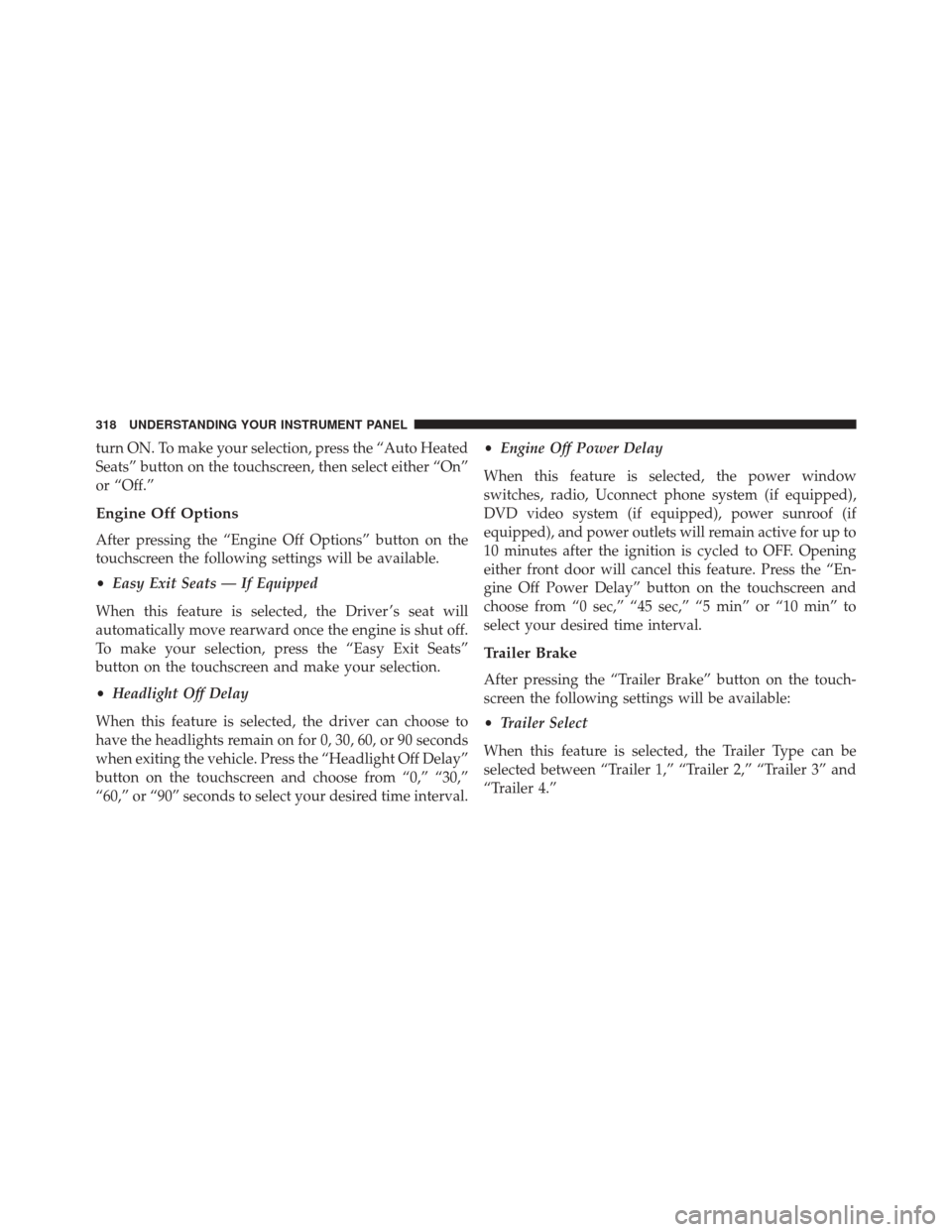
turn ON. To make your selection, press the “Auto Heated
Seats” button on the touchscreen, then select either “On”
or “Off.”
Engine Off Options
After pressing the “Engine Off Options” button on the
touchscreen the following settings will be available.
•Easy Exit Seats — If Equipped
When this feature is selected, the Driver ’s seat will
automatically move rearward once the engine is shut off.
To make your selection, press the “Easy Exit Seats”
button on the touchscreen and make your selection.
• Headlight Off Delay
When this feature is selected, the driver can choose to
have the headlights remain on for 0, 30, 60, or 90 seconds
when exiting the vehicle. Press the “Headlight Off Delay”
button on the touchscreen and choose from “0,” “30,”
“60,” or “90” seconds to select your desired time interval. •
Engine Off Power Delay
When this feature is selected, the power window
switches, radio, Uconnect phone system (if equipped),
DVD video system (if equipped), power sunroof (if
equipped), and power outlets will remain active for up to
10 minutes after the ignition is cycled to OFF. Opening
either front door will cancel this feature. Press the “En-
gine Off Power Delay” button on the touchscreen and
choose from “0 sec,” “45 sec,” “5 min” or “10 min” to
select your desired time interval.
Trailer Brake
After pressing the “Trailer Brake” button on the touch-
screen the following settings will be available:
• Trailer Select
When this feature is selected, the Trailer Type can be
selected between “Trailer 1,” “Trailer 2,” “Trailer 3” and
“Trailer 4.”
318 UNDERSTANDING YOUR INSTRUMENT PANEL
Page 321 of 669

•Trailer Brake Type
When this feature is selected, the Trailer Brake Type can
be changed between “Light Electric,” “Heavy Electric,”
“Light EOH” and “Heavy EOH.” Refer to “Integrated
Trailer Brake Module” in “Starting And Operating.”
Audio
After pressing the “Audio” button on the touchscreen the
following settings will be available:
• Balance/Fade
This feature allows you to adjust the Balance and Fade
settings. Press and drag the speaker icon or use the
arrows to adjust, tap the “C” icon to readjust to the center.
• Equalizer
When in this display you may adjust the Bass, Mid and
Treble settings. Adjust the settings with the “+” and “–” buttons on the touchscreen or by selecting any point on
the scale between the “+” and “–” buttons on the
touchscreen.
•
Speed Adjusted Volume
This feature increases or decreases volume relative to
vehicle speed. To change the Speed Adjusted Volume
press the “Speed Adjusted Volume” button on the touch-
screen and select from “Off,” “1,” “2” or “3” buttons on
the touchscreen.
• Surround Sound — If Equipped
This feature provides simulated surround sound mode.
To make your selection, press the “Surround Sound”
button on the touchscreen, select “On” or “Off.”
• AUX Volume Offset — If Equipped
This feature provides the ability to tune the audio level
for portable devices connected through the AUX input.
4
UNDERSTANDING YOUR INSTRUMENT PANEL 319
Page 325 of 669

System Information
After pressing the “System Information” button on the
touchscreen the following information will be available:
•System Information
When System Information is selected, a System Informa-
tion screen will appear displaying the system software
version.
Customer Programmable Features — Uconnect
8.4A/8.4AN Personal Settings
Press the “Apps” button on the touchscreen then press
the “Settings” button on the touchscreen to display the
settings menu screen. In this mode the Uconnect system
allows you to access programmable features that may be
equipped such as Display, Voice, Clock, Safety & Driving
Assistance, Lights, Doors & Locks, Auto-On Comfort (if
equipped), Engine Off Options, Trailer Brake, Audio, Phone/Bluetooth, SiriusXM Setup (if equipped), Restore
Settings, Clear Personal Data and System Information.
NOTE:
Only one category may be selected at a time.
When making a selection, press the button on the touch-
screen to enter the desired mode. Once in the desired
mode, press and release the preferred setting until a
check-mark appears next to the setting, showing that
setting has been selected. Once the setting is complete,
either press the back arrow button on the touchscreen or
the Back button on the faceplate to return to the previous
menu or press the “X” button on the touchscreen to close
out of the settings screen. Pressing the Up or Down
Arrow buttons on the touchscreen on the right side of the
screen will allow you to toggle up or down through the
list of available settings.
NOTE: All settings should be changed with the ignition
in the “Run” position.
4
UNDERSTANDING YOUR INSTRUMENT PANEL 323
Page 338 of 669
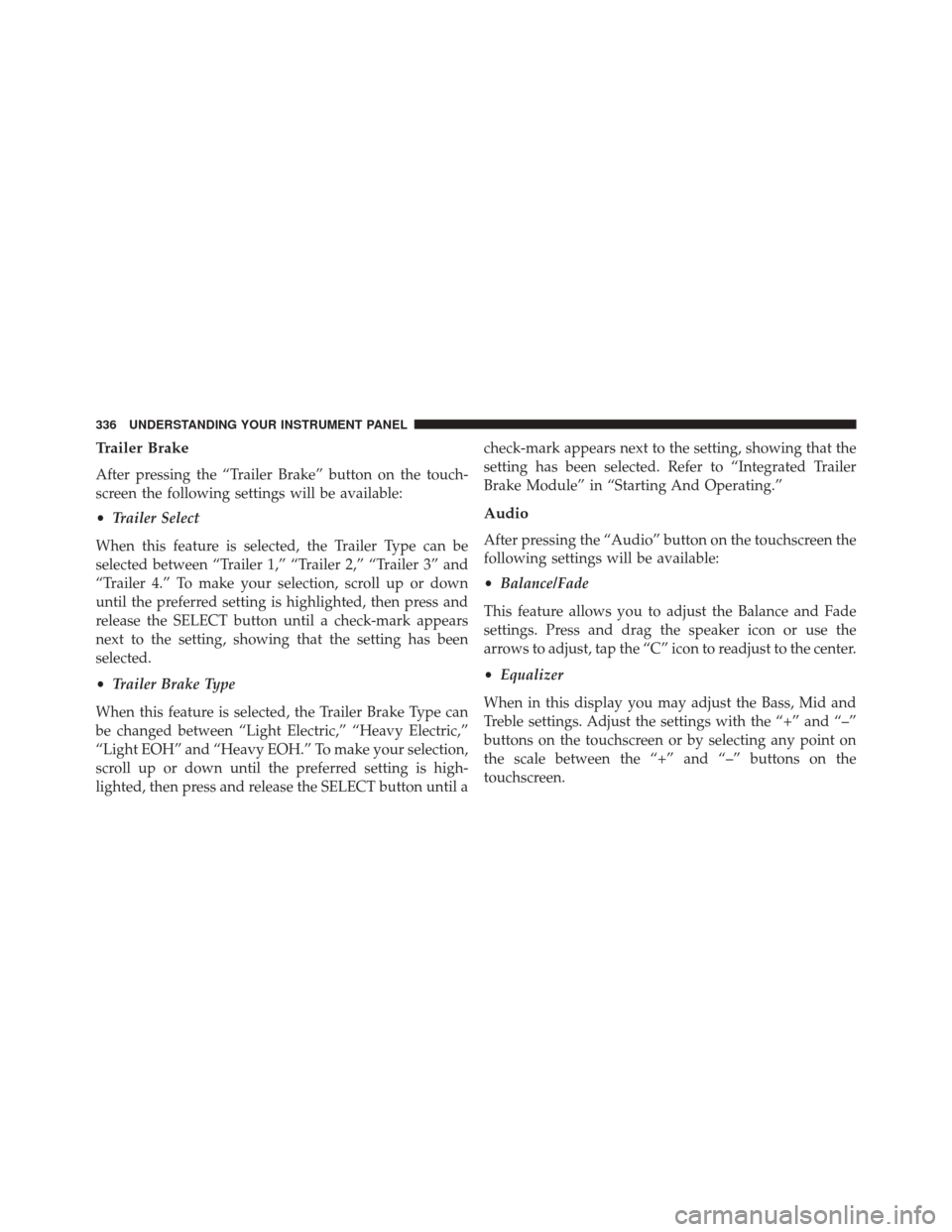
Trailer Brake
After pressing the “Trailer Brake” button on the touch-
screen the following settings will be available:
•Trailer Select
When this feature is selected, the Trailer Type can be
selected between “Trailer 1,” “Trailer 2,” “Trailer 3” and
“Trailer 4.” To make your selection, scroll up or down
until the preferred setting is highlighted, then press and
release the SELECT button until a check-mark appears
next to the setting, showing that the setting has been
selected.
• Trailer Brake Type
When this feature is selected, the Trailer Brake Type can
be changed between “Light Electric,” “Heavy Electric,”
“Light EOH” and “Heavy EOH.” To make your selection,
scroll up or down until the preferred setting is high-
lighted, then press and release the SELECT button until a check-mark appears next to the setting, showing that the
setting has been selected. Refer to “Integrated Trailer
Brake Module” in “Starting And Operating.”
Audio
After pressing the “Audio” button on the touchscreen the
following settings will be available:
•
Balance/Fade
This feature allows you to adjust the Balance and Fade
settings. Press and drag the speaker icon or use the
arrows to adjust, tap the “C” icon to readjust to the center.
• Equalizer
When in this display you may adjust the Bass, Mid and
Treble settings. Adjust the settings with the “+” and “–”
buttons on the touchscreen or by selecting any point on
the scale between the “+” and “–” buttons on the
touchscreen.
336 UNDERSTANDING YOUR INSTRUMENT PANEL
Page 397 of 669

▫Electronic Stability Control (ESC) ..........446
▫ Electronic Roll Mitigation (ERM) ..........451
▫ Trailer Sway Control (TSC) ..............451
▫ Hill Descent Control (HDC) — If Equipped . . .452
� TIRE SAFETY INFORMATION .............455
▫ Tire Markings ....................... .455
▫ Tire Identification Number (TIN) ...........459
▫ Tire Terminology And Definitions ..........461
▫ Tire Loading And Tire Pressure ...........462
� TIRES — GENERAL INFORMATION ........467
▫ Tire Pressure ....................... .467
▫ Tire Inflation Pressures .................468
▫ Tire Pressures For High Speed Operation . . . .470 ▫
Tire Maintenance and Replacement .........470
▫ Radial Ply Tires ..................... .471
▫ Tire Types .......................... .471
▫ Run Flat Tires — If Equipped .............473
▫ Spare Tires — If Equipped ...............473
▫ Tire Spinning ....................... .476
▫ Tread Wear Indicators ..................477
▫ Life Of Tire ........................ .477
▫ Replacement Tires .....................478
� SUPPLEMENTAL TIRE PRESSURE
INFORMATION — IF EQUIPPED ...........480
� TIRE CHAINS (TRACTION DEVICES) .......480
� TIRE ROTATION RECOMMENDATIONS .....482
5
STARTING AND OPERATING 395