Page 291 of 669

9. Selectable Gauge 1 (Trans Temp, Oil Temp, Oil Life,Trailer Brake, Current MPG)
The main display area will normally display the main
menu or the screens of a selected feature of the main
menu. The main display area also displays “pop up”
messages that consist of approximately 60 possible warn-
ing or information messages. These pop up messages fall
into several categories:
• Five Second Stored Messages
When the appropriate conditions occur, this type of
message takes control of the main display area for five
seconds and then returns to the previous screen. Most of
the messages of this type are then stored (as long as the
condition that activated it remains active) and can be
reviewed from the “Messages” main menu item. As long
as there is a stored message, an “i” will be displayed in
the DID’s compass/outside temp line. Examples of this
message type are “Right Front Turn Signal Lamp Out”
and “Low Tire Pressure.” •
Unstored Messages
This message type is displayed indefinitely or until the
condition that activated the message is cleared. Examples
of this message type are “Turn Signal On” (if a turn signal
is left on) and “Lights On” (if driver leaves the vehicle).
• Unstored Messages Until RUN
These messages deal primarily with the Remote Start
feature. This message type is displayed until the ignition
is in the RUN state. Examples of this message type are
“Remote Start Aborted - Door Ajar” and “Press Brake
Pedal and Push Button to Start.”
• Five Second Unstored Messages
When the appropriate conditions occur, this type of
message takes control of the main display area for five
seconds and then returns to the previous screen. An
example of this message type is “Automatic High Beams
On.”
4
UNDERSTANDING YOUR INSTRUMENT PANEL 289
Page 294 of 669
•Tire Pressure Information System (TPIS)
• Service Tire Pressure System
• Parking Brake Engaged
• Brake Fluid Low
• Service Electronic Braking System
• Engine Temperature Hot
• Battery Voltage Low
• Service Electronic Throttle Control
• Lights On
• Right Turn Signal Light Out
• Left Turn Signal Light Out
• Turn Signal On •
Sound Horn with Remote Lock: Off; 1st Press; 2nd
Press
• Vehicle Not in Park
• Key in Ignition
• Key in Ignition Lights On
• Remote Start Active Key to Run
• Remote Start Active Push Start Button
• Remote Start Aborted Fuel Low
• Remote Start Aborted Too Cold
• Remote Start Aborted Door Open
• Remote Start Aborted Hood Open
• Remote Start Aborted Trunk Open
• Remote Start Aborted Time Expired
292 UNDERSTANDING YOUR INSTRUMENT PANEL
Page 295 of 669
•Remote Start Disabled Start to Reset
• Service Airbag System
• Service Airbag Warning Light
• Driver Seatbelt Unbuckled
• Passenger Seatbelt Unbuckled
• Front Seatbelts Unbuckled
• Door Open
• Doors Open
• Gear Not Available
• Shift Not Allowed
• Shift to Neutral then Drive or Reverse
• Automatic Unavailable Use Autostick Service Req.
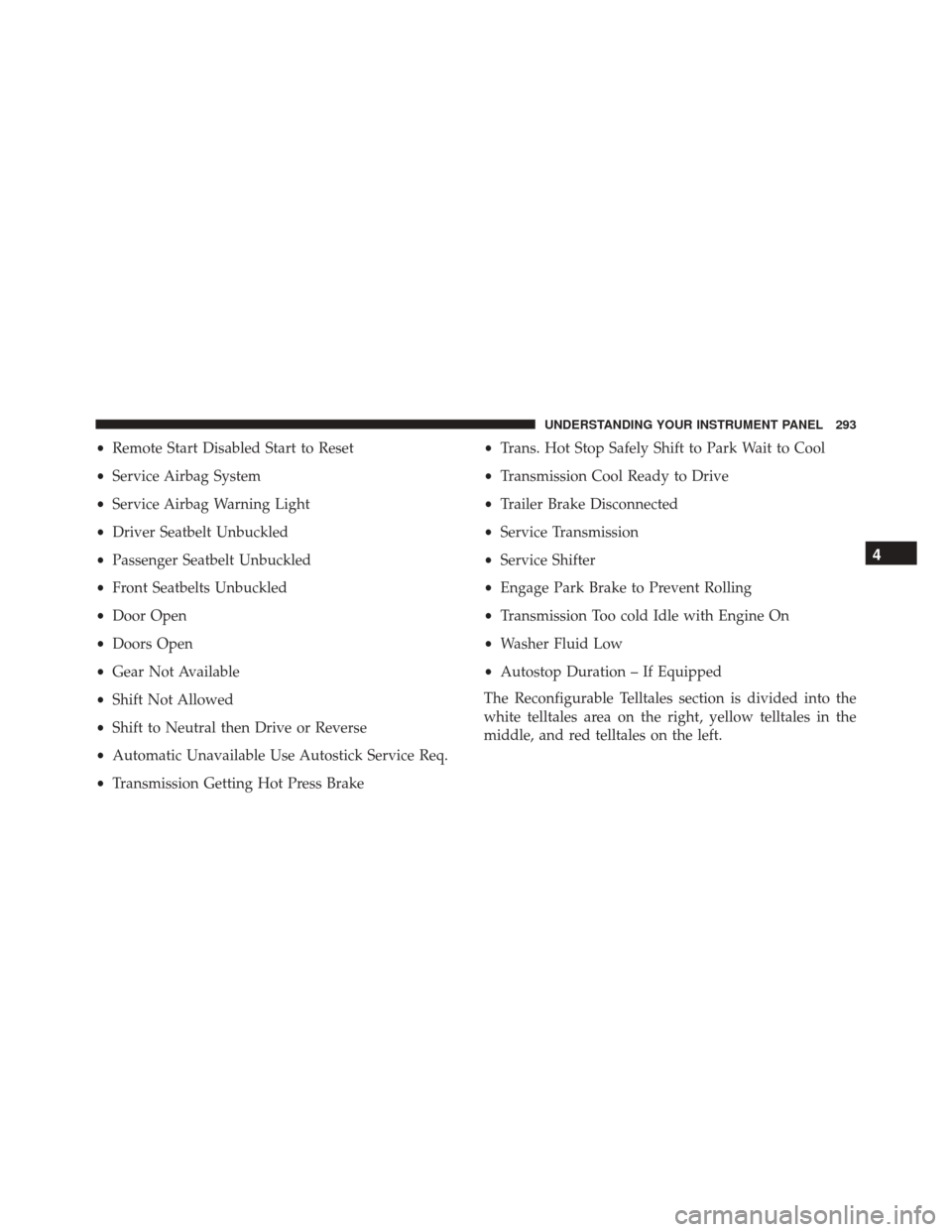
• Transmission Getting Hot Press Brake •
Trans. Hot Stop Safely Shift to Park Wait to Cool
• Transmission Cool Ready to Drive
• Trailer Brake Disconnected
• Service Transmission
• Service Shifter
• Engage Park Brake to Prevent Rolling
• Transmission Too cold Idle with Engine On
• Washer Fluid Low
• Autostop Duration – If Equipped
The Reconfigurable Telltales section is divided into the
white telltales area on the right, yellow telltales in the
middle, and red telltales on the left.
4
UNDERSTANDING YOUR INSTRUMENT PANEL 293
Page 299 of 669
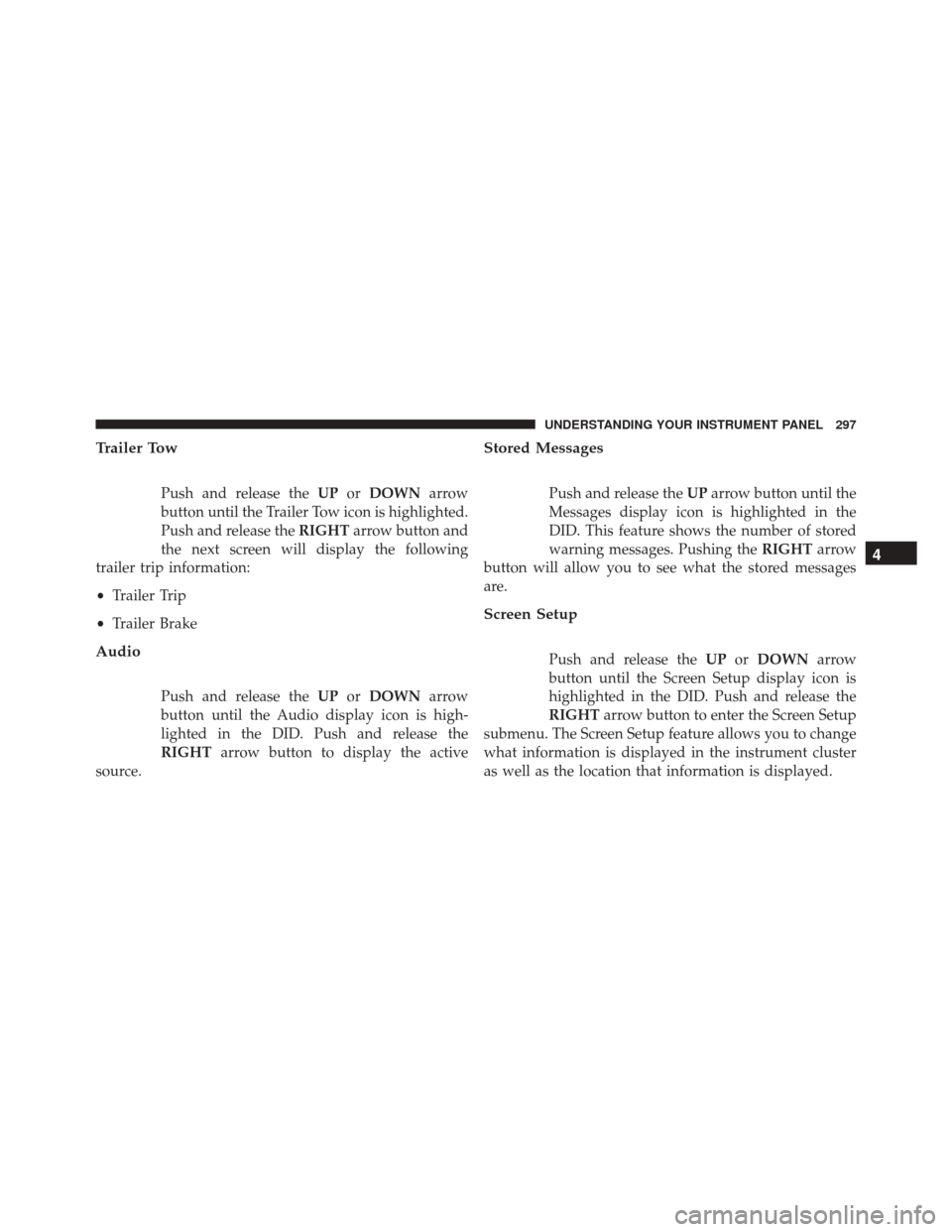
Trailer Tow
Push and release theUPorDOWN arrow
button until the Trailer Tow icon is highlighted.
Push and release the RIGHTarrow button and
the next screen will display the following
trailer trip information:
• Trailer Trip
• Trailer Brake
Audio
Push and release the UPorDOWN arrow
button until the Audio display icon is high-
lighted in the DID. Push and release the
RIGHT arrow button to display the active
source.
Stored Messages
Push and release the UParrow button until the
Messages display icon is highlighted in the
DID. This feature shows the number of stored
warning messages. Pushing the RIGHTarrow
button will allow you to see what the stored messages
are.
Screen Setup
Push and release the UPorDOWN arrow
button until the Screen Setup display icon is
highlighted in the DID. Push and release the
RIGHT arrow button to enter the Screen Setup
submenu. The Screen Setup feature allows you to change
what information is displayed in the instrument cluster
as well as the location that information is displayed.
4
UNDERSTANDING YOUR INSTRUMENT PANEL 297
Page 307 of 669
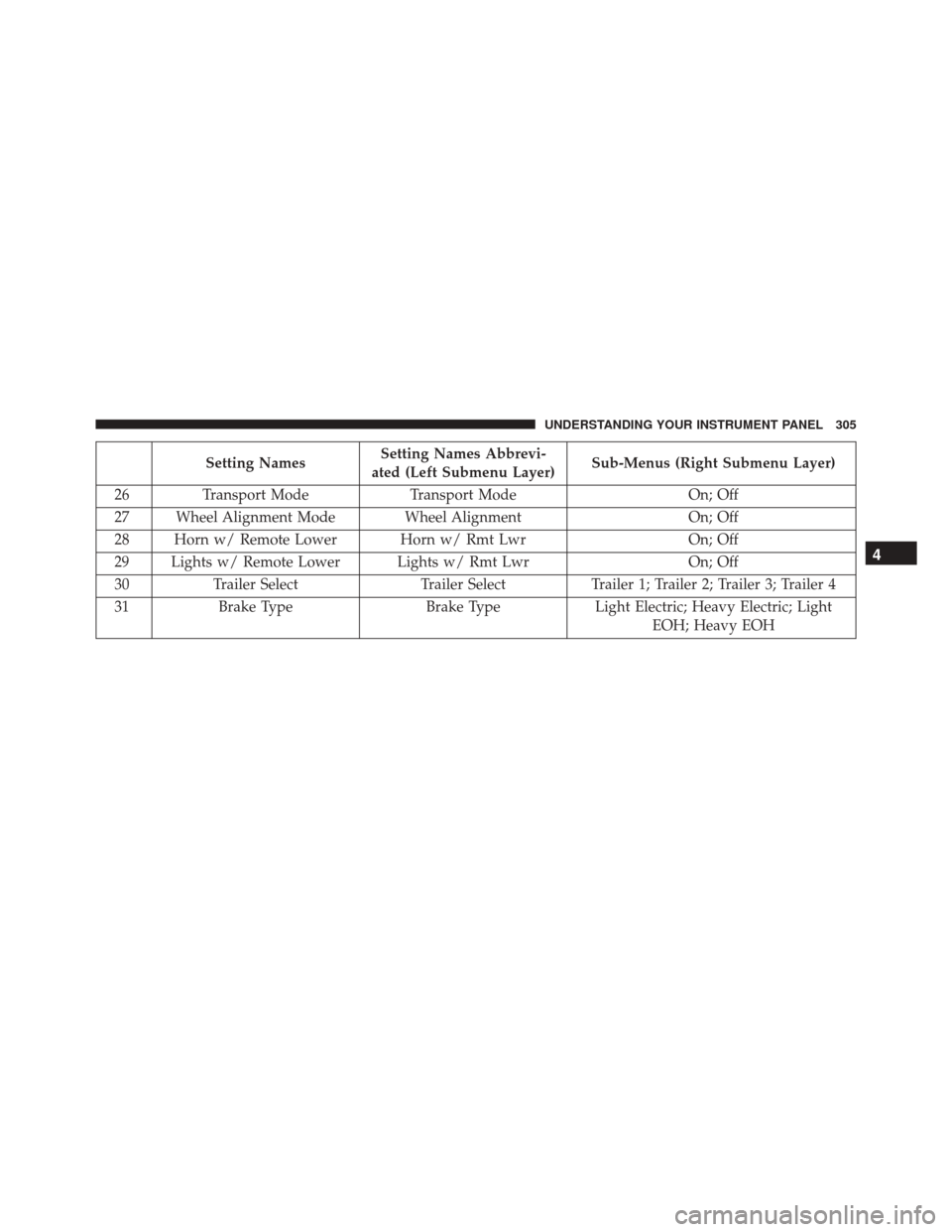
Setting NamesSetting Names Abbrevi-
ated (Left Submenu Layer) Sub-Menus (Right Submenu Layer)
26 Transport Mode Transport ModeOn; Off
27 Wheel Alignment Mode Wheel Alignment On; Off
28 Horn w/ Remote Lower Horn w/ Rmt Lwr On; Off
29 Lights w/ Remote Lower Lights w/ Rmt Lwr On; Off
30 Trailer Select Trailer SelectTrailer 1; Trailer 2; Trailer 3; Trailer 4
31 Brake Type Brake TypeLight Electric; Heavy Electric; Light
EOH; Heavy EOH
4
UNDERSTANDING YOUR INSTRUMENT PANEL 305
Page 311 of 669

Buttons On The Touchscreen
Buttons on the touchscreen are accessible on the
Uconnect display.
Customer Programmable Features — Uconnect
5.0 Personal Settings
Push the MORE or SETTINGS button on the faceplate,
then press the “Settings” button on the touchscreen (if
equipped) to display the settings menu screen. In this
mode the Uconnect system allows you to access pro-
grammable features that may be equipped such as Dis-
play, Units, Voice, Clock, Safety & Driving Assistance,
Lights, Doors & Locks, Auto-On Comfort (if equipped),
Engine Off Options, Trailer Brake, Audio, Compass Set-
tings, Phone/Bluetooth, SiriusXM Setup (if equipped),
Restore Settings, Clear Personal Data and System Infor-
mation.
NOTE:Only one category may be selected at a time.
When making a selection, press the button on the touch-
screen to enter the desired mode. Once in the desired
mode, press and release the preferred setting until the
button is highlighted. Once the setting is complete, either
press the back arrow or Done button on the touchscreen or
the Back button on the faceplate to return to the previous
menu. Pressing the Up or Down Arrow buttons on the
touchscreen on the right side of the screen will allow you to
toggle up or down through the list of available settings.
NOTE:All settings should be changed with the ignition
in the “Run” position.
Display
After pressing the “Display” button on the touchscreen
the following settings will be available.
• Display Mode
When in this display you may select the Auto or Manual
display settings. To change Mode status, press and re-
lease the “Auto” or “Manual” button on the touchscreen.
4
UNDERSTANDING YOUR INSTRUMENT PANEL 309
Page 316 of 669

•Rain Sensing Auto Wipers — If Equipped
When this feature is selected, the system will automati-
cally activate the windshield wipers if it senses moisture
on the windshield. To make your selection, press the
“Rain Sensing” button on the touchscreen and make your
selection.
• Hill Start Assist — If Equipped
When this feature is selected, the Hill Start Assist (HSA)
system is active. Refer to “Electronic Brake Control
System” in “Starting And Operating” for system function
and operating information. To make your selection, press
the “Hill Start Assist” button on the touchscreen and
make your selection.Lights
After pressing the “Lights” button on the touchscreen,
the following settings will be available:
• Headlight Off Delay
When this feature is selected, it allows the adjustment of the
amount of time the headlights remain on after the engine is
shut off. To change the Headlight Off Delay setting, press the
“Headlight Off Delay” button on the touchscreen and
choose either “0,” “30,” “60,” or “90” buttons on the touch-
screen to select your desired time interval.
•Headlight Illumination On Approach
When this feature is selected, it allows the adjustment of
the amount of time the headlights remain on when the
doors are unlocked with the Remote Keyless Entry (RKE)
transmitter. To change the Illuminated Approach status,
press the “Illuminated Approach” button on the touch-
screen and choose either “0,” “30,” “60,” or “90” buttons
on the touchscreen to select your desired time interval.
314 UNDERSTANDING YOUR INSTRUMENT PANEL
Page 320 of 669
turn ON. To make your selection, press the “Auto Heated
Seats” button on the touchscreen, then select either “On”
or “Off.”
Engine Off Options
After pressing the “Engine Off Options” button on the
touchscreen the following settings will be available.
•Easy Exit Seats — If Equipped
When this feature is selected, the Driver ’s seat will
automatically move rearward once the engine is shut off.
To make your selection, press the “Easy Exit Seats”
button on the touchscreen and make your selection.
• Headlight Off Delay
When this feature is selected, the driver can choose to
have the headlights remain on for 0, 30, 60, or 90 seconds
when exiting the vehicle. Press the “Headlight Off Delay”
button on the touchscreen and choose from “0,” “30,”
“60,” or “90” seconds to select your desired time interval. •
Engine Off Power Delay
When this feature is selected, the power window
switches, radio, Uconnect phone system (if equipped),
DVD video system (if equipped), power sunroof (if
equipped), and power outlets will remain active for up to
10 minutes after the ignition is cycled to OFF. Opening
either front door will cancel this feature. Press the “En-
gine Off Power Delay” button on the touchscreen and
choose from “0 sec,” “45 sec,” “5 min” or “10 min” to
select your desired time interval.
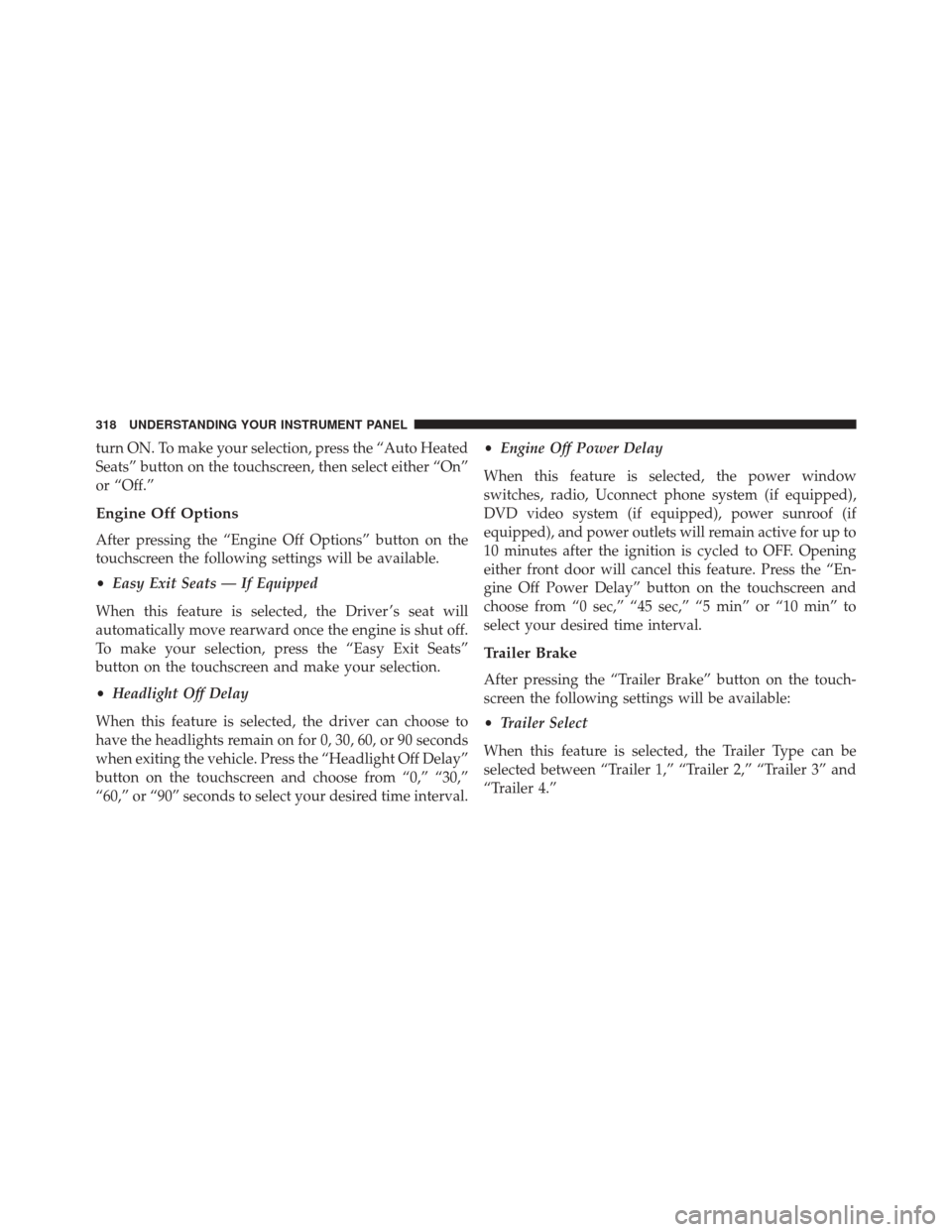
Trailer Brake
After pressing the “Trailer Brake” button on the touch-
screen the following settings will be available:
• Trailer Select
When this feature is selected, the Trailer Type can be
selected between “Trailer 1,” “Trailer 2,” “Trailer 3” and
“Trailer 4.”
318 UNDERSTANDING YOUR INSTRUMENT PANEL