Page 358 of 916
Vehicle Information (Customer Information Features)
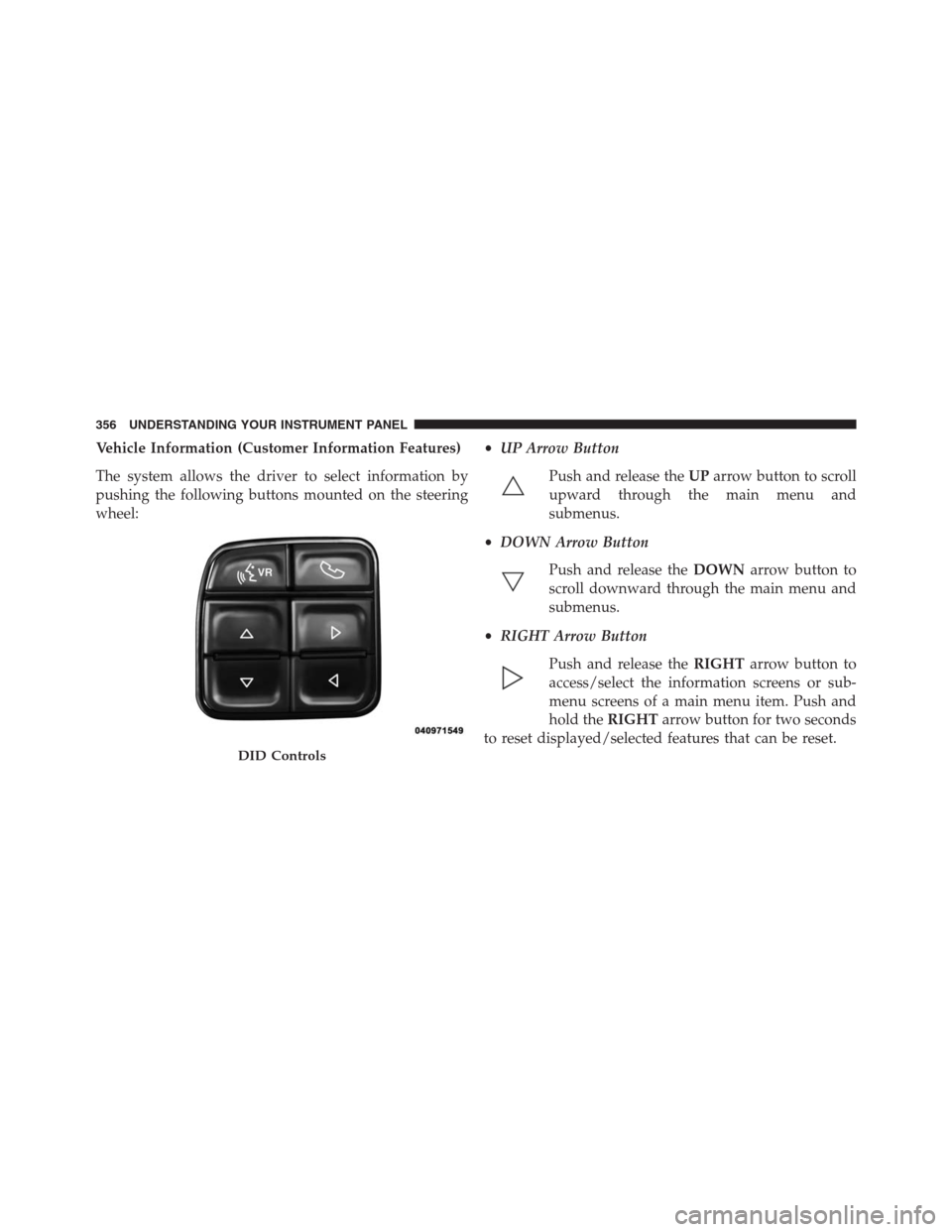
The system allows the driver to select information by
pushing the following buttons mounted on the steering
wheel:•UP Arrow Button
Push and release theUParrow button to scroll
upward through the main menu and
submenus.
•DOWN Arrow Button
Push and release theDOWNarrow button to
scroll downward through the main menu and
submenus.
•RIGHT Arrow Button
Push and release theRIGHTarrow button to
access/select the information screens or sub-
menu screens of a main menu item. Push and
hold theRIGHTarrow button for two seconds
to reset displayed/selected features that can be reset.
DID Controls
356 UNDERSTANDING YOUR INSTRUMENT PANEL
Page 361 of 916

•Five Second Unstored Messages
When the appropriate conditions occur, this type of
message takes control of the main display area for five
seconds and then returns to the previous screen. An
example of this message type is “Automatic High Beams
On.”
Oil Life Reset
Your vehicle is equipped with an engine oil change
indicator system. The “Oil Change Required” message
will flash in the DID display for approximately 10
seconds after a single chime has sounded, to indicate the
next scheduled oil change interval. The engine oil change
indicator system is duty cycle based, which means the
engine oil change interval may fluctuate, dependent
upon your personal driving style.
NOTE:Use the steering wheel DID controls for the
following procedure(s).Vehicles Equipped With Passive Entry
1. Without pushing the brake pedal, push the ENGINE
START/STOP button and cycle the ignition to the
ON/RUN position (do not start the engine).
2. Push and release theDOWNarrow button to scroll
downward through the main menu to “Vehicle Info.”
3. Push and release theRIGHTarrow button to access
the “Oil Life” screen.
4. Push and hold the RIGHT arrow button for one
second to access the “Oil Life Reset” screen.
5. Push and release theDOWNarrow button to select
“Yes,” then push and release the RIGHT arrow button
to select reset of the Oil Life.
6. Push and release theUParrow button to exit the DID
screen.
4
UNDERSTANDING YOUR INSTRUMENT PANEL 359
Page 362 of 916

Vehicles Not Equipped With Passive Entry
1. Without pushing the brake pedal, cycle the ignition to
the ON/RUN position (do not start the engine).
2. Push and release theDOWNarrow button to scroll
downward through the main menu to “Vehicle Info.”
3. Push and release theRIGHTarrow button to access
the “Oil Life” screen.
4. Push and hold theRIGHTarrow button for one
second to access the “Oil Life Reset” screen.
5. Push and release theDOWNarrow button to select
“Yes,” then push and release theRIGHTarrow button
to select reset of the Oil Life.
6. Push and release theUParrow button to exit the DID
screen.NOTE:If the indicator message illuminates when you
start the vehicle, the oil change indicator system did not
reset. If necessary, repeat this procedure.
DID Messages
•Front Seatbelts Unbuckled
•Driver Seatbelt Unbuckled
•Passenger Seatbelt Unbuckled
•Service Airbag System
•Traction Control Off
•Washer Fluid Low
•Oil Pressure Low
•Oil Change Due
•Fuel Low
•Service Antilock Brake System
360 UNDERSTANDING YOUR INSTRUMENT PANEL
Page 364 of 916
•Remote Start Aborted Fuel Low
•Remote Start Aborted Too Cold
•Remote Start Aborted Door Open
•Remote Start Aborted Hood Open
•Remote Start Aborted Trunk Open
•Remote Start Aborted Time Expired
•Remote Start Disabled Start to Reset
•Service Airbag System
•Service Airbag Warning Light
•Driver Seatbelt Unbuckled
•Passenger Seatbelt Unbuckled
•Front Seatbelts Unbuckled
•Door Open•Doors Open
•Gear Not Available
•Shift Not Allowed
•Shift to Neutral then Drive or Reverse
•Autostick Unavailable Service Required
•Automatic Unavailable Use Autostick Service Req.
•Transmission Getting Hot Push Brake
•Trans. Hot Stop Safely Shift to Park Wait to Cool
•Transmission Cool Ready to Drive
•Trailer Brake Disconnected
•Service Transmission
•Service Shifter
•Engage Park Brake to Prevent Rolling
362 UNDERSTANDING YOUR INSTRUMENT PANEL
Page 368 of 916
Info. follow the directional prompts to access or reset any
of the following Vehicle Info submenu items:
Tire Pressure Monitoring System (1500 & 2500 Series)
A vehicle ICON is displayed with tire pressure values in
each corner of the ICON.
•Tire Pressure:
– Tire Pressure Information System (3500 Series
Heavy Duty Ram Trucks)
– A vehicle ICON is displayed with the tire pressure
values in each corner of the ICON.
– If the Tire Pressure system requires service, “Service
Tire Pressure System” is displayed.
– Tire Pressure is an information only function and
cannot be reset.
– Refer to the�Tire Pressure Information System
(TPIS)” under�Starting and Operating�for further
information.•Transmission Temperature – Automatic Transmission
Only
•Oil Temperature
•Oil Life
•Battery Voltage — If Equipped
•Gauge Summary:
– Coolant Temperature
– Transmission Temperature (automatic only)
– Oil Temperature
– Oil Pressure
•Engine Hours
366 UNDERSTANDING YOUR INSTRUMENT PANEL
Page 369 of 916
Fuel Economy
Push and release theUPorDOWNarrow
button until the Fuel Economy Menu icon/title
is highlighted. Push and hold the RIGHT arrow
button to reset feature.
•Range
•Current MPG or L/100 km
•Average MPG or L/100 km
Trip A
Push and release theUPorDOWNarrow
button until the Trip A icon/title is highlighted
in the DID. The Trip A information will display
the following:
•Distance MI or km•Average MPG or L/100 km
•Average MPH or km/h
•Elapsed Time
Hold theRIGHTarrow button to reset all the information.
Trip B
Push and release theUPorDOWNarrow
button until the Trip B icon/title is highlighted
in the DID. The Trip B information will display
the following:
•Distance MI or km
•Average MPG or L/100 km
•Average MPH or km/h
•Elapsed Time
Hold theRIGHTarrow button to reset all the information.
4
UNDERSTANDING YOUR INSTRUMENT PANEL 367
Page 398 of 916

•Perform Compass Calibration
Press the “Calibration” button on the touchscreen to
change this setting. This compass is self-calibrating,
which eliminates the need to manually reset the compass.
When the vehicle is new, the compass may appear erratic
until it is calibrated. You may also calibrate the compass
by pressing the “ON” button on the touchscreen and
completing one or more 360-degree turns (in an area free
from large metal or metallic objects). The compass will
now function normally.
Phone/Bluetooth
After pressing the “Phone/Bluetooth” button on the
touchscreen the following settings will be available:
•Paired Devices
This feature shows which phones are paired to the
Phone/Bluetooth system. For further information, refer
to your Uconnect Supplement Manual.
SiriusXM Setup — If Equipped
After pressing the “SiriusXM Setup” button on the touch-
screen, the following settings will be available:
•Channel Skip
SiriusXM can be programmed to exclude undesirable
channels while scanning. To make your selection, press
the “Channel Skip” button on the touchscreen, select the
channels you would like to skip.
•Subscription Information
New vehicle purchasers or lessees will receive a free
limited time subscription to SiriusXM Satellite Radio
with your radio. Following the expiration of the free
services, it will be necessary to access the information on
the Subscription Information screen to re-subscribe.
Press the “Subscription Info” button on the touchscreen
to access the Subscription Information screen.
396 UNDERSTANDING YOUR INSTRUMENT PANEL
Page 399 of 916

Write down the SIRIUS ID numbers for your receiver. To
reactivate your service, either call the number listed on
the screen or visit the provider online.
NOTE:SiriusXM Travel Link is a separate subscription
and is available for U.S. residents only.
Restore Settings
After pressing the “Restore Settings” button on the
touchscreen the following settings will be available:
•Restore Settings
When this feature is selected it will reset the Display,
Clock, Audio, and Radio Settings to their default settings.
To restore the settings to their default setting, press the
“Restore Settings” button and select from “Yes” or “No.”
If “Yes” is selected a pop-up will appear asking�Are you
sure you want to reset your settings to default?” select
“Yes” to restore, or “Cancel” to exit.
Clear Personal Data
After pressing the “Clear Personal Data Settings” button
on the touchscreen the following settings will be avail-
able:
•Clear Personal Data
When this feature is selected it will remove all personal
data including Bluetooth devices and presets. To remove
all personal information, press the “Clear Personal Data”
button and select from “Yes” or “No.” If “Yes” is selected
a pop-up will appear asking�Are you sure you want to
clear all personal data?” select “Yes” to Clear, or “Cancel”
to exit.
4
UNDERSTANDING YOUR INSTRUMENT PANEL 397