Page 237 of 260

235
Partner-2-Vu_en_Chap10a_SMEGplus_ed02-2015
QUESTIONANSWER SOLUTION
There is a difference in
sound quality between the
different audio sources. For optimum sound quality, the audio settings for Volume, Bass,
Treble, Equalizer and Loudness can be adapted to the different
sound sources, which may result in audible differences when
changing source. Check that the audio settings for (Volume, Bass,
Treble, Equalizer, Loudness) are adapted to the
sources listened to. It is advisable to set the
audio functions (Bass, Treble, Fr-Re balance,
Le-Ri balance) to the middle position, select the
"Linear", musical ambience and set the loudness
correction to the "Inactive" position in radio
mode.
With the engine off, the
system switches off after a
few minutes of use. When the engine is switched off, the system's operating time
depends on the state of charge of the battery.
The switch-off is normal: the system switches to economy mode
and switches off to prevent discharging of the vehicle's battery. Start the vehicle's engine to increase the battery
charge.
Audio and Telematics
TECHNOLOGY on BOARD
10
Page 239 of 260
Audio and Telematics
237
Partner-2-Vu_en_Chap10b_RD45_ed02-2015
PEUGEOT Connect Sound (RD5)
Audio system / Bluetooth®
Contents
First steps
2 38
Steering mounted controls
23
9
Menus
240
Radio
240
Media
242
Telephone
246
Screen menu map(s)
2
48
Frequently asked questions
2
52
Yo u r P
E
UGEOT
C
onnect Sound (RD5) is coded in such a way
that it will only operate in your vehicle. As a safety measure, the driver must only carry out operations
which require prolonged attention while the vehicle is stationary.
When the engine is switched off and to prevent discharging of the
battery, the audio equipment may switch off after a few minutes.
TECHNOLOGY on BOARD
10
Page 240 of 260

Audio and Telematics
238
Partner-2-Vu_en_Chap10b_RD45_ed02-2015
First steps
* Available according to version.On / Off, volume setting.
Select source:
Radio; USB; AUX; CD; Streaming.
Display the list of local stations.
Long press: CD tracks or MP3 folders
(CD / USB).
Select the screen display mode:
Date, audio functions, trip computer,
telephone.
Audio settings:
Front/rear fader, left/right balance,
bass/treble, loudness, audio
ambiences. The DARK button changes the
screen display for improved driving
comfort at night.
1
st press: upper bar only illuminated.
2nd press: black screen.
3rd press: return to standard display. Select next frequency down/up.
Select previous/next MP3 folder.
Select previous/next folder / genre /
artist / playlist (USB).
Abandon the current operation. Confirm. Buttons 1 to 6
Select a pre-set radio station.
Long press: pre-set a station.
Automatic frequency search down/up.
Select previous/next CD, MP3 or
USB track.
Eject CD.
Display main menu. TA (Traffic Announcements) on/off.
Long press: PT Y* (radio Programme
T Yp e).
Select AM / FM wavebands.
Page 241 of 260
Audio and Telematics
239
Partner-2-Vu_en_Chap10b_RD45_ed02-2015
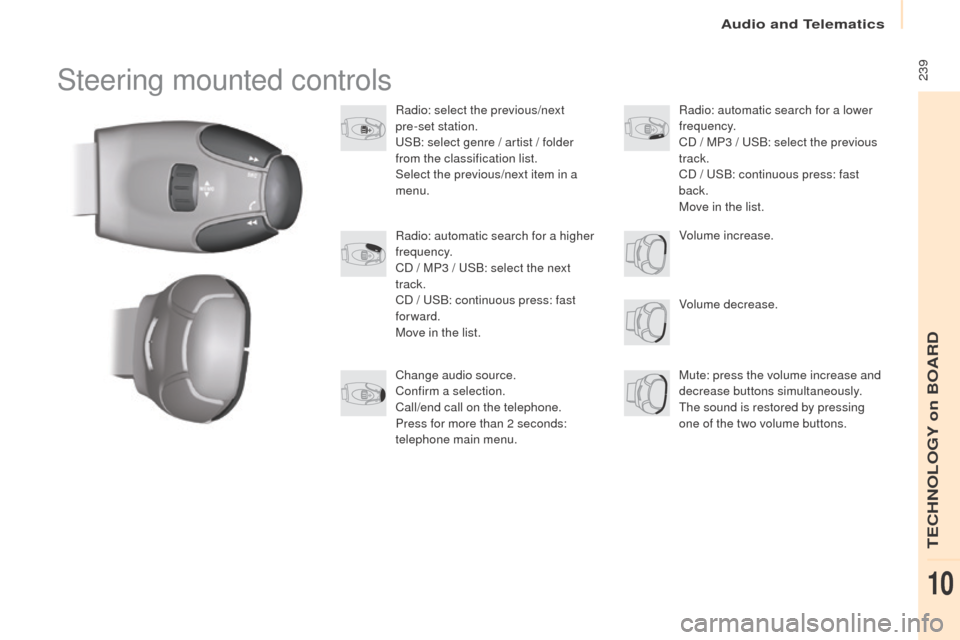
Steering mounted controls
Radio: select the previous/next
pre-set station.
USB: select genre / artist / folder
from the classification list.
Select the previous/next item in a
menu.Volume decrease.
Radio: automatic search for a higher
frequency.
CD / MP3 / USB: select the next
track.
CD / USB: continuous press: fast
forward.
Move in the list.
Mute: press the volume increase and
decrease buttons simultaneously.
The sound is restored by pressing
one of the two volume buttons. Radio: automatic search for a lower
frequency.
CD / MP3 / USB: select the previous
track.
CD / USB: continuous press: fast
back.
Move in the list.
Change audio source.
Confirm a selection.
Call/end call on the telephone.
Press for more than 2 seconds:
telephone main menu. Volume increase.
TECHNOLOGY on BOARD
10
Page 242 of 260
Audio and Telematics
240
Partner-2-Vu_en_Chap10b_RD45_ed02-2015
Menus
Screen C
Audio functions
Radio; CD; USB; AUX.
Trip computer
Enter distances; Alerts; State of
functions.
Bluetooth
®: Telephone - Audio
Pairing; Hands-free kit; Streaming.
Personalisation-configuration
Vehicle parameters; Display;
Languages. For an overview of the menus available,
refer to the "Screen menu map"
section.
Screen A
Radio
Selecting a station
Press the SOURCE
button several
times in succession and select the
radio.
Press the BAND AST button to
select a waveband.
Briefly press one of the buttons to
carry out an automatic search of the
radio stations.
Press one of the buttons to carry out
a manual search up / down for radio
frequencies.
Press the LIST REFRESH button to
display the list of stations received
locally (30 stations maximum).
To update this list, press for more
than two seconds.
Page 243 of 260

Audio and Telematics
241
Partner-2-Vu_en_Chap10b_RD45_ed02-2015
RDS
The external environment (hills,
buildings, tunnels, basement car
parks, ...) may block reception,
including in RDS mode. This is a
normal effect of the way in which radio
waves are transmitted and does not
indicate any failure of the audio system.
Press the MENU button.
Select " Audio functions ".
Press OK.
Select the " FM waveband
preferences " function.
Press OK. Select "
Activate RDS ".
Press OK , RDS is displayed in the
screen.
In " Radio " mode, press OK directly to activate /
deactivate RDS mode.
RDS, if displayed, enables you to continue
listening to the same station by automatic
retuning to alternative frequencies.
However, in certain conditions, coverage
of an RDS station may not be assured
throughout the country as radio stations
do not cover 100 % of the territory. This
explains the loss of reception of a station
that can occur during a journey.
Receiving TA messages
Press the TA button to activate or
deactivate traffic messages.
The TA (Traffic Announcement)
function gives priority to TA alert
messages. To operate, this function
needs good reception of a radio station
transmitting this type of message.
When a traffic report is transmitted, the
current audio source (Radio, CD,
...)
is interrupted automatically to play the
TA message. Normal playback of the
audio source resumes at the end of the
transmission of the message.
TECHNOLOGY on BOARD
10
Page 250 of 260
Audio and Telematics
248
Partner-2-Vu_en_Chap10b_RD45_ed02-2015
Screen menu map(s)
Radio- CD
REG mode
CD repeat
Shuffle play
Vehicle config*
R wiper in rev
Options
Diagnostic
RDS options
View
Abandon
1
2
3
3
1
2
2
2
2
1
2
Screen A
* The settings vary according to the trim level of the vehicle.
Guide lighting
2
Units
Temperature: °Celsius / °Fahrenheit
Fuel consumption: KM/L - L/100 - MPG
1
2
2
Display adjust
Month
Day
Hour
Minutes Ye a r
12 H/24 H mode
Language
Italiano
Nederlands
Portuguès
Português do Brasil Français
Deutsch
Čeština English
Hr vatski Español
Magyar
1
2
2
2
2
2
2
2
1
2
2
2
2
2
2
2
2
2
2
Page 251 of 260
Audio and Telematics
249
Partner-2-Vu_en_Chap10b_RD45_ed02-2015
Screen C
Press the OK dial for access to
short-cut menus according to the
display on the screen.
activate / deactivate RDS
activate / deactivate REG mode
activate / deactivate radiotext
Radio
activate / deactivate Intro
CD / MP3 CD
activate / deactivate track repeat (the
entire current CD for CD, the entire current
folder for MP3 CD)
activate / deactivate random play (the
entire current CD for CD, the entire current
folder for MP3 CD) activate / deactivate track repeat
(of
the current folder / artist / genre /
playlist)
USB
activate / deactivate random play (of the
current folder / artist / genre / playlist)
1
1
1
1
1
1
1
1
TECHNOLOGY on BOARD
10