Page 290 of 364
04
288
5008_en_Chap12b_RT6-2-8_ed01-2015
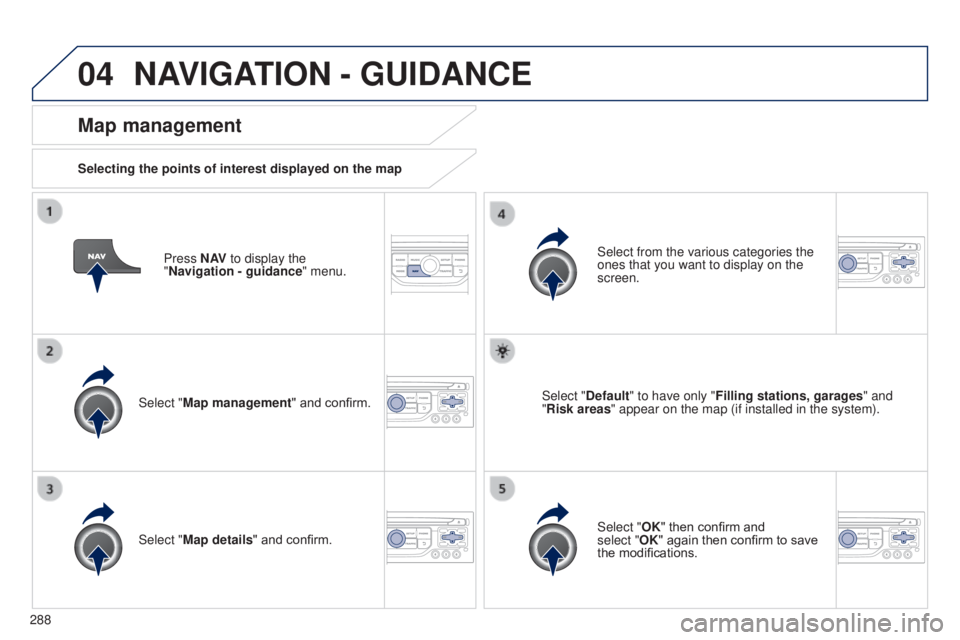
Press N AV to display the
"Navigation - guidance " menu.
Map management
Selecting the points of interest displayed on the map
Select "Map management" and confirm. Select from the various categories the
ones that you want to display on the
screen.
Select "Map details" and confirm. Select "Default" to have only "Filling stations, garages
" and
"Risk areas " appear on the map (if installed in the system).
Select "OK" then confirm and
select
"OK" again then confirm to save
the modifications.
NAVIGATION - GUIDANCE
Page 291 of 364
04
289
5008_en_Chap12b_RT6-2-8_ed01-2015
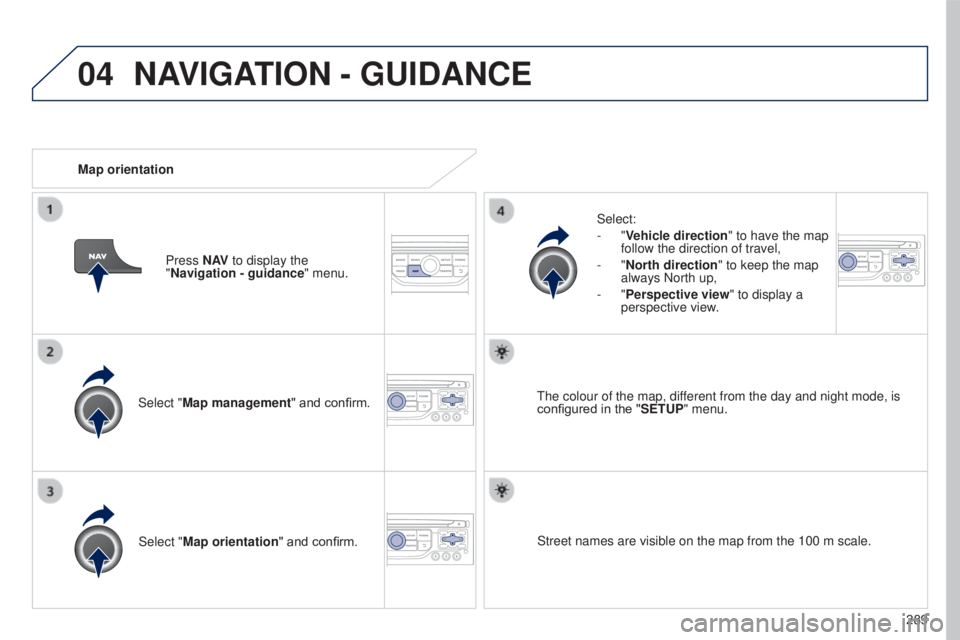
Select "Map management" and confirm.Select:
-
"Vehicle direction
" to have the map
follow the direction of travel,
- "North direction
" to keep the map
always North up,
- "Perspective view" to display a
perspective view.
Select "Map orientation " and confirm. The colour of the map, different from the day and night mode, is
configured in the "
SETUP" menu.
Map orientation
Press N AV to display the
"Navigation - guidance " menu.
Street names are visible on the map from the 100 m scale.
NAVIGATION - GUIDANCE
Page 292 of 364
04
290
5008_en_Chap12b_RT6-2-8_ed01-2015
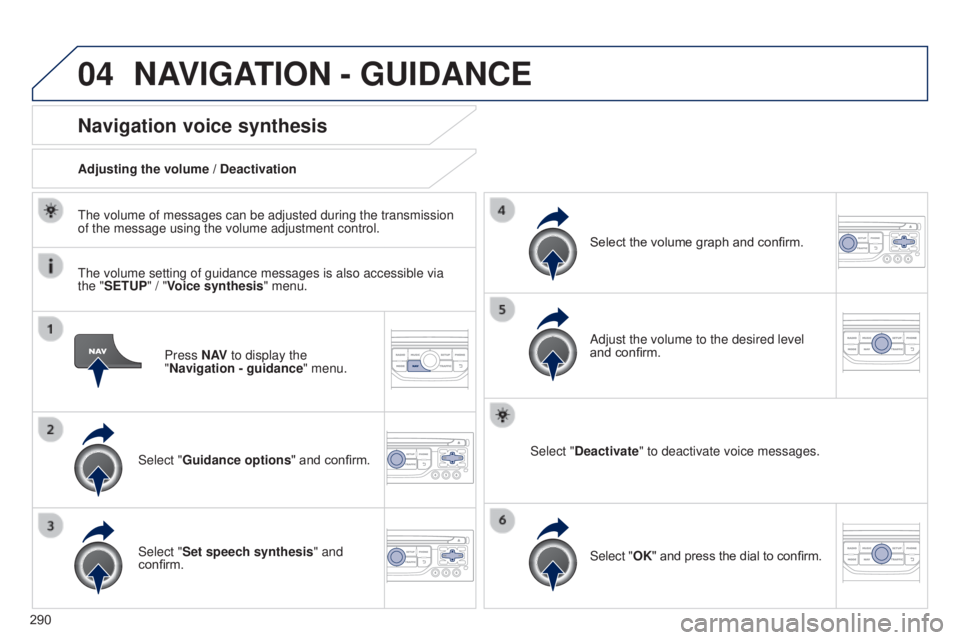
Press N AV to display the
"Navigation - guidance " menu.
Navigation voice synthesis
Select "Guidance options " and confirm.
Adjusting the volume / Deactivation
Select "Set speech synthesis" and
confirm. Select the volume graph and confirm.
Select "Deactivate " to deactivate voice messages.
Select "OK" and press the dial to confirm. Adjust the volume to the desired level
and confirm.
The volume of messages can be adjusted during the transmission
of the message using the volume adjustment control.
The volume setting of guidance messages is also accessible via
the "SETUP" / "
Voice synthesis" menu.
NAVIGATION - GUIDANCE
Page 293 of 364
04
291
5008_en_Chap12b_RT6-2-8_ed01-2015
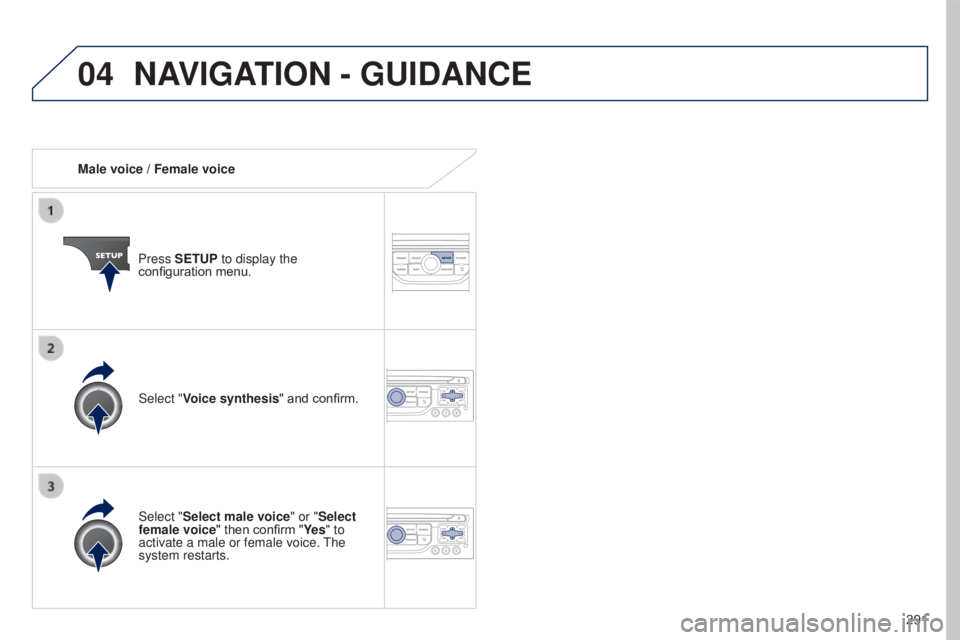
Male voice / Female voicePress SETUP to display the
configuration menu.
Select "Select male voice" or "Select
female voice" then confirm "Ye s " to
activate a male or female voice. The
system restarts. Select "Voice synthesis" and confirm.
NAVIGATION - GUIDANCE
Page 295 of 364
05
293
5008_en_Chap12b_RT6-2-8_ed01-2015
Configure the filtering and display of TMC messages
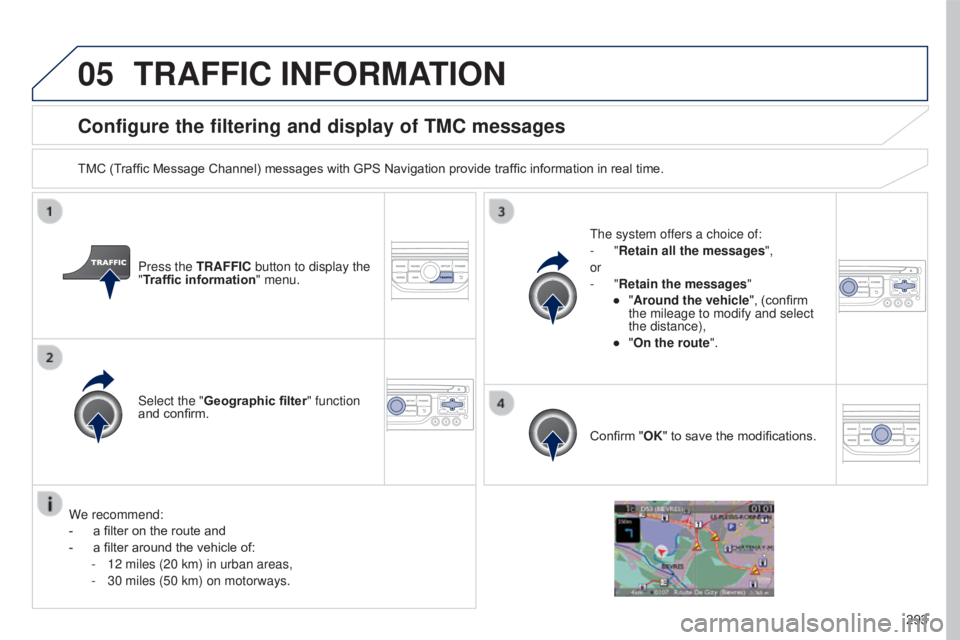
TMC (Traffic Message Channel) messages with GPS Navigation provide traffic information in real time.Press the TRAFFIC button to display the
"Traffic information" menu.
Select the "Geographic filter" function
and confirm. The system offers a choice of:
-
"Retain all the messages",
or
-
"Retain the messages"
●
"
Around the vehicle", (confirm
the mileage to modify and select
the distance),
●
"
On the route".
Confirm "OK" to save the modifications.
We recommend:
-
a filter on the route and
-
a filter around the vehicle of:
-
12 miles (20 km) in urban areas,
-
30 miles (50 km) on motorways.
TRAFFIC INFORMATION
Page 320 of 364
11
318
5008_en_Chap12b_RT6-2-8_ed01-2015
SCREEN MENU MAP(S)
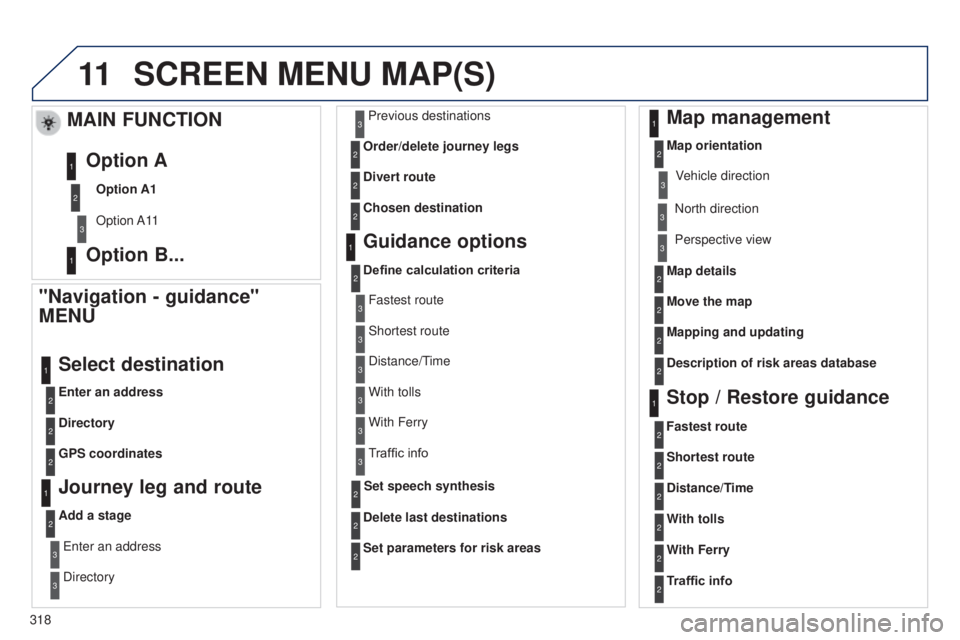
"Navigation - guidance"
MENU
Enter an address
Select destination
Directory
GPS coordinates
Journey leg and route
Add a stageEnter an address
Directory Previous destinations
Order/delete journey legs
Divert route
Chosen destination
Guidance options
Define calculation criteria
Delete last destinations
Map management
Map orientation
MAIN FUNCTION
Option A1
Option A11
Option A
Option B...
Map details
Move the map
Mapping and updating
Description of risk areas database
Stop / Restore guidance
1
2
3
1
3
3
2
2
2
2
1
3
1
1
2
2
2
2
2
2
2
2
2
2
1
1
Set parameters for risk areas2
Fastest route2
Shortest route
Distance/Time
With tolls2
2
2
With Ferry2
Traffic info2
Set speech synthesis Fastest route
Shortest route
3
3
2
Distance/Time
With tolls3
3
With Ferry
Traffic info3
3
3
3
3
North direction
Vehicle direction
Perspective view
Page 324 of 364

322
5008_en_Chap12b_RT6-2-8_ed01-2015
The following table groups together the answers to the most frequently a\
sked questions concerning your audio system.
FREQUENTLY ASKED QUESTIONS
QUESTION ANSWER SOLUTION
The route calculation is
not successful. The guidance criteria may conflict with the current location (exclusion of
toll roads on a toll motorway). Check the guidance criteria on the Navigation
Menu, "Guidance options" "Define calculation
criteria".
I am unable to enter my
post code. The system only accepts post codes of up to 7 characters.
The POIs do not appear. The POIs have not been selected. Select the POIs in the list of POIs.
The risk areas audible
warning does not work. The audible warning is not active.
Activate audible warnings in the Guidance options
menu, "Navigation - guidance", "Set parameters for
risk areas".
The system does not
suggest a detour around
an incident on the route. The guidance criteria do not take account of TMC messages.
Select the "Traffic info" function in the list of
guidance criteria.
I receive a Risk area alert
which is not on my route. Other than guidance, the system announces all Risk areas positioned in a\
cone located in front of the vehicle. It may provide an alert for a Risk\
area
located on nearby or parallel roads. Zoom in on the map to view the exact position of
the Risk area. Select "On the route" to no longer
receive alerts other than guidance or to reduce the
time for the announcement.
Page 338 of 364

05
336
5008_EN_CHAP12C_RD45_ED01_2015
PEUGEOT CONNECT USB
The system puts together playlists (temporary memory) created
over a period which depends on the capacity of the USB device.
The other sources are available during this time.
The playlists are updated each time the ignition is switched off or
each time a USB memory stick is connected.
When connecting for the first time, the classification suggested
is by folder. When you reconnect, the classification selected
previously is retained.Connect the memory stick to the port, directly or
using a lead. If the audio equipment is switched
on, the USB source is detected as soon as it
is connected. Play begins automatically after a
delay which depends on the capacity of the USB
memory stick.
The file formats supported are .mp3 (mpeg1
layer
3 only) and .wma (standard 9 only,
128 kbits/sec compression).
Certain playlist formats are supported (.m3u, ...)
On reconnection of the previous memory stick
used, play is resumed automatically with the last
track played.
This unit consists of a USB port and an auxiliary
Jack socket*. The audio files are transmitted
from a portable device - digital player or a USB
memory stick - to your PEUGEOT Connect
Sound (RD5) and heard via the vehicle's
speakers.
USB memory stick or Apple
® player of
generation 5 or later:
-
Use only USB memory sticks formatted
F
AT32 (File Allocation Table),
-
the Apple® player lead is essential,
-
navigation through the file database is also
possible by means of the steering mounted
controls.
Using the PEUGEOT CONNECT USB
Connecting a USB memory stick
Other Apple
® players of earlier generations and
players using the MTP protocol*:
-
play via Jack-Jack lead only (not supplied),
-
navigation through the file database is from
the portable device. * Depending on vehicle.