Page 136 of 386
WARNING
●Do not drive with the trunk lid open. This
could allow dangerous exhaust gases
to be drawn into the vehicle. For addi-
tional information, refer to “Exhaust
gas (carbon monoxide)” in the “Starting
and driving” section of this manual.
● Closely supervise children when they
are around cars to prevent them from
playing and becoming locked in the
trunk where they could be seriously in-
jured. Keep the car locked, with the rear
seatback and trunk lid securely latched
when not in use, and prevent children’s
access to car keys.
KEY OPERATION
To open the trunk lid, turn the key clockwise. To
close the trunk lid, lower and push the trunk lid
down securely.
OPENING THE TRUNK LID
To open the trunk, unlock it with one of the
following operations:
● Unlock the trunk using the key.
● Pull up on the opener lever (if so equipped)
located on the floor next to the driver’s seat.
● Press the button on the Intelligent Key.
● Push the
�Arelease switch.
LPD2036LPD2437
TRUNK LID
Pre-driving checks and adjustments3-25
Page 137 of 386
OPENER OPERATION (if so
equipped)
WARNING
●Do not drive with the trunk lid open. This
could allow dangerous exhaust gases
to be drawn into the vehicle. For addi-
tional information, refer to “Exhaust
gas (carbon monoxide)” in the “Starting
and driving” section of this manual. ●
Closely supervise children when they
are around cars to prevent them from
playing and becoming locked in the
trunk where they could be seriously in-
jured. Keep the car locked, with the rear
seatback and trunk lid securely latched
when not in use, and prevent children’s
access to car keys.
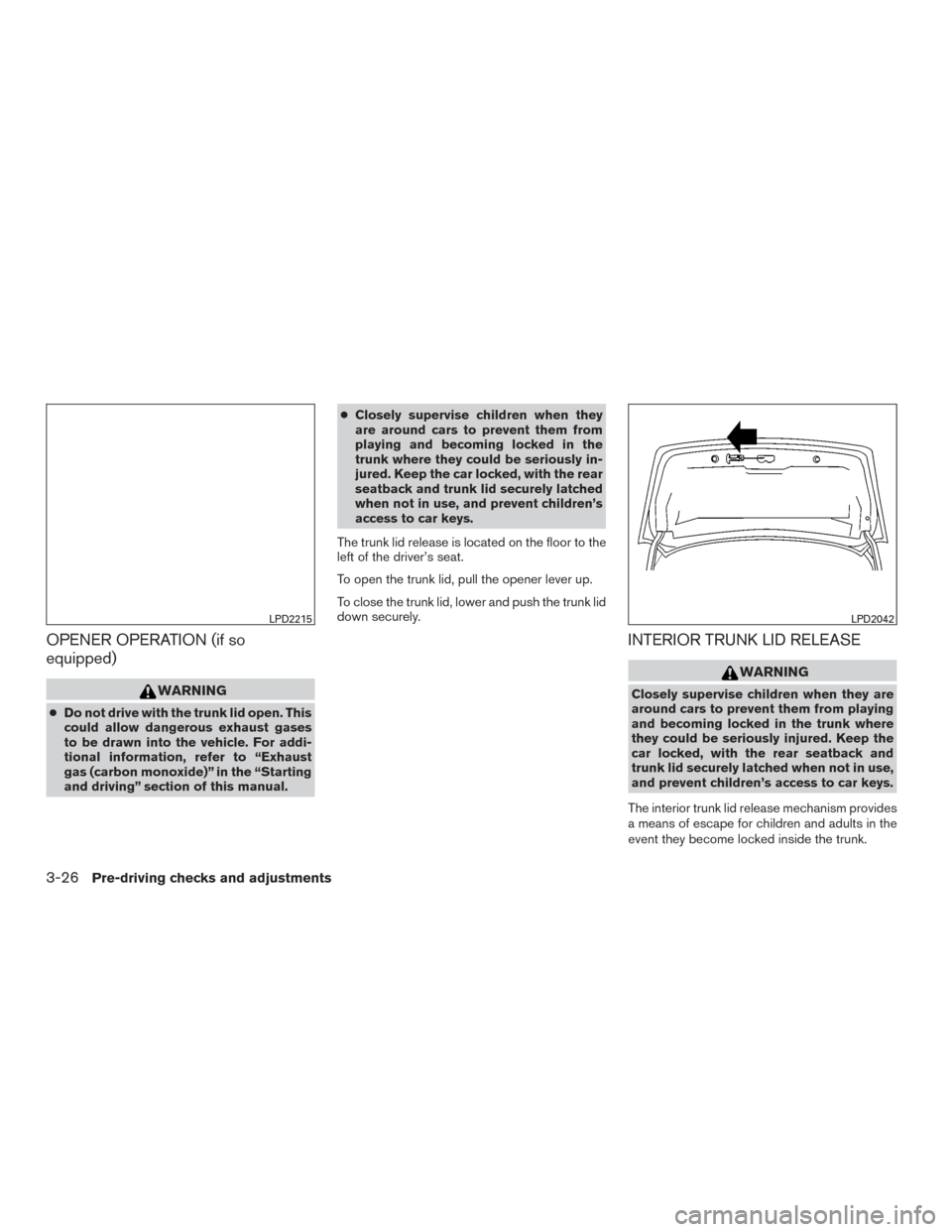
The trunk lid release is located on the floor to the
left of the driver’s seat.
To open the trunk lid, pull the opener lever up.
To close the trunk lid, lower and push the trunk lid
down securely.
INTERIOR TRUNK LID RELEASE
WARNING
Closely supervise children when they are
around cars to prevent them from playing
and becoming locked in the trunk where
they could be seriously injured. Keep the
car locked, with the rear seatback and
trunk lid securely latched when not in use,
and prevent children’s access to car keys.
The interior trunk lid release mechanism provides
a means of escape for children and adults in the
event they become locked inside the trunk.
LPD2215LPD2042
3-26Pre-driving checks and adjustments
Page 138 of 386
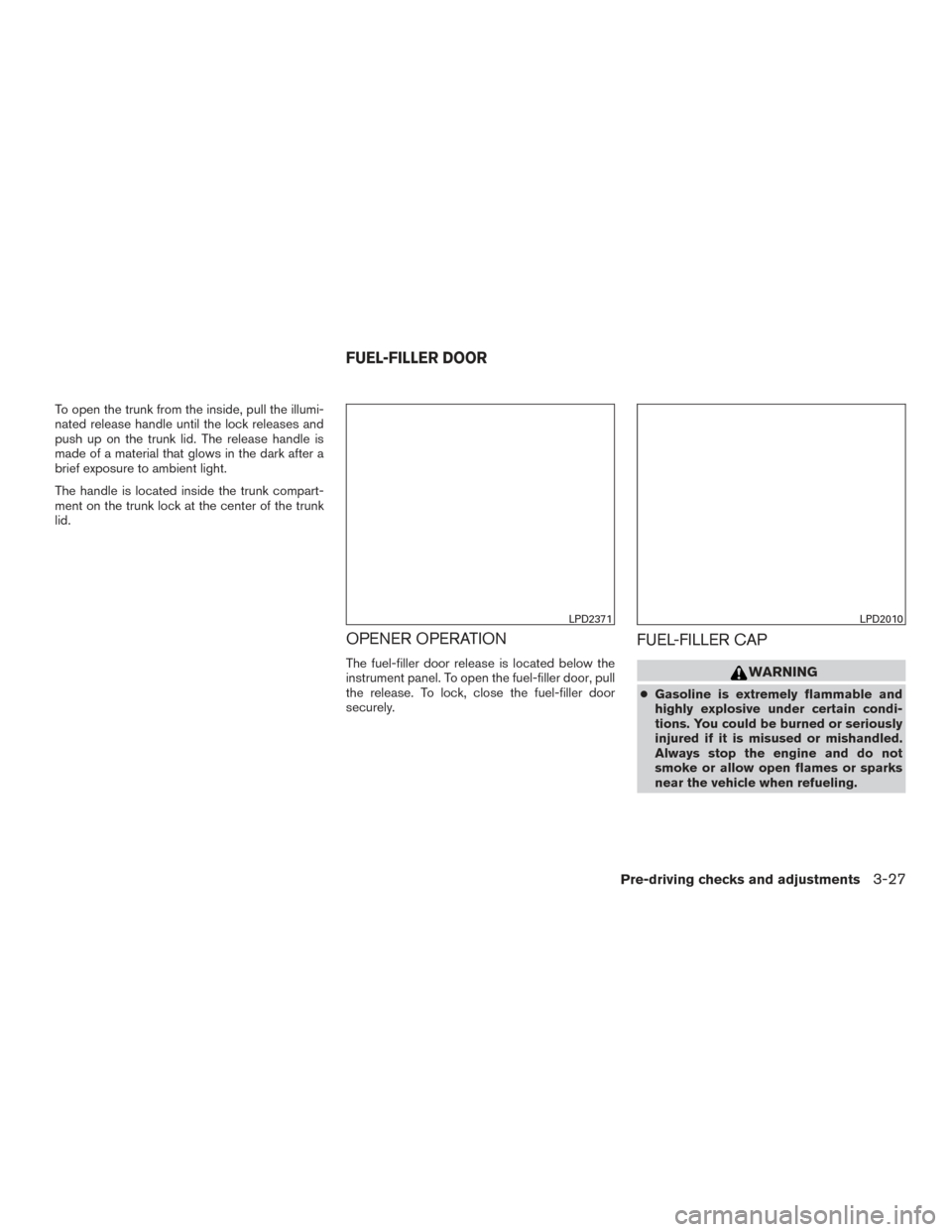
To open the trunk from the inside, pull the illumi-
nated release handle until the lock releases and
push up on the trunk lid. The release handle is
made of a material that glows in the dark after a
brief exposure to ambient light.
The handle is located inside the trunk compart-
ment on the trunk lock at the center of the trunk
lid.
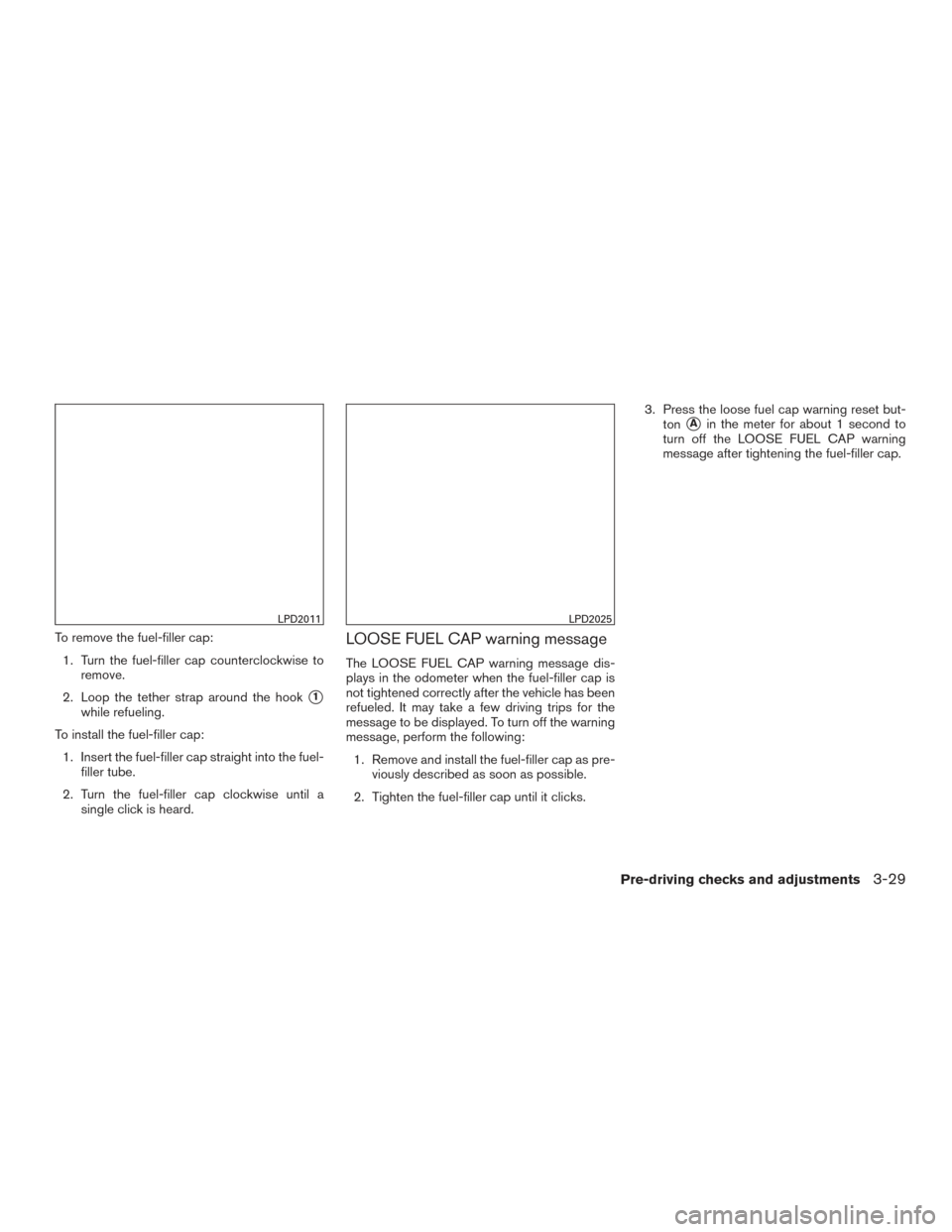
OPENER OPERATION
The fuel-filler door release is located below the
instrument panel. To open the fuel-filler door, pull
the release. To lock, close the fuel-filler door
securely.
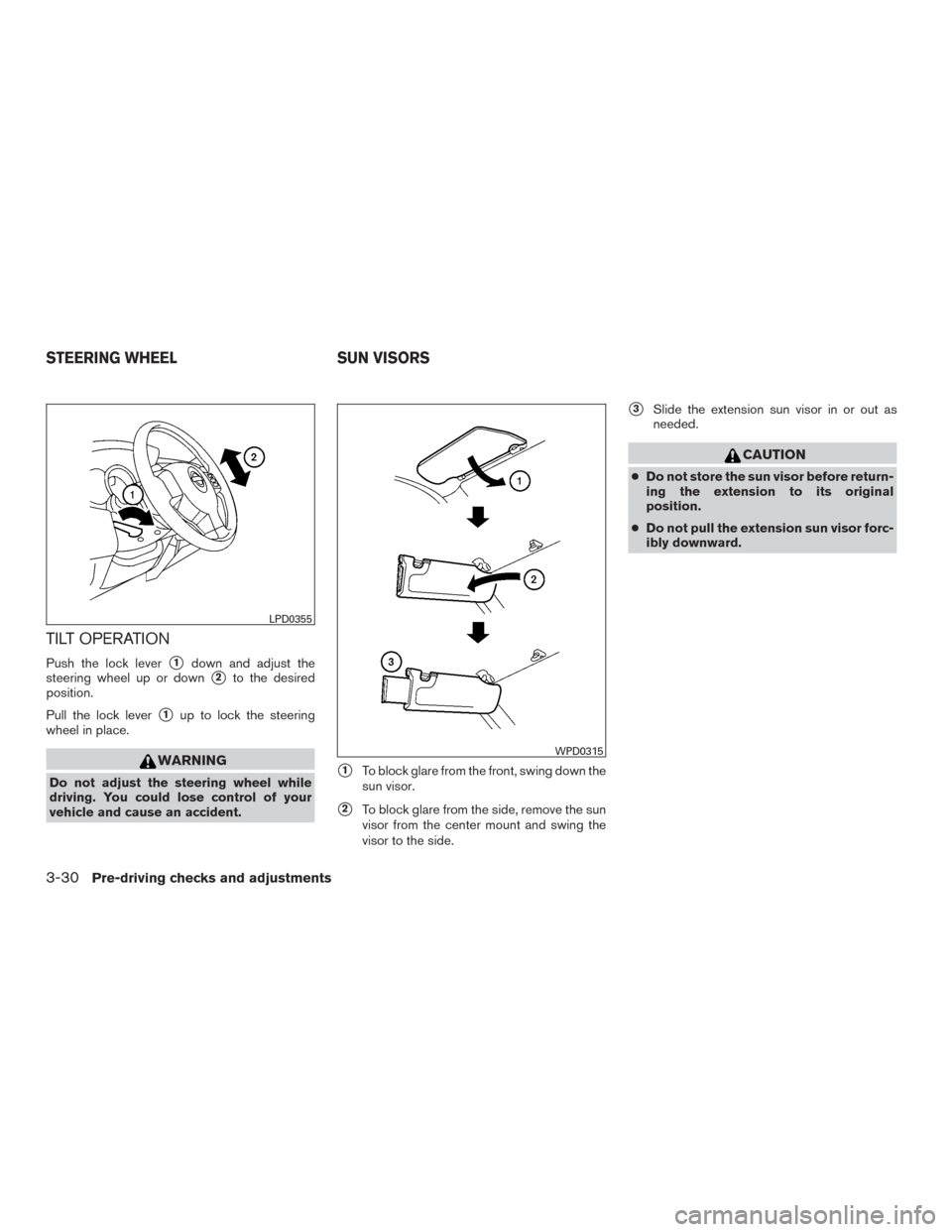
FUEL-FILLER CAP
WARNING
●Gasoline is extremely flammable and
highly explosive under certain condi-
tions. You could be burned or seriously
injured if it is misused or mishandled.
Always stop the engine and do not
smoke or allow open flames or sparks
near the vehicle when refueling.
LPD2371LPD2010
FUEL-FILLER DOOR
Pre-driving checks and adjustments3-27
Page 140 of 386
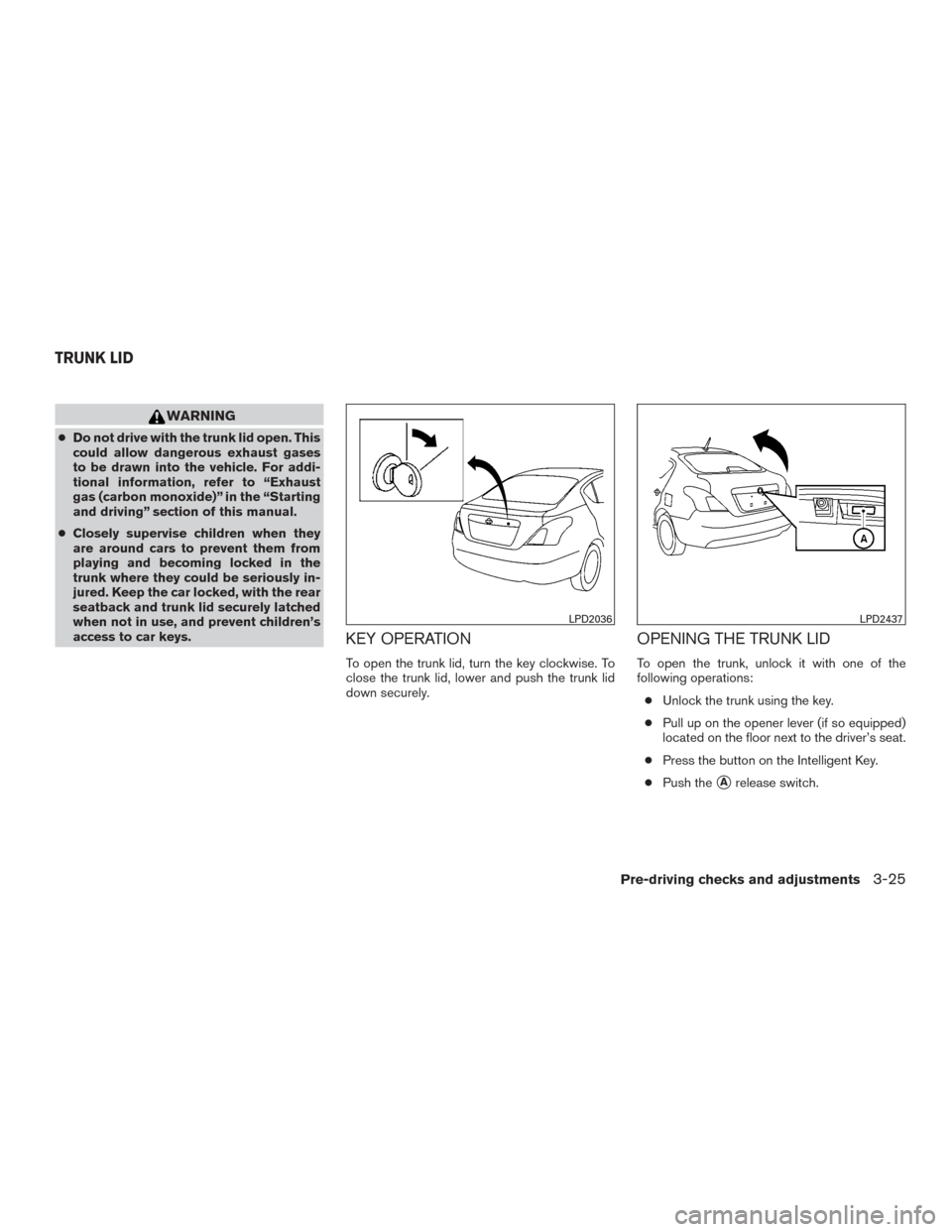
To remove the fuel-filler cap:1. Turn the fuel-filler cap counterclockwise to remove.
2. Loop the tether strap around the hook
�1
while refueling.
To install the fuel-filler cap: 1. Insert the fuel-filler cap straight into the fuel- filler tube.
2. Turn the fuel-filler cap clockwise until a single click is heard.
LOOSE FUEL CAP warning message
The LOOSE FUEL CAP warning message dis-
plays in the odometer when the fuel-filler cap is
not tightened correctly after the vehicle has been
refueled. It may take a few driving trips for the
message to be displayed. To turn off the warning
message, perform the following:
1. Remove and install the fuel-filler cap as pre- viously described as soon as possible.
2. Tighten the fuel-filler cap until it clicks. 3. Press the loose fuel cap warning reset but-
ton
�Ain the meter for about 1 second to
turn off the LOOSE FUEL CAP warning
message after tightening the fuel-filler cap.
LPD2011LPD2025
Pre-driving checks and adjustments3-29
Page 141 of 386
TILT OPERATION
Push the lock lever�1down and adjust the
steering wheel up or down
�2to the desired
position.
Pull the lock lever
�1up to lock the steering
wheel in place.
WARNING
Do not adjust the steering wheel while
driving. You could lose control of your
vehicle and cause an accident.�1To block glare from the front, swing down the
sun visor.
�2To block glare from the side, remove the sun
visor from the center mount and swing the
visor to the side.
�3Slide the extension sun visor in or out as
needed.
CAUTION
● Do not store the sun visor before return-
ing the extension to its original
position.
● Do not pull the extension sun visor forc-
ibly downward.
LPD0355
WPD0315
STEERING WHEEL SUN VISORS
3-30Pre-driving checks and adjustments
Page 144 of 386
4 Monitor, climate, audio, phone and voice
recognition systems
Control panel buttons — color screen with
Navigation System (if so equipped)..................4-4
How to use the touch-screen . . ..................4-5
How to use the BACK button ....................4-7
How to use the
button ....................4-7
Clock Set ......................................4-9
button...................................4-9
How to use the ON•OFF button/VOL
(volume) control knob ...........................4-9
How to use the CAMERA button .................4-9
RearView Monitor (if so equipped) ..................4-10
RearView Monitor system operation .............4-11
Difference between predicted and actual
distances ..................................... 4-11
Adjusting the screen ........................... 4-13
RearView Monitor system limitations .............4-14
System maintenance ........................... 4-15
Vents ........................................... 4-15
Heater and Air Conditioner (manual) ................4-16
Controls ...................................... 4-17
Heater operation .............................. 4-18
Air conditioner operation .......................4-19Air flow charts
................................. 4-20
Servicing air conditioner ........................... 4-24
Audio system .................................... 4-24
Radio ........................................ 4-24
FM radio reception ............................ 4-24
AM radio reception ............................ 4-25
Satellite radio reception (if so equipped) .........4-25
Audio operation precautions ....................4-25
FM/AM radio with compact disc (CD) player
(Type A) (if so equipped) .......................4-33
FM/AM radio with compact disc (CD) player
(Type B) (if so equipped) .......................4-37
FM/AM/SAT radio with compact disc (CD)
player (Type A) (if so equipped) .................4-42
FM/AM/SAT radio with compact disc (CD)
player (Type B) (if so equipped) .................4-47
USB (Universal Serial Bus) connection port
(models without Navigation System) (if so
equipped) .................................... 4-53
USB (Universal Serial Bus) connection port
(models with Navigation System)
(if so equipped) ............................... 4-55
Page 151 of 386
Menu itemResult
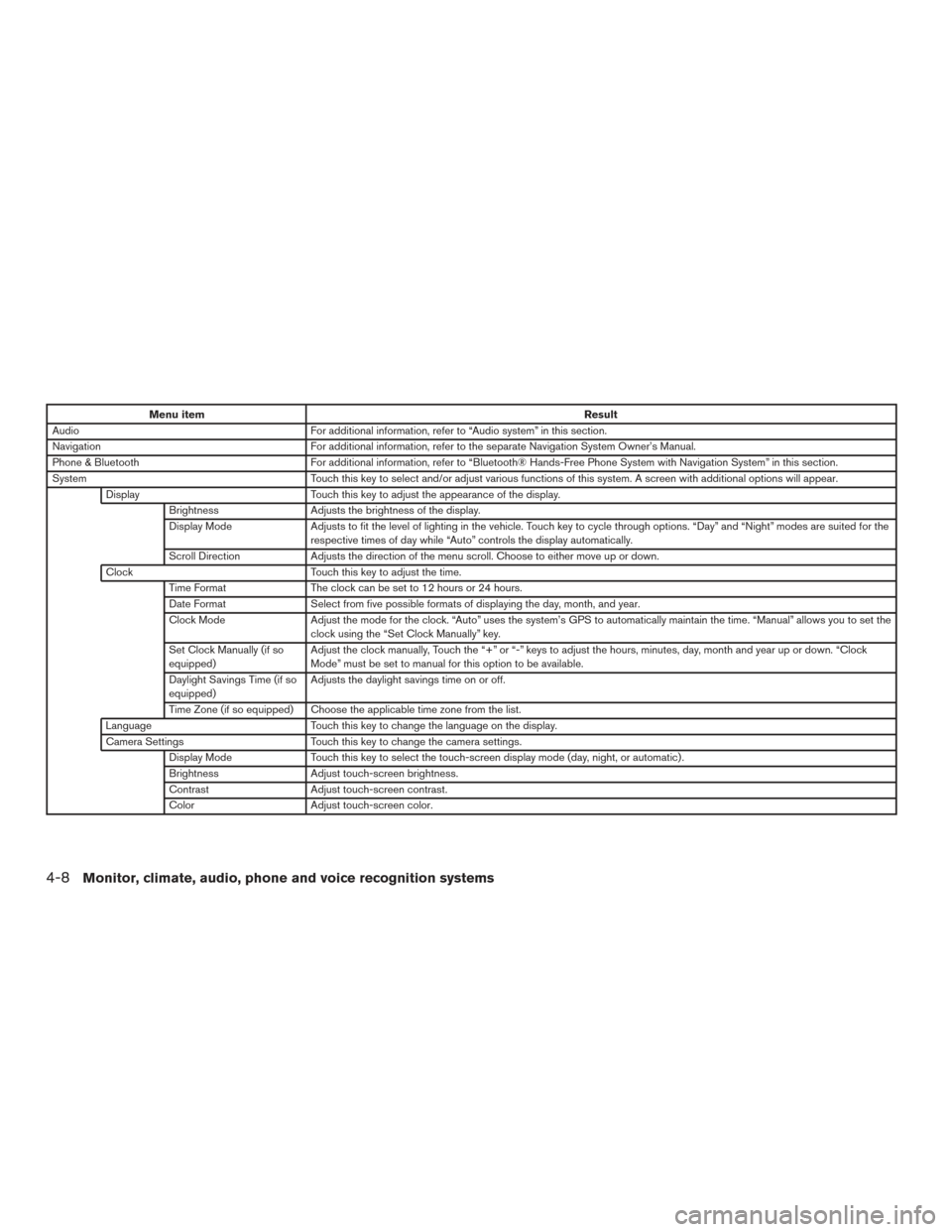
Audio For additional information, refer to “Audio system” in this section.
Navigation For additional information, refer to the separate Navigation System Owner’s Manual.
Phone & Bluetooth For additional information, refer to “Bluetooth® Hands-Free Phone System with Navigation System” in this section.
System Touch this key to select and/or adjust various functions of this system. A screen with additional options will appear.
Display Touch this key to adjust the appearance of the display.
Brightness Adjusts the brightness of the display.
Display Mode Adjusts to fit the level of lighting in the vehicle. Touch key to cycle through options. “Day” and “Night” modes are suited for the
respective times of day while “Auto” controls the display automatically.
Scroll Direction Adjusts the direction of the menu scroll. Choose to either move up or down.
Clock Touch this key to adjust the time.
Time Format The clock can be set to 12 hours or 24 hours.
Date Format Select from five possible formats of displaying the day, month, and year.
Clock Mode Adjust the mode for the clock. “Auto” uses the system’s GPS to automatically maintain the time. “Manual” allows you to set the
clock using the “Set Clock Manually” key.
Set Clock Manually (if so
equipped) Adjust the clock manually, Touch the “+” or “-” keys to adjust the hours, minutes, day, month and year up or down. “Clock
Mode” must be set to manual for this option to be available.
Daylight Savings Time (if so
equipped) Adjusts the daylight savings time on or off.
Time Zone (if so equipped) Choose the applicable time zone from the list.
Language Touch this key to change the language on the display.
Camera Settings Touch this key to change the camera settings.
Display Mode Touch this key to select the touch-screen display mode (day, night, or automatic) .
Brightness Adjust touch-screen brightness.
Contrast Adjust touch-screen contrast.
Color Adjust touch-screen color.
4-8Monitor, climate, audio, phone and voice recognition systems
Page 152 of 386
Menu itemResult
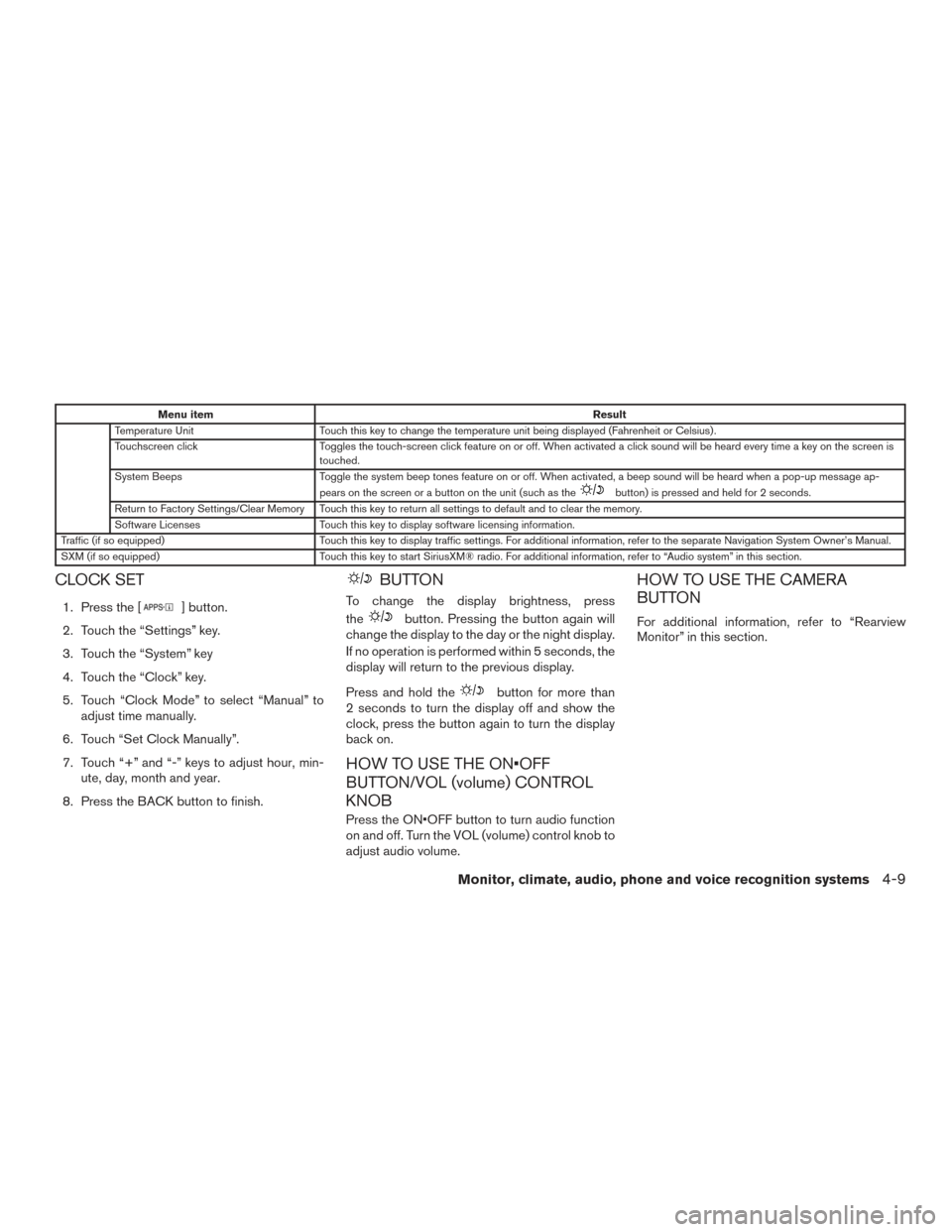
Temperature Unit Touch this key to change the temperature unit being displayed (Fahrenheit or Celsius) .
Touchscreen click Toggles the touch-screen click feature on or off. When activated a click sound will be heard every time a key on the screen is
touched.
System Beeps Toggle the system beep tones feature on or off. When activated, a beep sound will be heard when a pop-up message ap-
pears on the screen or a button on the unit (such as the
button) is pressed and held for 2 seconds.
Return to Factory Settings/Clear Memory Touch this key to return all settings to default and to clear the memory.
Software Licenses Touch this key to display software licensing information.
Traffic (if so equipped) Touch this key to display traffic settings. For additional information, refer to the separate Navigation System Owner’s Manual.
SXM (if so equipped) Touch this key to start SiriusXM® radio. For additional information, refer to “Audio system” in this section.
CLOCK SET
1. Press the [] button.
2. Touch the “Settings” key.
3. Touch the “System” key
4. Touch the “Clock” key.
5. Touch “Clock Mode” to select “Manual” to adjust time manually.
6. Touch “Set Clock Manually”.
7. Touch “+” and “-” keys to adjust hour, min- ute, day, month and year.
8. Press the BACK button to finish.
BUTTON
To change the display brightness, press
the
button. Pressing the button again will
change the display to the day or the night display.
If no operation is performed within 5 seconds, the
display will return to the previous display.
Press and hold the
button for more than
2 seconds to turn the display off and show the
clock, press the button again to turn the display
back on.
HOW TO USE THE ON•OFF
BUTTON/VOL (volume) CONTROL
KNOB
Press the ON•OFF button to turn audio function
on and off. Turn the VOL (volume) control knob to
adjust audio volume.
HOW TO USE THE CAMERA
BUTTON
For additional information, refer to “Rearview
Monitor” in this section.
Monitor, climate, audio, phone and voice recognition systems4-9