2016 NISSAN VERSA NOTE ESP
[x] Cancel search: ESPPage 244 of 402
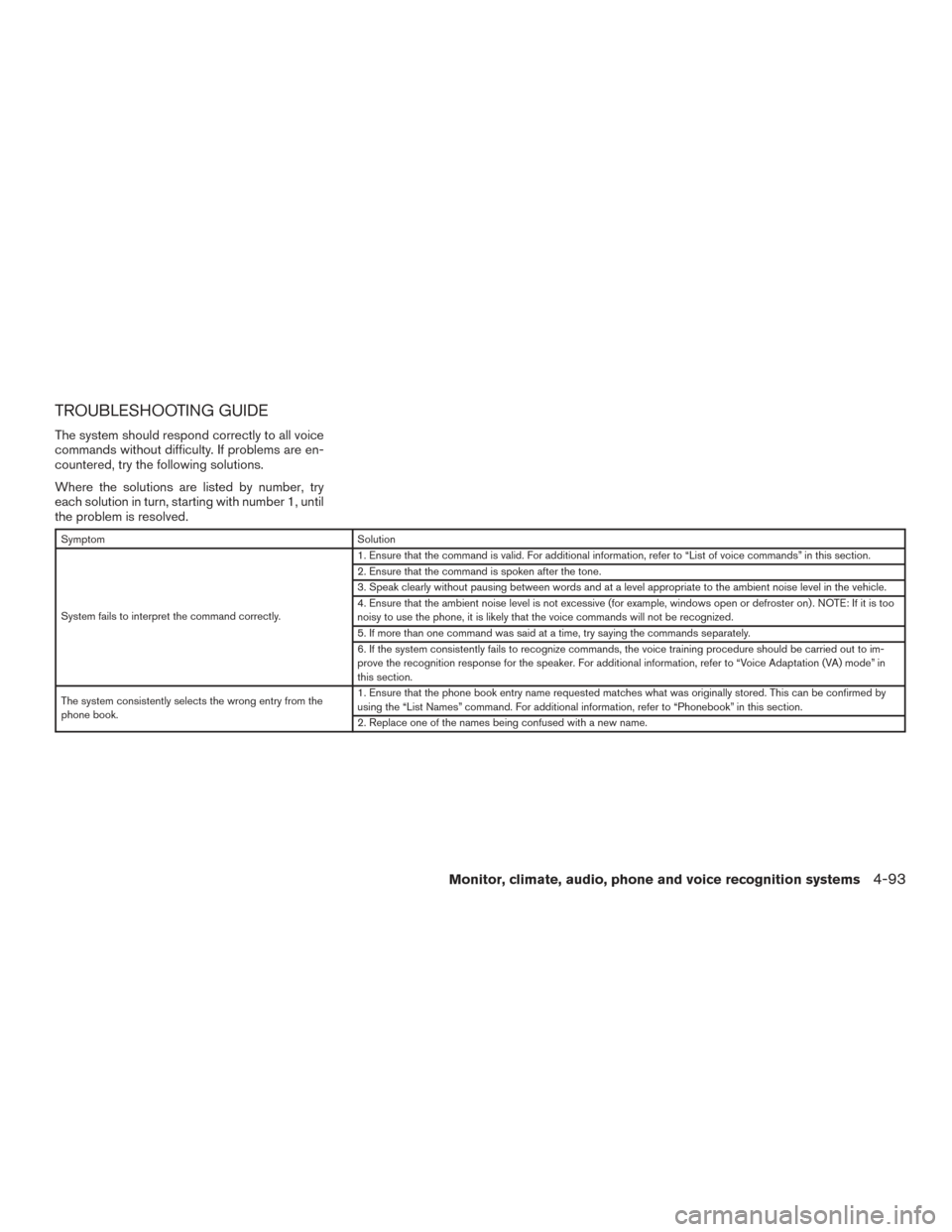
TROUBLESHOOTING GUIDE
The system should respond correctly to all voice
commands without difficulty. If problems are en-
countered, try the following solutions.
Where the solutions are listed by number, try
each solution in turn, starting with number 1, until
the problem is resolved.
SymptomSolution
System fails to interpret the command correctly. 1. Ensure that the command is valid. For additional information, refer to “List of voice commands” in this section.
2. Ensure that the command is spoken after the tone.
3. Speak clearly without pausing between words and at a level appropriate to the ambient noise level in the vehicle.
4. Ensure that the ambient noise level is not excessive (for example, windows open or defroster on) . NOTE: If it is too
noisy to use the phone, it is likely that the voice commands will not be recognized.
5. If more than one command was said at a time, try saying the commands separately.
6. If the system consistently fails to recognize commands, the voice training procedure should be carried out to im-
prove the recognition response for the speaker. For additional information, refer to “Voice Adaptation (VA) mode” in
this section.
The system consistently selects the wrong entry from the
phone book. 1. Ensure that the phone book entry name requested matches what was originally stored. This can be confirmed by
using the “List Names” command. For additional information, refer to “Phonebook” in this section.
2. Replace one of the names being confused with a new name.
Monitor, climate, audio, phone and voice recognition systems4-93
Page 247 of 402
IC Regulatory information
– Operation is subject to the following two con-ditions: (1) this device may not cause interfer-
ence, and (2) this device must accept any
interference, including interference that may
cause undesired operation of the device.
– This Class B digital apparatus meets all re- quirements of the Canadian Interference-
Causing Equipment Regulations.
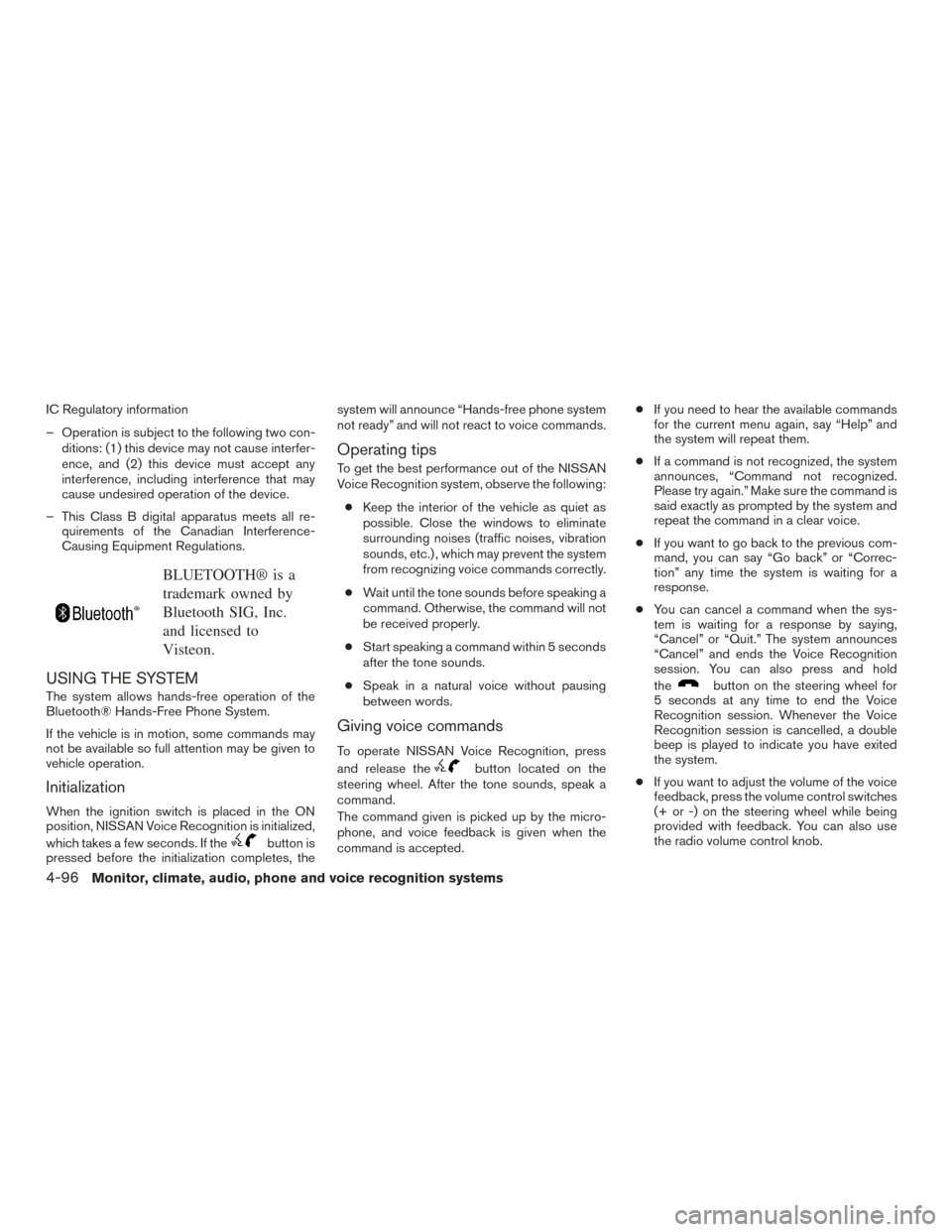
BLUETOOTH® is a
trademark owned by
Bluetooth SIG, Inc.
and licensed to
Visteon.
USING THE SYSTEM
The system allows hands-free operation of the
Bluetooth® Hands-Free Phone System.
If the vehicle is in motion, some commands may
not be available so full attention may be given to
vehicle operation.
Initialization
When the ignition switch is placed in the ON
position, NISSAN Voice Recognition is initialized,
which takes a few seconds. If the
button is
pressed before the initialization completes, the system will announce “Hands-free phone system
not ready” and will not react to voice commands.
Operating tips
To get the best performance out of the NISSAN
Voice Recognition system, observe the following:
● Keep the interior of the vehicle as quiet as
possible. Close the windows to eliminate
surrounding noises (traffic noises, vibration
sounds, etc.) , which may prevent the system
from recognizing voice commands correctly.
● Wait until the tone sounds before speaking a
command. Otherwise, the command will not
be received properly.
● Start speaking a command within 5 seconds
after the tone sounds.
● Speak in a natural voice without pausing
between words.
Giving voice commands
To operate NISSAN Voice Recognition, press
and release the
button located on the
steering wheel. After the tone sounds, speak a
command.
The command given is picked up by the micro-
phone, and voice feedback is given when the
command is accepted. ●
If you need to hear the available commands
for the current menu again, say “Help” and
the system will repeat them.
● If a command is not recognized, the system
announces, “Command not recognized.
Please try again.” Make sure the command is
said exactly as prompted by the system and
repeat the command in a clear voice.
● If you want to go back to the previous com-
mand, you can say “Go back” or “Correc-
tion” any time the system is waiting for a
response.
● You can cancel a command when the sys-
tem is waiting for a response by saying,
“Cancel” or “Quit.” The system announces
“Cancel” and ends the Voice Recognition
session. You can also press and hold
the
button on the steering wheel for
5 seconds at any time to end the Voice
Recognition session. Whenever the Voice
Recognition session is cancelled, a double
beep is played to indicate you have exited
the system.
● If you want to adjust the volume of the voice
feedback, press the volume control switches
(+ or -) on the steering wheel while being
provided with feedback. You can also use
the radio volume control knob.
4-96Monitor, climate, audio, phone and voice recognition systems
Page 251 of 402
●Outgoing Calls
Speak this command to list the last five
outgoing calls from the vehicle. If the call
was to an entry in the phonebook, the name
will be displayed. Otherwise, the phone
number of the outgoing call will be dis-
played.
Say “Dial” to call the number or “Send Text”
to send a text message to that number. Say
“Next Entry” or “Previous Entry” to move
through the list of outgoing calls.
● Redial
Speak this command to call the last number
dialed.
● Call Back
Speak this command to call the number of
the last incoming call to the vehicle.
“Messaging”
Speak this command to access text messaging
functions. For additional information, refer to
“Text messaging” in this section.
“Show Applications”
Speak this command to display list of smart-
phone apps available. NOTE:
Compatible smartphone and registration
necessary to access applications. For addi-
tional information, refer to “NissanCon-
nect
SMwith Mobile Apps” in this section.
“Select Phone”
Speak this command to select a phone to use
from a list of those phones connected to the
vehicle.
MAKING A CALL
To make a call from a phone connected to the
vehicle’s Bluetooth® Hands-Free Phone Sys-
tem:
NOTE:
Available commands different if system is
in Manual Control mode. For additional in-
formation, refer to “Manual Control” in this
section.
1. Press the
button.
2. The system will prompt you for a command. Say “Call”.
3. Select one of the available voice commands to continue: ●
“(a name)” — Speak the name of a phone-
book entry to place a call to that entry. The
system will respond with the name it inter-
preted from your command and will prompt
you to confirm that the name is correct. Say
“Yes” to initiate the call or “No” to hear an-
other name from the phonebook.
●
“List Names” – Speak this command to have
the system list the names in the phonebook
one by one alphabetically. Say “Next Entry” or
“Previous Entry” to move through the list al-
phabetically. Say “Select” once desired con-
tact is heard and displayed on screen. Say
“Dial” to dial the number of the current name or
say “Record Name” to record a name for the
current phonebook entry to be assigned.
● “Phone Number” — Speak this command to
place a call by inputting numbers. For 7– to
10–digit phone number, speak the numbers.
Say “Correction” at any time in the process
to correct a misspoken or misinterpreted
number. For phone numbers with more dig-
its or special characters, say “Special Num-
ber”, then speak the digits. Up to 24 digits
can be entered. Available special characters
are “start”, “pound”, “plus”, and “pause”.
When finished, say “Dial” to initiate the call.
Say “Correction” at any time in the process
to correct a misspoken or misinterpreted
number or character.
4-100Monitor, climate, audio, phone and voice recognition systems
Page 253 of 402
NOTE:
This feature is automatically disabled if the
connected device does not support the
Message Access Profile (MAP) . See the
phone’s Owner’s Manual for details and
instructions.
Many phones may require special permis-
sion to enable text messaging. Check the
phone’s screen during Bluetooth® pairing.
For some phones, you may need to enable
‘Notifications’ in the phone’s Bluetooth
menu for text messages to appear on the
headunit. For additional information, refer
to your phone’s Owner’s Manual.
Text message integration requires that the
phone support MAP (Message Access Pro-
file) for both receiving and sending text
messages. Some phones may not support
all text messaging features. Please see
www.nissanusa.com/bluetooth or
www.nissan.ca/bluetooth for compatibility
information, as well as your device’s Own-
er’s Manual.
The system allows for the sending and receiving
of text messages through the vehicle interface.
Sending a text message:1. Press the
button.
2. Say “Messaging”. 3. The system will provide a list of available
commands in order to determine the recipi-
ent of the text message. Choose from the
following:
● (a name)
● Number
● Incoming Calls
● Outgoing Calls
● Missed Calls
For additional information, refer to “Voice
commands” in this section.
4. Once a recipient is chosen, the system prompts for which message to send. Five
predefined messages are available as well
as three custom messages. To choose one
of the predefined messages, speak one of
the following:
● “Driving, can’t text”
● “Call me”
● “On my way”
● “Running late”
● “Okay” To send one of the custom messages, say
“Custom Message”. If more than one cus-
tom message is stored, the system will
prompt for the number of the desired cus-
tom message. For additional information on
setting and managing custom text mes-
sages, refer to “Bluetooth® settings” in this
section.
Reading a received text message:
1. Press the
button.
2. Say “Messaging ”.
The text message, sender and delivery time are
shown on the screen. Use the tuning switch on
the steering wheel to scroll through all text mes-
sages if more than one are available. Press
the
button to exit the text message screen.
Press the
button to access the following
options for replying to the text message:
● Call Back
Speak this command to call the sender of
the text message using the Bluetooth®
Hands-Free Phone System.
● Send Text
Speak this command to send a text message
response to the sender of the text message.
4-102Monitor, climate, audio, phone and voice recognition systems
Page 260 of 402
NOTE:
Many phones may require special permis-
sion to enable text messaging. Check the
phone’s screen during Bluetooth® pairing.
For some phones, you may need to enable
‘Notifications’ in the phone’s Bluetooth®
menu for text messages to appear on the
headunit. For additional information, refer
to the phone’s Owner’s Manual.
Text message integration requires that the
phone support MAP (Message Access Pro-
file) for both receiving and sending text
messages. Some phones may not support
all text messaging features. Please visit
www.nissanusa.com/bluetooth
www.nissan.ca/bluetooth for compatibility
information, as well as your devices’ Own-
er’s manual.
The system allows for the sending and receiving
of text messages through the vehicle interface.
Sending a text message:1. Press the
button on the steering
wheel.
2. Say “Phone” after the tone.
3. Say “Send Text” after the tone. 4. The system will provide a list of available
commands in order to determine the recipi-
ent of the text message. Choose from the
following:
● To (a name)
● Enter Number
● Missed Calls
● Incoming Calls
● Outgoing Calls
For additional information, refer to “Voice
commands” in this section.
5. Once a recipient is chosen, the system prompts for which message to send. Nine
predefined messages are available as well
as three custom messages. To choose one
of the predefined messages, speak one of
the following after the tone:
● “Driving, can’t text”
● “Call me”
● “On my way”
● “Running late”
● “Okay”
● “Yes”
● “No” ●
“Where are you?”
● “When?”
To send one of the custom messages, say
“Custom Messages”. If more than one cus-
tom message is stored, the system will
prompt for the number of the desired cus-
tom message. For additional information, re-
fer to “Bluetooth® settings” in this section.
Reading a received text message:
1. Press the
button on the steering
wheel.
2. Say “Phone” after the tone.
3. Say “Read Text” after the tone.
The text message, sender and delivery time are
shown on the screen. Use the tuning switch to
scroll through all text messages if more than one
are available. Press the
button to exit the
text message screen. Press the
button to
access the following options for replying to the
text message:
● Call Back
Speak this command to call the sender of
the text message using the Bluetooth®
Hands-Free Phone System.
● Send Text
Speak this command to send a text message
response to the sender of the text message.
Monitor, climate, audio, phone and voice recognition systems4-109
Page 263 of 402
The NISSAN Voice Recognition system allows
hands-free operation of the systems equipped on
this vehicle, such as the phone and navigation
systems.
To operate NISSAN Voice Recognition, press
the
button located on the steering wheel.
When prompted, speak the command for the
system you wish to activate. The command given
is picked up by the microphone and performed
when it is properly recognized. NISSAN Voice
Recognition will provide a voice response and a
message in the center display to inform you of the
command results.
USING THE SYSTEM
Initialization
When the ignition switch is in the ON position,
NISSAN Voice Recognition is initialized, which
takes a few seconds. When completed, the sys-
tem is ready to accept voice commands. If
the
button is pressed before the initializa-
tion completes, the system will announce: “Voice
Recognition System not ready. Please wait.”
Giving voice commands
1. Press thebutton.
2. The system announces: “Please say a cat- egory like phone or a command like points of
interest followed by a brand name”. A list of
available commands is then spoken by the
system.
3. After the tone sounds and the face icon on the display changes, speak a command.
Available commands are discussed in this
section. 4. Voice and display feedback are provided
when the command is accepted.
● If the command is not recognized, the sys-
tem announces: “Command not recog-
nized”. Repeat the command in a clear voice.
● If you want to cancel the command or go
back to the previous menu of commands,
press the
button. The system will an-
nounce: “Cancelling voice recognition” or
“Go back” depending on the current menu
level.
● Press the BACK button on the control panel
to move back through the menus displayed
on the screen.
● If you want to adjust the volume of the voice
feedback, use the volume control switches
on the steering wheel or the volume control
knob on the control panel.
● The voice command screen can also be
accessed using the control panel display:
1. Press the [
] button.
2. Touch the “Voice Commands” key.
LHA2522
NISSAN VOICE RECOGNITION
SYSTEM (if so equipped)
4-112Monitor, climate, audio, phone and voice recognition systems
Page 267 of 402
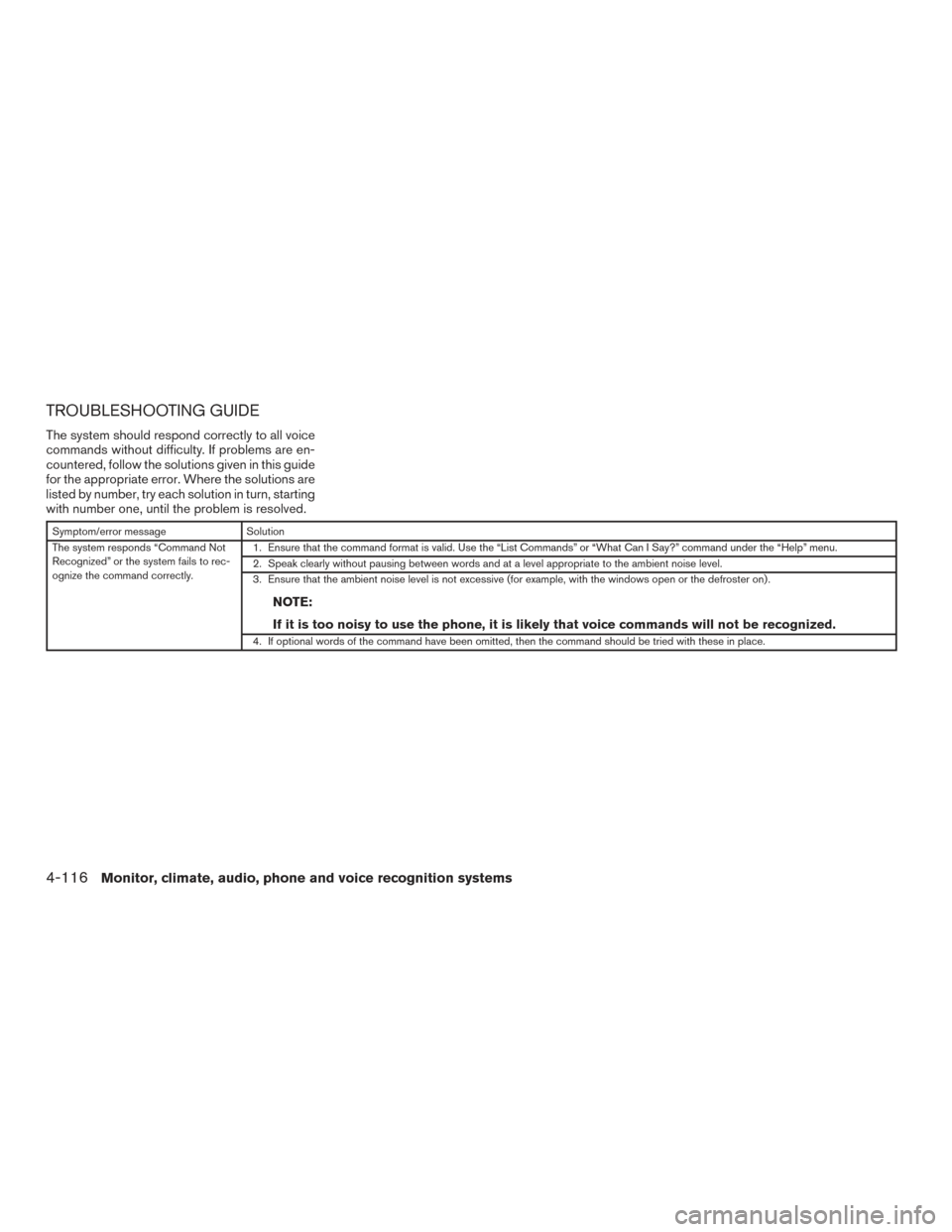
TROUBLESHOOTING GUIDE
The system should respond correctly to all voice
commands without difficulty. If problems are en-
countered, follow the solutions given in this guide
for the appropriate error. Where the solutions are
listed by number, try each solution in turn, starting
with number one, until the problem is resolved.
Symptom/error messageSolution
The system responds “Command Not
Recognized” or the system fails to rec-
ognize the command correctly. 1. Ensure that the command format is valid. Use the “List Commands” or “What Can I Say?” command under the “Help” menu.
2. Speak clearly without pausing between words and at a level appropriate to the ambient noise level.
3. Ensure that the ambient noise level is not excessive (for example, with the windows open or the defroster on) .
NOTE:
If it is too noisy to use the phone, it is likely that voice commands will not be recognized.
4. If optional words of the command have been omitted, then the command should be tried with these in place.
4-116Monitor, climate, audio, phone and voice recognition systems
Page 272 of 402
CAUTION
●Do not use leaded gasoline. Deposits
from leaded gasoline will seriously re-
duce the three-way catalyst’s ability to
help reduce exhaust pollutants.
● Keep your engine tuned up. Malfunc-
tions in the ignition, fuel injection, or
electrical systems can cause over rich
fuel flow into the three-way catalyst,
causing it to overheat. Do not keep driv-
ing if the engine misfires, or if notice-
able loss of performance or other un-
usual operating conditions are
detected. Have the vehicle inspected
promptly. It is recommended you visit a
NISSAN dealer for this service.
● Avoid driving with an extremely low fuel
level. Running out of fuel could cause
the engine to misfire, damaging the
three-way catalyst.
● Do not race the engine while warming it
up.
● Do not push or tow your vehicle to start
the engine.
TIRE PRESSURE MONITORING
SYSTEM (TPMS) (if so equipped)
Each tire, including the spare (if provided) ,
should be checked monthly when cold and in-
flated to the inflation pressure recommended by
the vehicle manufacturer on the vehicle placard
or tire inflation pressure label. (If your vehicle has
tires of a different size than the size indicated on
the vehicle placard or tire inflation pressure label,
you should determine the proper tire inflation
pressure for those tires.)
As an added safety feature, your vehicle has been
equipped with a Tire Pressure Monitoring System
(TPMS) that illuminates a low tire pressure telltale
when one or more of your tires is significantly
under-inflated. Accordingly, when the low tire pres-
sure telltale illuminates, you should stop and check
your tires as soon as possible, and inflate them to
the proper pressure. Driving on a significantly
under-inflated tire causes the tire to overheat and
can lead to tire failure. Under-inflation also reduces
fuel efficiency and tire tread life, and may affect the
vehicle’s handling and stopping ability.
Please note that the TPMS is not a substitute for
proper tire maintenance, and it is the driver’s
responsibility to maintain correct tire pressure,
even if under-inflation has not reached the level to
trigger illumination of the TPMS low tire pressure
telltale.
Your vehicle has also been equipped with a TPMS
malfunction indicator to indicate when the system
is not operating properly. The TPMS malfunction
indicator is combined with the low tire pressure
telltale. When the system detects a malfunction,
the telltale will flash for approximately one minute
and then remain continuously illuminated. This se-
quence will continue upon subsequent vehicle
start-ups as long as the malfunction exists. When
the malfunction indicator is illuminated, the system
may not be able to detect or signal low tire pressure
as intended. TPMS malfunctions may occur for a
variety of reasons, including the installation of re-
placement or alternate tires or wheels on the ve-
hicle that prevent the TPMS from functioning prop-
erly. Always check the TPMS malfunction telltale
after replacing one or more tires or wheels on your
vehicle to ensure that the replacement or alternate
tires and wheels allow the TPMS to continue to
function properly.
Additional information:
● Since the spare tire is not equipped with
TPMS, the TPMS does not monitor the tire
pressure of the spare tire.
● The TPMS will activate only when the vehicle
is driven at speeds above 16 mph (25 km/h).
Also, this system may not detect a sudden
drop in tire pressure (for example a flat tire
while driving) .
Starting and driving5-3