Page 6 of 402
Table of Contents
Illustrated table of contents
Safety—Seats, seat belts and supplemental restraint system
Instruments and controls
Pre-driving checks and adjustments
Monitor, climate, audio, phone and voice recognition systems
Starting and driving
In case of emergency
Appearance and care
Maintenance and do-it-yourself
Technical and consumer information
Index
0
1
2
3
4
5
6
7
8
9
10
Page 13 of 402
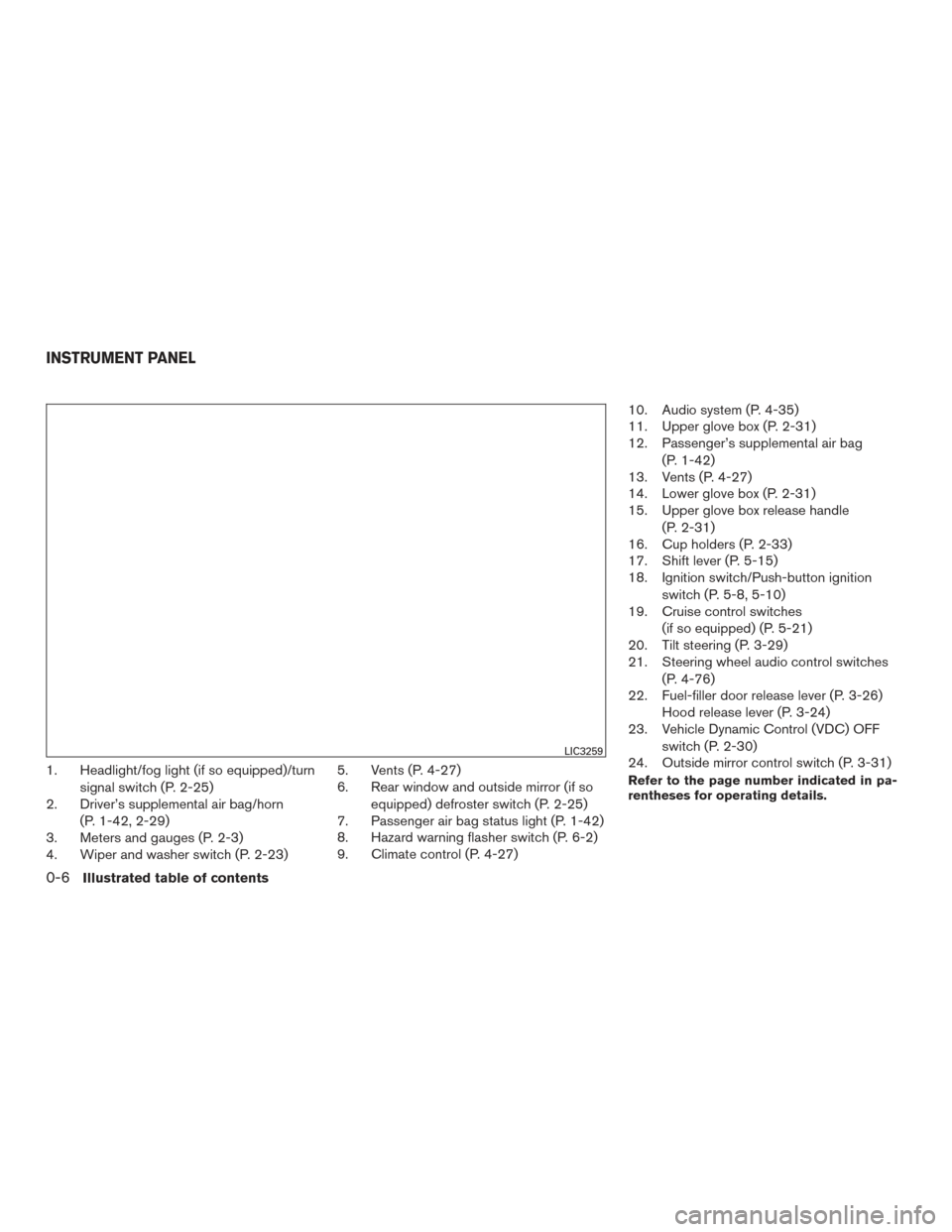
1. Headlight/fog light (if so equipped)/turnsignal switch (P. 2-25)
2. Driver’s supplemental air bag/horn
(P. 1-42, 2-29)
3. Meters and gauges (P. 2-3)
4. Wiper and washer switch (P. 2-23) 5. Vents (P. 4-27)
6. Rear window and outside mirror (if so
equipped) defroster switch (P. 2-25)
7. Passenger air bag status light (P. 1-42)
8. Hazard warning flasher switch (P. 6-2)
9. Climate control (P. 4-27) 10. Audio system (P. 4-35)
11. Upper glove box (P. 2-31)
12. Passenger’s supplemental air bag
(P. 1-42)
13. Vents (P. 4-27)
14. Lower glove box (P. 2-31)
15. Upper glove box release handle
(P. 2-31)
16. Cup holders (P. 2-33)
17. Shift lever (P. 5-15)
18. Ignition switch/Push-button ignition
switch (P. 5-8, 5-10)
19. Cruise control switches
(if so equipped) (P. 5-21)
20. Tilt steering (P. 3-29)
21. Steering wheel audio control switches
(P. 4-76)
22. Fuel-filler door release lever (P. 3-26) Hood release lever (P. 3-24)
23. Vehicle Dynamic Control (VDC) OFF
switch (P. 2-30)
24. Outside mirror control switch (P. 3-31)Refer to the page number indicated in pa-
rentheses for operating details.
LIC3259
INSTRUMENT PANEL
0-6Illustrated table of contents
Page 79 of 402
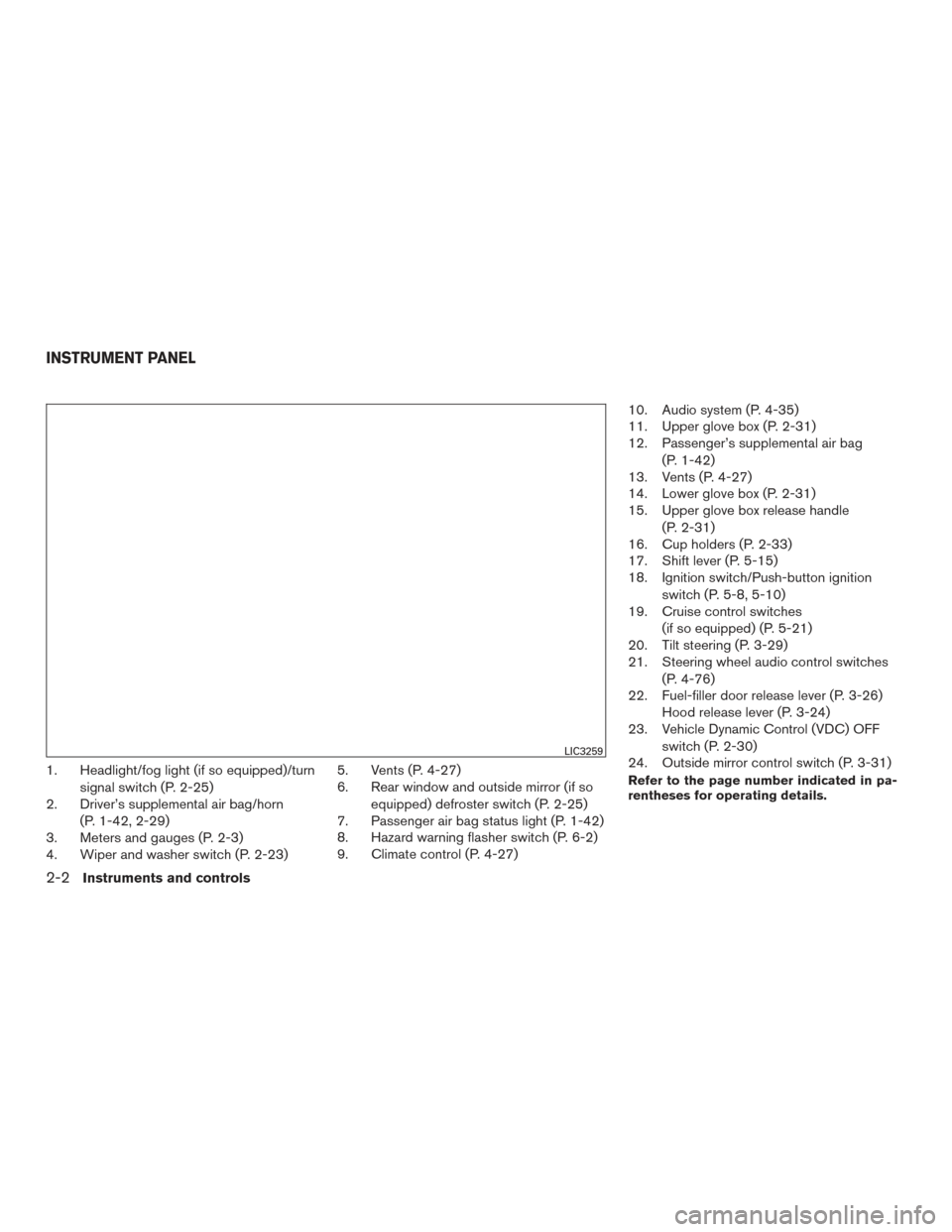
1. Headlight/fog light (if so equipped)/turnsignal switch (P. 2-25)
2. Driver’s supplemental air bag/horn
(P. 1-42, 2-29)
3. Meters and gauges (P. 2-3)
4. Wiper and washer switch (P. 2-23) 5. Vents (P. 4-27)
6. Rear window and outside mirror (if so
equipped) defroster switch (P. 2-25)
7. Passenger air bag status light (P. 1-42)
8. Hazard warning flasher switch (P. 6-2)
9. Climate control (P. 4-27) 10. Audio system (P. 4-35)
11. Upper glove box (P. 2-31)
12. Passenger’s supplemental air bag
(P. 1-42)
13. Vents (P. 4-27)
14. Lower glove box (P. 2-31)
15. Upper glove box release handle
(P. 2-31)
16. Cup holders (P. 2-33)
17. Shift lever (P. 5-15)
18. Ignition switch/Push-button ignition
switch (P. 5-8, 5-10)
19. Cruise control switches
(if so equipped) (P. 5-21)
20. Tilt steering (P. 3-29)
21. Steering wheel audio control switches
(P. 4-76)
22. Fuel-filler door release lever (P. 3-26) Hood release lever (P. 3-24)
23. Vehicle Dynamic Control (VDC) OFF
switch (P. 2-30)
24. Outside mirror control switch (P. 3-31)Refer to the page number indicated in pa-
rentheses for operating details.
LIC3259
INSTRUMENT PANEL
2-2Instruments and controls
Page 152 of 402
4 Monitor, climate, audio, phone and voice
recognition systems
Control panel buttons — color screen with
Navigation System (if so equipped)..................4-4
How to use the touch-screen . . ..................4-5
How to use the BACK button ....................4-7
How to use the APPS button ....................4-7
Clock Set ......................................4-9
button...................................4-9
How to use the ON•OFF button/VOL
(volume) control knob ...........................4-9
How to use the CAMERA button .................4-9
RearView Monitor (if so equipped) ..................4-10
RearView Monitor system operation .............4-11
How to read the displayed lines .................4-11
Difference between predicted and actual
distances ..................................... 4-12
Adjusting the screen ........................... 4-13
RearView Monitor system limitations .............4-14
System maintenance ........................... 4-15
Around View® Monitor (if so equipped) .............4-16
Around View® Monitor system operation .........4-17
Difference between predicted and actual
distances ..................................... 4-20
How to park with predicted course lines ..........4-22
How to switch the display ......................4-23Adjusting the screen
........................... 4-24
Around View® Monitor system limitations ........4-24
System maintenance ........................... 4-26
Vents ........................................... 4-27
Heater and Air Conditioner (manual) ................4-27
Controls ...................................... 4-28
Heater operation .............................. 4-29
Air conditioner operation .......................4-30
Air flow charts ................................. 4-31
Servicing air conditioner ........................... 4-35
Audio system .................................... 4-35
Radio ........................................ 4-35
FM radio reception ............................ 4-35
AM radio reception ............................ 4-36
Satellite radio reception (if so equipped) .........4-36
Audio operation precautions ....................4-36
FM/AM radio with compact disc (CD) player
(Type A) (if so equipped) .......................4-44
FM/AM radio with compact disc (CD) player
(Type B) (if so equipped) .......................4-48
FM/AM/SAT radio with compact disc (CD)
player
(Type A) (if so equipped) .................4-53
FM/AM/SAT radio with compact disc (CD)
player (Type B) (if so equipped) .................4-58
Page 155 of 402
WARNING
●Positioning of the heating or air condi-
tioning controls and display controls
should not be done while driving in or-
der that full attention may be given to
the driving operation.
● Do not disassemble or modify this sys-
tem. If you do, it may result in accidents,
fire, or electrical shock.
● Do not use this system if you notice any
abnormality, such as a frozen screen or
lack of sound. Continued use of the
system may result in accident, fire or
electric shock.
● In case you notice any foreign object in
the system hardware, spill liquid on it,
or notice smoke or smell coming from it,
stop using the system immediately. Ig-
noring such conditions may lead to ac-
cidents, fire or electrical shock. It is rec-
ommended that you visit a NISSAN
dealer for servicing.
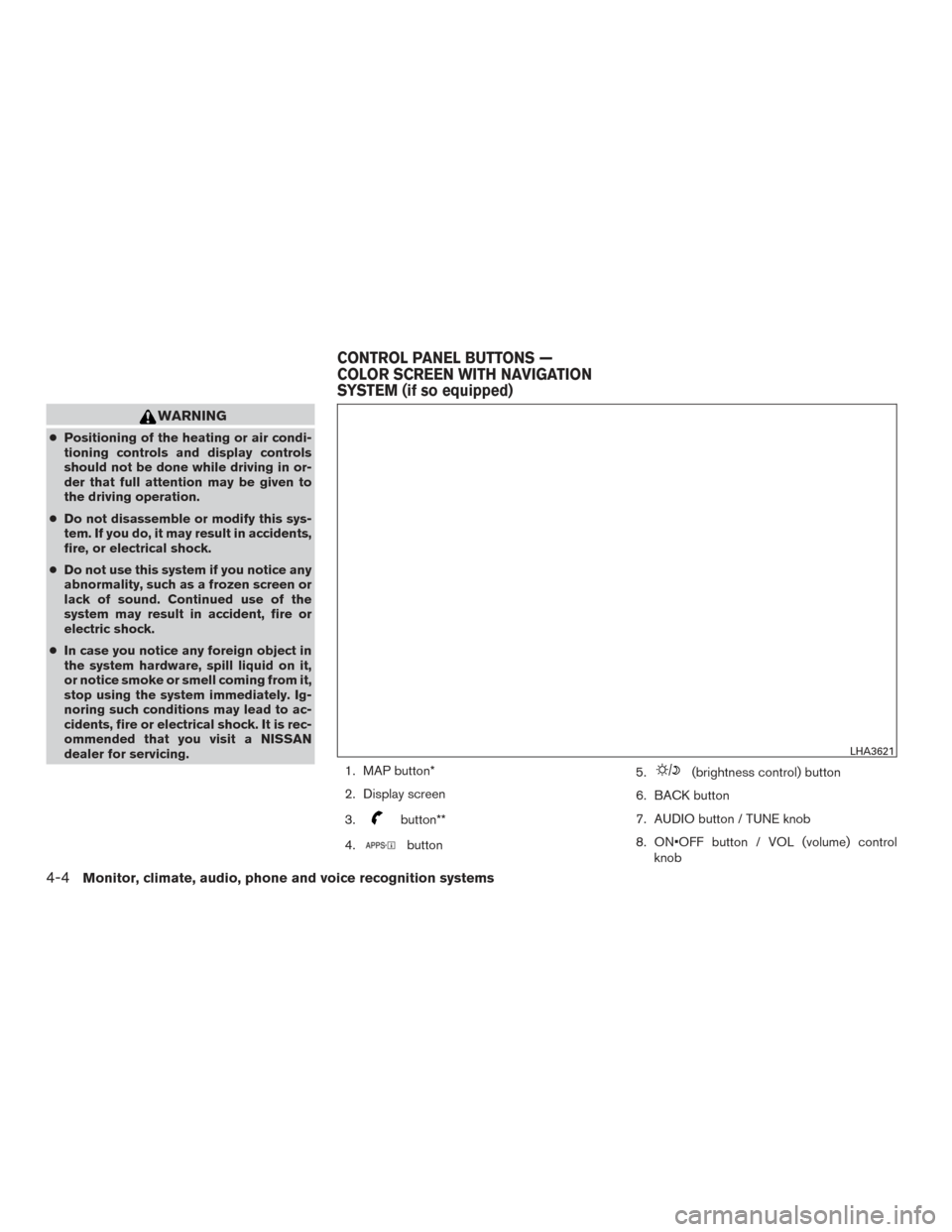
1. MAP button*
2. Display screen
3.
button**
4.
button 5.
(brightness control) button
6. BACK button
7. AUDIO button / TUNE knob
8. ON•OFF button / VOL (volume) control knob
LHA3621
CONTROL PANEL BUTTONS —
COLOR SCREEN WITH NAVIGATION
SYSTEM (if so equipped)
4-4Monitor, climate, audio, phone and voice recognition systems
Page 156 of 402
9. CAMERA button
10. NAV button*
*For additional information regarding the Naviga-
tion system control buttons, refer to the separate
Navigation System Owner’s Manual.
**For additional information regarding the
Bluetooth® Hands-Free Phone System control
button, refer to “Bluetooth® Hands-Free Phone
System with Navigation System” in this section.
When you use this system, make sure the engine
is running.
If you use the system with the engine not
running (ignition ON or ACC) for a long
time, it will discharge the battery, and the
engine will not start.
Reference symbols:
“Example” — Words marked in quotes refer to a
key shown only on the display. These keys can be
selected by touching the screen.HOW TO USE THE TOUCH-
SCREEN
CAUTION
● The glass display screen may break if it
is hit with a hard or sharp object. If the
glass screen breaks, do not touch it.
Doing so could result in an injury.
● To clean the display, never use a rough
cloth, alcohol, benzine, thinner or any
kind of solvent or paper towel with a
chemical cleaning agent. They will
scratch or deteriorate the panel.
● Do not splash any liquid such as water
or car fragrance on the display. Contact
with liquid will cause the system to
malfunction.
To help ensure safe driving, some functions can-
not be operated while driving.
The on-screen functions that are not available
while driving will be “grayed out” or muted.
Park the vehicle in a safe location and then oper-
ate the navigation system.
WARNING
● ALWAYS give your full attention to
driving.
● Avoid using vehicle features that could
distract you. If distracted, you could
lose control of your vehicle and cause
an accident.
Monitor, climate, audio, phone and voice recognition systems4-5
Page 157 of 402
Touch-screen operation
Menu ItemResult
Selecting the item Touch an item to select . To select the “Audio” key, touch the “Audio” key on the screen. Touch the “BACK” key to return to the
previous screen.
Adjusting the item Touch the “+” key or the “�” key to adjust the settings of an item. Touch the up arrow to scroll up the page one item at a time.
Touch the down arrow to scroll down the page one item at a time.
Inputting characters Touch the letter or number key. There are some options available when inputting characters.
123/ABC Changes the available character set to numbers.
Space Inserts a space.
Delete Deletes the last inputted character with one touch. Touch and hold the “Delete” key to delete all of the characters.
OK Completes the character input.
LHA2916
4-6Monitor, climate, audio, phone and voice recognition systems
Page 158 of 402
Touch-screen maintenance
If you clean the display screen, use a dry, soft
cloth. If additional cleaning is necessary, use a
small amount of neutral detergent with a soft
cloth. Never spray the screen with water or de-
tergent. Dampen the cloth first and then wipe the
screen.
HOW TO USE THE BACK BUTTON
Press the BACK button to return to the previous
screen.
HOW TO USE THE APPS BUTTON
For additional information about the “SiriusXM
Travel Link”, and “Traffic” features, refer to the
separate Navigation System Owner’s Manual.
For additional information, refer to “Nissan-
Connect
SMMobile Apps” in this section.
For additional information, refer to “NISSAN
Voice Recognition System” in this section. To select and/or adjust several functions, fea-
tures and modes that are available for your ve-
hicle:
1. Press the [
] button.
2. Touch the “Settings” key.
3. Touch the desired item.
LHA2924LHA2916
Monitor, climate, audio, phone and voice recognition systems4-7