2016 NISSAN TITAN climate settings
[x] Cancel search: climate settingsPage 290 of 636
5. The system will display a PIN on the screenand request confirmation that it matches the
one on the handset.
6. Using the menu control switch on the steer- ing wheel, select “Yes” and then press
the
button. If the PIN does not match,
the wrong device may have been selected
on the handset.
NOTE:
The connecting procedure of the cellular
phone varies according to each cellular
phone model. For additional information, re-
fer to the cellular phone Owner’s Manual. You
can also visit www.nissanusa.com/bluetooth
or www.nissan.ca/bluetooth for instructions
on connecting NISSAN recommended cellu-
lar phones.
Audio main operation
To switch to the Bluetooth® audio mode, press
the MEDIA button repeatedly until the
Bluetooth® audio mode is displayed on the
screen.
The controls for the Bluetooth® audio are dis-
played on the screen. Use the Preset 3 button for
play and the Preset 4 button for pause.
BLUETOOTH® STREAMING AUDIO
WITH NAVIGATION SYSTEM (if so
equipped)
If you have a compatible Bluetooth® audio de-
vice that is capable of playing audio files, the
device can be connected to the vehicle’s audio
system so that the audio files on the device play
through the vehicle’s speakers.
Connecting Bluetooth® audio
To connect your Bluetooth® audio device to the
vehicle, follow the procedure below: 1. Press the [
] button.
2. Touch the “Settings” key.
3. Touch the “Phone & Bluetooth” key.
LHA3711
Monitor, climate, audio, phone and voice recognition systems4-79
Page 295 of 636
NissanConnectSMServices is a suite of telemat-
ics tools that provide emergency preparedness,
remote access, customizable alerts and conve-
nience services. This feature is an option on
Navigation equipped vehicles. For additional in-
formation, refer to the separate Navigation Sys-
tem Owner’s Manual. Apple Siri® Eyes Free personal assistant can be
accessed from the vehicle. Siri Eyes Free can be
accessed in Siri Eyes Free mode to reduce user
distraction. In this mode, Siri Eyes Free is avail-
able for interaction by voice control. After con-
necting a compatible Apple device by using
Bluetooth®, Siri Eyes Free can be activated from
the
TALK switch on the steering wheel.
Siri® is a trademark of Apple Inc., registered in
the U.S. and other countries.
● Some Siri Eyes Free functions, such as dis-
playing pictures or opening apps, may not
be available while driving.
● For best results, always update your device
to the latest software version.
● Keep the interior of the vehicle as quiet as
possible. Close the windows to eliminate the
surrounding noises (traffic noises, vibration
sounds, etc.) , which may prevent the system
from recognizing the voice commands cor-
rectly.
● For functions that can be used in Siri Eyes
Free, please refer to the Apple website.
REQUIREMENTS
Siri is only available on the iPhone® 4S or later.
Devices released before iPhone® 4S are not
supported by the Siri Eyes Free system. Visit
www.apple.com/ios/siri for details about device
compatibility.
Siri must be enabled on the phone. Please check
phone settings.
If the device has a lock screen, Siri must be
accessible from the lock screen. Please check
phone settings.
For best results, always update your device to the
latest software version.
NISSANCONNECTSMSERVICES (if so
equipped) SIRI® EYES FREE (if so equipped)
4-84Monitor, climate, audio, phone and voice recognition systems
Page 296 of 636
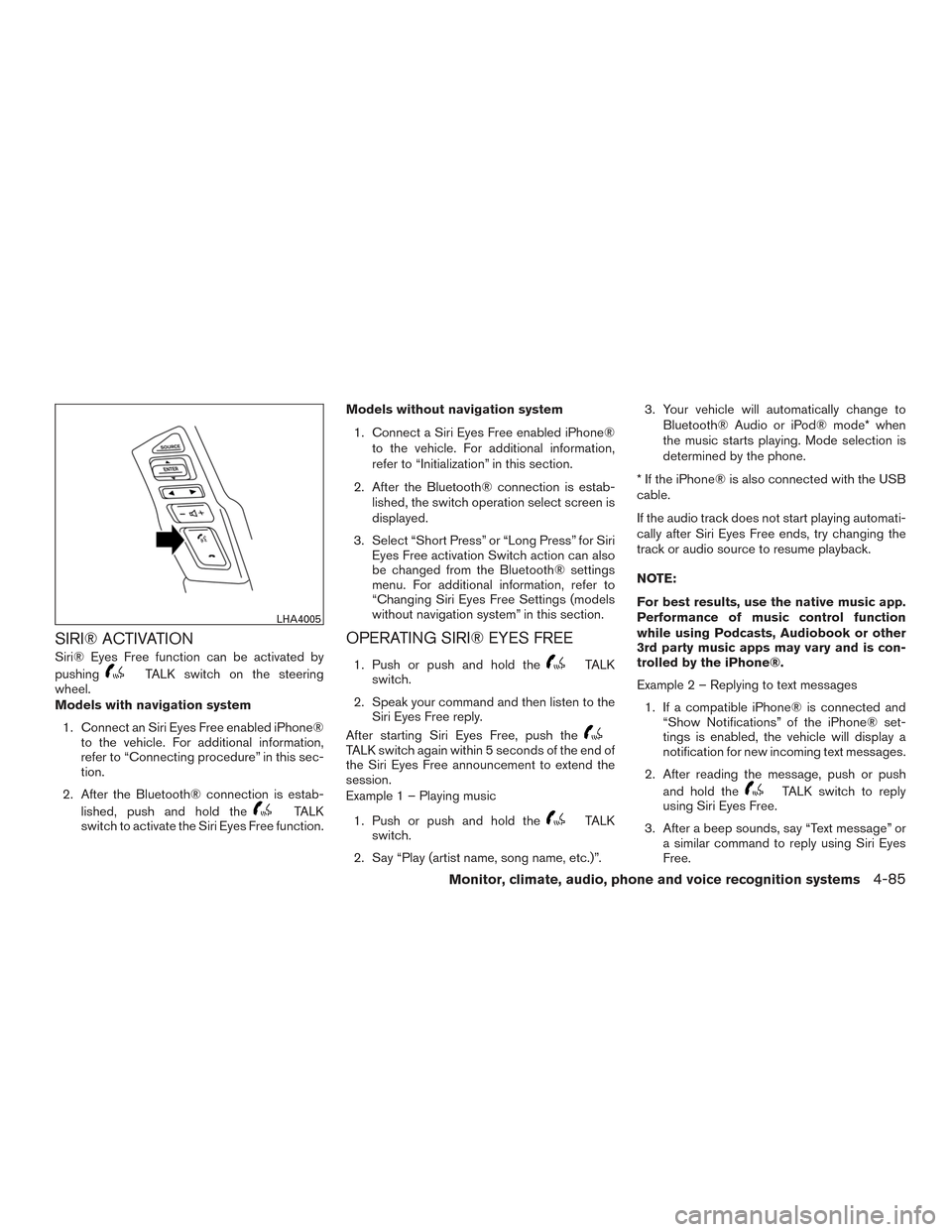
SIRI® ACTIVATION
Siri® Eyes Free function can be activated by
pushing
TALK switch on the steering
wheel.
Models with navigation system
1. Connect an Siri Eyes Free enabled iPhone® to the vehicle. For additional information,
refer to “Connecting procedure” in this sec-
tion.
2. After the Bluetooth® connection is estab- lished, push and hold the
TALK
switch to activate the Siri Eyes Free function. Models without navigation system
1. Connect a Siri Eyes Free enabled iPhone® to the vehicle. For additional information,
refer to “Initialization” in this section.
2. After the Bluetooth® connection is estab- lished, the switch operation select screen is
displayed.
3. Select “Short Press” or “Long Press” for Siri Eyes Free activation Switch action can also
be changed from the Bluetooth® settings
menu. For additional information, refer to
“Changing Siri Eyes Free Settings (models
without navigation system” in this section.
OPERATING SIRI® EYES FREE
1. Push or push and hold theTALK
switch.
2. Speak your command and then listen to the Siri Eyes Free reply.
After starting Siri Eyes Free, push the
TALK switch again within 5 seconds of the end of
the Siri Eyes Free announcement to extend the
session.
Example 1 – Playing music
1. Push or push and hold the
TALK
switch.
2. Say “Play (artist name, song name, etc.)”. 3. Your vehicle will automatically change to
Bluetooth® Audio or iPod® mode* when
the music starts playing. Mode selection is
determined by the phone.
* If the iPhone® is also connected with the USB
cable.
If the audio track does not start playing automati-
cally after Siri Eyes Free ends, try changing the
track or audio source to resume playback.
NOTE:
For best results, use the native music app.
Performance of music control function
while using Podcasts, Audiobook or other
3rd party music apps may vary and is con-
trolled by the iPhone®.
Example 2 – Replying to text messages 1. If a compatible iPhone® is connected and “Show Notifications” of the iPhone® set-
tings is enabled, the vehicle will display a
notification for new incoming text messages.
2. After reading the message, push or push and hold the
TALK switch to reply
using Siri Eyes Free.
3. After a beep sounds, say “Text message” or a similar command to reply using Siri Eyes
Free.
LHA4005
Monitor, climate, audio, phone and voice recognition systems4-85
Page 297 of 636
CHANGING SIRI® EYES FREE
SETTINGS (models with navigation
system)
Settings for Siri® Eyes Free can be found in the
Bluetooth settings menu. For additional informa-
tion, refer to “Bluetooth® settings” in this section.1. Press the [
] button.
2. Touch the “Settings” key.
3. Touch the “Phone & Bluetooth” key.
4. Touch the “Phone settings” key.
5. Select “Short Press” or “Long Press” to set the activation.
4-86Monitor, climate, audio, phone and voice recognition systems
Page 298 of 636
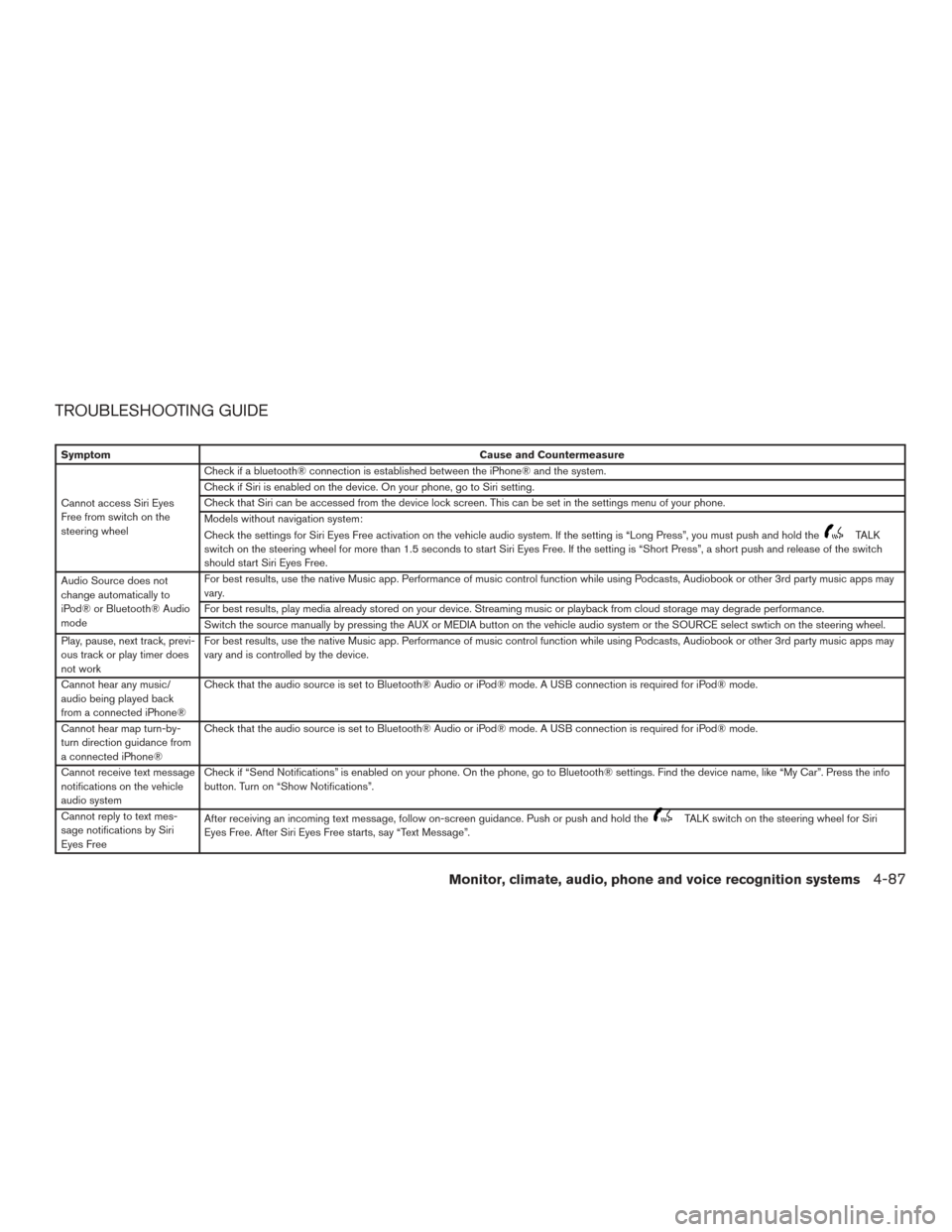
TROUBLESHOOTING GUIDE
SymptomCause and Countermeasure
Cannot access Siri Eyes
Free from switch on the
steering wheel Check if a bluetooth® connection is established between the iPhone® and the system.
Check if Siri is enabled on the device. On your phone, go to Siri setting.
Check that Siri can be accessed from the device lock screen. This can be set in the settings menu of your phone.
Models without navigation system:
Check the settings for Siri Eyes Free activation on the vehicle audio system. If the setting is “Long Press”, you must push and hold the
TALK
switch on the steering wheel for more than 1.5 seconds to start Siri Eyes Free. If the setting is “Short Press”, a short push and release of the switch
should start Siri Eyes Free.
Audio Source does not
change automatically to
iPod® or Bluetooth® Audio
mode For best results, use the native Music app. Performance of music control function while using Podcasts, Audiobook or other 3rd party music apps may
vary.
For best results, play media already stored on your device. Streaming music or playback from cloud storage may degrade performance.
Switch the source manually by pressing the AUX or MEDIA button on the vehicle audio system or the SOURCE select swtich on the steering wheel.
Play, pause, next track, previ-
ous track or play timer does
not work For best results, use the native Music app. Performance of music control function while using Podcasts, Audiobook or other 3rd party music apps may
vary and is controlled by the device.
Cannot hear any music/
audio being played back
from a connected iPhone® Check that the audio source is set to Bluetooth® Audio or iPod® mode. A USB connection is required for iPod® mode.
Cannot hear map turn-by-
turn direction guidance from
a connected iPhone® Check that the audio source is set to Bluetooth® Audio or iPod® mode. A USB connection is required for iPod® mode.
Cannot receive text message
notifications on the vehicle
audio system Check if “Send Notifications” is enabled on your phone. On the phone, go to Bluetooth® settings. Find the device name, like “My Car”. Press the info
button. Turn on “Show Notifications”.
Cannot reply to text mes-
sage notifications by Siri
Eyes Free After receiving an incoming text message, follow on-screen guidance. Push or push and hold the
TALK switch on the steering wheel for Siri
Eyes Free. After Siri Eyes Free starts, say “Text Message”.
Monitor, climate, audio, phone and voice recognition systems4-87
Page 309 of 636
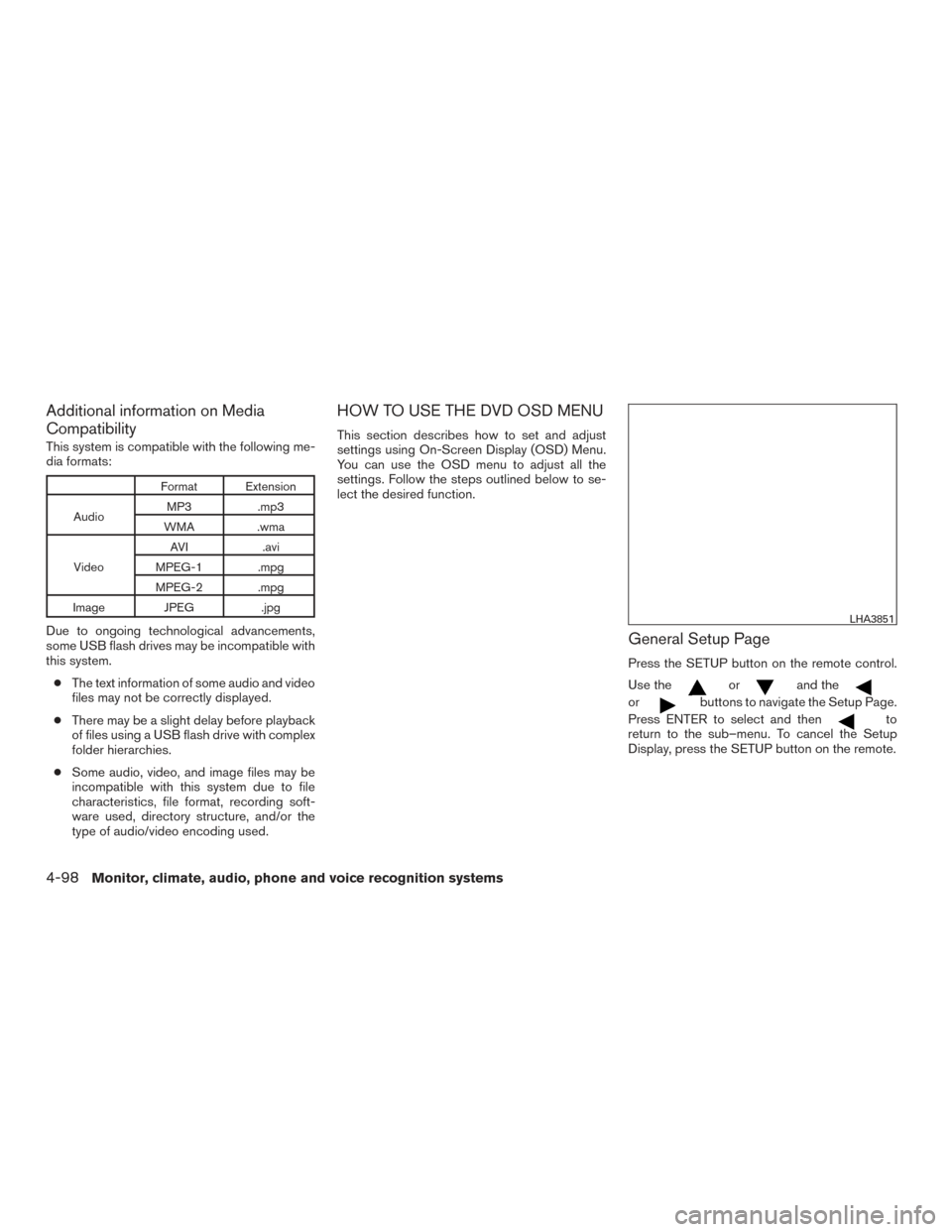
Additional information on Media
Compatibility
This system is compatible with the following me-
dia formats:
Format Extension
Audio MP3 .mp3
WMA .wma
Video AVI
.avi
MPEG-1 .mpg
MPEG-2 .mpg
Image JPEG .jpg
Due to ongoing technological advancements,
some USB flash drives may be incompatible with
this system.
● The text information of some audio and video
files may not be correctly displayed.
● There may be a slight delay before playback
of files using a USB flash drive with complex
folder hierarchies.
● Some audio, video, and image files may be
incompatible with this system due to file
characteristics, file format, recording soft-
ware used, directory structure, and/or the
type of audio/video encoding used.
HOW TO USE THE DVD OSD MENU
This section describes how to set and adjust
settings using On-Screen Display (OSD) Menu.
You can use the OSD menu to adjust all the
settings. Follow the steps outlined below to se-
lect the desired function.
General Setup Page
Press the SETUP button on the remote control.
Use the
orand the
orbuttons to navigate the Setup Page.
Press ENTER to select and then
to
return to the sub–menu. To cancel the Setup
Display, press the SETUP button on the remote.
LHA3851
4-98Monitor, climate, audio, phone and voice recognition systems
Page 311 of 636
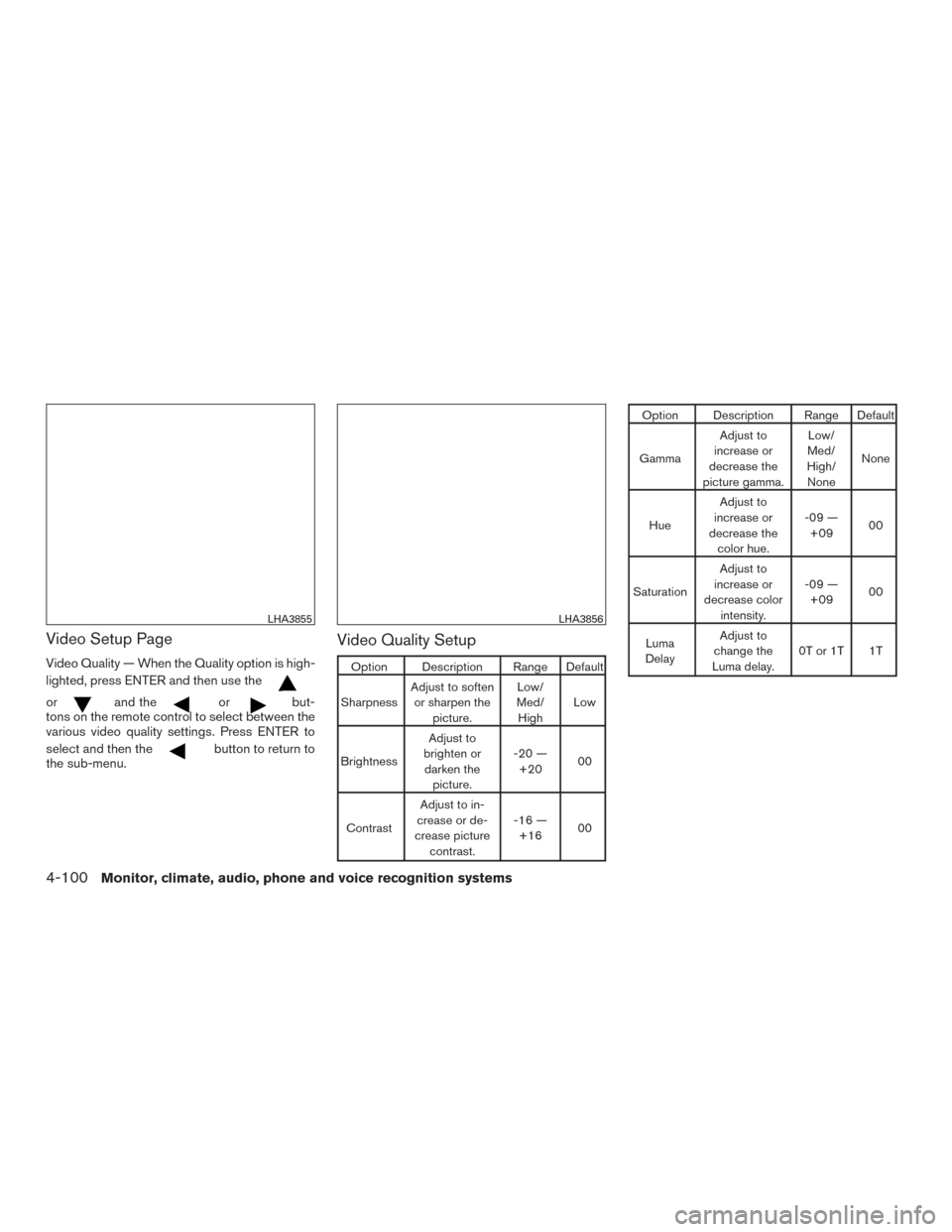
Video Setup Page
Video Quality — When the Quality option is high-
lighted, press ENTER and then use the
orand theorbut-
tons on the remote control to select between the
various video quality settings. Press ENTER to
select and then the
button to return to
the sub-menu.
Video Quality Setup
Option Description Range Default
Sharpness Adjust to soften
or sharpen the picture. Low/
Med/ High Low
Brightness Adjust to
brighten or darken the picture. -20 —
+20 00
Contrast Adjust to in-
crease or de-
crease picture contrast. -16 —
+16 00
Option Description Range Default
Gamma Adjust to
increase or
decrease the
picture gamma. Low/
Med/
High/ None None
Hue Adjust to
increase or
decrease the color hue. -09 —
+09 00
Saturation Adjust to
increase or
decrease color intensity. -09 —
+09 00
Luma
Delay Adjust to
change the
Luma delay. 0T or 1T 1T
LHA3855LHA3856
4-100Monitor, climate, audio, phone and voice recognition systems
Page 313 of 636
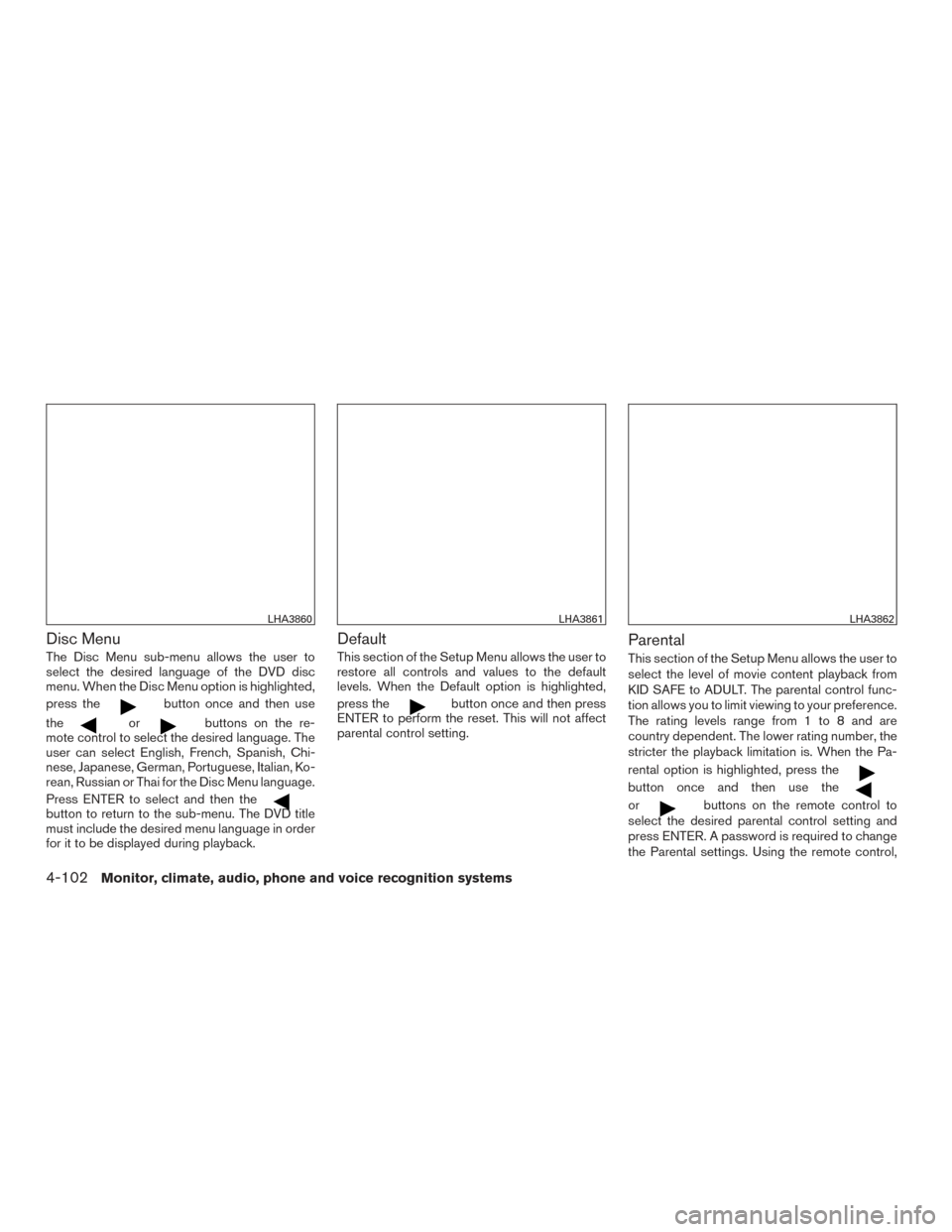
Disc Menu
The Disc Menu sub-menu allows the user to
select the desired language of the DVD disc
menu. When the Disc Menu option is highlighted,
press the
button once and then use
the
orbuttons on the re-
mote control to select the desired language. The
user can select English, French, Spanish, Chi-
nese, Japanese, German, Portuguese, Italian, Ko-
rean, Russian or Thai for the Disc Menu language.
Press ENTER to select and then the
button to return to the sub-menu. The DVD title
must include the desired menu language in order
for it to be displayed during playback.
Default
This section of the Setup Menu allows the user to
restore all controls and values to the default
levels. When the Default option is highlighted,
press the
button once and then press
ENTER to perform the reset. This will not affect
parental control setting.
Parental
This section of the Setup Menu allows the user to
select the level of movie content playback from
KID SAFE to ADULT. The parental control func-
tion allows you to limit viewing to your preference.
The rating levels range from 1 to 8 and are
country dependent. The lower rating number, the
stricter the playback limitation is. When the Pa-
rental option is highlighted, press the
button once and then use the
orbuttons on the remote control to
select the desired parental control setting and
press ENTER. A password is required to change
the Parental settings. Using the remote control,
LHA3860LHA3861LHA3862
4-102Monitor, climate, audio, phone and voice recognition systems