2016 NISSAN ROGUE AUX
[x] Cancel search: AUXPage 255 of 478
●iPod® nano - 1st generation (firmware ver-
sion 1.3.1 or later)
● iPod® nano - 2nd generation (firmware ver-
sion 1.1.3 or later)
● iPod® nano - 3rd generation (firmware ver-
sion 1.1.3 or later)
● iPod® nano - 4th generation (firmware ver-
sion 1.0.4 or later)
● iPod® nano - 5th generation (firmware ver-
sion 1.0.2 or later)
● iPod® nano - 6th generation (firmware ver-
sion 1.1 or later)
● iPhone® 3G (firmware version 4.2.1 or later)
● iPhone® 3GS (firmware version 5.1 or later)
● iPhone® 4 (firmware version 5.1 or later)
● iPhone® 4S (firmware version 5.1 or later)
* Some features of this iPod® may not be fully
functional.
Make sure that your iPod® firmware is updated to
the version indicated above.
Audio main operation
AUX button
When the AUX button is pressed with the system
off and the iPod® connected, the system will turn
on. If another audio source is playing and the
iPod® is connected, press the AUX button re-
peatedly until the center display changes to the
iPod® mode. Interface
The interface for iPod® operation shown on the
vehicle’s audio system display screen is similar to
the iPod® interface. Use the touch-screen,
BACK button or the scrolling knob to navigate
the menus on the screen.
When the iPod® is playing, touch the “Menu” key
to bring up the iPod® interface.
Depending on the iPod® model, the following
items may be available on the menu list screen.
For additional information, refer to the iPod®
Owner’s Manual regarding each menu item.
● Playlists
LHA2911LHA2907
4-68Monitor, climate, audio, phone and voice recognition systems
Page 259 of 478
NOTE:
The connecting procedure of the cellular
phone varies according to each cellular
phone model. For additional information,
refer to the cellular phone Owner’s Manual.
You can also visit
www.nissanusa.com/bluetooth or
www.nissan.ca/bluetooth for instructions
on connecting NISSAN recommended cel-
lular phones.
Audio main operation
To switch to the Bluetooth® audio mode, press
the AUX button repeatedly until the Bluetooth®
audio mode is displayed on the screen.
The controls for the Bluetooth® audio are dis-
played on the screen.
CD CARE AND CLEANING
●Handle a CD by its edges. Do not bend the
disc. Never touch the surface of the disc.
● Always place the discs in the storage case
when they are not being used.
● To clean a disc, wipe the surface from the
center to the outer edge using a clean, soft
cloth. Do not wipe the disc using a circular
motion.
● Do not use a conventional record cleaner or
alcohol intended for industrial use. ●
A new disc may be rough on the inner and
outer edges. Remove the rough edges by
rubbing the inner and outer edges with the
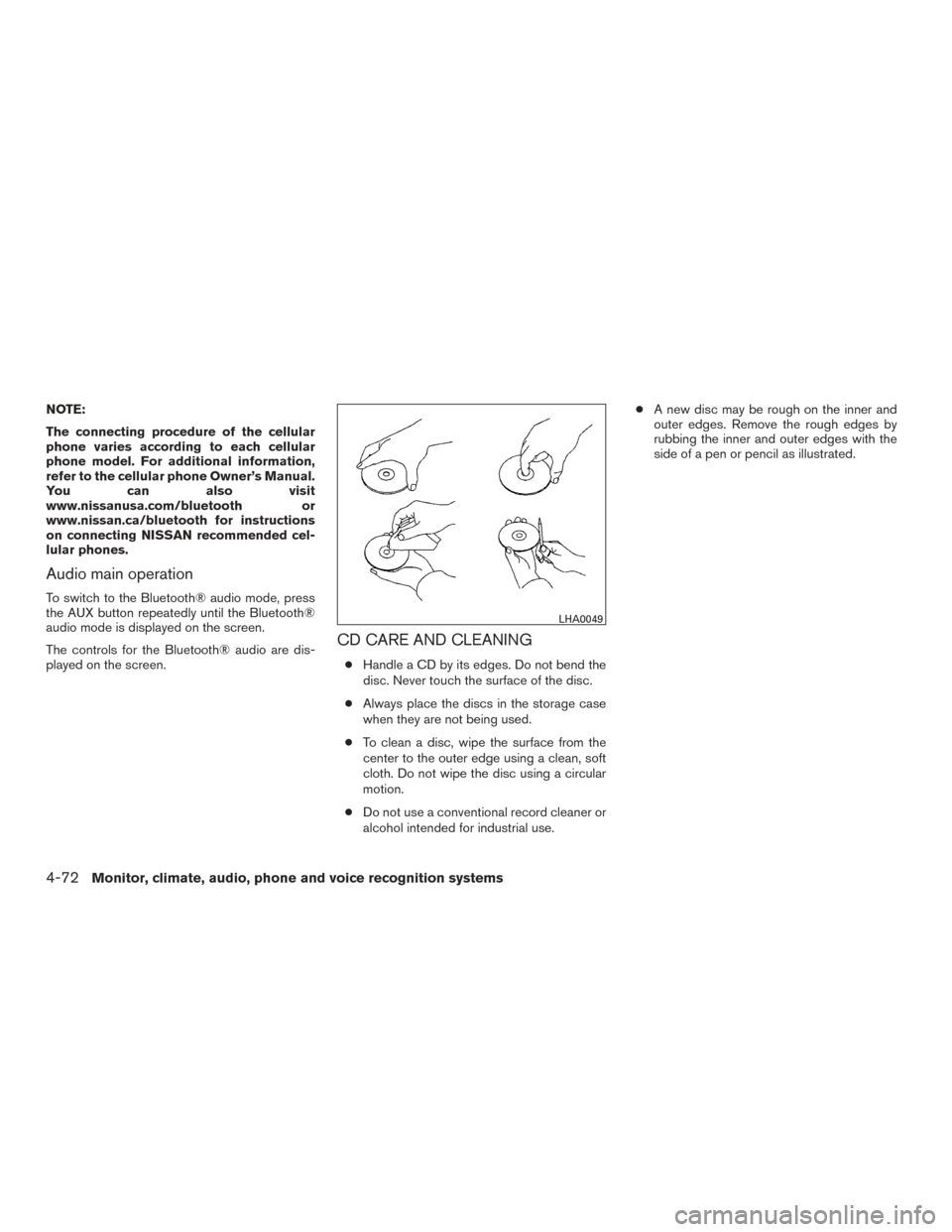
side of a pen or pencil as illustrated.
LHA0049
4-72Monitor, climate, audio, phone and voice recognition systems
Page 260 of 478
STEERING WHEEL SWITCH FOR
AUDIO CONTROL
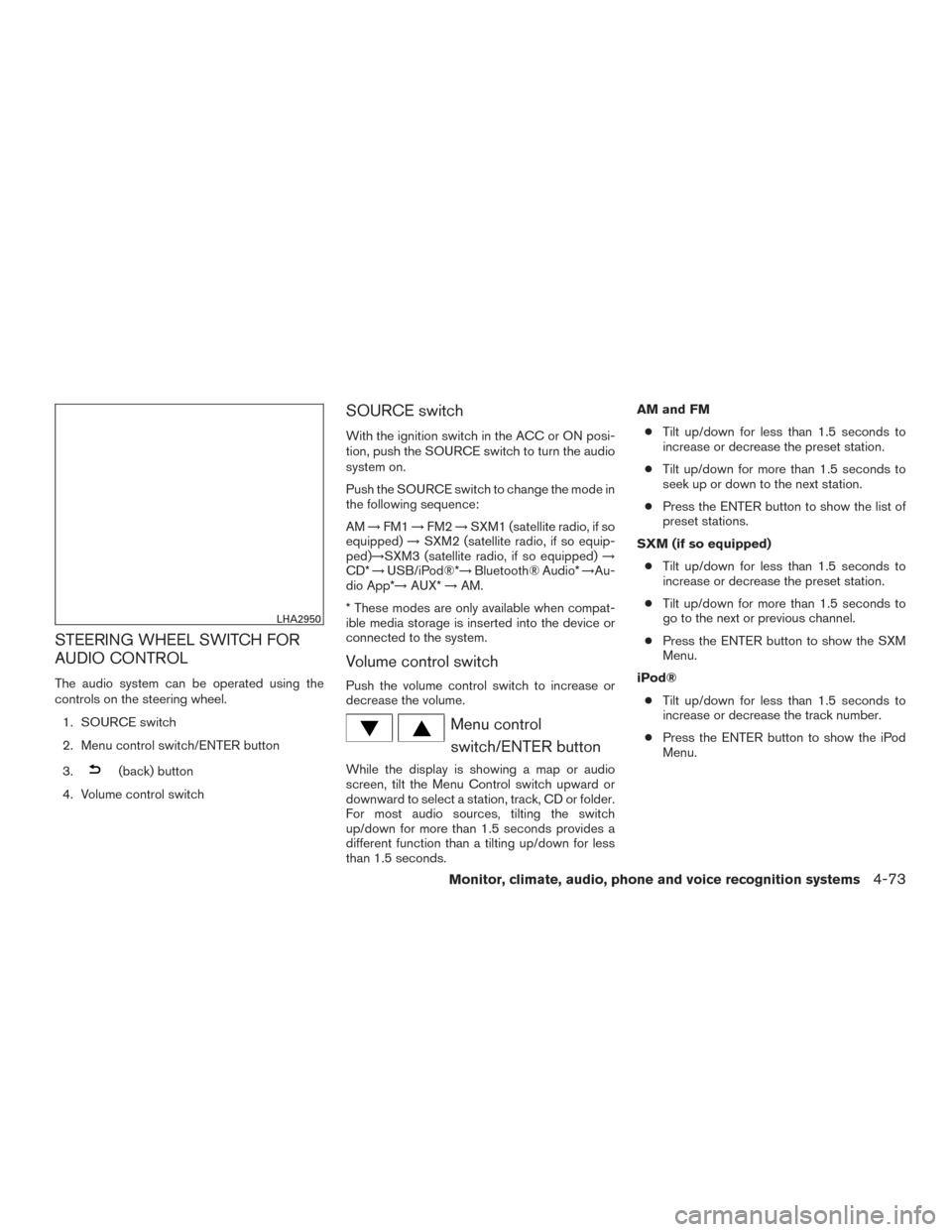
The audio system can be operated using the
controls on the steering wheel.1. SOURCE switch
2. Menu control switch/ENTER button
3.
(back) button
4. Volume control switch
SOURCE switch
With the ignition switch in the ACC or ON posi-
tion, push the SOURCE switch to turn the audio
system on.
Push the SOURCE switch to change the mode in
the following sequence:
AM →FM1 →FM2 →SXM1 (satellite radio, if so
equipped) →SXM2 (satellite radio, if so equip-
ped)→SXM3 (satellite radio, if so equipped) →
CD* →USB/iPod®*→ Bluetooth® Audio* →Au-
dio App*→ AUX*→AM.
* These modes are only available when compat-
ible media storage is inserted into the device or
connected to the system.
Volume control switch
Push the volume control switch to increase or
decrease the volume.
Menu control switch/ENTER button
While the display is showing a map or audio
screen, tilt the Menu Control switch upward or
downward to select a station, track, CD or folder.
For most audio sources, tilting the switch
up/down for more than 1.5 seconds provides a
different function than a tilting up/down for less
than 1.5 seconds. AM and FM
● Tilt up/down for less than 1.5 seconds to
increase or decrease the preset station.
● Tilt up/down for more than 1.5 seconds to
seek up or down to the next station.
● Press the ENTER button to show the list of
preset stations.
SXM (if so equipped) ● Tilt up/down for less than 1.5 seconds to
increase or decrease the preset station.
● Tilt up/down for more than 1.5 seconds to
go to the next or previous channel.
● Press the ENTER button to show the SXM
Menu.
iPod® ● Tilt up/down for less than 1.5 seconds to
increase or decrease the track number.
● Press the ENTER button to show the iPod
Menu.
LHA2950
Monitor, climate, audio, phone and voice recognition systems4-73
Page 261 of 478
CD● Tilt up/down for less than 1.5 seconds to
increase or decrease the track number.
● Tilt up/down for more than 1.5 seconds to
increase or decrease the folder number (if
playing compressed audio files) .
● Press the ENTER button to show the CD
Menu.
USB ● Tilt up/down for less than 1.5 seconds to
increase or decrease the track number.
● Tilt up/down for more than 1.5 seconds to
increase or decrease the folder number.
● Press the ENTER button to show the USB
Menu.
Bluetooth® Audio ● Tilt up/down for less than 1.5 seconds to
skip ahead or back to the next song.
● Tilt up/down for more than 1.5 seconds to
reverse or fast forward the current song.
AUX ● Press the ENTER button to show the AUX
Menu.ANTENNA
The antenna cannot be shortened, but can be
removed. When you need to remove the antenna,
turn the antenna rod counterclockwise.
To install the antenna rod, turn the antenna rod
clockwise and hand tighten.
CAUTION
● Always properly tighten the antenna
rod during installation or the antenna
rod may break during vehicle operation.
● Be sure that the antenna is removed
before the vehicle enters an automatic
car wash.
● Be sure to fold down the antenna be-
fore the vehicle enters a garage with a
low ceiling. This vehicle is equipped with Smartphone Inte-
gration technology. This allows many compatible
Smartphone applications to be displayed and
easily controlled through the vehicle’s display
screen.
NOTE:
A compatible smartphone and registration
is required to use mobile applications or to
access connected features of certain ve-
hicle applications.
REGISTERING WITH
NISSANCONNECTSMMOBILE APPS
To use the Smartphone Integration feature, it is
necessary for the user to register. In order to
register, visit the NissanConnect
SMMobile Apps
website, www.nissanusa.com/connect/ or
https://canada.nissanconnect.com and sign up
or create an account through the prompts on the
NissanConnect Mobile Apps. Once registered,
download the NissanConnect Mobile Apps from
your compatible phone’s application download
source and then log into the application. If you
already have an account created through the
App, please log in.
NISSANCONNECTSMMOBILE APPS
(if so equipped)
4-74Monitor, climate, audio, phone and voice recognition systems
Page 265 of 478
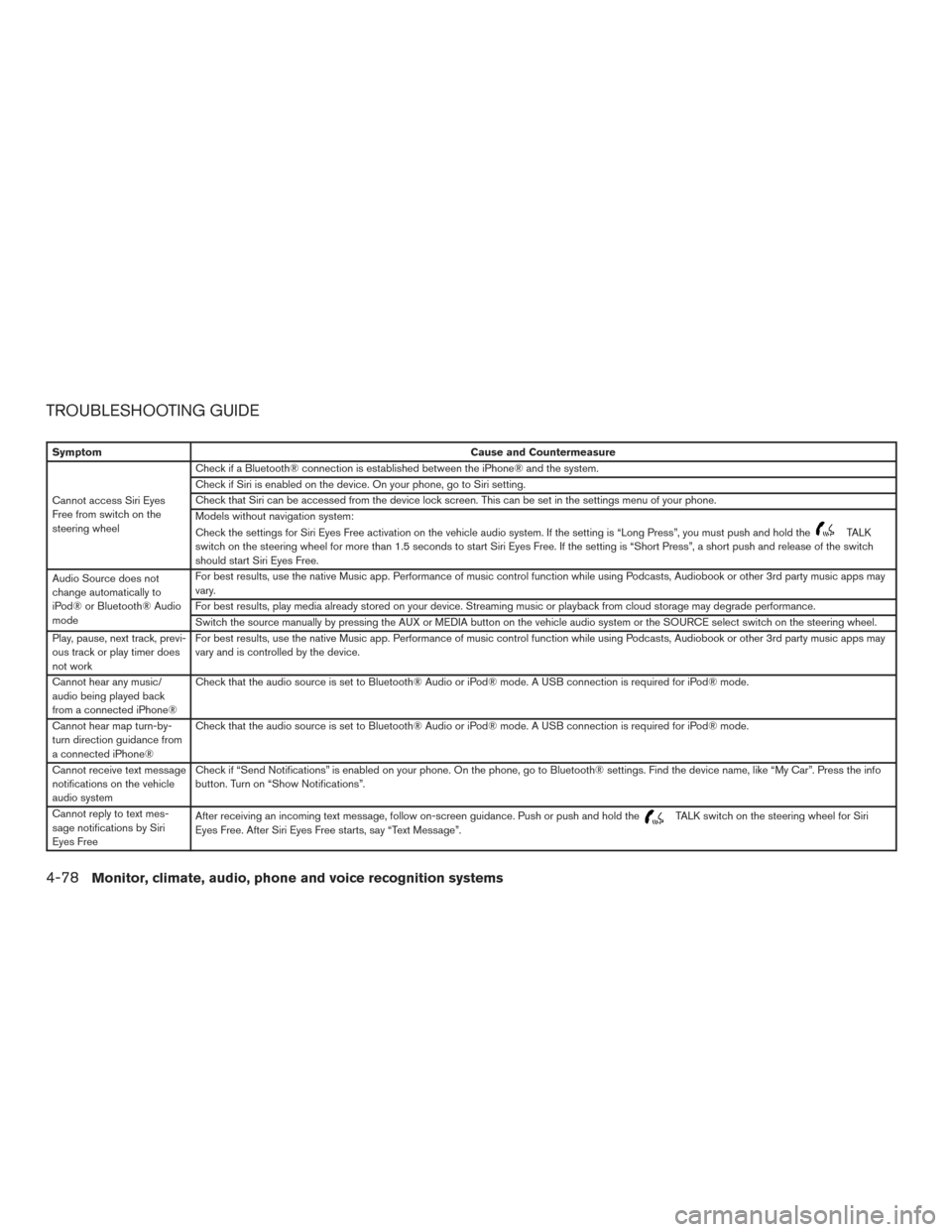
TROUBLESHOOTING GUIDE
SymptomCause and Countermeasure
Cannot access Siri Eyes
Free from switch on the
steering wheel Check if a Bluetooth® connection is established between the iPhone® and the system.
Check if Siri is enabled on the device. On your phone, go to Siri setting.
Check that Siri can be accessed from the device lock screen. This can be set in the settings menu of your phone.
Models without navigation system:
Check the settings for Siri Eyes Free activation on the vehicle audio system. If the setting is “Long Press”, you must push and hold the
TALK
switch on the steering wheel for more than 1.5 seconds to start Siri Eyes Free. If the setting is “Short Press”, a short push and release of the switch
should start Siri Eyes Free.
Audio Source does not
change automatically to
iPod® or Bluetooth® Audio
mode For best results, use the native Music app. Performance of music control function while using Podcasts, Audiobook or other 3rd party music apps may
vary.
For best results, play media already stored on your device. Streaming music or playback from cloud storage may degrade performance.
Switch the source manually by pressing the AUX or MEDIA button on the vehicle audio system or the SOURCE select switch on the steering wheel.
Play, pause, next track, previ-
ous track or play timer does
not work For best results, use the native Music app. Performance of music control function while using Podcasts, Audiobook or other 3rd party music apps may
vary and is controlled by the device.
Cannot hear any music/
audio being played back
from a connected iPhone® Check that the audio source is set to Bluetooth® Audio or iPod® mode. A USB connection is required for iPod® mode.
Cannot hear map turn-by-
turn direction guidance from
a connected iPhone® Check that the audio source is set to Bluetooth® Audio or iPod® mode. A USB connection is required for iPod® mode.
Cannot receive text message
notifications on the vehicle
audio system Check if “Send Notifications” is enabled on your phone. On the phone, go to Bluetooth® settings. Find the device name, like “My Car”. Press the info
button. Turn on “Show Notifications”.
Cannot reply to text mes-
sage notifications by Siri
Eyes Free After receiving an incoming text message, follow on-screen guidance. Push or push and hold the
TALK switch on the steering wheel for Siri
Eyes Free. After Siri Eyes Free starts, say “Text Message”.
4-78Monitor, climate, audio, phone and voice recognition systems
Page 454 of 478
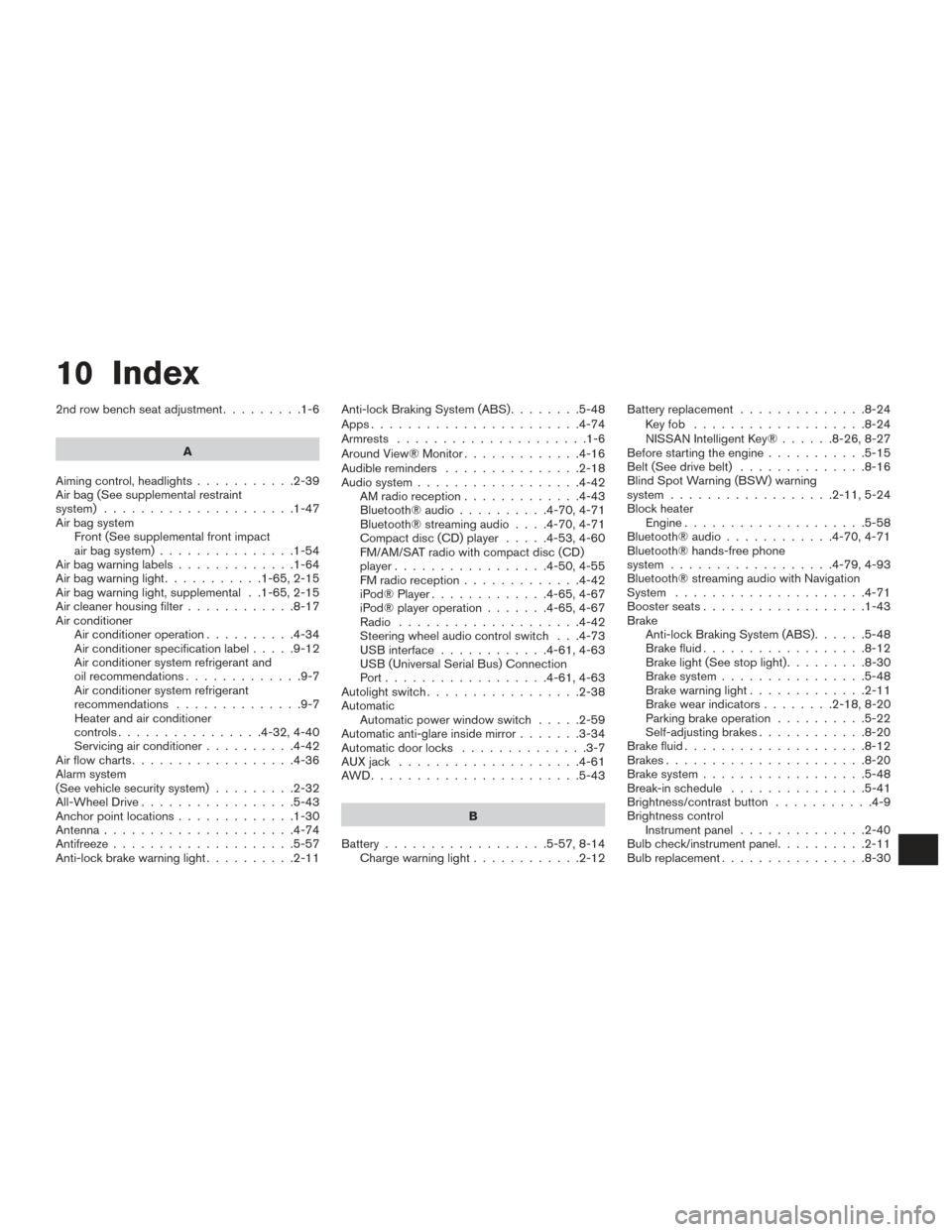
10 Index
2nd row bench seat adjustment.........1-6
A
Aiming control, headlights ...........2-39
Air bag (See supplemental restraint
system) .....................1-47
Air bag system Front (See supplemental front impact
air bag system) ...............1-54
Airbagwarninglabels.............1-64
Airbagwarninglight...........1-65,2-15
Air bag warning light, supplemental . .1-65, 2-15
Air cleaner housing filter ............8-17
Air conditioner Air conditioner operation ..........4-34
Air conditioner specification label .....9-12
Air conditioner system refrigerant and
oil recommendations .............9-7
Air conditioner system refrigerant
recommendations ..............9-7
Heater and air conditioner
controls................4-32,4-40
Servicing air conditioner ..........4-42
Airflowcharts..................4-36
Alarm system
(See vehicle security system) .........2-32
All-Wheel Drive .................5-43
Anchor point locations .............1-30
Antenna .....................4-74
Antifreeze ....................5-57
Anti-lock brake warning light ..........2-11Anti-lock Braking System (ABS)
........5-48
Apps .......................4-74
Armrests .....................1-6
AroundView®Monitor.............4-16
Audible reminders ...............2-18
Audio system ..................4-42
AMradioreception.............4-43
Bluetooth®audio..........4-70,4-71
Bluetooth® streaming audio ....4-70,4-71
Compact disc (CD) player .....4-53,4-60
FM/AM/SAT radio with compact disc (CD)
player.................4-50,4-55
FMradioreception.............4-42
iPod® Player .............4-65,4-67
iPod® player operation .......4-65,4-67
Radio ....................4-42
Steering wheel audio control switch . . .4-73
USB interface ............4-61,4-63
USB (Universal Serial Bus) Connection
Port..................4-61,4-63
Autolight switch .................2-38
Automatic Automatic power window switch .....2-59
Automatic anti-glare inside mirror .......3-34
Automatic door locks ..............3-7
AUXjack ....................4-61
AWD.......................5-43
B
Battery ..................5-57,8-14
Chargewarninglight............2-12 Battery replacement
..............8-24
Keyfob ...................8-24
NISSAN Intelligent Key® ......8-26,8-27
Before starting the engine ...........5-15
Belt (See drive belt) ..............8-16
Blind Spot Warning (BSW) warning
system..................2-11,5-24
Block heater Engine ....................5-58
Bluetooth® audio ............4-70,4-71
Bluetooth® hands-free phone
system..................4-79,4-93
Bluetooth® streaming audio with Navigation
System .....................4-71
Boosterseats..................1-43
Brake Anti-lock Braking System (ABS) ......5-48
Brake fluid ..................8-12
Brakelight(Seestoplight).........8-30
Brake system ................5-48
Brakewarninglight.............2-11
Brakewearindicators........2-18,8-20
Parking brake operation ..........5-22
Self-adjusting brakes ............8-20
Brake fluid ....................8-12
Brakes ......................8-20
Brake system ..................5-48
Break-inschedule ...............5-41
Brightness/contrast button ...........4-9
Brightness control Instrument panel ..............
2-40
Bulb check/instrument panel ..........2-11
Bulbreplacement................8-30