2016 NISSAN MURANO change time
[x] Cancel search: change timePage 125 of 465
Move the lever up or down until the turn
signal begins to flash, but the lever does not
latch, and release the lever. The turn signal
will automatically flash three times.
Choose the appropriate method to signal a lane
change based on road and traffic conditions.
For additional information on disabling the 3 flash
pass turn indicator, refer to “How to use the
vehicle information display” in this section.
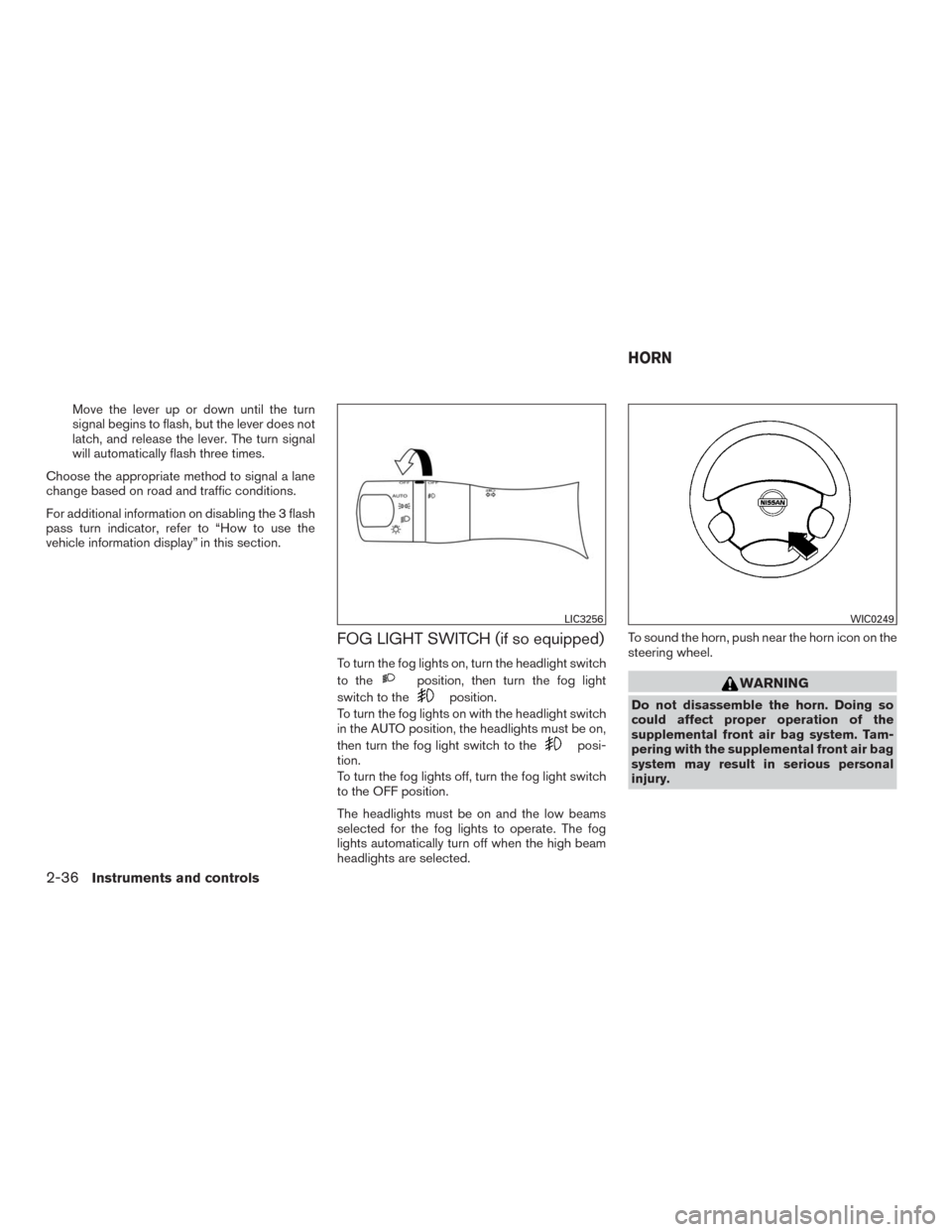
FOG LIGHT SWITCH (if so equipped)
To turn the fog lights on, turn the headlight switch
to the
position, then turn the fog light
switch to the
position.
To turn the fog lights on with the headlight switch
in the AUTO position, the headlights must be on,
then turn the fog light switch to the
posi-
tion.
To turn the fog lights off, turn the fog light switch
to the OFF position.
The headlights must be on and the low beams
selected for the fog lights to operate. The fog
lights automatically turn off when the high beam
headlights are selected.To sound the horn, push near the horn icon on the
steering wheel.
WARNING
Do not disassemble the horn. Doing so
could affect proper operation of the
supplemental front air bag system. Tam-
pering with the supplemental front air bag
system may result in serious personal
injury.
LIC3256WIC0249
HORN
2-36Instruments and controls
Page 148 of 465
●position the hand-held transmitter1-3in
(26 - 76 mm) away from the HomeLink®
surface. Hold the transmitter in that position
for up to 15 seconds. If HomeLink® is not
programmed within that time, try holding the
transmitter in another position – keeping the
indicator light in view at all times.
If you have any questions or are having difficulty
programming your HomeLink® buttons, refer to
the HomeLink® web site at: www.homelink.com
or call 1-800-355-3515.
CLEARING THE PROGRAMMED
INFORMATION
The following procedure clears the programmed
information from both buttons. Individual buttons
cannot be cleared. However, individual buttons
can be reprogrammed. For additional informa-
tion, refer to “Reprogramming a single
HomeLink® button” in this section.
To clear all programming:
1. Press and hold the two outer HomeLink®
buttons until the indicator light begins to
flash in approximately 10 seconds. Do not
hold for longer than 20 seconds.
2. Release both buttons.HomeLink® is now in the programming mode
and can be programmed at any time beginning
with “Programming HomeLink®” - Step 1.
REPROGRAMMING A SINGLE
HOMELINK® BUTTON
To reprogram a HomeLink® Universal Trans-
ceiver button, complete the following:
1. Press and hold the desired HomeLink® but-
ton.DO NOTrelease the button.
2. The indicator light will begin to flash after
20 seconds. Without releasing the
HomeLink® button, proceed with “Pro-
gramming HomeLink®” - Step 1.
For questions or comments, contact HomeLink®
at: www.homelink.com or 1–800–355–3515
(except Mexico) .
The HomeLink® Universal Transceiver button
has now been reprogrammed. The new device
can be activated by pushing the HomeLink®
button that was just programmed. This procedure
will not affect any other programmed HomeLink®
buttons.
IF YOUR VEHICLE IS STOLEN
If your vehicle is stolen, you should change the
codes of any non-rolling code device that has
been programmed into HomeLink®. Consult the
Owner’s Manual of each device or call the manu-
facturer or dealer of those devices for additional
information.
When your vehicle is recovered, you will
need to reprogram the HomeLink® Univer-
sal Transceiver with your new transmitter
information.
FCC Notice:
For USA:
This device complies with Part 15 of the
FCC Rules. Operation is subject to the fol-
lowing two conditions: (1) This device may
not cause harmful interference, and (2) this
device must accept any interference re-
ceived, including interference that may
cause undesired operation.
NOTE:
Changes or modifications not expressly ap-
proved by the party responsible for compli-
ance could void the user’s authority to op-
erate the equipment.
Instruments and controls2-59
Page 165 of 465
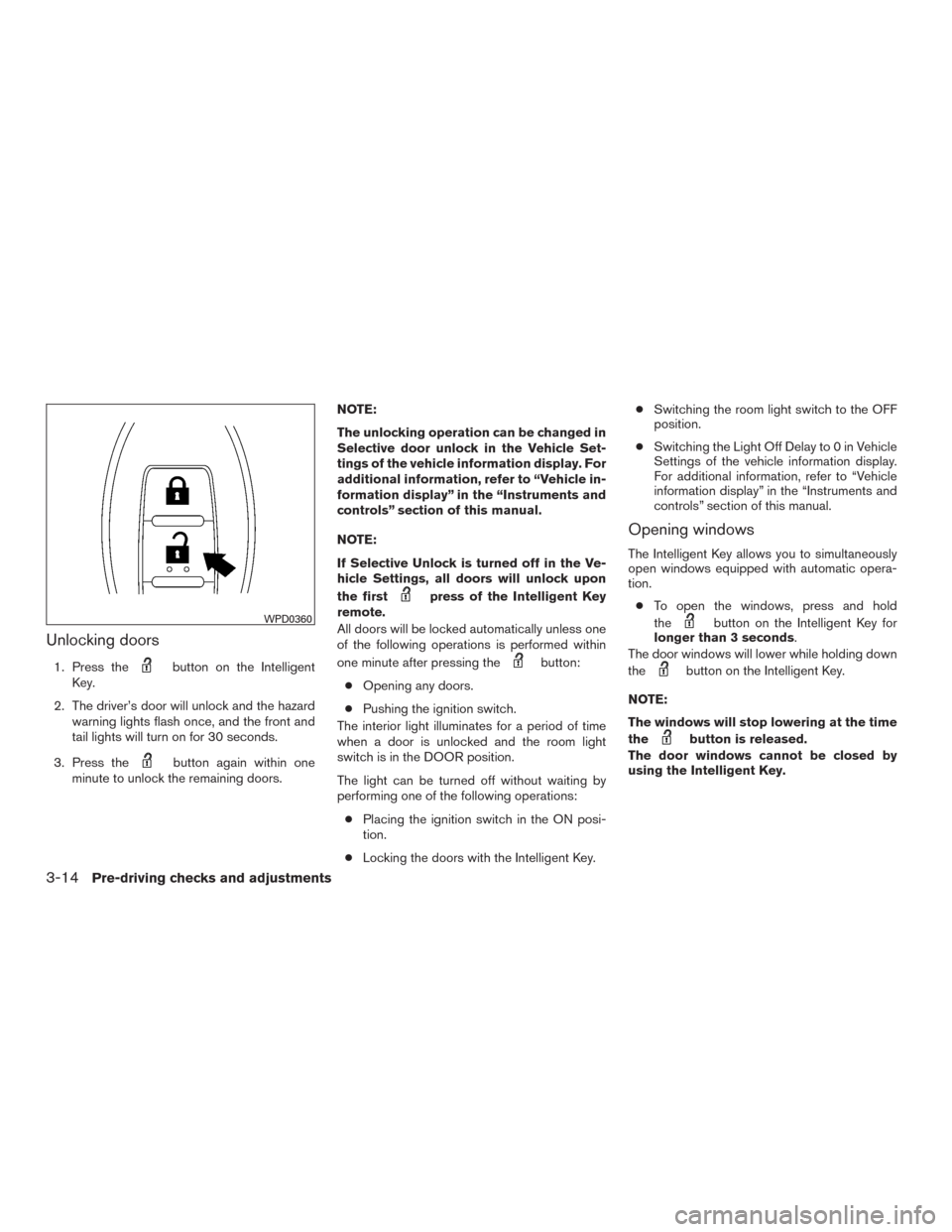
Unlocking doors
1. Press thebutton on the Intelligent
Key.
2. The driver’s door will unlock and the hazard
warning lights flash once, and the front and
tail lights will turn on for 30 seconds.
3. Press the
button again within one
minute to unlock the remaining doors.NOTE:
The unlocking operation can be changed in
Selective door unlock in the Vehicle Set-
tings of the vehicle information display. For
additional information, refer to “Vehicle in-
formation display” in the “Instruments and
controls” section of this manual.
NOTE:
If Selective Unlock is turned off in the Ve-
hicle Settings, all doors will unlock upon
the first
press of the Intelligent Key
remote.
All doors will be locked automatically unless one
of the following operations is performed within
one minute after pressing the
button:
●Opening any doors.
●Pushing the ignition switch.
The interior light illuminates for a period of time
when a door is unlocked and the room light
switch is in the DOOR position.
The light can be turned off without waiting by
performing one of the following operations:
●Placing the ignition switch in the ON posi-
tion.
●Locking the doors with the Intelligent Key.●Switching the room light switch to the OFF
position.
●Switching the Light Off Delay to 0 in Vehicle
Settings of the vehicle information display.
For additional information, refer to “Vehicle
information display” in the “Instruments and
controls” section of this manual.
Opening windows
The Intelligent Key allows you to simultaneously
open windows equipped with automatic opera-
tion.
●To open the windows, press and hold
the
button on the Intelligent Key for
longer than 3 seconds.
The door windows will lower while holding down
the
button on the Intelligent Key.
NOTE:
The windows will stop lowering at the time
the
button is released.
The door windows cannot be closed by
using the Intelligent Key.
WPD0360
3-14Pre-driving checks and adjustments
Page 167 of 465
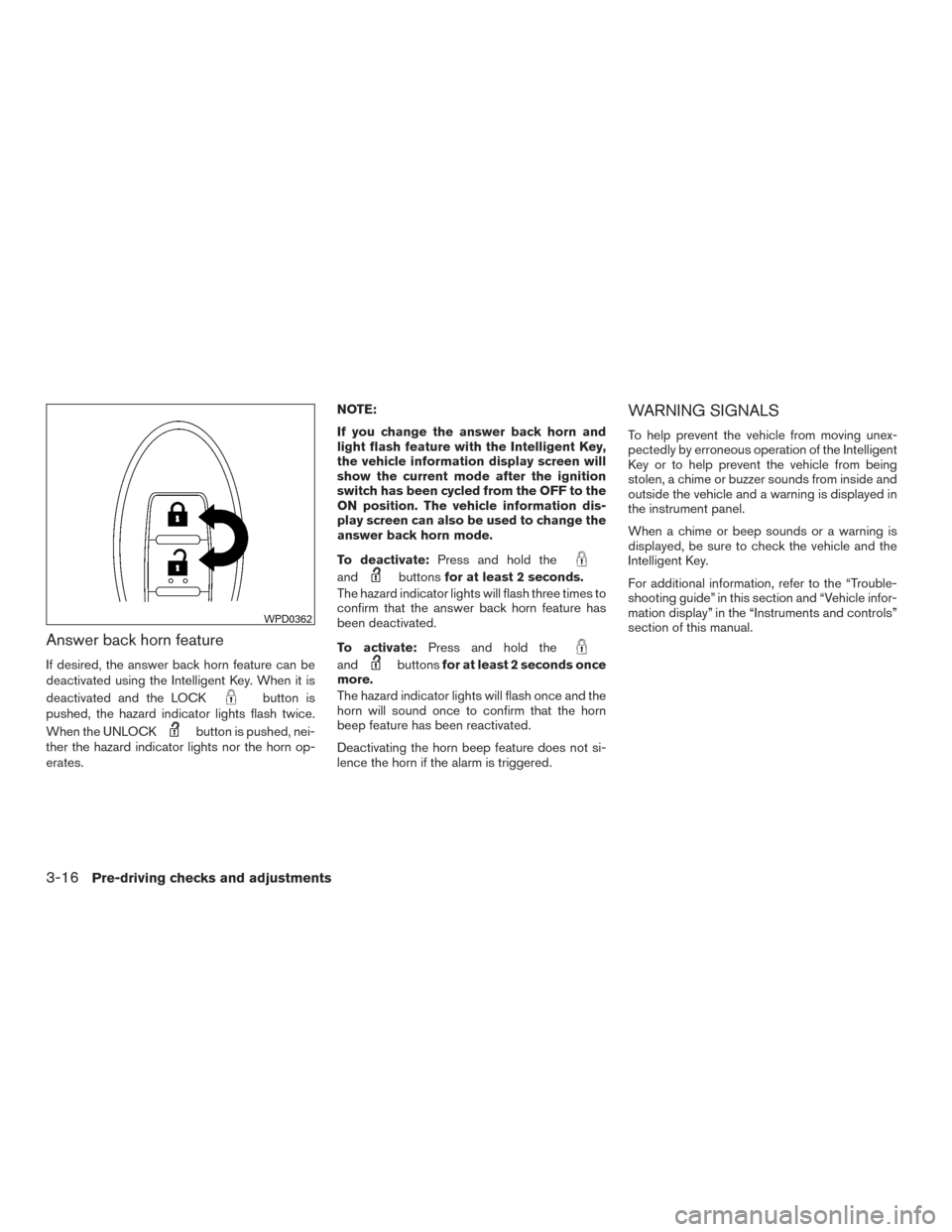
Answer back horn feature
If desired, the answer back horn feature can be
deactivated using the Intelligent Key. When it is
deactivated and the LOCK
button is
pushed, the hazard indicator lights flash twice.
When the UNLOCK
button is pushed, nei-
ther the hazard indicator lights nor the horn op-
erates.NOTE:
If you change the answer back horn and
light flash feature with the Intelligent Key,
the vehicle information display screen will
show the current mode after the ignition
switch has been cycled from the OFF to the
ON position. The vehicle information dis-
play screen can also be used to change the
answer back horn mode.
To deactivate:Press and hold the
andbuttonsfor at least 2 seconds.
The hazard indicator lights will flash three times to
confirm that the answer back horn feature has
been deactivated.
To activate:Press and hold the
andbuttonsfor at least 2 seconds once
more.
The hazard indicator lights will flash once and the
horn will sound once to confirm that the horn
beep feature has been reactivated.
Deactivating the horn beep feature does not si-
lence the horn if the alarm is triggered.
WARNING SIGNALS
To help prevent the vehicle from moving unex-
pectedly by erroneous operation of the Intelligent
Key or to help prevent the vehicle from being
stolen, a chime or buzzer sounds from inside and
outside the vehicle and a warning is displayed in
the instrument panel.
When a chime or beep sounds or a warning is
displayed, be sure to check the vehicle and the
Intelligent Key.
For additional information, refer to the “Trouble-
shooting guide” in this section and “Vehicle infor-
mation display” in the “Instruments and controls”
section of this manual.
WPD0362
3-16Pre-driving checks and adjustments
Page 221 of 465
Reception conditions will constantly change be-
cause of vehicle movement. Buildings, terrain,
signal distance and interference from other ve-
hicles can work against ideal reception. De-
scribed below are some of the factors that can
affect your radio reception.
Some cellular phones or other devices may
cause interference or a buzzing noise to come
from the audio system speakers. Storing the de-
vice in a different location may reduce or elimi-
nate the noise.
FM RADIO RECEPTION
Range: FM range is normally limited to 25 – 30 mi
(40 – 48 km) , with monaural (single channel) FM
having slightly more range than stereo FM. Exter-
nal influences may sometimes interfere with FM
station reception even if the FM station is within
25 mi (40 km) . The strength of the FM signal is
directly related to the distance between the
transmitter and receiver. FM signals follow a line-
of-sight path, exhibiting many of the same char-
acteristics as light. For example, they will reflect
off objects.
Fade and drift: As your vehicle moves away from
a station transmitter, the signals will tend to fade
and/or drift.Static and flutter: During signal interference from
buildings, large hills or due to antenna position
(usually in conjunction with increased distance
from the station transmitter) , static or flutter can
be heard. This can be reduced by adjusting the
treble control to reduce treble response.
Multipath reception: Because of the reflective
characteristics of FM signals, direct and reflected
signals reach the receiver at the same time. The
signals may cancel each other, resulting in mo-
mentary flutter or loss of sound.
AM RADIO RECEPTION
AM signals, because of their low frequency, can
bend around objects and skip along the ground.
In addition, the signals can be bounced off the
ionosphere and bent back to earth. Because of
these characteristics, AM signals are also sub-
ject to interference as they travel from transmitter
to receiver.
Fading: Occurs while the vehicle is passing
through freeway underpasses or in areas with
many tall buildings. It can also occur for several
seconds during ionospheric turbulence even in
areas where no obstacles exist.
Static: Caused by thunderstorms, electrical
power lines, electric signs and even traffic lights.
SATELLITE RADIO RECEPTION
When the satellite radio is used for the first time
or the battery has been replaced, the satellite
radio may not work properly. This is not a mal-
function. Wait more than 10 minutes with satellite
radio ON and the vehicle outside of any metal or
large building for satellite radio to receive all of
the necessary data.
No satellite radio reception is available and “NO
SAT” is displayed when the SAT band option is
selected unless optional satellite receiver and
antenna are installed and a SiriusXM® Satellite
Radio service subscription is active. Satellite ra-
dio is not available in Alaska, Hawaii and Guam.
Satellite radio performance may be affected if
cargo carried on the roof blocks the satellite radio
signal.
If possible, do not put cargo over the satellite
antenna.
A build up of ice on the satellite radio antenna can
affect satellite radio performance. Remove the
ice to restore satellite radio reception.
4-30Display screen, heater, air conditioner, audio and phone systems
Page 232 of 465
1 to 6 Station memory operations
Six stations can be set for the AM band. Twelve
stations can be set for the FM band (six for FM1,
six for FM2) .
1. Choose the radio band AM, FM1 or FM2
using the FM·AM button.
2. Tune to the desired station using the
SEEK button or theTRACK button.
Press and hold any of the desired station
memory buttons (1 – 6) until the preset
number is updated on the display and a
beep is heard.
3. Programming is now complete.
4. Other buttons can be set in the same man-
ner.
If the battery cable is disconnected, or if the fuse
opens, the radio memory will be canceled. In that
case, reset the desired stations.
Compact disc (CD) player operation
If the radio is already operating, it automatically
turns off and the compact disc begins to play.
MEDIA button
With a CD loaded, press the MEDIA button until
the CD mode is displayed on the screen.CD/MP3 display mode
While listening to an MP3/WMA CD, certain text
may be displayed on the screen if the CD has
been encoded with text information. Depending
on how the MP3/WMA CD is encoded, informa-
tion such as Artist, Song and Folder will be dis-
played.
The track number and the total number of tracks
in the current folder or on the current disc are
displayed on the screen as well.
SEEK/TRACK (Reverse or
Fast Forward) button
Press and hold the
orSEEK/TRACK button for 1.5 seconds while the
compact disc is playing to reverse or fast forward
the track being played. The compact disc plays at
an increased speed while reversing or fast for-
warding. When the button is released, the com-
pact disc returns to normal play speed.
SEEK/TRACK button
Press the
SEEK/TRACK button while a CD
or MP3/WMA CD is playing to return to the
beginning of the current track. Press
the
SEEK/TRACK button several times to
skip backward several tracks.Press the
SEEK/TRACK button while a CD
or MP3/WMA CD is playing to advance one
track. Press the
SEEK/TRACK button sev-
eral times to skip forward several tracks. If the last
track on a CD is skipped, the first track on the
disc is played. If the last track in a folder of an
MP3/WMA CD is skipped, the first track of the
next folder is played.
TUNE-SCROLL knob (MP3/WMA CD only)
If an MP3/WMA CD with multiple folders is play-
ing, turn the TUNE-SCROLL knob to change
folders. Turn the knob to the left to skip back a
folder. Turn the knob to the right to skip ahead a
folder.
RPT (repeat) button
When the RPT (repeat) button is pressed while a
compact disc is playing, the play pattern can be
changed as follows:
CD:
1 Track Repeat←→OFF
CD with MP3 or WMA:
1 Folder Repeat→1 Track Repeat→OFF
1 Track Repeat: the current track will be re-
peated.
1 Folder Repeat: the current folder will be re-
peated.
Display screen, heater, air conditioner, audio and phone systems4-41
Page 235 of 465
the track being played. The track plays at an
increased speed while reversing or fast forward-
ing. When the button is released, the audio file
returns to normal play speed.
SEEK and TRACK buttons
Press the SEEK button
while an audio file
on the USB device is playing to return to the
beginning of the current track. Press the SEEK
button
several times to skip backward sev-
eral tracks.
Press the TRACK button
while an audio
file on the USB device is playing to advance one
track. Press the TRACK button
several
times to skip forward several tracks. If the last
track in a folder on the USB device is skipped, the
first track of the next folder is played.
RDM (random) button
When the RDM (random) button is pressed while
an audio file on the USB device is playing, the
play pattern can be changed as follows:
All Random→1 Folder Random→OFF
All Random: all tracks on the USB device will be
played randomly.
1 Folder Random: all tracks in the current folder
will be played randomly.OFF: No random play pattern is applied. The
indicator on the display will turn off.
The current play pattern of the USB device is
displayed on the screen unless no pattern is
applied.
RPT (repeat) button
When the RPT (repeat) button is pressed while
an audio file on the USB device is playing, the
play pattern can be changed as follows:
1 Folder Repeat→1 Track Repeat→OFF
1 Track Repeat: the current track will be re-
peated.
1 Folder Repeat: the current folder will be re-
peated.
OFF: No repeat play pattern is applied. The indi-
cator on the display will turn off.
The current play pattern of the USB device is
displayed on the screen unless no pattern is
applied.
TUNE-SCROLL knob
If there are multiple folders with audio files on the
USB device, turn the TUNE-SCROLL knob to
change folders. Turn the knob to the left to skip
back a folder. Turn the knob to the right to skip
ahead a folder. If there is only one folder of audio
files on the USB device, turning the TUNE-SCROLL knob in either direction will return to the
first track on the USB device.
4-44Display screen, heater, air conditioner, audio and phone systems
Page 253 of 465
●New Text Sound (if so equipped)
Select to adjust the volume of the sound that
plays when a new text is received by a phone
connected to the Bluetooth® Hands-Free
Phone System. The setting all the way to the
left indicates that the new text sound will be
muted.
●Show Incoming Text (if so equipped)
Select “Driver Only” to have incoming text
messages displayed only in the vehicle infor-
mation display. Select “Both” to have incom-
ing text messages displayed in both the ve-
hicle information display and the center
display screen. Select “None” to have no
display of incoming text messages.
●Edit Custom Messages (if so equipped)
Select to set a custom message that will be
available with the standard options when
sending a text message. To set a custom
message, send a text message to your own
phone number while the phone is connected
to the system. Three custom messages can
be set. Custom messages can only be set
while the vehicle is stationary.●Auto Reply (if so equipped)
Select to turn on or off the Auto Reply func-
tion. When enabled, the vehicle will auto-
matically send a predefined text message to
the sender when a text message is received
while driving.
●Auto Reply Message (if so equipped)
Select to choose the message that is sent
when the Auto Reply function is enabled.
Choose from “I’m Driving” or one of the three
custom messages stored in the system.
●Vehicle Signature On/Off (if so equipped)
Select to choose whether or not the vehicle
signature is added to outgoing text mes-
sages from the vehicle. This message can-
not be changed or customized.MANUAL CONTROL
While using the NISSAN Voice Recognition sys-
tem, it is possible to select menu options by using
the steering wheel controls instead of speaking
voice commands. To activate manual control
mode, press the PHONE/SEND (
) button
on the steering wheel to access the phone menu
and then push either up or down on the tuning
switch (
).
The manual control mode does not allow dialing a
phone number by digits. The user may select an
entry from the Phonebook or Recent Calls lists.
To reactivate NISSAN Voice Recognition, exit the
manual control mode by pressing and holding the
PHONE/END (
) button. At that time, press-
ing the PHONE/SEND (
) button will start
the Hands Free Phone System.
4-62Display screen, heater, air conditioner, audio and phone systems