2016 NISSAN FRONTIER display
[x] Cancel search: displayPage 227 of 469
Static and flutter: During signal interference from
buildings, large hills or due to antenna position
(usually in conjunction with increased distance
from the station transmitter) , static or flutter can
be heard. This can be reduced by adjusting the
treble control to reduce treble response.
Multipath reception: Because of the reflective
characteristics of FM signals, direct and reflected
signals reach the receiver at the same time. The
signals may cancel each other, resulting in mo-
mentary flutter or loss of sound.
AM RADIO RECEPTION
AM signals, because of their low frequency, can
bend around objects and skip along the ground.
In addition, the signals can be bounced off the
ionosphere and bent back to earth. Because of
these characteristics, AM signals are also sub-
ject to interference as they travel from transmitter
to receiver.
Fading: Occurs while the vehicle is passing
through freeway underpasses or in areas with
many tall buildings. It can also occur for several
seconds during ionospheric turbulence even in
areas where no obstacles exist.
Static: Caused by thunderstorms, electrical
power lines, electric signs and even traffic lights.
SATELLITE RADIO RECEPTION (if so
equipped)
When the satellite radio is used for the first time
or the battery has been replaced, the satellite
radio may not work properly. This is not a mal-
function. Wait more than 10 minutes with satellite
radio ON and the vehicle outside of any metal or
large building for satellite radio to receive all of
the necessary data.
No satellite radio reception is available and “NO
SAT” is displayed when the SAT band option is
selected unless optional satellite receiver and
antenna are installed and a SiriusXM® Satellite
Radio service subscription is active. Satellite ra-
dio is not available in Alaska, Hawaii and Guam.
Satellite radio performance may be affected if
cargo carried on the roof blocks the satellite radio
signal.
If possible, do not put cargo over the satellite
antenna.
A build up of ice on the satellite radio antenna can
affect satellite radio performance. Remove the
ice to restore satellite radio reception.
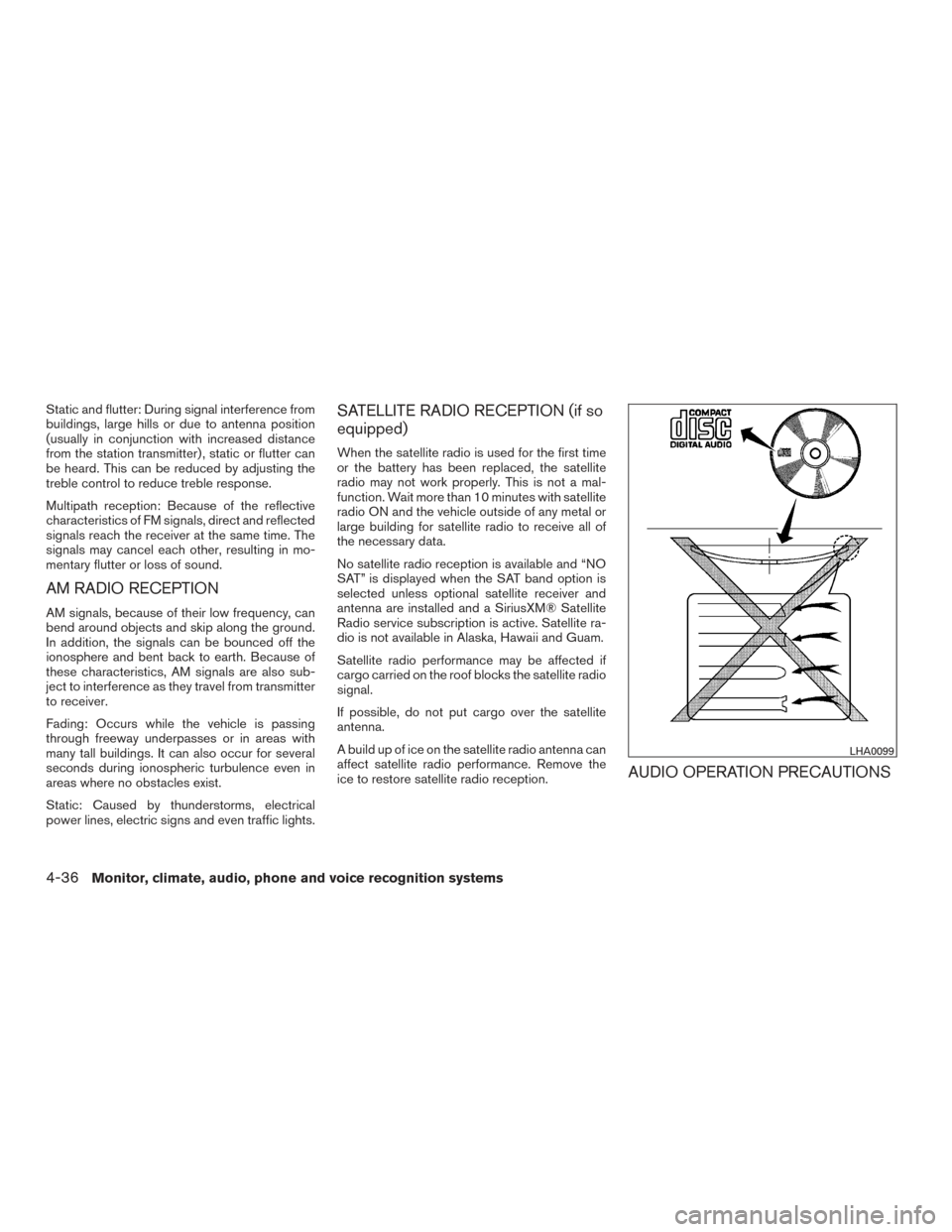
AUDIO OPERATION PRECAUTIONS
LHA0099
4-36Monitor, climate, audio, phone and voice recognition systems
Page 228 of 469
Compact disc (CD) player
CAUTION
●Do not force a compact disc into the CD
insert slot. This could damage the CD
and/or CD player.
● Trying to load a CD with the CD door
closed could damage the CD and/or CD
player.
● Only one CD can be loaded into the CD
player at a time.
● Only use high quality 4.7 in (12 cm)
round discs that have the “COMPACT
disc DIGITAL AUDIO” logo on the disc
or packaging.
● During cold weather or rainy days, the
player may malfunction due to the hu-
midity. If this occurs, remove the CD
and dehumidify or ventilate the player
completely.
● The player may skip while driving on
rough roads.
● The CD player sometimes cannot func-
tion when the compartment tempera-
ture is extremely high or low.
Decrease/increase the temperature
before use. ●
Do not expose the CD to direct sun-
light.
● CDs that are in poor condition or are
dirty, scratched or covered with finger-
prints may not work properly.
● The following CDs may not work prop-
erly:
● Copy control compact discs (CCCD)
● Recordable compact discs (CD-R)
● Rewritable compact discs (CD-RW)
● Do not use the following CDs as they
may cause the CD player to malfunc-
tion:
● 3.1 in (8 cm) discs with an adapter
● CDs that are not round
● CDs with a paper label
● CDs that are warped, scratched, or
have abnormal edges
● This audio system can only play pre-
recorded CDs. It has no capability to
record or burn CDs.
● If the CD cannot be played, one of the
following messages will be displayed. CHECK DISC
●
Confirm that the CD is inserted cor-
rectly (the label side is facing up,
etc.) .
● Confirm that the CD is not bent or
warped and it is free of scratches.
PRESS EJECT
This is an error due to excessive tem-
perature inside the player. Remove the
CD by pressing the EJECT button. After
a short time, reinsert the CD. The CD
can be played when the temperature of
the player returns to normal.
UNPLAYABLE
The file is unplayable in this audio sys-
tem (only MP3 or WMA (if so equipped)
CD) .
Monitor, climate, audio, phone and voice recognition systems4-37
Page 229 of 469
Compact disc with MP3 or WMA (if
so equipped)
Terms● MP3 — MP3 is short for Moving Pictures
Experts Group Audio Layer 3. MP3 is the
most well-known compressed digital audio
file format. This format allows for near “CD
quality” sound, but at a fraction of the size of
normal audio files. MP3 conversion of an
audio track from CD-ROM can reduce the
file size by approximately a 10:1 ratio with
virtually no perceptible loss in quality. MP3
compression removes the redundant and
irrelevant parts of a sound signal that the
human ear doesn’t hear.
● WMA — Windows Media Audio (WMA)* is a
compressed audio format created by Micro-
soft as an alternative to MP3. The WMA
codec offers greater file compression than
the MP3 codec, enabling storage of more
digital audio tracks in the same amount of
space when compared to MP3s at the same
level of quality.
● Bit rate — Bit rate denotes the number of
bits per second used by a digital music file.
The size and quality of a compressed digital
audio file is determined by the bit rate used
when encoding the file. ●
Sampling frequency — Sampling frequency
is the rate at which the samples of a signal
are converted from analog to digital (A/D
conversion) per second.
● Multisession — Multisession is one of the
methods for writing data to media. Writing
data once to the media is called a single
session, and writing more than once is called
a multisession.
● ID3/WMA Tag — The ID3/WMA tag is the
part of the encoded MP3 or WMA file that
contains information about the digital music
file such as song title, artist, encoding bit
rate, track time duration, etc. ID3 tag infor-
mation is displayed on the Artist/song title
line on the display.
* Windows® and Windows Media® are regis-
tered trademarks and trademarks in the United
States of America and other countries of Micro-
soft Corporation of the USA.
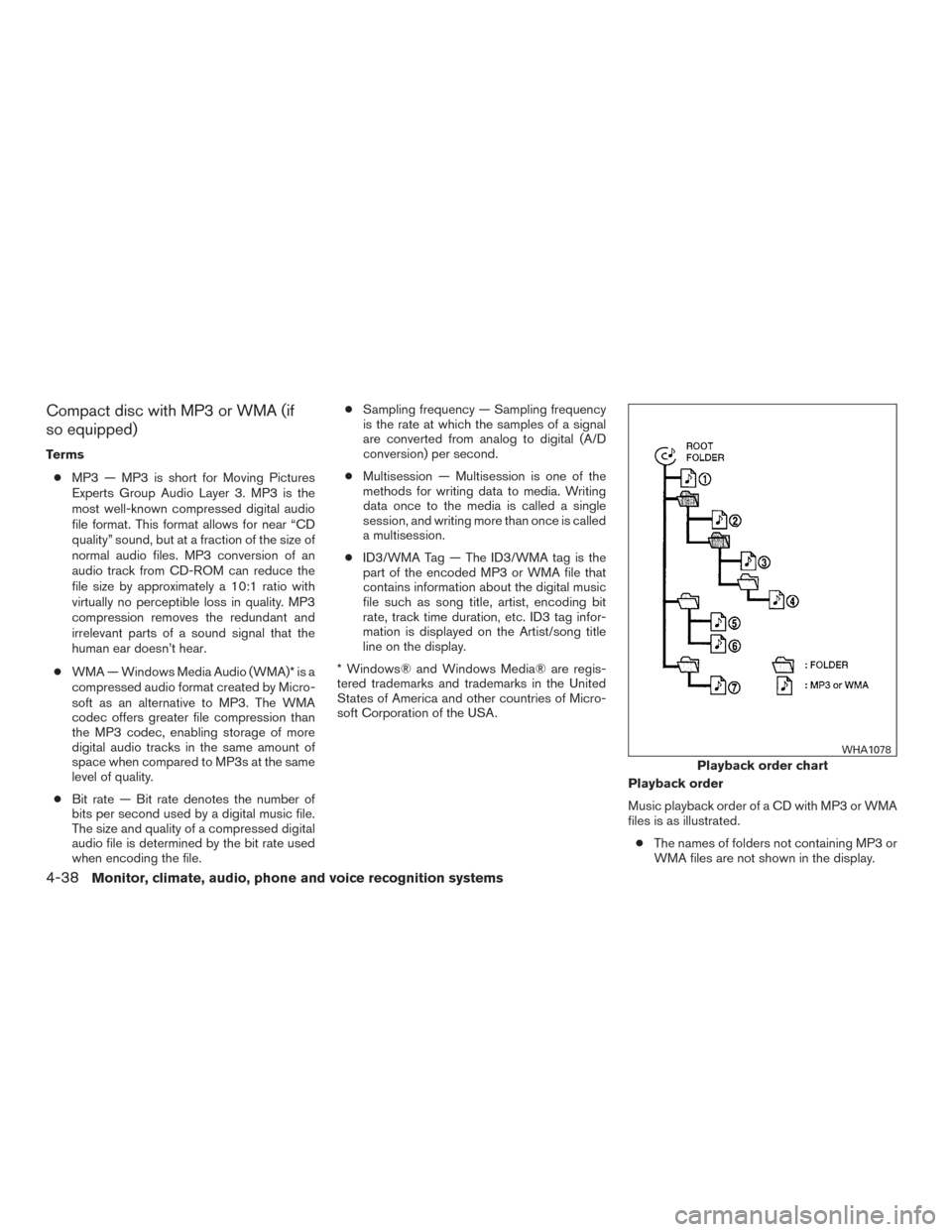
Playback order
Music playback order of a CD with MP3 or WMA
files is as illustrated.● The names of folders not containing MP3 or
WMA files are not shown in the display.
Playback order chart
WHA1078
4-38Monitor, climate, audio, phone and voice recognition systems
Page 230 of 469
●If there is a file in the top level of the disc,
“Root Folder” is displayed.
● The playback order is the order in which the
files were written by the writing software.
Therefore, the files might not play in the
desired order.
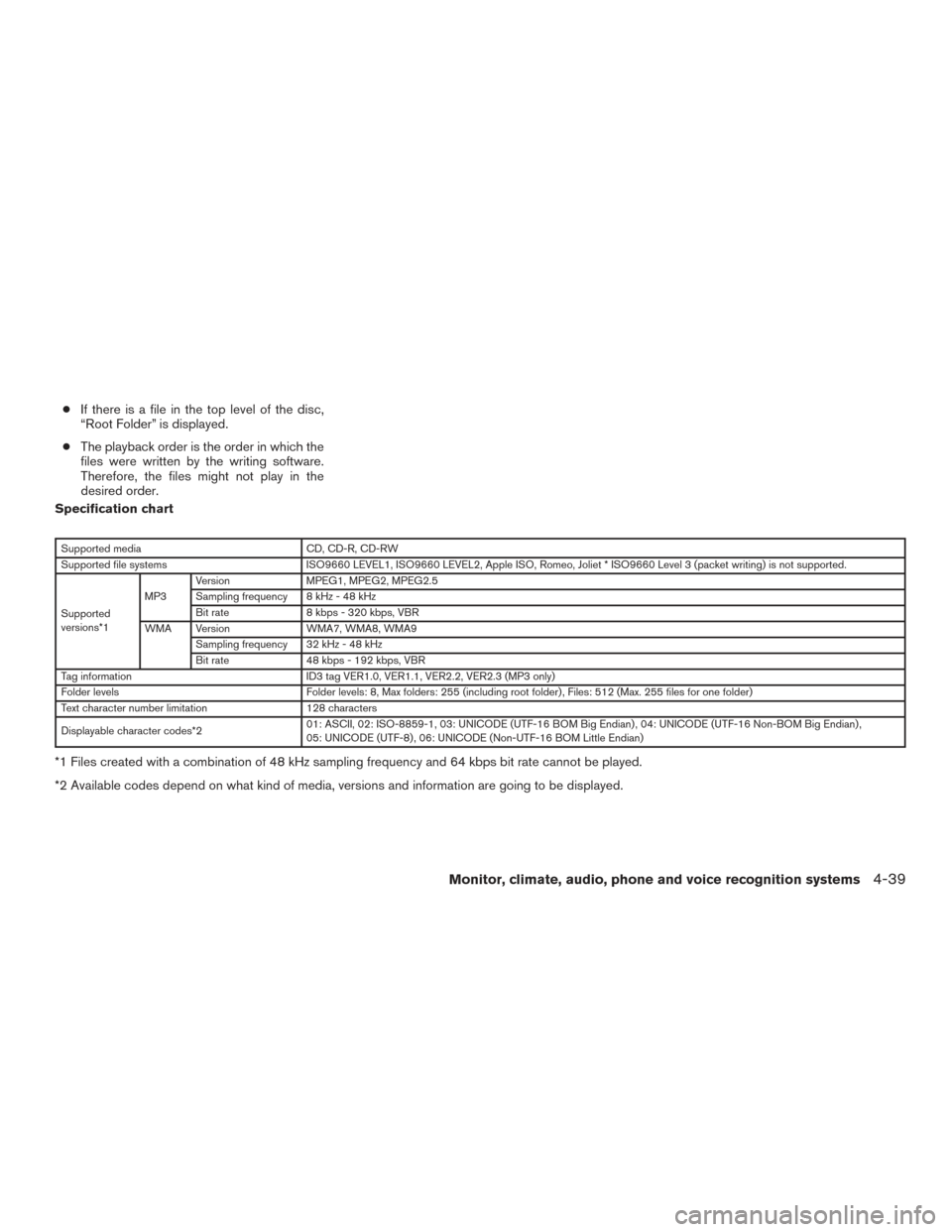
Specification chart
Supported media CD, CD-R, CD-RW
Supported file systems ISO9660 LEVEL1, ISO9660 LEVEL2, Apple ISO, Romeo, Joliet * ISO9660 Level 3 (packet writing) is not supported.
Supported
versions*1 MP3
Version
MPEG1, MPEG2, MPEG2.5
Sampling frequency 8 kHz - 48 kHz
Bit rate 8 kbps - 320 kbps, VBR
WMA Version WMA7, WMA8, WMA9
Sampling frequency 32 kHz - 48 kHz
Bit rate 48 kbps - 192 kbps, VBR
Tag information ID3 tag VER1.0, VER1.1, VER2.2, VER2.3 (MP3 only)
Folder levels Folder levels: 8, Max folders: 255 (including root folder) , Files: 512 (Max. 255 files for one folder)
Text character number limitation 128 characters
Displayable character codes*2 01: ASCII, 02: ISO-8859-1, 03: UNICODE (UTF-16 BOM Big Endian) , 04: UNICODE (UTF-16 Non-BOM Big Endian) ,
05: UNICODE (UTF-8) , 06: UNICODE (Non-UTF-16 BOM Little Endian)
*1 Files created with a combination of 48 kHz sampling frequency and 64 kbps bit rate cannot be played.
*2 Available codes depend on what kind of media, versions and information are going to be displayed.
Monitor, climate, audio, phone and voice recognition systems4-39
Page 232 of 469
USB (Universal Serial Bus)
Connection Port (if so equipped)
WARNING
Do not connect, disconnect, or operate the
USB device while driving. Doing so can be
a distraction. If distracted you could lose
control of your vehicle and cause an acci-
dent or serious injury.
CAUTION
●Do not force the USB device into the
USB port. Inserting the USB device
tilted or up-side-down into the port may
damage the port. Make sure that the
USB device is connected correctly into
the USB port.
● Do not grab the USB port cover (if so
equipped) when pulling the USB device
out of the port. This could damage the
port and the cover.
● Do not leave the USB cable in a place
where it can be pulled unintentionally.
Pulling the cable may damage the port.
The vehicle is not equipped with a USB device.
USB devices should be purchased separately as
necessary. This system cannot be used to format USB de-
vices. To format a USB device, use a personal
computer.
In some jurisdictions, the USB device for the front
seats plays only sound without images for regu-
latory reasons, even when the vehicle is parked.
This system supports various USB connection
port devices, USB hard drives and iPod® play-
ers. Some USB devices may not be supported by
this system.
● Partitioned USB devices may not play cor-
rectly.
● Some characters used in other languages
(Chinese, Japanese, etc.) may not appear
properly in the display. Using English lan-
guage characters with a USB device is rec-
ommended.
General notes for USB use ● Refer to your device manufacturer’s owner
information regarding the proper use and
care of the device.
Notes for iPod® use
iPod® is a trademark of Apple Inc., registered in
the U.S. and other countries. ●
Improperly plugging in the iPod® may cause
a checkmark to be displayed on and off
(flickering) . Always make sure that the
iPod® is connected properly.
● An iPod® nano (1st Generation) may remain
in fast forward or rewind mode if it is con-
nected during a seek operation. In this case,
please manually reset the iPod®.
● An iPod® nano (2nd Generation) will con-
tinue to fast-forward or rewind if it is discon-
nected during a seek operation.
● An incorrect song title may appear when the
Play Mode is changed while using an iPod®
nano (2nd Generation) .
● Audiobooks may not play in the same order
as they appear on an iPod®.
● Large video files cause slow responses in an
iPod®. The vehicle center display may mo-
mentarily black out, but will soon recover.
● If an iPod® automatically selects large video
files while in the shuffle mode, the vehicle
center display may momentarily black out,
but will soon recover.
Monitor, climate, audio, phone and voice recognition systems4-41
Page 234 of 469
FM/AM RADIO WITH COMPACT
DISC (CD) PLAYER (if so equipped)
1.CD eject button
2. CD insert slot 3. SCAN button
4. DISP (display) button
5. RPT (repeat) /RDM (random) button
6. MENU button /TUNE/FOLDER knob7. AUX IN jack
8. AUX button
9. CD button
10. AM button
11. FM button
12.
(power) button / VOL (volume) con-
trol knob
13. Station select (1 - 6) buttons
14. TRACK
button
15.
SEEK button
For additional information, refer to “Audio opera-
tion precautions” regarding all operation precau-
tions in this section.
Audio main operation
(power) button /VOL (volume)
control knob
Place the ignition switch in the ACC or ON
position, then press the
(power) button. If
you listen to the radio with the engine not running,
place the ignition in the ACC position. The mode
(radio or CD) that was playing immediately before
the system was turned off resumes playing.
LHA2241
Monitor, climate, audio, phone and voice recognition systems4-43
Page 235 of 469
When no CD is loaded, the radio comes on.
Pressing the
(power) button again turns
the system off.
Turn the VOL (volume) control knob to the right to
increase volume or to the left to decrease volume.
MENU button (Bass, Treble, Balance,
Fade, Speed Sensitive Volume and Clock)
Press the MENU button to change the mode as
follows:
Bass →Treble →Balance →Fade →Spd. Sen.
Vol. (Speed Sensitive Volume) →AUX IN Volume
→ Clock →Clock Adjust
To adjust the Bass, Treble, Fade and Balance,
press the MENU button until the desired mode
appears in the display. Press the
SEEK or
TRACK
button to adjust the setting to the
desired level (-5 to +5) . Balance adjusts the
sound between the right and left speakers. Fade
adjusts the sound between the front and rear
speakers.
Once you have adjusted the sound quality to the
desired level, press the MENU button repeatedly
until the radio or CD display reappears. Other-
wise, the radio or CD display will automatically
reappear after about 10 seconds.
Speed Sensitive Volume (SSV) adjusts the vol-
ume of the audio system as the vehicle’s driving
speed changes. It can be set as follows: OFF
→LOW →MID →HIGH
DISP (display) button
Press the DISP (display) button while a CD is
playing to change the text shown in the audio
display as follows:
For CDs:
Running Time →Album Title: →Artist Name: →
Song Title
For MP3 CDs:
Running Time →Folder Title: →Album Title: →
Artist Name: →Song Title:
If the text information is too long to fully be dis-
played on the screen; press and hold the DISP
button for longer than 1.5 seconds to scroll
through the rest of the text.
Press the DISP (display) button while the radio is
playing to toggle the audio display between sta-
tion number and RDS.
Clock operation
To turn the clock display on or off, press the
MENU button repeatedly until “Clock” appears
on the display. Turn the TUNE/FOLDER knob to
toggle the setting (ON or OFF) . Clock set
1. Press the MENU button. and turn the TUNE/FOLDER knob until “Adjust Clock”
appears on the display.
2. Press the MENU button.
3. “Change Hour” will appear on the screen. Turn the TUNE/FOLDER knob to adjust the
hours and then press MENU.
4. “Change Minute” will appear on the screen. Turn the TUNE/FOLDER knob to adjust the
minutes and then press MENU.
The display will return to the regular clock display
after 10 seconds if no further adjustment is per-
formed.FM/AM radio operation
AM and FM buttons
Press the AM button to change the band to AM.
If another audio source is playing when the AM
button is pressed, the audio source playing will
automatically be turned off and the last radio
station played will begin playing.
Press the FM button to change the band as
follows:
FM1 →FM2 →FM1
4-44Monitor, climate, audio, phone and voice recognition systems
Page 236 of 469
If another audio source is playing when the FM
button is pressed, the audio source playing will
automatically be turned off and the last radio
station played will begin playing.
SEEK and TRACK (tuning)buttons
Press the
SEEK button to tune from low to
high frequencies and stop at the next broadcast-
ing station.
Press the
TRACK button to tune from high
to low frequencies and stop at the next broad-
casting station.
Press and hold either button to seek at a faster
speed.
SCAN (tuning) button
Press the SCAN button. SCAN illuminates in the
display window. Scan tuning begins from low to
high frequencies. Scan tuning stops for 5 sec-
onds at each broadcasting station that has suffi-
cient signal strength. When scanning, SCAN
blinks in the display. Pressing the SCAN button
again during this 5 second period stops scan
tuning and the radio remains tuned to that station.
1 to 6 Station memory operations
Twelve stations can be set for the FM band (six for
FM1, six for FM2) and six stations can be set for
the AM band. 1. Choose the radio band AM, FM1 or FM2
using the AM or FM button.
2. Tune to the desired station using manual, SEEK or SCAN tuning. Press and hold any
of the desired station memory buttons (1 –
6) until a beep sound is heard.
3. The channel indicator will then come on and the sound will resume. Programming is now
complete.
4. Other buttons can be set in the same man- ner.
If the battery cable is disconnected or if the fuse
opens, the radio memory will be canceled. In that
case, reset the desired stations.
Compact disc (CD) player operation
Place the ignition switch in the ACC or ON
position, and carefully insert the compact disc
into the slot with the label side up. The compact
disc is automatically pulled into the slot and starts
to play.
If the radio is already operating, it automatically
turns off and the compact disc begins to play.
CD button
When the CD button is pressed with a compact
disc loaded and the radio playing, the radio turns
off and the last used compact disc starts to play.
SEEK and TRACK (Fast Forward, Rewind) buttons
When the
SEEK button orTRACK
button is pressed while the compact disc is play-
ing, the compact disc plays at an increased
speed while fast forwarding or rewinding. When
the button is released, the compact disc returns
to normal play speed.
SEEK and TRACK buttons
When the
SEEK button is pressed while
the compact disc is playing, the next track follow-
ing the present one starts to play from the begin-
ning. Press the
SEEK button several times
to skip several tracks. Each time the button is
pressed, the CD advances one additional track.
The track number appears in the display window.
When the last track on the compact disc is
skipped, the first track is played.
When the
TRACK button is pressed, the
track being played returns to the beginning.
Press the
TRACK button several times to
skip back several tracks. Each time the button is
pressed the CD moves back one track.
Monitor, climate, audio, phone and voice recognition systems4-45