2016 NISSAN ALTIMA navigation
[x] Cancel search: navigationPage 225 of 491
RDM (random) button
When the RDM button is pressed while a com-
pact disc is playing, the play pattern can be
changed as follows:
CD:
1 Disc Random←→OFF
CD with MP3 or WMA:
1 Disc Random →1 Folder Random →OFF
1 Disc Random: all tracks on the disc will be
played randomly.
1 Folder Random: all tracks in the current folder
will be played randomly.
OFF: No random play pattern is applied. The
indicator on the display will turn off.
The current play pattern of the CD is displayed on
the screen unless no pattern is applied.
CD EJECT button
When the
CD eject button is pressed with
a compact disc loaded, the compact disc will
eject and the last source will be played.
When the
CD eject button is pressed
twice with a compact disc loaded, the compact
disc will be ejected further for easier CD removal.
If the disc is not removed within 20 seconds, the
disc will reload.
Additional features
For additional information about the iPod® player
available with this system, refer to “iPod® player
operation without Navigation System” in this sec-
tion.
For additional information about the USB inter-
face available with this system, refer to “USB
(Universal Serial Bus) Connection Port (models
without Navigation System)” in this section.
For additional information about the Bluetooth®
audio interface available with this system, refer to
“Bluetooth® streaming audio without Navigation
System” in this section.
4-48Monitor, climate, audio, phone and voice recognition systems
Page 232 of 491
SEEK/TRACK (Reverse orFast Forward) buttons
Press and hold the
SEEK button orTRACK button for 1.5 seconds while the com-
pact disc is playing to reverse or fast forward the
track being played. The compact disc plays at an
increased speed while reversing or fast forward-
ing. When the button is released, the compact
disc returns to normal play speed.
SEEK/TRACK buttons
Press the
SEEK button while a CD or
MP3/WMA CD is playing to return to the begin-
ning of the current track. Press the
SEEK
button several times to skip backward several
tracks.
Press the
TRACK button while a CD or
MP3/WMA CD is playing to advance one track.
Press the
TRACK button several times to
skip forward several tracks. If the last track on a
CD is skipped, the first track on the disc is played.
If the last track in a folder of an MP3/WMA CD is
skipped, the first track of the next folder is played. AUX button
The AUX IN audio input jack accepts any stan-
dard analog audio input such as from a portable
cassette tape/CD player, MP3 player or a laptop
computer. Press the AUX button to play a com-
patible device plugged into the AUX IN jack.
CD EJECT button
When the
CD eject button is pressed with
a compact disc loaded, the compact disc will
eject and the last source will be played.
If the disc is not removed within 10 seconds, the
disc will reload.
Additional features
For additional information, refer to “iPod® player
operation with Navigation System” in this section.
For additional information, refer to “USB (Univer-
sal Serial Bus) connection port (models with
Navigation System)” in this section.
For additional information, refer to “Bluetooth®
streaming audio with Navigation System” in this
section.USB (Universal Serial Bus)
CONNECTION PORT (models
without Navigation System) (if so
equipped)
Connecting a device to the USB
Connection Port
WARNING
Do not connect, disconnect, or operate the
USB device while driving. Doing so can be
a distraction. If distracted you could lose
control of your vehicle and cause an acci-
dent or serious injury.
LHA3077
Monitor, climate, audio, phone and voice recognition systems4-55
Page 234 of 491
The current play pattern of the USB device is
displayed on the screen unless no pattern is
applied.
RPT (repeat) button
When the RPT button is pressed while an audio
file on the USB device is playing, the play pattern
can be changed as follows:
1 Folder Repeat→1 Track Repeat →OFF
1 Track Repeat: the current track will be re-
peated.
1 Folder Repeat: the current folder will be re-
peated.
OFF: No repeat play pattern is applied. The indi-
cator on the display will turn off.
The current play pattern of the USB device is
displayed on the screen unless no pattern is
applied.
TUNE/SCROLL knob
If there are multiple folders with audio files on the
USB device, turn the TUNE/SCROLL knob to
change folders. Turn the knob to the left to skip
back a folder. Turn the knob to the right to skip
ahead a folder. If there is only one folder of audio
files on the USB device, turning the
TUNE/SCROLL knob in either direction will re-
turn to the first track on the USB device. TUNE/FOLDER knob
If there are multiple folders with audio files on the
USB device, turn the TUNE/FOLDER knob to
change folders. Turn the knob to the left to skip
back a folder. Turn the knob to the right to skip
ahead a folder. If there is only one folder of audio
files on the USB device, turning the
TUNE/FOLDER knob in either direction will re-
turn to the first track on the USB device.
USB (Universal Serial Bus)
CONNECTION PORT (models with
Navigation System) (if so equipped)
Connecting a device to the USB
Connection Port
WARNING
Do not connect, disconnect or operate the
USB device while driving. Doing so can be
a distraction. If distracted you could lose
control of your vehicle and cause an acci-
dent or serious injury.
LHA3077
Monitor, climate, audio, phone and voice recognition systems4-57
Page 237 of 491
iPod®* PLAYER OPERATION
WITHOUT NAVIGATION SYSTEM (if
so equipped)
Connecting iPod®
WARNING
Do not connect, disconnect or operate the
USB device while driving. Doing so can be
a distraction. If distracted you could lose
control of your vehicle and cause an acci-
dent or serious injury.
CAUTION
●Do not force the USB device into the
USB port. Inserting the USB device
tilted or up-side-down into the port may
damage the port. Make sure that the
USB device is connected correctly into
the USB connection port.
● Do not grab the USB port cover (if so
equipped) when pulling the USB device
out of the port. This could damage the
port and the cover.
● Do not leave the USB cable in a place
where it can be pulled unintentionally.
Pulling the cable may damage the port.
Refer to your device manufacturer’s owner infor-
mation regarding the proper use and care of the
device.
To connect an iPod® to the vehicle so that the
iPod® can be controlled with the audio system
controls and display screen, use the USB con-
nection port located in the center console. Con-
nect the iPod®-specific end of the cable to the
iPod® and the USB end of the cable to the USB
connection port. on the vehicle. If your iPod®
supports charging via a USB connection, its bat-
tery will be charged while connected to the ve-
hicle with the ignition switch in the ACC or ON
position. While connected to the vehicle, the iPod® can
only be operated by the vehicle audio controls.
To disconnect the iPod® from the vehicle, re-
move the USB end of the cable from the USB
connection port. on the vehicle, then remove the
cable from the iPod®.
* iPod® is a trademark of Apple Inc., registered in
the U.S. and other countries.
Compatibility
The following models are compatible:
● iPod® Classic - 5th Generation (firmware
version 1.3.0 or later)
● iPod® Classic - 6th Generation (firmware
version 2.0.1 or later)
● iPod® Classic - 7th Generation (firmware
version 2.0.4 or later)
● iPod® nano - 1st generation (firmware ver-
sion 1.3.1 or later)
● iPod® nano - 2nd generation (firmware ver-
sion 1.1.3 or later)
● iPod® nano - 3rd generation (firmware ver-
sion 1.1.3 or later)
● iPod® nano - 4th generation (firmware ver-
sion 1.0.4 or later)
LHA3077
4-60Monitor, climate, audio, phone and voice recognition systems
Page 239 of 491
All Repeat: all songs in the current list are re-
peated.
Repeat Off: no repeat play pattern is applied.
RANDOM (RDM)
When the RDM button is pressed while a track is
being played, the play pattern can be changed as
follows:
Shuffle Off→Track Shuffle →Album Shuffle →
Shuffle Off
Track Shuffle: the tracks in the current list will be
played randomly.
Album Shuffle: the albums in the current list will
be played randomly.
Shuffle Off: no random play pattern is applied.
BACK button
When the
BACK button is pressed, it re-
turns to the previous menu.
iPod®* PLAYER OPERATION WITH
NAVIGATION SYSTEM (if so
equipped)
Connecting iPod®
WARNING
Do not connect, disconnect or operate the
USB device while driving. Doing so can be
a distraction. If distracted you could lose
control of your vehicle and cause an acci-
dent or serious injury.
CAUTION
● Do not force the USB device into the
USB port. Inserting the USB device
tilted or up-side-down into the port may
damage the port. Make sure that the
USB device is connected correctly into
the USB connection port.
● Do not grab the USB port cover (if so
equipped) when pulling the USB device
out of the port. This could damage the
port and the cover.
● Do not leave the USB cable in a place
where it can be pulled unintentionally.
Pulling the cable may damage the port.
Refer to your device manufacturer’s owner infor-
mation regarding the proper use and care of the
device.
To connect an iPod® to the vehicle so that the
iPod® can be controlled with the audio system
controls and display screen, use the USB con-
nection port located in the center console. Con-
nect the iPod®-specific end of the cable to the
iPod® and the USB end of the cable to the USB
connection port. on the vehicle. If your iPod®
supports charging via a USB connection, its bat-
tery will be charged while connected to the ve-
hicle with the ignition switch in the ACC or ON
position.
LHA3077
4-62Monitor, climate, audio, phone and voice recognition systems
Page 242 of 491
SEEK/TRACK buttons
Press the
SEEK button orTRACK
button to skip backward or forward one track.
Press and hold the
SEEK button orTRACK button for 1.5 seconds while a track is
playing to reverse or fast forward the track being
played. The track plays at an increased speed
while reversing or fast forwarding. When the but-
ton is released, the track returns to normal play
speed.
Scrolling menus
While navigating long lists of artists, albums or
songs in the music menu, it is possible to scroll
the list by the first character in the name. To
activate character indexing, touch and hold the
“A-Z” key in the upper right corner of the screen.
Turn the TUNE/SCROLL knob to choose the
number or letter to jump to in the list and then
press the ENTER/AUDIO button.
If no character is selected after two seconds, the
display returns to normal.
BLUETOOTH® STREAMING AUDIO
WITHOUT NAVIGATION SYSTEM (if
so equipped)
If you have a compatible Bluetooth® audio de-
vice that is capable of playing audio files, the
device can be connected to the vehicle’s audio
system so that the audio files on the device play
through the vehicle’s speakers.
LHA2279
Monitor, climate, audio, phone and voice recognition systems4-65
Page 243 of 491
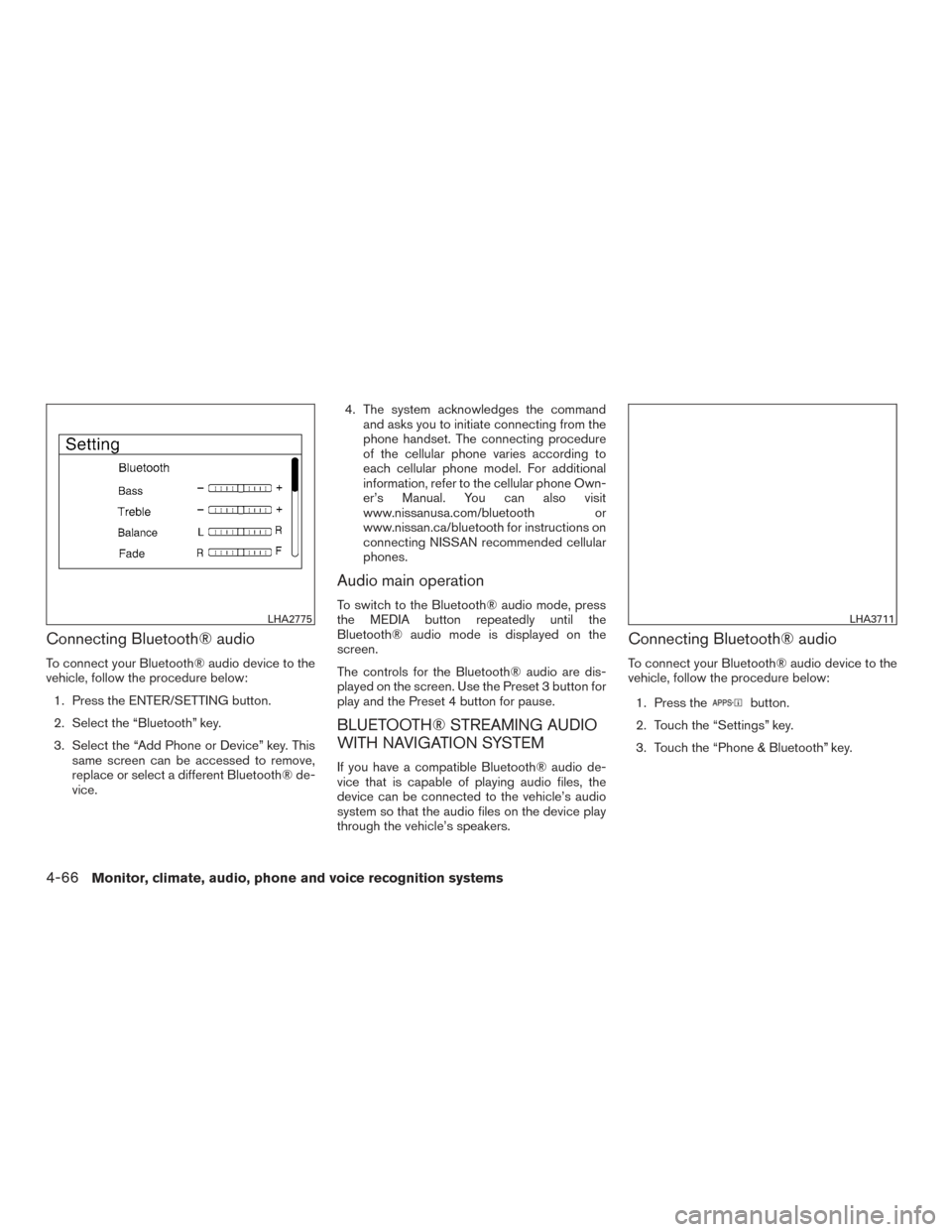
Connecting Bluetooth® audio
To connect your Bluetooth® audio device to the
vehicle, follow the procedure below:1. Press the ENTER/SETTING button.
2. Select the “Bluetooth” key.
3. Select the “Add Phone or Device” key. This same screen can be accessed to remove,
replace or select a different Bluetooth® de-
vice. 4. The system acknowledges the command
and asks you to initiate connecting from the
phone handset. The connecting procedure
of the cellular phone varies according to
each cellular phone model. For additional
information, refer to the cellular phone Own-
er’s Manual. You can also visit
www.nissanusa.com/bluetooth or
www.nissan.ca/bluetooth for instructions on
connecting NISSAN recommended cellular
phones.
Audio main operation
To switch to the Bluetooth® audio mode, press
the MEDIA button repeatedly until the
Bluetooth® audio mode is displayed on the
screen.
The controls for the Bluetooth® audio are dis-
played on the screen. Use the Preset 3 button for
play and the Preset 4 button for pause.
BLUETOOTH® STREAMING AUDIO
WITH NAVIGATION SYSTEM
If you have a compatible Bluetooth® audio de-
vice that is capable of playing audio files, the
device can be connected to the vehicle’s audio
system so that the audio files on the device play
through the vehicle’s speakers.
Connecting Bluetooth® audio
To connect your Bluetooth® audio device to the
vehicle, follow the procedure below:
1. Press the
button.
2. Touch the “Settings” key.
3. Touch the “Phone & Bluetooth” key.
LHA2775LHA3711
4-66Monitor, climate, audio, phone and voice recognition systems
Page 247 of 491
CONNECT PHONE
To use this feature, a compatible smartphone
must be connected via Bluetooth® or USB to the
vehicle. For additional information on connecting
your phone, refer to “Bluetooth® Hands-Free
Phone System with Navigation System” in this
section.
NOTE:
For vehicles with Navigation, Apple
iPhones® must be plugged in via USB for
NissanConnect with Mobile Apps to func-
tion.
NOTE:
For vehicles without Navigation, Apple
iPhones® must be paired via Bluetooth®
for NissanConnect with Mobile Apps to
function.
NOTE:
For Android phones, NissanConnect with
Mobile Apps REQUIRES the phone to be
paired via Bluetooth® for NissanConnect
Mobile Apps to function.
APPLICATION DOWNLOAD
Once connected, the NissanConnect Mobile Apps
will search your phone to determine which compat-
ible applications are currently installed. The vehicle
will then download the in-vehicle interface for each
of these compatible applications. Once down-
loaded, the user can access many smartphone
Applications through the vehicle display by press-
ing the INFO button followed by touching the “My
Apps” key or pressing the APPS button on the
audio unit. For additional information on application
availability refer to the NissanConnect website
https://canada.nissanconnect.com or
www.nissanusa.com/connect/ or contact NISSAN
Customer Service.
NissanConnectSMServices is a suite of telemat-
ics tools that provide emergency preparedness,
remote access, customizable alerts and conve-
nience services. This feature is an option on
Navigation equipped vehicles. For additional in-
formation, refer to the separate Navigation Sys-
tem Owner’s Manual.
NISSANCONNECTSMSERVICES (if so
equipped)
4-70Monitor, climate, audio, phone and voice recognition systems