2016 MITSUBISHI OUTLANDER III ECU
[x] Cancel search: ECUPage 272 of 464

Bluetooth® 2.0 interface (if so equipped) 5-196 Features and controls
5
N00564200016 N00564301027
The Bluetooth
® 2.0 interface is equipped
with a help function. If you say “Help” when th
e system is waiting
for a voice command i
nput, the system will
tell you a list of the
commands that can be
used under the ci
rcumstances.
N00564401028
There are 2 cancel functions. If you are at the main menu, say “Cancel” to exit from the Bluetooth
® 2.0 interface.
If you are anywhere else within the system,say “Cancel” to return to the main menu.
N00564501032
The Bluetooth
® 2.0 interface is equipped
with a confirmation function.
With the confirmation function activated, you are given more opportunities than normal toconfirm a command when making various settings to the Bluetooth
® 2.0 interface. This
allows you to decrease the possibility that asetting is accident
ally changed.
The confirmation function can be turned on or off by following the steps below. 1. Press the SPEECH button (except for vehicles with Mitsubishi Multi-Commu- nication System) or PICK-UP button (for vehicles with Mitsubishi Multi-Commu- nication System). 2. Say “Setup.”3. Say “Confirmation prompts.” 4. The voice guide will say “Confirmation prompts are
N00564601105
It is possible to use
a passcode as a security
function by setting a pa
sscode of your choice
for the Bluetooth
® 2.0 interface.
When the security function is turned on, it is necessary to make a voice input of a 4-digit
passcode in order to use all functions of the Bluetooth
® 2.0 interface, except for recep-
tion. Use the following procedure to turn on the security function by setting a passcode. 1. Press the SPEECH button (except for vehicles with Mitsubishi Multi-Commu- nication System) or
PICK-UP button (for
vehicles with Mitsubishi Multi-Commu- nication System). 2. Say “Setup.”3. Say “Passcode.” 4. The voice guide will
say “Passcode is dis-
abled. Would you like to enable it?”Answer “Yes.” Answer “No” to cancel the setting of the passcode and return to the main menu. 5. The voice guide will say “Please say a 4- digit passcode. Remember this passcode. It will be required to use this system.” Say a 4-digit number which you want to set as a passcode. 6. For confirmation purposes, the voiceguide will say “Passc
ode <4-digit pass-
code>. Is this correct?” Answer “Yes.” Answer “No” to return to the passcodeinput in Step 5.
Useful voice commands
Help function
Canceling
NOTE
You can return to the previous menu by say- ing “Go Back.” (if so equipped)
Confirmation function setting
Security function
Setting the passcode
BK0223400US.book 196 ページ 2015年2月13日 金曜日 午後12時15分
Page 273 of 464

Bluetooth® 2.0 interface (if so equipped)
Features and controls 5-197
5
7. When the registration of the passcode is completed, the voice
guide will say “Pass-
code is enabled” and the system will return to the main menu.
If a passcode has been
set and the security
function is enabled, the voice guide will say “Hands-free system is
locked. State the pass-
code to continue” when the SPEECH button (except for vehicles with Mitsubishi Multi- Communication System) or PICK-UP button(for vehicles with Mitsubishi Multi-Commu- nication System) is pres
sed to enter voice rec-
ognition mode. Say th
e 4-digit passcode
number to enter the passcode. If the entered passcode is wrong, the voice guide will say “<4-digit passcode>, Incorrect
passcode. Please try again.” Enter the correct passcode. Use the following procedure to turn off the security function by di
sabling the passcode.
1. Press the SPEECH button (except for vehicles with Mitsubishi Multi-Commu- nication System) or
PICK-UP button (for
vehicles with Mitsubishi Multi-Commu-nication System). 2. Say “Setup.” 3. Say “Passcode.”4. The voice guide will say “Passcode is enabled. Would you like to disable it?” Answer “Yes.”Answer “No” to cancel the disabling of the passcode and return to the main menu.
5. When the disabling of the passcode is completed, the voice
guide will say “Pass-
code is disabled”
and the system will
return to the main menu.
N00564700011
The Bluetooth
® 2.0 interface can use the
speaker enrollment function to create a voice model for one person per language. This makes it easier for the Bluetooth
® 2.0
interface to recognise
voice commands said
by you. You can turn a voice model registered with the speaker enrollment function on and offwhenever you want.
N00564801110
It takes about 2 to 3 mi
nutes to complete the
speaker enrollment process. To ensure the best results, run through the process while in the driver’s seat, in an envi-ronment that is as quiet as possible (when there is no rain or strong winds and the vehi- cle windows are closed).
Please turn off your
phone while in speaker enrollment to prevent interruption of the process. Use the following procedure for speakerenrollment.
NOTE
Passcode will be requi
red to access the sys-
tem after the next ignition cycle. It is required for a little time after engine stop that the entered
passcode is actually
recorded in the system.If the ignition switch
or the operation mode
is made to ACC or
ON or the engine is
started immediately afte
r engine stop, there
is a case when the entered passcode is not recorded in the system. At this time, please try to enter the passcode again.
Entering the passcode
NOTE
You can reenter the passcode as many times as you want. If you have forgotten your passcode, say “Cancel” to quit the voice input mode and then check with an authorized Mitsubishi Motors dealer.
Disabling the passcode
NOTE
System must be unlocked to disable the pass- code.
Speaker enrollment function
Speaker enrollment
BK0223400US.book 197 ページ 2015年2月13日 金曜日 午後12時15分
Page 288 of 464

Bluetooth® 2.0 interface (if so equipped) 5-212 Features and controls
5
N00580300057
1. Press the SPEECH button (except for vehicles with Mitsubishi Multi-Commu-nication System) or
PICK-UP button (for
vehicles with Mitsubishi Multi-Commu- nication System).2. Say “Phonebook.” 3. The voice guide will say “Select one of the following: new entry, edit number,edit name, list names, delete, erase all, or import contact.” Say “Delete.”
4. The voice guide will
say “Please say the
name of the entry you would like todelete, or say list names.” Say the name of the phonebook entry in which the tele- phone number you want to delete is regis-tered. 5. If only one telephone
number is registered
in the selected phonebook entry, the voiceguide will say “Deleting
ed phonebook entry, the
voice guide will say “Would you like to delete [home], [work], [mobile], [other],or all?” Select the location to delete, and the voice guide will say “Deleting
6. The system will ask
if you really want to
delete the selected
telephone number(s) to
go ahead with the deletion, answer “Yes.” Answer “No,” the system will cancel deleting the telephone number(s) and thenreturn to Step 4. 7. When the telephone number deletion is complete, the voice guide will say“
deleted” and then
the system will return to the main menu. If all locations are deleted, the system will say “
removed from the
phonebook. If numbers still remain under the entry, the name will retain the other associated numbers.
N00580400045
You can delete all registered information from the vehicle phonebook. 1. Press the SPEECH button (except for vehicles with Mitsubishi Multi-Commu-nication System) or
PICK-UP button (for
vehicles with Mitsubishi Multi-Commu- nication System).2. Say “Phonebook.” 3. The voice guide will say “Select one of the following: new entry, edit number,edit name, list names, delete, erase all, or import contact.” Say “Erase all.”
NOTE
You can call, edit or delete a name that is being read out.Press the SPEECH butt
on and say “Call” to
call the name, “Edit name” to edit it, or “Delete” to delete it. The system will beep and then execute yourcommand. If you press the SPEECH button and say “Continue” or “Previous” while the list is being read, the system will advance or rewind the list. Say “C
ontinue” to proceed to
the next entry or “Previous” to return to the previous entry.
Deleting a telephone number
NOTE
Say “List names,” and
the names registered
in the phonebook are read out in order. Refer to “Vehicle phonebook: Listening to the list of registered names” on page 5-211.NOTE
To delete the telephone
numbers from all
locations, say “All.”
Erasing the phonebook
BK0223400US.book 212 ページ 2015年2月13日 金曜日 午後12時15分
Page 296 of 464
HomeLink® Wireless Control System (if so equipped) 5-220 Features and controls
5
N00554301040
HomeLink
® Wireless Contro
l System is a
registered trademark of Gentex Corporation. HomeLink
® provides a convenient way to
replace up to 3 hand-held radio-frequency (RF) transmitters used to activate devices such as gate operators
, garage door openers,
entry door locks, security systems, even home lighting. Additional HomeLink
® information
can be found at www.homelink.com,www.youtube.com/HomeLinkGentex, or by calling the toll-free HomeLink
®-Hotline at 1-
800-355-3515.HomeLink
® Wireless Con-
trol System
(if so equipped)
Floor console box
WA R N I N G Do not use HomeLink
® with any garage
door opener that lacks safety stop and reverse features as required by U.S. Fed- eral Regulations.
A garage door opener
which cannot detect an object in the path of a closing garage d
oor and then auto-
matically stop and reverse, does not meetcurrent U.S. Federal Regulations. Using a garage door opener wi
thout these features
increases the risk of serious injury ordeath. During programming, your garage door or gate may open or close. Make sure that people and objects are clear of the garage door or gate that
you are programming.
NOTE
Once HomeLink
® is programmed, retain the
original transmitter for future programming procedures (for example, new vehicle pur- chases). Upon sale of the vehicle, the pro- grammed HomeLink
® buttons should be
erased for security purposes. Refer to “Cleaning the progra
mmed information” on
page 5-224.
You can program a maximum of 3 devices. To change or replace
any of the 3 devices
after it has been in
itially programmed, you
must first erase the current settings. See “Cleaning the programmed information” on page 5-224 or “Reprogramming a single HomeLink
® button” on page 5-224.
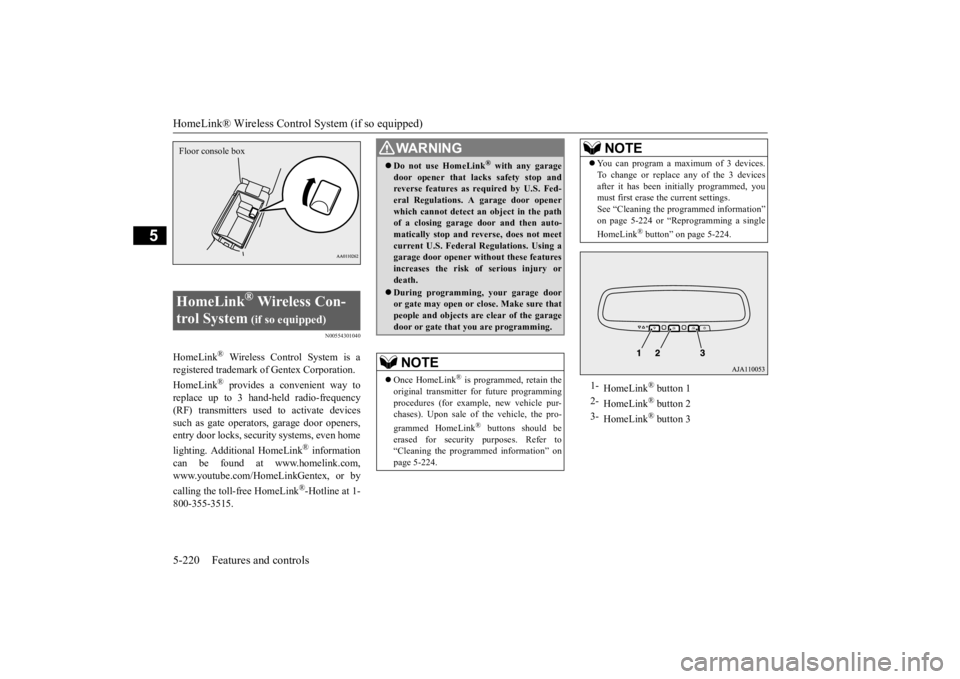
1-
HomeLink
® button 1
2-
HomeLink
® button 2
3-
HomeLink
® button 3
NOTE
BK0223400US.book 220 ページ 2015年2月13日 金曜日 午後12時15分
Page 299 of 464
HomeLink® Wireless Control System (if so equipped)
Features and controls 5-223
5
3. Press and release - every 2 seconds (“cycle”) your hand-held transmitter until the HomeLink
® indicator light changes from
slowly flashing orange to either rapidly flash- ing green (rolling code
) or continuously lit
green (fixed code). Now you may release the hand-held transmitter button. Proceed with “Programming a new Home- Link
®” step 4 to complete.
N00584900022
The HomeLink
® has the capability of receiv-
ing garage door status from compatiblegarage door opener systems. Check your garage door opener manual for the available feature and HomeLink
® compatibility. Also
for a listing of compatible systems contact HomeLink
® at: www.homelink.com
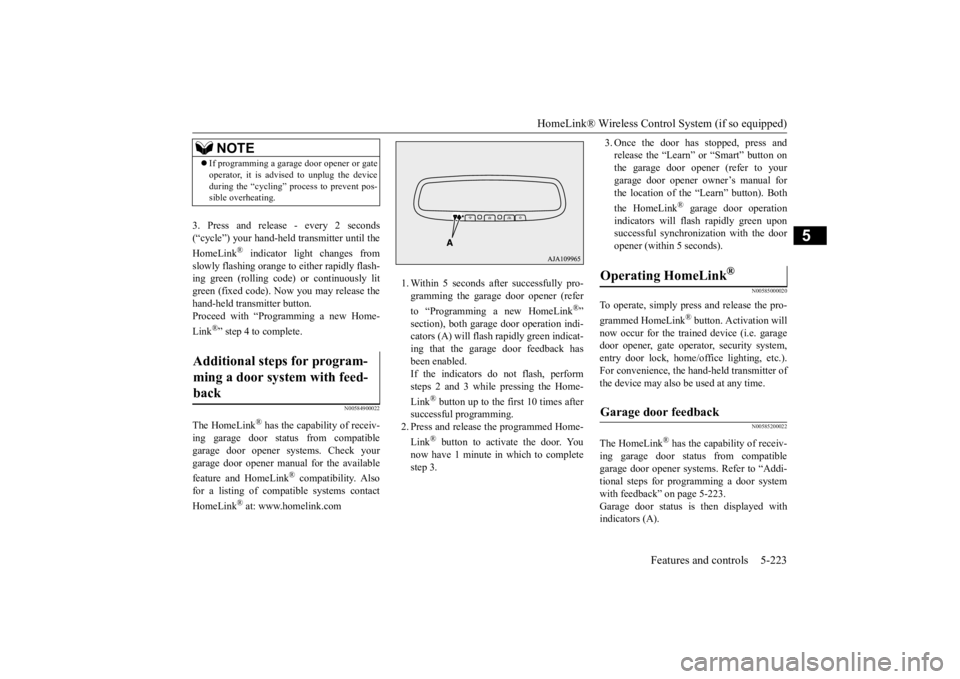
1. Within 5 seconds after successfully pro- gramming the garage door opener (refer to “Programming a new HomeLink
®”
section), both garage door operation indi- cators (A) will flash
rapidly green indicat-
ing that the garage door feedback has been enabled. If the indicators do not flash, performsteps 2 and 3 while pressing the Home- Link
® button up to the first 10 times after
successful programming.2. Press and release
the programmed Home-
Link
® button to activate the door. You
now have 1 minute in which to completestep 3.
3. Once the door has stopped, press and release the “Learn” or “Smart” button onthe garage door opener (refer to your garage door opener owner’s manual for the location of the “Learn” button). Both the HomeLink
® garage door operation
indicators will fl
ash rapidly green upon
successful synchroni
zation with the door
opener (within 5 seconds).
N00585000020
To operate, simply press and release the pro- grammed HomeLink
® button. Activation will
now occur for the trained device (i.e. garagedoor opener, gate opera
tor, security system,
entry door lock, home/office lighting, etc.). For convenience, the ha
nd-held transmitter of
the device may also be used at any time.
N00585200022
The HomeLink
® has the capab
ility of receiv-
ing garage door status from compatible garage door opener systems. Refer to “Addi- tional steps for programming a door systemwith feedback” on page 5-223. Garage door status is
then displayed with
indicators (A).
NOTE
If programming a garage door opener or gate operator, it is advise
d to unplug the device
during the “cycling” pr
ocess to prevent pos-
sible overheating.
Additional steps for program- ming a door system with feed- back
Operating HomeLink
®
Garage door feedback
BK0223400US.book 223 ページ 2015年2月13日 金曜日 午後12時15分
Page 308 of 464
Cup holders 5-232 Features and controls
5
N00527301417
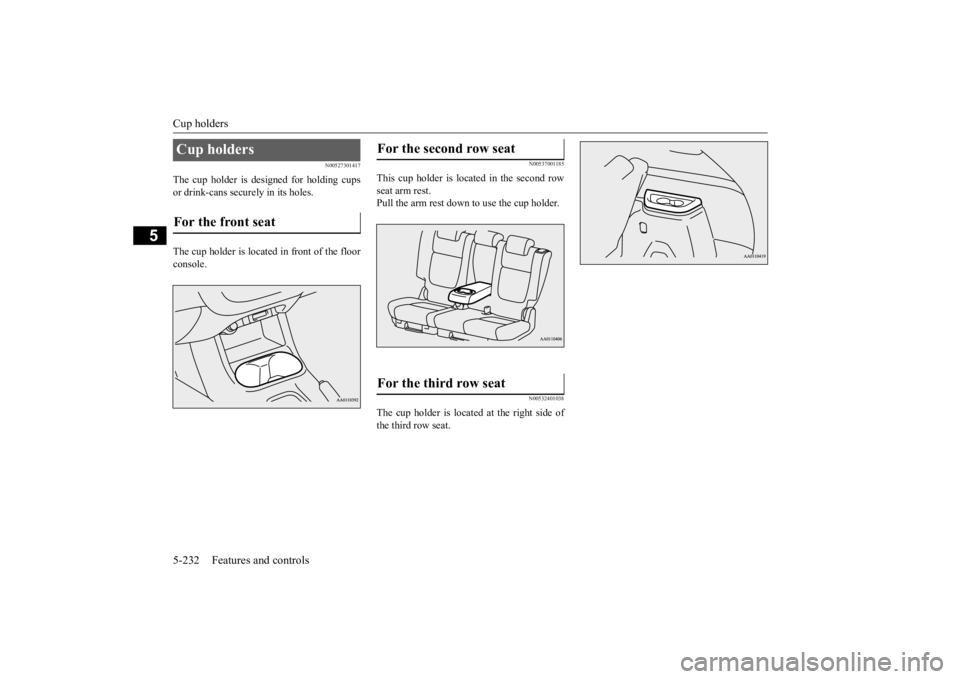
The cup holder is de
signed for holding cups
or drink-cans secu
rely in its holes.
The cup holder is located in front of the floor console.
N00537001185
This cup holder is located in the second rowseat arm rest. Pull the arm rest down to use the cup holder.
N00532401038
The cup holder is located at the right side of the third row seat.
Cup holders For the front seat
For the second row seat For the third row seat
BK0223400US.book 232 ページ 2015年2月13日 金曜日 午後12時15分
Page 310 of 464
Cargo area cover (if so equipped) 5-234 Features and controls
5
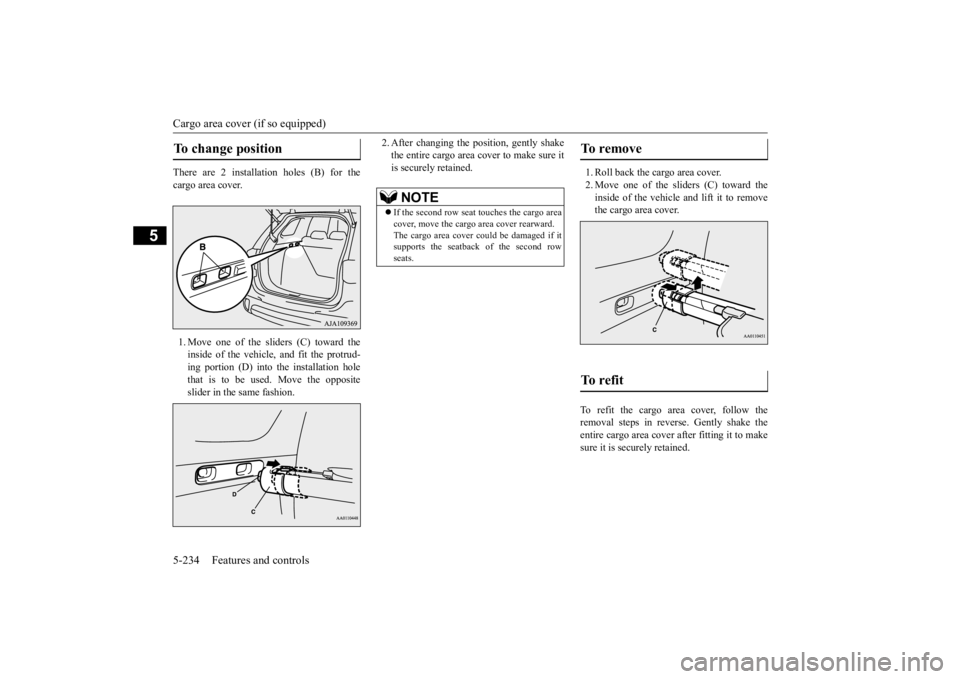
There are 2 installation holes (B) for the cargo area cover. 1. Move one of the sliders (C) toward the inside of the vehicle, and fit the protrud- ing portion (D) into the installation hole that is to be used. Move the oppositeslider in the same fashion.
2. After changing the pos
ition, gently shake
the entire cargo area cover to make sure itis securely retained.
1. Roll back the cargo area cover. 2. Move one of the sliders (C) toward the inside of the vehicle
and lift it to remove
the cargo area cover.
To refit the cargo area cover, follow the removal steps in reverse. Gently shake theentire cargo area cover after fitting it to make sure it is securely retained.
To change position
NOTE
If the second row seat touches the cargo area cover, move the cargo area cover rearward.The cargo area cover c
ould be damaged if it
supports the seatback of the second row seats.
To remove To r e f i t
BK0223400US.book 234 ページ 2015年2月13日 金曜日 午後12時15分
Page 312 of 464
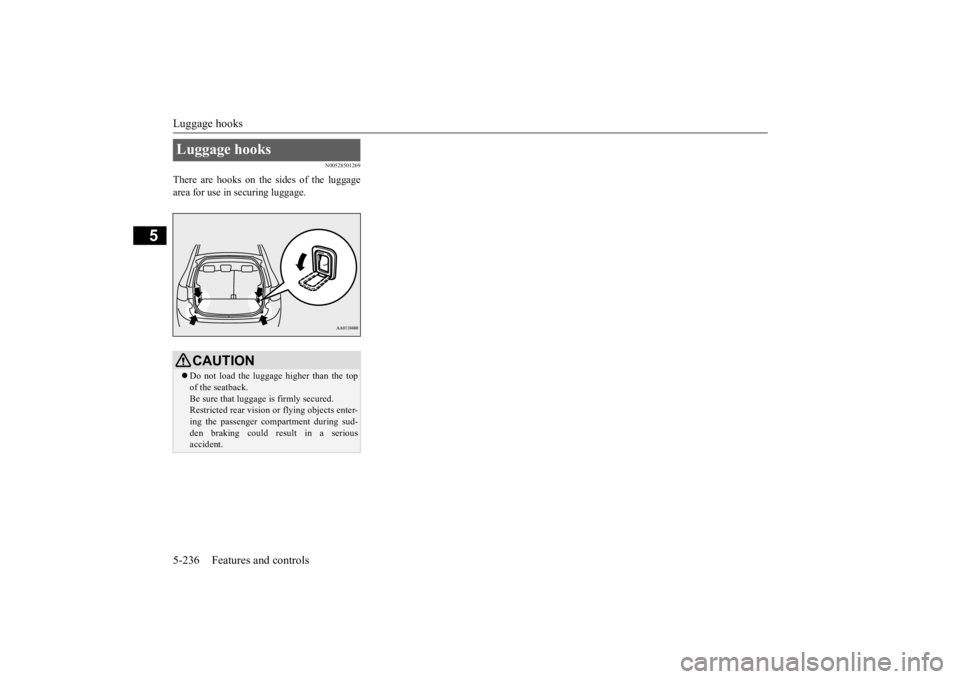
Luggage hooks 5-236 Features and controls
5
N00528501269
There are hooks on the sides of the luggage area for use in securing luggage.Luggage hooks
CAUTION Do not load the luggage higher than the top of the seatback.Be sure that luggage
is firmly secured.
Restricted rear vision or
flying objects enter-
ing the passenger compartment during sud-den braking could result in a serious accident.
BK0223400US.book 236 ページ 2015年2月13日 金曜日 午後12時15分