2016 MITSUBISHI LANCER ad blue
[x] Cancel search: ad bluePage 219 of 392

Bluetooth® 2.0 interface (if so equipped)
Features and controls 5-157
5
N00580700022
You can select 1 phonebook entry from the phonebook of the cellular phone and register it in the vehicle phonebook. 1. Press the SPEECH button (except for vehicles with Mitsubishi Multi-Commu-nication System) or PICK-UP button (for vehicles with Mitsubishi Multi-Commu- nication System).
2. Say “Phonebook.” 3. The voice guide will say “Select one of the following: new entry, edit number, edit name, list names, delete, erase all, orimport contact.” Say “Import contact.” 4. The voice guide will say “Would you like to import a single entry or all contacts?”Say “Single entry.”
® 2.0 interface will become
ready to receive transferred phonebookdata. 5. After the voice guide says “Ready to receive a contact from the phone. Only ahome, a work, and a mobile number can be imported,” the Bluetooth
® 2.0 inter-
face will receive the phonebook data from the Bluetooth
® compatible cellular phone.
6. Operate the Bluetooth
® compatible cellu-
lar phone to set it up so that the phone- book entry you want to register in the vehicle phonebook can be transferred to the Bluetooth
® 2.0 interface.
7. When the reception is complete, the voice guide will say “
To select and transfer one phone- book entry from the phonebook of the cellular phone NOTE
Transfer is not permitted unless the vehicle is parked. Before transferring, make sure thatthe vehicle is parked in a safe location. All or part of data may not be transferred, even when the cellular phone supports Blue- tooth
®, depending on the compatibility of
the device. The maximum supported telephone number length is 19 digits. Any telephone number of 20 digits or more will be truncated to the first 19 digits. If telephone numbers contain characters other than 0 to 9,
*, # or +, these characters
are deleted before the transfer. For the connection settings on the cellular phone side, refer to the instructions for the cellular phone.
NOTE
If the maximum number of entries are already registered, the voice guide will say“The phonebook is full. Would you like to delete a name?” Say “Yes” if you want to delete a registered name.If you say “No,” the system will return to the main menu.
NOTE
If the Bluetooth
® 2.0 interface cannot recog-
nise the Bluetooth
® compatible cellular
phone or the connection takes too much time, the voice guide will say “Import con- tact has timed out” and then the system will cancel the registration. In such case, start over again from Step 1. Pressing the HANG-UP button or pressing and holding the SPEECH button will cancelthe registration.NOTE
If the entered name is already used for other phonebook entry or similar to a name used for other phonebook entry, that name cannot be registered.
BK0230300US.book
157 ページ 2015年7月30日 木曜日 午後8時38分
Page 220 of 392

Bluetooth® 2.0 interface (if so equipped) 5-158 Features and controls
5
8. The voice guide will say “Adding
10. The voice guide will say “Would you like
to import another contact?”Answer “Yes” if you want to continue with the registration. You can continue to register a new phonebook entry from Step5. Answer “No,” the system will return to the main menu.
N00579800023
You can change or delete a name or telephone number registered in the vehicle phonebook. You can also listen to the list of names regis-tered in the vehicle phonebook.
N00579900024
1. Press the SPEECH button (except forvehicles with Mitsubishi Multi-Commu-nication System) or PICK-UP button (for vehicles with Mitsubishi Multi-Commu- nication System).2. Say “Phonebook.” 3. The voice guide will say “Select one of the following: new entry, edit number,edit name, list names, delete, erase all, orimport contact”. Say “Edit number.” name of the entry you would like to edit,or say list names.” Say the name of the phonebook entry you want to edit. 5. The voice guide will say “Home, work, mobile or other?” Select and say the loca- tion where the telephone number youwant to change or add is registered. When the confirmation function is on, the system will check the target name andlocation again. Answer “Yes” if you want to continue with the editing.
Answer “No,” the system will return to Step 3. 6. The voice guide will say “Number, please.” Say the telephone number youwant to register. 7. The voice guide will repeat the telephone number. When the confirmation function is on, thesystem will ask if the number is correct. Answer “Yes.” Answer “No,” the system will return tothe Step 3. 8. Once the telephone number is registered, the voice guide will say “Number saved”and then the system will return to the main menu.
To change the content registered in the vehicle phonebook NOTE
The system must have at least one entry.
Editing a telephone number
NOTE
Say “List names,” and the names registered in the phonebook will be read out in order. Refer to “Listening to the list of registered names” on page 5-159.
NOTE
If the telephone number is already registered in the selected location, the voice guide willsay “The current number is
If the location where a telephone number was already registered has been overwritten with a new number, the voice guide will say“Number changed” and then the system will return to the main menu.
BK0230300US.book
158 ページ 2015年7月30日 木曜日 午後8時38分
Page 221 of 392

Bluetooth® 2.0 interface (if so equipped)
Features and controls 5-159
5
N00580100026
1. Press the SPEECH button (except for vehicles with Mitsubishi Multi-Commu-nication System) or PICK-UP button (for vehicles with Mitsubishi Multi-Commu- nication System).2. Say “Phonebook.” 3. The voice guide will say “Select one of the following: new entry, edit number,edit name, list names, delete, erase all, orimport contact.” Say “Edit name.” 4. The voice guide will say “Please say the name of the entry you would like to edit,or say list names.” Say the name you want to edit. 5. The voice guide will say “Changing
6. The voice guide will say “Name please.” Say the new name you want to register. 7. The registered name will be changed. When the change is complete, the systemwill return to the main menu.
N00580200027
1. Press the SPEECH button (except forvehicles with Mits
ubishi Multi-Commu-
nication System) or PICK-UP button (for vehicles with Mits
ubishi Multi-Commu-
nication System).2. Say “Phonebook.” 3. The voice guide will say “Select one of the following: new entry, edit number,edit name, list names, delete, erase all, or import contact.” Say “List names.” 4. Bluetooth
® 2.0 interface will read out the
entries in the phonebook in order. 5. When the voice guide is done reading the list, it will say “End of list, would you liketo start from the beginning?” When you want to check the list again from the beginning, answer “Yes.”When you are done, answer “No” to return to the previous or main menu.
N00580300028
1. Press the SPEECH button (except for vehicles with Mitsubishi Multi-Commu- nication System) or PICK-UP button (for vehicles with Mitsubishi Multi-Commu-nication System). 2. Say “Phonebook.” 3. The voice guide will say “Select one ofthe following: new entry, edit number, edit name, list names, delete, erase all, or import contact.” Say “Delete.”
Editing a name
NOTE
Say “List names,” and the names registered in the phonebook are read out in order. Refer to “Listening to the list of registered names” on page 5-159.
Listening to the list of registered names
NOTE
You can call, edit or delete a name that is being read out. Press the SPEECH button and say “Call” to call the name, “Edit name” to edit it, or “Delete” to delete it.The system will beep and then execute your command. If you press the SPEECH button and say “Continue” or “Previous” while the list is being read, the system will advance orrewind the list. Say “Continue” to proceed to the next entry or “Previ
ous” to return to the
previous entry.
Deleting a telephone number
BK0230300US.book
159 ページ 2015年7月30日 木曜日 午後8時38分
Page 222 of 392

Bluetooth® 2.0 interface (if so equipped) 5-160 Features and controls
5
4. The voice guide will say “Please say the name of the entry you would like to delete, or say list names.” Say the name of the phonebook entry in which the tele-phone number you want to delete is regis- tered. 5. If only one telephone number is registered in the selected phonebook entry, the voice guide will say “Deleting
6. The system will ask if you really want to delete the selected telephone number(s) to go ahead with the deletion, answer “Yes.” Answer “No,” the system will canceldeleting the telephone number(s) and then return to Step 4. 7. When the telephone number deletion iscomplete, the voice guide will say “
N00580400029
You can delete all registered information from the vehicle phonebook. 1. Press the SPEECH button (except for vehicles with Mitsubishi Multi-Commu- nication System) or PICK-UP button (forvehicles with Mitsubishi Multi-Commu- nication System). 2. Say “Phonebook.”3. The voice guide will say “Select one of the following: new entry, edit number, edit name, list names, delete, erase all, orimport contact.” Say “Erase all.”
4. For confirmation purposes, the voice guide will ask “Are you sure you want to erase everything from your hands-free system phonebook?” Answer “Yes.”Answer “No” to cancel the deletion of all registered information in the phonebook and return to the main menu. 5. The voice guide will say “You are about to delete everything from your hands-free system phonebook. Do you want to con-tinue?” Answer “Yes” to continue.Answer “No” to cancel the deletion of all registered information in the phonebook and return to the main menu.6. The voice guide will say “Please wait, erasing the hands-free system phone- book” and then the system will delete alldata in the phonebook. When the deletion is complete, the voice guide will say “Hands-free system phone-book erased” and then the system will return to the main menu.
N00566201062
All entries in the phonebook stored in the cel-lular phone can be transf
erred in a batch and
registered in the mobile phonebook.Up to 7 mobile phonebooks, each containing up to 1,000 names, can be registered.
NOTE
Say “List names,” and the names registered in the phonebook are read out in order. Refer to “Listening to the list of registered names”on page 5-159.NOTE
To delete the telephone numbers from all locations, say “All.”
Erasing the phonebook
Mobile phonebook
BK0230300US.book
160 ページ 2015年7月30日 木曜日 午後8時38分
Page 223 of 392

Bluetooth® 2.0 interface (if so equipped)
Features and controls 5-161
5
The Bluetooth
® 2.0 interface automatically
converts from text to voice the names regis- tered in the transferred phonebook entries, and creates names. Follow the steps below to transfer to the mobile phonebook the phonebook stored inthe cellular phone.
1. Press the SPEECH button (except for vehicles with Mits
ubishi Multi-Commu-
nication System) or PICK-UP button (for vehicles with Mits
ubishi Multi-Commu-
nication System). 2. Say “Phonebook.” 3. The voice guide will say “Select one ofthe following: new entry, edit number,edit name, list names, delete, erase all, or import contact.” Say “Import contact.” 4. The voice guide will say “Would you liketo import a single entry or all contacts?” Say “All contacts.”
5. The voice guide will say “Importing the contact list from the mobile phonebook. This may take several minutes to com- plete. Would you like to continue?”Answer “Yes,” transferring to the mobile phonebook the phonebook stored in the cellular phone will start.Answer “No,” the system will return to the main menu.
NOTE
Only the mobile phonebook transferred from the connected cellular phone can be usedwith that cellular phone. You cannot change the names and telephone numbers in the phonebook entries registered in the mobile phonebook. You cannot select and delete specific phonebook entries, either.To change or delete any of the above, change the applicable information in the source phonebook of the cellular phone and thentransfer the phonebook again.
To import a devices phonebook
NOTE
Transfer should be completed while the vehi- cle is parked. Before transferring, make sure that the vehicle is parked in a safe location. The already stored phonebook in the mobile phonebook is overwritten by the storedphonebook in the cellular phone.
All or part of data may not be transferred, even when the cellular phone supports Blue- tooth
®, depending on the compatibility of
the device. Only a home, a work, and a mobile number can be imported. The maximum supported telephone number length is 19 digits. Any telephone number of 20 digits or more will be truncated to the first19 digits. If telephone numbers contain characters other than 0 to 9,
*, # or +, these characters
are deleted before the transfer. For the connection settings on the cellular phone side, refer to the instructions for the cellular phone.NOTE
NOTE
The transfer may take some time to complete depending on the number of contacts. If the Bluetooth
® 2.0 interface could not be
connected to the Bluetooth
® compatible cel-
lular phone, the voice guide will say “Unable to transfer contact list from phone” and then the system will return to the main menu. If you press the HANG-UP button or press and hold the SPEECH button during the datatransfer, the transfer will be cancelled and the system will return to the main menu. If an error occurs during the data transfer, all transfer will be cancelled and the voice guide will say “Unable to complete the phonebookimport” and then the system will return to the main menu. If there are no contacts in the phonebook, the voice guide will say “There are no contacts on the connected phone.”
BK0230300US.book
161 ページ 2015年7月30日 木曜日 午後8時38分
Page 224 of 392

USB input terminal 5-162 Features and controls
5
6. When the transfer is complete, the voice guide will say “Import complete” and then the system will return to the main menu.
N00566301106
MODEL: MMC FCC ID: CB2MDGMY10IC: 279B-MDGMY10 Your Bluetooth
® 2.0 interface operates on a
radio frequency subject to Federal Communi- cations Commission (FCC) Rules (For vehi- cles sold in U.S.A.) and Industry CanadaRules (For vehicles sold in Canada). This device complies with Part 15 of the FCC Rules and RSS-210 of the Industry CanadaRules. Operation is subject to the following two conditions: This device may not cause harmful inter- ference. This device must accept any interference received, including interference that may cause undesired operation.
The term “IC:” before the radio certification number only signifies that Industry Canada technical specifications were met. The antenna used for this transmitter must notbe co-located or operating in conjunction with any other antenna or transmitter. End- users and installers must be provided withinstallation instructio
ns and transmitter oper-
ating conditions for satisfying RF exposure compliance.FCC Notice: This equipment has been testedand found to comply with the limits for a Class B digital device, pursuant to part 15 of the FCC Rules. These limits are designed toprovide reasonable protection against harmful interference in a residential installation. This equipment generates, uses and can radi-ate radio frequency energy and, if not installed and used in accordance with the instructions, may cause harmful interferenceto radio communications. However, there is no guarantee that interfer- ence will not occur in a particular installation.If this equipment does cause harmful interfer- ence to radio or television reception, which can be determined by turning the equipmentoff and on, the user is encouraged to try to correct the interference by one or more of the following measures: Reorient or relocate the receiving antenna. Increase the separation between the equipment and receiver.
Connect the equipment into an outlet on a circuit different from that to which the receiver is connected. Consult the dealer or an experienced radio/TV technician for help.
ICES Notice: This Class B digital apparatus complies with Canadian ICES-003.
N00566401093 N00566701113
You can connect your USB memory device or iPod* to play music files stored in the USBmemory device or iPod.This section explains how to connect and remove a USB memory device or iPod. See the following section fordetails on how to play music files. Refer to “Listen to an iPod” on page 7-37.
General information
CAUTION Changes or modifications made to this equipment not expressly approved by themanufacturer may void the FCC authoriza- tion to operate this equipment.
Enrollment commands
USB input terminal
BK0230300US.book
162 ページ 2015年7月30日 木曜日 午後8時38分
Page 226 of 392

USB input terminal 5-164 Features and controls
5
3. Connect the Dock connector (C) to the iPod (B). 4. Connect the Dock connector (C) to the USB input terminal (D).
5. To remove the Dock connector, turn the ignition switch to the “LOCK” position first and perform the installation steps inreverse.
N00567001054 N00583200028
For details about the types of connectable devices and supported file specifications,refer to the following pages and manuals. Refer to “Listen to an iPod” on page 7-37, “Listen to Audio Files on a USB Device” on page 7-39 and “Audio Files (MP3/WMA/AAC)” on page 7-24. Refer to the separate owner’s manual. Refer to the separate owner’s manual.
NOTE
Use a genuine Dock connector from Apple Inc.
CAUTION Keep the lid of the center console box closed while driving the vehicle. A lid or the con- tents of the center console box could other-wise cause injuries.NOTE
When closing the center console box, be careful not to trap the connector cable.
Types of connectable devices and supported file specifica- tions Except for vehicles equipped with the Bluetooth
® 2.0 interface
For vehicles equipped with the AM/FM radio/CD player For vehicles equipped with the DISPLAY AUDIO For vehicles equipped with the Mitsubishi Multi-Communication Sys-tem
BK0230300US.book
164 ページ 2015年7月30日 木曜日 午後8時38分
Page 227 of 392
USB input terminal
Features and controls 5-165
5
N00583300029
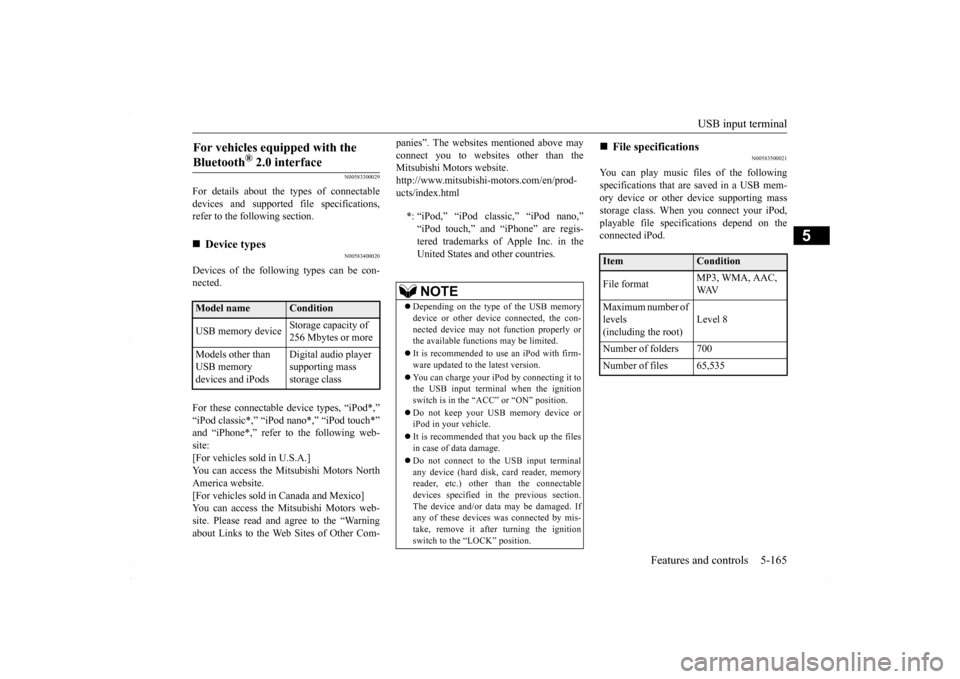
For details about the types of connectable devices and supported file specifications, refer to the following section.
N00583400020
Devices of the following types can be con-nected. For these connectable device types, “iPod*,” “iPod classic*,” “iPod nano*,” “iPod touch*” and “iPhone*,” refer to the following web- site:[For vehicles sold in U.S.A.] You can access the Mitsubishi Motors North America website.[For vehicles sold in Canada and Mexico] You can access the Mitsubishi Motors web- site. Please read and agree to the “Warningabout Links to the Web Sites of Other Com-
panies”. The websites mentioned above may connect you to websites other than the Mitsubishi Motors website. http://www.mitsubishi-motors.com/en/prod-ucts/index.html
N00583500021
You can play music files of the following specifications that are saved in a USB mem- ory device or other device supporting massstorage class. When you connect your iPod, playable file specifications depend on the connected iPod.
For vehicles equipped with the Bluetooth
® 2.0 interface
Device types Model name
Condition
USB memory device
Storage capacity of 256 Mbytes or more
Models other than USB memory devices and iPods
Digital audio player supporting mass storage class
* : “iPod,” “iPod classic,” “iPod nano,” “iPod touch,” and “iPhone” are regis- tered trademarks of Apple Inc. in the United States and other countries.NOTE
Depending on the type of the USB memory device or other device connected, the con- nected device may not function properly or the available functions may be limited. It is recommended to use an iPod with firm- ware updated to the latest version. You can charge your iPod by connecting it to the USB input terminal when the ignitionswitch is in the “ACC” or “ON” position. Do not keep your USB memory device or iPod in your vehicle. It is recommended that you back up the files in case of data damage. Do not connect to the USB input terminal any device (hard disk, card reader, memory reader, etc.) other than the connectabledevices specified in the previous section. The device and/or data may be damaged. If any of these devices was connected by mis-take, remove it after turning the ignition switch to the “LOCK” position.
File specifications Item
Condition
File format
MP3, WMA, AAC, WAV
Maximum number of levels(including the root)
Level 8
Number of folders 700 Number of files 65,535
BK0230300US.book
165 ページ 2015年7月30日 木曜日 午後8時38分