2016 MINI COOPER CONVERTIBLE lights
[x] Cancel search: lightsPage 133 of 252

Setting the speed
Maintaining/storing the speed Press
or button in the interrupted state.
When the system is switched on, the current
speed is maintained and stored as the desired
speed.
The stored speed is displayed in the instrument
cluster.
DSC will be switched on if needed.
The speed can also be stored as follows:
Press button.
Changing the speed
or button: press until the desired speed
is set.
If active, the displayed speed is stored and the
vehicle reaches the stored speed when the
road is clear.
▷ or button: each time it is pressed to
the point of resistance, the desired speed
increases or decreases by approx.
1 mph/1 km/h.▷ or button: each time it is pressed
past the point of resistance, the desired
speed increases or decreases by a maxi‐
mum of 5 mph/10 km/h.
The maximum speed that can be set de‐
pends on the vehicle.▷ or button: pressing it to the resist‐
ance point and holding it accelerates or de‐
celerates the vehicle without requiring
pressure on the accelerator pedal. After the
button is released, the vehicle maintains its
final speed. Pressing the switch beyond the
resistance point causes the vehicle to accel‐
erate more rapidly.Continuing cruise control
General information
An interrupted cruise control can be continued
by calling up the stored speed.
InformationMake sure that the difference between current
speed and stored speed is not too large before
calling up the stored speed. Otherwise, unin‐
tentional braking or accelerating may occur.
Calling up stored speed Press button on the steering wheel.
The stored speed is reached and maintained.
Displays in the instrument cluster
Indicator lamp Depending on how the vehicle is equip‐
ped, the indicator lamp in the instru‐
ment cluster indicates whether the sys‐
tem is switched on.
Desired speed and stored speed The desired speed is displayed together
with the symbol.▷Display lights up green: system is
active, the display indicates the de‐
sired speed.▷Display lights up orange: system is inter‐
rupted, the display indicates the stored
speed.▷No display: system is switched off.
If no speed is indicated, it is possible that the
conditions necessary for operation are not cur‐
rently fulfilled.
Seite 133Driving comfortCONTROLS133
Online Edition for Part no. 01 40 2 969 276 - II/16
Page 135 of 252

Switching on/off
Switching on automatically PDC switches on automatically in the following
situations:▷If selector lever position R is engaged when
the engine is running.
The rearview camera also switches on.▷With front PDC: when obstacles are de‐
tected behind or in front of the vehicle by
PDC and the speed is slower than approx.
2.5 mph/4 km/h.
With front PDC: You can switch off automatic
activation on obstacle detection:
1. "Settings"2."Parking"3.Select setting.
Settings are stored for the profile currently
used.
Automatic deactivation during forward
travel
The system switches off when a certain driving
distance or speed is exceeded.
Switch the system back on if needed.
With front PDC: switching on/off
manually
Press park assistance button.
▷On: the LED lights up.▷Off: the LED goes out.
The rearview camera image is displayed when
the reverse gear is engaged when pressing the
park assistance button.
Display
Signal tones
When approaching an object, an intermittent sound indicates the position of the object. E. g.
if an object is detected to the left rear of the ve‐
hicle, a signal tone sounds from the left rear
speaker.
The shorter the distance to the object, the
shorter the intervals.
If the distance to a detected object is less than
approx. 10 inches/25 cm, a continuous tone is
sounded.
With front PDC: if objects are located both in
front of and behind the vehicle, an alternating
continuous signal is sounded.
The signal tone is switched off, when selector
lever position P is engaged on vehicles with
Steptronic transmission.
Volume
The ratio of the PDC signal tone volume to the
entertainment volume can be adjusted.1. "Multimedia", "Radio" or
"Settings"2."Tone"3."Volume settings"4."PDC"5.To adjust: turn the Controller.6.To store: press the Controller.
Settings are stored for the profile currently
used.
Visual warning The approach of the vehicle to an object can be
shown on the Control Display. Objects that are
farther away are already displayed on the Con‐
trol Display before a signal sounds.
A display appears as soon as Park Distance
Control (PDC) is activated.
The range of the sensors is represented in col‐
ors: red, green and yellow.
When the image of the rearview camera is dis‐
played, the switch can be made to PDC:
"Rear view camera"
Seite 135Driving comfortCONTROLS135
Online Edition for Part no. 01 40 2 969 276 - II/16
Page 136 of 252

System limits
Information WARNING
The system can react incorrectly or not at
all due to the system limits. There is risk of acci‐
dents or risk of property damage. Observe the
information regarding the system limits and ac‐
tively intervene, if needed. ◀
Limits of ultrasonic measurement Ultrasonic measuring might not function under
the following circumstances:▷For small children and animals.▷For persons with certain clothing, for exam‐
ple coats.▷With external interference of the ultra‐
sound, for example from passing vehicles
or loud machines.▷When sensors are dirty, iced over, damaged
or out of position.▷If cargo protrudes.▷Under certain weather conditions such as
high relative humidity, rain, snowfall, ex‐
treme heat or strong wind.▷With tow bars and trailer couplings of other
vehicles.▷With thin or wedge-shaped objects.▷With moving objects.▷With elevated, protruding objects such as
ledges or cargo.▷With objects with corners and sharp edges.▷With objects with a fine surface structure
such as fences.▷For objects with porous surfaces.
Low objects already displayed, for example,
curbs, can move into the blind area of the sen‐
sors before or after a continuous tone sounds.
False warnings
PDC may issue a warning under the following
conditions even though there is no obstacle
within the detection range:▷In heavy rain.▷When sensors are very dirty or covered with
ice.▷When sensors are covered in snow.▷On rough road surfaces.▷On uneven surfaces, such as speed bumps.▷In large buildings with right angles and
smooth walls, for example, in underground
garages.▷In automatic car washes.▷Through heavy pollution.▷Due to other ultrasound sources, for exam‐
ple, sweeping machines, high pressure
steam cleaners or neon lights.
The malfunction is signaled by a continuous
tone alternating between the front and rear
speakers. As soon as the malfunction due
to other ultrasound sources is no longer
present, the system is again fully functional.
With front PDC: to reduce false alarms, switch
off automatic PDC activation on obstacle detec‐
tion, for example in car washes, refer to
page 135.
Malfunction A Check Control message, refer to page 81, is
displayed in the instrument cluster.
Red symbol is displayed, and the range
of the sensors is dimmed on the Control
Display.
PDC has failed. Have the system checked.
Seite 136CONTROLSDriving comfort136
Online Edition for Part no. 01 40 2 969 276 - II/16
Page 137 of 252

Rearview camera
The concept
The rearview camera provides assistance in
parking and maneuvering backwards. The area
behind the vehicle is shown on the Control Dis‐
play.
Information WARNING
The system does not relieve from the per‐
sonal responsibility to correctly assess the traf‐
fic situation. There is risk of an accident. Adjust
the driving style to the traffic conditions. Watch
traffic and vehicle surroundings closely and ac‐
tively intervene in the respective situations. ◀
Overview
Button in the vehicle
Park assistance button
Camera
The camera lens is located in the handle of the
tailgate.
The image quality may be impaired by dirt.
Clean the camera lens, refer to page 230.
Switching on/off
Switching on automatically
With the engine running, engage lever in posi‐
tion P R.
Automatic deactivation during forward travel
The system switches off when a certain driving
distance or speed is exceeded.
Switch the system back on if needed.
Switching on/off manually Press park assistance button.
▷On: the LED lights up.▷Off: the LED goes out.
The PDC is shown on the Control Display.
The rearview camera image is displayed if the
reverse gear is engaged when pressing the
park assistance button.
Switching the view via the onboard
monitor
With PDC activated:
"Rear view camera"
Seite 137Driving comfortCONTROLS137
Online Edition for Part no. 01 40 2 969 276 - II/16
Page 141 of 252

▷When parking in parking spaces on the
driver's side, the corresponding turn signal
must be set.
Switching on and activating
Switching on with the button Press park assistance button.
The LED lights up.
The current status of the parking space search
is indicated on the Control Display.
Parking assistant is activated automatically.
Switching on with reverse gear
Shift into reverse.
The current status of the parking space search
is indicated on the Control Display.
To activate:
"Parking Assistant"
Indicator on the Control Display
System activated/deactivated
SymbolMeaning Gray: the system is not available.
White: the system is available but not
activated. The system is activated.
Parking space search and system status
▷Colored symbols, see arrows, on the side of
the vehicle illustrated. Parking assistant isactivated and search for parking space ac‐
tive.▷Control Display shows suitable parking
spaces at the edge of the road next to the
vehicle symbol. When the parking assistant
is active, suitable parking spaces are high‐
lighted.▷The parking procedure is ac‐
tive. Steering control has
been taken over by system.▷Parking space search is always active
whenever the vehicle is moving forward
slow and straight, even if the system is de‐
activated. When the system is deactivated,
the displays on the Control Display are
shown in gray.
Parking using the parking assistant
1. Press park assistance button or shift
into reverse gear to switch the parking as‐
sistant on, refer to page 141. Activate the
parking assistant if needed.
Parking assistant is activated.
2.Pass the row of parked vehicles at a speed
of up to approx. 22 mph/35 km/h and at a
distance of maximum 5 ft/1.5 m.
The status of the parking space search and
possible parking spaces are displayed on
the display, refer to page 141.3.Follow the instructions on the display.
The best possible parking position will
come after gear change on the stationary
vehicle - wait for the automatic steering
wheel move.
The end of the parking procedure is indi‐
cated on the display.4.Adjust the parking position yourself if
needed.Seite 141Driving comfortCONTROLS141
Online Edition for Part no. 01 40 2 969 276 - II/16
Page 150 of 252

Preselecting the switch-on time
On the Control Display:1. "Settings"2."Climate"3."Timer 1:" or "Timer 2:"4.Set the desired time.
Activating the activation time On the Control Display:
1. "Settings"2."Climate"3."Activate timer 1" or "Activate timer 2"
The symbol on the automatic climate con‐
trol lights up when the switch-on time is acti‐
vated.
The symbol on the automatic climate con‐
trol flashes when the system has been switched
on.
The system will only be switched on within the
next 24 hours. After that, it needs to be reacti‐
vated.
Seite 150CONTROLSClimate control150
Online Edition for Part no. 01 40 2 969 276 - II/16
Page 157 of 252

Overview
The USB interface is located in the front of the
center console.
Information Observe the following when connecting:
▷Do not use force when plugging the con‐
nector into the USB interface.▷Use a flexible adapter cable.▷Protect the USB device against mechanical
damage.▷Due to the large number of USB devices
available on the market, it cannot be guar‐
anteed that every device is operable on the
vehicle.▷Do not expose USB devices to extreme en‐
vironmental conditions, such as very high
temperatures; refer to the owner's manual
of the device.▷Due to the many different compression
techniques, proper playback of the media
stored on the USB device cannot be guar‐
anteed in all cases.▷A connected USB device is supplied with
charging current via the USB interface, as‐
suming this is supported by the device.▷To ensure proper transmission of the stored
data, do not charge an USB device via the
onboard socket, when it is connected to the
USB interface.▷Depending on how the USB device should
be used, settings may be required on theUSB device, refer to the owner's manual of
the device.
Non-suitable USB devices:
▷USB hard drives.▷USB hubs.▷USB memory card readers with multiple in‐
serts.▷HFS-formatted USB devices.▷MTP devices.▷Devices such as fans or lights.
Loading
Information WARNING
When opening and closing the loading
aid, body parts can be jammed, for example by
the mechanism. There is a risk of injuries. Make
sure that the area of movement of the loading
aid is clear during operation. ◀
WARNING
With a lifted loading aid, vehicle parts can
protrude and limit the view. There is a danger
of accidents and property damage. Before driv‐
ing off, make sure that the loading aid is com‐
pletely lowered and the tailgate is closed. ◀
The concept
For easier loading, the vehicle is equipped with
a trunk partition and a Loading aid, refer to
page 157. With the loading aid, the closed con‐
vertible top can be lifted out of the cargo area.
Loading aid With the convertible top closed, loading can be
simplified by unlocking and folding the conver‐
tible top upward. In this way, objects can be
Seite 157Interior equipmentCONTROLS157
Online Edition for Part no. 01 40 2 969 276 - II/16
Page 172 of 252
Rear racks are available as special accessories.
Information Follow the installation instructions of the rear
luggage rack.
Drive cautiously and avoid sudden acceleration
and braking maneuvers. Take corners gently.
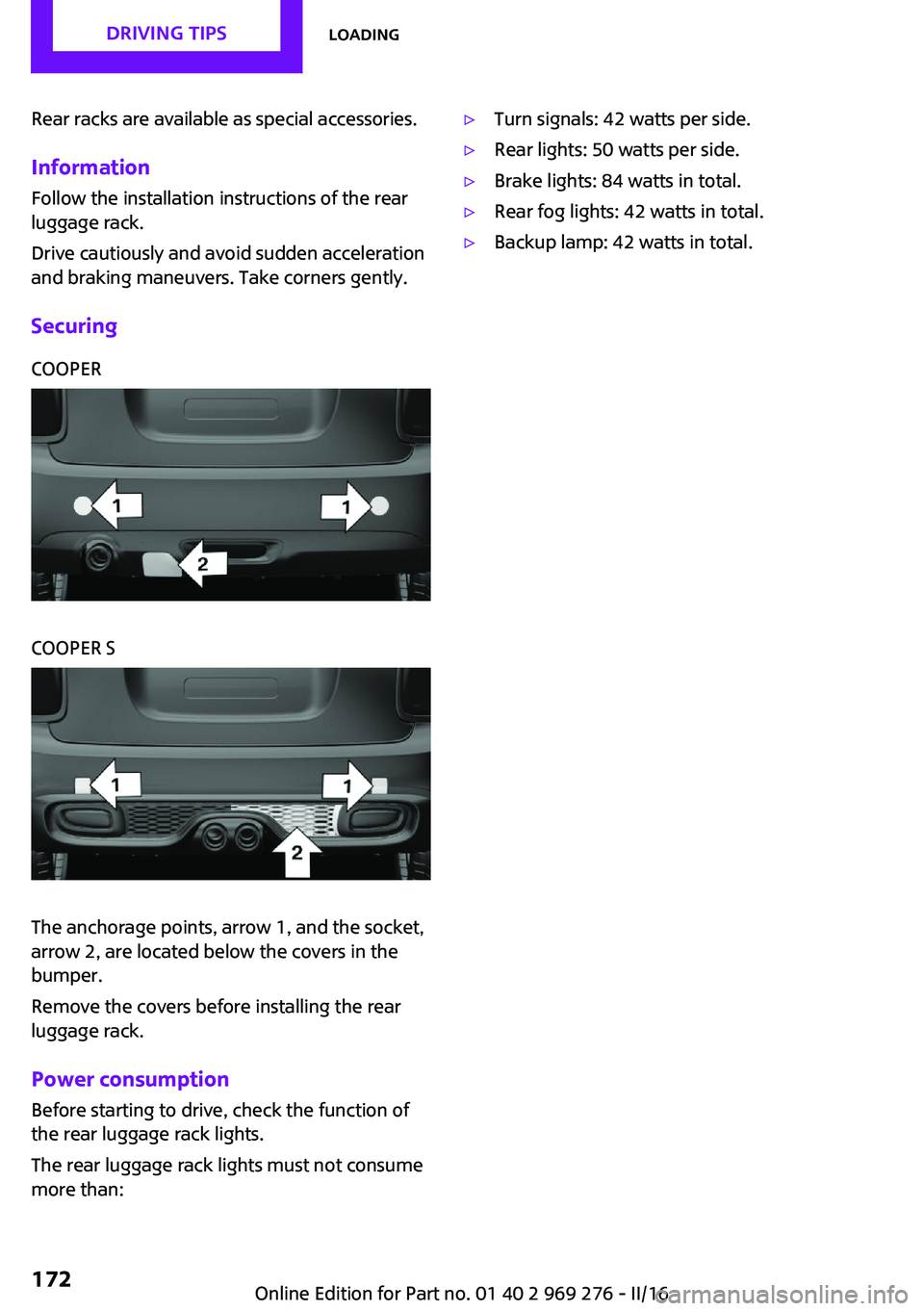
SecuringCOOPERCOOPER S
The anchorage points, arrow 1, and the socket,
arrow 2, are located below the covers in the
bumper.
Remove the covers before installing the rear
luggage rack.
Power consumption
Before starting to drive, check the function of
the rear luggage rack lights.
The rear luggage rack lights must not consume
more than:
▷Turn signals: 42 watts per side.▷Rear lights: 50 watts per side.▷Brake lights: 84 watts in total.▷Rear fog lights: 42 watts in total.▷Backup lamp: 42 watts in total.Seite 172DRIVING TIPSLoading172
Online Edition for Part no. 01 40 2 969 276 - II/16