2016 MERCEDES-BENZ CLS-Class reset
[x] Cancel search: resetPage 199 of 342

Under normal operating conditions and with the
specified coolant level, the coolant temperature
may rise to 248 ‡ (120 †).
Operating the on-board computer
Overview
:Multifunction display
;Right control panel
=Left control panel
XTo activate the on-board computer: turn
the SmartKey to position 1in the ignition lock.
You can control the multifunction display and the settings in the on-board computer using
the buttons on the multifunction steering
wheel.
Vehicles with the COMAND multimedia sys-
tem: you can find further information on the
Voice Control System in the separate operat-
ing instructions.
Vehicles with the Audio 20 multimedia sys-
tem: you can find further information on
voice-operated navigation in the manufactur-
er's operating instructions.
Left control panel
=
;RCalls up the menu and menu bar
9
:Press briefly:
RScrolls in lists
RSelects a submenu or function
RIn the Audiomenu: selects the
previous or next station, when the
preset list or station list is active,
or an audio track or video scene
RIn the Tel(telephone) menu:
switches to the phone book and
selects a name or telephone num-
ber
9
:Press and hold:
RIn the Audiomenu: selects a pre-
set list or a station list in the
desired frequency range, or an
audio track or video scene using
rapid scrolling
RIn the Tel(Telephone) menu:
starts rapid scrolling if the phone
book is open
aRConfirms the selection or display
message
RIn the Tel(Telephone) menu:
switches to the telephone book
and starts dialing the selected
number
%Press briefly:
RBack
RSwitches off voice-operated navi-
gation or the Voice Control System
RHides display messages or calls up
the last Tripmenu function used
RExits the telephone book/redial
memory
%Press and hold:
RCalls up the standard display in the
Tripmenu
Displays and operation197
On-board computer and displays
Z
Page 201 of 342

Trip computer "From Start" or "From
Reset"
:Distance
;Driving time
=Average speed
?Average fuel consumption
XPress the=or; button on the steering
wheel to select the Tripmenu.
XPress the9or: button to select
From Startor From Reset.
The values in the From
Startsubmenu are cal-
culated from the start of a journey whilst the
values in the From Reset
submenu are calcu-
lated from the last time the submenu was reset
(
Ypage 199).
In the following cases, the trip computer is auto-
matically reset From Start
:
Rthe ignition has been switched off for more
than four hours.
R999 hours have been exceeded.
R9,999 miles have been exceeded.
When 9,999 hours or 99,999 miles have been
exceeded, the trip computer is automatically
reset From Reset
.
ECO display
The ECO display is not available in Mercedes-
AMG vehicles.
XPress the =or; button on the steering
wheel to select the Tripmenu.
XPress the9or: button to select ECODISPLAY.
If the ignition remains switched off for longer
than four hours, the ECO display will be auto-
matically reset.
For more information on the ECO display, see
(
Ypage 149).
Displaying the range and current fuel
consumption
Mercedes-AMG vehicles: the menu only dis-
plays the approximate range.
XPress the =or; button on the steering
wheel to select the Tripmenu.
XPress9or: to select the display with
approximate range and the current fuel con-
sumption.
The approximate range that can be covered
depends on the fuel level and your current
driving style. If there is only a small amount of
fuel left in the fuel tank, a vehicle being refu-
eled C appears instead of approximate
range.
Digital speedometer
XPress the =or; button on the steering
wheel to select the Tripmenu.
XPress the9or: button to select the
digital speedometer.
A gearshift recommendation Zcan also
appear in the display.
Mercedes-AMG vehicles: a gearshift recom-
mendation is displayed in the status area of
the multifunction display.
Observe the information on gearshift recom-
mendation Zwhen shifting manually
(
Ypage 140).
Resetting values
XPress the =or; button on the steering
wheel to select the Tripmenu.
XPress the9or: button to select the
function that you wish to reset.
XPress ato confirm your selection.
XPress :to select Yesand press ato
confirm.
Menus and submenus199
On-board computer and displays
Z
Page 202 of 342
You can reset the values of the following func-
tions:
RTrip odometer
R"From Start" trip computer
R"From Reset" trip computer
RECO display
iIf you reset the values in the ECO display,
the values in the "From Start" trip computer
are also reset. If you reset the values in the
"From Start" trip computer, the values in the
ECO display are also reset.
Navigation system menu
Displaying navigation instructions
In the Navimenu, the multifunction display
shows navigation instructions.
Observe the additional information on naviga-
tion in the separate operating instructions of the
multimedia system.
XSwitch on the multimedia system (see sepa-
rate operating instructions).
XPress the =or; button on the steering
wheel to select the Navimenu.
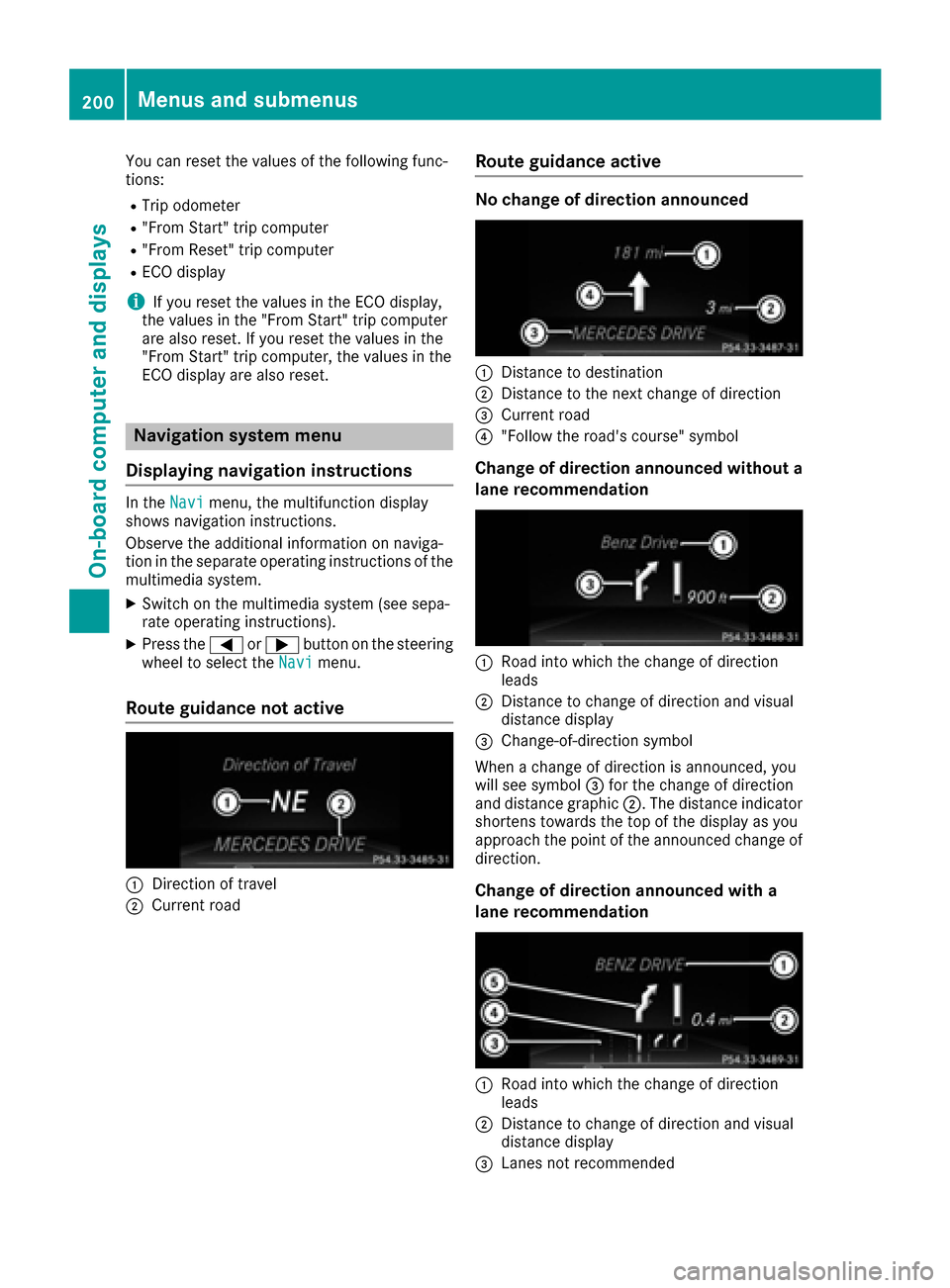
Route guidance not active
:Direction of travel
;Current road
Route guidance active
No change of direction announced
:Distance to destination
;Distance to the next change of direction
=Current road
?"Follow the road's course" symbol
Change of direction announced without a
lane recommendation
:Road into which the change of direction
leads
;Distance to change of direction and visual
distance display
=Change-of-direction symbol
When a change of direction is announced, you
will see symbol =for the change of direction
and distance graphic ;. The distance indicator
shortens towards the top of the display as you
approach the point of the announced change of
direction.
Change of direction announced with a
lane recommendation
:Road into which the change of direction
leads
;Distance to change of direction and visual
distance display
=Lanes not recommended
200Menus and submenus
On-board computer and displays
Page 203 of 342

?Recommended laneand ne wlan eduring a
chang eof direction
AChange-of-direction symbol
On multilan eroads, ne wlan erecommendation s
can be displayed for th enext chang eof direction
if th edigital map support sthis data. During th e
chang eof direction ,ne wlanes may be added .
Lan eno trecommended =:you will no tbe able
to complete th enext chang eof direction if you
stay in this lane.
Recommended lan eand ne wlan eduring a
chang eof direction ?:in this lan eyou will be
able to complete th enext two changes of direc-
tion without changing lane.
Other status indicators of the naviga-
tion system
The navigation system displays additional infor- mation and th evehicl estatus .
Possibl edisplays:
RNew Route...or Calculating Route
Ane wrout eis calculated.
RRoa dNot Mapped
The vehicl eposition is inside th earea of th e
digital map but th eroad is no trecognized, e.g.
newly built streets ,car park sor private land.
RNo Route
No rout ecould be calculated to th eselected
destination .
RO:you hav ereached th edestination or an
intermediat edestination .
Audio menu
Selecting a radio station
:Active station list
;Station frequency wit hmemory position
The men ushows station ;withstation fre-
quency or station name. The preset position is
only displayed alon gwit hstation ;if this has
been stored.
XSwitc hon th emultimedia system and select
Radio (see th eseparat eoperating instruc-
tions).
XPress th e= or; buttonon th esteering
whee lto select th eAudiomenu.
XTo select apreset list or station list :press
and briefly hold th e9 or: buttonuntil
th epreset list or station list in th edesired
frequency range is shown.
XTo select astation: briefly press 9
or :.
iSIRIUS XM satellit eradi ofunction slik e a
normal radio.
Fo rmor einformation on radi ooperation ,see
"Satellit eradio" in th eseparat eoperating
instructions.
Operating an audio player or audio
media
Menus and submenus201
On-board computer and displays
Z
Page 211 of 342

XPress the:or9 button to select the
Auto. Mirror Foldingfunction.
If the Auto. Mirror Foldingfunction is
switched on, the multifunction display shows
the vehicle's exterior mirror in orange.
XPress the abutton to save the setting.
If you have switched on the Auto. MirrorFoldingfunction and you fold in the exterior
mirrors by pressing button :, the exterior mir-
rors will not fold out automatically (
Ypage 104).
You can then only fold out the exterior mirrors
using button :.
Restoring the factory settings
XPress the=or; button on the steering
wheel to select the Sett.menu.
XPress the:or9 button to select the
Factory Settingsubmenu.
XPress ato confirm.
The Reset All Settings?function
appears.
XPress the :or9 button to select Noor
Yes.
XPress ato confirm the selection.
If you have selected Yesand confirmed, the
multifunction display shows a confirmation
message.
For safety reasons, the Day Lights
function in
the Lightssubmenu is only reset if the vehicle
is stationary.
AMG menu (Mercedes-AMG vehicles)
WARMUP
:Digital speedometer
;Gear indicator
=Upshift indicator
?Engine oil temperature
ACoolant temperature
BStatus indicator for ECO start/stop function
(Ypage 130)
XPress =or; on the steering wheel to
select the AMGmenu.
Upshift indicator: upshift indicatorUP=
indicates that the engine has reached the
overrevving range when in the manual drive
program.
Engine oil temperature: if the engine is at
normal operating temperature, the multifunc- tion display shows oil temperature ?in
white.
If the multifunction display shows oil temper-
ature ?in blue, the engine is not yet at nor-
mal operating temperature. Avoid driving at
full engine output during this time.
If the conditions for the ECO start/stop func-
tion are fulfilled and the vehicle is stationary,
the menu shows status indicator B.
SETUP
:Drive program (C/SS+orM)
;ESP®mode ON,OFFor SPORT handling
mode SPORT
=Suspension setting COMFORT,SPORTor
SPORT +
Menus and submenus209
On-board computer and displays
Z
Page 212 of 342

SETUP shows the drive program, ESP®(Elec-
tronic Stability Program) mode and the suspen-
sion setting.
XPress =or; on the steering wheel to
select the AMGmenu.
XPress9repeatedly until SETUP is shown.
or
XBriefly press the AMG button on the center
console (Ypage 168).
RACETIMER
Displaying and starting RACETIMER
The RACETIMER is only intended for use on a
closed race circuit. Do not use the function on
public roads.
:Lap
;RACETIMER
You can start the RACETIMER when the engine is
running or if the SmartKey is in position 2in the
ignition lock.
XPress =or; on the steering wheel to
select the AMGmenu.
XPress the9button repeatedly until the
RACETIMER appears.
XTo start: press the abutton to start the
RACETIMER.
Displaying the intermediate time
XPress the =or; button to select
Interm. Time.
XPress ato confirm.
The intermediate time is shown for five sec-
onds.
Starting a new lap
:RACETIMER
;Fastest lap time (best lap)
=Lap
XPress ato confirm New Lap.
iIt is possible to store a maximum of sixteen
laps. The 16th lap can only be completed with
Finish Lap
.
Stopping the RACETIMER
XPress the %button on the steering wheel.
XPress ato confirm Yes.
The RACETIMER interrupts timing if you stop the
vehicle and turn the SmartKey to position 1in
the ignition lock. If you turn the key to position 3
and then press ato confirm Start
, timing is
continued.
Resetting the current lap
XStop the RACETIMER.
XPress =or; to select Reset Lap.
XPressato reset the lap time to "0".
Deleting all laps
If you switch off the engine, the RACETIMER is
reset to "0" after 30 seconds. All laps are
deleted.
210Menus and submenus
On-board computer and displays
Page 213 of 342

You cannot delete individual stored laps. If you
have stopped 16 laps, the current lap does not
have to be reset.
XReset the current lap.
XPressato confirm Reset.
Reset Race Timer?appears in the multi-
function display.
XPress :Yesto select and confirm with
a.
All laps are deleted.
Overall statistics
:RACETIMER overall evaluation
;Total time driven
=Average speed
?Distance covered
AMaximum speed
If you store at least one lap and stop the RACE-
TIMER, an overall evaluation will then be availa-
ble.
XPress the =or; button on the steering
wheel to select the AMGmenu.
XPress the9button repeatedly until the
overall evaluation appears.
Lap statistics
:Lap
;Lap time
=Average lap speed
?Lap length
ATop speed during lap
If you store at least two laps and stop the RACE-
TIMER, the lap evaluation function then
becomes available.
XPress =or; on the steering wheel to
select the AMGmenu.
XPress9repeatedly until the lap evaluation
appears.
Each lap is shown in a separate submenu. The
fastest lap is indicated by flashing symbol :.
XPress the9or: button to select a dif-
ferent lap evaluation.
Menus and submenus211
On-board computer and displays
Z
Page 280 of 342

You can obtain further information from an
authorized Mercedes-Benz Center or at
http://www.mbusa.com (USA only).
iThe ASSYST PLUS service interval display
does not show any information on the engine
oil level. Observe the notes on the engine oil
level (
Ypage 275).
The multifunction display shows a service mes-
sage for several seconds, e.g.:
RService A in .. days
RService A Due
RService A Exceeded by .. Days
Depending on the operating conditions of the
vehicle, the remaining time or distance until the next service due date is displayed.
The letter A
orB, possibly in connection with a
number or another letter, indicates the type of
service. A
stands for a minor service and Bfor a
major service.
You can obtain further information from an
authorized Mercedes-Benz Center.
The ASSYST PLUS service interval display does
not take into account any periods of time during
which the battery is disconnected.
Maintaining the time-dependent service sched-
ule:
XNote down the service due date displayed in
the multifunction display before disconnect-
ing the battery.
or
XAfter reconnecting the battery, subtract the
battery disconnection periods from the ser-
vice date shown on the display.
Hiding a service message
XPress the aor% button on the steering
wheel.
Displaying service messages
XSwitch on the ignition.
XPress the =or; button on the steering
wheel to select the Serv.menu.
XPress the9or: button to select the
ASSYSTPLUSsubmenu and confirm by press-
ing the abutton.
The service due date appears in the multi-
function display.
Information about Service
Resetting the ASSYST PLUS service inter-
val display
!If the ASSYST PLUS service interval display
has been inadvertently reset, this setting can
be corrected at a qualified specialist work-
shop.
Have service work carried out as described in
the Maintenance Booklet. This may otherwise lead to increased wear and damage to the
major assemblies or the vehicle.
A qualified specialist workshop, e.g. an author-
ized Mercedes-Benz Center, will reset the
ASSYST PLUS service interval display after the
service work has been carried out. You can also
obtain further information on maintenance
work, for example.
Special service requirements
The specified maintenance interval takes only
the normal operation of the vehicle into
account. Under arduous operating conditions or
increased load on the vehicle, maintenance
work must be carried out more frequently, for
example:
Rregular city driving with frequent intermediate stops
Rif the vehicle is primarily used to travel short
distances
Ruse in mountainous terrain or on poor road
surfaces
Rif the engine is often left idling for long periods
Under these or similar conditions, have, for
example, the air filter, engine oil and oil filter
replaced or changed more frequently. Under
arduous operating conditions, the tires must be
checked more often. Further information can be
obtained at a qualified specialist workshop, e.g.
an authorized Mercedes-Benz Center.
Driving abroad
An extensive Mercedes-Benz Service network is
also available in other countries. You can obtain
further information from any authorized
Mercedes-Benz Center.
278Maintenance
Maintenance and care