2016 MERCEDES-BENZ C-Class SEDAN sport mode
[x] Cancel search: sport modePage 12 of 190

Switching object detection on/
off .................................................... 48
Switching on/off (COMAND) ........... 48
Receiving vCards ............................... 113
Redialing (telephone) ........................ 102
Reducing the volume
Switching announcements on/off
(COMAND) ....................................... 57
Reserve fuel level
Switching announcements on/off(COMAND) ....................................... 57
Resetting (factory settings) ............... 44
Road map
see Map (navigation)
Route (navigation)
Selecting an alternative route .......... 78
Setting route options (avoiding:
highways, toll roads, tunnels, fer-
ries) ................................................. 57
Setting the route type (short
route, fast route, dynamic route or
economic route) ............................... 56
Starting calculation .......................... 60
Route guidance
Canceling/continuing ...................... 77
Freeway information ........................ 75
General notes .................................. 73
Lane recommendations ................... 75
Off-road ........................................... 79
Traffic reports .................................. 79
S
Safety notesAudio CD/DVD and MP3 mode ..... 150
Using the telephone ......................... 95
Satellite radio
Displaying information ................... 148
Overview ........................................ 145
Presets menu view ......................... 146
Registering .................................... 144
Switching to ................................... 145
SatRadio
Channel list updates ...................... 148
Memory functions .......................... 146
Music and sports alerts ................. 147
Notes ............................................. 144
Selecting a category ...................... 145 Selecting a channel ....................... 145
Tagging music tracks ..................... 147
SD memory card
Ejecting .......................................... 152
Inserting ........................................ 152
Inserting/removing ........................ 152
Searching for a gas station
When the fuel level is low ................ 69
Seat-belt adjustment function
Activating/deactivating
(COMAND) ....................................... 46
Selecting stations
Radio ............................................. 141
Sending DTMF tones ......................... 103
Setting access data
Online and Internet ........................ 127
Setting the language
COMAND ......................................... 41
Setting the night design ..................... 35
Setting the text reader speed ............ 38
Setting the volume
Telephone calls ................................ 28
Setting the waveband
Radio ............................................. 140
Settings
Sound settings ............................... 175
Short message
see Text messages (SMS)
SIRIUS weather display
5-day forecast ................................ 178
Daily forecast ................................. 178
Detail information .......................... 179
Information chart ........................... 178
Selecting a location for the
weather forecast ............................ 179
Switching on/off ........................... 178
Weather map ................................. 181
Sound
Switching on/off .............................. 28
Sound settings
Balance/fader ............................... 175
Calling up the sound menu ............ 175
Equalizer ........................................ 175
Sound system
see Burmester
®surround sound system
Speed dial
Deleting ......................................... 117
10Index
Page 23 of 190
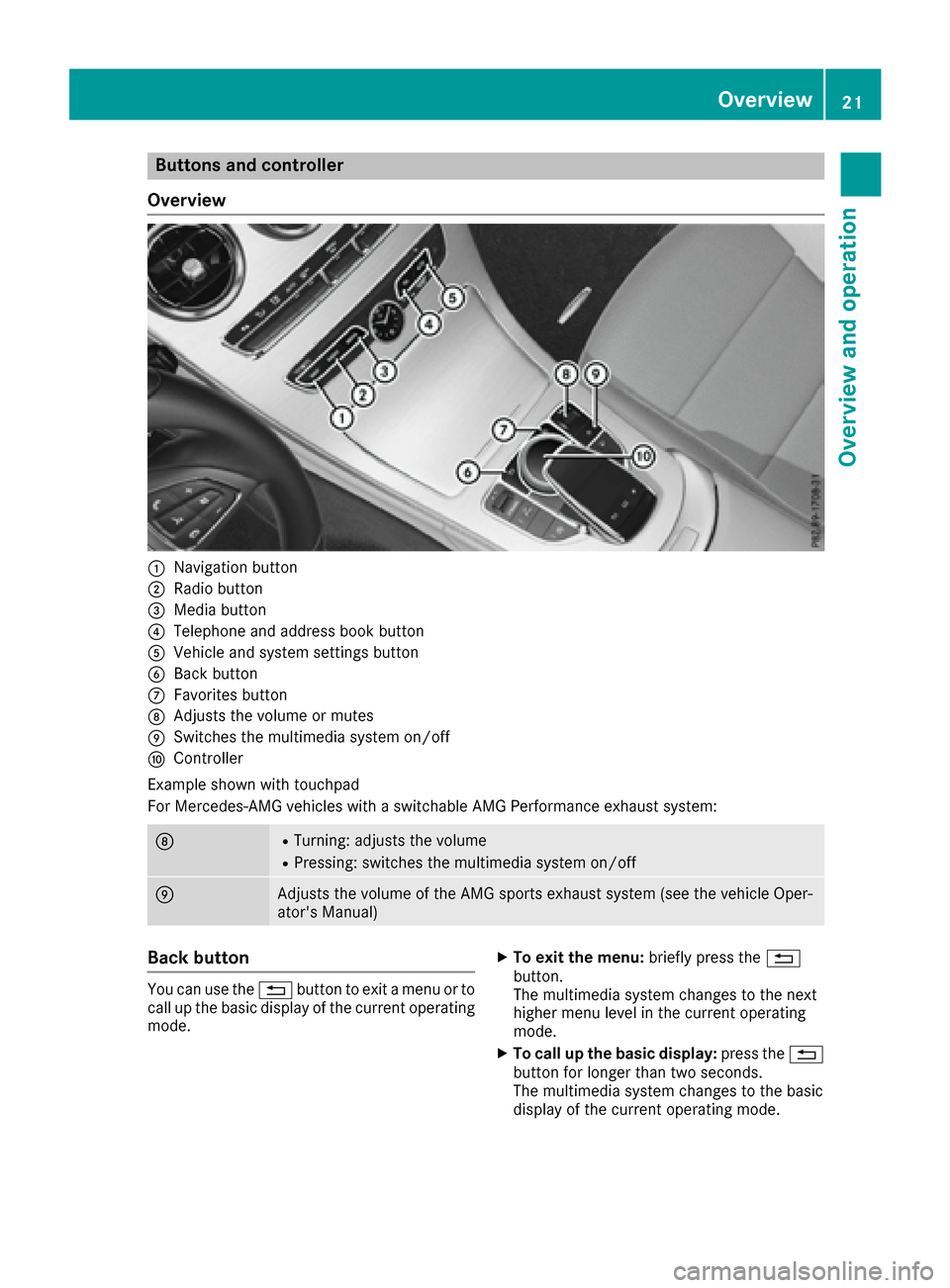
Buttons and controller
Overview
:Navigation button
;Radio button
=Media button
?Telephone and address book button
AVehicle and system settings button
BBack button
CFavorites button
DAdjusts the volume or mutes
ESwitches the multimedia system on/off
FController
Example shown with touchpad
For Mercedes-AMG vehicles with a switchable AMG Performance exhaust system:
DRTurning: adjusts the volume
RPressing: switches the multimedia system on/off
EAdjusts the volume of the AMG sports exhaust system (see the vehicle Oper-
ator's Manual)
Back button
You can use the %button to exit a menu or to
call up the basic display of the current operating
mode.
XTo exit the menu: briefly press the%
button.
The multimedia system changes to the next
higher menu level in the current operating
mode.
XTo call up the basic display: press the%
button for longer than two seconds.
The multimedia system changes to the basic
display of the current operating mode.
Overview21
Overview and operation
Page 54 of 190

XTo selectDrive,Suspension,Steering,
Climate Control
or Eco Start/StopFunction:turn and press the controller.
XSelect individual settings.
The menu symbol, text and image show the
selected setting.
In Mercedes-AMG vehicles, you can configure
the settings of the drive system, suspension,
transmission, sports exhaust system and Elec-
tronic Stability Program ESP
®.
Displaying vehicle data
XPress the Øbutton.
or
XPress Vehiclein the main function bar.
The vehicle menu is displayed.
XTo select DYNAMIC SELECT:turn and press
the controller.
The Individual
Configuration,VehicleDataand Engine Datamenus appear.
XSelect Vehicle Data.
Updates of the following data are displayed:
RRoad type analogous to the selected drive
program
RG-force display of longitudinal and lateral
acceleration
RAccelerator and brake pedal activity
RActivity of the spring struts
RWheel angle
ROverrun mode animation
The G-force display is not available in all of the
drive programs.
Daytime or night-time view is shown depending
on the automatic light sensor.
Displaying engine data
XPress Vehiclein the main function bar.
The vehicle menu is displayed.
XTo select DYNAMIC SELECT:turn and press
the controller.
The Individual
Configuration,VehicleDataand Engine Datamenus appear.
XSelect Engine Data.
The following current data is displayed:
REngine output
REngine torque
REngine oil temperature
ROn-board voltage
In Mercedes-AMG vehicles you will see current
data on the transmission oil temperature
instead of the on-board voltage.
Setting options
You can choose from the following settings for
the drive:
CComfort
SSport
S+Sport +
MManual
EEco
You can make the following settings for the sus-
pension:
CComfort
SSport
S+Sport +
You can make the following settings for the
steering:
CComfort
SSport
You can choose from the following settings for
climate control:
EEco
CComfort
You can choose from the following settings for
the ECO start/stop function:
OnSwitches the ECO
start/stop function
on
OffSwitches the ECO
start/stop function
off
52DYNAMIC SELECT
Vehicle functions
Page 146 of 190

XIn radio mode: slide6the controller.
XTo select Information: turn and press the
controller.
Information on the currently received pro-
gram is displayed.
If available, you will see:
Rthe track that is currently being played
Rthe artist of the track that is currently being
played
Rthe album name
Rthe channel abbreviation
Rthe logo of the station or Artist Experience®
Back to radio display:
XTo select Info: slide6and press the con-
troller.
Satellite radio
General notes
The satellite radio mode requires satellite radio
equipment and registration with a satellite radio
provider.
Note that the categories and channels shown in
the illustrations depend on the program content
offered by the provider. The illustrations and
descriptions in these operating instructions may
therefore differ from the channels and catego-
ries offered by the provider.
Satellite radio mode may be temporarily unavail-
able or interrupted for a variety of reasons.
These include environmental or topographical
conditions as well as other factors beyond the
control of Mercedes-Benz USA, LLC. This means
operation may not be possible in certain areas.
These include:
Rtunnels
Rparking garages
Rlocations inside or next to buildings
Rlocations in the vicinity of other structures
Sirius XM®Satellite Radio offers more than 140
digital-quality radio channels, providing 100%
commercial-free music, sports, news and enter-
tainment.
Sirius XM
®Satellite Radio uses a fleet of high-
performance satellites to broadcast around the
clock throughout the USA and Canada.
The satellite radio program is available for a
monthly fee. Details are available from the Sirius XM
®Service Center and at
http://www.siriusxm.com (USA) or
http://www.siriusxm.ca (Canada).
Your new Mercedes-Benz vehicle comes with
Sirius XM
®Satellite Radio pre-installed at the
factory. This service is free for a six-month trial
period. About a month before the trial period
ends, information will be provided on how to
extend this subscription. An acoustic signal
sounds and a message is shown, describing how
the subscription can be extended.
iSirius, XM and all related marks and logos
are trademarks of Sirius XM Radio Inc. and its
subsidiaries. All other marks, channel names
and logos are the property of their respective
owners. All rights reserved.
Registering satellite radio
:Phone number of provider
;Sirius XM®ID of your satellite receiver
XSwitch on satellite radio mode (Ypage 145).
The satellite radio main menu appears show-
ing the preview channel. You cannot select
any other stations.
XTo select Optionsin the radio menu bar: turn
and press the controller.
XTo select Service: turn and press the con-
troller.
The service information screen appears.
Once the telephone connection has been estab-
lished:
XFollow the instructions of the service staff.
The activation process may take up to
ten minutes. If the activation is completed
successfully, the Updating Channels...
message appears in the display, followed by
the satellite radio main menu.
144Satellite radio
Radio
Page 147 of 190

iYou can also have the satellite service acti-
vated online. To do this, visit
http://www.siriusxm.com (USA) or
http://www.siriusxm.ca (Canada).
iIf registration is not included when purchas-
ing the system, your credit card details will be
required to activate your account.
If the satellite receiver is not installed correctly,
the Device
Unavailablemessage will appear.
Switching to satellite radio
XTo show the main function bar: slide 5the
controller.
XTo select Radio: turn and press the controller.
The radio display appears. You will hear the
last station played on the last waveband
selected.
XTo select Radioin radio mode: slide 5and
press the controller.
The menu with the available radio modes
appears.
XTo select SatRadio: turn and press the con-
troller.
The No
Servicemessage appears if there is no
signal.
Satellite radio overview
:Main function bar
;Preset
=Channel name and channel number
?Channel information
AStation presets menu
BCategory list
CKeyword search
DOptions menu Channel information
?can be viewed in detail
(
Ypage 148).
Selecting a category
Satellite radio channels are sorted into catego-
ries. You can choose between various catego-
ries such as News/Discussions, Sports and
Country (if available). The category list is sorted alphabetically. The content of the categories is
sorted by channel numbers.
XTo call up the category list: selectCate‐
goryin the menu bar by turning and pressing
the controller.
The category list appears.
XTo select a category: turn the controller and
press to confirm.
The category selected is shown in the display.
You hear the channel last selected for this
category.
The #dot indicates the current setting.
At the beginning of the category list, the All
Channelscategory appears. This category
enables you to browse all available channels.
Selecting a channel
Channel search
XWhen the display/section window is selec-
ted, slide 8or9 the controller.
The multimedia system searches in both
directions (ascending and descending) and
stops at the next channel found in the selec-
ted category.
Entering channel numbers directly
XTo select Optionsin the radio menu bar: turn
and press the controller.
The satellite radio menu appears.
XTo select Direct Entry: turn and press the
controller.
An input menu appears.
XTo select a channel number: turn and press
the controller.
XThe multimedia system sets the selected
channel.
iYou can only select currently permitted dig-
its.
Satellite radio145
Radio