2016 MERCEDES-BENZ C-Class SEDAN wheel
[x] Cancel search: wheelPage 98 of 190

Operating options
You can operate the telephone by:
Rusing the controller by turning, pressing, slid-
ing1 or4
Rusing the touchpad (Ypage 24)
Rusing the 6or~ button on the multi-
function steering wheel
Rusing the Voice Control System (see the sep-
arate operating instructions)
Function restrictions
You may have to wait to use telephony via the
multimedia system in the following situations:
Rthe mobile phone is switched off
RBluetooth®is switched off on the mobile
phone
Rthe mobile phone has not logged on to a
mobile phone network
Rthe Bluetooth®function is switched off in the
multimedia system
The telephone automatically tries to log on to a
network. If no network is available, you may not
be able to make a "911 " emergency call. If you
attempt to make an outgoing call, the No Ser‐
vicemessage will appear for a short while.
Telephone menu
:Mobile phone network provider
;Signal strength of the mobile phone network
=Receiver icon¢or¡
?Telephone menu character bar
ABluetooth®device name of the currently
connected mobile phone
BEnters characters using the touchpad
CDisplays the phone book Symbols
:to= and Aare not shown until
after a mobile phone has been connected to the
multimedia system. The symbols depend on
your mobile phone and your mobile phone net-
work provider. Further information on connect-
ing a mobile phone (
Ypage 96).
Symbol ;shows the current signal strength of
the mobile phone network. If all bars are filled,
you have optimum reception.
If the bars are not filled, you have very poor
reception or no reception at all.
iReceiver icon shows whether a call is
active/being connected ¡or not ¢.
Calling up the telephone menu
XPress %.
Showing the menu bar
XSlide 6the controller.
If the mobile phone connected supports the
MAP Bluetooth
®profile (M essageAccess
Profile), the 1menu item is available. Further
information on text messages and e-mail
(
Ypage 117).
If you have an unread text message or e-mail,
the 0 mail symbol is displayed at the top in
the status bar. The symbol disappears once you
have read the text message or e-mail. The ú
symbol is displayed as soon as the message
memory on the mobile phone or SIM card is full.
The symbol disappears once you delete at least
one message.
Connecting/disconnecting a mobile
phone
Prerequisites
For telephony via the Bluetooth®interface, you
require a Bluetooth®-capable mobile phone. The
mobile phone must support Hands-Free Profile
1.0 or above.
On the multimedia system
XActivate Bluetooth®(Ypage 41).
96Connecting/disconnecting a mobile phone
Telephone
Page 103 of 190
XTo call up the telephone menu: press the
%button.
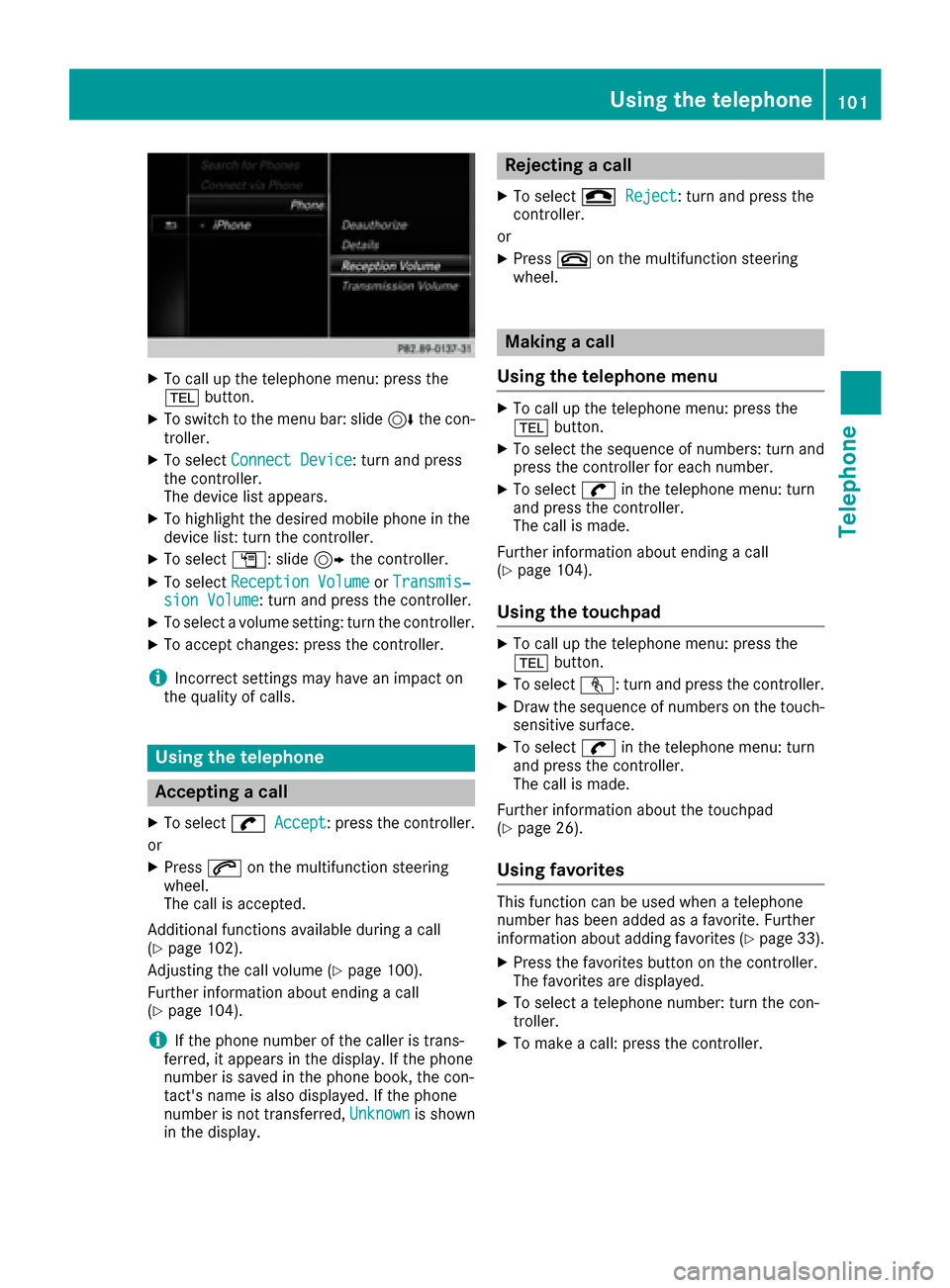
XTo switch to the menu bar: slide 6the con-
troller.
XTo select Connect Device: turn and press
the controller.
The device list appears.
XTo highlight the desired mobile phone in the
device list: turn the controller.
XTo select G: slide 9the controller.
XTo select Reception VolumeorTransmis‐sion Volume: turn and press the controller.
XTo select a volume setting: turn the controller.
XTo accept changes: press the controller.
iIncorrect settings may have an impact on
the quality of calls.
Using the telephone
Accepting a call
XTo select wAccept: press the controller.
or
XPress 6on the multifunction steering
wheel.
The call is accepted.
Additional functions available during a call
(
Ypage 102).
Adjusting the call volume (
Ypage 100).
Further information about ending a call
(
Ypage 104).
iIf the phone number of the caller is trans-
ferred, it appears in the display. If the phone
number is saved in the phone book, the con-
tact's name is also displayed. If the phone
number is not transferred, Unknown
is shown
in the display.
Rejecting a call
XTo select =Reject: turn and press the
controller.
or
XPress ~on the multifunction steering
wheel.
Making a call
Using the telephone menu
XTo call up the telephone menu: press the
% button.
XTo select the sequence of numbers: turn and
press the controller for each number.
XTo select win the telephone menu: turn
and press the controller.
The call is made.
Further information about ending a call
(
Ypage 104).
Using the touchpad
XTo call up the telephone menu: press the
% button.
XTo select n: turn and press the controller.
XDraw the sequence of numbers on the touch-
sensitive surface.
XTo select win the telephone menu: turn
and press the controller.
The call is made.
Further information about the touchpad
(
Ypage 26).
Using favorites
This function can be used when a telephone
number has been added as a favorite. Further
information about adding favorites (
Ypage 33).
XPress the favorites button on the controller.
The favorites are displayed.
XTo select a telephone number: turn the con-
troller.
XTo make a call: press the controller.
Using the telephone101
Telephone
Z
Page 104 of 190

Redial
XTo call up the telephone menu: press the
%button.
XTo select win the telephone menu: turn
and press the controller.
The list of outgoing calls is displayed. The
most recently dialed number is at the top.
XTo select an entry and make a call: turn and
press the controller.
For redialing using the multifunction steering
wheel; see the vehicle Operator's Manual.
Further information about ending a call
(
Ypage 104).
Using call lists
XTo call up the telephone menu: press the
% button.
XTo switch to the menu bar: slide 6the con-
troller.
XTo select Call Lists: turn and press the
controller.
XTo select CallsReceivedorCallsDialed:
turn and press the controller.
The relevant list is displayed.
XTo select an entry and make a call: turn and
press the controller.
Selecting and placing a call using the multifunc- tion steering wheel; see vehicle Operator's Man-
ual
Further information about ending a call
(
Ypage 104).
Using the phone book
XTo call up the telephone menu: press the
% button.
XTo select Namein the telephone menu: turn
and press the controller.
XSearch for a contact (Ypage 106).
XTo make a call: press the controller.
Selecting and placing a call using the multifunc- tion steering wheel; see vehicle Operator's Man-
ual
Further information about ending a call
(
Ypage 104).
Using speed dial
XTo call up the telephone menu: press the
% button.
XTo highlight a number from the character bar:
turn the controller.
XPress the controller for longer than two sec-
onds.
The telephone menu displays the selected
entry. The number is dialed.
Further information on setting up speed dial
(
Ypage 116).
Further information about ending a call
(
Ypage 104).
Functions available during a call
Overview
:Adds a call (Ypage 102)
;Person you are calling
=Symbol for active telephone connection
?Ends a call
ASwitches the microphone on or off
(Ypage 103)
BSends DTMF tones (not possible with all
mobile phones) (Ypage 103)
Other functions:
RAccepting a waiting call (Ypage 104)
RCall waiting (Ypage 103)
RConducting a conference call (Ypage 104)
Availability depends on the network (only pos-
sible on GSM networks) and the Bluetooth
®
mobile phone.
Adding a call
If the mobile phone network provider and the
mobile phone support the function, you can
102Using the telephone
Telephone
Page 105 of 190

make another call during an existing call. The
previously active call is held.
:Adds a call
XTo select°2: turn and press the controller.
XTo make a call, e.g.:
RUsing the telephone menu (Ypage 101)
RUsing redial (Ypage 102)
RUsing the call lists (Ypage 102)
RUsing the phone book (Ypage 102)
RUsing speed dial (Ypage 102)
Switching the microphone on/off
This function is available in the telephone menu
during an active phone call.
Switching off the microphone:
XTo switch to the menu bar: slide 6the con-
troller.
XTo select Microphone Off: turn and press
the controller.
If the microphone is switched off, the Q
symbol and the The microphone is off.
message are displayed.
Switching on the microphone:
XSelect Microphone On.
The Qsymbol disappears. The The micro‐
phone is on.message is shown.
Sending DTMF tones
This function is not supported by all mobile
phones.
Answering machines or other devices can be
controlled by DTMF tones, e.g. for remote query
functions.
XIf you would like to listen to the messages on
your answering machine, for example, dial the
corresponding number. Transmitting individual characters
XOnce a connection has been established to
the answer phone, select the desired charac-
ters in the telephone menu: turn and press the
controller each time.
Every character selected will be transmitted
immediately.
Calls with several participants
Switching between calls (call waiting)
If you make another call, you can switch
between the two calls (call waiting). This func-
tion depends on your mobile phone network
provider and the mobile phone (see the manu-
facturer's operating instructions).
The calls are marked 1 and 2. The active call is
highlighted.
Switching between the calls
XTo select °1or°2: turn and press the con-
troller.
or
XPress 6on the multifunction steering
wheel.
The selected call is active. The other call is on
hold.
Ending the active call
XTo select =in the telephone menu: turn
and press the controller.
or
XPress ~on the multifunction steering
wheel.
The other call is still on hold.
Using the telephone103
Telephone
Z
Page 106 of 190

XTo activate the call on hold: selectwResume.
The call on hold is activated. If you select
=
HangUp, the call on hold is also ended.
iOn some mobile phones, the call on hold is
activated as soon as the active call is ended.
Conference call
You can interconnect active and held calls. This
permits several parties to hear one another and
speak with one another. This function depends
on your mobile phone network provider and the
mobile phone (see the manufacturer's operating
instructions).
XAdd a call (Ypage 102).
or
XAnswer an incoming call (Ypage 104).
XTo select Conferencein the telephone menu:
turn and press the controller.
The new participant is included in the confer-
ence call. Conference
is displayed in the tele-
phone menu.
Incoming call during an existing call
(call waiting)
The call waiting function depends on your
mobile phone network provider and your mobile
phone. Depending on the mobile phone used,
behavior when answering a call may vary (see
the manufacturer's operating instructions).
Call waiting: if you receive a call while already
in a call, a message is shown. You also hear a
tone. You can decide whether to accept or reject
the call. Accepting
XTo select
wAccept: press the controller.
or
XPress 6on the multifunction steering
wheel.
The incoming call is active, the previously
active call is on hold. You can switch back and
forth between both calls (call waiting)
(
Ypage 103).
iDepending on the mobile phone, you may
also be able to accept the incoming call (call
waiting) on your mobile phone. This function
and behavior depends on your mobile phone
network provider and the mobile phone (see
the manufacturer's operating instructions).
Rejecting
XTo select =Reject: turn and press the
controller.
or
XPress ~on the multifunction steering
wheel.
The behavior after the call is rejected depends
on your mobile phone and mobile phone net-
work provider.
Option 1: The originally active call is contin-
ued and the incoming call is rejected.
Option 2: The originally active call is ended
and the incoming call is accepted.
Option 3: Both calls are ended.
Ending an active call
XTo select =in the telephone menu: turn
and press the controller.
or
XPress ~on the multifunction steering
wheel.
The active call is ended.
Mobile phone voice recognition
You can start or end voice recognition on your
mobile phone with this function. Further infor-
mation on the voice recognition service; see the
manufacturer's operating instructions.
To start the mobile phone voice recognition:
104Mobile phone voice recognition
Telephone
Page 107 of 190

XConnect the mobilephone to the multimed ia
system (Ypage 96).
XPress and hold the óbutton on the mult i-
function steering wheel for more than one
second.
You can now use the mob ilephone voice rec-
ognition.
To end the mobile phone voice recognition:
XPress ñon the multifunction steering
wheel.
The mob ilephone voice recognition isstop-
ped.
Phone book
Introduction
The telephone book displays the contacts from
the address book which have a phone number.
The phone book of the mob ilephone isauto-
matically displayed inthe multimed iasystem
after the connection isestablish ed (default set-
ting). You can deactivate automat iccalling up
(
Ypage 112).
In the telephone book, you can:
RCreate new contacts (Ypage 106)
RAdd information to contacts (Ypage 107)
RSearch for contacts (Ypage 106)
RStore contacts (Ypage 107)
RDelete contacts (Ypage 107)
Further information on importing contacts
(
Ypage 113).
When you import, save, editor add contacts,
they will be permanently saved inthe multime-
dia system. These contacts willremain availab le
even when you connect the multimedia system
to a different mob ilephone. You can view these
contacts even without a mob ilephone.
Calling up the phone book
XTo call up the telephone menu: press the
% button.
XTo select Namein the telephone menu: turn
and press the controller.
If the phone book contains contacts, they will
be displayed in alphabetical order. The char-
acter bar at the bottom of the display is active.
You can now search for a contact
(
Ypage 106).
Further information on the symbols shown
(
Ypage 105).
iYou can also call up the phone book with the
multifunction steering wheel; see the sepa-
rate operating instructions.
Symbol overview
Sym-
bolExplanation
ÆContact that has been entered, edi-
ted or saved inthe multimedia sys-
tem.
\Contact with voice tag
These contacts have also been
assigned a voice tag. Voice tags are
available invehicles with the Voice
Control System (see the vehicle
Operator's Manual).
ÃContact that was called up from a
mobile phone
¯Contact imported from the SDmem-
ory card or USB device
®Contact imported via the Bluetooth®
interface
Phone book105
Telephone
Z
Page 168 of 190

XTo selectStart playback: Ì: slide6
and press the controller.
Playback resumes from the beginning.
XTo select Connect Last Used Player:
press the controller.
Depending on the Bluetooth
®audio device
used, playback starts immediately or you
must start playback manually.
In this case, you will see the Bluetooth
Audio Device Pausedmessage.
Selecting a track
The function is not supported by all Bluetooth®
audio devices.
With some mobile phones, the function with
regard to the following criteria is impaired:
Rthe number of tracks that can be selected
Rthe time period until the next or previous track
is played
XUse the multifunction steering wheel to
switch to the media menu in the on-board
computer (see the vehicle Operator's Man-
ual).
XTo skip forwards or backwards to a track:
press the9or: button on the multi-
function steering wheel.
XRapid scroll: press and hold the 9
or : button on the multifunction steering
wheel until the desired track is reached.
If you press and hold the 9or: but-
tons, the rapid scrolling speed increases after
a short time.
iDuring rapid scrolling, track names are not
displayed but only Track+1, Track+2, etc. (or
Track-1, Track-2, etc.). There are no playback
times shown for tracks that have been played.
This is available as an optional function start-
ing with AVRCP Version 1.3. There is also no music search option available
with Bluetooth
®audio.
Selecting playback options
If the Bluetooth®audio device supports the cor-
responding function, the following options are
available:
RNormal Track Sequence: the tracks are
played in the normal order (e.g. track 1, 2, 3
etc.).
Audio data playback is determined by the
order in which the tracks are written to the
data medium. Alphabetical order is the most
common. Once all the tracks in a folder have
been played, the tracks in the next folder are
played.
RRandomTrackList: the current track list is
played in random order (e.g. 3, 8, 5 etc.).
RRandom Medium: all tracks on the data
medium are played in random order (e.g.
track 3, 8, 5 etc.).
Playback options are optional functions and
are not, or only partially, supported by Blue-
tooth
®audio devices.
Selecting playback options
XSlide 6the controller.
XTo select Options: turn and press the con-
troller.
XSelect Playback Mode.
A # dot indicates the current setting.
XSelect the desired option.
If you select Random Track List, a corre-
sponding message appears in the display or
selection window.
Increasing the volume in the multime-
dia system
XSlide 6the controller.
XTo select Options: turn and press the con-
troller.
XTo select Volume: turn and press the control-
ler.
A menu appears. The #dot indicates the cur-
rent setting.
XSelect StandardorBoost.
iIf play back on the Bluetooth®audio player
is too quiet, the Boostfunction may be used.
166Bluetooth®audio mode
Media