2016 LINCOLN NAVIGATOR ECO mode
[x] Cancel search: ECO modePage 142 of 419
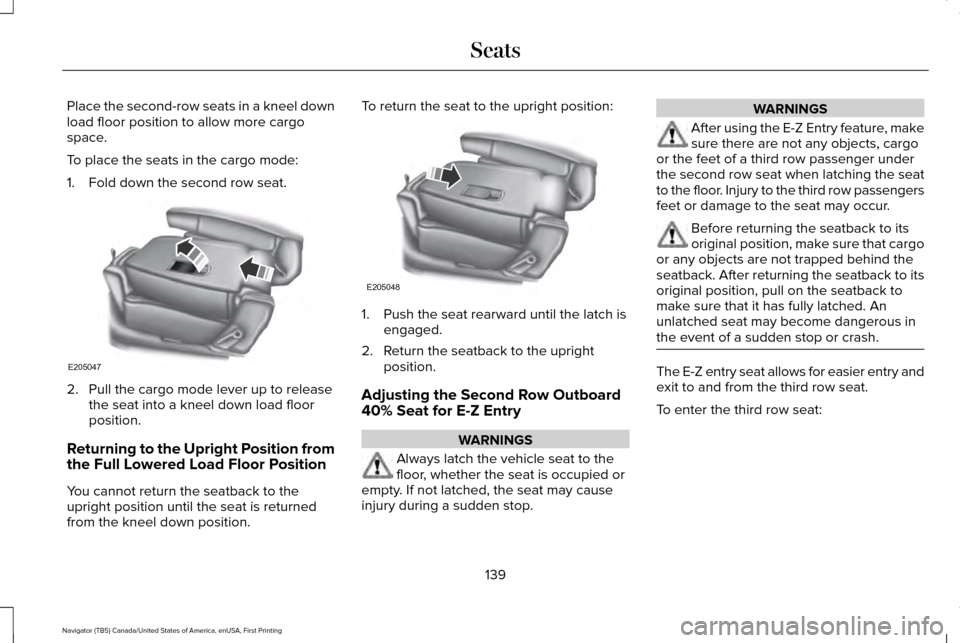
Place the second-row seats in a kneel down
load floor position to allow more cargo
space.
To place the seats in the cargo mode:
1. Fold down the second row seat.
2. Pull the cargo mode lever up to release
the seat into a kneel down load floor
position.
Returning to the Upright Position from
the Full Lowered Load Floor Position
You cannot return the seatback to the
upright position until the seat is returned
from the kneel down position. To return the seat to the upright position:
1. Push the seat rearward until the latch is
engaged.
2. Return the seatback to the upright position.
Adjusting the Second Row Outboard
40% Seat for E-Z Entry WARNINGS
Always latch the vehicle seat to the
floor, whether the seat is occupied or
empty. If not latched, the seat may cause
injury during a sudden stop. WARNINGS
After using the E-Z Entry feature, make
sure there are not any objects, cargo
or the feet of a third row passenger under
the second row seat when latching the seat
to the floor. Injury to the third row passengers
feet or damage to the seat may occur. Before returning the seatback to its
original position, make sure that cargo
or any objects are not trapped behind the
seatback. After returning the seatback to its
original position, pull on the seatback to
make sure that it has fully latched. An
unlatched seat may become dangerous in
the event of a sudden stop or crash. The E-Z entry seat allows for easier entry and
exit to and from the third row seat.
To enter the third row seat:
139
Navigator (TB5) Canada/United States of America, enUSA, First Printing SeatsE205047 E205048
Page 154 of 419

2.
The indicator light will begin to flash after
20 seconds. Without releasing the
button, follow Step 1 in the Programming
section.
For questions or comments, contact
HomeLink at www.homelink.com,
www.youtube.com/HomeLinkGentex or
1-800-355-3515.
Programming to a Genie Intellicode 2
Garage Door Opener
Note: The Genie Intellicode 2 transmitter
must already be programmed to operate
with the garage door opener.
Note: To program HomeLink to the
transmitter you must first put the transmitter
into programming mode. Red indicator light
A.
Green indicator light
B.
1. Press and hold one of the buttons on the
hand-held transmitter for 10 seconds. The
indicator light will change from green to
red and green.
2. Press the same button twice to confirm the change to programming mode. If
done properly the indicator light will
appear red.
3. Hold the transmitter within 1–3 inches (2–8 centimeters) of the button on the
visor you want to program. 4. Press and hold both the programmed
Genie button on the hand-held
transmitter and the button you want to
program. The indicator light on the visor
will flash rapidly when the programming
is successful.
Note: The Genie transmitter will transmit for
up to 30 seconds. If HomeLink does not
program within 30 seconds the Genie
transmitter will need to be pressed again. If
the Genie transmitter indicator light displays
green and red, release the button until the
indicator light turns off before pressing the
button again.
Once HomeLink has been programmed
successfully, the Genie transmitter must be
changed out of program mode. To do this:
1. Press and hold the previously programmed Genie button on the
hand-held transmitter for 10 seconds. The
indicator light will change from red to red
and green.
2. Press the same button twice to confirm the change. If done correctly the indicator
light will turn green.
151
Navigator (TB5) Canada/United States of America, enUSA, First Printing Universal Garage Door OpenerBAE142661
Page 155 of 419

Programming HomeLink to the Genie
Intellicode Garage Door Opener Motor
Note:
You may need a ladder to access the
garage door opener motor. 1. Press and hold the program button on
the garage door opener motor until both
blue indicator lights turn on.
2. Release the program button. Only the smaller round indicator light should be
on.
3. Press and release the program button. The larger purple indicator light will flash.
Note: The next two steps must be completed
in 30 seconds. 4. Press and release the Genie Intellicode
2 hand-held transmitter’ s previously
programmed button. Both indicator lights
on the garage door opener motor unit
should now flash purple.
5. Press and hold the previously programmed button on the visor for 2
seconds. Repeat this step up to 3 times
until the garage door moves.
Programming is now complete.
Clearing a HomeLink Device
To erase programming from the three
HomeLink buttons press and hold the two
outer HomeLink buttons until the indicator
light begins to flash. The indicator light will
begin flashing in 10 to 20 seconds, at which
time both buttons should be released.
Programming has now been erased, and the
indicator light should blink slowly to indicate
the device is in train mode when any of the
three HomeLink buttons are pressed. FCC and RSS-210 Industry Canada
Compliance
This device complies with Part 15 of the FCC
Rules and with RSS-210 of Industry Canada.
Operation is subject to the following two
conditions: (1) this device may not cause
harmful interference, and (2) this device must
accept any interference received, including
interference that may cause undesired
operation.
Changes or modifications to your device not
expressly approved by the party responsible
for compliance can void the user’
s authority
to operate the equipment.
152
Navigator (TB5) Canada/United States of America, enUSA, First Printing Universal Garage Door OpenerE142662
Page 159 of 419

GENERAL INFORMATION
WARNINGS
Extended idling at high engine speeds
can produce very high temperatures
in the engine and exhaust system, creating
the risk of fire or other damage. Do not park, idle or drive your vehicle
on dry grass or other dry ground cover.
The emission system heats up the engine
compartment and exhaust system, creating
the risk of fire. Do not start the engine in a closed
garage or in other enclosed areas.
Exhaust fumes can be toxic. Always open
the garage door before you start the engine. If you smell exhaust fumes inside your
vehicle, have your vehicle checked by
an authorized dealer immediately. Do not
drive your vehicle if you smell exhaust fumes. If you disconnect the battery, your vehicle
may exhibit some unusual driving
characteristics for approximately 5 miles (8
kilometers) after you reconnect it. This is
because the engine management system
must realign itself with the engine. You can
disregard any unusual driving characteristics
during this period.
The powertrain control system meets all
Canadian interference-causing equipment
standard requirements regulating the
impulse electrical field or radio noise.
When you start the engine, avoid pressing
the accelerator pedal before and during
operation. Only use the accelerator pedal
when you have difficulty starting the engine.
KEYLESS STARTING
Note:
The keyless starting system may not
function if the key is close to metal objects
or electronic devices such as cellular
phones.
Note: A valid key must be located inside
your vehicle to switch the ignition on and
start the engine. Ignition Modes
The keyless starting system has three
modes:
Off: Turns the ignition off.
• Without applying the brake pedal, press
and release the button once when the
ignition is in the on mode, or when the
engine is running but the vehicle is not
moving.
On:
All electrical circuits are operational and
the warning lamps and indicators illuminate.
• Without applying the brake pedal, press
and release the button once.
156
Navigator (TB5) Canada/United States of America, enUSA, First Printing Starting and Stopping the EngineE191075
Page 175 of 419

Second (2)
Transmission operates in second (2) gear
only. Use second (2) gear to start-up on
slippery roads.
First (1)
•
Transmission operates in first (1) gear
only.
• Provides maximum engine braking.
• Allows upshifts by moving gearshift lever.
• Will not downshift into first (1) gear at high
speeds; allows for first (1) gear when
vehicle reaches slower speeds.
Tow/Haul Mode To activate tow/haul, press the
button on the gearshift lever once.
The TOW HAUL indicator light will
illuminate in the instrument cluster. The tow/haul feature:
•
Delays upshifts to reduce the frequency
of transmission shifting.
• Provides engine braking in all forward
gears, which will slow your vehicle and
assist you in controlling your vehicle
when descending a grade.
• Depending on driving conditions and
load conditions, may downshift the
transmission, slow your vehicle and
control your vehicle speed when
descending a hill, without pressing the
accelerator pedal. The amount of
downshift braking provided will vary
based upon the amount the brake pedal
is pressed.
The tow/haul feature improves transmission
operation when towing a trailer or a heavy
load. All transmission gear ranges are
available when using tow/haul.
To deactivate the tow/haul feature and return
to normal driving mode, press the button on
the gearshift lever twice. The TOW HAUL
light will deactivate. Tow/haul will also
deactivate when you power down your
vehicle. WARNING
Do not use the tow/haul feature when
driving in icy or slippery conditions as
the increased engine braking can cause the
rear wheels to slide and your vehicle to
swing around with the possible loss of
vehicle control. Forced Downshifts
•
Allowed in drive (D) with the tow/haul
feature on or off.
• Press the accelerator to the floor.
• Allows transmission to select an
appropriate gear.
Automatic Transmission Adaptive Learning
This feature may increase durability and
provide consistent shift feel over the life of
your vehicle. A new vehicle or transmission
may have firm shifts, soft shifts or both. This
operation is considered normal and will not
affect function or durability of the
transmission. Over time, the adaptive
learning process will fully update
transmission operation.
172
Navigator (TB5) Canada/United States of America, enUSA, First Printing TransmissionE161509
Page 176 of 419

Understanding your SelectShift
Automatic
™ Transmission (If Equipped)
Your vehicle is equipped with a SelectShift
Automatic transmission gearshift lever. The
SelectShift Automatic transmission gives you
the ability to change gears up or down
(without a clutch) as desired.
In order to prevent the engine from running
at too low an RPM, which may cause it to
stall, SelectShift will still automatically make
some downshifts if it has determined that
you have not downshifted in time. Although
SelectShift will make some downshifts for
you, it will still allow you to downshift at any
time as long as the SelectShift determines
that damage will not be caused to the engine
from over-revving.
SelectShift will not automatically upshift, even
if the engine is approaching the RPM limit. It
must be shifted manually by pressing the +
button. Note:
Engine damage may occur if you
maintain excessive engine revving without
shifting.
The SelectShift Automatic transmission
feature has two modes: PRS and M mode.
Progressive Range Selection (PRS)
Progressive Range Selection gives you the
ability to lockout gears from the automatic
shifting range. This may provide you with an
improved driving experience (for example,
in slippery conditions or when experiencing
a steep grade).
With the gearshift lever in drive (D), press the
– button to active PRS. The available and
selected gears are indicated on the
instrument cluster.
All available gears will display with the
current gear indicated. Press the – button
again to lock out gears beginning with the
highest gear. Example: press the – button
twice to lock out 6th and 5th gears. Only the
available gears will display and the transmission will automatically shift between
the available gears. Press the + button to
unlock gears to allow the transmission to
shift to higher gears. The transmission will
shift automatically within the gear range you
select.
Manual (M)
Moving the gearshift lever to the manual (M)
position will allow you to manually select the
gear you desire. Only the current gear will
display. Use the buttons on the gearshift
lever to manually select gears. Press the +
button to upshift or the – button to downshift.
Return the transmission to a different
gearshift position to deactivate manual
control.
Upshift to the recommended shift speeds
according to the following chart:
173
Navigator (TB5) Canada/United States of America, enUSA, First Printing Transmission
Page 179 of 419
USING FOUR-WHEEL DRIVE
WARNING
For important information regarding
safe operation of this type of vehicle,
see General Information in the Wheels and
Tires chapter. Note:
Do not use 4X4 mode on dry, hard
surfaced roads. Doing so will produce
excessive noise, increase tire wear and may
damage drive components. 4X4 mode is
only intended for consistently slippery or
loose surfaces.
Your four-wheel drive vehicle features the
heavy-duty Control Trac® 4WD system. This
unique system is interactive with the road,
continually monitoring and adjusting torque
delivery to the front and rear wheels to
optimize vehicle control. 4WD Indicator Lights
The indicator lights illuminate in the
information display in the reconfigurable
telltale (RTT) location under the following
conditions. See Warning Lamps and
Indicators (page 101).
Note: When a 4X4 system fault is present,
the system will typically remain in whichever
4X4 mode was selected prior to the fault
condition occurring. It will not default to 4X2
in all circumstances. When this warning is
displayed, have your vehicle serviced by an
authorized dealer.
4X2 Momentarily illuminates when 4X2
is selected.
4X4 AUTO Continuously illuminates when 4X4
AUTO is selected.4X4 Continuously illuminates when 4X4
is selected.
CHECK 4X4 Displays when a 4X4 fault is
present.
4WD Switch Positions WARNING
Utility and four-wheel drive vehicles
are not designed for cornering at
speeds as high as passenger cars any more
than low-slung sports cars are designed to
perform satisfactorily under off-road
conditions. Avoid sharp turns or abrupt
maneuvers in these vehicles. 176
Navigator (TB5) Canada/United States of America, enUSA, First Printing Four-Wheel Drive
(If Equipped)E163173 E181781 E207351
Page 180 of 419

Note:
The AdvanceTrac® with RSC® stability
enhancement system can be turned off
manually by pressing the AdvanceTrac
button. See Using Traction Control (page
187). This will disable the engine
management feature, allowing the vehicle
to maintain full power and enhanced
momentum through the obstacle.
Note: The Control Trac® selector switch
should not be changed while the rear wheels
are slipping. The Control Trac® system functions in three
modes:
•
4X2
delivers power to the rear wheels
only. The information display will
momentarily display 4x2 when this mode
is selected. This mode is appropriate for
normal on-road driving on dry pavement
and provides the best fuel economy.
• 4X4 AUTO
provides electronic control
four-wheel drive with power delivered to
all four wheels, as required, for increased
traction. The information display will
display 4A when this mode is selected.
This mode is appropriate for all on-road
driving conditions, such as dry road
surfaces, wet pavement, snow, or gravel.
• 4X4
provides electronically locked
four-wheel drive power to front and rear
wheels. The information display will
display 4X4 when this mode is selected.
This mode is not recommended for use
on dry pavement. This mode is only
intended for severe winter or off-road
conditions, such as deep snow, ice or
shallow sand. Shifting between system modes
Note:
Momentarily releasing the accelerator
pedal while a shift in progress message
displays will improve
engagement/disengagement performance.
Note: Do not perform this operation if the
rear wheels are slipping.
Note: Some noise may be heard as the
system shifts or engages; this is normal.
Press any button (4X2, 4X4 AUTO or 4X4) at
a stop or while driving. The information
display may display a message indicating a
4X4 shift is in progress. Once the shift is
complete the information display will then
display the system mode selected.
177
Navigator (TB5) Canada/United States of America, enUSA, First Printing Four-Wheel Drive
(If Equipped)E207352