2016 LINCOLN NAVIGATOR lights
[x] Cancel search: lightsPage 149 of 419

Press the heated seat symbol to cycle
through the various heat settings and off.
More indicator lights indicate warmer
settings.
Cooled Seats
The cooled seats will only function when the
engine is running. Press the cooled seat symbol to cycle
through the various cooling settings and off.
More indicator lights indicate cooler settings.
If the engine falls below 350 RPM while the
cooled seats are on, the feature will turn itself
off. You will need to reactivate it.
Climate Controlled Seat Air Filter
Replacement
The climate controlled seat system includes
air filters. You must replace them periodically.
See Scheduled Maintenance (page 353).
Locate the filters under each front seat and
access them from the second-row footwell
area. Move the front seats all the way
forward and to the full up positions to ease
access. To remove a filter:
1. Switch the ignition off.
2.
Press up on the outside rigid edge of the
filter and rotate counterclockwise once
the tabs are released, then remove the
filter.
146
Navigator (TB5) Canada/United States of America, enUSA, First Printing SeatsE146322 E146309 E146319
Page 153 of 419

3. Press and hold the function button you
want to program for 2 seconds, then
release. Repeat this step. Depending on
your brand of garage door opener, you
may need to repeat this sequence a third
time.
Gate Operator / Canadian Programming
Canadian radio-frequency laws require
transmitter signals to “time-out” (or quit) after
several seconds of transmission – which may
not be long enough for HomeLink to pick up
the signal during programming. Similar to
this Canadian law, some U.S. gate operators
are designed to “time-out” in the same
manner. Note:
If programming a garage door opener
or gate operator, it is advised to unplug the
device during the “cycling” process to
prevent possible overheating.
1. Press and hold the HomeLink button while you press and release, every two
seconds, your hand-held transmitter until
the HomeLink indicator light changes
from a slow to a rapidly blinking light.
2. Release both the HomeLink and hand-held transmitter buttons.
3. Continue programing HomeLink. See In-Vehicle Programming
.
Erasing the Function Button Codes
Note: You cannot erase individual buttons. 1. Press and hold the outer two function
buttons simultaneously for approximately
20 seconds until the indicator lights
above the buttons flash rapidly.
2. When the indicator lights flash, release the buttons. The codes for all buttons are
erased.
Reprogramming a Single Button
To program a device to a previously trained
button, follow these steps:
1. Press and hold the desired button. Do NOT release the button.
150
Navigator (TB5) Canada/United States of America, enUSA, First Printing Universal Garage Door OpenerE142658 E142660
Page 155 of 419

Programming HomeLink to the Genie
Intellicode Garage Door Opener Motor
Note:
You may need a ladder to access the
garage door opener motor. 1. Press and hold the program button on
the garage door opener motor until both
blue indicator lights turn on.
2. Release the program button. Only the smaller round indicator light should be
on.
3. Press and release the program button. The larger purple indicator light will flash.
Note: The next two steps must be completed
in 30 seconds. 4. Press and release the Genie Intellicode
2 hand-held transmitter’ s previously
programmed button. Both indicator lights
on the garage door opener motor unit
should now flash purple.
5. Press and hold the previously programmed button on the visor for 2
seconds. Repeat this step up to 3 times
until the garage door moves.
Programming is now complete.
Clearing a HomeLink Device
To erase programming from the three
HomeLink buttons press and hold the two
outer HomeLink buttons until the indicator
light begins to flash. The indicator light will
begin flashing in 10 to 20 seconds, at which
time both buttons should be released.
Programming has now been erased, and the
indicator light should blink slowly to indicate
the device is in train mode when any of the
three HomeLink buttons are pressed. FCC and RSS-210 Industry Canada
Compliance
This device complies with Part 15 of the FCC
Rules and with RSS-210 of Industry Canada.
Operation is subject to the following two
conditions: (1) this device may not cause
harmful interference, and (2) this device must
accept any interference received, including
interference that may cause undesired
operation.
Changes or modifications to your device not
expressly approved by the party responsible
for compliance can void the user’
s authority
to operate the equipment.
152
Navigator (TB5) Canada/United States of America, enUSA, First Printing Universal Garage Door OpenerE142662
Page 179 of 419
USING FOUR-WHEEL DRIVE
WARNING
For important information regarding
safe operation of this type of vehicle,
see General Information in the Wheels and
Tires chapter. Note:
Do not use 4X4 mode on dry, hard
surfaced roads. Doing so will produce
excessive noise, increase tire wear and may
damage drive components. 4X4 mode is
only intended for consistently slippery or
loose surfaces.
Your four-wheel drive vehicle features the
heavy-duty Control Trac® 4WD system. This
unique system is interactive with the road,
continually monitoring and adjusting torque
delivery to the front and rear wheels to
optimize vehicle control. 4WD Indicator Lights
The indicator lights illuminate in the
information display in the reconfigurable
telltale (RTT) location under the following
conditions. See Warning Lamps and
Indicators (page 101).
Note: When a 4X4 system fault is present,
the system will typically remain in whichever
4X4 mode was selected prior to the fault
condition occurring. It will not default to 4X2
in all circumstances. When this warning is
displayed, have your vehicle serviced by an
authorized dealer.
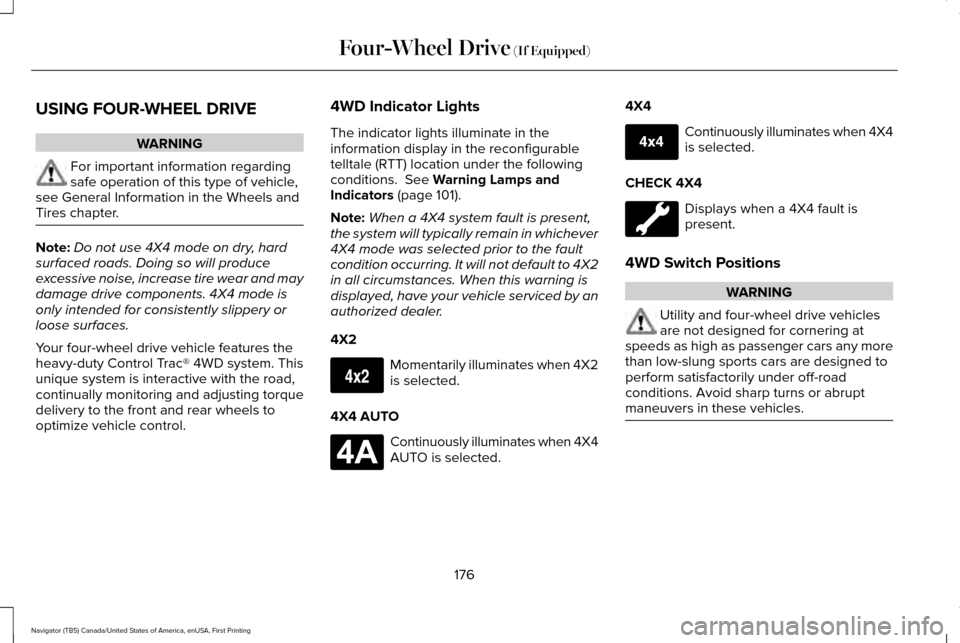
4X2 Momentarily illuminates when 4X2
is selected.
4X4 AUTO Continuously illuminates when 4X4
AUTO is selected.4X4 Continuously illuminates when 4X4
is selected.
CHECK 4X4 Displays when a 4X4 fault is
present.
4WD Switch Positions WARNING
Utility and four-wheel drive vehicles
are not designed for cornering at
speeds as high as passenger cars any more
than low-slung sports cars are designed to
perform satisfactorily under off-road
conditions. Avoid sharp turns or abrupt
maneuvers in these vehicles. 176
Navigator (TB5) Canada/United States of America, enUSA, First Printing Four-Wheel Drive
(If Equipped)E163173 E181781 E207351
Page 189 of 419

When the system is active, your vehicle will
remain stationary on the slope for two to
three seconds after you release the brake
pedal. This allows you time to move your foot
from the brake to the accelerator pedal. The
brakes release automatically when the
engine has sufficient torque to prevent your
vehicle from rolling down the grade. This is
an advantage when pulling away on a slope,
for example from a car park ramp, traffic
lights or when reversing uphill into a parking
space.
The system will activate automatically on any
slope that will cause significant vehicle
rollback. For vehicles with a manual
transmission, you can switch this feature off
using the information display. See
Information Displays (page 105). The system
will remain on or off depending on how it
was last set.
Note: There is no warning lamp to indicate
the system is either on or off.
Note: If your vehicle is equipped with Auto
Hold, Hill Start Assist will not be available
while Auto Hold is active. Using Hill Start Assist
1. Bring your vehicle to a complete
standstill. Keep the brake pedal pressed
and select an uphill gear (for example,
first (1) when facing uphill or reverse (R)
when facing downhill).
2. If the sensors detect that your vehicle is on a slope, the system will activate
automatically.
3. When you remove your foot from the brake pedal, your vehicle will remain on
the slope without rolling away for about
two or three seconds. This hold time will
automatically be extended if you are in
the process of driving off.
4. Drive off in the normal manner. The brakes will release automatically.
Switching the System On and Off
You can switch this feature on or off if your
vehicle is equipped with a manual
transmission and an information display. See
General Information (page 105). The system
remembers the last setting when you start
your vehicle. If your vehicle is not equipped with a manual
transmission and an information display, you
cannot turn the system on or off. When you
switch the ignition on, the system
automatically turns on.
186
Navigator (TB5) Canada/United States of America, enUSA, First Printing Brakes
Page 191 of 419

System Indicator Lights and Messages
The stability and traction control
light temporarily illuminates on
engine start-up and flashes when
a driving condition activates either of the
systems. The stability and traction control
off light temporarily illuminates on
engine start-up and stays on:
• When you switch the traction control
system off.
• If a problem occurs in either of the
systems.
188
Navigator (TB5) Canada/United States of America, enUSA, First Printing Traction ControlE138639
Page 202 of 419
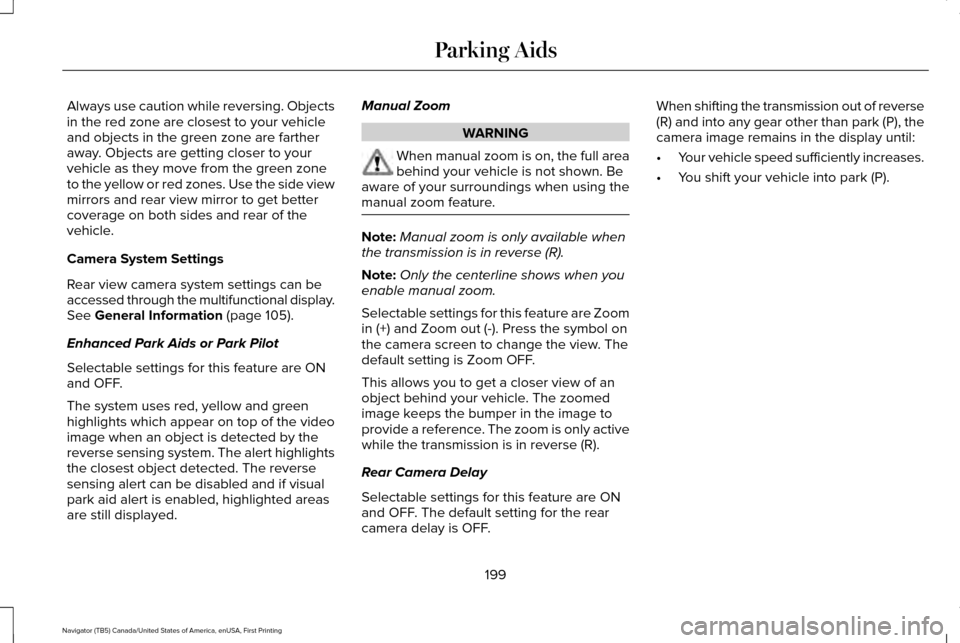
Always use caution while reversing. Objects
in the red zone are closest to your vehicle
and objects in the green zone are farther
away. Objects are getting closer to your
vehicle as they move from the green zone
to the yellow or red zones. Use the side view
mirrors and rear view mirror to get better
coverage on both sides and rear of the
vehicle.
Camera System Settings
Rear view camera system settings can be
accessed through the multifunctional display.
See General Information (page 105).
Enhanced Park Aids or Park Pilot
Selectable settings for this feature are ON
and OFF.
The system uses red, yellow and green
highlights which appear on top of the video
image when an object is detected by the
reverse sensing system. The alert highlights
the closest object detected. The reverse
sensing alert can be disabled and if visual
park aid alert is enabled, highlighted areas
are still displayed. Manual Zoom WARNING
When manual zoom is on, the full area
behind your vehicle is not shown. Be
aware of your surroundings when using the
manual zoom feature. Note:
Manual zoom is only available when
the transmission is in reverse (R).
Note: Only the centerline shows when you
enable manual zoom.
Selectable settings for this feature are Zoom
in (+) and Zoom out (-). Press the symbol on
the camera screen to change the view. The
default setting is Zoom OFF.
This allows you to get a closer view of an
object behind your vehicle. The zoomed
image keeps the bumper in the image to
provide a reference. The zoom is only active
while the transmission is in reverse (R).
Rear Camera Delay
Selectable settings for this feature are ON
and OFF. The default setting for the rear
camera delay is OFF. When shifting the transmission out of reverse
(R) and into any gear other than park (P), the
camera image remains in the display until:
•
Your vehicle speed sufficiently increases.
• You shift your vehicle into park (P).
199
Navigator (TB5) Canada/United States of America, enUSA, First Printing Parking Aids
Page 205 of 419

BLIND SPOT INFORMATION
SYSTEM
WARNING
To help avoid injuries, NEVER use the
Blind Spot Information System as a
replacement for using the interior and
exterior mirrors or looking over your shoulder
before changing lanes. The Blind Spot
Information System is not a replacement for
careful driving. The Blind Spot Information System is
designed to aid you in detecting vehicles
that may have entered the blind spot zone
(A). The detection area is on both sides of
your vehicle, extending rearward from the
exterior mirrors to approximately 13 ft (4 m)
beyond the bumper. The system is designed
to alert you if certain vehicles enter the blind
spot zone while driving.
Note: The Blind Spot Information System
does not prevent contact with other vehicles
or objects; nor detect parked vehicles,
people, animals or infrastructure (fences,
guardrails, trees). It’ s only designed to alert
you to vehicles in the blind spot zones.
Note: When a vehicle passes quickly through
the blind spot zone, typically fewer than two
seconds, the system does not trigger.
Using the System
The Blind Spot Information System turns on
when you start the engine and you drive your
vehicle forward above
5 mph (8 km/h). For automatic transmissions, the Blind Spot
Information System remains on while the
transmission is in drive (D). If shifted into
reverse (R) or park (P) the Blind Spot
Information System turns off. Once shifted
back into drive (D), the Blind Spot Information
System turns back on when you drive your
vehicle above
5 mph (8 km/h).
For manual transmissions, the Blind Spot
Information System is on for all gears except
the reverse (R).
Note: The Blind Spot Information System
does not function in reverse (R) or park (P).
System Lights and Messages 202
Navigator (TB5) Canada/United States of America, enUSA, First Printing Driving AidsA
A
E124788 E142442