Page 84 of 544
The steering column sets a stopping position
just short of the end of the column position
to prevent damage to the steering column.
A new stopping position sets if the steering
column encounters an object when tilting or
telescoping.
To reset the steering column to its normal
stopping position:
1. Press the steering column control againafter encountering the new stopping
position.
2. Continue pressing the control until it reaches the end of the column position.
A new stopping position is set. The next time
you tilt or telescope the steering column, it
will stop just short of the end of the column
position.
Memory Feature
You can save and recall the steering column
position with the memory function. See
Memory Function (page 145).
Note: Pressing the adjustment control during
memory recall cancels the operation. The
column responds to the adjustment control. Easy Entry and Exit Feature
When you switch the ignition off, the steering
column will move to the full up position to
allow extra room to exit your vehicle. The
column will return to the previous setting
when you switch the ignition on. You can
enable or disable this feature in the
information display. See Information
Displays (page 109).
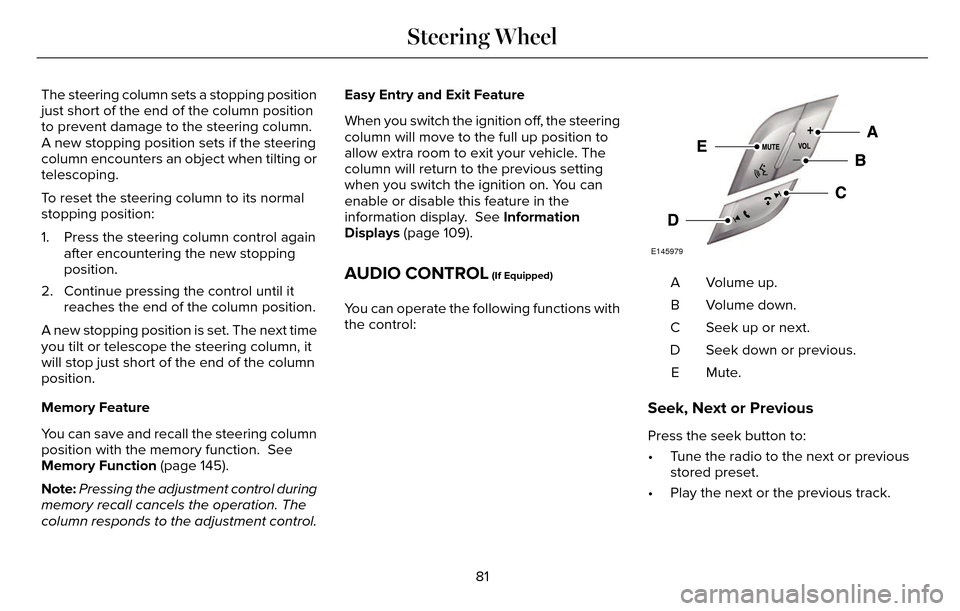
AUDIO CONTROL (If Equipped)
You can operate the following functions with
the control:
E145979
Volume up.
A
Volume down.
B
Seek up or next.
C
Seek down or previous.
D
Mute.E
Seek, Next or Previous
Press the seek button to:
• Tune the radio to the next or previousstored preset.
• Play the next or the previous track.
81
Steering Wheel
Page 85 of 544
Press and hold the seek button to:
• Tune the radio to the next station up ordown the frequency band.
• Seek through a track.
VOICE CONTROL (If Equipped)
E145980
Voice recognition.
A
End call.
B
Answer call.
C
See MyLincoln Touch™ (page 373).
CRUISE CONTROL
Type 1
E145976
Type 2
E145977
See Cruise Control (page 206).
INFORMATION DISPLAY CONTROL
E145981
See Information Displays (page 109).
Cluster Display Control Features
E145982
82
Steering Wheel
Page 86 of 544
Use this control to access some of the
MyLincoln Touch features in the information
display. Navigate through the screen and
press OK to select. See MyLincoln Touch™
(page 373).
HEATED STEERING WHEEL (If Equipped)
See MyLincoln Touch™ (page 373).83
Steering Wheel
Page 94 of 544

Once the system is active, the high beams
will switch on if:
• the ambient light level is low enough
• there is no traffic in front of the vehicle
• the vehicle speed is greater thanapproximately 32 mph (52 km/h).
The high beams will switch off if:
• the system detects the headlamps of an approaching vehicle or the tail lamps of
a preceding vehicle.
• vehicle speed falls below approximately 27 mph (44 km/h)
• the ambient light level is high enough that high beams are not required
• the system detects severe rain, snow or fog
• the camera is blocked.
Activating the System
Switch on the system using the information
display and autolamps. See Information
Displays (page 109). See Autolamps (page
87).
E142451
Switch the lighting control to the autolamps
position.
Manually Overriding the System
E169254
When the automatic control has activated
the high beams, pushing or pulling the stalk
will provide a temporary override to low
beam.
Use the information display menu to
permanently deactivate the system, or turn
the lighting control switch from autolamps to
headlamps.
ADAPTIVE HEADLAMPS
The headlamp beams move in the same
direction as the steering wheel. This provides
more visibility when driving around curves.
A. Without adaptive headlamps
B. With adaptive headlamps
91
Lighting
Page 112 of 544

GENERAL INFORMATION
WARNING
Driving while distracted can result in
loss of vehicle control, crash and injury.
We strongly recommend that you use
extreme caution when using any device that
may take your focus off the road. Your
primary responsibility is the safe operation
of your vehicle. We recommend against the
use of any hand-held device while driving
and encourage the use of voice-operated
systems when possible. Make sure you are
aware of all applicable local laws that may
affect the use of electronic devices while
driving.
Various systems on your vehicle can be
controlled using the information display
controls on the steering wheel.
Corresponding information is displayed in
the information display.
Information Display Controls
E152750
• Press the up and down arrow buttons to scroll through and highlight the options
within a menu.
• Press the right arrow button to enter a sub-menu.
• Press the left arrow button to exit a menu. • Press and hold the left arrow button at
any time to return to the main menu
display (escape button).
• Press the OK button to choose and confirm settings or messages.
Main menu
From the main menu bar on the left side of
the information display, you can choose from
the following categories:
• Trip 1 & 2
• Fuel Economy
• Driver Assist
• Settings
Scroll up or down to highlight one of the
categories and then press the right arrow
key or OK to enter into that category. Press
the left arrow key as needed to exit back to
the main menu.
Trip 1 & 2
Press and hold OK to reset the currently
displayed trip information.
109
Information Displays
Page 116 of 544
Settings
Traffic Setup
Auto Highbeam - check enabled or uncheck disabled Select time interval
Autolamp Delay
Daytime Lights - check enabled or uncheck disabled
Welcome Lighting - check enabled or uncheck disabled
Autolock - check enabled or uncheck disabled
Locks
Autounlock - check enabled or uncheck disabled
Mislock - check enabled or uncheck disabled
All doors or Driver door
Remote Unlocking
Switches Inhibit - check enabled or uncheck disabled
Hold OK to Initialize
Neutral Towing
Remaining Life XXX% - Hold OK to Reset
Oil Life
Enabled switch or Disabled switch
Power Decklid
Auto or Last Settings
Climate Control
Remote Start
Auto Heated or Off
Front Seats & Wheel or Front
Seats
113
Information Displays
Page 121 of 544
Alarm
Action
Message
Displays when the alarm has been triggered due to unauthorized entry. See Anti-Theft Alarm
(page 78).
Vehicle Alarm to Stop Alarm, Start Vehicle
Automatic Engine Shutdown
Action
Message
Displays when the engine is getting ready to shut off.
Engine Shuts Off in XX Seconds
Displays when the engine has shut off to help increase fuel economy.
Engine Shut Off for Fuel Economy
Displays when the engine is getting ready to shut off. You can press OK on the left steeringwheel button to override the shut down.
Engine Shuts Off in XX Seconds Press Ok
to Override
118
Information Displays
Page 127 of 544

Action
Message
Displayed during spare key programming when the maximum number of keys h\
ave been
programmed.
Max Number of Keys Learned
Displayed during spare key programming when not enough keys have been pr\
ogrammed.
Not Enough Keys Learned
Displays when the key battery is low. Change the battery as soon as possible.
Key Battery Low Replace Soon
Displayed when an attempt is made to program a spare key using two exist\
ing MyKeys.
Could Not Program Integrated Key
Displays to inform the driver that they are exiting the vehicle and the \
engine is on.
Engine On
Lane Keeping System
Action
Message
The system has malfunctioned. Contact your authorized dealer as soon as \
possible.
Lane Keeping Sys. Malfunction Service
Required
The system has detected a condition that has caused the system to be tem\
porarily unavailable.
Front Camera Temporarily Not Available
The system has detected a condition that requires the windshield to be c\
leaned to operateproperly.
Front Camera Low Visibility Clean Screen
The system has malfunctioned. Contact your authorized dealer as soon as \
possible.
Front Camera Malfunction Service
Required
Displayed when the system requests the driver to keep their hands on the\
steering wheel.
Keep Hands on Steering Wheel
124
Information Displays


