2016 LINCOLN MKC change wheel
[x] Cancel search: change wheelPage 204 of 432

Note:
Whenever the battery is disconnected
or a new battery installed, you need to drive
your vehicle a short distance and your speed
must exceed 12 mph (20 km/h) so the system
can recalibrate the steering angle data in
order to reactivate active guidelines. Active guidelines
A
Centerline
B
Fixed guideline: Green zone
C Fixed guideline: Yellow zone
D
Fixed guideline: Red zone
E
Rear bumper
F
Active guidelines are only shown with fixed
guidelines. To use active guidelines, turn the
steering wheel to point the guidelines toward
an intended path. If you change the steering
wheel position while reversing, your vehicle
might deviate from the original intended
path.
The fixed and active guidelines fade in and
out depending on the steering wheel
position. The active guidelines do not display
when the steering wheel position is straight.
Always use caution while reversing. Objects
in the red zone are closest to your vehicle
and objects in the green zone are farther
away. Objects are getting closer to your
vehicle as they move from the green zone
to the yellow or red zones. Use the side view
mirrors and rear view mirror to get better
coverage on both sides and rear of the
vehicle.
201
MKC (TME), enUSA, First Printing Parking AidsABCD
F
E
E142436
Page 206 of 432

PRINCIPLE OF OPERATION
Cruise control lets you maintain a set speed
without keeping your foot on the accelerator
pedal. You can use cruise control when your
vehicle speed is greater than 20 mph
(30 km/h).
USING CRUISE CONTROL WARNINGS
Do not use cruise control on winding
roads, in heavy traffic or when the road
surface is slippery. This could result in loss
of vehicle control, serious injury or death. When you are going downhill, your
vehicle speed may increase above the
set speed. The system will not apply the
brakes but a warning displays. Note:
Cruise control will disengage if the
vehicle speed decreases more than 10 mph
(16 km/h)
below the set speed while driving
uphill. The cruise controls are on the steering
wheel.
Switching Cruise Control On
Press and release
ON.
The indicator appears in the
instrument cluster.
Setting a Speed
1. Drive to desired speed.
2. Press and release
SET+.
3. Take your foot off the accelerator pedal. The indicator changes color in the instrument
cluster.
Changing the Set Speed
Note:
If you accelerate by pressing the
accelerator pedal, the set speed will not
change. When you release the accelerator
pedal, your vehicle returns to the speed that
you previously set.
• Press the accelerator or brake pedal until
you reach the desired speed. Press and
release
SET+.
• Press and hold
SET+ or SET-. Release
the control when you reach the desired
speed.
• Press and release
SET+ or SET-. When
you select kph as the display
measurement in the information display,
the set speed changes in approximately
2 kph increments. When you select mph
as the display measurement in the
information display, the set speed
changes in approximately 1 mph
increments.
203
MKC (TME), enUSA, First Printing Cruise ControlE145976 E71340
Page 217 of 432

The current assessment of your alertness is
within a typical range.
The current assessment of your alertness
indicates that you should rest as soon as
safely possible.
The status bar will travel from left to right as
the calculated alertness level decreases. As
the rest icon is approached the color turns
from green to yellow to red. The yellow
position indicates the first warning is active
and the red position indicates the second
warning is active.
Note:
If you have recently received a
warning; you should consider resting, even
if the current assessment is with the typical
range. Note:
If the camera sensor cannot track the
road lane markings or if your vehicle speed
drops below approximately 40 mph (64
km/h), the alertness level will change to grey
for a short time and the information display
will inform you that the system is unavailable.
Resetting the System
You can reset the system by either:
• Switching the ignition off and on.
• Stopping the vehicle and then opening
and closing the driver’ s door.
LANE KEEPING SYSTEM (If Equipped) WARNING
The system is designed to aid the
driver. It is not intended to replace the
driver’ s attention and judgment. The driver
is still responsible to drive with due care and
attention. Note:
The system works above 40 mph (64
km/h). Note:
The system works as long as the
camera can detect one lane marking.
Note: The system may not function if the
camera is blocked or there is damage to the
windshield.
Note: When Aid mode is on and the system
detects no steering activity for a short period,
the system will alert you to put your hands
on the steering wheel. The system may
detect a light grip or touch on the steering
wheel as hands off driving.
The system detects unintentional drifting
toward the outside of the lane and alerts or
aids you to stay in the lane through the
steering system and instrument cluster
display. The system automatically detects
and tracks the road lane markings using a
camera mounted behind the interior rear
view mirror.
Switching the System On and Off
Note: The system on or off setting is stored
until it is manually changed, unless a MyKey®
is detected. If the system detects a MyKey®,
it defaults to on and the mode is set to alert.
214
MKC (TME), enUSA, First Printing Driving AidsE131359
Page 218 of 432

Note:
If a MyKey® is detected, pressing the
button will not affect the on or off status of
the system. You can only change the mode
and intensity settings. Press the button located on the left
steering wheel stalk to switch the
system on or off.
System Settings
The system has two optional setting menus
available. To view or adjust them, select
Settings > Driver Assist > Lane Keeping Sys
in the information display using the OK
button on the steering wheel. The system
stores the last known selection for each of
these settings. You do not need to readjust
your settings each time you turn on the
system.
Mode: This setting allows you to select which
of the system features to enable. Alert only – Provides a steering wheel
vibration when the system detects an
unintended lane departure. Aid only – Provides an assistance steering
torque input toward the lane center when
the system detects an unintended lane
departure.
AlertA
AidB
Alert + Aid – Provides an assistance steering
torque input toward the lane center. If your
vehicle continues drifting out of the lane, the
system will provide a steering wheel
vibration.
215
MKC (TME), enUSA, First Printing Driving AidsE144813 E165515 E165516 E165517
Page 219 of 432
Note:
The alert and aid diagrams illustrate
general zone coverage. They do not indicate
the exact zone coverage area.
Intensity: This setting affects the intensity of
the steering wheel vibration used for the alert
and alert + aid modes. This setting is not valid
for the aid mode.
• Low
• Medium
• High
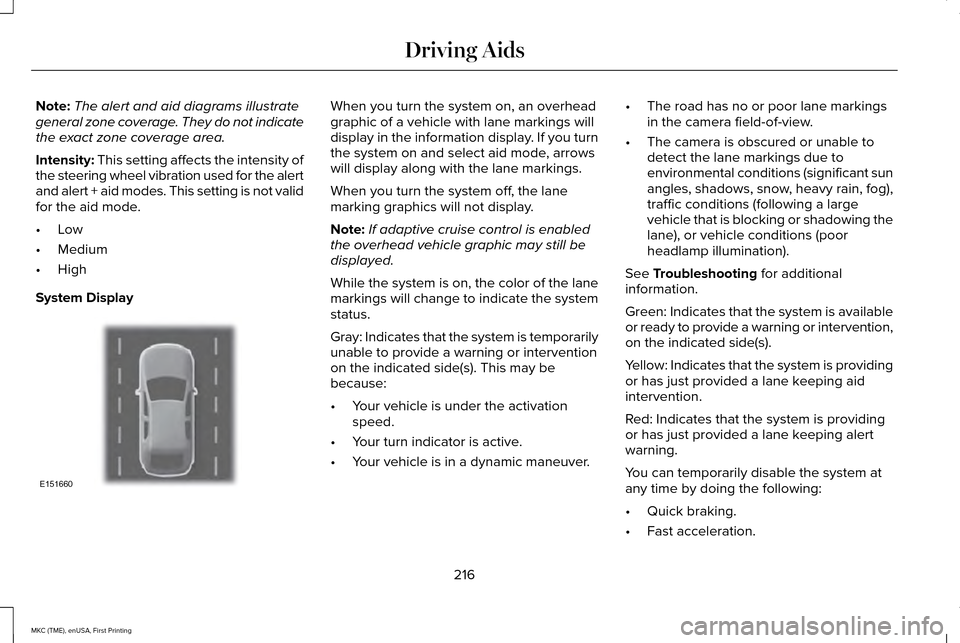
System Display When you turn the system on, an overhead
graphic of a vehicle with lane markings will
display in the information display. If you turn
the system on and select aid mode, arrows
will display along with the lane markings.
When you turn the system off, the lane
marking graphics will not display.
Note:
If adaptive cruise control is enabled
the overhead vehicle graphic may still be
displayed.
While the system is on, the color of the lane
markings will change to indicate the system
status.
Gray: Indicates that the system is temporarily
unable to provide a warning or intervention
on the indicated side(s). This may be
because:
• Your vehicle is under the activation
speed.
• Your turn indicator is active.
• Your vehicle is in a dynamic maneuver. •
The road has no or poor lane markings
in the camera field-of-view.
• The camera is obscured or unable to
detect the lane markings due to
environmental conditions (significant sun
angles, shadows, snow, heavy rain, fog),
traffic conditions (following a large
vehicle that is blocking or shadowing the
lane), or vehicle conditions (poor
headlamp illumination).
See
Troubleshooting for additional
information.
Green: Indicates that the system is available
or ready to provide a warning or intervention,
on the indicated side(s).
Yellow: Indicates that the system is providing
or has just provided a lane keeping aid
intervention.
Red: Indicates that the system is providing
or has just provided a lane keeping alert
warning.
You can temporarily disable the system at
any time by doing the following:
• Quick braking.
• Fast acceleration.
216
MKC (TME), enUSA, First Printing Driving AidsE151660
Page 232 of 432

DRIVE CONTROL (If Equipped)
LINCOLN DRIVE CONTROL
Lincoln Drive Control delivers the Lincoln
driving experience through a suite of
sophisticated electronic vehicle systems.
These systems continuously monitor your
driving inputs and the road conditions to
optimize ride comfort, steering, handling,
powertrain response and sound. You can
preset your preferences for these systems
within the information display. Lincoln Drive
Control will respond to your preferences
based on what gear position you select. This
provides a single location to control multiple
systems performance settings. Lincoln Drive Control consists of the
following systems:
•
Continuously controlled damping
dynamically adjusts the shock absorbers
stiffness in real time to match the road
surface and driver inputs. This system
continuously monitors your vehicle ’s
motion (roll, pitch, bounce), suspension
position, load, speed, road conditions,
and steering to adjust the suspension
damping for optimal vehicle control.
• Electronically power-assisted steering
adjusts steering effort and feel based on
your vehicle speed and your inputs.
• Adaptive steering optimizes your
vehicle's steering response based on
your steering wheel input, changes in
vehicle speed and other conditions.
• Active noise control utilizes your vehicle
electronics to enhance the acoustic
experience. •
Electronic stability control and traction
control maintain your vehicle control in
adverse conditions or high performance
driving.
• Electronic throttle control enhances the
powertrain response to your inputs.
Using Lincoln Drive Control
You can configure which of the Drive Control
modes are active when your vehicle is in
drive (D) or in Sport (S). The configuration
remains active until modified from the main
menu on the information display.
229
MKC (TME), enUSA, First Printing Driving Aids
Page 249 of 432

•
Shift to a lower gear when driving down
a long or steep hill. Do not apply the
brakes continuously, as they may
overheat and become less effective.
• If your transmission is equipped with a
Grade Assist or Tow/Haul feature, use
this feature when towing. This provides
engine braking and helps eliminate
excessive transmission shifting for
optimum fuel economy and transmission
cooling.
• Allow more distance for stopping with a
trailer attached. Anticipate stops and
brake gradually.
• Avoid parking on a grade. However, if
you must park on a grade:
1. Turn the steering wheel to point your vehicle tires away from traffic flow.
2. Set your vehicle parking brake.
3. Place the automatic transmission in position P.
4. Place wheel chocks in front and back of the trailer wheels. (Chocks not included
with vehicle.) Launching or Retrieving a Boat or
Personal Watercraft (PWC)
Note:
Disconnect the wiring to the trailer
before
backing the trailer into the water.
Note: Reconnect the wiring to the trailer
after
removing the trailer from the water.
When backing down a ramp during boat
launching or retrieval:
• Do not allow the static water level to rise
above the bottom edge of the rear
bumper.
• Do not allow waves to break higher than
6 inches (15 centimeters) above the
bottom edge of the rear bumper.
Exceeding these limits may allow water to
enter vehicle components:
• Causing internal damage to the
components.
• Affecting driveability, emissions, and
reliability. Replace the rear axle lubricant anytime the
rear axle has been submerged in water.
Water may have contaminated the rear axle
lubricant, which is not normally checked or
changed unless a leak is suspected or other
axle repair is required.
246
MKC (TME), enUSA, First Printing Towing
Page 252 of 432

BREAKING-IN
You need to break in new tires for
approximately 300 miles (480 kilometers).
During this time, your vehicle may exhibit
some unusual driving characteristics.
Avoid driving too fast during the first 1000
miles (1600 kilometers). Vary your speed
frequently and change up through the gears
early. Do not labor the engine.
Do not tow during the first 1000 miles (1600
kilometers).
ECONOMICAL DRIVING
Your fuel economy is affected by several
things, such as how you drive, the conditions
you drive under, and how you maintain your
vehicle.
You may improve your fuel economy by
keeping these things in mind:
•
Accelerate and slow down in a smooth,
moderate fashion.
• Drive at steady speeds without stopping. •
Anticipate stops; slowing down may
eliminate the need to stop.
• Combine errands and minimize
stop-and-go driving.
• Close the windows for high-speed
driving.
• Drive at reasonable speeds (traveling at
55 mph [88 km/h] uses 15% less fuel than
traveling at 65 mph [105 km/h]).
• Keep the tires properly inflated and use
only the recommended size.
• Use the recommended engine oil.
• Perform all regularly scheduled
maintenance.
Avoid these actions; they reduce your fuel
economy:
• Sudden accelerations or hard
accelerations.
• Revving the engine before turning it off.
• Idle for periods longer than one minute.
• Warm up your vehicle on cold mornings.
• Use the air conditioner or front defroster.
• Use the speed control in hilly terrain. •
Rest your foot on the brake pedal while
driving.
• Drive a heavily loaded vehicle or tow a
trailer.
• Carry unnecessary weight (approximately
1 mpg [0.4 km/L] is lost for every 400 lb
[180 kilogram] of weight carried).
• Driving with the wheels out of alignment.
Conditions
• Heavily loading a vehicle or towing a
trailer may reduce fuel economy at any
speed.
• Adding certain accessories to your
vehicle (for example bug deflectors,
rollbars, light bars, running boards, ski
racks or luggage racks) may reduce fuel
economy.
• To maximize the fuel economy, drive with
the tonneau cover installed (if equipped).
• Using fuel blended with alcohol may
lower fuel economy.
• Fuel economy may decrease with lower
temperatures during the first 8–10 miles
(12–16 kilometers) of driving.
249
MKC (TME), enUSA, First Printing Driving Hints