Page 397 of 680
3975-9. Bluetooth® Phone
5
Lexus Display Audio system
NX300h_OM_USA_OM78082U
Receiving a call
Press the off-hook switch on the steer-
ing wheel or select .
Press the on-hook switch on the steering wheel or select .
■International calls
Depending on the cellular phone in use, received international calls may not be dis-
played correctly.
When a call is received, the following screen is displayed together with a
sound.
To answer the phone
To refuse a call
Page 399 of 680

3995-9. Bluetooth® Phone
5
Lexus Display Audio system
NX300h_OM_USA_OM78082U
Phone number containing a “w” symbol
When the “w” symbol is dialed in an outgoing call, you need to go to the
“Release Tones” screen to dial the following digits. Move the controller to the
left and then select “Release Tones”.
Select “Handset Mode” to change from a hands-free call to a cellular phone call
or vice versa.
Press the on-hook switch on the steering wheel or select .
When a call is interrupted by a third party while talking, an incoming call mes-
sage will be displayed.
To talk with the other party:
Press the off-hook switch on the steer-
ing wheel or select .
To refuse the call:
Press the on-hook switch on the steer-
ing wheel or select .
Every time you press the off-hook switch on the steering wheel or select during
call waiting, you will be switched to the other party.
■Transferring calls
●It is not possible to transfer from hand s-free to the cellular phone while driving.
●If you transfer from the cellular phone to ha nds-free, the hands-free screen will be dis-
played, and you can operate the system using the screen.
●Transfer method and operation may vary according to the cellular phone used.
●For operation of the cellular phone in use, see the phone’s manual.
■Call waiting operation
Call waiting operation may differ depend ing on your phone company and cellular
phone.
To transfer a call
To hang up
Call waiting
Page 401 of 680

4015-9. Bluetooth® Phone
5
Lexus Display Audio system
NX300h_OM_USA_OM78082U
Move the controller to the left while on the message screen.
Select “Quick Message” to display the “Quick Message” screen.
Select the desired message and then select “Send”.
■Editing a quick messageMove the controller to the left while on the message screen.
Select “Quick Message” and move the cursor to the desired message.
Move the controller to the left and select “Edit”.
To return to the default message after editing, select “Default”.
This function is available when the “E-mail Notification Popup” or “SMS/MMS
Notification Popup” are set to on. ( P. 4 0 8 )
“Incoming E-mail Display” or “Inco ming SMS/MMS Display” are set to
“Drop-Down”
When E-mail/ SMS/MMS are received, the incoming message is displayed
on the upper side of the screen with a sound.
“Incoming E-mail Display” or “Incoming SMS/MMS Display” are set to “Full
Screen”
When E-mail/ SMS/MMS are received, th e incoming message screen is dis-
played with a sound and it can be operated on the screen.
Check the message.
Refuse to check the message.
Call to receive the message
sender’s phone number.
Replying to a message
Receiving a message popup function
1
2
3
1
2
3
1
2
3
Page 403 of 680
4035-9. Bluetooth® Phone
5
Lexus Display Audio system
NX300h_OM_USA_OM78082U
Bluetooth® phone settings
Go to “Phone/Message Settings”: “MENU” button “Setup” “Phone”
Register and connect a Bluetooth
®
device. ( P. 3 8 4 )
Adjust the call volume and message
readout volume. ( P. 4 0 3 )
Change the contact/call history set-
tings. ( P. 4 0 5 )
Change messaging settings.
( P. 4 0 8 )
Change phone display settings. ( P. 4 0 4 )
Go to “Sound Settings”: “MENU” button “Setup” “Phone” “Sound
Settings”
Change the ring tone type
Adjust the ring tone volume
Adjust the message readout volume
Change the incoming SMS/MMS
tone type
Adjust the incoming SMS/MMS
tone volume
Change the incoming e-mail tone
type
Adjust the incoming e-mail tone vol-
ume
Adjust in call tone volume
You can adjust the hands-free system to your desired settings.
“Phone/Message Settings” screen
1
2
3
4
Sound settings
5
1
2
3
4
5
6
7
8
Page 405 of 680

4055-10. Phonebook
5
Lexus Display Audio system
NX300h_OM_USA_OM78082U
Contact settings
Go to “Contact/Call History Settings”: “MENU” button “Setup” “Phone”
“Contact/Call History Settings”
Select to set the automatic phone-
book download on/off
With this setting on , phonebook data will
be automatically transferred.
Depending on the ce llular phone, call
history will be also transferred.
Update contacts
Change the sort contacts mode
Add a favorite ( P. 4 0 6 )
Delete a favorite ( P. 4 0 7 )
Select to set the display of contact
images on/off
Delete call history. (PBAP incom-
patible Bluetooth
® phones, or com-
patible phones with “Automatic
Tr a n s f e r ” o f f )
Add a new contact (PBAP incompatible Bluetooth
® phones, or compatible
phones with “Automatic Transfer” off)
Input the name, phone number and phon e number type to add a new contact.
Edit a contact (PBAP incompatible Bluetooth® phones, or compatible
phones with “Automatic Transfer” off)
Select the desired contact to edit.
Delete contacts ( P. 407) (PBAP incompatible Bluetooth® phones, or com-
patible phones with “Automatic Transfer” off)
■Return to the default settings
Move the controller to the left and select “Default”.
Individual phonebooks from up to 5 ph ones can be registered to the system.
The data for 2500 contacts (up to 4 nu mbers per contact) can be registered
into the system’s phonebook.
“Contact/Call History Settings” screen
1
2
3
4
5
6
7
8
9
10
Page 407 of 680
4075-10. Phonebook
5
Lexus Display Audio system
NX300h_OM_USA_OM78082U
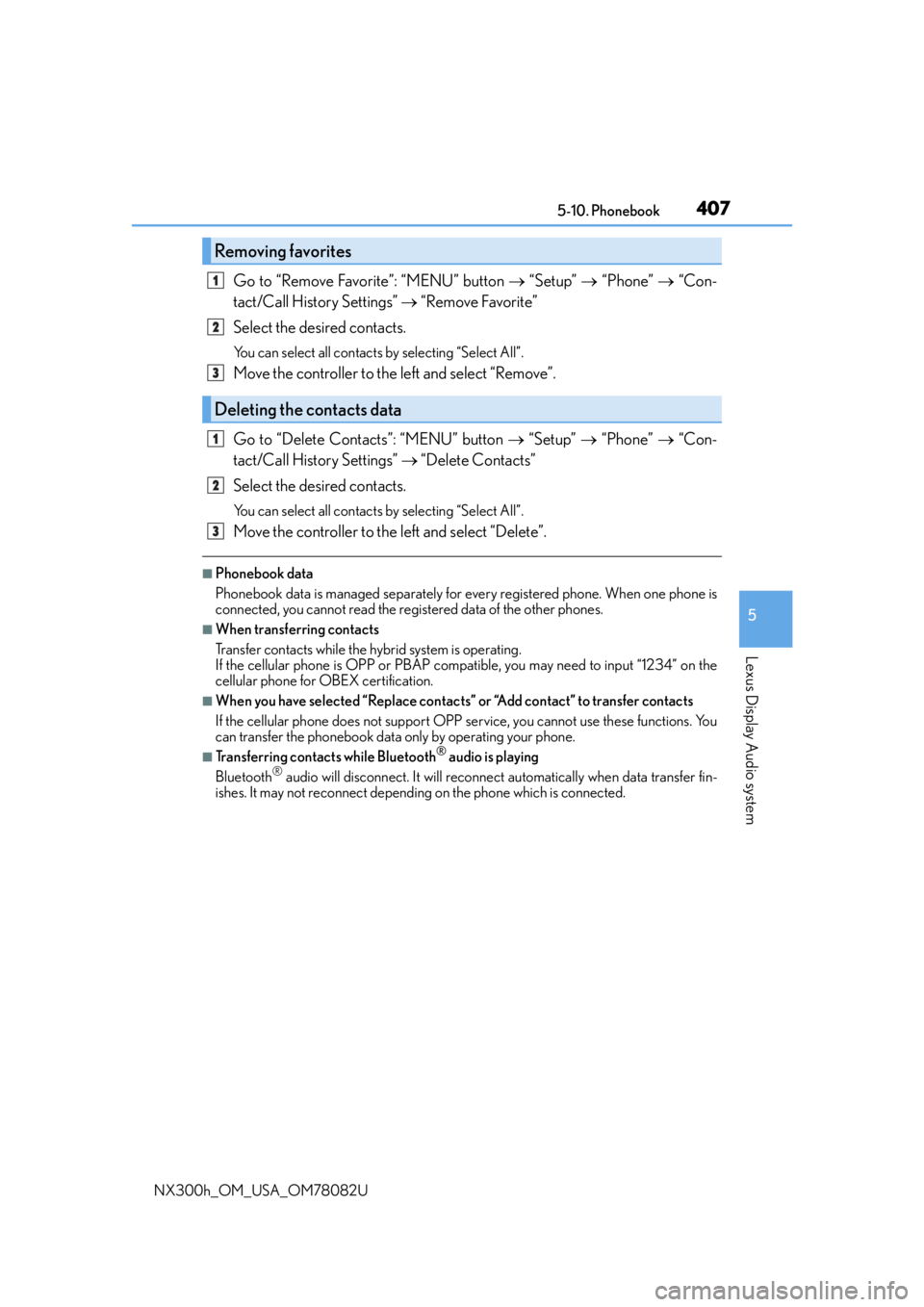
Go to “Remove Favorite”: “MENU” button “Setup” “Phone” “Con-
tact/Call History Settings” “Remove Favorite”
Select the desired contacts.
You can select all contacts by selecting “Select All”.
Move the controller to the left and select “Remove”.
Go to “Delete Contacts”: “MENU” button “Setup” “Phone” “Con-
tact/Call History Settings” “Delete Contacts”
Select the desired contacts.
You can select all contacts by selecting “Select All”.
Move the controller to the left and select “Delete”.
■Phonebook data
Phonebook data is managed separately for every registered phone. When one phone is
connected, you cannot read the registered data of the other phones.
■When transferring contacts
Transfer contacts while the hy brid system is operating.
If the cellular phone is OPP or PBAP compatible, you may need to input “1234” on the
cellular phone for OBEX certification.
■When you have selected “Replace contacts ” or “Add contact” to transfer contacts
If the cellular phone does not support OPP service, you cannot use these functions. You
can transfer the phonebook data only by operating your phone.
■Transferring contacts while Bluetooth® audio is playing
Bluetooth® audio will disconnect. It will reconnect automatically when data transfer fin-
ishes. It may not reconnect dependin g on the phone which is connected.
Removing favorites
Deleting the contacts data
1
2
3
1
2
3
Page 409 of 680
4095-11. Bluetooth®
5
Lexus Display Audio system
NX300h_OM_USA_OM78082U
What to do if... (Troubleshooting)
If there is a problem with the hands-free system or a Bluetooth® device, first
check the table below.
When using the hands-free system with a Bluetooth® device
The hands-free system or Bluetooth® device does not work.
The connected device may not be a compatible Bluetooth® cellular phone.
For a list of specific devices which operat ion has been confirmed on this system,
check with your Lexus dealer or the following website:
http://www.lexus.com/MobileLink
The Bluetooth® version of the connected cellular phone may be older than the speci-
fied version.
Use a cellular phone with Bluetooth
® version 2.0 or higher (recommended: Ver.
3.0 with EDR or higher). ( P. 4 1 5 )
Page 411 of 680

4115-11. Bluetooth®
5
Lexus Display Audio system
NX300h_OM_USA_OM78082U
When using the phonebook
When using the Bluetooth® message function
Phonebook data cannot be transferred manually/automatically.
The profile version of the connected cellular phone may not be compatible with trans-
ferring phonebook data.
For a list of specific devices which operat ion has been confirmed on this system,
check with your Lexus dealer or the following website:
http://www.lexus.com/MobileLink
Automatic phonebook transfer function on this system is set to off.
Set automatic phonebook transfer fu nction on this system to on. (P. 4 0 5 )
Passcode has not been entered on the cellular phone.
Enter the passcode on the cellular phon e if requested (default passcode: 1234).
Transfer operation on the cellular phone has not completed.
Complete transfer operation on the cell ular phone (approve transfer operation
on the phone).
Phonebook data cannot be edited.
Automatic phonebook transfer function on this system is set to on.
Set automatic phonebook transfer func tion on this system to off. (P. 4 0 5 )
Messages cannot be viewed.
Message transfer is not enabled on the cellular phone.
Enable message transfer on the cellular phone (approve message transfer on the
phone).
Automatic transfer function on this system is set to off.
Set automatic transfer function on this system to on. ( P. 4 0 5 )
New message notifications are not displayed.
Notification of SMS/MMS/E-mail reception on this system is set to off.
Set notification of SMS/MMS/E-mail re ception on this system to on. (P. 4 0 8 )
Automatic message transfer function is not enabled on the cellular phone.
Enable automatic transfer function on the cellular phone.


