Page 333 of 632
LX570_OM_OM60N01U_(U)
3334-5. Using the driving support systems
4
Driving
■Rear view & dual side view/wide rear view
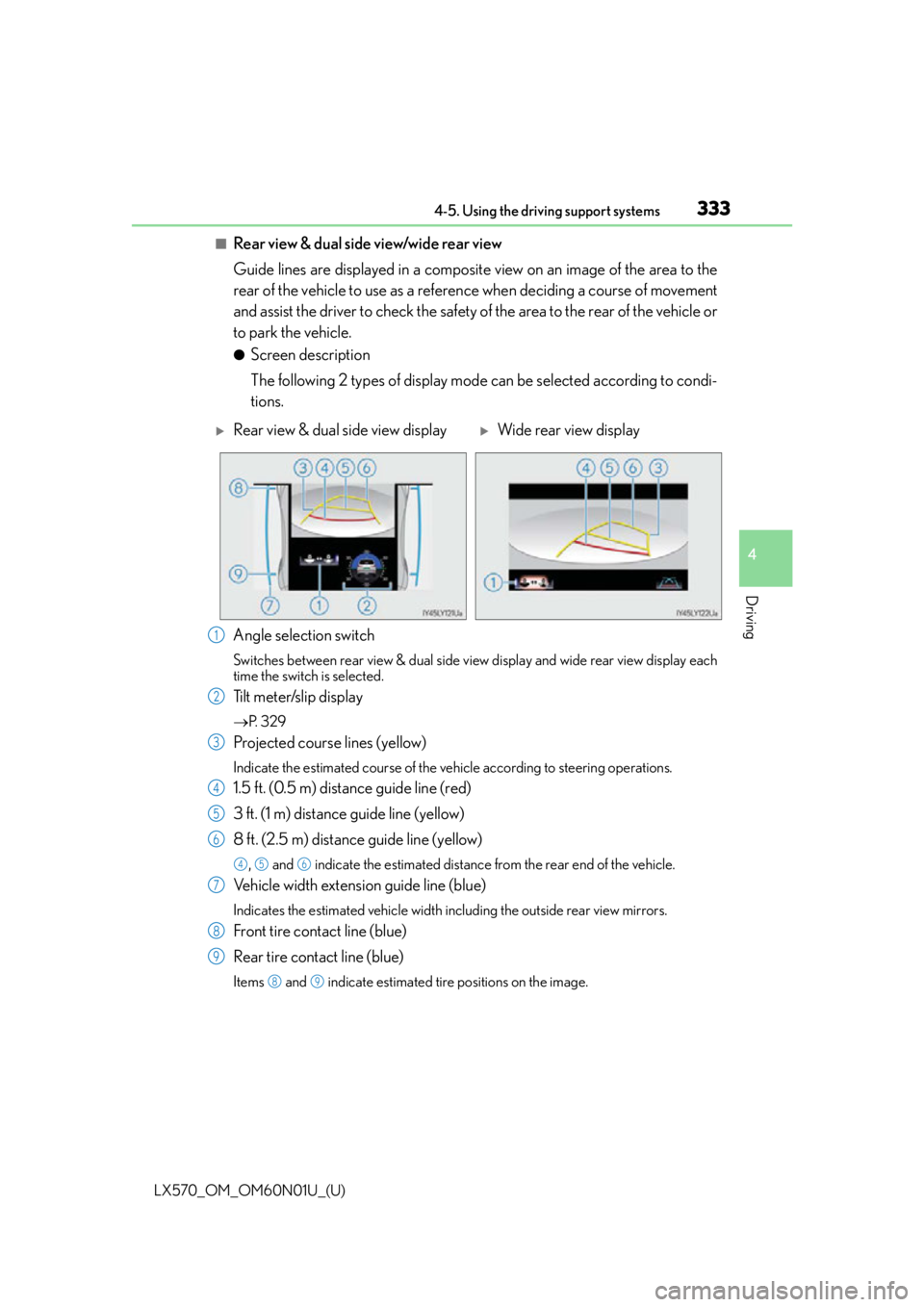
Guide lines are displayed in a composite view on an image of the area to the
rear of the vehicle to use as a reference when deciding a course of movement
and assist the driver to check the safety of the area to the rear of the vehicle or
to park the vehicle.
●Screen description
The following 2 types of display mode can be selected according to condi-
tions.
Angle selection switch
Switches between rear view & dual side vi ew display and wide rear view display each
time the switch is selected.
Tilt meter/slip display
P. 3 2 9
Projected course lines (yellow)
Indicate the estimated course of the vehicle according to steering operations.
1.5 ft. (0.5 m) distance guide line (red)
3 ft. (1 m) distance guide line (yellow)
8 ft. (2.5 m) distance guide line (yellow)
, and indicate the estimated distance from the rear end of the vehicle.
Vehicle width extension guide line (blue)
Indicates the estimated vehicle width including the outside rear view mirrors.
Front tire contact line (blue)
Rear tire contact line (blue)
Items and indicate estimated tire positions on the image.
Rear view & dual side view displayWide rear view display
1
2
3
4
5
6
456
7
8
9
89
Page 340 of 632
340
LX570_OM_OM60N01U_(U)4-5. Using the driving support systems
■Panoramic view & rear view/wide rear view
• Panoramic view & rear view:
The image looking down at the vehicle from above and the image from the
rear camera are displayed simultaneously and assist the driver to check the
safety of the area when parking.
• Wide rear view:
The image from the rear camera is displayed in a range of approximately
180 and assists the driver to check the safety of the area when backing up.
●Screen description
Guide line selection switch
P. 3 3 6
Angle mode selection switch
Switches between the panoramic view & rear view and wide rear view display each
time the switch is selected.
Panoramic view & rear view
Rear view
Switches the screen to wide rear vi ew display when you touch the display.
Wide rear view
Switches the screen to the panoramic & rear view display when the display is touched.
Panoramic view & rear viewWide rear view
1
2
3
4
5
Page 341 of 632

LX570_OM_OM60N01U_(U)
3414-5. Using the driving support systems
4
Driving
●Switching modes
The display mode switches and the icon display changes each time the
guide line display selection switch is selected.• Projected course line display mode: Projected course lines that change according to steering wheel opera-
tions are displayed.
• Parking assist guide line display mode: Inverted steering wheel operations (p arking assist guide line) are dis-
played. Use this mode if you are used to how the vehicle handles (if you
can park without needing the course line display).
• Distance guide line display mode: Only distance guide lines are displa yed. Use this mode when guide lines
are not needed.
●Guide lines
The panoramic view & rear view screen is explained here as an example.
Selected modeProjected course
line display modeParking assist guide line display modeDistance guide line display mode
Icon display
Projected course line display modeParking assist guide line display
mode
Page 342 of 632
342
LX570_OM_OM60N01U_(U)4-5. Using the driving support systems
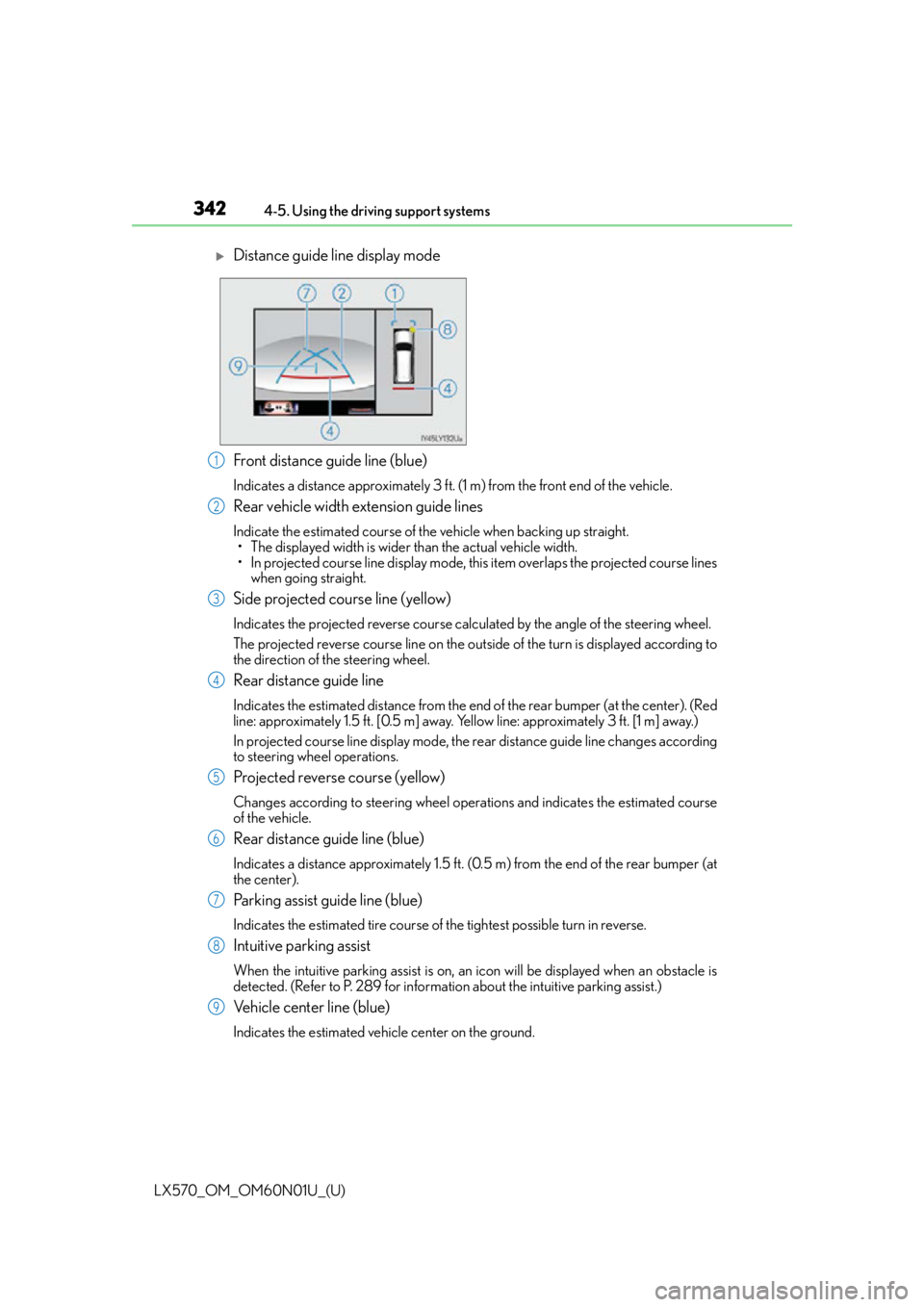
Front distance guide line (blue)
Indicates a distance approximately 3 ft. (1 m) from the front end of the vehicle.
Rear vehicle width extension guide lines
Indicate the estimated course of the vehicle when backing up straight.
• The displayed width is wider than the actual vehicle width.
• In projected course line display mode, this item overlaps the projected course lines
when going straight.
Side projected course line (yellow)
Indicates the projected reverse course calculated by the angle of the steering wheel.
The projected reverse course line on the outs ide of the turn is displayed according to
the direction of the steering wheel.
Rear distance guide line
Indicates the estimated distance from the end of the rear bumper (at the center). (Red
line: approximately 1.5 ft. [0.5 m] away. Yellow line: approximately 3 ft. [1 m] away.)
In projected course line display mode, the re ar distance guide line changes according
to steering wheel operations.
Projected reverse course (yellow)
Changes according to steering wheel operations and indicates the estimated course
of the vehicle.
Rear distance guide line (blue)
Indicates a distance approximately 1.5 ft. (0.5 m) from the end of the rear bumper (at
the center).
Parking assist guide line (blue)
Indicates the estimated tire course of the tightest possible turn in reverse.
Intuitive parking assist
When the intuitive parking assist is on, an icon will be displayed when an obstacle is
detected. (Refer to P. 289 for informat ion about the intuitive parking assist.)
Vehicle center line (blue)
Indicates the estimated vehicle center on the ground.
Distance guide line display mode
1
2
3
4
5
6
7
8
9
Page 344 of 632

344
LX570_OM_OM60N01U_(U)4-5. Using the driving support systems
Once the vehicle width extension guide lines and the parking space lines
are parallel, straighten the steering wheel and back up slowly until the vehi-
cle has completely entered the parking space.
Stop the vehicle in an appropri
ate place, and finish parking.
●Parking operation (using the parking assist guide line)
When parking in a space which is in the reverse direction to the space
described in the procedure below, the steering directions will be reversed.
Shift the shift lever to the R position.
Back up until the parking assist
guide line meets the edge of the
left-hand dividing line of the park-
ing space.Parking assist guide line
Parking space dividing line
Turn the steering wheel all the way to the right, and back up slowly.
Once the vehicle is parallel with the parking space, straighten the steering
wheel and back up slowly until the vehicle has completely entered the
parking space.
Stop the vehicle in an appropri ate place, and finish parking.
4
5
1
2
1
2
3
4
5
Page 346 of 632

346
LX570_OM_OM60N01U_(U)4-5. Using the driving support systems
■Display when the outside rear view mirrors are retracted (side view and
dual side view)
When the outside rear view mirrors are retracted, one of the following
screens is displayed and assists the driv
er to confirm the safety of the area
around the vehicle, or park alongside and close to another object.
●Screen description
For information about other than the side view and dual side view display area,
refer to the page for the respective screen. Front distance guide line (red)
Indicates a distance approximately 1.5 ft. (0.5 m) from the front end of the vehicle.
Front tire contact line (blue)
Indicates the estimated front tire position on the image.
Vehicle width lines (blue)
Indicate the estimated vehicle width including the outside rear view mirrors.
Rear tire contact line (blue)
Indicates the estimated rear tire position on the image.
When the wide front view is dis-
playedWhen the rear view is displayed
When the dual side view is displayed
1
2
3
4
Page 348 of 632
348
LX570_OM_OM60N01U_(U)4-5. Using the driving support systems
■Intuitive parking assist and RCTA cooperative display
When either the intuitive parking
assist (
P. 289) or Blind Spot Mon-
itor ( P. 365) is turned on, an icon
warns the driver when an obstacle is
detected.
■Intuitive parking assist cooperative display
While the intuitive parking assist is in use, an icon is displayed when an obstacle is
detected ( P. 2 8 9 ) .
However, this function only informs the driver that an obstacle is close to the vehicle and
the detected obstacle is not displayed on th e screen. Be sure to visually confirm the
safety of your surroundings.
Page 358 of 632

358
LX570_OM_OM60N01U_(U)4-5. Using the driving support systems
■Differences between the panoramic vi
ew display and actual three-dimen-
sional objects
Be aware of the following points when three-dimensional objects higher than
the surface of the road (such as a vehicle bumper) are nearby.
●Panoramic view display
In the panoramic view, the system processes and displays images under the
assumption that the vehicle is on a flat road surface. Therefore, the position
of three-dimensional objects higher than the road surface (such as a vehi-
cle bumper) cannot be determined. Even if it seems that a collision will not
occur according to the screen, there may not actually be any extra space
between the vehicle and an obstacle higher than the road surface, resulting
in a collision. In these cases, conf irm the safety of your surroundings
directly.
WA R N I N G
■Intuitive parking assist pop-up display
When the intuitive parking assist pop-up disp lay is red, park the vehicle and make sure
to confirm the safety of your surroundings.
Failure to do so may lead to an unexpected accident.

