2016 KIA Sportage ECO mode
[x] Cancel search: ECO modePage 248 of 501
4161
Features of your vehicle
MP3 CD, USB mode: FLD.RDM on
screen
Plays all files within the current fold-
er in random order.
iPod
®mode: ALL RDM on screen
Plays all files in random order.
MP3 CD, USB : ALL RDM on screen
Plays all files in random order.
❈ Press the key again to turn
off random.
Changing Song/File
While song (file) is playing
key
Plays the current song from the beginning.
❈ If the key is pressed
again within 2 second, the previ-
ous song is played.
1 second): Rewinds the song. While song (file) is playing
key
Plays the next song.
1 second): Fast forwards the song.
Scan
While song (file) is playing
key
Scans all
songs from the next song for 10
seconds each.
❈ Press the key again to turn
off.
❈ The SCAN function is not support-
ed in iPod
®mode. Folder Search : MP3 CD, USB
Mode
While file is playing
(Folder Up) key
While file is playing
(Folder Down) key
❈
If a folder is selected by pressing
the TUNE knob, the first file
within the selected folder will be
played.
❈ In iPod
®mode, moves to the
Parent Folder.
Searching Songs (File)
TUNEknob : Searches
for songs (files)
TUNE knob : Plays selected song (file).
CAT
FOLDER
CAT
FOLDER
SCAN
SCAN
SEEK
TRACK
SEEK
TRACK
SEEK
TRACK
2RDM
Page 256 of 501
4169
Features of your vehicle
PHONE
Before using theBluetooth®Wireless
Technology phone features
Bluetooth®Wireless
Technology phone, you must first
pair and connect the
Bluetooth®
Wireless Technology mobile phone.
connected, it is not possible to
enter Phone mode. Once a phone
is paired or connected, the guid-
ance screen will be displayed.
tion (IGN/ACC ON), the
Bluetooth®
Wireless Technology phone will be
automatically connected. Even if
you are outside, the
Bluetooth®
Wireless Technology phone will be
automatically connected once you
are in the vicinity of the vehicle. If
you do not want automatic
Bluetooth®Wireless Technology
phone connection, set the
Bluetooth®Wireless Technology
power to OFF
Making a call using the Steering-
wheel mounted controls
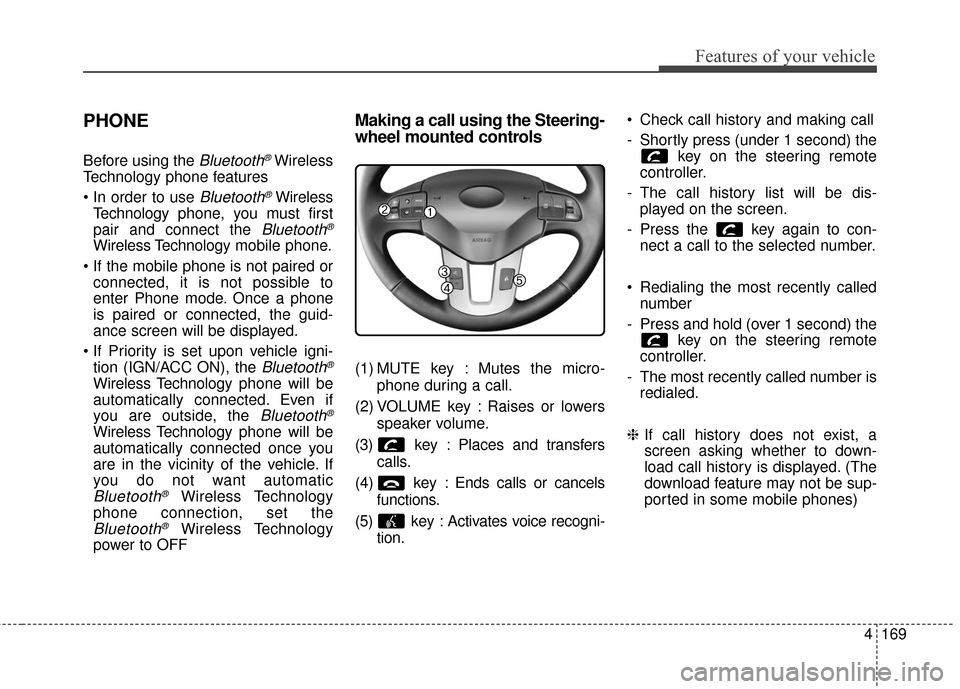
(1) MUTE key : Mutes the micro-
phone during a call.
(2) VOLUME key : Raises or lowers speaker volume.
(3) key : Places and transfers calls.
(4) key : Ends calls or cancels functions.
(5) key : Activates voice recogni- tion. Check call history and making call
- Shortly press (under 1 second) the
key on the steering remote
controller.
- The call history list will be dis- played on the screen.
- Press the key again to con- nect a call to the selected number.
Redialing the most recently called number
- Press and hold (over 1 second) the key on the steering remote
controller.
- The most recently called number is redialed.
❈ If call history does not exist, a
screen asking whether to down-
load call history is displayed. (The
download feature may not be sup-
ported in some mobile phones)
Page 270 of 501
![KIA Sportage 2016 QL / 4.G Owners Manual 4183
Features of your vehicle
VOICE RECOGNITION
Using Voice Recognition
Starting Voice Recognition
Shortly press the key on the
steering wheel. Say a commandIf prompt feedback is in [ON], then
the](/manual-img/2/2981/w960_2981-269.png "KIA Sportage 2016 QL / 4.G Owners Manual 4183
Features of your vehicle
VOICE RECOGNITION
Using Voice Recognition
Starting Voice Recognition
Shortly press the key on the
steering wheel. Say a commandIf prompt feedback is in [ON], then
the")
4183
Features of your vehicle
VOICE RECOGNITION
Using Voice Recognition
Starting Voice Recognition
Shortly press the key on the
steering wheel. Say a commandIf prompt feedback is in [ON], then
the system will say “Please say a
command after the beep (BEEP)”
mode, then the system will only say
“(BEEP)”
[On]/[Off], go to [System]
[Prompt Feedback]
command after the voice instruc-
tion and beep tone.
Contact List Best Practices
1)Do not store single-name entries (e.g., “Bob”, “Mom”, “Kim”, etc.).
Instead, always use full names
(including first and last names) for
all contacts (e.g., use “Jacob
Stevenson” instead of “Dad”).
2)Do not use abbreviations (i.e., use “Lieutenant” instead of “Lt.” or
“Sergeant” instead of “Sgt.”).
3)Do not use acronyms (i.e., use “County Finance Department”
instead of “CFD”).
4)Do not use special characters (e.g., “@”, “hyphen -“, “asterisk *”,
ampersand &”).
5)If a name is not recognized from the contact list, change it to a more
descriptive name (e.g., use
“Grandpa Joseph” instead of “Pa
Joe”).
SETUPCLOCK
Page 271 of 501
Features of your vehicle
184
4
Skipping Prompt Messages
While prompt message is being stat-
ed Shortly press the key on the
steering remote controller
The prompt message is immediately
ended and the beep tone will sound.
After the “beep”, say the voice com-
mand.
Re-starting Voice Recognition
While system waits for a command
Shortly press the key on the
steering remote controller
The command wait state is immedi-
ately ended and the beep ton will
sound. After the “beep”, say the voice
command.
ENDING VOICE
RECOGNITION
While Voice Recognition is operating
Press and hold the key on the
steering remote controller
ing any steering wheel control or a
different key will end voice com-
mand.
voice command, say “cancel” or
“end” to end voice command.
voice command, press and hold the key on the steering wheel to
end voice command.
Voice Recognition and Phone
Contact Tips:
The Kia Voice Recognition System
may have difficulty understanding
some accents or uncommon
names. When using Voice
Recognition to place a call, speak in
a moderate tone, with clear pronun-
ciation
To maximize the use of Voice
Recognition, consider these guide-
lines when storing contacts:
(e.g., “Bob”, “Mom”, etc.). Instead,
always use full names (including
first and last names) for these con-
tacts
'@', '-', '*', '&', etc.)
"Lieutenant" instead of "Lt.") or
acronyms (i.e., use "County
Finance Department" instead of
"C. F. D."; Be sure to say the name
exactly as it is entered in the con-
tacts list
Page 272 of 501
4185
Features of your vehicle
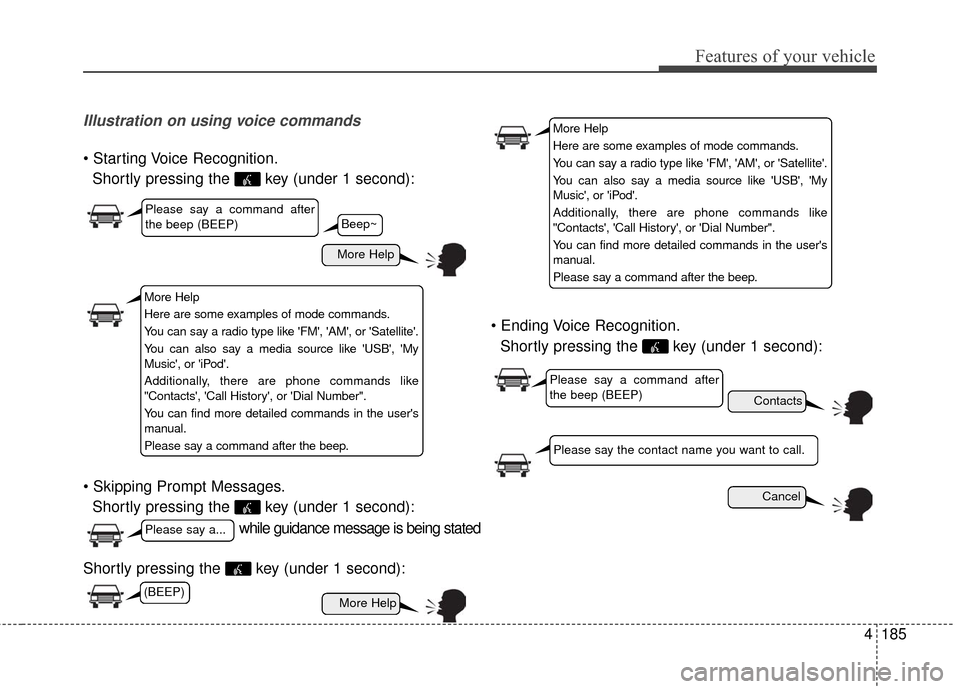
Illustration on using voice commands
Shortly pressing the key (under 1 second):
Shortly pressing the key (under 1 second):
Shortly pressing the key (under 1 second):
Shortly pressing the key (under 1 second):
while guidance message is being stated
More Help
Contacts
Cancel
More Help
Please say a command after
the beep (BEEP)
Please say a...
Please say the contact name you want to call.
Beep~
More Help
Here are some examples of mode commands.
You can say a radio type like 'FM', 'AM', or 'Satellite'.
You can also say a media source like 'USB', 'My
Music', or 'iPod'.
Additionally, there are phone commands like
"Contacts', 'Call History', or 'Dial Number".
You can find more detailed commands in the user's
manual.
Please say a command after the beep.
More Help
Here are some examples of mode commands.
You can say a radio type like 'FM', 'AM', or 'Satellite'.
You can also say a media source like 'USB', 'My
Music', or 'iPod'.
Additionally, there are phone commands like
"Contacts', 'Call History', or 'Dial Number".
You can find more detailed commands in the user's
manual.
Please say a command after the beep.
Please say a command after
the beep (BEEP)
(BEEP)
Page 273 of 501
Features of your vehicle
186
4
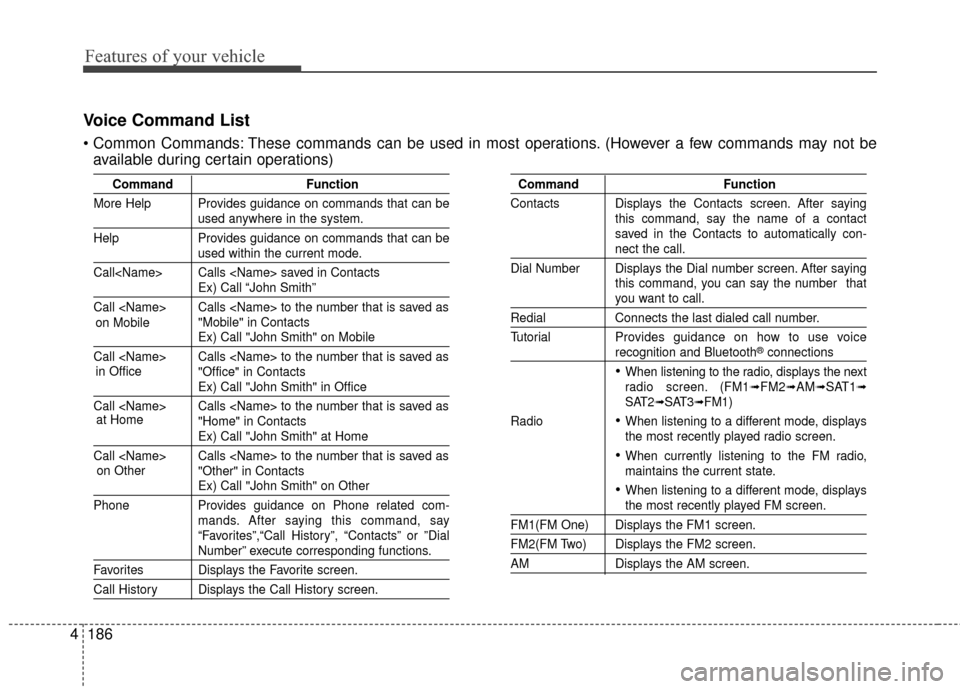
Voice Command List
These commands can be used in most operations. (However a few commands may not be
available during certain operations)
Command Function
More Help Provides guidance on commands that can be
used anywhere in the system.
Help Provides guidance on commands that can be
used within the current mode.
Call
Ex) Call “John Smith”
Call
Ex) Call "John Smith" on Mobile
Call
Ex) Call "John Smith" in Office
Call
Ex) Call "John Smith" at Home
Call
Ex) Call "John Smith" on Other
Phone Provides guidance on Phone related com- mands. After saying this command, say
“Favorites”,“Call History”, “Contacts” or ”Dial
Number” execute corresponding functions.
Favorites Displays the Favorite screen.
Call History Displays the Call History screen.
Command Function
Contacts Displays the Contacts screen. After saying this command, say the name of a contact
saved in the Contacts to automatically con-
nect the call.
Dial Number Displays the Dial number screen. After saying this command, you can say the number that
you want to call.
RedialConnects the last dialed call number.
Tutorial Provides guidance on how to use voice
recognition and Bluetooth®connections
When listening to the radio, displays the next
radio screen. (FM1➟FM2➟AM➟SAT1➟SAT2➟SAT3➟FM1)
Radio
When listening to a different mode, displays
the most recently played radio screen.
When currently listening to the FM radio,
maintains the current state.
When listening to a different mode, displaysthe most recently played FM screen.
FM1(FM One) Displays the FM1 screen.
FM2(FM Two) Displays the FM2 screen.
AM Displays the AM screen.
in Office
at Home
on Other
on Mobile
Page 281 of 501
Features of your vehicle
194
4
SYSTEM CONTROLLERS
AND FUNCTIONS
❈ Display and settings may differ
depending on the selected audio.
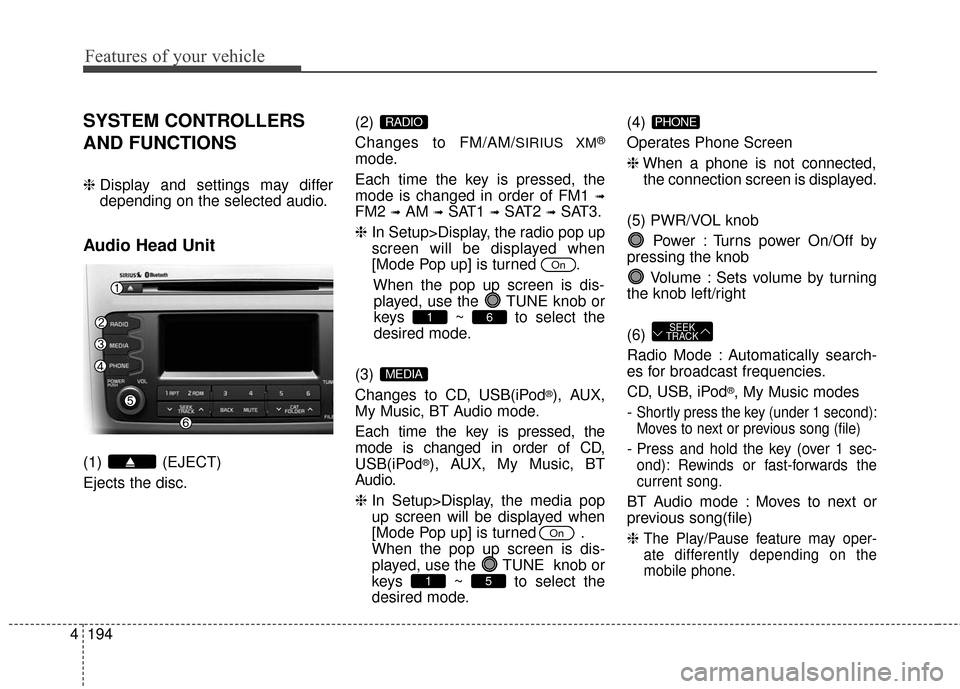
Audio Head Unit
(1) (EJECT)
Ejects the disc. (2)
Changes to FM/AM/
SIRIUS XM®
mode.
Each time the key is pressed, the
mode is changed in order of FM1
➟
FM2 ➟AM ➟SAT1 ➟SAT2 ➟SAT3.
❈ In Setup>Display, the radio pop up
screen will be displayed when
[Mode Pop up] is turned .
When the pop up screen is dis-played, use the TUNE knob or
keys ~ to select the
desired mode.
(3)
Changes to CD, USB(iPod
®), AUX,
My Music, BT Audio mode.
Each time the key is pressed, the
mode is changed in order of CD,
USB(iPod
®), AUX, My Music, BT
Audio.
❈ In Setup>Display, the media pop
up screen will be displayed when
[Mode Pop up] is turned .
When the pop up screen is dis-
played, use the TUNE knob or
keys ~ to select the
desired mode. (4)
Operates Phone Screen
❈
When a phone is not connected,
the connection screen is displayed.
(5) PWR/VOL knob Power : Turns power On/Off by
pressing the knob
Volume : Sets volume by turning
the knob left/right
(6)
Radio Mode : Automatically search-
es for broadcast frequencies.
CD, USB, iPod
®, My Music modes
-
Shortly press the key (under 1 second):
Moves to next or previous song (file)
- Press and hold the key (over 1 sec-
ond): Rewinds or fast-forwards the
current song.
BT Audio mode : Moves to next or
previous song(file)
❈
The Play/Pause feature may oper-
ate differently depending on the
mobile phone.
SEEK
TRACK
PHONE
51
On
MEDIA
61
On
RADIO
Page 282 of 501
4195
Features of your vehicle
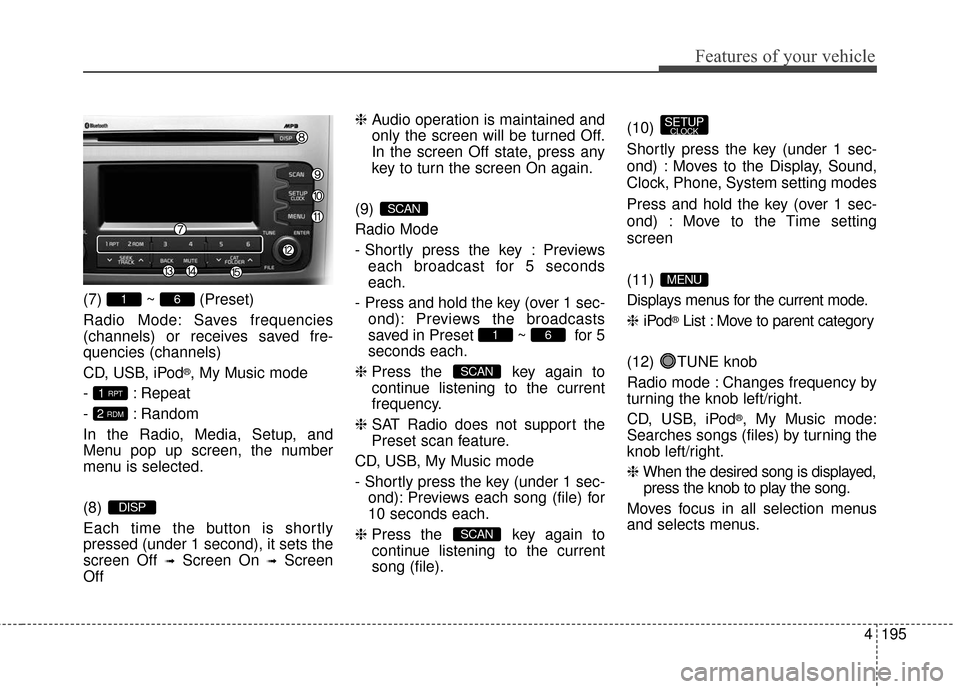
(7) ~ (Preset)
Radio Mode: Saves frequencies
(channels) or receives saved fre-
quencies (channels)
CD, USB, iPod
®, My Music mode
- : Repeat
- : Random
In the Radio, Media, Setup, and
Menu pop up screen, the number
menu is selected.
(8)
Each time the button is shortly
pressed (under 1 second), it sets the
screen Off
➟Screen On ➟Screen
Off ❈
Audio operation is maintained and
only the screen will be turned Off.
In the screen Off state, press any
key to turn the screen On again.
(9)
Radio Mode
- Shortly press the key : Previews each broadcast for 5 seconds
each.
- Press and hold the key (over 1 sec- ond): Previews the broadcasts
saved in Preset ~ for 5
seconds each.
❈ Press the key again to
continue listening to the current
frequency.
❈ SAT Radio does not support the
Preset scan feature.
CD, USB, My Music mode
- Shortly press the key (under 1 sec- ond): Previews each song (file) for
10 seconds each.
❈ Press the key again to
continue listening to the current
song (file). (10)
Shortly press the key (under 1 sec-
ond) : Moves to the Display, Sound,
Clock, Phone, System setting modes
Press and hold the key (over 1 sec-
ond) : Move to the Time setting
screen
(11)
Displays menus for the current mode.
❈
iPod
®List : Move to parent category
(12) TUNE knob
Radio mode : Changes frequency by
turning the knob left/right.
CD, USB, iPod
®, My Music mode:
Searches songs (files) by turning the
knob left/right.
❈ When the desired song is displayed,
press the knob to play the song.
Moves focus in all selection menus
and selects menus.
MENU
SETUPCLOCK
SCAN
SCAN
61
SCAN
DISP
2 RDM
1 RPT
61