175
Features of your vehicle
4
Auto Download
When connecting a mobile phone, it is
possible to automatically download new
Contacts and Call Histories.
Select [Auto Download] Set /
through TUNE knob
Audio Streaming
Songs (files) saved in your
Bluetooth®
Wireless Technology enabled mobile
phone can be played through the audiosystem.
Select [Audio Streaming] Set / through TUNE knob Outgoing Volume
This is used to set the volume of your
voice as heard by the other party whileon a
Bluetooth®Wireless Technology
enabled handsfree call.
Select [Outgoing Volume] Set volume
through TUNE knob ❈ While on a call, the volume can be
changed by using the key.
SEEK
TRACK
OFFON
OFFON
CAUTION
The Bluetooth ®
Wireless Technology
audio streaming feature may not be supported in some mobile phones.
Page 251 of 488
Features of your vehicle
1764
Bluetooth®Wireless Technology
System Off
This feature is used when you do not wish to use the
Bluetooth®Wireless
Technology system.
Select [Bluetooth System Off] Set
through TUNE knob ❈ If a phone is already connected, dis- connect the currently connected
phone and turn the Bluetooth®
Wireless Technology system off. Using the
Bluetooth®Wireless
Technology System
To use
Bluetooth®Wireless Technology
when the system is currently off, follow
these next steps.
Turning On
Bluetooth®Wireless
Technology through the Key
Press the key Screen Guidance ❈ Moves to the screen where
Bluetooth®
Wireless Technology functions can be
used and displays guidance.
Turning On
Bluetooth®Wireless
Technology through the Key
Press the key Select [Phone] ➀ A screen asking whether to turn on
Bluetooth®Wireless Technology will be
displayed.
➁ On the screen, select to turn on
Bluetooth®Wireless Technology and
display guidance. ❈
If the
Bluetooth®Wireless Technology
system is turned on, the system will
automatically try to connect the mostrecently connected
Bluetooth®
Wireless Technology mobile phone.
YES
SETUP CLOCK
SETUPCLOCK
PHONE
PHONE
CAUTION
Bluetooth®Wireless Technology
connection may become intermit- tently disconnected in some
mobile phones. Follow these nextsteps to try again.
1) Turn the Bluetooth
®Wireless
Technology function within the
mobile phone ON/OFF and try to connect again.
2) Turn the mobile phone power ON/OFF and try to connect again.
3) Completely remove the mobile phone battery, reboot, and thentry to connect again.
4) Reboot the audio system and try to connect again
5) Delete all paired devices in your mobile phone and the audio sys-
tem and pair again for use.
Page 252 of 488
177
Features of your vehicle
4
SYSTEM SETTINGS
Press the key Select [System]
Memory Information
Displays currently used memory and
total system memory.
Select [Memory Information] OK
The currently used memory is displayed on the left side while the total system
memory is displayed on the right side.
RADIO (for RDS model) ❈
RADIO may differ depending on the
selected audio.
Changing RADIO mode SEEK
Press the key
Shortly pressing the key (under 0.8 seconds): Changes the frequency.
Pressing and holding the key (over 0.8 seconds): Automatically searches for
the next frequency. Preset SEEK Press
the ~ key
seconds): Plays the frequency saved in
the corresponding key.
seconds): Pressing and holding thedesired key from ~ will
save the currently playing broadcast to
the selected key and sound a BEEP.
SCAN
Press the key
seconds): The broadcast frequency
increases and previews each broadcast
for 5 seconds each. After scanning all
frequencies, returns and plays the cur-
rent broadcast frequency.
TA
SCAN
61
61
SEEK
TRACK
SETUP
CLOCK
Page 253 of 488
Features of your vehicle
1784Selecting through manual search
Turn the TUNE knob left/right to adjust
the frequency.
Traffic Announcement (TA)
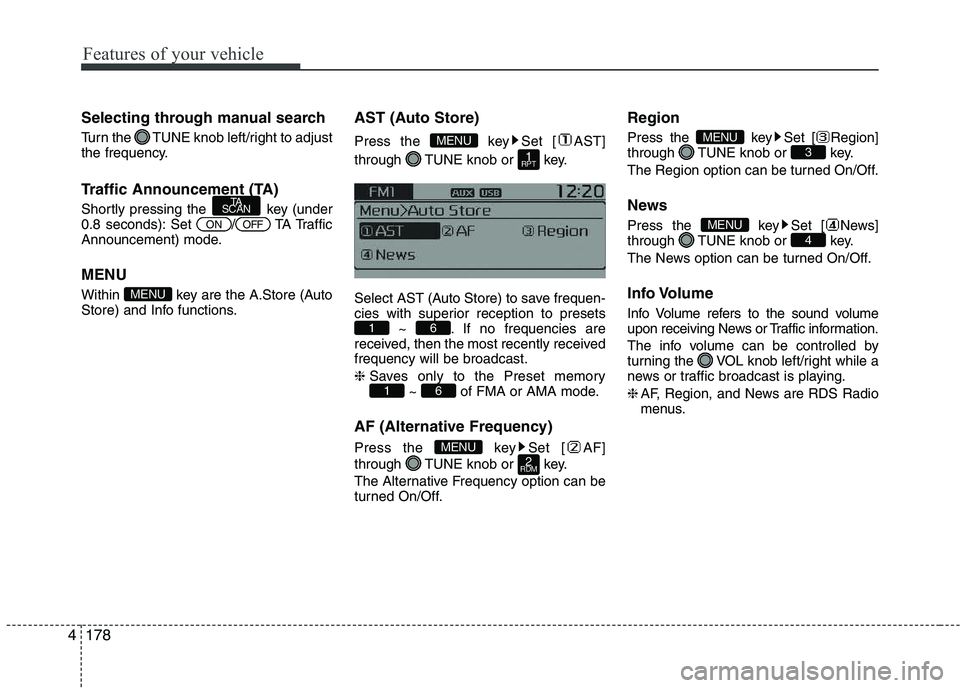
Shortly pressing the key (under
0.8 seconds): Set / TA Traffic
Announcement) mode. MENU
Within key are the A.Store (Auto
Store) and Info functions.
AST (Auto Store)
Press the key Set [ AST]
through TUNE knob or key.
Select AST (Auto Store) to save frequen-
cies with superior reception to presets
~ . If no frequencies are
received, then the most recently receivedfrequency will be broadcast. ❈ Saves only to the Preset memory
~ of FMA or AMA mode.
AF (Alternative Frequency)
Press the key Set [ AF]
through TUNE knob or key.
The Alternative Frequency option can be
turned On/Off. Region
Press the key Set [ Region]
through TUNE knob or key.
The Region option can be turned On/Off.
News
Press the key Set [ News]
through TUNE knob or key.
The News option can be turned On/Off.
Info Volume
Info Volume refers to the sound volume
upon receiving News or Traffic information.
The info volume can be controlled by
turning the VOL knob left/right while a
news or traffic broadcast is playing. ❈
AF, Region, and News are RDS Radio
menus.
4MENU
3MENU
2
RDMMENU
61
61
1
RPT
MENU
MENU
OFFON
TA
SCAN
Page 254 of 488
179
Features of your vehicle
4
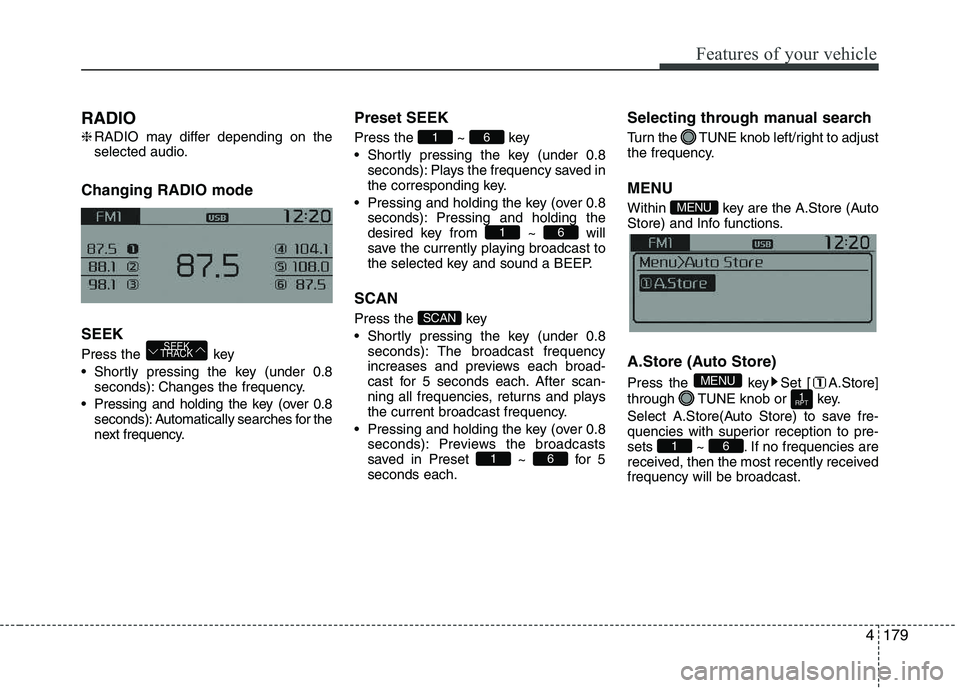
RADIO ❈
RADIO may differ depending on the
selected audio.
Changing RADIO mode SEEK
Press the key
Shortly pressing the key (under 0.8 seconds): Changes the frequency.
Pressing and holding the key (over 0.8 seconds): Automatically searches for the
next frequency. Preset SEEK Press
the ~ key
Shortly pressing the key (under 0.8 seconds): Plays the frequency saved in
the corresponding key.
Pressing and holding the key (over 0.8 seconds): Pressing and holding thedesired key from ~ will
save the currently playing broadcast to
the selected key and sound a BEEP.
SCAN
Press the key
Shortly pressing the key (under 0.8 seconds): The broadcast frequency
increases and previews each broad-
cast for 5 seconds each. After scan-
ning all frequencies, returns and plays
the current broadcast frequency.
Pressing and holding the key (over 0.8 seconds): Previews the broadcasts
saved in Preset ~ for 5seconds each. Selecting through manual search
Turn the TUNE knob left/right to adjust
the frequency. MENU
Within key are the A.Store (Auto
Store) and Info functions.
A.Store (Auto Store)
Press the key Set [ A.Store]
through TUNE knob or key.
Select A.Store(Auto Store) to save fre-
quencies with superior reception to pre-
sets ~ . If no frequencies are
received, then the most recently receivedfrequency will be broadcast.
61
1
RPT
MENU
MENU
61
SCAN
61
61
SEEK
TRACK
Page 255 of 488
Features of your vehicle
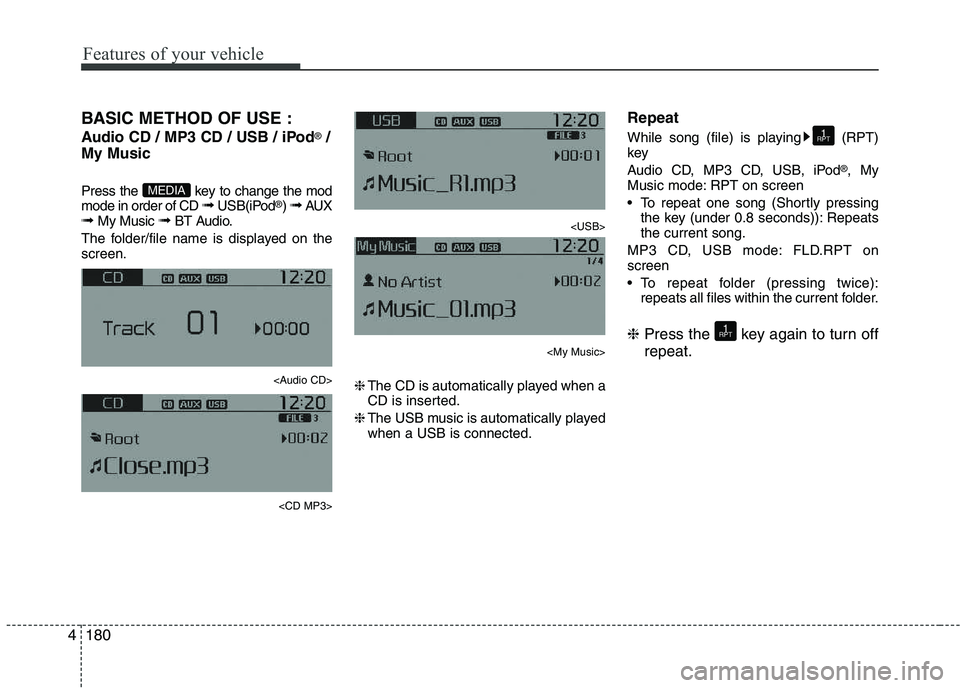
1804BASIC METHOD OF USE :
Audio CD / MP3 CD / USB / iPod
®
/
My Music
Press the key to change the mod mode in order of CD ➟ USB(iPod ®
) ➟ AUX
➟ My Music ➟ BT Audio.
The folder/file name is displayed on thescreen.
Page 256 of 488
181
Features of your vehicle
4
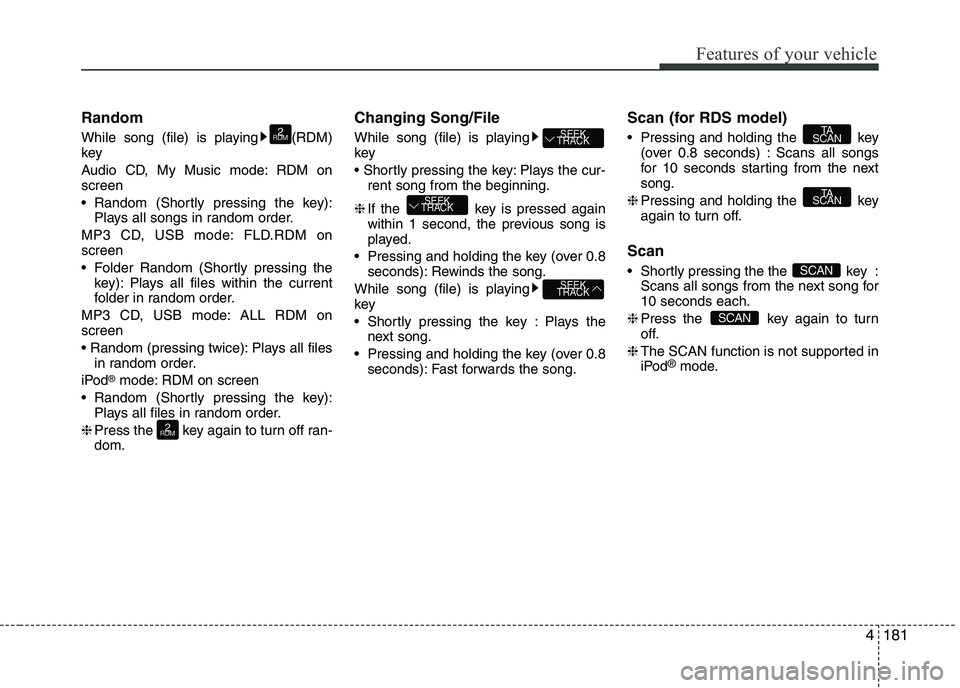
Random
While song (file) is playing (RDM) key
Audio CD, My Music mode: RDM on screen
Random (Shortly pressing the key):
Plays all songs in random order.
MP3 CD, USB mode: FLD.RDM on screen
Folder Random (Shortly pressing the key): Plays all files within the current
folder in random order.
MP3 CD, USB mode: ALL RDM onscreen
Plays all files in random order.
iPod ®
mode: RDM on screen
Random (Shortly pressing the key): Plays all files in random order.
❈ Press the key again to turn off ran- dom. Changing Song/File
While song (file) is playing key
Plays the cur-
rent song from the beginning.
❈ If the key is pressed again
within 1 second, the previous song is
played.
Pressing and holding the key (over 0.8 seconds): Rewinds the song.
While song (file) is playingkey
Shortly pressing the key : Plays the next song.
Pressing and holding the key (over 0.8 seconds): Fast forwards the song. Scan (for RDS model)
Pressing and holding the key
(over 0.8 seconds) : Scans all songs
for 10 seconds starting from the nextsong.
❈ Pressing and holding the key
again to turn off.
Scan
Shortly pressing the the key : Scans all songs from the next song for 10 seconds each.
❈ Press the key again to turn
off.
❈ The SCAN function is not supported in
iPod ®
mode.
SCAN
SCAN
TA
SCAN
TA
SCAN
SEEK
TRACK
SEEK
TRACK
SEEK
TRACK
2
RDM
2
RDM
Page 257 of 488
Features of your vehicle
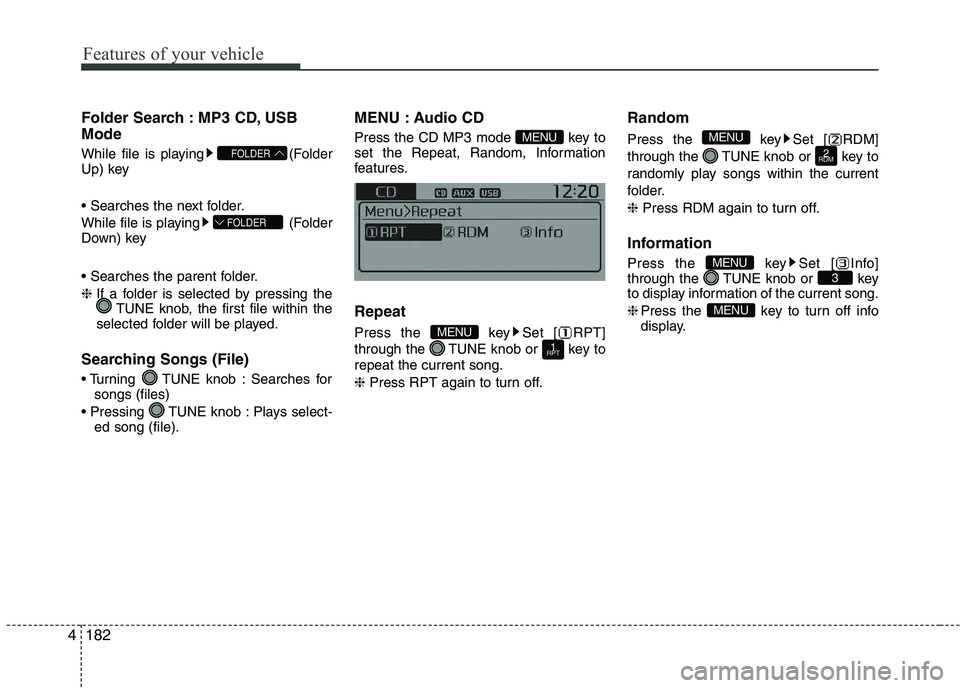
1824Folder Search : MP3 CD, USB Mode
While file is playing (Folder
Up) key
While file is playing (Folder
Down) key
❈
If a folder is selected by pressing the
TUNE knob, the first file within the
selected folder will be played.
Searching Songs (File)
TUNE knob : Searches for songs (files)
TUNE knob : Plays select- ed song (file). MENU : Audio CD
Press the CD MP3 mode key to
set the Repeat, Random, Information
features. Repeat
Press the key Set [ RPT]
through the TUNE knob or key torepeat the current song. ❈
Press RPT again to turn off. Random
Press the key Set [ RDM]
through the TUNE knob or key to
randomly play songs within the current
folder. ❈
Press RDM again to turn off.
Information
Press the key Set [ Info]
through the TUNE knob or key
to display information of the current song. ❈ Press the key to turn off info
display.
MENU
3MENU
2
RDM
MENU
1
RPTMENU
MENU
FOLDER
FOLDER
![KIA PICANTO 2016 Owners Manual 175
Features of your vehicle
4
Auto Download
When connecting a mobile phone, it is
possible to automatically download new
Contacts and Call Histories.
Select [Auto Download] Set /
through TUNE kno](/manual-img/2/40383/w960_40383-249.png "KIA PICANTO 2016 Owners Manual 175
Features of your vehicle
4
Auto Download
When connecting a mobile phone, it is
possible to automatically download new
Contacts and Call Histories.
Select [Auto Download] Set /
through TUNE kno")
![KIA PICANTO 2016 Owners Manual Features of your vehicle
1764
Bluetooth®Wireless Technology
System Off
This feature is used when you do not wish to use the
Bluetooth®Wireless
Technology system.
Select [Bluetooth System Off] Set](/manual-img/2/40383/w960_40383-250.png "KIA PICANTO 2016 Owners Manual Features of your vehicle
1764
Bluetooth®Wireless Technology
System Off
This feature is used when you do not wish to use the
Bluetooth®Wireless
Technology system.
Select [Bluetooth System Off] Set")
![KIA PICANTO 2016 Owners Manual 177
Features of your vehicle
4
SYSTEM SETTINGS
Press the key Select [System]
Memory Information
Displays currently used memory and
total system memory.
Select [Memory Information] OK
The curren](/manual-img/2/40383/w960_40383-251.png "KIA PICANTO 2016 Owners Manual 177
Features of your vehicle
4
SYSTEM SETTINGS
Press the key Select [System]
Memory Information
Displays currently used memory and
total system memory.
Select [Memory Information] OK
The curren")