2016 KIA Optima ECU
[x] Cancel search: ECUPage 231 of 623

4145
Features of your vehicle
STORAGE COMPARTMENTS
These compartments can be used to
store small items required by the
driver or passengers.
To avoid possible theft, do notleave valuables in the storage
compartment.
Always keep the storage compart- ment covers closed while driving.
Do not attempt to place so many
items in the storage compartment
that the storage compartment
cover can not close securely.Center console storage
To open the center console storage,
pull up the lever.
Glove box
The glove box can be locked and
unlocked with a master key. (if
equipped)
To open the glove box, pull the lever
(1) and the glove box will automati-
cally open. Close the glove box after
use.WARNING - Flammable
materials
Do not store, propane cylinders
or other flammable/explosive
materials in the vehicle. These
items may catch fire and/or
explode if the vehicle is
exposed to hot temperatures for
extended periods.
OJFA045114OJF045113
JF CAN (ENG) 4.qxp 11/5/2015 3:51 PM Page 145
Page 239 of 623

4153
Features of your vehicle
If the wireless charging is not func-
tioning properly, the orange light will
blink and flash for ten seconds then
turn off. In such cases, remove the
smart phone from the pad and
replace it on the pad again, or double
check the charging status.
If you leave the smart phone on the
charging pad when the vehicle igni-
tion is in OFF, the vehicle will alert
you through warning messages and
sound (applicable for vehicles with
voice guidance (function) after the
‘Good bye’ function on the instru-
ment cluster ends.
WARNING - Distracted
driving
Driving while distracted can
result in a loss of vehicle con-
trol that may lead to an acci-
dent, severe personal injury,
and death. The driver’s primary
responsibility is in the safe and
legal operation of a vehicle, and
use of any handheld devices,
other equipment, or vehicle sys-
tems which take the driver’s
eyes, attention and focus away
from the safe operation of a
vehicle or which are not permis-
sible by law should never be
used during operation of the
vehicle.CAUTION - Liquid in
Wireless Smart Phone
Charger
To prevent liquid from damaging the wireless smart phone charg-ing system in your vehicle,securely close the tray coverwhen charging your phone.
CAUTION - Metal in
Wireless Charging System
If any metallic object such as coins is located between thewireless charging system andthe smart phone, the chargingmay be disrupted. Also, themetallic object may heat up andpotentially damage the chargingsystem. If there is any metallicobject between the smart phoneand the charging pad, immedi-ately remove the smart phone.Remove the metallic object afterit has cooled down.
JF CAN (ENG) 4.qxp 11/5/2015 3:51 PM Page 153
Page 241 of 623

4155
Features of your vehicle
Clothes hanger (if equipped)
❈This actual feature may differ from the illus-
tration.
To use the hanger, pull down the
upper portion of hanger.
Floor mat anchor (s)
(if equipped)
When using a floor mat on the front
floor carpet, make sure it attaches to
the floor mat anchor(s) in your vehi-
cle. This keeps the floor mat from
sliding forward. The following must be observed
when installing ANY floor mat to the
vehicle.
Ensure that the floor mats are
securely attached to the vehicle's
floor mat anchor(s) before driving
the vehicle.
Do not use ANY floor mat that can- not be firmly attached to the vehi-
cle's floor mat anchors.
Do not stack floor mats on top of one another (e.g. all-weather rub-
ber mat on top of a carpeted floor
mat). Only a single floor mat should
be installed in each position.
OJF045235
CAUTION - Hanging
clothing
Do not hang heavy clothes, sincethose may damage the hook.
OXM043309
■Type A■Type B
WARNING - After market
floor mat
Do not install aftermarket floor
mats that are not capable of
being securely attached to the
vehicle's floor mat anchors.
Unsecured floor mats can inter-
fere with pedal operation.
WARNING
Your vehicle was manufactured
with driver's side floor mat
anchors that are designed to
securely hold the floor mat in
place. To avoid any interference
with pedal operation, Kia rec-
ommends that only the Kia floor
mat designed for use in your
vehicle be installed.
JF CAN (ENG) 4.qxp 11/5/2015 3:51 PM Page 155
Page 275 of 623

Audio system
533
3. From your
Bluetooth®Wireless
Technology device (i.e. Mobile
Phone), search and select your
car audio system.
\b SSP : Secure Simple Pairing
Non SSP supported device :
4. After a few moments, a screen is displayed where the passkey is
entered. Enter the passkey “0000”
to pair your
Bluetooth®Wireless
Technology device with the car
audio system.
SSP supported device :
4. After a few moments, a screen is displayed that has the 6 digit
passkey from any nearby SSP
device that is found. Check the
passkey on your
Bluetooth®
Wireless Technology. Some phones (i.e., iPhone
®, Android TM
and Blackberry®phones) may offer
an option to allow acceptance of all
future Bluetooth
®connection requests
by default.
If
Bluetooth®Wireless Technology
devices are paired but none are
currently connected, pressing the
[CALL] button on the steering
wheel control displays the following
screen. Select [Pair] button to pair
a new device or select [Connect] to
connect a previously paired device.
MENU : Phone
With a Bluetooth®Wireless
Technology device connected, press
the [PHONE] button to display the
Phone menu screen.
Favorite : [1] Button
Up to 20 frequently used contacts
can be saved for easy access.
Call History : [2] Button
Displays the call history list screen.
If you select the [Call History] button
but there is no call history data, a
prompt is displayed which asks to
download call history data.
JF CAN (ENG) 5 (Audio).qxp 9/23/2015 7:24 PM Page 33
Page 282 of 623

Audio system
40
5
Voice Command List
Common Commands
These commands can be used in most operations.
(However a few commands may not be available during certain operations)
CommandFunction
More HelpProvides guidance on commands that can be used
anywhere in the system.
HelpProvides guidance on commands that can be used
within the current mode.
Call
Ex) Call “John Smith”
Call
on MobileCalls
“Mobile” in Contacts.
Ex) Call “John Smith” on Mobile
Call
in OfficeCalls
"Office" in Contacts.
Ex) Call "John Smith" in Office
Call
at HomeCalls
"Home" in Contacts
Ex) Call "John Smith" at Home
Call
on OtherCalls
"Other" in Contacts
Ex) Call "John Smith" on Other
PhoneProvides guidance on Phone related commands.
After saying this command, say “Favorites”,“Call
History”, “Contacts” or ”Dial Number” execute cor-
responding functions.
FavoritesDisplays the Favorite screen.
CommandFunction
Call HistoryDisplays the Call History screen.
ContactsDisplays the Contacts screen. After saying this
command, say the name of a contact saved in the
Contacts to automatically connect the call.
Dial NumberDisplays the Dial number screen. After saying this
command, you can say the number that you want
to call.
RedialConnects the last dialed call number.
TutorialProvides guidance on how to use voice recognition
and Bluetooth®connections
Radio
When listening to the radio, displays the next
radio screen. (FM1➟FM2➟AM➟ SAT1➟ SAT2➟
SAT3➟ FM1)
When listening to a different mode, displays the most recently played radio screen.
When currently listening to the FM radio, main- tains the current state.
When listening to a different mode, displays the most recently played FM screen.
FM1(FM One)Displays the FM1 screen.
FM2(FM Two)Displays the FM2 screen.
AMDisplays the AM screen.
JF CAN (ENG) 5 (Audio).qxp 9/23/2015 7:24 PM Page 40
Page 332 of 623
![KIA Optima 2016 4.G Owners Manual Audio system
90
5
Bluetooth®Wireless Technology
When No Devices have been
Paired
➀ Press the [PHONE] button or the
[CALL] button on the steering
wheel controls. The following
screen is displayed.](/manual-img/2/2973/w960_2973-331.png "KIA Optima 2016 4.G Owners Manual Audio system
90
5
Bluetooth®Wireless Technology
When No Devices have been
Paired
➀ Press the [PHONE] button or the
[CALL] button on the steering
wheel controls. The following
screen is displayed.")
Audio system
90
5
Bluetooth®Wireless Technology
When No Devices have been
Paired
➀ Press the [PHONE] button or the
[CALL] button on the steering
wheel controls. The following
screen is displayed.
➁ Press the [OK] button to enter the
Pair Phone screen. Vehicle Name : Name of device as
shown when searching from your
Bluetooth®Wireless Technology
device
Passkey : Passkey used to pair the device
➂ From your
Bluetooth®Wireless
Technology device (i.e. Mobile
Phone), search and select your
car audio system.
\b SSP: Secure Simple Pairing
Non SSP supported device :
➃ After a few moments, a screen is
displayed where the passkey is
entered.
Enter the passkey “0000” to pair your
Bluetooth®Wireless Technology
device with the car audio system. SSP supported device :
➃
After a few moments, a screen is
displayed 6 digits passkey.
Check the passkey on your
Bluetooth®Wireless Technology
device and confirm.
➄ Once pairing is complete, the fol-
lowing screen is displayed.
JF CAN (ENG) 5 (Audio).qxp 9/23/2015 7:24 PM Page 90
Page 341 of 623
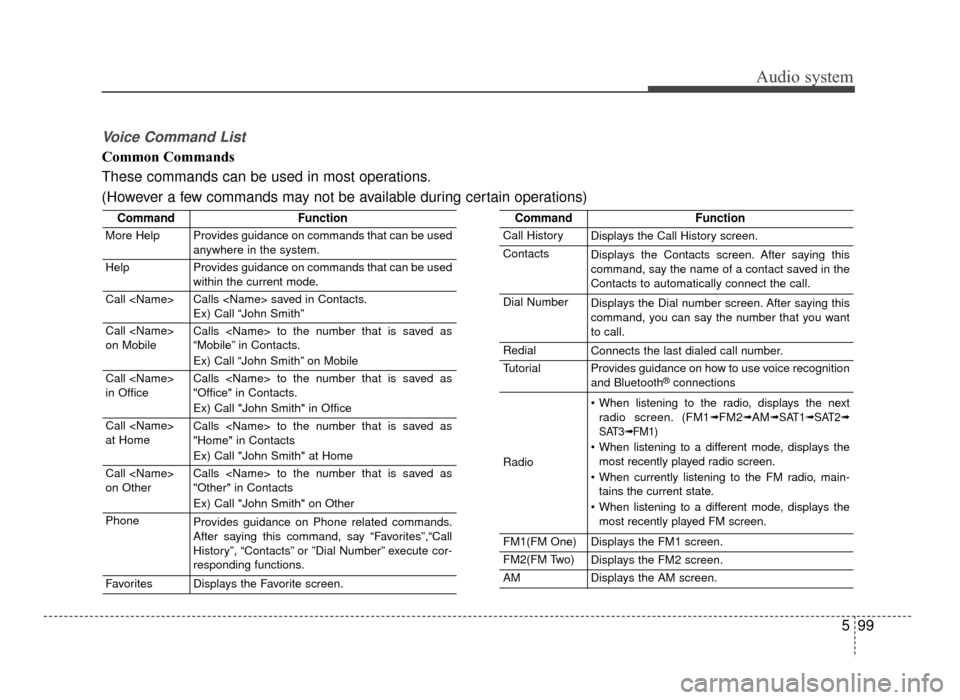
Audio system
599
Voice Command List
Common Commands
These commands can be used in most operations.
(However a few commands may not be available during certain operations)
CommandFunction
More HelpProvides guidance on commands that can be used
anywhere in the system.
HelpProvides guidance on commands that can be used
within the current mode.
Call
Ex) Call “John Smith”
Call
on MobileCalls
“Mobile” in Contacts.
Ex) Call “John Smith” on Mobile
Call
in OfficeCalls
"Office" in Contacts.
Ex) Call "John Smith" in Office
Call
at HomeCalls
"Home" in Contacts
Ex) Call "John Smith" at Home
Call
on OtherCalls
"Other" in Contacts
Ex) Call "John Smith" on Other
PhoneProvides guidance on Phone related commands.
After saying this command, say “Favorites”,“Call
History”, “Contacts” or ”Dial Number” execute cor-
responding functions.
FavoritesDisplays the Favorite screen.
CommandFunction
Call HistoryDisplays the Call History screen.
ContactsDisplays the Contacts screen. After saying this
command, say the name of a contact saved in the
Contacts to automatically connect the call.
Dial NumberDisplays the Dial number screen. After saying this
command, you can say the number that you want
to call.
RedialConnects the last dialed call number.
TutorialProvides guidance on how to use voice recognition
and Bluetooth®connections
Radio
When listening to the radio, displays the nextradio screen. (FM1➟FM2➟AM➟ SAT1➟ SAT2➟
SAT3➟ FM1)
When listening to a different mode, displays the most recently played radio screen.
When currently listening to the FM radio, main- tains the current state.
When listening to a different mode, displays the most recently played FM screen.
FM1(FM One)Displays the FM1 screen.
FM2(FM Two)Displays the FM2 screen.
AMDisplays the AM screen.
JF CAN (ENG) 5 (Audio).qxp 9/23/2015 7:24 PM Page 99
Page 361 of 623

65
Driving your vehicle
WARNING- Check sur-roundings
Always check the surrounding
areas near your vehicle for peo-
ple, especially children, before
putting a vehicle into D (Drive)
or R (Reverse).
WARNING- Fire risk
When you intend to park or stop
the vehicle with the engine on,
be careful not to depress the
accelerator pedal for a long
period of time. It may overheat
the engine or exhaust system
and cause fire.WARNING- Loose objects
Securely store items in your
vehicle. When you make a sud-
den stop or turn the steering
wheel rapidly, loose objects
may drop on the floor and it
could interfere with the opera-
tion of the foot pedals, possibly
causing an accident.WARNING- Driving while intoxicated
Do not drive while intoxicated.
Drinking and driving is danger-
ous. Even a small amount of
alcohol will affect your reflexes,
perceptions and judgment.
Driving while under the influ-
ence of drugs is as dangerous
as or more dangerous than driv-
ing drunk.
JF CAN (ENG) 6.qxp 11/5/2015 6:38 PM Page 5