2016 KIA Cerato Din
[x] Cancel search: DinPage 216 of 501
4145
Features of your vehicle
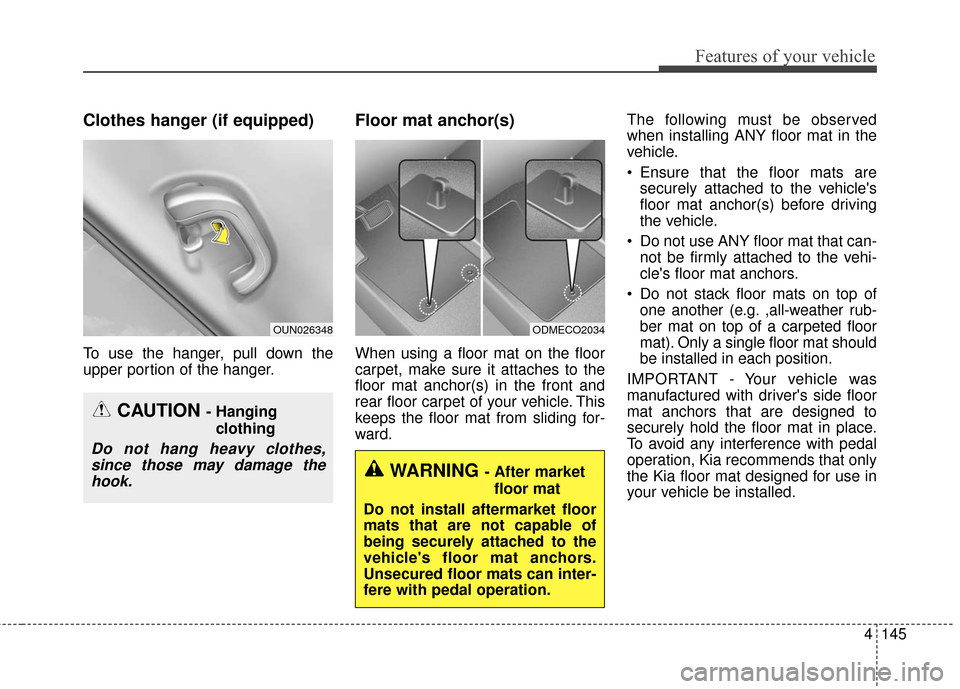
Clothes hanger (if equipped)
To use the hanger, pull down the
upper portion of the hanger.
Floor mat anchor(s)
When using a floor mat on the floor
carpet, make sure it attaches to the
floor mat anchor(s) in the front and
rear floor carpet of your vehicle. This
keeps the floor mat from sliding for-
ward.The following must be observed
when installing ANY floor mat in the
vehicle.
Ensure that the floor mats are
securely attached to the vehicle's
floor mat anchor(s) before driving
the vehicle.
Do not use ANY floor mat that can- not be firmly attached to the vehi-
cle's floor mat anchors.
Do not stack floor mats on top of one another (e.g. ,all-weather rub-
ber mat on top of a carpeted floor
mat). Only a single floor mat should
be installed in each position.
IMPORTANT - Your vehicle was
manufactured with driver's side floor
mat anchors that are designed to
securely hold the floor mat in place.
To avoid any interference with pedal
operation, Kia recommends that only
the Kia floor mat designed for use in
your vehicle be installed.
OUN026348
CAUTION - Hanging clothing
Do not hang heavy clothes,since those may damage thehook.
ODMECO2034
WARNING - After market
floor mat
Do not install aftermarket floor
mats that are not capable of
being securely attached to the
vehicle's floor mat anchors.
Unsecured floor mats can inter-
fere with pedal operation.
Page 218 of 501

4147
Features of your vehicle
✽
✽NOTICE
If you install an after market HID
head lamp, your vehicle’s audio and
electronic device may malfunction.
Glass antenna (if equipped)
When the radio power switch is
turned on while the ignition switch is
in either the “ON” or “ACC” position,
your car will receive both AM and FM
broadcast signals through the anten-
na in the rear window glass.
AUDIO SYSTEM
CAUTION
• Do not clean the inside of the
rear window glass with acleaner or use a scraper toremove foreign deposits asthis may cause damage to theantenna elements.
Avoid adding metallic coat- ings such as Ni, Cd, and soon. These can disturb receiv-ing AM and FM broadcast sig-nals.
OYDEMM2001
Page 221 of 501

Features of your vehicle
150
4
How vehicle audio works
AM and FM radio signals are broad-
cast from transmitter towers located
around your city. They are intercept-
ed by the radio antenna on your vehi-
cle. This signal is then processed by
the radio and sent to your vehicle
speakers.
When a strong radio signal has
reached your vehicle, the precise
engineering of your audio system
ensures the best possible quality
reproduction. However, in some
cases the signal coming to your vehi-
cle may not be strong and clear. This can be due to factors, such as
the distance from the radio station,
closeness of other strong radio sta-
tions or the presence of buildings,
bridges or other large obstructions in
the area.
AM broadcasts can be received at
greater distances than FM broad-
casts. This is because AM radio
waves are transmitted at low fre-
quencies. These long distance,low
frequency radio waves can follow the
curvature of the earth rather than
travelling straight. In addition, they
curve around obstructions resulting
in better signal coverage.
¢¢¢¢¢¢
JBM002
AM reception
¢¢¢
JBM001
FM reception
Page 222 of 501

4151
Features of your vehicle
FM broadcasts are transmitted at
high frequencies and do not bend to
follow the earth's surface. Because
of this, FM broadcasts generally
begin to fade within short distances
from the station. short distances from
the station. Also, FM signals are eas-
ily affected by buildings, mountains,
and obstructions. This can lead to
undesirable or unpleasant listening
conditions which might lead you to
believe a problem exists with your
radio. The following conditions are
normal and do not indicate radio
trouble: Fading - As your vehicle moves
away from the radio station, the
signal will weaken and sound will
begin to fade. When this occurs,
we suggest that you select another
stronger station.
Flutter/Static - Weak FM signals or large obstructions between the
transmitter and your radio can dis-
turb the signal causing static or
fluttering noises to occur. Reducing
the treble level may lessen this
effect until the disturbance clears. Station Swapping - As an FM sig-
nal weakens, another more power-
ful signal near the same frequency
may begin to play. This is because
your radio is designed to lock onto
the clearest signal. If this occurs,
select another station with a
stronger signal.
Multi-Path Cancellation - Radio signals being received from sever-
al directions can cause distortion
or fluttering. This can be caused by
a direct and reflected signal from
the same station, or by signals
from two stations with close fre-
quencies. If this occurs, select
another station until the condition
has passed.
JBM003
FM radio station
JBM005
¢¢¢
JBM004
Page 224 of 501

4153
Features of your vehicle
Depending on the type of CD-R/CD-RW CDs, certain CDs may
not operate normally according to
the manufacturing companies. In
such circumstances, continued
use may cause malfunctions to
your audio system.
✽ ✽ NOTICE
- Playing an Incompatible Copy Protected Audio
CD
Some copy protected CDs, which do
not comply with international audio
CD standards (Red Book), may not
play on your car audio. Please note
that inabilities to properly play a
copy protected CD may indicate
that the CD is defective, not the CD
player.
NOTE:
Order of playing files (folders) :
1. Song playing order : to
sequentially.
2. Folder playing order :
❋ If no song file is contained in the
folder, that folder is not displayed.
Page 227 of 501

Features of your vehicle
156
4
USING THE USB DEVICE
To use an external USB device,
make sure the device is not con-
nected when starting up the
vehicle. Connect the device after
starting up.
If you start the engine when the USB device is connected, it may
damage the USB device. (USB
flashdrives are very sensitive to
electric shock.)
If the engine is started up or turned off while the external USB
device is connected, the external
USB device may not work.
The System may not play unau- thenticated MP3 or WMA files.
1) It can only play MP3 files with the compression rate between
8Kbps ~ 320Kbps.
2) It can only play WMA music files with the compression rate
between 8Kbps ~ 320Kbps.
Take precautions for static elec- tricity when connecting or discon-
necting the external USB device.
(Continued)(Continued)
An encrypted MP3 PLAYER is
not recognizable.
Depending on the condition of the external USB device, the
connected external USB device
can be unrecognizable.
When the formatted byte/sector setting of External USB device is
not either 512BYTE or
2048BYTE, then the device will
not be recognized.
Use only a USB device format- ted to FAT 12/16/32.
USB devices without USB I/F authentication may not be recog-
nizable.
Make sure the USB connection terminal does not come in con-
tact with the human body or
other objects.
If you repeatedly connect or dis- connect the USB device in a
short period of time, it may break
the device.
(Continued)(Continued)
You may hear a strange noise
when connecting or disconnect-
ing a USB device.
If you disconnect the external USB device during playback in
USB mode, the external USB
device can be damaged or may
malfunction. Therefore, discon-
nect the external USB device
when the audio is turned off or in
another mode. (e.g, Radio, CD)
Depending on the type and capacity of the external USB
device or the type of the files
stored in the device, there is a
difference in the time taken for
recognition of the device.
Do not use the USB device for purposes other than playing
music files.
Playing videos through the USB is not supported.
Use of USB accessories such as rechargers or heaters using USB
I/F may lower performance or
cause trouble.
(Continued)
Page 229 of 501

Features of your vehicle
158
4
Bluetooth®Wireless
Technology
Bluetooth®Wireless Technology
The Bluetooth®word mark and logos
are registered trademarks owned by
Bluetooth SIG, lnc. and any use of
such marks by Kia is under license.
A
Bluetooth®enabled call phone is
required to use
Bluetooth®wireless
technology.
(Continued)
Some iPod
®devices, such as the
iPhone, can be connected
through the
Bluetooth®Wireless
Technology interface. The device
must have audio
Bluetooth®
Wireless Technology capability
(such as for stereo headphone
Bluetooth®Wireless Technology).
The device can play, but it will not
be controlled by the audio system.
To use iPod
®features within the
audio, use the cable provided
upon purchasing an iPod
®
device.
Skipping or improper operation may occur depending on the char-
acteristics of your iPod
®/Phone
device.
If your iPhone is connected to both the
Bluetooth®Wireless
Technology and USB, the sound
may not be properly played. In
your iPhone, select the Dock con-
nector or
Bluetooth®Wireless
Technology to change the sound
output (source).
(Continued)(Continued)
When connecting iPod
®with the
iPod®Power Cable, insert the
connector to the multimedia
socket completely. If not inserted
completely, communications
between iPod
®and audio may
be interrupted.
When adjusting the sound effects of the iPod
®and the
audio system, the sound effects
of both devices will overlap and
might reduce or distort the qual-
ity of the sound.
Deactivate (turn off) the equaliz- er function of an iPod
®when
adjusting the audio system’s vol-
ume, and turn off the equalizer
of the audio system when using
the equalizer of an iPod
®.
When not using iPod
®with car
audio, detach the iPod®cable
from iPod®. Otherwise, iPod®
may remain in accessory mode,
and may not work properly.
WARNING
Driving while distracted can
result in a loss of vehicle control
that may lead to an accident,
severe personal injury, and
death. The driver’s primary
responsibility is in the safe and
legal operation of a vehicle, and
use of any handheld devices,
other equipment, or vehicle sys-
tems which take the driver’s
eyes, attention and focus away
from the safe operation of a vehi-
cle or which are not permissible
by law should never be used dur-
ing operation of the vehicle.
Page 230 of 501

4159
Features of your vehicle
Before Using the Bluetooth®
Handsfree
What is Bluetooth®?
Bluetooth®refers to a short-dis-
tance wireless networking technol-
ogy which uses a 2.4GHz
~2.48GHz frequency to connect
various devices within a certain
distance.
Supported within PCs, external devices,
Bluetooth®phones, PDAs,
various electronic devices, and
automotive environments,
Bluetooth®allows data to be trans-
mitted at high speeds without hav-
ing to use a connector cable.
Bluetooth®Handsfree refers to a
device which allows the user to
conveniently make phone calls with
Bluetooth®mobile phones through
the AV/Navigation system.
Bluetooth®Handsfree may not be
supported in some mobile phones.
To learn more about mobile device
compatibility, visit
http://www
.kia.com/us/en/con-
tent/owners/bluetooth.
Precautions for Safe Driving
Bluetooth®Handsfree is a feature
that enables drivers to practice
safe driving. Connecting the head
unit with a
Bluetooth®phone allows
the user to conveniently make and
receive calls and use contacts.
Before using
Bluetooth®, carefully
read the contents of this user’s
manual.
Excessive use or operations while driving may lead to negligent driv-
ing practices and result in acci-
dents. Refrain from excessive
operations while driving.
Viewing the screen for prolonged periods of time is dangerous and
may lead to accidents. When driv-
ing, view the screen only for short
periods of time.
When connecting a Bluetooth®
Phone
Before connecting the head unit
with the mobile phone, check to
see that the mobile phone sup-
ports
Bluetooth®features.
Even if the phone supports
Bluetooth®, the phone will not be
found during device searches if
the phone has been set to hidden
state or the
Bluetooth®power is
turned off. Disable the hidden
state or turn on the
Bluetooth®
power prior to searching/con-
necting with the Head unit.
Bluetooth phone is automatically
connected when the ignition on.
If you do not want automatic con-
nection with your
Bluetooth®
device, turn off the Bluetooth®
feature within your mobile phone.
The Handsfree call volume and
quality may differ depending on
the mobile phone.
(Continued)