Page 481 of 688
Cavity Mini Fuse Description
F49 7.5 Amp Brown Supply ParkSense, Spot Lights Front
Dome, Mirror, Electric Motor Retract-
able Roof, Heated Front Seats, Stabi-
lizer Battery, ESC System, ESL
F50 7.5 Amp Brown Supply Air Bag
F51 7.5 Amp Brown Alarm Power, Front Courtesy Light,
Air Conditioning Compressor, Brake
Pedal Switch (NC), Plaque Automatic
Transmission, Compass, Rear Camera,
Leveling Headlights, Air Conditioning
F53 7.5 Amp Brown Supply IPC/Starter Device/System
Keyless Enter-N-Go
F94 15 Amp Blue Power Socket
8
IN CASE OF EMERGENCY 479
Page 483 of 688
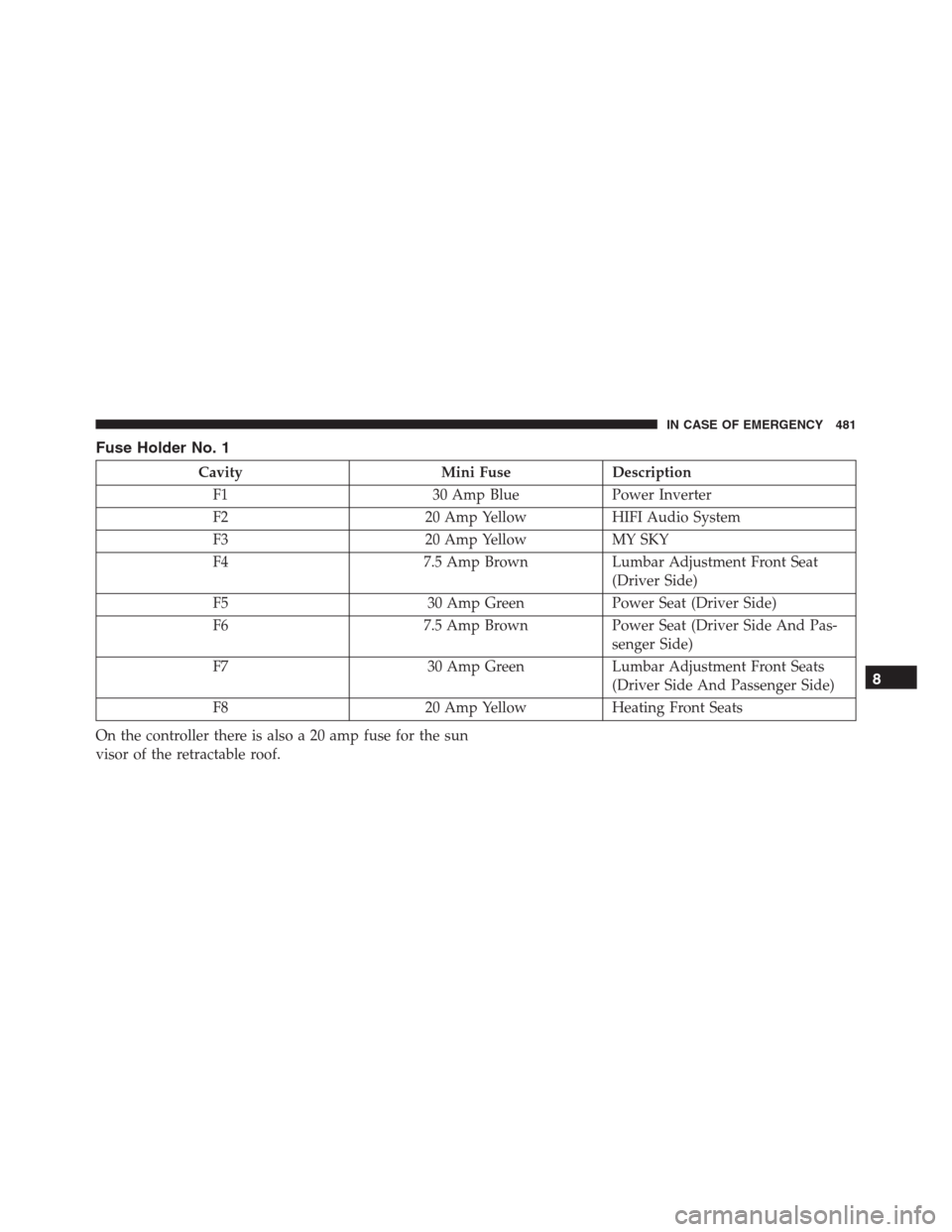
Fuse Holder No. 1
Cavity Mini Fuse Description
F1 30 Amp Blue Power Inverter
F2 20 Amp Yellow HIFI Audio System
F3 20 Amp Yellow MY SKY
F4 7.5 Amp Brown Lumbar Adjustment Front Seat
(Driver Side)
F5 30 Amp Green Power Seat (Driver Side)
F6 7.5 Amp Brown Power Seat (Driver Side And Pas-
senger Side)
F7 30 Amp Green Lumbar Adjustment Front Seats
(Driver Side And Passenger Side)
F8 20 Amp Yellow Heating Front Seats
On the controller there is also a 20 amp fuse for the sun
visor of the retractable roof.
8
IN CASE OF EMERGENCY 481
Page 484 of 688
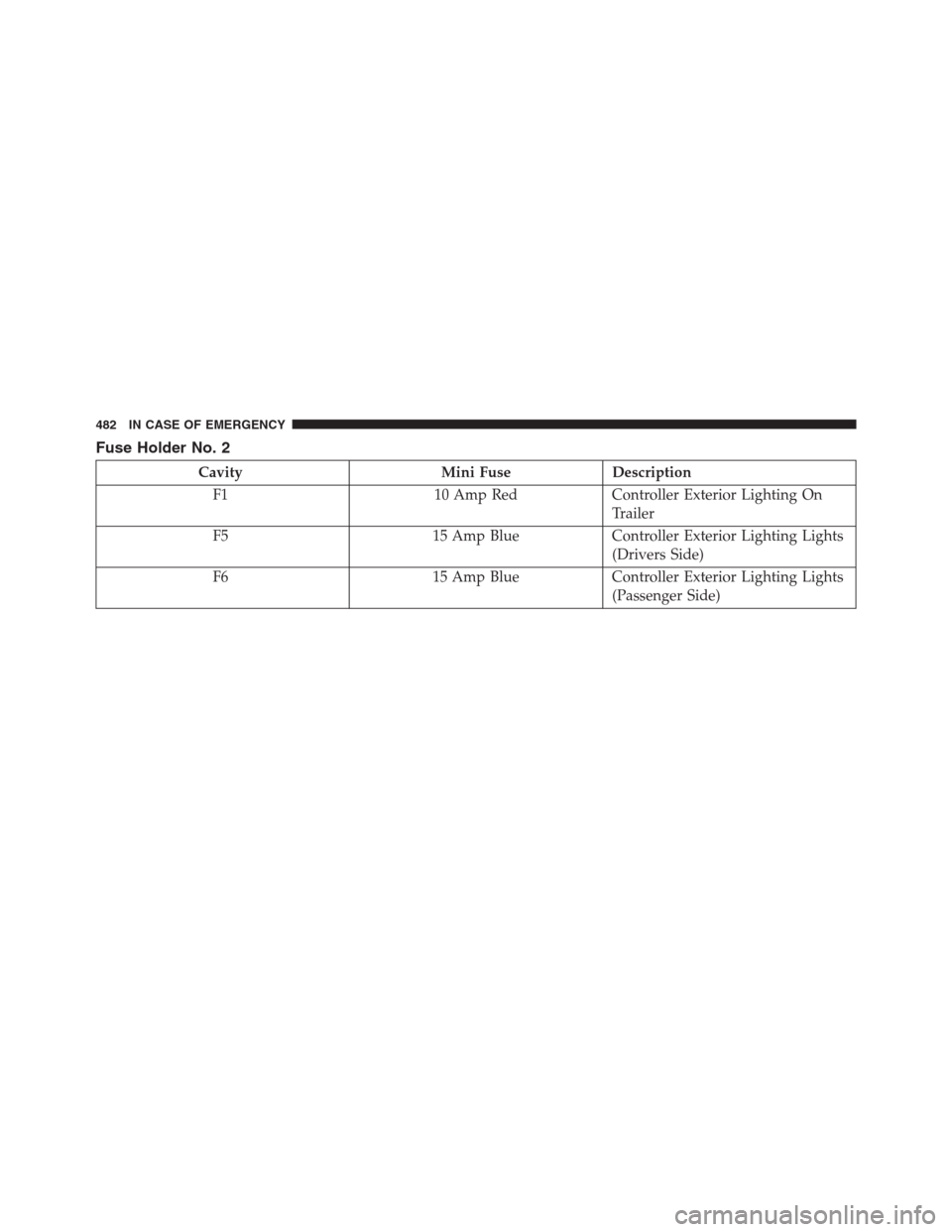
Fuse Holder No. 2
Cavity Mini Fuse Description
F1 10 Amp Red Controller Exterior Lighting On
Trailer
F5 15 Amp Blue Controller Exterior Lighting Lights
(Drivers Side)
F6 15 Amp Blue Controller Exterior Lighting Lights
(Passenger Side)
482 IN CASE OF EMERGENCY
Page 610 of 688

Buttons On The Faceplate
Buttons on the faceplate are located below, and beside the
Uconnect system in the center of the instrument panel. In
addition, there is a Scroll/Enter control knob located on
the right side. Turn the control knob to scroll through
menus and change settings (i.e., 30, 60, 90), push the
center of the control knob one or more times to select or
change a setting (i.e., ON, OFF).
Your Uconnect system may also have Display Off and
back arrow buttons on the faceplate.
Push the Display Off button on the faceplate to turn off
the Uconnect screen. Push the Display Off button on the
faceplate a second time to turn the screen on.
Push the Back Arrow button on the faceplate to exit out
of a Menu or certain option on the Uconnect system.
Buttons On The Touchscreen
Buttons on the touchscreen are accessible on the
Uconnect touchscreen.
Customer Programmable Features — Uconnect
5.0 Settings
Push the + MORE button on the faceplate, then press the
“Settings” button on the touchscreen to display the
settings menu screen. In this mode the Uconnect system
allows you to access programmable features that may be
equipped such as Display, Clock, Safety/Assistance,
Lights, Doors & Locks, Engine Off Options, Compass
Settings, Audio, Phone/Bluetooth, Radio Setup, Restore
Settings and Clear Personal Data.
NOTE:Only one touchscreen area may be selected at a
time.
When making a selection, press the button on the touch-
screen to enter the desired mode. Once in the desired
mode, press and release the preferred setting and make
608 MULTIMEDIA
Page 624 of 688

•Loudness — If Equipped
Loudness improves sound quality at lower volumes. To
make your selection, press the “Loudness” button on the
touchscreen, then choose “Yes” or “No.” The button will
highlight indicating that the setting has been selected.
•AUX Volume Offset — If Equipped
This feature provides the ability to tune the audio level
for portable devices connected through the AUX input.
To make your selection, press the “AUX Volume Offset”
button on the touchscreen, select “On” or “Off”.
•Auto-On Radio
The Radio automatically turns on when vehicle is in run
or will recall whether it was on or off at last ignition off.
To make your selection, press the “Loudness” button on
the touchscreen, select “On,” “Off” or “Recall Last”.Phone/Bluetooth
After pressing the “Phone/Bluetooth” button on the
touchscreen the following settings will be available:
•Paired Phones
This feature shows which phones are paired to the
Phone/Bluetooth system. For further information, refer
to the Uconnect Supplement Manual.
SiriusXM Setup — If Equipped
After pressing the “SiriusXM Setup” button on the touch-
screen, the following settings will be available:
•Channel Skip
SiriusXM can be programmed to designate a group of
channels that are the most desirable to listen to or to
exclude undesirable channels while scanning. To make
your selection, press the “Channel Skip” button on the
touchscreen, select the channels you would like to skip.
622 MULTIMEDIA
Page 626 of 688

Clear Personal Data
After pressing the “Clear Personal Data Settings” button on
the touchscreen the following settings will be available:
•Clear Personal Data
When this feature is selected it will remove personal data
including Bluetooth devices and presets. To remove
personal information, press the “Clear Personal Data”
button and a pop-up will appear asking�Are you sure
you want to clear all personal data?” select “OK” to
Clear, or “Cancel” to exit. Once the data has been cleared,
a pop up appears stating�Personal data cleared”.
Customer Programmable Features — Uconnect
6.5AN Settings
Press the Settings button to display the menu setting
screen. In this mode the Uconnect system allows you to
access programmable features that may be equipped
such as Display, Clock, Safety & Driving Assistance,Lights, Doors & Locks, engine Off Options, Audio,
Phone/Bluetooth, SiriusXM Setup, Restore Settings De-
faults, Clear Personal Data and System Information.
NOTE:
•Only one touchscreen area may be selected at a time.
•Depending on the vehicles options, feature settings
may vary.
When making a selection, press the button on the touch-
screen to enter the desired mode. Once in the desired
mode, press and release the preferred setting and make
your selection. Once the setting is complete, either press
the Back Arrow button on the touchscreen to return to the
previous menu, or press the “X” button on the touch-
screen to close out of the settings screen. Pressing the Up
or Down Arrow button on the right side of the screen will
allow you to toggle up or down through the available
settings.
624 MULTIMEDIA
Page 641 of 688

To make your selection, press the “AUX Volume Offset”
button on the touchscreen, select any point on the scale
between the “+” and “–” buttons on the touchscreen.
•Auto-On Radio
The Radio automatically turns on when vehicle is in run
or will recall whether it was on or off at last ignition off.
To make your selection, press the “Loudness” button on
the touchscreen, select “On,” “Off” or “Recall Last”.
Phone/Bluetooth
After pressing the “Phone/Bluetooth” button on the
touchscreen the following settings will be available:
•Paired Phones
This feature shows which mobile phones are paired to the
Phone/Bluetooth system.
•Paired Audio Sources
This feature shows which audio devices are paired to the
Phone/Bluetooth system.
SiriusXM Setup — If Equipped
After pressing the “SiriusXM Setup” button on the touch-
screen, the following settings will be available:
•Channel Skip
SiriusXM can be programmed to designate a group of
channels that are the most desirable to listen to or to
exclude undesirable channels while scanning. To make
your selection, press the “Channel Skip” button on the
touchscreen, select the channels you would like to skip.
•Subscription Information
New vehicle purchasers or lessees will receive a free
limited time subscription to SiriusXM Satellite Radio
with your radio. Following the expiration of the free
services, it will be necessary to access the information on
the Subscription Information screen to re-subscribe.
Press the “Subscription Info” button on the touchscreen
to access the Subscription Information screen.
11
MULTIMEDIA 639
Page 642 of 688

Write down the SIRIUS ID numbers for your receiver. To
reactivate your service, either call the number listed on
the screen or visit the provider online.
NOTE:SiriusXM Travel Link is a separate subscription
and is available for U.S. residents only.
Restore Settings Defaults
After pressing the “Restore Settings Defaults” button on
the touchscreen the following settings will be available:
•Restore Settings
When this feature is selected it will reset Display, Clock,
Audio, and Radio Settings to their default. Once in the
desired mode, press and release the preferred setting and
make your selection.
Clear Personal Data
After pressing the “Clear Personal Data Settings” button
on the touchscreen the following settings will be avail-
able:
•Clear Personal Data
When this feature is selected it will remove personal data
including Bluetooth devices and presets. To Clear Per-
sonal Data press the “Yes” or “No” button on the
touchscreen.
UCONNECT RADIOS
For detailed information about your Uconnect 3.0, 5.0 or
6.5AN radio, refer to your Uconnect Supplement Manual.
640 MULTIMEDIA