Page 328 of 642
4-65
Multimedia System
4
MP3 Information Display
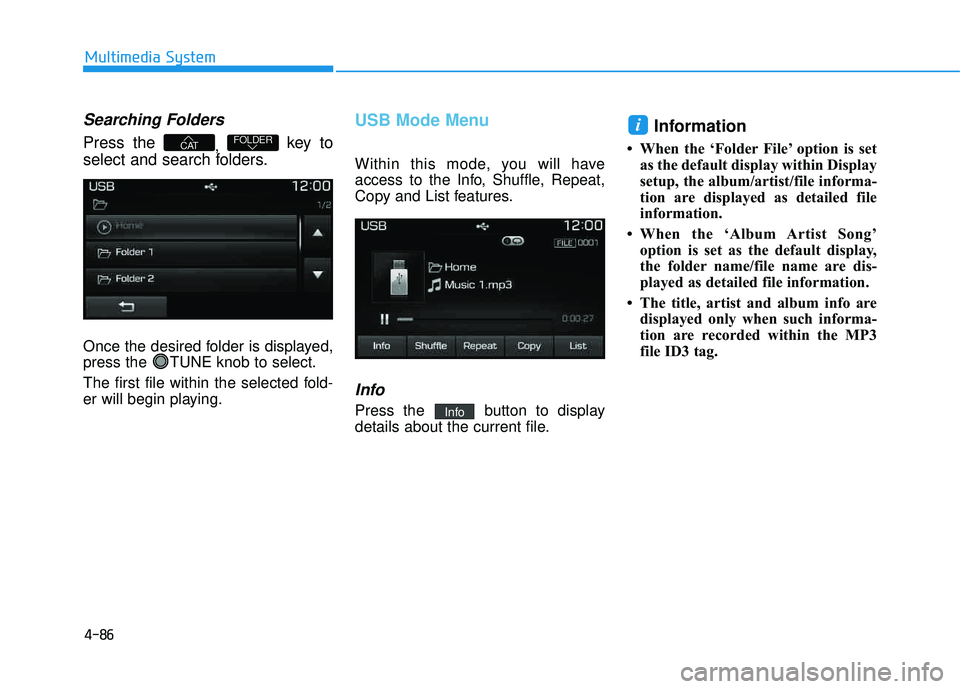
Press the key Select
[Display] Select [Media Display]
This feature is used to change the
information displayed within USB
and MP3 CD modes.
1) Folder/File : Displays file nameand folder name
2) Album/Artist/Song : Displays album name/artist name/song
Sound Settings
Sound Settings
Press the key Select
[Sound] Select [Sound Setting] Use the , , , buttons to
adjust the Fader/Balance settings.
Use the , buttons to adjust the
Bass/Middle/Treble settings.
Press the button to reset.DefaultSETUP
SETUP
Page 334 of 642
4-71
Multimedia System
4
SSyyssttee mm CC oonnttrr oo llllee rrss aa nn dd FF uunn ccttiioo nnss
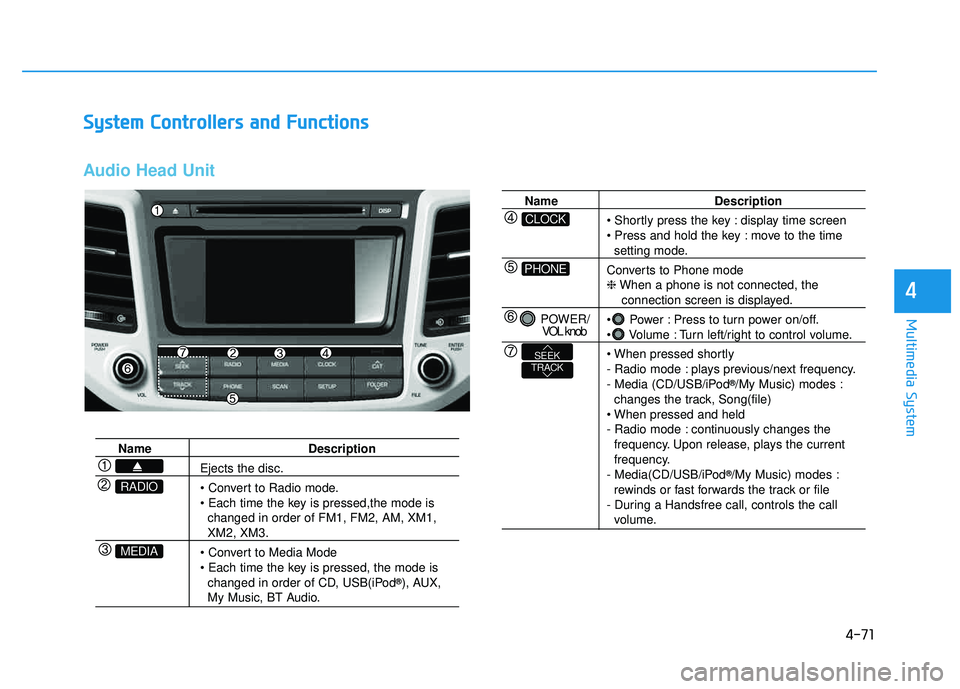
Audio Head Unit
Name Description
Ejects the disc.
• Convert to Radio mode.
changed in order of FM1, FM2, AM, XM1,
XM2, XM3.
changed in order of CD, USB(iPod ®
), AUX,
My Music, BT Audio.
MEDIA
RADIO
Name Description
display time screen
move to the time
setting mode.
Converts to Phone mode ❈ When a phone is not connected, the
connection screen is displayed.
Power : Press to turn power on/off.
Volume : Turn left/right to control volume.
- Radio mode : plays previous/next frequency.
- Media (CD/USB/iPod ®
/My Music) modes :
changes the track, Song(file)
- Radio mode : continuously changes the frequency. Upon release, plays the current
frequency.
- Media(CD/USB/iPod ®
/My Music) modes :
rewinds or fast forwards the track or file
- During a Handsfree call, controls the call
volume.
PHONE
CLOCK
POWER/ VOL knob
TRACKSEEK
Page 336 of 642
4-73
Multimedia System
4
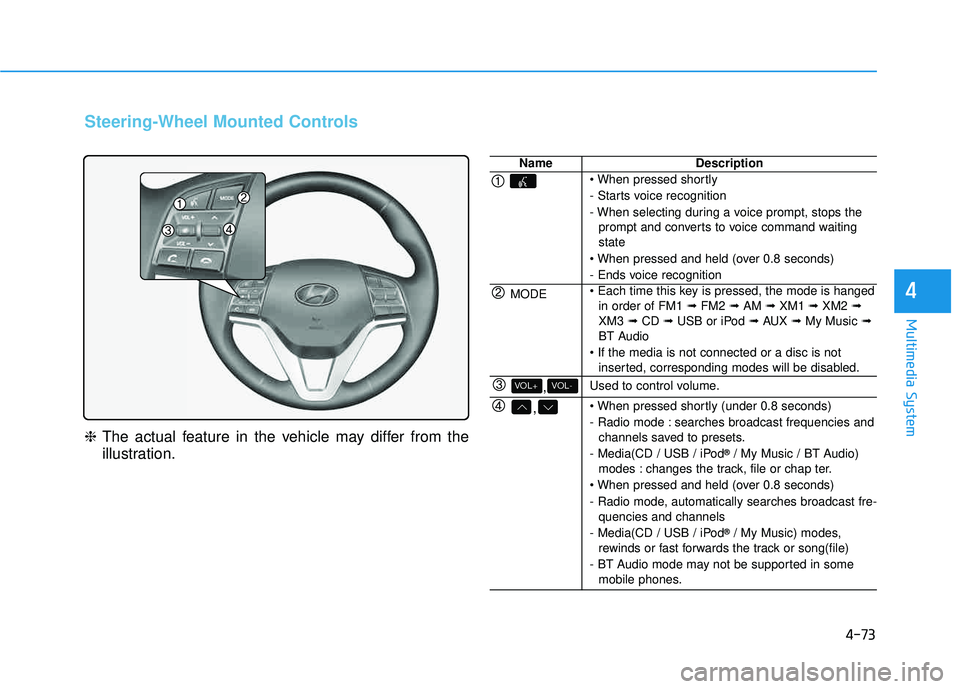
Steering-Wheel Mounted Controls
❈The actual feature in the vehicle may differ from the
illustration.
NameDescription
- Starts voice recognition
- When selecting during a voice prompt, stops the
prompt and converts to voice command waiting state
- Ends voice recognition
MODE in order of FM1 ➟FM2 ➟AM ➟XM1 ➟XM2 ➟
XM3 ➟CD ➟USB or iPod ➟AUX ➟My Music ➟
BT Audio
inserted, corresponding modes will be disabled.
,VOL-VOL+Used to control volume.
,
- Radio mode : searches broadcast frequencies andchannels saved to presets.
- Media(CD / USB / iPod ®
/ My Music / BT Audio)
modes : changes the track, file or chap ter.
- Radio mode, automatically searches broadcast fre- quencies and channels
- Media(CD / USB / iPod ®
/ My Music) modes,
rewinds or fast forwards the track or song(file)
- BT Audio mode may not be supported in some mobile phones.
Page 342 of 642
4-79
Multimedia System
4
MMeedd iiaa MM ooddee
Pressing the key will change
the operating mode in order of CD
➟
USB(iPod®) ➟ AUX ➟ My Music ➟BT
Audio.
If [Mode Pop up] is turned on within
[Display], then pressing the
key will display the Media
Pop-up Mode screen.
Turn the tune knob to highlight
each of the operating modes. Press
the know to select the desired mode.
Information
The media mode pop up screen can be
displayed only when there are two or
more media modes turned on.
Title Icon
When a Bluetooth®Wireless
Technology, iPod®, USB, or AUX
device is connected or a CD is
inserted, the corresponding mode
icon will be displayed.
Icon Title
Bluetooth®Wireless Technology
CD
iPod®
USB
AUX
i
MEDIA
SETUP
MEDIA
Page 348 of 642
4-85
Multimedia System
4
UUSSBB MM ooddee
Using USB Mode
Playing/Pausing USB Files
When a USB device is connected the
mode will automatically start and
begin playing a USB file.
While playing, press the button
to pause and press button to
play.
Information
Loading may require additional time
if there are many files and folders
within the USB and result in faulty
list display or file searching. Normal
operations will resume once loading
is complete.
The device may not support normal operation when using a USB memo-
ry type besides (Metal Cover Type)
USB Memory.
Changing Files
Press the , keys to
move to the previous or next file.
Information
Pressing the key after the file has been playing for 2 seconds
will start the current file from the
beginning.
Pressing the key before the file has been playing for 1 second
will start the previous file.
Selecting from the List
Turn the TUNE knob left/right to
search for the desired file.
Once you find the desired file, press
the TUNE knob to start playing.
Rewinding / Fast-forwarding
Files
While playing, press and hold the
, key (over 0.8 sec-
onds) to rewind or fast-forward the
current file.
Scan
Press the key to play the first
10 seconds of each file.SCAN
TRACKSEEK
TRACK
TRACK
i
TRACKSEEK
i
Page 349 of 642
4-86
Multimedia System
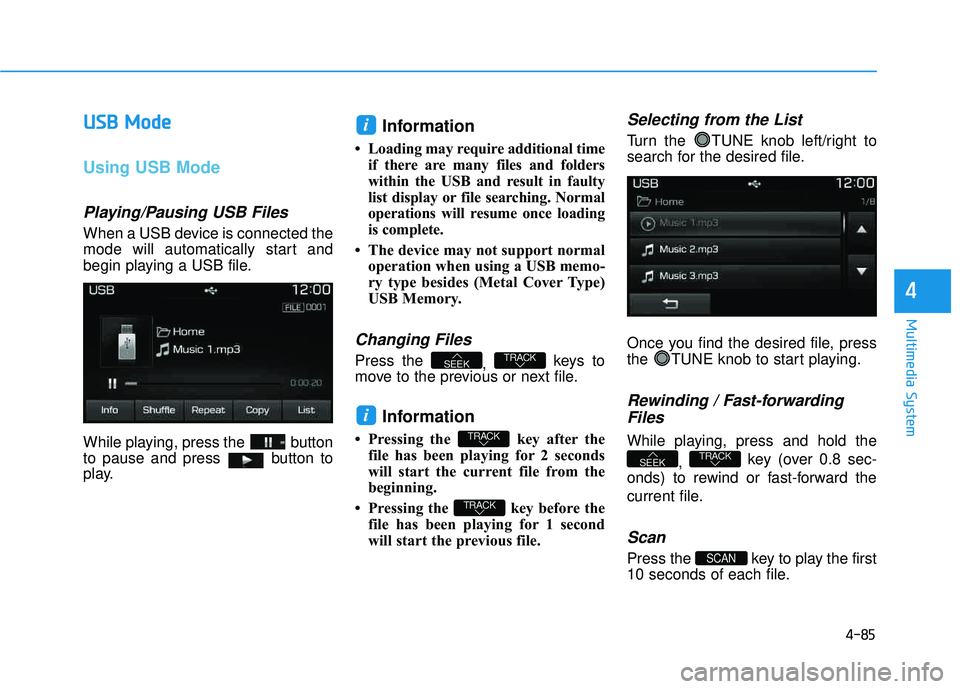
Searching Folders
Press the , key to
select and search folders.
Once the desired folder is displayed,
press the TUNE knob to select.
The first file within the selected fold-
er will begin playing.
USB Mode Menu
Within this mode, you will have
access to the Info, Shuffle, Repeat,
Copy and List features.
Info
Press the button to display
details about the current file.
Information
When the ‘Folder File’ option is set as the default display within Display
setup, the album/artist/file informa-
tion are displayed as detailed file
information.
When the ‘Album Artist Song’ option is set as the default display,
the folder name/file name are dis-
played as detailed file information.
The title, artist and album info are displayed only when such informa-
tion are recorded within the MP3
file ID3 tag.
i
Info
FOLDERCAT
Page 373 of 642
4-110
Multimedia System
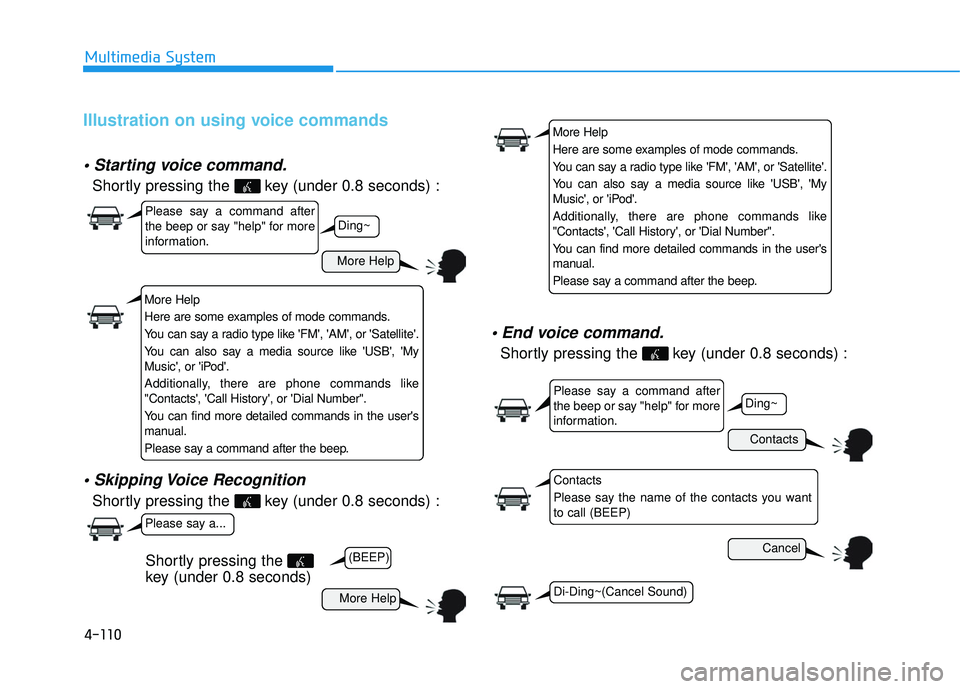
Illustration on using voice commands
Shortly pressing the key (under 0.8 seconds) :
Shortly pressing the key (under 0.8 seconds) :
Shortly pressing the key (under 0.8 seconds) :
More Help
Contacts
Cancel
More Help
Please say a command after
the beep or say "help" for more
information.
Please say a command after
the beep or say "help" for more
information.
Please say a...
Contacts
Please say the name of the contacts you want to call (BEEP)
Ding~
(BEEP)
Ding~
Di-Ding~(Cancel Sound)
Shortly pressing the
key (under 0.8 seconds)
More Help
Here are some examples of mode commands.
You can say a radio type like 'FM', 'AM', or 'Satellite'.
You can also say a media source like 'USB', 'My
Music', or 'iPod'.
Additionally, there are phone commands like
"Contacts', 'Call History', or 'Dial Number".
You can find more detailed commands in the user's
manual.
Please say a command after the beep.
More Help
Here are some examples of mode commands.
You can say a radio type like 'FM', 'AM', or 'Satellite'.
You can also say a media source like 'USB', 'My
Music', or 'iPod'.
Additionally, there are phone commands like
"Contacts', 'Call History', or 'Dial Number".
You can find more detailed commands in the user's
manual.
Please say a command after the beep.
Page 375 of 642
4-112
Multimedia System
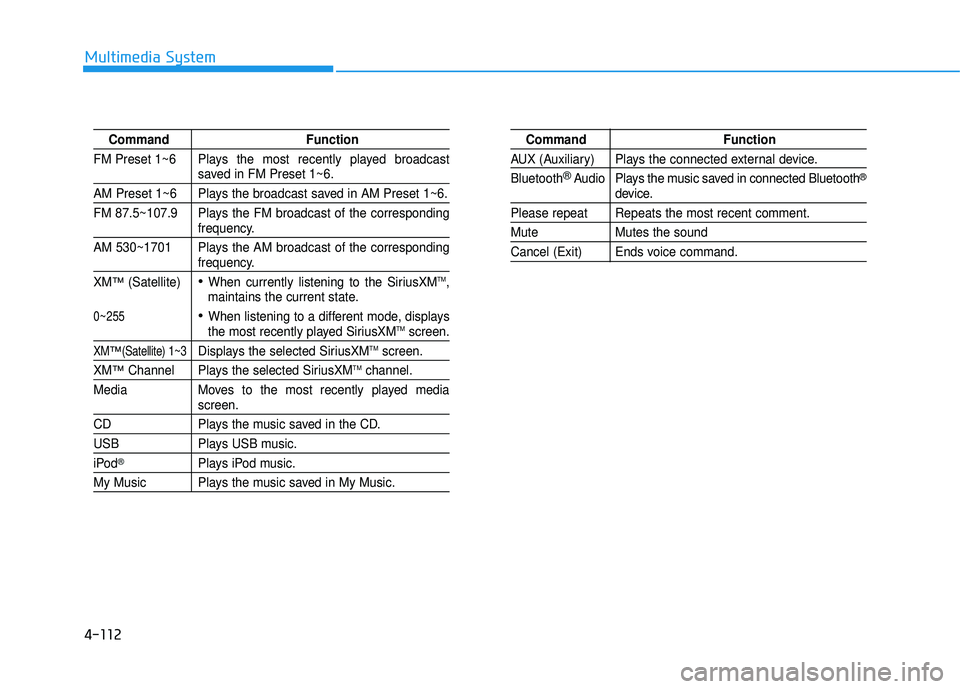
Command Function
FM Preset 1~6 Plays the most recently played broadcast
saved in FM Preset 1~6.
AM Preset 1~6 Plays the broadcast saved in AM Preset 1~6.
FM 87.5~107.9 Plays the FM broadcast of the corresponding
frequency.
AM 530~1701 Plays the AM broadcast of the corresponding
frequency.
XM
™(Satellite)When currently listening to the SiriusXMTM,
maintains the current state.
When listening to a different mode, displaysthe most recently played SiriusXMTMscreen.
XM™(Satellite) 1~3Displays the selected SiriusXMTMscreen.
XM™Channel Plays the selected SiriusXMTMchannel.
Media Moves to the most recently played media
screen.
CD Plays the music saved in the CD.
USB Plays USB music.
iPod®Plays iPod music.
My Music Plays the music saved in My Music.
Command Function
AUX (Auxiliary) Plays the connected external device. Bluetooth
®Audio Plays the music saved in connected Bluetooth®
device.
Please repeat Repeats the most recent comment.
Mute Mutes the sound
Cancel (Exit) Ends voice command.
0~255
![HYUNDAI TUCSON 2016 Owners Manual 4-65
Multimedia System
4
MP3 Information Display
Press the key Select
[Display] Select [Media Display]
This feature is used to change the
information displayed within USB
and MP3 CD modes.
1) Fo](/manual-img/35/56201/w960_56201-327.png "HYUNDAI TUCSON 2016 Owners Manual 4-65
Multimedia System
4
MP3 Information Display
Press the key Select
[Display] Select [Media Display]
This feature is used to change the
information displayed within USB
and MP3 CD modes.
1) Fo")
![HYUNDAI TUCSON 2016 Owners Manual 4-79
Multimedia System
4
MMeedd iiaa MM ooddee
Pressing the key will change
the operating mode in order of CD
➟
USB(iPod®) ➟ AUX ➟ My Music ➟BT
Audio.
If [Mode Pop up] is turned on with](/manual-img/35/56201/w960_56201-341.png "HYUNDAI TUCSON 2016 Owners Manual 4-79
Multimedia System
4
MMeedd iiaa MM ooddee
Pressing the key will change
the operating mode in order of CD
➟
USB(iPod®) ➟ AUX ➟ My Music ➟BT
Audio.
If [Mode Pop up] is turned on with")