Page 358 of 642
4-95
Multimedia System
4
Information
The play/pause feature may operate
differently depending on the mobile
phone.
Changing Files
Press the , key to
move to the previous or next file.
Setting Connection
If a Bluetooth®Wireless Technology
device has not been connected, press
the key [Phone] button to
display the
Bluetooth®Wireless
Technology connection screen.
It is possible to use the pair phone,
connect/disconnect and delete fea-
tures from your
Bluetooth®Wireless
Technology phone.
Information
If the Bluetooth®Wireless Technology
audio is not operating properly,
check whether the feature is turned
off at [Phone] [Streaming
Audio]. If the feature is off, turn back
on and try again.
If music is not yet playing from your mobile device after converting to
Bluetooth
®Wireless Technology
Audio mode, pressing the play but-
ton once may start playing the mode.
Check to see that music is playing
from the Bluetooth
®Wireless
Technology device after convertingto Bluetooth
®Wireless Technology
Audio Mode.
Information - Pairing through
[PHONE] Setup
The Bluetooth
®and Voice Recognition
Manual is provided in two versions
due to software version differences.
Before reading the manual, check the following.
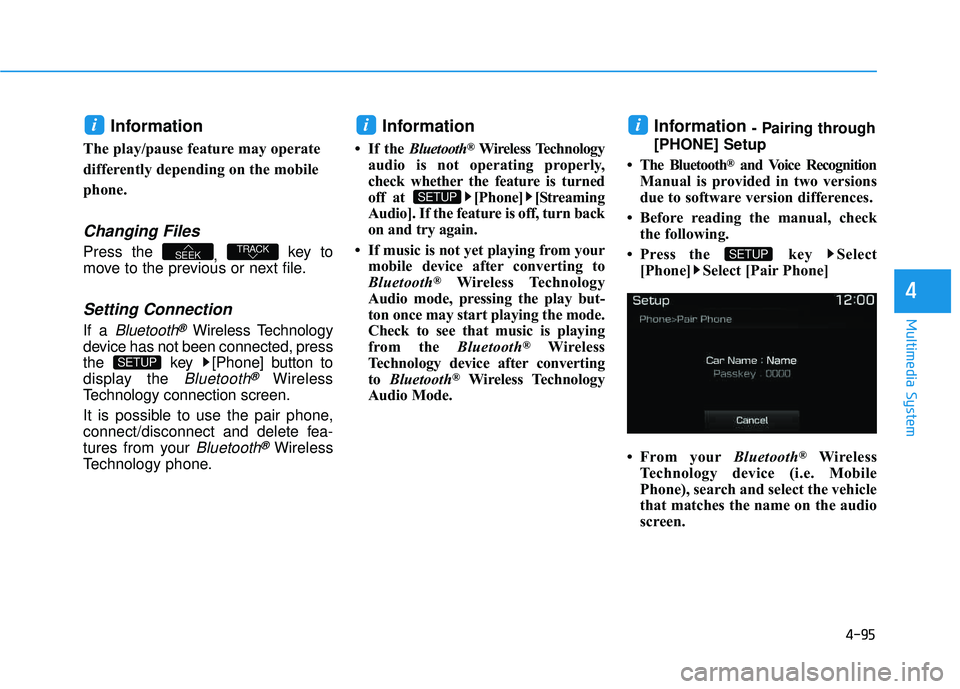
Press the key Select [Phone] Select [Pair Phone]
From your Bluetooth
®Wireless
Technology device (i.e. Mobile
Phone), search and select the vehicle
that matches the name on the audio
screen.
SETUP
i
SETUP
i
SETUP
TRACKSEEK
i
Page 359 of 642
4-96
Multimedia System
Pairing a Bluetooth®Wireless
Technology Device
What is Bluetooth® Wireless
Technology Pairing?
Pairing refers to the process of syn-
chronizing your
Bluetooth®Wireless
Technology phone or device with the
car audio system for connection.
Pairing is necessary to connect anduse the
Bluetooth®Wireless Technology
feature.
Pairing Key / Key
on the Steering Remote
Controller
When No Devices have been
Paired
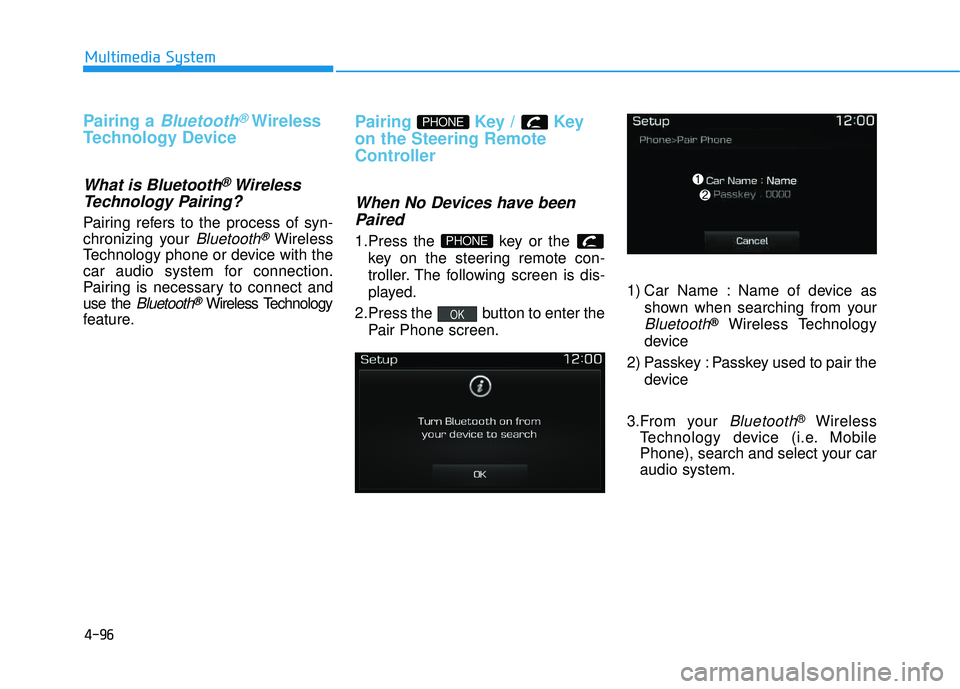
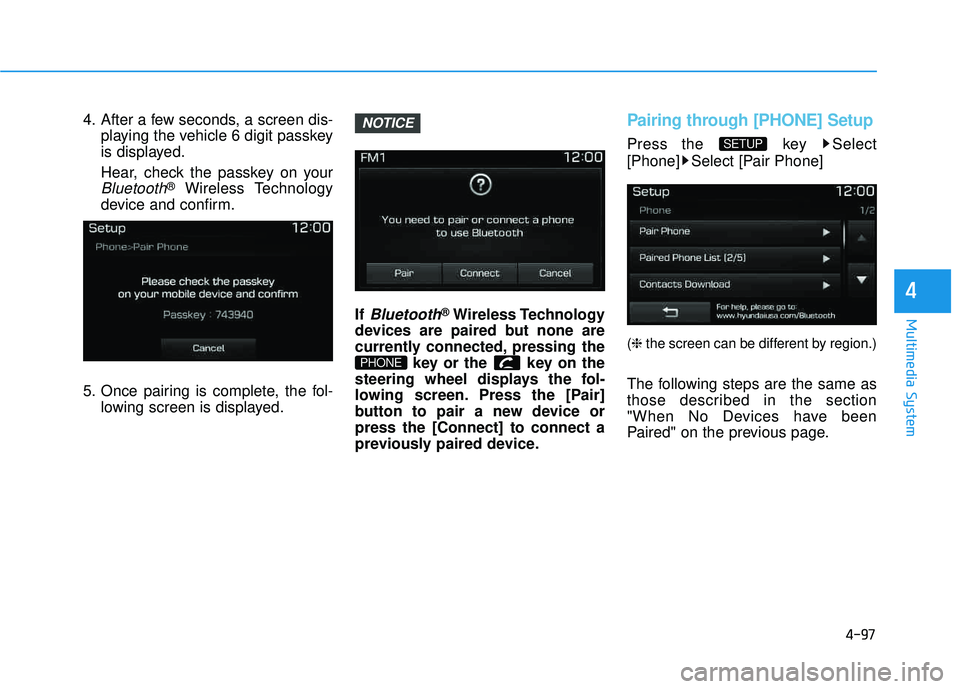
1.Press the key or the key on the steering remote con-
troller. The following screen is dis-
played.
2.Press the button to enter the Pair Phone screen. 1) Car Name : Name of device as
shown when searching from your
Bluetooth®Wireless Technology
device
2) Passkey : Passkey used to pair the device
3.From your
Bluetooth®Wireless
Technology device (i.e. Mobile
Phone), search and select your caraudio system.
OK
PHONE
PHONE
Page 360 of 642
4-97
Multimedia System
4
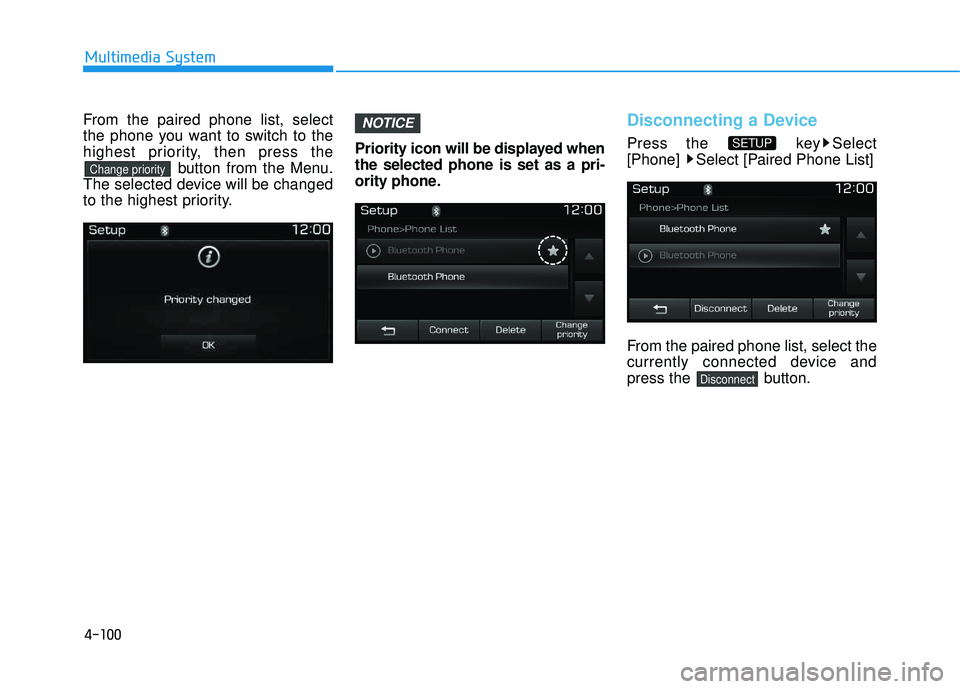
4. After a few seconds, a screen dis-playing the vehicle 6 digit passkey
is displayed.
Hear, check the passkey on your
Bluetooth®Wireless Technology
device and confirm.
5. Once pairing is complete, the fol- lowing screen is displayed. If
Bluetooth®Wireless Technology
devices are paired but none are
currently connected, pressing the key or the key on the
steering wheel displays the fol-
lowing screen. Press the [Pair]
button to pair a new device orpress the [Connect] to connect a
previously paired device.
Pairing through [PHONE] Setup
Press the key Select
[Phone] Select [Pair Phone]
( ❈ the screen can be different by region.)
The following steps are the same as
those described in the section
"When No Devices have been
Paired" on the previous page.
SETUP
PHONE
NOTICE
Page 362 of 642
4-99
Multimedia System
4
Connecting a Device
Press the key Select
[Phone] Select [Paired Phone List]
1) Connected Phone : Device that iscurrently connected
2) Paired Phone : Device that is paired but not connected From the paired phone list, select the
device you want to connect and
press the button.
Changing Priority
What is Priority?
It is possible to pair up to five
Bluetooth®Wireless Technology
devices with the car audio system.
The "Change Priority" feature is used
to set the connection priority of
paired phones.
Press the key Select
[Phone] Select [Paired Phone List]
SETUP
ConnectSETUP
Page 363 of 642
4-100
Multimedia System
From the paired phone list, select
the phone you want to switch to the
highest priority, then press thebutton from the Menu.
The selected device will be changed
to the highest priority. Priority icon will be displayed whenthe selected phone is set as a pri-
ority phone.Disconnecting a Device
Press the key Select
[Phone] Select [Paired Phone List]
From the paired phone list, select the
currently connected device and
press the button.
Disconnect
SETUP
NOTICE
Change priority
Page 364 of 642
4-101
Multimedia System
4
Deleting a Device
Press the key Select
[Phone] Select [Paired Phone List]
From the paired phone list, select the
device you want to delete and press
the button.
Information
When deleting the currently con-nected device, the device will auto-
matically be disconnected to pro-
ceed with the deleting process.
If a paired Bluetooth
®Wireless
Technology device is deleted, the
device’s call history and contacts
data will also be deleted.
To re-use a deleted device, you must pair the device again.
Phone Menu Screen
Phone Menus
With a Bluetooth®Wireless Technology
device connected, press the
key to display the Phone menuscreen.
( ❈ the screen can be different by region.)
1) Favorites : Up to 20 frequently
used contacts saved for easy access
2) Dial Number : Displays the dial screen where numbers can be
dialed to make calls
3) Call History : Device the call histo- ry list screen
PHONE
i
Delete
SETUP
Page 365 of 642
![HYUNDAI TUCSON 2016 Owners Manual 4-102
Multimedia System
4) Contacts : Displays the Contactslist screen
5) Setup : Displays Phone related settings
Information
If you press the [Call History] but-ton but there is no call history da](/manual-img/35/56201/w960_56201-364.png "HYUNDAI TUCSON 2016 Owners Manual 4-102
Multimedia System
4) Contacts : Displays the Contactslist screen
5) Setup : Displays Phone related settings
Information
If you press the [Call History] but-ton but there is no call history da")
4-102
Multimedia System
4) Contacts : Displays the Contactslist screen
5) Setup : Displays Phone related settings
Information
If you press the [Call History] but-ton but there is no call history data,
a prompt is displayed which asks to
download call history data.
If you press the [Contacts] button but there is no contacts data stored,
a prompt is displayed which asks to
download contacts data.
This feature may not be supported in some mobile phones. For more
information on download support,
refer to your mobile phone user’s
manual.
Favorites
Press the key Select
[Favorites]
1) Saved favorite contact : Connects
call upon selection
2) To add favorite : Downloaded con- tacts be saved as favorite.
3) Delete All : Delete all stored favorite contactsInformation
To save Favorite, contacts should bedownloaded.
Contact saved in Favorites will not be automatically updated if the contact
has been updated in the phone. To
update Favorites, delete the Favorite
and create a new Favorite.
iPHONE
i
Page 366 of 642
![HYUNDAI TUCSON 2016 Owners Manual 4-103
Multimedia System
4
Calling by Dialing a Number
Press the key Select [Dial Number]
1) Dial Pad : Use the dial pad to enterthe phome number directly.
2) Call : If a number has been entered, cal](/manual-img/35/56201/w960_56201-365.png "HYUNDAI TUCSON 2016 Owners Manual 4-103
Multimedia System
4
Calling by Dialing a Number
Press the key Select [Dial Number]
1) Dial Pad : Use the dial pad to enterthe phome number directly.
2) Call : If a number has been entered, cal")
4-103
Multimedia System
4
Calling by Dialing a Number
Press the key Select [Dial Number]
1) Dial Pad : Use the dial pad to enterthe phome number directly.
2) Call : If a number has been entered, calls the number. If no
number has been entered, switch-
es to call history screen
3) End : Deletes the entered phone number
4) Delete : Deletes entered numbers one digit at a time
Answering Calls
Answering a Call
Answering a call with a Bluetooth®
Wireless Technology device connect-
ed will display the following screen.
1) Caller : Displays the other party’sname when the incoming caller is
saved within your contacts
2) Incoming Number : Displays the incoming number
3) Accept : Accepts the incoming call
4) Reject : Rejects the incoming call
Information
When an incoming call pop-up is displayed, most Audio and SETUP
mode features are disabled. Only
the call volume will operate.
The telephone number may not be properly displayed in some mobile
phones.
When a call is answered with the mobile phone, the call mode will
automatically revert to Private
mode.
i
PHONE
![HYUNDAI TUCSON 2016 Owners Manual 4-99
Multimedia System
4
Connecting a Device
Press the key Select
[Phone] Select [Paired Phone List]
1) Connected Phone : Device that iscurrently connected
2) Paired Phone : Device that is paired](/manual-img/35/56201/w960_56201-361.png "HYUNDAI TUCSON 2016 Owners Manual 4-99
Multimedia System
4
Connecting a Device
Press the key Select
[Phone] Select [Paired Phone List]
1) Connected Phone : Device that iscurrently connected
2) Paired Phone : Device that is paired")
![HYUNDAI TUCSON 2016 Owners Manual 4-101
Multimedia System
4
Deleting a Device
Press the key Select
[Phone] Select [Paired Phone List]
From the paired phone list, select the
device you want to delete and press
the button.
Informat](/manual-img/35/56201/w960_56201-363.png "HYUNDAI TUCSON 2016 Owners Manual 4-101
Multimedia System
4
Deleting a Device
Press the key Select
[Phone] Select [Paired Phone List]
From the paired phone list, select the
device you want to delete and press
the button.
Informat")