Page 351 of 685
4-101
Multimedia System
4
SETUP
Starting Mode
Press the key to display the
Setup screen.
You can select and control options
related to [Display], [Sound], [Phone]
and [System].
Display Settings
Adjusting the Brightness
Press the key Select
[Display] Select [Brightness]
Use the , buttons to adjust the
screen brightness or set the
Brightness on Automatic, Day, or
Night mode.
Press the button to reset.
1) Automatic : Adjusts the brightness
automatically
2) Day : Always maintains the bright-
ness on high
3) Night : Always maintains the
brightness on low
Mode Pop up
Press the key Select
[Display] Select [Mode Pop up]
This feature is used to display the
Pop-up Mode screen when entering
radio and media modes.
When this feature is turned on,
pressing the or key
will display the Pop-up Mode screen.
Information
The media Pop-up Mode screen can
be displayed only when two or more
media modes have been connected.
i
MEDIA RADIO
SETUP
Default
SETUP SETUP
Page 352 of 685
4-102
Multimedia System
MP3 Information Display
Press the key Select
[Display] Select [Media Display]
This feature is used to change the
information displayed within USB
and MP3 CD modes.
1) Folder/File : Displays file name
and folder name
2) Album/Artist/Song : Displays
album name/artist name/song
Sound Settings
Sound Settings
Press the key Select
[Sound] Select [Sound Setting]Use the , , , buttons to
adjust the Fader/Balance settings.
Use the , buttons to adjust the
Bass/Middle/Treble settings.
Press the button to reset.DefaultSETUP
SETUP
Page 361 of 685
4-111
Multimedia System
4
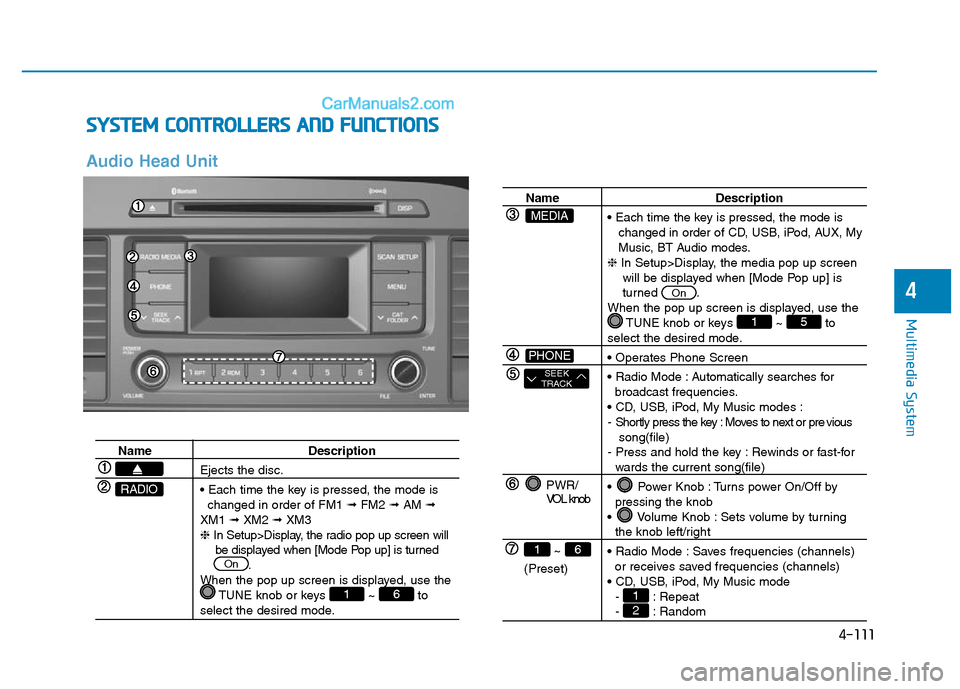
SYSTEM CONTROLLERS AND FUNCTIONS
Audio Head Unit
Name Description
Ejects the disc.
• Each time the key is pressed, the mode is
changed in order of FM1 ➟FM2 ➟AM ➟
XM1 ➟XM2 ➟XM3
❈In Setup>Display, the radio pop up screen will
be displayed when [Mode Pop up] is turned
.
When the pop up screen is displayed, use the
TUNE knob or keys ~ to
select the desired mode.
61
On
RADIO
Name Description
• Each time the key is pressed, the mode is
changed in order of CD, USB, iPod, AUX, My
Music, BT Audio modes.
❈In Setup>Display, the media pop up screen
will be displayed when [Mode Pop up] is
turned .
When the pop up screen is displayed, use the
TUNE knob or keys ~ to
select the desired mode.
• Operates Phone Screen
• Radio Mode : Automatically searches for
broadcast frequencies.
• CD, USB, iPod, My Music modes :
- Shortly press the key : Moves to next or pre vious
song(file)
- Press and hold the key : Rewinds or fast-for
wards the current song(file)
• Power Knob : Turns power On/Off by
pressing the knob
• Volume Knob : Sets volume by turning
the knob left/right
• Radio Mode : Saves frequencies (channels)
or receives saved frequencies (channels)
• CD, USB, iPod, My Music mode
- : Repeat
- : Random21
51
On
PWR/
VOL knob
~
(Preset)
61
SEEK
TRACK
PHONE
MEDIA
Page 362 of 685

4-112
Multimedia System
Name Description
• Each time the button is shortly pressed, it
sets the screen Off ➟Screen On ➟Screen
Off
❈Audio operation is maintained and only the
screen will be turned Off. In the screen Off
state, press any key to turn the screen On
again.
DISP
Name Description
• Radio Mode
- Shortly press the key : Previews each broad
cast for 5 seconds each
- Press and hold the key : Previews the broadcasts
saved in Preset ~ for 5 seconds
each.
❈Press the key again to continue
listening to the current frequency.
•
XM™Radio Mode
- Press and hold the key : Previews all
receivable broadcasts for 10 seconds each
• CD, USB, iPod mode
- Shortly press the key : Previews each song
(file) for 10 seconds each
❈Press the key again to continue
listening to the current song (file).
• Shortly press the key : Moves to the Display,
Sound, Phone, System setting modes
• Displays menus for the current mode.
• Radio Mode
- XM™ RADIO : Category Search
• MP3, CD, USB mode : Folder Search
❈May differ depending on the selected audio
• Radio mode : Changes frequency by turning
the knob left/right
• XM™ Radio mode : Changes channel by
turning the knob left/right
• CD, USB, iPod mode: Searches songs (files)
by turning the knob left/right
❈ When the desired song is displayed, press
the knob to play the song.
SCAN
SCAN
61
TUNE
knob
CATFOLDER
MENU
SETUP
SCAN
Page 366 of 685

4-116
Multimedia System
RADIO : FM, AM
SEEK
Press the key
• Shortly pressing the key : Changes
the frequency.
• Pressing and holding the key :
Automatically searches for the next
frequency.
Preset SEEK
Press the ~ key
• Shortly pressing the key : Plays the
frequency saved in the correspon-
ding key.
• Pressing and holding the key :
Pressing and holding the desired
key from
~ will save the
currently playing broadcast to the
selected key and sound a BEEP.
SCAN
Press the key
• Shortly pressing the key : The
broadcast frequency increases
and previews each broadcast for 5
seconds each. After scanning all
frequencies, returns and plays the
current broadcast frequency.
• Pressing and holding the key :
Previews the broadcasts saved in
Preset ~ for 5 seconds
each.
Selecting through manual
search
Turn the TUNE knob left/right to
adjust the frequency.
• FM : Changes by 200KHz
• AM : Changes by 9 (Only GUAM),
10KHz
Menu
Press the key Select [
Auto Store] through the TUNE knob
or key
A.Store
Press the key Set [A.Store]
through TUNE knob or key
Saves broadcasts with superior
reception to ~ keys. If no
frequencies are received, then the
most recently received frequency will
be broadcast.61
1
MENU
1
MENU
61
SCAN
61
61
SEEK
TRACK
Page 368 of 685
4-118
Multimedia System
Preset
Press the ~ key
• Shortly pressing the key (under 0.8
seconds): Plays the frequency
saved in the corresponding key.
• Pressing and holding the key (over
0.8 seconds): Pressing and holding
the desired key from
~
will save the current broadcast to
the selected key and sound a
BEEP.
Menu
Select category menu through the
TUNE knob Press the key
Select [ Info] through the TUNE
knob or key
Info (Information)
Displays the Artist/Song info of the
current song.
1
MENU
61
61
Page 379 of 685
![Hyundai Sonata Plug-in Hybrid 2016 Owners Manual 4-129
Multimedia System
4
Pairing through [PHONE]
Setup
Press the key Select
[Phone] Select [Pair Phone]
Select TUNE knob
1.The following steps are the same
as those described in the section
"When](/manual-img/35/19656/w960_19656-378.png "Hyundai Sonata Plug-in Hybrid 2016 Owners Manual 4-129
Multimedia System
4
Pairing through [PHONE]
Setup
Press the key Select
[Phone] Select [Pair Phone]
Select TUNE knob
1.The following steps are the same
as those described in the section
\"When")
4-129
Multimedia System
4
Pairing through [PHONE]
Setup
Press the key Select
[Phone] Select [Pair Phone]
Select TUNE knob
1.The following steps are the same
as those described in the section
"When No Devices have been
Paired" on the previous page.
Information
•Bluetooth®Wireless Technology fea-
tures supported within the vehicle
are as follows. Some features may
not be supported depending on your
Bluetooth
®Wireless Technology
device.
- Outgoing/Incoming Handsfree calls
(Continued)(Continued)
- Operations during a call (Switch to
Private, Switch to call waiting, MIC
on/off)
- Downloading Call History
- Downloading Mobile Contacts
-Bluetooth
®Wireless Technology
device auto connection
- Bluetooth Audio Streaming
• Up to five Bluetooth
®Wireless
Technology devices can be paired to
the Car Handsfree system.
• Only one Bluetooth
®Wireless
Technology device can be connected
at a time.
• Other devices cannot be paired
while a Bluetooth
®Wireless
Technology device is connected.
•Only Bluetooth
®Wireless
Technology Handsfree and
Bluetooth audio related features are
supported.
• Bluetooth related operations are
possible only within devices that
support Handsfree or audio fea-
tures, such as a Bluetooth
®Wireless
Technology mobile phone or a
Bluetooth audio device.
(Continued)(Continued)
• If a connected Bluetooth
®Wireless
Technology device becomes discon-
nected due to being out of communi-
cation range, turning the device
OFF, or a Bluetooth
®Wireless
Technology communication error,
corresponding Bluetooth
®Wireless
Technology devices are automatical-
ly searched and reconnected.
• If the system becomes unstable due
to communication errors between
the car Handsfree and the
Bluetooth
®Wireless Technology
device, reset the device by turning
off and back on again. Upon reset-
ting Bluetooth
®Wireless Technology
device, the system will be restored.
• After pairing is complete, a contacts
download request is sent once to the
mobile phone. Some mobile phones
may require confirmation upon
receiving a download request,
ensure your mobile phone accepts
the connection. Refer to your
phones user’s manual for additional
information regarding phone pair-
ing and connections.
i
SETUP
Page 392 of 685

4-142
Multimedia System
Command Function
FM Preset 1~6 Plays the most recently played broadcast
saved in FM Preset 1~6.
AM Preset 1~6 Plays the broadcast saved in AM Preset 1~6.
FM 87.5~107.9 Plays the FM broadcast of the corresponding
frequency.
AM 530~1701 Plays the AM broadcast of the corresponding
frequency.
SiriusXMTM• When currently listening to the SiriusXMTM,
maintains the current state.
• When listening to a different mode, displaysthe most recently played SiriusXMTMscreen.
SiriusXMTM1~3Displays the selected XM™screen.
SiriusXMTMPlays the selected XM™channel.
Channel 0~255
Media Moves to the most recently played mediascreen.
CD Plays the music saved in the CD.
USB Plays USB music.
iPod®Plays iPod music.
My Music Plays the music saved in My Music.
AUX (Auxiliary) Plays the connected external device.
Bluetooth
®Audio Plays the music saved in connected Bluetooth®
device.
Mute Mutes the sound
Command Function
Please repeat Repeats the most recent comment.
Mute Mutes the sound.
Cancel (Exit) Ends voice command.
![Hyundai Sonata Plug-in Hybrid 2016 Owners Manual 4-101
Multimedia System
4
SETUP
Starting Mode
Press the key to display the
Setup screen.
You can select and control options
related to [Display], [Sound], [Phone]
and [System].
Display Settings
Adjus](/manual-img/35/19656/w960_19656-350.png "Hyundai Sonata Plug-in Hybrid 2016 Owners Manual 4-101
Multimedia System
4
SETUP
Starting Mode
Press the key to display the
Setup screen.
You can select and control options
related to [Display], [Sound], [Phone]
and [System].
Display Settings
Adjus")
![Hyundai Sonata Plug-in Hybrid 2016 Owners Manual 4-102
Multimedia System
MP3 Information Display
Press the key Select
[Display] Select [Media Display]
This feature is used to change the
information displayed within USB
and MP3 CD modes.
1) Folder/](/manual-img/35/19656/w960_19656-351.png "Hyundai Sonata Plug-in Hybrid 2016 Owners Manual 4-102
Multimedia System
MP3 Information Display
Press the key Select
[Display] Select [Media Display]
This feature is used to change the
information displayed within USB
and MP3 CD modes.
1) Folder/")
