2016 Hyundai Sonata Drive
[x] Cancel search: DrivePage 240 of 603

3-145
Convenient features of your vehicle
3
If you operate air conditionerexcessively, the difference between
the temperature of the outside air
and that of the windshield could
cause the outer surface of the
windshield to fog up, causing loss
of visibility. In this case, set the
mode selection knob or button to
the position and fan speed
control to the lower speed.System Maintenance
Climate control air filter
This filter is installed behind the glove
box. It filters the dust or other pollu-
tants that enter the vehicle through the
heating and air conditioning system.
Have the climate control air filter
replaced by an authorized HYUNDAI
dealer according to the maintenance
schedule. If the car is being driven in
severe conditions such as dusty or
rough roads, more frequent air con-
ditioner filter inspections and
changes are required.
If the air flow rate suddenly decreas-
es, the system should be checked at
an authorized HYUNDAI dealer.
Checking the amount of air conditioner refrigerant andcompressor lubricant
When the amount of refrigerant is
low, the performance of the air con-
ditioning is reduced. Overfilling also
has a negative influence on the air
conditioning system.
Therefore, if abnormal operation is
found, have the system inspected by
an authorized HYUNDAI dealer.
It is important that the correct
type and amount of oil and refrig-
erant is used. Otherwise, damage
to the compressor and abnormal
system operation may occur.
NOTICE
1LDA5047
Outside air
Recirculatedair
Climate control air filter Blower
Evaporatorcore Heater core
Page 245 of 603
3-150
Convenient features of your vehicle
S
ST
T O
O R
RA
A G
G E
E
C
C O
O M
M P
PA
A R
RT
TM
M E
EN
N T
T
To avoid possible theft, do not
leave valuables in the storage
compartments.
Center Console Storage
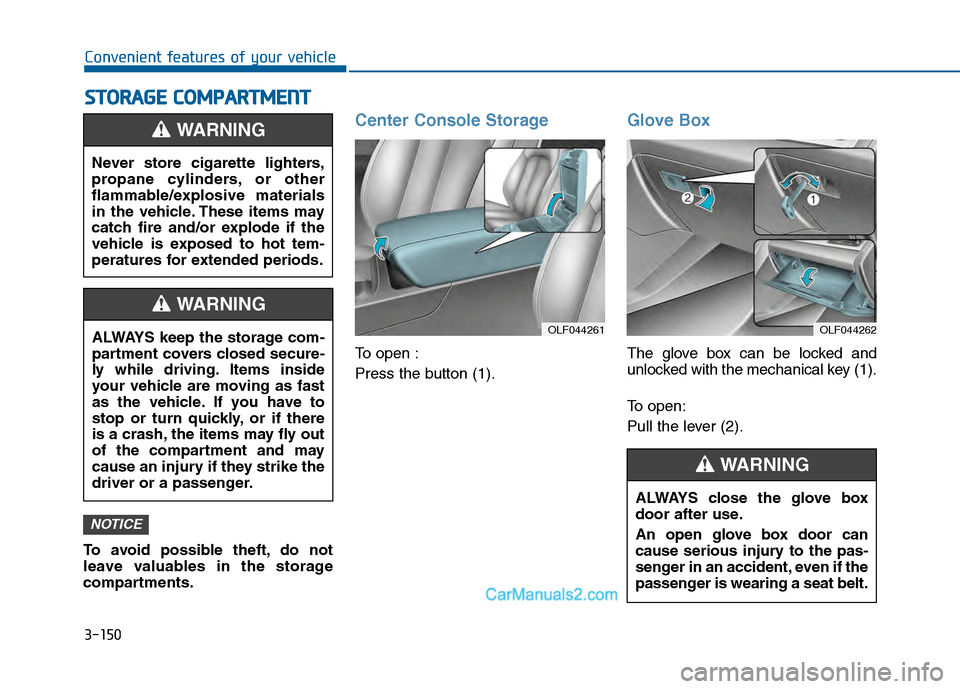
To open :
Press the button (1).
Glove Box
The glove box can be locked and
unlocked with the mechanical key (1).
To open:
Pull the lever (2).
NOTICE
Never store cigarette lighters,
propane cylinders, or other
flammable/explosive materials
in the vehicle. These items may
catch fire and/or explode if the
vehicle is exposed to hot tem-
peratures for extended periods.
WARNING
ALWAYS keep the storage com-
partment covers closed secure-
ly while driving. Items inside
your vehicle are moving as fast
as the vehicle. If you have to
stop or turn quickly, or if there
is a crash, the items may fly out
of the compartment and may
cause an injury if they strike the
driver or a passenger.
WARNING
OLF044261OLF044262
ALWAYS close the glove box
door after use.
An open glove box door can
cause serious injury to the pas-
senger in an accident, even if the
passenger is wearing a seat belt.
WARNING
Page 247 of 603
3-152
Convenient features of your vehicle
I
IN
N T
TE
ER
R I
IO
O R
R
F
F E
E A
A T
TU
U R
RE
ES
S
Cup Holder
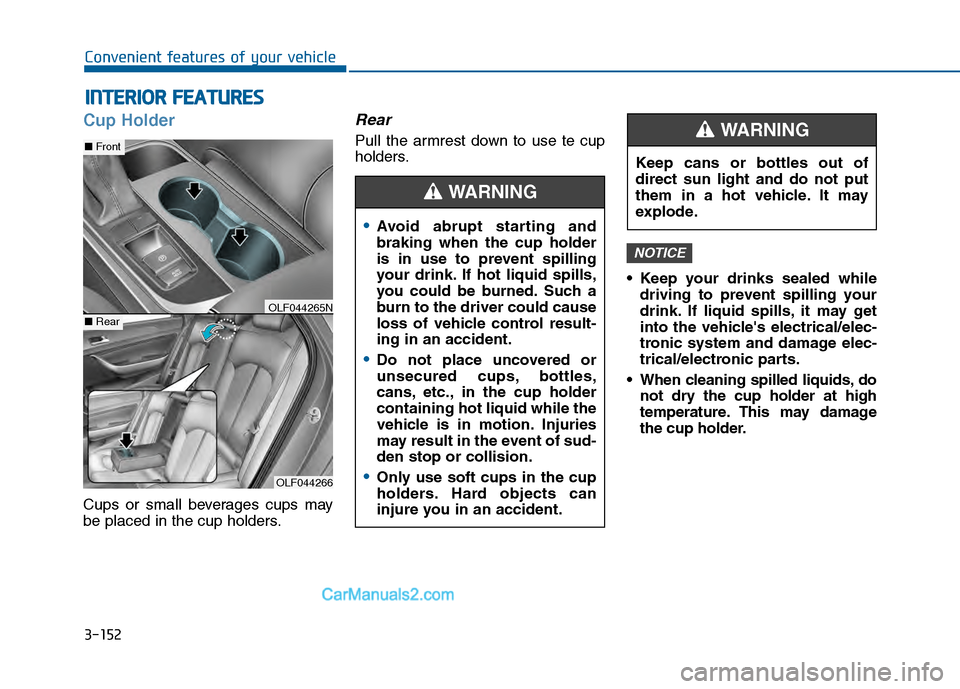
Cups or small beverages cups may
be placed in the cup holders.
Rear
Pull the armrest down to use te cup
holders.
Keep your drinks sealed whiledriving to prevent spilling your
drink. If liquid spills, it may get
into the vehicle's electrical/elec-
tronic system and damage elec-
trical/electronic parts.
When cleaning spilled liquids, do not dry the cup holder at high
temperature. This may damage
the cup holder.
NOTICE
OLF044266
■ Front
■RearOLF044265N
Avoid abrupt starting and
braking when the cup holder
is in use to prevent spilling
your drink. If hot liquid spills,
you could be burned. Such a
burn to the driver could cause
loss of vehicle control result-
ing in an accident.
Do not place uncovered or
unsecured cups, bottles,
cans, etc., in the cup holder
containing hot liquid while the
vehicle is in motion. Injuries
may result in the event of sud-
den stop or collision.
Only use soft cups in the cup
holders. Hard objects can
injure you in an accident.
WARNING
Keep cans or bottles out of
direct sun light and do not put
them in a hot vehicle. It may
explode.
WARNING
Page 252 of 603

3-157
Convenient features of your vehicle
3
Floor Mat Anchor(s)
ALWAYS use the Floor Mat Anchors
to attach the front floor mats to the
vehicle. The anchors on the front
floor carpet keep the floor mats from
sliding forward.
OVI043427
The following must be observed
when installing ANY floor mat
to the vehicle.
Ensure that the floor mats are
securely attached to the vehi-
cle's floor mat anchor(s)
before driving the vehicle.
Do not use ANY floor mat that
cannot be firmly attached to
the vehicle's floor mat anchors.
Do not stack floor mats on top
of one another (e.g. all-weath-
er rubber mat on top of a car-
peted floor mat). Only a single
floor mat should be installed
in each position.(Continued)
(Continued)
IMPORTANT - Your vehicle was
manufactured with driver's side
floor mat anchors that are
designed to securely hold the
floor mat in place. To avoid any
interference with pedal opera-
tion, HYUNDAI recommends
that the HYUNDAI floor mat
designed for use in your vehicle
be installed.WARNING
Page 263 of 603

4-10
Multimedia System
Do not place beverages close tothe audio system. Spilling bever-
ages may lead to system mal-
function.
In case of product malfunction, please contact your place of pur-
chase or After Service center.
Placing the audio system within an electromagnetic environment
may result in noise interference.
Prevent caustic solutions such as perfume and cosmetic oil
from contacting the dashboard
because they may cause dam-
age or discoloration.
Information - Using the discs
• This device has been manufactured to be compatible with software
bearing the following logo marks.
• Do not clean discs with chemical solutions, such as record sprays,
antistatic sprays, antistatic liquids,
benzene, or thinners.
• After using a disc, put the disc back in its original case to prevent disc
scratches.
• Hold discs by their edges or within the center hole to prevent damages
to disc surfaces.
• Do not introduce foreign substances into the disc insert/eject slot.
Introducing foreign substances
could damage the device interior.
• Do not insert two discs simultane- ously.
• When using CD-R/CD-RW discs, differences in disc reading and play-
ing times may occur depending on
the disc manufacturer, production
method and the recording method
as used by the user.
(Continued)iNOTICE
Operating the device while
driving could lead to accidents
due to a lack of attention to
external surroundings. First
park the vehicle before operat-
ing the device.
Adjust the volume to levels that
allow the driver to hear sounds
from outside of the vehicle.
Driving in a state where exter-
nal sounds cannot be heard
may lead to accidents.
Pay attention to the volume
setting when turning the
device on. A sudden output of
extreme volume upon turning
the device on could lead to
hearing impairment. (Adjust
the volume to a suitable level
before turning off the device.)(Continued)
CAUTION
Page 264 of 603

4-11
Multimedia System
4
(Continued)
• Clean fingerprints and dust off thedisc surface (coated side) with a soft
cloth.
• The use of CD-R/CD-RW discs attached with labels may result in
disc slot jams or difficulties in disc
removal. Such discs may also result
in noise while playing.
• Some CD-R/CD-RW discs may not properly operate depending on the
disc manufacturer, production
method and the record method as
used by the user. If problems persist,
trying using a different CD as con-
tinued use may result in malfunc-
tions.
• The performance of this product may differ depending on the CD-
RW Drive Software.
• Copy-protected CDs such as S-type CDs may not function in the device.
DATA discs cannot be played.
(However, such discs may still oper-
ate but will do so abnormally.)
(Continued)(Continued)
• Do not use abnormally shaped discs
(8cm, heart-shaped, octagon-
shaped) as such discs could lead to
malfunctions.
• If the disc is straddled on the disc slot without removal for 10 seconds,
the disc will automatically be re-
inserted into the disc player.
• Only genuine audio CDs are sup- ported. Other discs may result in
recognition failure (e.g. copy CD-R,
CDs with labels)Information -Using the USB
device
• Connect the USB device after turn- ing on the engine. The USB device
may become damaged if it is already
connected when the ignition is
turned on.The USB device may not
operate properly if the car ignition
is turned on or off with the USB
device connected.
• Heed caution to static electricity when connecting/disconnecting USB
devices.
• Encoded MP3 Players will not be recognized when connected as an
external device.
• When connecting an external USB device, the device may not properly
recognize the USB is in some states.
• Only products formatted with byte/sectors under 64Kbyte will be
recognized.
• This device recognizes USB devices formatted in FAT 12/16/32 file for-
mats. This device does not recognize
files in NTFS file format.
(Continued)i
Page 265 of 603

4-12
Multimedia System
(Continued)
• Some USB devices may not be sup- ported due to compatibility issues.
• Avoid contact between the USB con- nector with bodily parts or foreign
objects.
• Repeated connecting/disconnecting of USB devices within short periods
of time may result in product mal-
function.
• A strange noise may occur when dis- connecting the USB.
• Make sure to connect/disconnect external USB devices with the audio
power turned off.
• The amount of time required to rec- ognize the USB device may differ
depending on the type, size or file
formats stored in the USB. Such dif-
ferences in time are not indications
of malfunctions.
• The device only supports USB devices used to play music files.
• USB images and videos are not sup- ported.
(Continued)(Continued)
• Do not use the USB I/F to charge batteries or USB accessories that
generate heat. Such acts may lead to
worsened performance or damage
to the device.
• The device may not recognize the USB device if separately purchased
USB hubs and extension cables are
being used. Connect the USB direct-
ly with the multimedia terminal of
the vehicle.
• When using mass storage USB devices with separate logical drives,
only files saved to the root drive can
be played.
• Files may not properly operate if application programs are installed
to the USBs.
• The device may not operate normal- ly if MP3 Players, cellular phones,
digital cameras, or other electronic
devices (USB devices not recognized
as portable disk drives) are connect-
ed with the device. (Continued)
• Charging through the USB may not
work for some mobile devices.
• The device may not support normal operation when using a USB memo-
ry type besides (Metal Cover Type)
USB Memory.
• The device may not support normal operation when using formats such
as HDD Type, CF, or SD Memory.
• The device will not support files locked by DRM (Digital Rights
Management.)
• USB memory sticks used by con- necting an Adaptor (SD Type or CF
Type) may not be properly recog-
nized.
• The device may not operate proper- ly when using USB HDDs or USBs
subject to connection failures
caused by vehicle vibrations. (e.g. i-
stick type)
(Continued)
Page 268 of 603

4-15
Multimedia System
4
Information - Before using
the
Bluetooth®handsfree
What is Bluetooth®?
• Bluetooth®refers to a short-distance
wireless networking technology
which uses a 2.4GHz ~ 2.48GHz fre-
quency to connect various devices
within a certain distance.
• Supported within PCs, external devices, Bluetooth
®phones, PDAs,
various electronic devices, and auto-
motive environments, Bluetooth
®
allows data to be transmitted at high
speeds without having to use a con-
nector cable.
• Bluetooth
®Handsfree refers to a
device which allows the user to con-
veniently make phone calls with
Bluetooth
®mobile phones through
the audio system.
• Bluetooth
®Handsfree may not be sup-
ported in some mobile phones. To learn
more about mobile device compatibility,
visit www
. hyundaiusa.com.
Information - Precautions for
safe driving
• Bluetooth
®Handsfree is a feature
that enables drivers to practice safe
driving. Connecting the head unit
with a Bluetooth
®phone allows the
user to conveniently make and
receive calls and use contacts.
Before using Bluetooth
®, carefully
read the contents of this user’s man-
ual.
• Excessive use or operations while driving may lead to negligent driv-
ing practices and result in accidents.
Refrain from excessive operations
while driving.
• Viewing the screen for prolonged periods of time is dangerous and
may lead to accidents. When driv-
ing, view the screen only for short
periods of time.
Information - When connect-
ing a
Bluetooth®phone
• Before connecting the head unit with the mobile phone, check to see
that the mobile phone supports
Bluetooth
®features.
• Even if the phone supports Bluetooth
®, the phone will not be
found during device searches if the
phone has been set to hidden state
or the Bluetooth
®power is turned
off. Disable the hidden state or turn
on the Bluetooth
®power prior to
searching/connecting with the Head
unit.
• Bluetooth phone is automatically connected when the ignition on.
• If you do not want automatic con- nection with your Bluetooth
®device,
turn off the Bluetooth®feature with-
in your mobile phone.
• The Handsfree call volume and quality may differ depending on the
mobile phone.
(Continued)
iii