Page 259 of 759
Features of your vehicle
162
4
MODE (1)
Press the button to change audio
source.
PRESET/SEEK ( / ) (2)
The SEEK/PRESET button has dif-
ferent functions based on the system
mode.
For the following functions the button
should be pressed for 0.8 second or
more.
RADIO mode
It will function as the AUTO SEEK
select button.
CD/USB/iPod
®mode
It will function as the FF/REW button.
If the SEEK/PRESET button is
pressed for less than 0.8 second, it
will work as follows in each mode. RADIO mode
It will function as the PRESET STA-
TION buttons.
CD/USB/iPod
®mode
It will function as TRACK UP/DOWN
button.
VOLUME (VOL+/-) (3)
• Push the lever upward (+) to increase the volume.
Push the lever downward (-) to decrease the volume.
MUTE (4)
Press the button to mute the sound.
Press the button to turn off themicrophone during a telephone call.
Detailed information for audio control
buttons are described in the following
pages in this section.
Page 296 of 759
4199
Features of your vehicle
✽
✽NOTICE
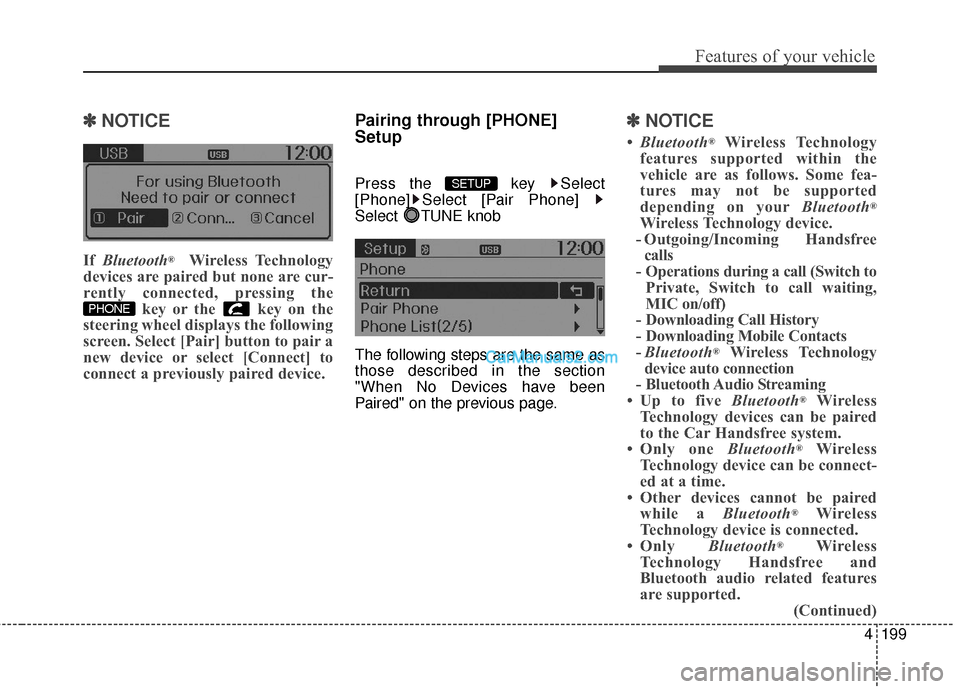
If Bluetooth®Wireless Technology
devices are paired but none are cur-
rently connected, pressing the key or the key on the
steering wheel displays the following
screen. Select [Pair] button to pair a
new device or select [Connect] to
connect a previously paired device.
Pairing through [PHONE]
Setup
Press the key Select
[Phone] Select [Pair Phone]
Select TUNE knob
The following steps are the same as
those described in the section
"When No Devices have been
Paired" on the previous page.
✽ ✽ NOTICE
•Bluetooth®Wireless Technology
features supported within the
vehicle are as follows. Some fea-
tures may not be supported
depending on your Bluetooth
®
Wireless Technology device.
- Outgoing/Incoming Handsfree calls
- Operations during a call (Switch to Private, Switch to call waiting,
MIC on/off)
- Downloading Call History
- Downloading Mobile Contacts
- Bluetooth
®Wireless Technology
device auto connection
- Bluetooth Audio Streaming
• Up to five Bluetooth
®Wireless
Technology devices can be paired
to the Car Handsfree system.
• Only one Bluetooth
®Wireless
Technology device can be connect-
ed at a time.
• Other devices cannot be paired while a Bluetooth
®Wireless
Technology device is connected.
• Only Bluetooth
®Wireless
Technology Handsfree and
Bluetooth audio related features
are supported. (Continued)
SETUP
PHONE
Page 304 of 759
4207
Features of your vehicle
Bluetooth®Wireless
Technology Setting
Pairing a New Device
Press the key Select
[Phone] Select [Pair Phone]
Bluetooth®Wireless Technology
devices can be paired with the audio
system.
For more information, refer to the
“Pairing through Phone Setup” sec-
tion within
Bluetooth®Wireless
Technology.
Viewing Paired Phone List
Press the key Select
[Phone] Select [Paired Phone List]
This feature is used to view mobile
phones that have been paired with
the audio system. Upon selecting a
paired phone, the setup menu is dis-
played.
For more information, refer to the
“Setting
Bluetooth®Wireless
Technology Connection” section with-
in
Bluetooth®Wireless Technology. 1) Connect/Disconnect Phone :
Connect/ disconnects currently
selected phone
2) Change Priority : Sets currently selected phone to highest connec-
tion priority
3) Delete : Deletes the currently selected phone
4) Return : Moves to the previous screen
SETUP
SETUP
Page 362 of 759
![Hyundai Santa Fe 2016 Owners Manual 4265
Features of your vehicle
[Non SSP supported device]
(SSP: Secure Simple Pairing)
4. After a few moments, a screen isdisplayed where the passkey is
entered.
Hear, enter the passkey “0000” to
p](/manual-img/35/16331/w960_16331-361.png "Hyundai Santa Fe 2016 Owners Manual 4265
Features of your vehicle
[Non SSP supported device]
(SSP: Secure Simple Pairing)
4. After a few moments, a screen isdisplayed where the passkey is
entered.
Hear, enter the passkey “0000” to
p")
4265
Features of your vehicle
[Non SSP supported device]
(SSP: Secure Simple Pairing)
4. After a few moments, a screen isdisplayed where the passkey is
entered.
Hear, enter the passkey “0000” to
pair your
Bluetooth®Wireless
Technology device with the car
audio system.
[SSP supported device]
4. After a few moments, a screen is displayed 6 digits passkey.
Hear, check the passkey on your
Bluetooth®Wireless Technology
device and confirm.
5. Once pairing is complete, the fol- lowing screen is displayed.
✽ ✽NOTICE
If Bluetooth®Wireless Technology
devices are paired but none are cur-
rently connected, pressing the key or the key on the
steering wheel displays the following
screen. Press the [Pair] button to
pair a new device or press the
[Connect] to connect a previously
paired device.
Pairing through [PHONE]
Setup
Press the key Select
[Phone] Select [Pair Phone]
Select TUNE knob
The following steps are the same as
those described in the section
"When No Devices have been
Paired" on the previous page.SETUP
PHONE
Page 371 of 759
Features of your vehicle
274
4
Bluetooth®Wireless
Technology Setting
Pairing a New Device
Press the key Select
[Phone] Select [Pair Phone]
Bluetooth®Wireless Technology
devices can be paired with the audio
system.
For more information, refer to the
“Pairing through Phone Setup” sec-
tion within
Bluetooth®Wireless
Technology.
Viewing Paired Phone List
Press the key Select
[Phone] Select [Paired Phone List]
This feature is used to view mobile
phones that have been paired with
the audio system. Upon selecting a
paired phone, the setup menu is dis-
played.
For more information, refer to the
“Setting
Bluetooth®Wireless
Technology Connection” section
within
Bluetooth®Wireless
Technology.
1) : Moves to the previous screen
2) Connect/Disconnect Phone : Connect/ disconnects currently
selected phone 3) Delete : Deletes the currently
selected phone
4) Change Priority : Sets currently selected phone to highest connec-
tion priority
SETUP
SETUP
Page 428 of 759
4331
Features of your vehicle
✽
✽NOTICE
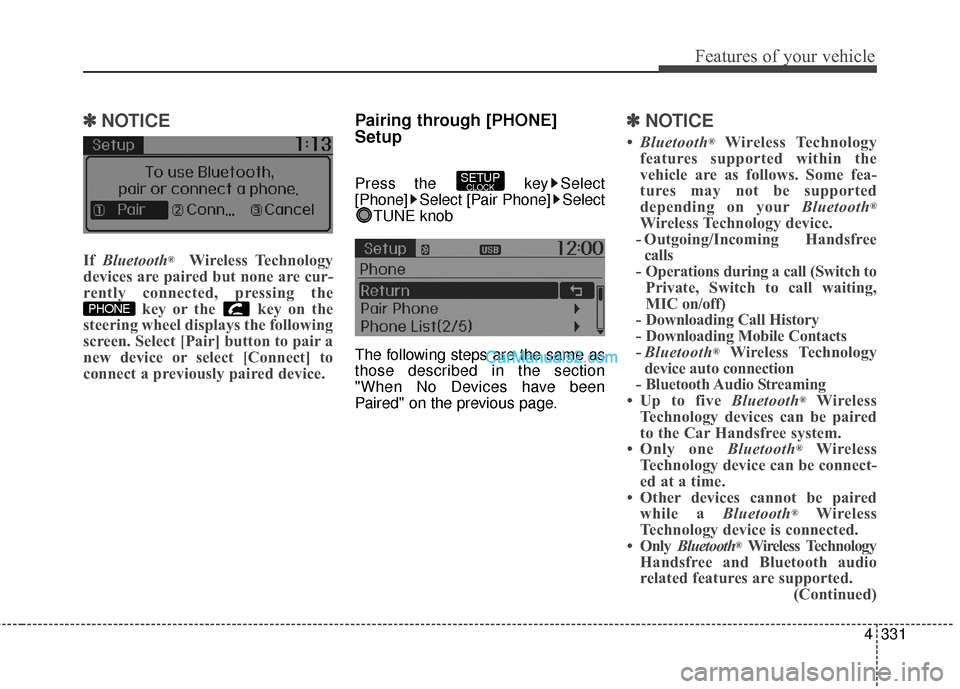
If Bluetooth®Wireless Technology
devices are paired but none are cur-
rently connected, pressing the key or the key on the
steering wheel displays the following
screen. Select [Pair] button to pair a
new device or select [Connect] to
connect a previously paired device.
Pairing through [PHONE]
Setup
Press the key Select
[Phone] Select [Pair Phone] Select
TUNE knob
The following steps are the same as
those described in the section
"When No Devices have been
Paired" on the previous page.
✽ ✽ NOTICE
•Bluetooth®Wireless Technology
features supported within the
vehicle are as follows. Some fea-
tures may not be supported
depending on your Bluetooth
®
Wireless Technology device.
- Outgoing/Incoming Handsfree calls
- Operations during a call (Switch to Private, Switch to call waiting,
MIC on/off)
- Downloading Call History
- Downloading Mobile Contacts
- Bluetooth
®Wireless Technology
device auto connection
- Bluetooth Audio Streaming
• Up to five Bluetooth
®Wireless
Technology devices can be paired
to the Car Handsfree system.
• Only one Bluetooth
®Wireless
Technology device can be connect-
ed at a time.
• Other devices cannot be paired while a Bluetooth
®Wireless
Technology device is connected.
• Only Bluetooth
®Wireless Technology
Handsfree and Bluetooth audio
related features are supported. (Continued)
SETUPCLOCK
PHONE
Page 436 of 759
4339
Features of your vehicle
Bluetooth®Wireless
Technology Setting
Pairing a New Device
Press the key Select
[Phone] Select [Pair Phone]
Bluetooth®Wireless Technology
devices can be paired with the audio
system.
For more information, refer to the
“Pairing through Phone Setup” sec-
tion within
Bluetooth®Wireless
Technology.
Viewing Paired Phone List
Press the key Select
[Phone] Select [Paired Phone List]
This feature is used to view mobile
phones that have been paired with
the audio system. Upon selecting a
paired phone, the setup menu is dis-
played.
For more information, refer to the
“Setting
Bluetooth®Wireless
Technology Connection” section with-
in
Bluetooth®Wireless Technology. 1) Connect/Disconnect Phone :
Connect/ disconnects currently
selected phone
2) Change Priority : Sets currently selected phone to highest connec-
tion priority
3) Delete : Deletes the currently selected phone
4) Return : Moves to the previous screen
SETUPCLOCK
SETUPCLOCK
Page 496 of 759
![Hyundai Santa Fe 2016 Owners Manual 4399
Features of your vehicle
[Non SSP supported device]
(SSP: Secure Simple Pairing)
4. After a few moments, a screen isdisplayed where the passkey is
entered.
Hear, enter the passkey "0000" to
pair](/manual-img/35/16331/w960_16331-495.png "Hyundai Santa Fe 2016 Owners Manual 4399
Features of your vehicle
[Non SSP supported device]
(SSP: Secure Simple Pairing)
4. After a few moments, a screen isdisplayed where the passkey is
entered.
Hear, enter the passkey \"0000\" to
pair")
4399
Features of your vehicle
[Non SSP supported device]
(SSP: Secure Simple Pairing)
4. After a few moments, a screen isdisplayed where the passkey is
entered.
Hear, enter the passkey "0000" to
pair your
Bluetooth®Wireless
Technology device with the car
audio system.
[SSP supported device]
4. After a few moments, a screen is displayed 6 digits passkey.
Hear, check the passkey on your
Bluetooth®Wireless Technology
device and confirm.
5. Once pairing is complete, the fol- lowing screen is displayed.
✽ ✽NOTICE
If Bluetooth®Wireless Technology
devices are paired but none are cur-
rently connected, pressing the key or the key on the
steering wheel displays the following
screen. Press the [Pair] button to
pair a new device or press the
[Connect] to connect a previously
paired device.
Pairing through [PHONE]
Setup
Press the key Select
[Phone] Select [Pair Phone] Select
TUNE knob
(For USA)
(Except USA)
The following steps are the same as
those described in the section
"When No Devices have been
Paired" on the previous page.
SETUP
PHONE
![Hyundai Santa Fe 2016 Owners Manual 4207
Features of your vehicle
Bluetooth®Wireless
Technology Setting
Pairing a New Device
Press the key Select
[Phone] Select [Pair Phone]
Bluetooth®Wireless Technology
devices can be paired with th](/manual-img/35/16331/w960_16331-303.png "Hyundai Santa Fe 2016 Owners Manual 4207
Features of your vehicle
Bluetooth®Wireless
Technology Setting
Pairing a New Device
Press the key Select
[Phone] Select [Pair Phone]
Bluetooth®Wireless Technology
devices can be paired with th")
![Hyundai Santa Fe 2016 Owners Manual Features of your vehicle
274
4
Bluetooth®Wireless
Technology Setting
Pairing a New Device
Press the key Select
[Phone] Select [Pair Phone]
Bluetooth®Wireless Technology
devices can be paired with t](/manual-img/35/16331/w960_16331-370.png "Hyundai Santa Fe 2016 Owners Manual Features of your vehicle
274
4
Bluetooth®Wireless
Technology Setting
Pairing a New Device
Press the key Select
[Phone] Select [Pair Phone]
Bluetooth®Wireless Technology
devices can be paired with t")
![Hyundai Santa Fe 2016 Owners Manual 4339
Features of your vehicle
Bluetooth®Wireless
Technology Setting
Pairing a New Device
Press the key Select
[Phone] Select [Pair Phone]
Bluetooth®Wireless Technology
devices can be paired with th](/manual-img/35/16331/w960_16331-435.png "Hyundai Santa Fe 2016 Owners Manual 4339
Features of your vehicle
Bluetooth®Wireless
Technology Setting
Pairing a New Device
Press the key Select
[Phone] Select [Pair Phone]
Bluetooth®Wireless Technology
devices can be paired with th")