Page 431 of 759
Features of your vehicle
334
4
✽
✽
NOTICE
Priority icon will be displayed when
the selected phone is set as a priority
phone.
Disconnecting a Device
Press the key Select
[Phone] Select [Paired Phone List]
From the paired phone list, select the
currently connected device and
select [Disconnect] button.
Deleting a Device
Press the key Select
[Phone] Select [Paired Phone List]
From the paired phone list, select the
device you want to delete and select
[Delete] button.SETUPCLOCKSETUPCLOCK
Page 436 of 759
4339
Features of your vehicle
Bluetooth®Wireless
Technology Setting
Pairing a New Device
Press the key Select
[Phone] Select [Pair Phone]
Bluetooth®Wireless Technology
devices can be paired with the audio
system.
For more information, refer to the
“Pairing through Phone Setup” sec-
tion within
Bluetooth®Wireless
Technology.
Viewing Paired Phone List
Press the key Select
[Phone] Select [Paired Phone List]
This feature is used to view mobile
phones that have been paired with
the audio system. Upon selecting a
paired phone, the setup menu is dis-
played.
For more information, refer to the
“Setting
Bluetooth®Wireless
Technology Connection” section with-
in
Bluetooth®Wireless Technology. 1) Connect/Disconnect Phone :
Connect/ disconnects currently
selected phone
2) Change Priority : Sets currently selected phone to highest connec-
tion priority
3) Delete : Deletes the currently selected phone
4) Return : Moves to the previous screen
SETUPCLOCK
SETUPCLOCK
Page 437 of 759
Features of your vehicle
340
4
✽
✽
NOTICE BEFORE DOWN-
LOADING CONTACTS
• Only contacts within connected
phones can be downloaded. Also
check to see that your mobile
phone supports the download fea-
ture.
• To learn more about whether your mobile phone supports contacts
downloads, refer to your mobile
phone user’s manual.
• The contacts for only the connect- ed phone can be downloaded.
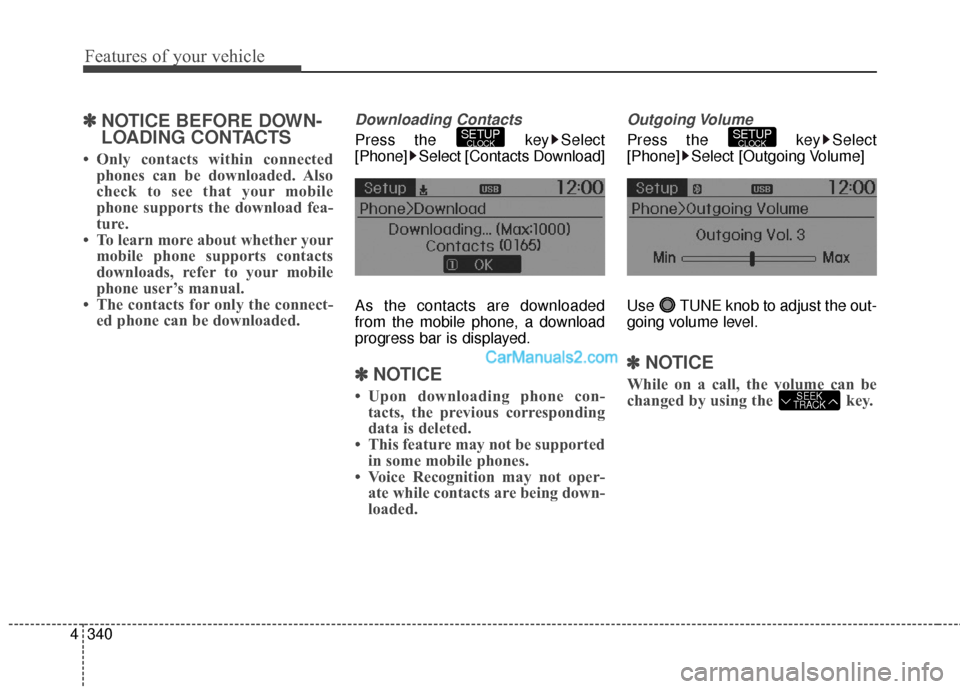
Downloading Contacts
Press the key Select
[Phone] Select [Contacts Download]
As the contacts are downloaded
from the mobile phone, a download
progress bar is displayed.
✽ ✽ NOTICE
• Upon downloading phone con-
tacts, the previous corresponding
data is deleted.
• This feature may not be supported in some mobile phones.
• Voice Recognition may not oper- ate while contacts are being down-
loaded.
Outgoing Volume
Press the key Select
[Phone] Select [Outgoing Volume]
Use TUNE knob to adjust the out-
going volume level.
✽ ✽ NOTICE
While on a call, the volume can be
changed by using the key.SEEK
TRACK
SETUPCLOCKSETUPCLOCK
Page 438 of 759
4341
Features of your vehicle
Turning Bluetooth System Off
Press the key Select
[Phone] Select [Bluetooth System
Off]
Once
Bluetooth®Wireless Technology
is turned off,
Bluetooth®Wireless
Technology related features will not be
supported within the audio system.
✽ ✽ NOTICE
To turn Bluetooth®Wireless
Technology back on, go to
[Phone] and select "Yes".SETUPCLOCK
SETUPCLOCK
Page 439 of 759
![Hyundai Santa Fe 2016 Owners Manual Features of your vehicle
342
4
VOICE RECOGNITION
Using Voice Recognition
Starting Voice Recognition
Shortly press the key on the
steering wheel. Say a command.
If prompt feedback is in [ON], then
t](/manual-img/35/16331/w960_16331-438.png "Hyundai Santa Fe 2016 Owners Manual Features of your vehicle
342
4
VOICE RECOGNITION
Using Voice Recognition
Starting Voice Recognition
Shortly press the key on the
steering wheel. Say a command.
If prompt feedback is in [ON], then
t")
Features of your vehicle
342
4
VOICE RECOGNITION
Using Voice Recognition
Starting Voice Recognition
Shortly press the key on the
steering wheel. Say a command.
If prompt feedback is in [ON], then
the system will say "Please say a
command after the beep (BEEP)"
If prompt feedback is in [OFF]
mode, then the system will only
say "(BEEP)"
To change Prompt Feedback [On]/[Off], go to [System][Prompt Feedback]
✽ ✽ NOTICE
For proper recognition, say the com-
mand after the voice instruction and
beep tone.
Contact List Best Practices
1) Do not store single-name entries
(e.g., “Bob”, “Mom”, “Kim”, etc.).
Instead, always use full names
(including first and last names) for
all contacts (e.g., use “Jacob
Stevenson” instead of “Dad”).
2) Do not use abbreviations (i.e., use “Lieutenant” instead of “Lt.” or
“Sergeant” instead of “Sgt.”).
3) Do not use acronyms (i.e., use “County Finance Department”
instead of “CFD”).
4) Do not use special characters (e.g., “@”, “hyphen -”, “asterisk *”,
“ampersand &”).
5) If a name is not recognized from the contact list, change it to a
more descriptive name (e.g., use
“Grandpa Joseph” instead of “Pa
Joe”).
SETUPCLOCK
Page 454 of 759
4357
Features of your vehicle
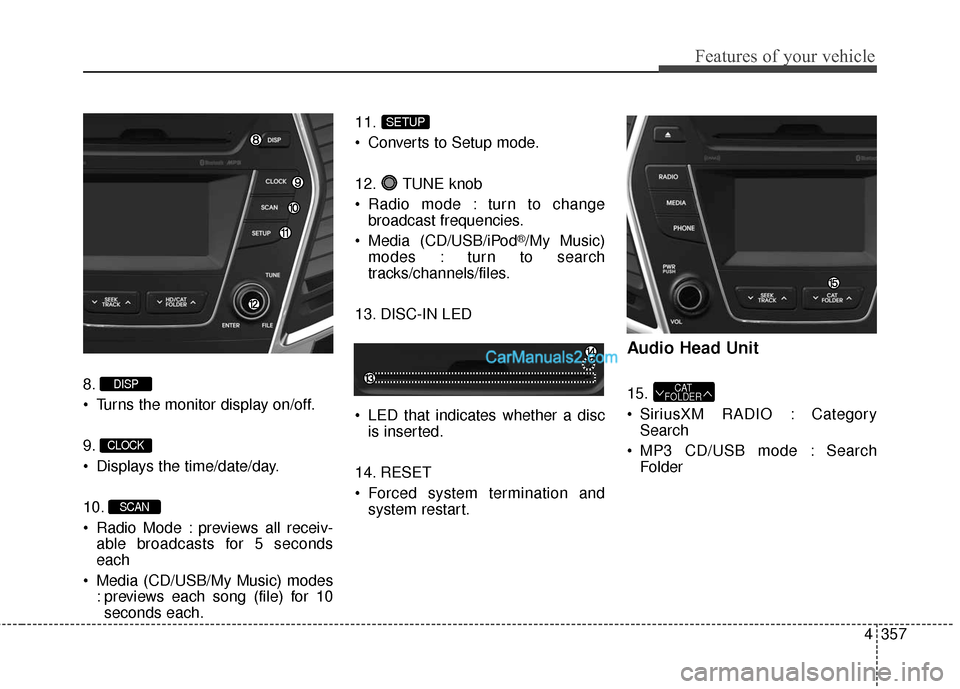
8.
Turns the monitor display on/off.
9.
Displays the time/date/day.
10.
Radio Mode : previews all receiv-able broadcasts for 5 seconds
each
Media (CD/USB/My Music) modes : previews each song (file) for 10seconds each. 11.
Converts to Setup mode.
12. TUNE knob
Radio mode : turn to change
broadcast frequencies.
Media (CD/USB/iPod
®/My Music)
modes : turn to search
tracks/channels/files.
13. DISC-IN LED
LED that indicates whether a disc is inserted.
14. RESET
Forced system termination and system restart.
Audio Head Unit
15.
SiriusXM RADIO : CategorySearch
MP3 CD/USB mode : Search FolderCAT
FOLDER
SETUP
SCAN
CLOCK
DISP
Page 515 of 759
Features of your vehicle
418
4
SETUP
Starting Mode
Press the key to display the
Setup screen.
You can select and control options
related to [Display], [Sound],
[Clock/Calendar], [Phone] and
[System].
Display Settings
Adjusting the Brightness
Press the key Select
[Display] Select [Brightness]
Use the , buttons to adjust the
screen brightness or set the
Brightness on Automatic, Daylight, or
Night mode.
Press the button to reset.
1) Automatic : Adjusts the brightness
automatically
2) Daylight : Always maintains the brightness on high
3) Night : Always maintains the
brightness on low
Mode Pop-up
Press the key Select
[Display] Select [Mode Pop up]
This feature is used to display the
Mode Pop-up screen when entering
radio and media modes.
When this feature is turned on,
pressing the or key
will display the Mode Pop-up screen.
✽ ✽ NOTICE
The media Mode Pop-up screen can
be displayed only when two or more
media modes have been connected.
MEDIA RADIO
SETUP
Default
SETUP SETUP
Page 518 of 759
4421
Features of your vehicle
Touch Screen Beep
Press the key Select
[Sound] Select [Touch Screen
Beep]
This feature is used to turn the touch
screen beep on/off.
Blue Link Voice Volume
Press the key Select
[Sound] Select [Blue Link Voice
Vol.]
Turn the TUNE knob to adjust the
Blue Link Voice Volume.
❈Blue Link
®may differ depending
on the selected audio.
Clock/Calendar Setting
Clock Setting
Press the key Select
[Clock/Calendar] Select [Clock
Settings]
Use the , buttons to set the
Hour, Minutes setting and select
AM/PM.
✽ ✽ NOTICE
Press and hold the key (over
0.8 seconds) to set the Clock/
Calendar screen.CLOCK
SETUP
SETUP SETUP
![Hyundai Santa Fe 2016 Owners Manual Features of your vehicle
334
4
✽
✽
NOTICE
Priority icon will be displayed when
the selected phone is set as a priority
phone.
Disconnecting a Device
Press the key Select
[Phone] Select [Paired P](/manual-img/35/16331/w960_16331-430.png "Hyundai Santa Fe 2016 Owners Manual Features of your vehicle
334
4
✽
✽
NOTICE
Priority icon will be displayed when
the selected phone is set as a priority
phone.
Disconnecting a Device
Press the key Select
[Phone] Select [Paired P")
![Hyundai Santa Fe 2016 Owners Manual 4339
Features of your vehicle
Bluetooth®Wireless
Technology Setting
Pairing a New Device
Press the key Select
[Phone] Select [Pair Phone]
Bluetooth®Wireless Technology
devices can be paired with th](/manual-img/35/16331/w960_16331-435.png "Hyundai Santa Fe 2016 Owners Manual 4339
Features of your vehicle
Bluetooth®Wireless
Technology Setting
Pairing a New Device
Press the key Select
[Phone] Select [Pair Phone]
Bluetooth®Wireless Technology
devices can be paired with th")
![Hyundai Santa Fe 2016 Owners Manual 4341
Features of your vehicle
Turning Bluetooth System Off
Press the key Select
[Phone] Select [Bluetooth System
Off]
Once
Bluetooth®Wireless Technology
is turned off,
Bluetooth®Wireless
Technolo](/manual-img/35/16331/w960_16331-437.png "Hyundai Santa Fe 2016 Owners Manual 4341
Features of your vehicle
Turning Bluetooth System Off
Press the key Select
[Phone] Select [Bluetooth System
Off]
Once
Bluetooth®Wireless Technology
is turned off,
Bluetooth®Wireless
Technolo")
![Hyundai Santa Fe 2016 Owners Manual Features of your vehicle
418
4
SETUP
Starting Mode
Press the key to display the
Setup screen.
You can select and control options
related to [Display], [Sound],
[Clock/Calendar], [Phone] and
[System].](/manual-img/35/16331/w960_16331-514.png "Hyundai Santa Fe 2016 Owners Manual Features of your vehicle
418
4
SETUP
Starting Mode
Press the key to display the
Setup screen.
You can select and control options
related to [Display], [Sound],
[Clock/Calendar], [Phone] and
[System].")
![Hyundai Santa Fe 2016 Owners Manual 4421
Features of your vehicle
Touch Screen Beep
Press the key Select
[Sound] Select [Touch Screen
Beep]
This feature is used to turn the touch
screen beep on/off.
Blue Link Voice Volume
Press the k](/manual-img/35/16331/w960_16331-517.png "Hyundai Santa Fe 2016 Owners Manual 4421
Features of your vehicle
Touch Screen Beep
Press the key Select
[Sound] Select [Touch Screen
Beep]
This feature is used to turn the touch
screen beep on/off.
Blue Link Voice Volume
Press the k")