2016 Hyundai Santa Fe light
[x] Cancel search: lightPage 248 of 759
4151
Features of your vehicle
Cups or small beverage cans may be
placed in the cup holders.
To use the center cup holder, pull
down the armrest and press the
open button.Sunvisor
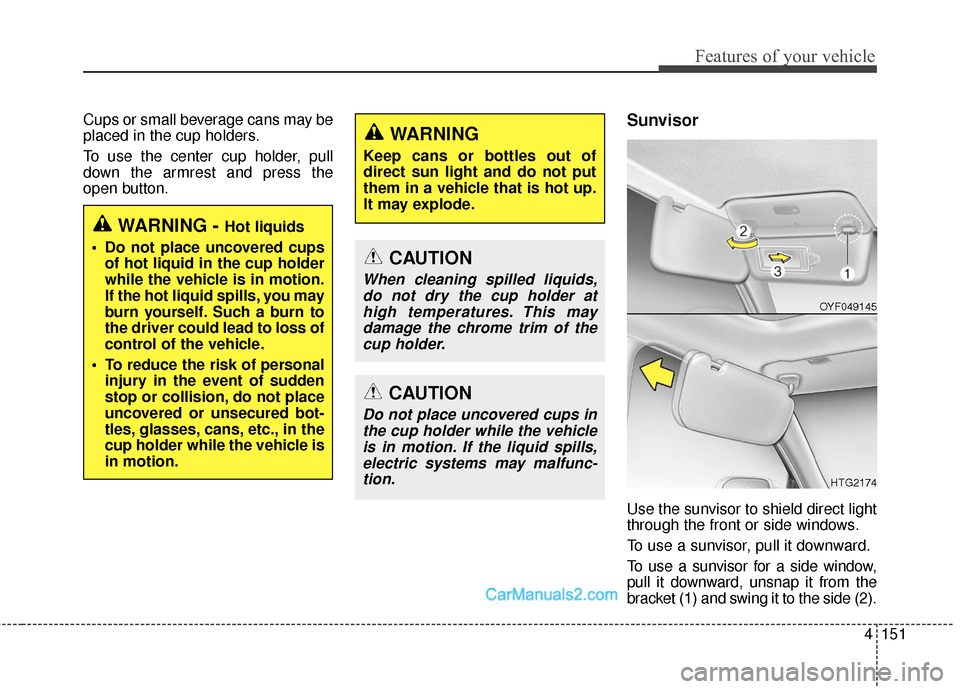
Use the sunvisor to shield direct light
through the front or side windows.
To use a sunvisor, pull it downward.
To use a sunvisor for a side window,
pull it downward, unsnap it from the
bracket (1) and swing it to the side (2).
OYF049145
HTG2174
WARNING - Hot liquids
Do not place uncovered cups of hot liquid in the cup holder
while the vehicle is in motion.
If the hot liquid spills, you may
burn yourself. Such a burn to
the driver could lead to loss of
control of the vehicle.
To reduce the risk of personal injury in the event of sudden
stop or collision, do not place
uncovered or unsecured bot-
tles, glasses, cans, etc., in the
cup holder while the vehicle is
in motion.
WARNING
Keep cans or bottles out of
direct sun light and do not put
them in a vehicle that is hot up.
It may explode.
CAUTION
When cleaning spilled liquids,do not dry the cup holder athigh temperatures. This maydamage the chrome trim of thecup holder.
CAUTION
Do not place uncovered cups inthe cup holder while the vehicleis in motion. If the liquid spills,electric systems may malfunc-tion.
Page 251 of 759
Features of your vehicle
154
4
If you wish to use the AC inverter,press
the AC inverter button while the engine
is running. The light on the AC inverter
button will illuminate.
If you press the AC inverter button
again, the AC inverter will be deacti-
vated and the light on the AC invert-
er button will turn off.
✽ ✽
NOTICE
When turning on the AC inverter, the
indicator on the AC inverter button
is delayed while the system conducts
a self-check.
(Continued)
Some electronic accessories or equipments can cause elec-tronic interference. It maycause excessive audio noiseand malfunctions in otherelectronic systems or devicesin the vehicle.
Do not use broken electronic accessories or equipments,which may damage the ACinverter and electrical sys-tems of the vehicle.
Do not use two or more elec- tronic accessories or equip-ments at the same time. It maycause damage to the electricalsystems of the vehicle.
When the input voltage is under 11V, the outlet LED will blinkand the AC inverter will turn offautomatically. If the input volt-age goes up to normal, the ACinverter will turn on again.
Do not use extensions or power strips.
WARNING
To reduce a risk of serious or
fatal injuries:
Do not use a heated electricdevice such as a coffeepot,
toaster, heater, iron, etc.
Do not insert foreign objects into the outlet and do not
touch the outlet as you may
get shocked.
Do not let children touch the AC inverter.
CAUTION
To prevent the battery from being discharged, do not usethe AC inverter while theengine is not running.
When not using the AC invert- er,make sure to turn off the ACinverter (the indicator on thebutton does not illuminate) andclose the AC inverter cover.
After using an electronic accessory or equipment, pullthe plug out. Leaving theaccessory or equipmentplugged in for a long time maycause battery discharge.
Do not use an electronic acces- sory or equipment with thepower consumption greaterthan 150W(115V).
(Continued)
Page 264 of 759
4167
Features of your vehicle
(Continued) Turn on the car ignition before using this device. Do not oper-ate the audio system for longperiods of time with the ignitionturned off as such operationsmay lead to battery discharge.
Do not subject the device to severe shock or impact. Directpressure onto the front side ofthe monitor may cause dam-age to the LCD or touchscreen.
When cleaning the device, make sure to turn off thedevice and use a dry andsmooth cloth. Never usetough materials, chemicalcloths, or solvents (alcohol,benzene, thinners, etc.) assuch materials may damagethe device panel or causecolor/quality deterioration.
(Continued)CAUTION
Operating the device whiledriving could lead to accidentsdue to a lack of attention toexternal surroundings. Firstpark the vehicle before operat-ing the device.
Adjust the volume to levels that allow the driver to hear soundsfrom outside of the vehicle.Driving in a state where exter-nal sounds cannot be heardmay lead to accidents.
Pay attention to the volume set- ting when turning the deviceon. A sudden output of extremevolume upon turning thedevice on could lead to hearingimpairment. (Adjust the volumeto a suitable levels before turn-ing off the device.)
(Continued)
(Continued)
Please refrain from use if thescreen is blank or no sound
can be heard as these signs
may indicate product malfunc-
tion. Continued use in such
conditions could lead to acci-
dents(fires, electric shock) or
product malfunctions.
Do not touch the antenna dur- ing thunder or lightening as
such acts may lead to light-
ning induced electric shock.
Do not stop or park in park- ing-restricted areas to operate
the product. Such acts could
lead to traffic accidents.
Use the system with the vehi- cle ignition turned on.
Prolonged use with the igni-
tion turned off could result in
battery discharge.
Page 283 of 759
Features of your vehicle
186
4
XM RADIO
Using XM satellite™Radio
Your vehicle is equipped with a 3
month complimentary period of XM
Satellite™ Radio. XM provides
access to over 130 channels of
music, information, and entertain-
ment programming.
SEEK
Press the key
Shortly pressing the key: select
previous or next channel.
Pressing and holding the key (over 0.8 seconds): continuously move
to previous or next channel. ❈
If the “Category” icon is displayed,
channels are changed within the
current category.
SCAN
Press the key
Shortly pressing the key: Previews each broadcast for 10 seconds
each
❈ Press the key again to con-
tinue listening to the current fre-
quency
❈ If the "Category" icon is displayed,
channels are changed within the
current category.
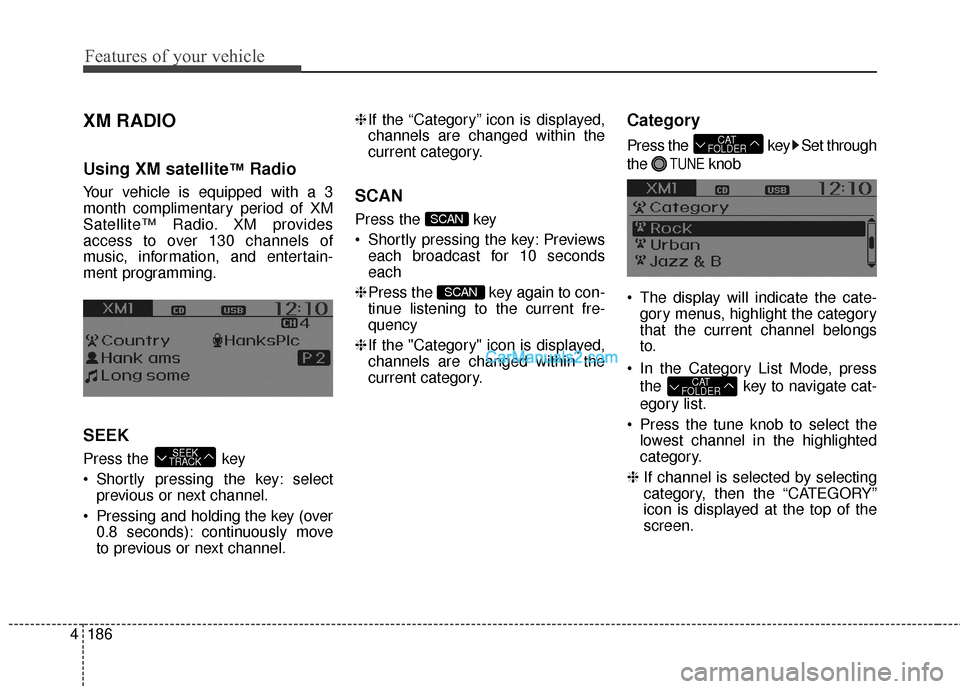
Category
Press the key Set through
the
TUNEknob
The display will indicate the cate- gory menus, highlight the category
that the current channel belongs
to.
In the Category List Mode, press the key to navigate cat-
egory list.
Press the tune knob to select the lowest channel in the highlighted
category.
❈ If channel is selected by selecting
category, then the “CATEGORY”
icon is displayed at the top of the
screen.
CAT
FOLDER
CAT
FOLDER
SCAN
SCAN
SEEK
TRACK
Page 350 of 759
4253
Features of your vehicle
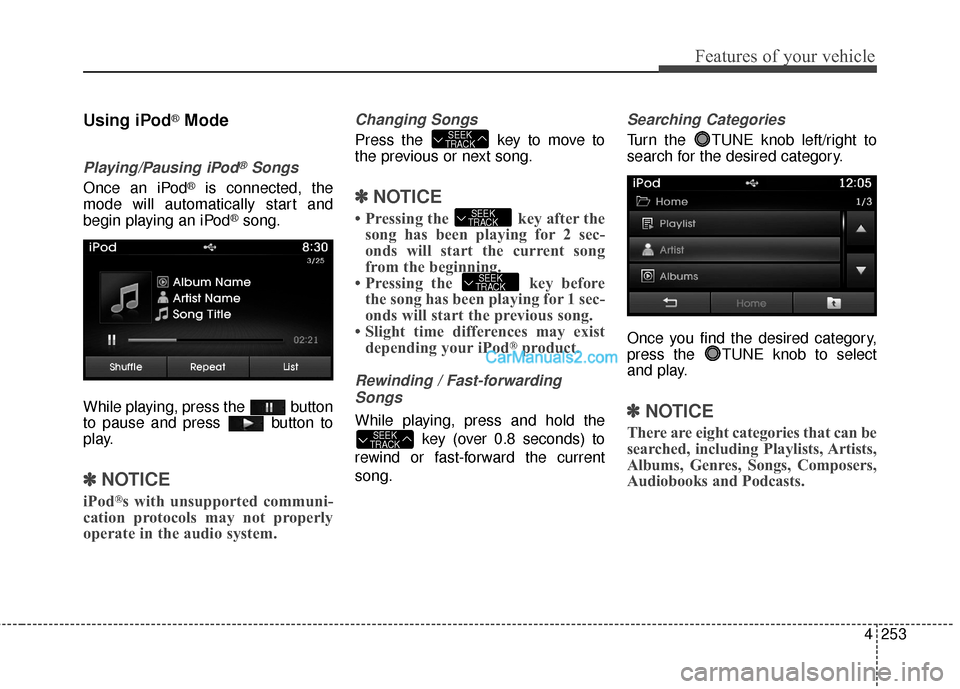
Using iPod®Mode
Playing/Pausing iPod®Songs
Once an iPod®is connected, the
mode will automatically start and
begin playing an iPod
®song.
While playing, press the button
to pause and press button to
play.
✽ ✽ NOTICE
iPod®s with unsupported communi-
cation protocols may not properly
operate in the audio system.
Changing Songs
Press the key to move to
the previous or next song.
✽ ✽ NOTICE
• Pressing the key after the
song has been playing for 2 sec-
onds will start the current song
from the beginning.
• Pressing the key before the song has been playing for 1 sec-
onds will start the previous song.
• Slight time differences may exist depending your iPod
®product.
Rewinding / Fast-forwarding
Songs
While playing, press and hold the
key (over 0.8 seconds) to
rewind or fast-forward the current
song.
Searching Categories
Turn the TUNE knob left/right to
search for the desired category.
Once you find the desired category,
press the TUNE knob to select
and play.
✽ ✽ NOTICE
There are eight categories that can be
searched, including Playlists, Artists,
Albums, Genres, Songs, Composers,
Audiobooks and Podcasts.SEEK
TRACK
SEEK
TRACK
SEEK
TRACK
SEEK
TRACK
Page 381 of 759
![Hyundai Santa Fe 2016 Owners Manual Features of your vehicle
284
4
SETUP
Starting Mode
Press the key to display the
Setup screen.
You can select and control options
related to [Display], [Sound],
[Clock/Calendar], [Phone] and
[System].](/manual-img/35/16331/w960_16331-380.png "Hyundai Santa Fe 2016 Owners Manual Features of your vehicle
284
4
SETUP
Starting Mode
Press the key to display the
Setup screen.
You can select and control options
related to [Display], [Sound],
[Clock/Calendar], [Phone] and
[System].")
Features of your vehicle
284
4
SETUP
Starting Mode
Press the key to display the
Setup screen.
You can select and control options
related to [Display], [Sound],
[Clock/Calendar], [Phone] and
[System].
Display Settings
Adjusting the Brightness
Press the key Select
[Display] Select [Brightness]
Use the , buttons to adjust the
screen brightness or set the
Brightness on Automatic, Daylight, or
Night mode.
Press the button to reset.
1) Automatic : Adjusts the brightness
automatically
2) Daylight : Always maintains the brightness on high
3) Night : Always maintains the
brightness on low
Mode Pop-up
Press the key Select
[Display] Select [Mode Pop up]
This feature is used to display the
Mode Pop-up screen when entering
radio and media modes.
When this feature is turned on,
pressing the or key
will display the Mode Pop-up screen.
✽ ✽ NOTICE
The media Mode Pop-up screen can
be displayed only when two or more
media modes have been connected.
MEDIA RADIO
SETUP
Default
SETUP SETUP
Page 396 of 759
4299
Features of your vehicle
(Continued) Turn on the car ignition before using this device. Do not oper-ate the audio system for longperiods of time with the ignitionturned off as such operationsmay lead to battery discharge.
Do not subject the device to severe shock or impact. Directpressure onto the front side ofthe monitor may cause dam-age to the LCD or touchscreen.
When cleaning the device, make sure to turn off thedevice and use a dry andsmooth cloth. Never usetough materials, chemicalcloths, or solvents (alcohol,benzene, thinners, etc.) assuch materials may damagethe device panel or causecolor/quality deterioration.
(Continued)CAUTION
Operating the device whiledriving could lead to accidentsdue to a lack of attention toexternal surroundings. Firstpark the vehicle before operat-ing the device.
Adjust the volume to levels that allow the driver to hear soundsfrom outside of the vehicle.Driving in a state where exter-nal sounds cannot be heardmay lead to accidents.
Pay attention to the volume set- ting when turning the deviceon. A sudden output of extremevolume upon turning thedevice on could lead to hearingimpairment. (Adjust the volumeto a suitable levels before turn-ing off the device.)
(Continued)
(Continued)
Please refrain from use if thescreen is blank or no sound
can be heard as these signs
may indicate product malfunc-
tion. Continued use in such
conditions could lead to acci-
dents(fires, electric shock) or
product malfunctions.
Do not touch the antenna dur- ing thunder or lightening as
such acts may lead to light-
ning induced electric shock.
Do not stop or park in park- ing-restricted areas to operate
the product. Such acts could
lead to traffic accidents.
Use the system with the vehi- cle ignition turned on.
Prolonged use with the igni-
tion turned off could result in
battery discharge.
Page 416 of 759
4319
Features of your vehicle
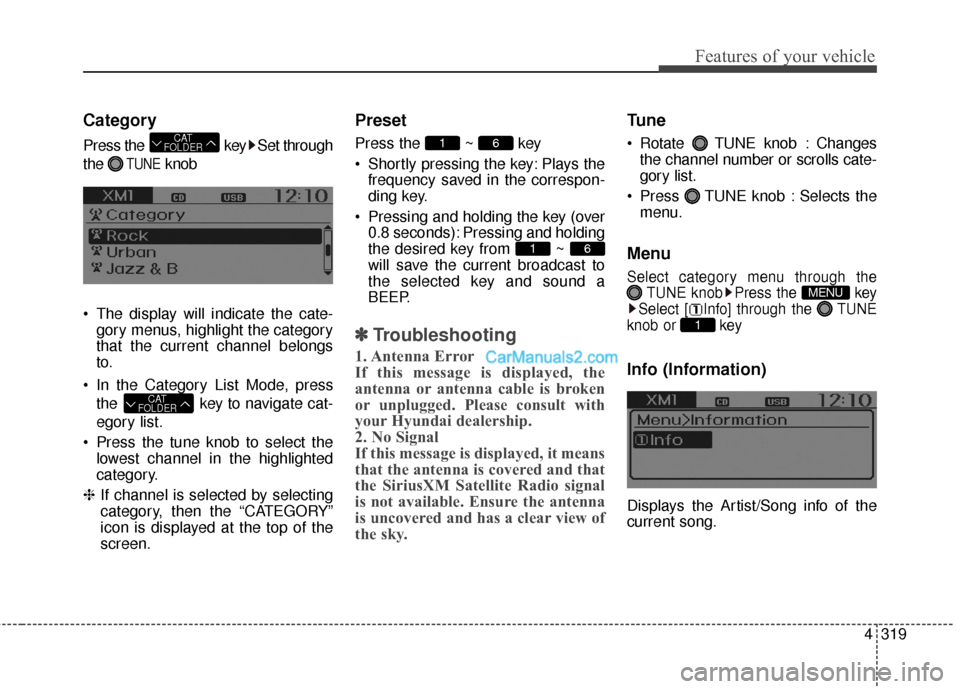
Category
Press the key Set through
the
TUNEknob
The display will indicate the cate- gory menus, highlight the category
that the current channel belongs
to.
In the Category List Mode, press the key to navigate cat-
egory list.
Press the tune knob to select the lowest channel in the highlighted
category.
❈ If channel is selected by selecting
category, then the “CATEGORY”
icon is displayed at the top of the
screen.
Preset
Press the ~ key
Shortly pressing the key: Plays the frequency saved in the correspon-
ding key.
Pressing and holding the key (over 0.8 seconds): Pressing and holding
the desired key from ~
will save the current broadcast to
the selected key and sound a
BEEP.
✽ ✽
Troubleshooting
1. Antenna Error
If this message is displayed, the
antenna or antenna cable is broken
or unplugged. Please consult with
your Hyundai dealership.
2. No Signal
If this message is displayed, it means
that the antenna is covered and that
the SiriusXM Satellite Radio signal
is not available. Ensure the antenna
is uncovered and has a clear view of
the sky.
Tune
Rotate TUNE knob : Changes
the channel number or scrolls cate-
gory list.
Press TUNE knob : Selects the menu.
Menu
Select category menu through the TUNE knob Press the key
Select [ Info] through the TUNE
knob or key
Info (Information)
Displays the Artist/Song info of the
current song.
1
MENU
61
61
CAT
FOLDER
CAT
FOLDER