Page 199 of 550
Features of your vehicle114
4Outside mirror defroster
(if equipped)If your vehicle is equipped with the out-
side mirror defrosters, they will operate at
the same time you turn on the rear win-
dow defroster.
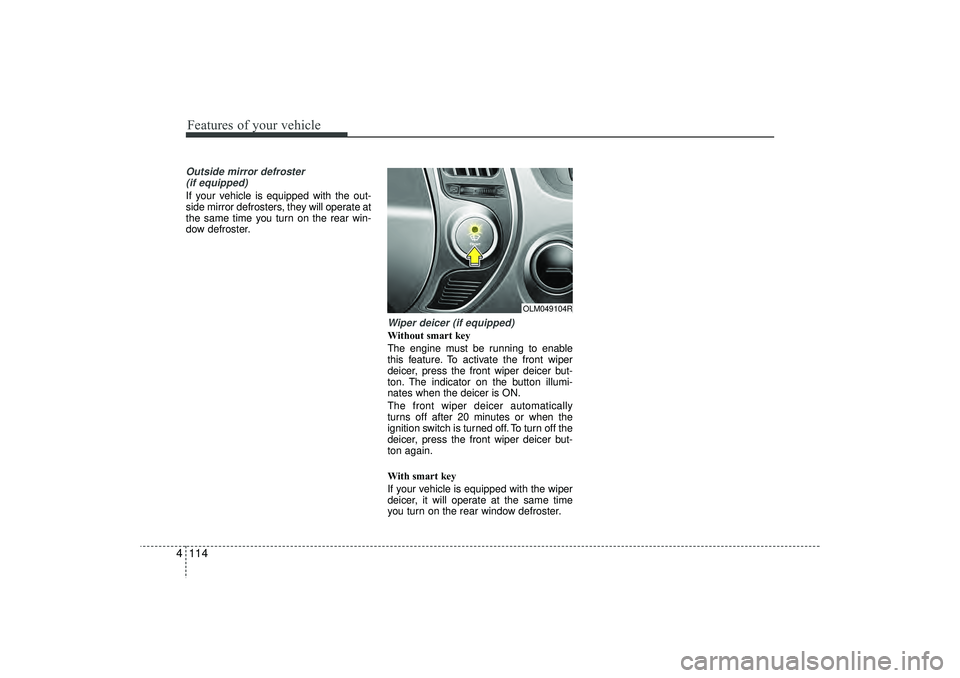
Wiper deicer (if equipped)Without smart key
The engine must be running to enable
this feature. To activate the front wiper
deicer, press the front wiper deicer but-
ton. The indicator on the button illumi-
nates when the deicer is ON.
The front wiper deicer automatically
turns off after 20 minutes or when the
ignition switch is turned off. To turn off the
deicer, press the front wiper deicer but-
ton again.
With smart key
If your vehicle is equipped with the wiper
deicer, it will operate at the same time
you turn on the rear window defroster.
OLM049104R
EL(FL) UK 4A.QXP 2/9/2015 9:07 PM Page 114
Page 219 of 550
Features of your vehicle134
4STORAGE COMPARTMENTThese compartments can be used to
store small items required by the driver
or passengers.
Centre console storage
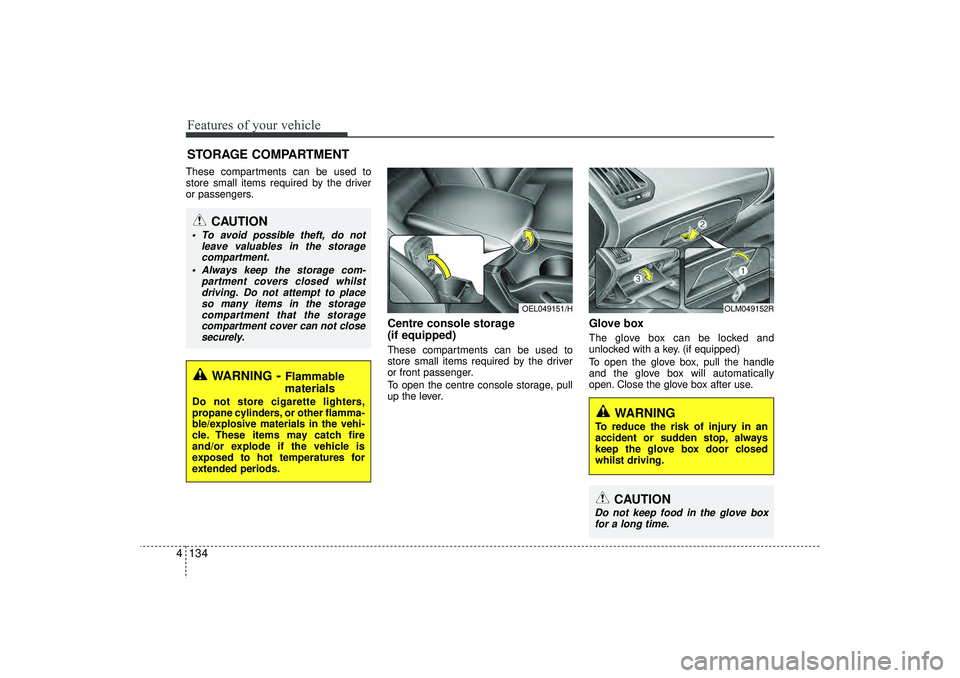
(if equipped)These compartments can be used to
store small items required by the driver
or front passenger.
To open the centre console storage, pull
up the lever.
Glove box The glove box can be locked and
unlocked with a key. (if equipped)
To open the glove box, pull the handle
and the glove box will automatically
open. Close the glove box after use.
OEL049151/H
OLM049152R
WARNING
To reduce the risk of injury in an
accident or sudden stop, always
keep the glove box door closed
whilst driving.
CAUTION
Do not keep food in the glove box
for a long time.
WARNING
- Flammable
materials
Do not store cigarette lighters,
propane cylinders, or other flamma-
ble/explosive materials in the vehi-
cle. These items may catch fire
and/or explode if the vehicle is
exposed to hot temperatures for
extended periods.
CAUTION
To avoid possible theft, do not
leave valuables in the storagecompartment.
Always keep the storage com- partment covers closed whilstdriving. Do not attempt to placeso many items in the storage compartment that the storagecompartment cover can not closesecurely.
EL(FL) UK 4A.QXP 2/9/2015 9:09 PM Page 134
Page 238 of 550
4 153
Features of your vehicle
(Continued)
• If you use devices such as a USB hubpurchased separately, the vehicle’s
audio system may not recognize the
USB device. In that case, connect the
USB device directly to the multimedia
terminal of the vehicle.
• If the USB device is divided by logical drives, only the music files on the
highest-priority drive are recognized
by car audio.
• Devices such as MP3 Player/ Mobile phone/Digital camera can be unrecog-
nizable by standard USB I/F can be
unrecognizable.
• Charging through the USB may not be supported in some mobile devices.
• USB HDD or USB types liable to con- nection failures due to vehicle vibra-
tions are not supported. (i-stick type)
• Some non-standard USB devices (METAL COVER TYPE USB) can be
unrecognizable. (Continued)(Continued)
• Some USB flash memory readers
(such as CF, SD, micro SD, etc.) or
external-HDD type devices can be
unrecognizable.
• Music files protected by DRM (DIGI- TAL RIGHTS MANAGEMENT) are
not recognizable.
• The data in the USB memory may be lost whilst using this audio. Always
back up important data on a personal
storage device.
• Please avoid using USB memory products which
can be used as key chains
or mobile phone acces-
sories as they could cause
damage to the USB jack. Please make
certain only to use plug type connec-
tor products.
EL(FL) UK 4B AUDIO.QXP 3/13/2015 4:19 PM Page 153
Page 241 of 550
Features of your vehicle156
4SYSTEM CONTROLLERS AND
FUNCTIONS❈ Display and settings may differ
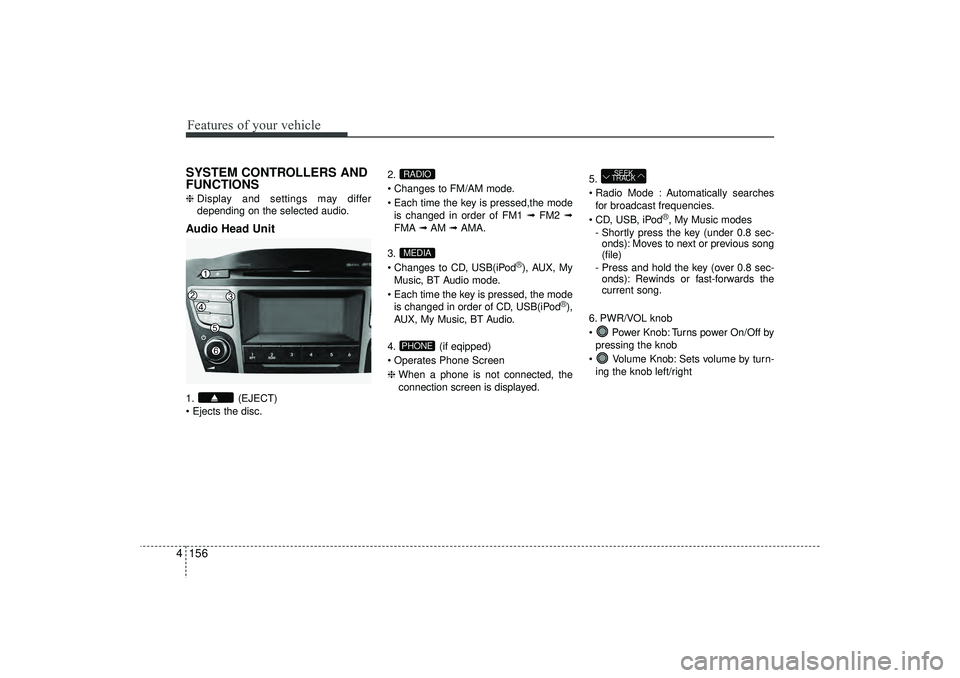
depending on the selected audio.Audio Head Unit1. (EJECT)
Ejects the disc. 2.
Changes to FM/AM mode.
Each time the key is pressed,the mode
is changed in order of FM1 ➟ FM2 ➟
FMA ➟AM ➟AMA.
3.
Changes to CD, USB(iPod
®), AUX, My
Music, BT Audio mode.
Each time the key is pressed, the mode is changed in order of CD, USB(iPod
®),
AUX, My Music, BT Audio.
4. (if eqipped)
Operates Phone Screen
❈ When a phone is not connected, the
connection screen is displayed. 5.
Radio Mode : Automatically searches
for broadcast frequencies.
CD, USB, iPod
®, My Music modes
- Shortly press the key (under 0.8 sec- onds): Moves to next or previous song
(file)
- Press and hold the key (over 0.8 sec- onds): Rewinds or fast-forwards the
current song.
6. PWR/VOL knob
Power Knob: Turns power On/Off by pressing the knob
Volume Knob: Sets volume by turn- ing the knob left/right
SEEK
TRACK
PHONEMEDIARADIO
EL(FL) UK 4B AUDIO.QXP 3/13/2015 4:19 PM Page 156
Page 242 of 550
4 157
Features of your vehicle
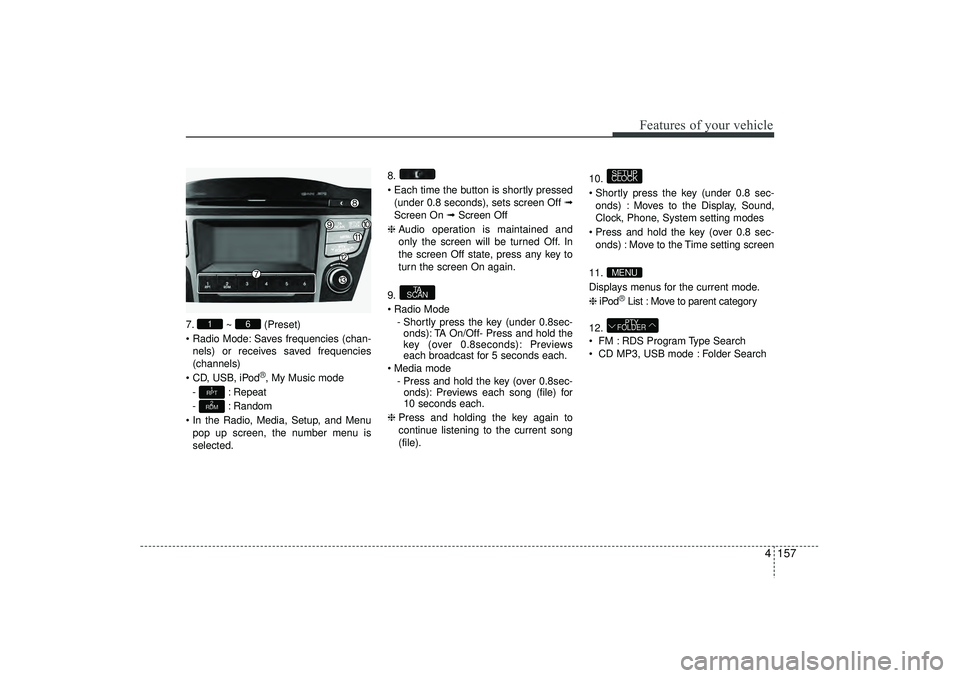
7.~ (Preset)
Radio Mode: Saves frequencies (chan- nels) or receives saved frequencies
(channels)
CD, USB, iPod
®, My Music mode
- : Repeat
- : Random
In the Radio, Media, Setup, and Menu pop up screen, the number menu is
selected. 8.
Each time the button is shortly pressed
(under 0.8 seconds), sets screen Off ➟
Screen On ➟ Screen Off
❈ Audio operation is maintained and
only the screen will be turned Off. In
the screen Off state, press any key to
turn the screen On again.
9.
Radio Mode - Shortly press the key (under 0.8sec-onds): TA On/Off- Press and hold the
key (over 0.8seconds): Previews
each broadcast for 5 seconds each.
Media mode - Press and hold the key (over 0.8sec-onds): Previews each song (file) for
10 seconds each.
❈ Press and holding the key again to
continue listening to the current song
(file). 10.
Shortly press the key (under 0.8 sec-
onds) : Moves to the Display, Sound,
Clock, Phone, System setting modes
Press and hold the key (over 0.8 sec- onds) : Move to the Time setting screen
11.
Displays menus for the current mode.
❈ iPod
®List : Move to parent category
12.
FM : RDS Program Type Search
CD MP3, USB mode : Folder SearchPTY
FOLDER
MENUSETUP
CLOCK
TA
SCAN
2
RDM1
RPT
6
1
EL(FL) UK 4B AUDIO.QXP 3/13/2015 4:19 PM Page 157
Page 243 of 550
Features of your vehicle158
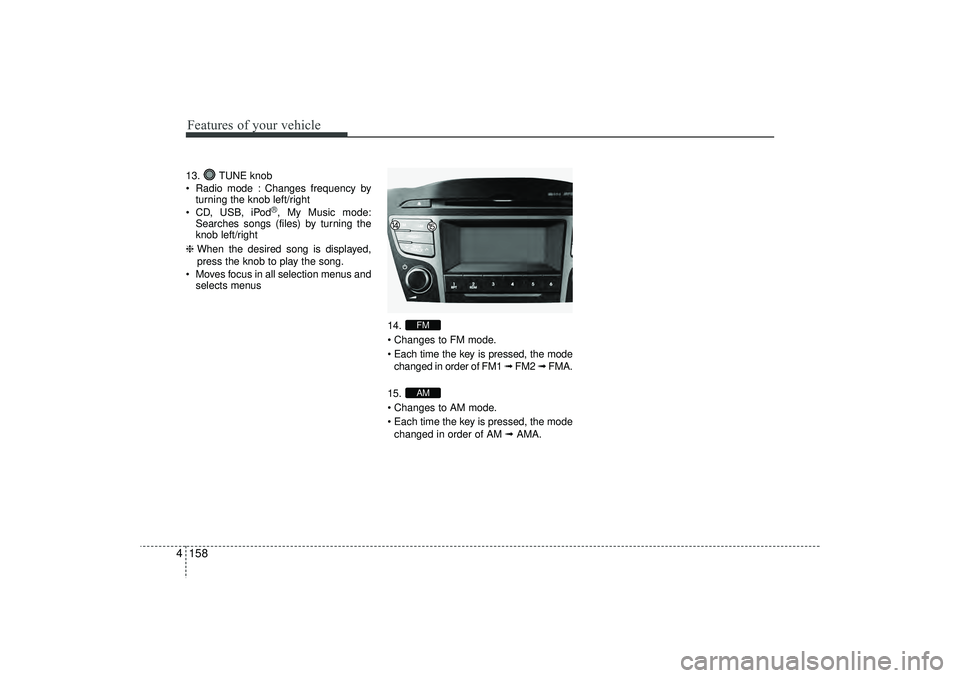
413. TUNE knob
Radio mode : Changes frequency by
turning the knob left/right
CD, USB, iPod
®, My Music mode:
Searches songs (files) by turning the
knob left/right
❈ When the desired song is displayed,
press the knob to play the song.
Moves focus in all selection menus and selects menus
14.
Changes to FM mode.
Each time the key is pressed, the modechanged in order of FM1 ➟ FM2 ➟ FMA.
15.
Changes to AM mode.
Each time the key is pressed, the mode changed in order of AM ➟AMA.
AMFM
EL(FL) UK 4B AUDIO.QXP 3/13/2015 4:19 PM Page 158
Page 244 of 550
4 159
Features of your vehicle
SETUP - AC100ELEE, AC110ELEE
Display SettingsPress the key Select [Display]
through TUNE knob or key
Select menu through TUNE knob
Mode Pop up[Mode Pop up] Changes . selec-
tion mode
During On state, press the orkey to display the mode
change pop up screen.
When the pop up screen is displayed, use the TUNE knob or keys
~ to select the desired mode.Scroll text [Scroll text] Set / : Maintains scroll
: Scrolls only one (1) time.
Song InfoWhen playing an MP3 file, select the
desired display info from ‘Folder/File’ or
‘Album/Artist/Song’.
Sound SettingsPress the key Select [Sound]
through TUNE knob or key
Select menu through TUNE knob
2
RDM
SETUP
CLOCK
OffOn
Off
On
6
1
MEDIA
RADIOOn
1
RPT
SETUP
CLOCK
EL(FL) UK 4B AUDIO.QXP 3/13/2015 4:19 PM Page 159
Page 246 of 550
4 161
Features of your vehicle
Clock SettingsPress the key Select [Clock]
through TUNE knob or key
Select menu through TUNE knob
Clock SettingsThis menu is used to set the time.
Select [Clock Settings] Set through
TUNE knob Press TUNE knob
❈ Adjust the number currently in focus to
set the [hour] and press the tune knob
to set the [minute].
Day SettingsThis menu is used to set the date.
Select [Day Settings] Set through
TUNE knob Press TUNE knob
❈ Adjust the number currently in focus to
make the settings and press the tune
knob to move to the next setting. (Set
in order of Year/Month/Day)
3
SETUP
CLOCK
EL(FL) UK 4B AUDIO.QXP 3/13/2015 4:19 PM Page 161
![HYUNDAI IX35 2016 Owners Manual 4 159
Features of your vehicle
SETUP - AC100ELEE, AC110ELEE
Display SettingsPress the key Select [Display]
through TUNE knob or key
Select menu through TUNE knob
Mode Pop up[Mode Pop up] Changes](/manual-img/35/56235/w960_56235-243.png "HYUNDAI IX35 2016 Owners Manual 4 159
Features of your vehicle
SETUP - AC100ELEE, AC110ELEE
Display SettingsPress the key Select [Display]
through TUNE knob or key
Select menu through TUNE knob
Mode Pop up[Mode Pop up] Changes")
![HYUNDAI IX35 2016 Owners Manual 4 161
Features of your vehicle
Clock SettingsPress the key Select [Clock]
through TUNE knob or key
Select menu through TUNE knob
Clock SettingsThis menu is used to set the time.
Select [Clock Sett](/manual-img/35/56235/w960_56235-245.png "HYUNDAI IX35 2016 Owners Manual 4 161
Features of your vehicle
Clock SettingsPress the key Select [Clock]
through TUNE knob or key
Select menu through TUNE knob
Clock SettingsThis menu is used to set the time.
Select [Clock Sett")