2016 Hyundai H350 Remote
[x] Cancel search: RemotePage 193 of 473
Multimedia System
4
Multimedia System
Multimedia system .................................................4-2Aux, usb and ipod ®
...........................................................4-2
Antenna ...............................................................................4-2
Audio remote control .......................................................4-3
How vehicle audio works ................................................4-4
Caring for disc....................................................................4-7
CD player (for RDS model) : AC210MDEE ................4-13
CD player : AC110MDGG, AC110MDGN,
AC110MDGL ......................................................................4-14
Radio, set up, volume control : AM210MDEE,
AMB00MDGL, AMB00MDGN, AMB00MDGG.............4-47
CD player (for RDS model) : AC210MDEE
(for turkey) .......................................................................4-56
4
Page 195 of 473
4-3
Multimedia System
4
Before entering a place with alow height clearance or a vehicle
wash, remove the antenna by
rotating it counterclockwise. If
not, the antenna may be dam-
aged.
When reinstalling your antenna, it is important that it is fullytightened and adjusted to the
upright position to ensure prop-
er reception. But it could be fold-
ed or removed when parking the
vehicle or when loading cargo
on the roof rack.
When cargo is loaded on the roof rack, do not place the cargonear the antenna pole to ensure
proper reception.
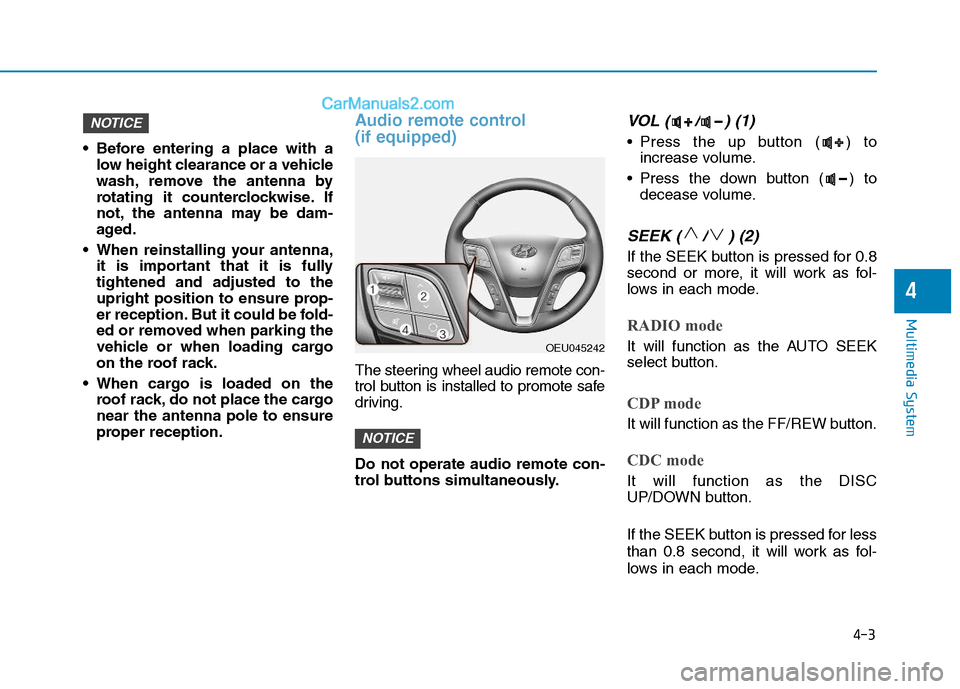
Audio remote control (if equipped)
The steering wheel audio remote con-
trol button is installed to promote safe
driving. Do not operate audio remote con-
trol buttons simultaneously.
VOL ( / ) (1)
• Press the up button ( ) toincrease volume.
Press the down button ( ) to decease volume.
SEEK ( / ) (2)
If the SEEK button is pressed for 0.8
second or more, it will work as fol-
lows in each mode.
RADIO mode
It will function as the AUTO SEEK
select button.
CDP mode
It will function as the FF/REW button.
CDC mode
It will function as the DISC
UP/DOWN button.
If the SEEK button is pressed for less
than 0.8 second, it will work as fol-
lows in each mode.
NOTICE
NOTICE
OEU045242
Page 233 of 473
4-41
Multimedia System
4
BBlluu eettoo ootthh®®WW iirr ee llee ssss
T
T eecchh nnoo lloo ggyy AAUU DDIIOO
(
( iiff ee qq uu iipp ppeedd ))
What is Bluetooth®Wireless
Technology?
Bluetooth®Wireless Technology
allows devices to be connected in a
short distance, including hands-free
devices, stereo headsets, wireless
remote controllers, etc. For more
information, visit the
Bluetooth®
Wireless Technology website at
www.Bluetooth.com
Before using Bluetooth®Wireless
Technology audio features
Bluetooth® Wireless Technology
audio may not be supported depending on the compatibility of
your
Bluetooth®Wireless
Technology mobile phone.
In order to use
Bluetooth®Wireless
Technology audio, you must firstpair and connect the
Bluetooth®
Wireless Technology mobile
phone. The
Bluetooth®word mark and
logos are registered trademarks
owned by
Bluetooth®SIG, Inc. and
any use of such marks is under
license. Other trademarks and trade
names are those of their respective
owners. A
Bluetooth®enabled cell
phone is required to use
Bluetooth®
Wireless Technology
Bluetooth®Wireless Technology
audio can be used only when the
[Audio Streaming] of Phone is
turned On.
❈ Setting
Bluetooth®Wireless
Technology Audio Streaming :
Press the key Select[Phone] through the tune knob
Select [Audio Streaming] through
the TUNE knob Set /
Starting Bluetooth®Wireless
Technology Audio
key to change the mode in order of CD ➟USB ➟
AUX ➟My Music ➟BT Audio.
If BT Audio is selected,
Bluetooth®
Wireless Technology audio will
start playing.
❈ Audio may not automatically start
playing in some mobile phones.
MEDIA
OffOn
SETUP
Page 234 of 473
4-42
Multimedia System
Using the Bluetooth®Wireless
Technology audio features
Press the TUNE knob to play and pause the current song. ❈ The title / artist info may not be
supported in some mobile phone.
When it is not supported, no title /
no artist will be displayed.
Press of to play previous or
next song. ❈ The previous song / next song /
play / pause functions may not be
supported in some mobile
phones.
PP HH OO NNEE ((iiff ee qq uu iipp pp eedd ))
Before using the Bluetooth®Wireless
Technology
phone features
Bluetooth®Wireless
Technology
phone, you must first
pair and connect the
Bluetooth®
Wireless Technologymobile phone.
connected, it is not possible to
enter Phone mode. Once a phoneis paired or connected, the guid-
ance screen will be displayed.
tion (IGN/ACC ON), the
Bluetooth®
Wireless Technologyphone will be
automatically connected. Even if
you are outside, the
Bluetooth®
Wireless Technologyphone will be
automatically connected once you
are in the vicinity of the vehicle. If you
do not want automatic
Bluetooth®
Wireless Technologyphone connec-
tion, set the
Bluetooth®Wireless
Technology
power to OFF.
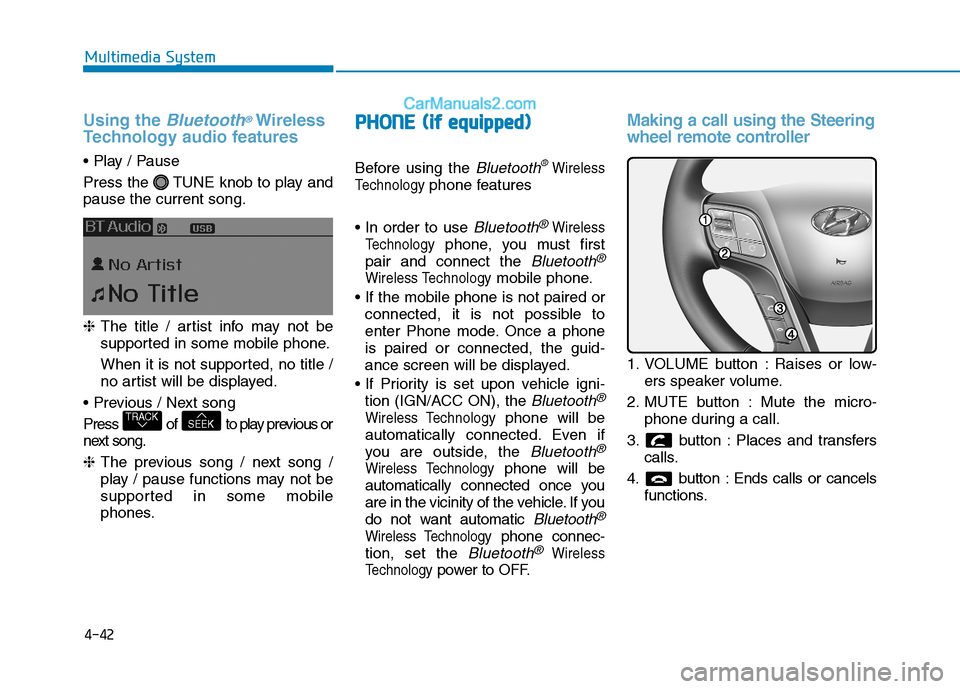
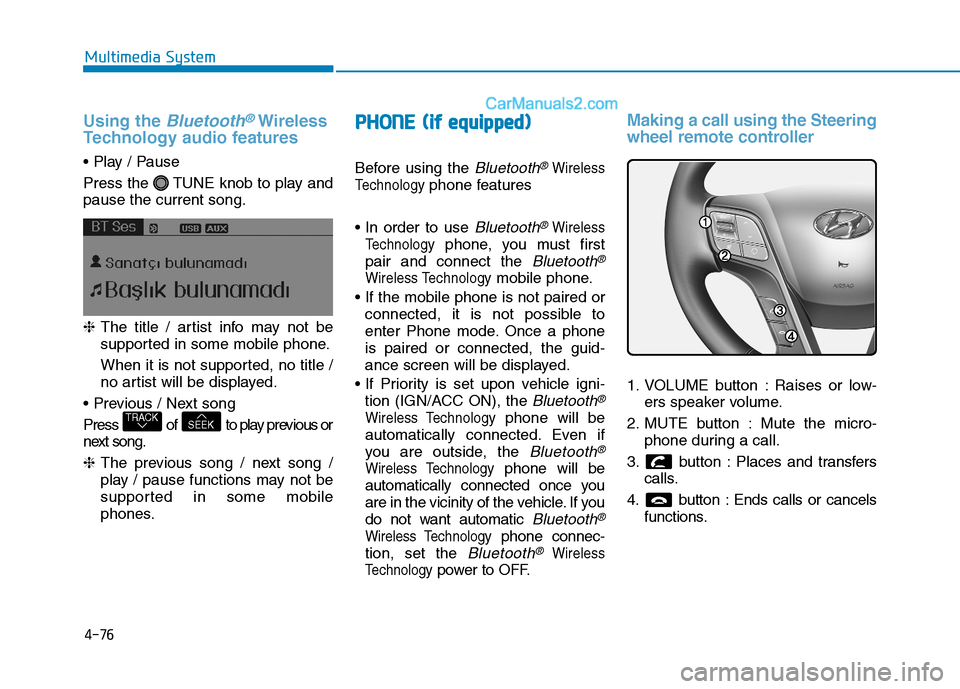
Making a call using the Steering
wheel remote controller
1. VOLUME button : Raises or low- ers speaker volume.
2. MUTE button : Mute the micro- phone during a call.
3. button : Places and transfers calls.
4. button : Ends calls or cancels functions.
SEEKTRACK
Page 235 of 473
4-43
Multimedia System
4
➀Shortly press (under 0.8 seconds)
the key on the steering
remote controller.
➁ The call history list will be dis-
played on the screen.
➂ Press the key again to con-
nect a call to the selected number.
number
➀ Press and hold (over 0.8 seconds)
the key on the steering
remote controller.
➁ The most recently called numberis redialed.Phone MENU (for RDS model)
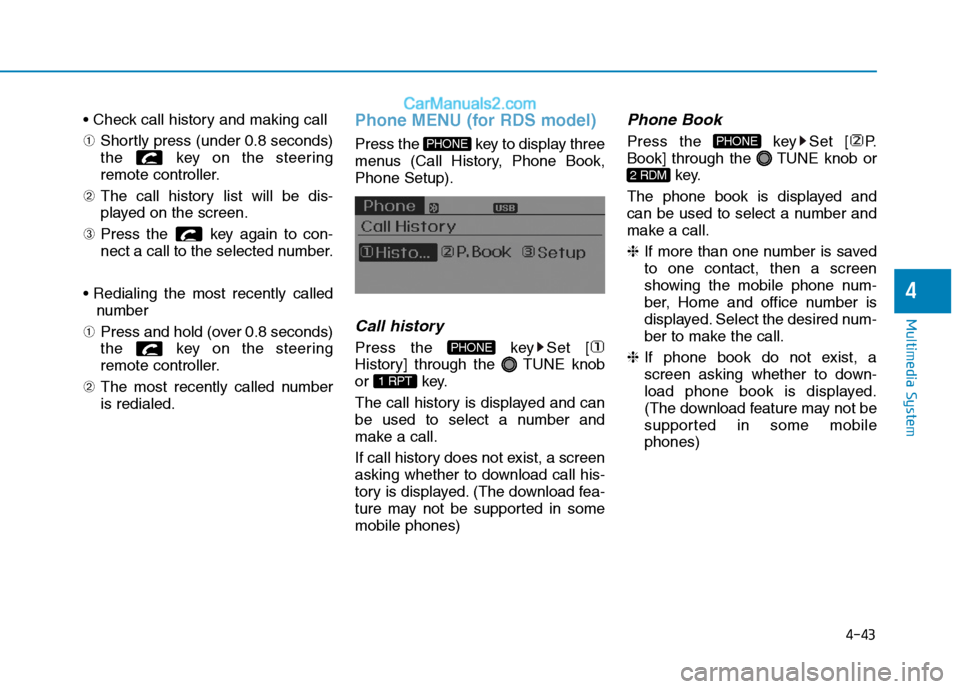
Press the key to display three
menus (Call History, Phone Book,Phone Setup).
Call history
Press the key Set [
History] through the TUNE knob
or key.
The call history is displayed and can
be used to select a number and
make a call.
If call history does not exist, a screen
asking whether to download call his-
tory is displayed. (The download fea-
ture may not be supported in somemobile phones)
Phone Book
Press the key Set [ P.
Book] through the TUNE knob or
key.
The phone book is displayed and
can be used to select a number and
make a call. ❈ If more than one number is saved
to one contact, then a screen
showing the mobile phone num-
ber, Home and office number is
displayed. Select the desired num-
ber to make the call.
❈ If phone book do not exist, a
screen asking whether to down-
load phone book is displayed.
(The download feature may not be
supported in some mobilephones)
2 RDM
PHONE
1 RPT
PHONE
PHONE
Page 267 of 473
4-75
Multimedia System
4
BBlluu eettoo ootthh®®WW iirr ee llee ssss
T
T eecchh nnoo lloo ggyy AAUU DDIIOO MM OODDEE
(
( IIff ee qq uu iipp pp eedd ))
What is Bluetooth®Wireless
Technology?
Bluetooth®Wireless Technology
allows devices to be connected in a
short distance, including hands-free
devices, stereo headsets, wireless
remote controllers, etc. For more
information, visit the
Bluetooth®
Wireless Technology website at
www.Bluetooth.com
Before using Bluetooth®Wireless
Technology audio features
Bluetooth®Wireless Technology
audio may not be supported depending on the compatibility of
your
Bluetooth®Wireless
Technology mobile phone.
In order to use
Bluetooth® Wireless
Technology audio, you must firstpair and connect the
Bluetooth®
Wireless Technology mobile
phone. The
Bluetooth®word mark and
logos are registered trademarks
owned by
Bluetooth®SIG, Inc. and
any use of such marks is under
license. Other trademarks and trade
names are those of their respective
owners. A
Bluetooth®enabled cell
phone is required to use
Bluetooth®
Wireless Technology
Bluetooth®Wireless Technology
audio can be used only when the
[Audio Streaming] of Phone is
turned On.
❈ Setting
Bluetooth®Wireless
Technology Audio Streaming :
Press the key Select[Phone] through the tune knob
Select [Audio Streaming] through
the TUNE knob Set /
Starting Bluetooth®Wireless
Technology Audio
key to change the mode in order of CD ➟USB ➟
AUX ➟My Music ➟BT Audio.
If BT Audio is selected,
Bluetooth®
Wireless Technology audio will
start playing.
❈ Audio may not automatically start
playing in some mobile phones.
MEDIA
OffOn
SETUP
Page 268 of 473
4-76
Multimedia System
Using the Bluetooth®Wireless
Technology audio features
Press the TUNE knob to play and pause the current song. ❈ The title / artist info may not be
supported in some mobile phone.
When it is not supported, no title /
no artist will be displayed.
Press of to play previous or
next song. ❈ The previous song / next song /
play / pause functions may not be
supported in some mobile
phones.
PP HH OO NNEE ((iiff ee qq uu iipp pp eedd ))
Before using the Bluetooth®Wireless
Technology
phone features
Bluetooth®Wireless
Technology
phone, you must first
pair and connect the
Bluetooth®
Wireless Technologymobile phone.
connected, it is not possible to
enter Phone mode. Once a phoneis paired or connected, the guid-
ance screen will be displayed.
tion (IGN/ACC ON), the
Bluetooth®
Wireless Technologyphone will be
automatically connected. Even if
you are outside, the
Bluetooth®
Wireless Technologyphone will be
automatically connected once you
are in the vicinity of the vehicle. If you
do not want automatic
Bluetooth®
Wireless Technologyphone connec-
tion, set the
Bluetooth®Wireless
Technology
power to OFF.
Making a call using the Steering
wheel remote controller
1. VOLUME button : Raises or low- ers speaker volume.
2. MUTE button : Mute the micro- phone during a call.
3. button : Places and transfers calls.
4. button : Ends calls or cancels functions.
SEEKTRACK
Page 269 of 473
4-77
Multimedia System
4
➀Shortly press (under 0.8 seconds)
the key on the steering
remote controller.
➁ The call history list will be dis-
played on the screen.
➂ Press the key again to con-
nect a call to the selected number.
number
➀ Press and hold (over 0.8 seconds)
the key on the steering
remote controller.
➁ The most recently called numberis redialed.Phone MENU (for RDS model)
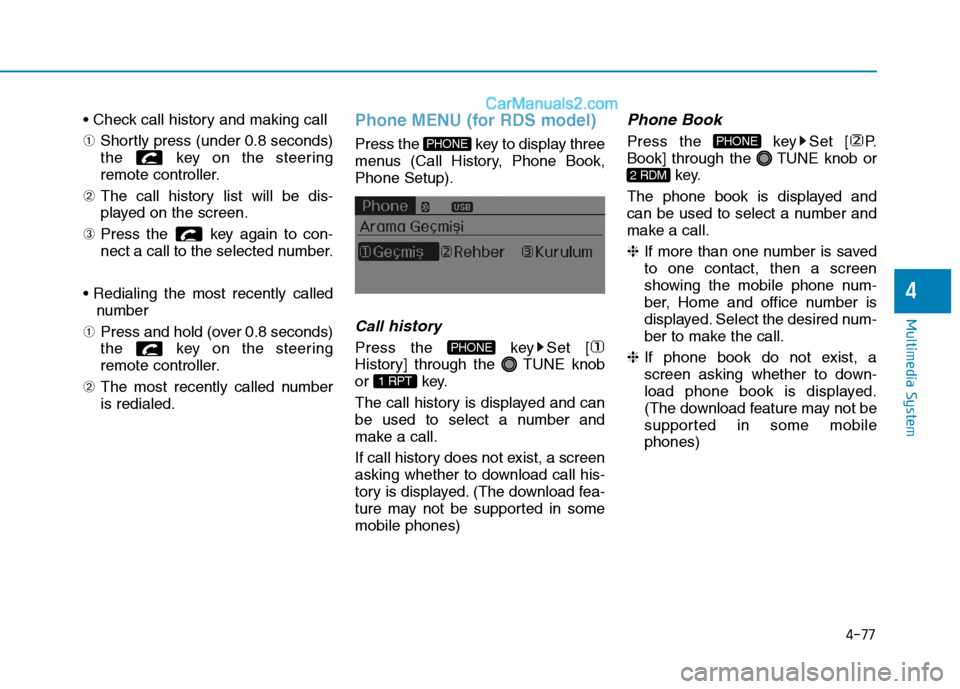
Press the key to display three
menus (Call History, Phone Book,Phone Setup).
Callhistory
Press the key Set [
History] through the TUNE knob
or key.
The call history is displayed and can
be used to select a number and
make a call.
If call history does not exist, a screen
asking whether to download call his-
tory is displayed. (The download fea-
ture may not be supported in somemobile phones)
Phone Book
Press the key Set [ P.
Book] through the TUNE knob or
key.
The phone book is displayed and
can be used to select a number and
make a call. ❈ If more than one number is saved
to one contact, then a screen
showing the mobile phone num-
ber, Home and office number is
displayed. Select the desired num-
ber to make the call.
❈ If phone book do not exist, a
screen asking whether to down-
load phone book is displayed.
(The download feature may not be
supported in some mobilephones)
2 RDM
PHONE
1 RPT
PHONE
PHONE