Page 280 of 717
4 183
Features of your vehicle
Bottle holder
Bottles may be placed in the holder.
✽NOTICE
Only bottles should be place in the
holder as it is written in the vehicle
“BOTTLE ONLY”.
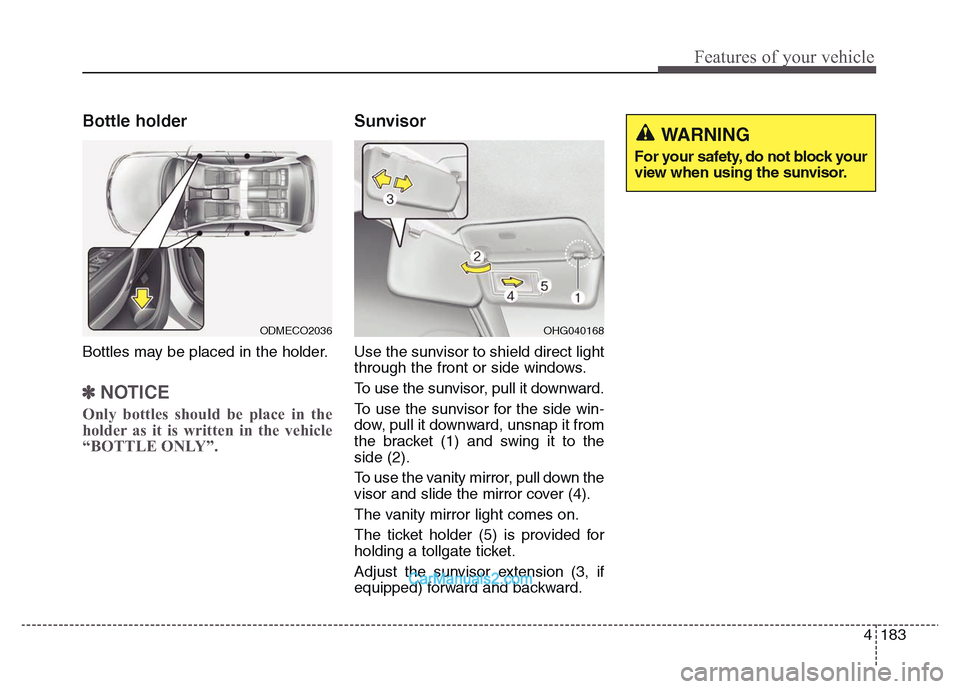
Sunvisor
Use the sunvisor to shield direct light
through the front or side windows.
To use the sunvisor, pull it downward.
To use the sunvisor for the side win-
dow, pull it downward, unsnap it from
the bracket (1) and swing it to the
side (2).
To use the vanity mirror, pull down the
visor and slide the mirror cover (4).
The vanity mirror light comes on.
The ticket holder (5) is provided for
holding a tollgate ticket.
Adjust the sunvisor extension (3, if
equipped) forward and backward.
ODMECO2036OHG040168
WARNING
For your safety, do not block your
view when using the sunvisor.
Page 291 of 717
Features of your vehicle
194 4
✽NOTICE
• If you install an aftermarket HID
headlamp, your vehicle's audio
and electronic device may mal-
function.
• Prevent chemicals such as per-
fume, cosmetic oil, sun cream,
hand cleaner, and air freshener
from contacting the interior parts
because they may cause damage
or discoloration.
Antenna
Roof antenna
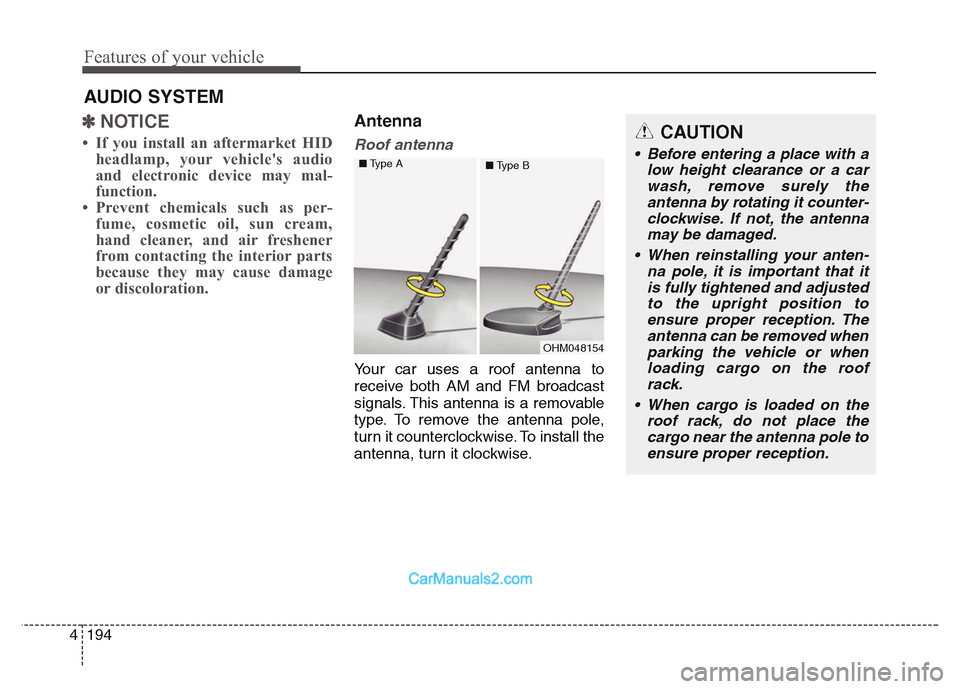
Your car uses a roof antenna to
receive both AM and FM broadcast
signals. This antenna is a removable
type. To remove the antenna pole,
turn it counterclockwise. To install the
antenna, turn it clockwise.
AUDIO SYSTEM
CAUTION
• Before entering a place with a
low height clearance or a car
wash, remove surely the
antenna by rotating it counter-
clockwise. If not, the antenna
may be damaged.
• When reinstalling your anten-
na pole, it is important that it
is fully tightened and adjusted
to the upright position to
ensure proper reception. The
antenna can be removed when
parking the vehicle or when
loading cargo on the roof
rack.
• When cargo is loaded on the
roof rack, do not place the
cargo near the antenna pole to
ensure proper reception.
OHM048154 ■Type A
■Type B
Page 294 of 717
4 197
Features of your vehicle
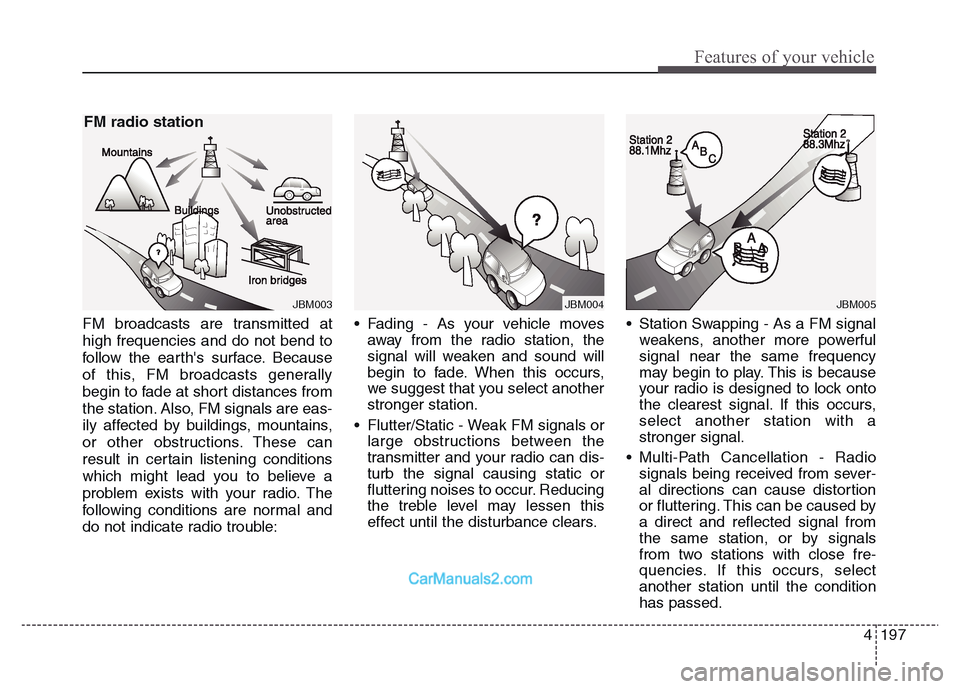
FM broadcasts are transmitted at
high frequencies and do not bend to
follow the earth's surface. Because
of this, FM broadcasts generally
begin to fade at short distances from
the station. Also, FM signals are eas-
ily affected by buildings, mountains,
or other obstructions. These can
result in certain listening conditions
which might lead you to believe a
problem exists with your radio. The
following conditions are normal and
do not indicate radio trouble:• Fading - As your vehicle moves
away from the radio station, the
signal will weaken and sound will
begin to fade. When this occurs,
we suggest that you select another
stronger station.
• Flutter/Static - Weak FM signals or
large obstructions between the
transmitter and your radio can dis-
turb the signal causing static or
fluttering noises to occur. Reducing
the treble level may lessen this
effect until the disturbance clears.• Station Swapping - As a FM signal
weakens, another more powerful
signal near the same frequency
may begin to play. This is because
your radio is designed to lock onto
the clearest signal. If this occurs,
select another station with a
stronger signal.
• Multi-Path Cancellation - Radio
signals being received from sever-
al directions can cause distortion
or fluttering. This can be caused by
a direct and reflected signal from
the same station, or by signals
from two stations with close fre-
quencies. If this occurs, select
another station until the condition
has passed.
JBM004JBM005JBM003
FM radio station
Page 305 of 717
Features of your vehicle
208 4
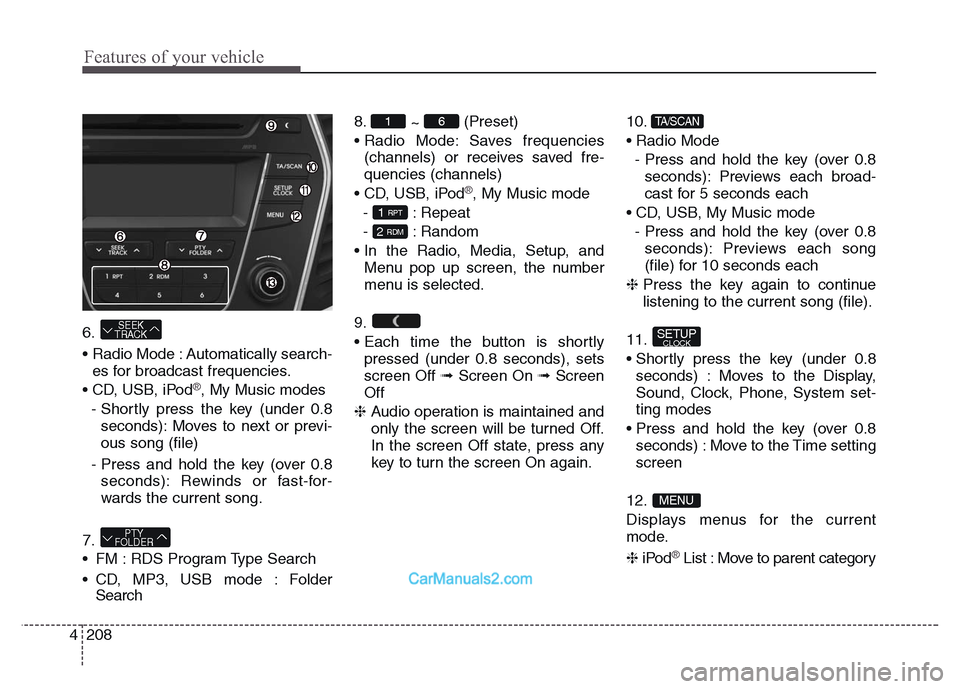
6.
• Radio Mode : Automatically search-
es for broadcast frequencies.
• CD, USB, iPod
®, My Music modes
- Shortly press the key (under 0.8
seconds): Moves to next or previ-
ous song (file)
- Press and hold the key (over 0.8
seconds): Rewinds or fast-for-
wards the current song.
7.
• FM : RDS Program Type Search
• CD, MP3, USB mode : Folder
Search8.
~ (Preset)
• Radio Mode: Saves frequencies
(channels) or receives saved fre-
quencies (channels)
• CD, USB, iPod
®, My Music mode
- : Repeat
- : Random
• In the Radio, Media, Setup, and
Menu pop up screen, the number
menu is selected.
9.
• Each time the button is shortly
pressed (under 0.8 seconds), sets
screen Off ➟Screen On ➟Screen
Off
❈ Audio operation is maintained and
only the screen will be turned Off.
In the screen Off state, press any
key to turn the screen On again.10.
• Radio Mode
- Press and hold the key (over 0.8
seconds): Previews each broad-
cast for 5 seconds each
• CD, USB, My Music mode
- Press and hold the key (over 0.8
seconds): Previews each song
(file) for 10 seconds each
❈ Press the key again to continue
listening to the current song (file).
11.
• Shortly press the key (under 0.8
seconds) : Moves to the Display,
Sound, Clock, Phone, System set-
ting modes
• Press and hold the key (over 0.8
seconds) : Move to the Time setting
screen
12.
Displays menus for the current
mode.
❈iPod
®List : Move to parent category
MENU
SETUPCLOCK
TA/SCAN
SEEK
TRACK
1 6
PTY
FOLDER
2 RDM
1 RPT
Page 308 of 717
4 211
Features of your vehicle
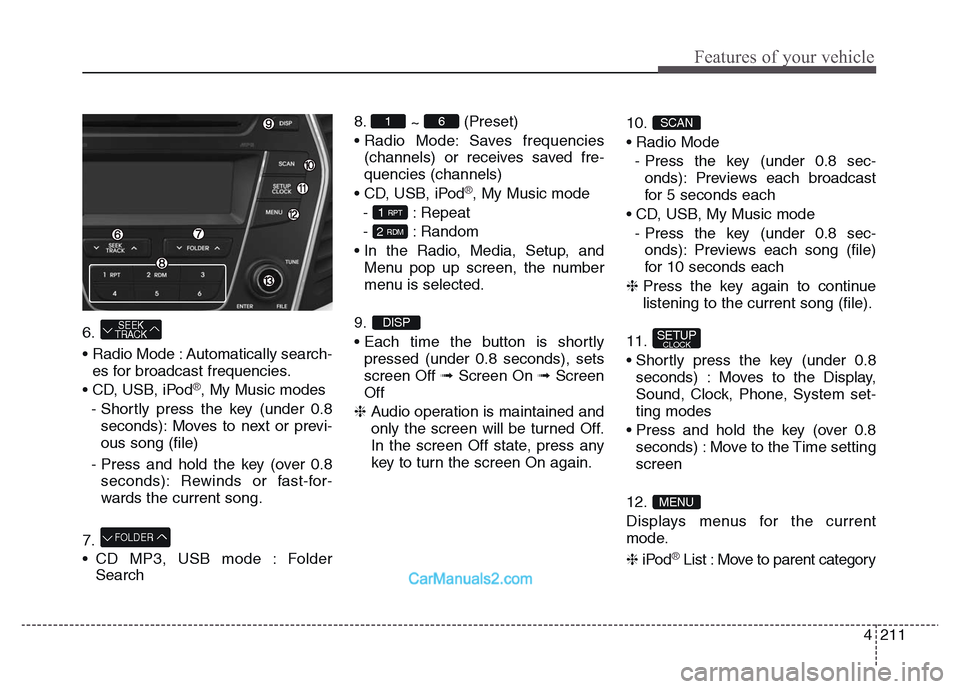
6.
• Radio Mode : Automatically search-
es for broadcast frequencies.
• CD, USB, iPod
®, My Music modes
- Shortly press the key (under 0.8
seconds): Moves to next or previ-
ous song (file)
- Press and hold the key (over 0.8
seconds): Rewinds or fast-for-
wards the current song.
7.
• CD MP3, USB mode : Folder
Search8.
~ (Preset)
• Radio Mode: Saves frequencies
(channels) or receives saved fre-
quencies (channels)
• CD, USB, iPod
®, My Music mode
- : Repeat
- : Random
• In the Radio, Media, Setup, and
Menu pop up screen, the number
menu is selected.
9.
• Each time the button is shortly
pressed (under 0.8 seconds), sets
screen Off ➟Screen On ➟Screen
Off
❈ Audio operation is maintained and
only the screen will be turned Off.
In the screen Off state, press any
key to turn the screen On again.10.
• Radio Mode
- Press the key (under 0.8 sec-
onds): Previews each broadcast
for 5 seconds each
• CD, USB, My Music mode
- Press the key (under 0.8 sec-
onds): Previews each song (file)
for 10 seconds each
❈ Press the key again to continue
listening to the current song (file).
11.
• Shortly press the key (under 0.8
seconds) : Moves to the Display,
Sound, Clock, Phone, System set-
ting modes
• Press and hold the key (over 0.8
seconds) : Move to the Time setting
screen
12.
Displays menus for the current
mode.
❈iPod
®List : Move to parent category
SETUPCLOCK
FOLDER
SEEK
TRACK
MENU
SCAN
DISP
2 RDM
1 RPT
61
Page 312 of 717
4 215
Features of your vehicle
Clock Settings
Press the key Select
[Clock] through TUNE knob or
key Select menu through
TUNE knobClock Settings
This menu is used to set the time.
Select [Clock Settings] Set through
TUNE knob Press TUNE knob
❈ Adjust the number currently in
focus to set the [hour] and press
the tune knob to set the [minute]. Day Settings
This menu is used to set the date.
Select [Day Settings] Set through
TUNE knob Press TUNE knob
❈ Adjust the number currently in
focus to make the settings and
press the tune knob to move to the
next setting. (Set in order of
Year/Month/Day)
SETUPCLOCK
3
Page 313 of 717
Features of your vehicle
216 4
Time Format
This function is used to set the 12/24
hour time format of the audio system.
Select [Time Format] Set 12Hr /
24Hr through TUNE knob
Clock Display when Power is OFF
Select [Clock Disp.(Pwr Off) Set
/ through TUNE knob
• : Displays time/date on screen
• : Turn off.Automatic RDS Time
This option is used to automatically
set the time by synchronizing with
RDS.
Select [Automatic RDS Time] Set
/ through TUNE knob
• : Turn on Automatic Time
• : Turn off.
Off
On
OffOn
Off
On
OffOn
Page 323 of 717
Features of your vehicle
226 4
Clock Settings
Press the key Select [Clock]
through TUNE knob or key
Select menu through TUNE knobClock Settings
This menu is used to set the time.
Select [Clock Settings] Set through
TUNE knob Press TUNE knob
❈ Adjust the number currently in
focus to set the [hour] and press
the tune knob to set the [minute]. Calendar Settings
This menu is used to set the date.
Select [Calendar Settings] Set
through TUNE knob Press
TUNE knob
❈ Adjust the number currently in
focus to make the settings and
press the tune knob to move to the
next setting. (Set in order of
Year/Month/Day) SETUPCLOCK3
![Hyundai Grand Santa Fe 2016 Owners Manual 4 215
Features of your vehicle
Clock Settings
Press the key Select
[Clock] through TUNE knob or
key Select menu through
TUNE knobClock Settings
This menu is used to set the time.
Select [Clock Setti](/manual-img/35/14765/w960_14765-311.png "Hyundai Grand Santa Fe 2016 Owners Manual 4 215
Features of your vehicle
Clock Settings
Press the key Select
[Clock] through TUNE knob or
key Select menu through
TUNE knobClock Settings
This menu is used to set the time.
Select [Clock Setti")
![Hyundai Grand Santa Fe 2016 Owners Manual Features of your vehicle
216 4
Time Format
This function is used to set the 12/24
hour time format of the audio system.
Select [Time Format] Set 12Hr /
24Hr through TUNE knob
Clock Display when Power](/manual-img/35/14765/w960_14765-312.png "Hyundai Grand Santa Fe 2016 Owners Manual Features of your vehicle
216 4
Time Format
This function is used to set the 12/24
hour time format of the audio system.
Select [Time Format] Set 12Hr /
24Hr through TUNE knob
Clock Display when Power")
![Hyundai Grand Santa Fe 2016 Owners Manual Features of your vehicle
226 4
Clock Settings
Press the key Select [Clock]
through TUNE knob or key
Select menu through TUNE knobClock Settings
This menu is used to set the time.
Select [Clock Set](/manual-img/35/14765/w960_14765-322.png "Hyundai Grand Santa Fe 2016 Owners Manual Features of your vehicle
226 4
Clock Settings
Press the key Select [Clock]
through TUNE knob or key
Select menu through TUNE knobClock Settings
This menu is used to set the time.
Select [Clock Set")