Page 227 of 669

4141
Features of your vehicle
SYSTEM CONTROLLERS
AND FUNCTIONS
Audio Head Unit
1. (EJECT)
Ejects the disc.
2.
Changes to FM/AM mode.
Each time the key is pressed, themode is changed in order of FM1
➟
FM2 ➟AM ❈
In Setup>Display, the radio pop up
screen will be displayed when
[Mode Pop up] is turned .
When the pop up screen is dis-
played, use the TUNE knob or
keys ~ to select the
desired mode.
3.
Changes to CD, USB, iPod, AUX, My Music, BT Audio modes.
Each time the key is pressed, the mode is changed in order of CD,
USB, iPod, AUX, My Music, BT
Audio modes.
❈ In Setup>Display, the media pop
up screen will be displayed when
[Mode Pop up] is turned .
When the pop up screen is dis-
played, use the TUNE knob or
keys ~ to select the
desired mode.
4.
Operates Phone Screen
❈ When a phone is not connected,
the connection screen is displayed. 5. POWER/VOL knob
Power Knob: Turns power
On/Off by pressing the knob
Volume Knob: Sets volume by turning the knob left/right
6. ~ (Preset)
Radio Mode: Saves frequencies (channels) or receives saved fre-
quencies (channels)
CD, USB, iPod, My Music mode - : Repeat
- : Random
In the Radio, Media, Setup, and Menu pop up screen, the number
menu is selected.
7.
Radio Mode : Automatically search- es for broadcast frequencies.
CD, USB, iPod, My Music modes : - Shortly press the key (under 0.8seconds): Moves to next or previ-
ous song(file)
- Press and hold the key (over 0.8 seconds): Rewinds or fast-for-
wards the current song(file)
SEEK
TRACK
2
1
61
PHONE
51
On
MEDIA
61
On
RADIO
Page 228 of 669
Features of your vehicle
142
4
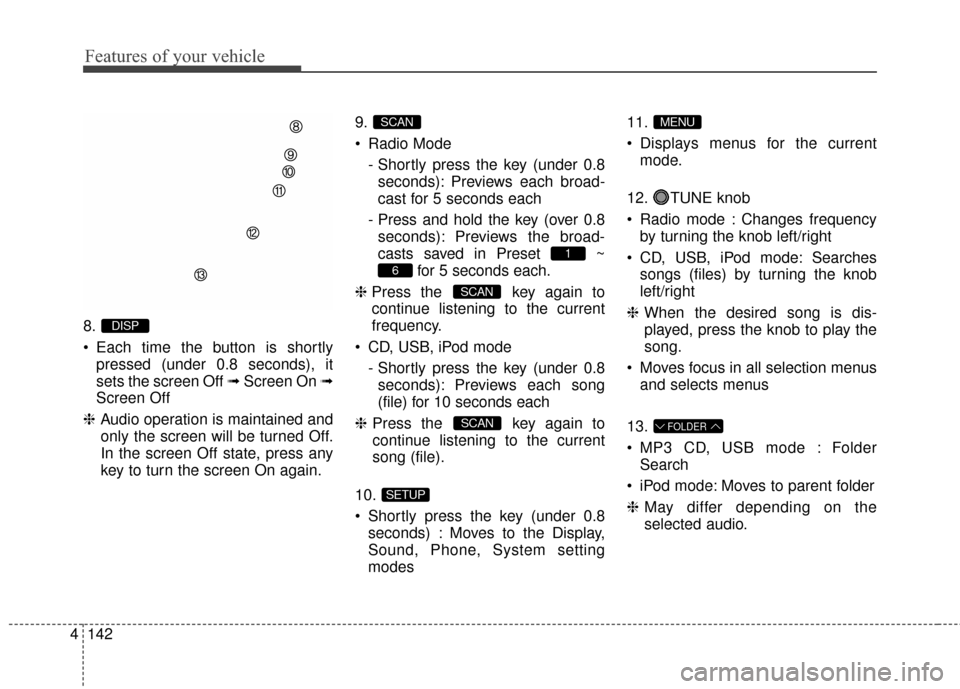
8.
Each time the button is shortly
pressed (under 0.8 seconds), it
sets the screen Off ➟ Screen On ➟
Screen Off
❈ Audio operation is maintained and
only the screen will be turned Off.
In the screen Off state, press any
key to turn the screen On again. 9.
Radio Mode
- Shortly press the key (under 0.8seconds): Previews each broad-
cast for 5 seconds each
- Press and hold the key (over 0.8 seconds): Previews the broad-
casts saved in Preset ~ for 5 seconds each.
❈ Press the key again to
continue listening to the current
frequency.
CD, USB, iPod mode - Shortly press the key (under 0.8seconds): Previews each song
(file) for 10 seconds each
❈ Press the key again to
continue listening to the current
song (file).
10.
Shortly press the key (under 0.8 seconds) : Moves to the Display,
Sound, Phone, System setting
modes 11.
Displays menus for the current
mode.
12. TUNE knob
Radio mode : Changes frequency by turning the knob left/right
CD, USB, iPod mode: Searches songs (files) by turning the knob
left/right
❈ When the desired song is dis-
played, press the knob to play the
song.
Moves focus in all selection menus and selects menus
13.
MP3 CD, USB mode : Folder Search
iPod mode: Moves to parent folder
❈ May differ depending on the
selected audio.
FOLDER
MENU
SETUP
SCAN
SCAN
6
1
SCAN
DISP
Page 234 of 669

Features of your vehicle
148
4
RADIO : FM, AM OR
SiriusXM
SEEK
Press the key
Shortly pressing the key (under 0.8
seconds): Changes the frequency.
Pressing and holding the key (over 0.8 seconds): Automatically search-
es for the next frequency.
Preset SEEK
Press the ~ key
Shortly pressing the key (under 0.8seconds): Plays the frequency
saved in the corresponding key.
Pressing and holding the key (over 0.8 seconds): Pressing and holding
the desired key from ~
will save the currently playing
broadcast to the selected key and
sound a BEEP.
SCAN
Press the key
Shortly pressing the key (under 0.8
seconds): The broadcast frequen-
cy increases and previews each
broadcast for 5 seconds each.
After scanning all frequencies,
returns and plays the current
broadcast frequency.
Pressing and holding the key (over 0.8 seconds): Previews the broad-
casts saved in Preset ~
for 5 seconds each.
Selecting through manual
search
Turn the TUNE knob left/right to
adjust the frequency.
61
SCAN
61
61
SEEK
TRACK
Page 239 of 669

4153
Features of your vehicle
Category
Press the key Set through
the
TUNEknob
The display will indicate the catego- ry menus, highlight the category
that the current channel belongs to.
In the Category List Mode, press the key to navigate cate-
gory list.
Press the tune knob to select the lowest channel in the highlighted
category.
❈ If channel is selected by selecting
category, then the “CATEGORY”
icon is displayed at the top of the
screen.
Preset
Press the ~ key
Shortly pressing the key (under 0.8 seconds): Plays the frequency
saved in the corresponding key.
Pressing and holding the key (over 0.8 seconds): Pressing and holding
the desired key from ~
will save the current broadcast to
the selected key and sound a
BEEP.
✽ ✽NOTICE- Troubleshooting
1. Antenna Error
If this message is displayed, the anten-
na or antenna cable is broken or
unplugged. Please consult with your
Hyundai dealership.
2. No Signal If this message is displayed, it means
that the antenna is covered and that
the SiriusXM Satellite Radio signal is
not available. Ensure the antenna is
uncovered and has a clear view of the
sky.
Tune
Rotate TUNE knob : Changes
the channel number or scrolls cate-
gory list.
Press TUNE knob : Selects the menu.
Menu
Select category menu through the TUNE knob Press the key
Select [ Info] through the TUNE
knob or key
Info (Information)
Displays the Artist/Song info of the
current song.
1
MENU
61
61
CATFOLDER
CATFOLDER
Page 251 of 669
![Hyundai Elantra 2016 Owners Manual 4165
Features of your vehicle
Pairing through [PHONE]
Setup
Press the key Select
[Phone] Select [Pair Phone]
Select TUNE knob
1.The following steps are the sameas those described in the section
"Wh](/manual-img/35/14551/w960_14551-250.png "Hyundai Elantra 2016 Owners Manual 4165
Features of your vehicle
Pairing through [PHONE]
Setup
Press the key Select
[Phone] Select [Pair Phone]
Select TUNE knob
1.The following steps are the sameas those described in the section
\"Wh")
4165
Features of your vehicle
Pairing through [PHONE]
Setup
Press the key Select
[Phone] Select [Pair Phone]
Select TUNE knob
1.The following steps are the sameas those described in the section
"When No Devices have been
Paired" on the previous page.
✽ ✽ NOTICE
•Bluetooth®Wireless Technology
features supported within the
vehicle are as follows. Some fea-
tures may not be supported
depending on your Bluetooth
®
Wireless Technology device.
- Outgoing/Incoming Handsfree
calls (Continued)(Continued)
- Operations during a call (Switchto Private, Switch to call waiting,
MIC on/off)
- Downloading Call History
- Downloading Mobile Contacts
- Bluetooth
®Wireless Technology
device auto connection
- Bluetooth Audio Streaming
• Up to five Bluetooth
®Wireless
Technology devices can be paired
to the Car Handsfree system.
• Only one Bluetooth
®Wireless
Technology device can be connect-
ed at a time.
• Other devices cannot be paired while a Bluetooth
®Wireless
Technology device is connected.
• Only Bluetooth
®Wireless
Technology Handsfree and
Bluetooth audio related features
are supported.
• Bluetooth related operations are possible only within devices that
support Handsfree or audio fea-
tures, such as a Bluetooth
®
Wireless Technology mobile phone
or a Bluetooth audio device. (Continued)(Continued)
• If a connected Bluetooth
® Wireless
Technology device becomes dis-
connected due to being out of com-
munication range, turning the
device OFF, or a Bluetooth
®
Wireless Technology communica-
tion error, corresponding
Bluetooth
®Wireless Technology
devices are automatically searched
and reconnected.
• If the system becomes unstable due to communication errors
between the car Handsfree and the
Bluetooth
®Wireless Technology
device, reset the device by turning
off and back on again. Upon reset-
ting Bluetooth
®Wireless
Technology device, the system will
be restored.
• After pairing is complete, a con- tacts download request is sent
once to the mobile phone. Some
mobile phones may require confir-
mation upon receiving a download
request, ensure your mobile phone
accepts the connection. Refer to
your phones user’s manual for
additional information regarding
phone pairing and connections.
SETUP
Page 265 of 669
4179
Features of your vehicle
CommandFunction
FM Preset 1~6 Plays the most recently played broadcast
saved in FM Preset 1~6.
AM Preset 1~6 Plays the broadcast saved in AM Preset 1~6.
FM 87.5~107.9 Plays the FM broadcast of the corresponding
frequency.
AM 530~1710 Plays the AM broadcast of the corresponding
frequency.
XM(Satellite)
When listening to the SiriusXM®, maintains
the current state.
When listening to a different mode, displaysthe most recently played SiriusXM®screen.
XM(Satellite)1~3 Displays the selected SiriusXM®screen.
XM(Satellite) Plays the selected SiriusXM
®channel.
Channel 0~223
Media Moves to the most recently played mediascreen.
CD Plays the music saved in the CD.
USBPlays USB music.
iPod®Plays iPod music.
Command Function
My Music Plays the music saved in My Music.
AUX (Auxiliary) Plays the connected external device.
Bluetooth
®Audio Plays the music saved in connected Bluetooth®
device.
Mute Mutes the sound.
Cancel (Exit) Ends voice command.
Page 266 of 669
Features of your vehicle
180
4
FM/AM radio commands: Commands available during
FM, AM radio operation Satellite radio commands: Commands that can be
used while listening to Satellite Radio.
Command Function
Preset 1~6 Plays the broadcast station saved in Preset 1~6.
Scan Scans receivable frequencies from the current
broadcast and plays for 10 seconds each.
Preset Scan Moves to the next preset from the current
present and plays for 10 seconds each.
Information Displays the information of the current broad- cast.(This feature can be used when receiving
RBDS broadcasts.)
Command Function
Channel 0~255 Play the selected Satellite Radio channel.
Scan Scans receivable channels from the current
broadcast and plays for 10 seconds each.
Preset 1~6 Plays the broadcast saved in Preset 1~6.
Information Displays the information of the current broad-
cast.
Page 274 of 669
Features of your vehicle
188
4
14. RESET
Forced system termi-
nation and system
restart.
■ ■
CD Player : AM910MDAN


