Page 222 of 669

Features of your vehicle
136
4
SYSTEM CONTROLLERS
AND FUNCTIONS
Audio Head Unit
1. (EJECT)
Ejects the disc.
2.
Changes to FM/AM/SiriusXM mode.
Each time the key is pressed, the
mode is changed in order of FM1
➟
FM2 ➟AM ➟XM1 ➟XM2 ➟XM3
❈ In Setup>Display, the radio pop up
screen will be displayed when
[Mode Pop up] is turned . When the pop up screen is dis-
played, use the TUNE knob or
keys ~ to select the
desired mode.
3.
Changes to CD, USB, iPod, AUX, My Music, BT Audio modes.
Each time the key is pressed, the mode is changed in order of CD,
USB, iPod, AUX, My Music, BT
Audio modes.
❈ In Setup>Display, the media pop
up screen will be displayed when
[Mode Pop up] is turned .
When the pop up screen is dis-
played, use the TUNE knob or
keys ~ to select the
desired mode.
4.
Operates Phone Screen
❈ When a phone is not connected,
the connection screen is displayed. 5. POWER/VOL knob
Power Knob: Turns power
On/Off by pressing the knob
Volume Knob: Sets volume by turning the knob left/right
6. ~ (Preset)
Radio Mode: Saves frequencies (channels) or receives saved fre-
quencies (channels)
CD, USB, iPod, My Music mode - : Repeat
- : Random
In the Radio, Media, Setup, and Menu pop up screen, the number
menu is selected.
7.
Radio Mode : Automatically search- es for broadcast frequencies.
CD, USB, iPod, My Music modes : - Shortly press the key (under 0.8seconds): Moves to next or previ-
ous song(file)
- Press and hold the key (over 0.8 seconds): Rewinds or fast-for-
wards the current song(file)
SEEK
TRACK
2
1
61
PHONE
51
On
MEDIA
61
On
RADIO
Page 223 of 669

4137
Features of your vehicle
8.
Each time the button is shortlypressed (under 0.8 seconds), it
sets the screen Off ➟ Screen On ➟
Screen Off
❈ Audio operation is maintained and
only the screen will be turned Off.
In the screen Off state, press any
key to turn the screen On again. 9.
Radio Mode
- Shortly press the key (under 0.8seconds): Previews each broad-
cast for 5 seconds each
- Press and hold the key (over 0.8 seconds): Previews the broad-
casts saved in Preset ~ for 5 seconds each.
❈ Press the key again to
continue listening to the current
frequency.
❈ SiriusXM RADIO does not support
the Preset scan feature.
CD, USB, iPod mode - Shortly press the key (under 0.8seconds): Previews each song
(file) for 10 seconds each
❈ Press the key again to
continue listening to the current
song (file).
10.
Shortly press the key (under 0.8 seconds) : Moves to the Display,
Sound, Phone, System setting
modes 11.
Displays menus for the current
mode.
12. TUNE knob
Radio mode : Changes frequency by turning the knob left/right
CD, USB, iPod mode: Searches songs (files) by turning the knob
left/right
❈ When the desired song is dis-
played, press the knob to play the
song.
Moves focus in all selection menus and selects menus
13.
Radio Mode - SiriusXM RADIO : CategorySearch
MP3 CD, USB mode : Folder Search
iPod mode: Moves to parent folder
❈ May differ depending on the select-
ed audio.
CATFOLDER
MENU
SETUP
SCAN
SCAN
6
1
SCAN
DISP
Page 227 of 669

4141
Features of your vehicle
SYSTEM CONTROLLERS
AND FUNCTIONS
Audio Head Unit
1. (EJECT)
Ejects the disc.
2.
Changes to FM/AM mode.
Each time the key is pressed, themode is changed in order of FM1
➟
FM2 ➟AM ❈
In Setup>Display, the radio pop up
screen will be displayed when
[Mode Pop up] is turned .
When the pop up screen is dis-
played, use the TUNE knob or
keys ~ to select the
desired mode.
3.
Changes to CD, USB, iPod, AUX, My Music, BT Audio modes.
Each time the key is pressed, the mode is changed in order of CD,
USB, iPod, AUX, My Music, BT
Audio modes.
❈ In Setup>Display, the media pop
up screen will be displayed when
[Mode Pop up] is turned .
When the pop up screen is dis-
played, use the TUNE knob or
keys ~ to select the
desired mode.
4.
Operates Phone Screen
❈ When a phone is not connected,
the connection screen is displayed. 5. POWER/VOL knob
Power Knob: Turns power
On/Off by pressing the knob
Volume Knob: Sets volume by turning the knob left/right
6. ~ (Preset)
Radio Mode: Saves frequencies (channels) or receives saved fre-
quencies (channels)
CD, USB, iPod, My Music mode - : Repeat
- : Random
In the Radio, Media, Setup, and Menu pop up screen, the number
menu is selected.
7.
Radio Mode : Automatically search- es for broadcast frequencies.
CD, USB, iPod, My Music modes : - Shortly press the key (under 0.8seconds): Moves to next or previ-
ous song(file)
- Press and hold the key (over 0.8 seconds): Rewinds or fast-for-
wards the current song(file)
SEEK
TRACK
2
1
61
PHONE
51
On
MEDIA
61
On
RADIO
Page 228 of 669
Features of your vehicle
142
4
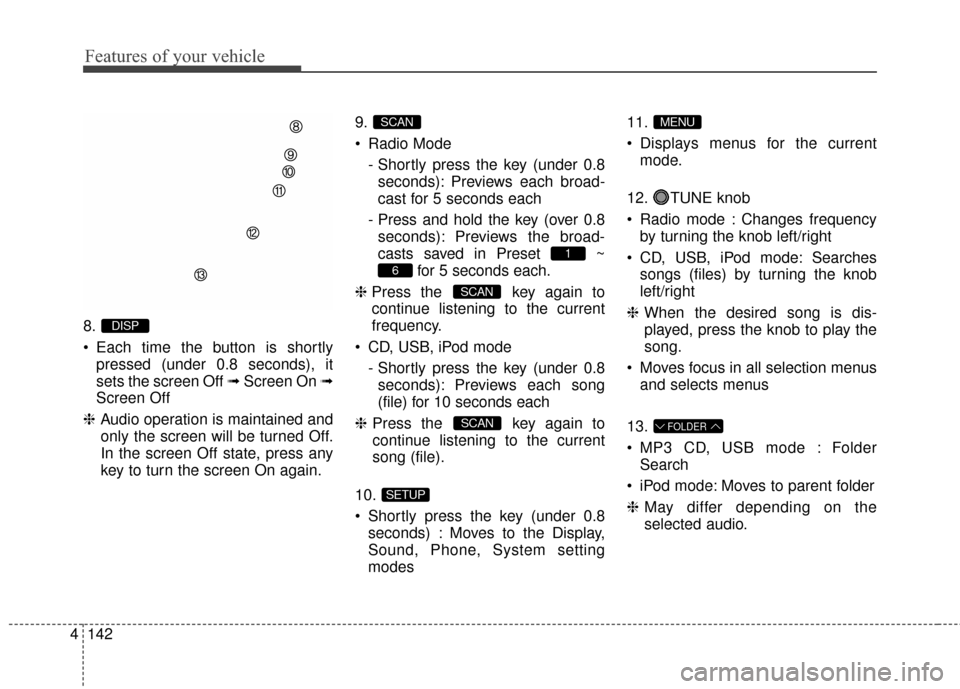
8.
Each time the button is shortly
pressed (under 0.8 seconds), it
sets the screen Off ➟ Screen On ➟
Screen Off
❈ Audio operation is maintained and
only the screen will be turned Off.
In the screen Off state, press any
key to turn the screen On again. 9.
Radio Mode
- Shortly press the key (under 0.8seconds): Previews each broad-
cast for 5 seconds each
- Press and hold the key (over 0.8 seconds): Previews the broad-
casts saved in Preset ~ for 5 seconds each.
❈ Press the key again to
continue listening to the current
frequency.
CD, USB, iPod mode - Shortly press the key (under 0.8seconds): Previews each song
(file) for 10 seconds each
❈ Press the key again to
continue listening to the current
song (file).
10.
Shortly press the key (under 0.8 seconds) : Moves to the Display,
Sound, Phone, System setting
modes 11.
Displays menus for the current
mode.
12. TUNE knob
Radio mode : Changes frequency by turning the knob left/right
CD, USB, iPod mode: Searches songs (files) by turning the knob
left/right
❈ When the desired song is dis-
played, press the knob to play the
song.
Moves focus in all selection menus and selects menus
13.
MP3 CD, USB mode : Folder Search
iPod mode: Moves to parent folder
❈ May differ depending on the
selected audio.
FOLDER
MENU
SETUP
SCAN
SCAN
6
1
SCAN
DISP
Page 233 of 669
![Hyundai Elantra 2016 Owners Manual 4147
Features of your vehicle
SYSTEM SETTINGS
Press the key Select [System]
through tune knob or key Select
menu through TUNE knob
Memory Information
Displays currently used memory and
total system](/manual-img/35/14551/w960_14551-232.png "Hyundai Elantra 2016 Owners Manual 4147
Features of your vehicle
SYSTEM SETTINGS
Press the key Select [System]
through tune knob or key Select
menu through TUNE knob
Memory Information
Displays currently used memory and
total system")
4147
Features of your vehicle
SYSTEM SETTINGS
Press the key Select [System]
through tune knob or key Select
menu through TUNE knob
Memory Information
Displays currently used memory and
total system memory.
Select [Memory Information] OK
The currently used memory is dis-
played on the left side while the total
system memory is displayed on the
right side.
Prompt Feedback
This feature is used to change voice
command feedback between Normal
and Expert modes.
Select [Prompt Feedback] Set
through
TUNEknob
Normal(On) : This mode is for beginner users and provides
detailed instructions during voice
command operation. Expert(Off) :
This mode is for expert
users and omits some information
during voice command operation.
(When using Expert mode, guid-
ance instructions can be heard
through the [Help] or [Menu] com-
mands.
Language
This menu is used to set the display
and voice recognition language.
Select [Language] Set through TUNE
knob
❈ The system will reboot after the
language is changed.
❈ Language support by region
- English, Francais, Espanol
4
SETUP
Page 238 of 669

Features of your vehicle
152
4
SiriusXM RADIO
Using SiriusXM Satellite Radio
Your vehicle is equipped with a 3-
month trial subscription to SiriusXM
so you have access to over 140
channels of music, information, and
entertainment programming.
Activation
In order to extend or reactivate your
Sirius Select subscription, you will
need to contact SiriusXM Customer
Care at 1-800-643-2112. Have your
12-digit RID (Radio Identification
Number) / ESN (Electronic Serial
Number) ready. To retrieve the RID /
ESN, turn on the radio, press the
key, and tune to channel
zero.
Please note that the vehicle will need
to be turned on, in Sirius mode, and
have an unobstructed view of the sky
in order for the radio to receive the
activation signal.
SEEK
Press the key
Shortly pressing the key (under 0.8
seconds): select previous or next
channel.
Pressing and holding the key (over 0.8 seconds): continuously move
to previous or next channel.
❈ If the “Category” icon is displayed,
channels are changed within the
current category.
SCAN
Press the key
Shortly pressing the key (under 0.8 seconds): Previews each broad-
cast for 10 seconds each
❈ Press the key again to con-
tinue listening to the current fre-
quency
❈ If the “Category” icon is displayed,
channels are changed within the
current category.
SCAN
SCAN
SEEK
TRACK
RADIO
Page 239 of 669

4153
Features of your vehicle
Category
Press the key Set through
the
TUNEknob
The display will indicate the catego- ry menus, highlight the category
that the current channel belongs to.
In the Category List Mode, press the key to navigate cate-
gory list.
Press the tune knob to select the lowest channel in the highlighted
category.
❈ If channel is selected by selecting
category, then the “CATEGORY”
icon is displayed at the top of the
screen.
Preset
Press the ~ key
Shortly pressing the key (under 0.8 seconds): Plays the frequency
saved in the corresponding key.
Pressing and holding the key (over 0.8 seconds): Pressing and holding
the desired key from ~
will save the current broadcast to
the selected key and sound a
BEEP.
✽ ✽NOTICE- Troubleshooting
1. Antenna Error
If this message is displayed, the anten-
na or antenna cable is broken or
unplugged. Please consult with your
Hyundai dealership.
2. No Signal If this message is displayed, it means
that the antenna is covered and that
the SiriusXM Satellite Radio signal is
not available. Ensure the antenna is
uncovered and has a clear view of the
sky.
Tune
Rotate TUNE knob : Changes
the channel number or scrolls cate-
gory list.
Press TUNE knob : Selects the menu.
Menu
Select category menu through the TUNE knob Press the key
Select [ Info] through the TUNE
knob or key
Info (Information)
Displays the Artist/Song info of the
current song.
1
MENU
61
61
CATFOLDER
CATFOLDER
Page 240 of 669

Features of your vehicle
154
4
BASIC METHOD OF USE :
Audio CD / MP3 CD / USB /
iPod
®/ My Music
Press the key to change the
mode in order of CD
➟ USB(iPod®) ➟
AUX ➟ My Music ➟ BT Audio.
The folder/file name is displayed on
the screen.
❈ The CD is automatically played
when a CD is inserted.
❈ The USB music is automatically
played when a USB is connected.
Repeat
While song (file) is playing
(RPT) key
Audio CD, MP3 CD, USB, iPod
®, My
Music mode: RPT on screen
To repeat one song (Shortly press-
ing the key (under 0.8 seconds)):
Repeats the current song.
MP3 CD, USB mode: FLD.RPT on
screen
To repeat folder (Pressing the key twice).
❈ Press the key again to turn
off repeat.
Random
While song (file) is playing
(RDM) key
Audio CD, iPod
®, My Music mode:
RDM on screen
Random (press the key : Plays all
songs in random order.
MP3 CD, USB mode: FLD.RDM on
screen
Folder Random (press the key : Plays all files within the current
folder in random order.
MP3 CD, USB mode : ALL RDM on
screen
All Random (pressing twice): Plays all files in random order.
❈ Press the key again to turn
off repeat.
2RDM
2 RDM
1
1
MEDIA