Page 231 of 475
Head Unit (Except XM Model)
(15)
Converts to Radio mode.
Each time this key is pressed, the
mode is changed in order of FM1,
FM2, AM.(16)
When pressed shortly
- Radio mode : plays previous/next
frequency.
- CD, USB, iPod, My Music mode : changes the track, file.
When pressed and held
- Radio mode : continuously changes the frequency until the
key is released and plays the cur-
rent frequency.
- CD, USB, iPod, My Music mode : rewinds or fast forwards the track
or file.
- During a Handsfree call, controls the call volume. (17)
- Radio mode : previews all receiv-
able broadcasts for 5 seconds
each.
- CD, USB, My Music mode : pre- views each song (file) for 10 sec-
onds each.
(18)
- MP3 CD/USB mode : Folder Search
FOLDER
SCAN
SEEK
TRACK
RADIO
Features of your vehicle
148
4
procarmanuals.com
Page 241 of 475
Features of your vehicle
158
4
MEDIA MODE
Pressing the key will change
the operating mode in order of CD ➟
USB (iPod) ➟ AUX ➟My Music ➟
BT Audio.
If [Mode Pop up] is turned on within [Display], then pressing thekey will display the Media
Mode Pop-up screen.
Use the TUNE knob to move the
focus. Press the knob to select.
✽ ✽ NOTICE
• If the key is pressed with
the system power off, then the
power will turn on and the most
recently played media mode will
be played.
• The media mode pop up screen can be displayed only when there
are two or more media modes
turned on.MEDIA
MEDIA
SETUP
MEDIA
procarmanuals.com
Page 249 of 475
Features of your vehicle
166
4
USB MODE
Basic Mode Screen
(1) Mode
Displays currently operating mode.
(2) Operation State
From Repeat / Shuffle / Scan, dis-
plays the currently operating func-
tion.
(3) File Index
Displays the current file number.
(4) File Info
Displays information about the cur-
rent file.
(5) Play State
Displays the play/pause state.
(6) Play Time
Displays the current play time.
(7) MENU
Displays USB Menu. (8) Repeat
Turns the Repeat feature on/off.
(9) Shuffle
Turns the Shuffle feature on/off.
(10) List
Moves to the list screen.
(11) Info
Displays additional information for
the current file.
(12) Copy
Copies the current file into My Music.
procarmanuals.com
Page 250 of 475

4167
Features of your vehicle
Using USB Mode
Playing/Pausing USB Files
Once a USB is connected, the mode
will automatically start and begin
playing a USB file.
While playing, press the TUNE
knob to pause and press again to
play.
✽ ✽NOTICE
• Loading may require additional
time if there are many files and
folders within the USB and result
in faulty list display or file search-
ing. Normal operations will
resume once loading is complete.
• The device may not support nor- mal operation when using a USB
memory type besides (Metal
Cover Type) USB Memory.
Changing Files
Press the keys to select
the previous or next file.
✽ ✽ NOTICE
• Pressing the key after
the file has been playing for 2 sec-
onds will start the current file
from the beginning.
• Pressing the key before the file has been playing for 1 sec-
ond will start the previous file.
Selecting from the List
Turn the TUNE knob to search
and select desired files.
Once you find the desired file, press
the TUNE knob to start playing.
Rewinding / Fast-forwarding Files
While playing, press and hold the
keys to rewind or fast-for-
ward the current file.
Scan
Press the key to play the first
10 seconds of each file.SCAN
SEEK
TRACK
SEEK
TRACK
SEEK
TRACK
SEEK
TRACK
procarmanuals.com
Page 251 of 475
Features of your vehicle
168
4
Searching Folders
Select the folder by using the
/ keys and press
the TUNE knob to select.
The first file within the selected fold-
er will begin playing.
USB Mode Menu
If you press the key, you will
have access to the Repeat, Shuffle,
List, Info and Copy features.
Repeat
Press the keySelect
Each time the button is pressed, the
feature changes in order of Repeat
➟ Repeat Folder ➟ Off.
Repeat : Repeats the current file.
Folder Repeat : Repeats all files within the current folder.
Shuffle
Press the keySelect
Each time the button is pressed, the
feature changes in order of Shuffle
Folder ➟Shuffle All ➟ Off.
Folder Shuffle : Plays the files in the current folder in random order.
Shuffle All : Plays all files in ran- dom order.
✽ ✽ NOTICE
The , keys are shortcut
keys to set the Repeat and Shuffle
features.2 RDM1 RPT
ShuffleMENU
RepeatMENU
MENUFOLDERCAT
FOLDER
procarmanuals.com
Page 273 of 475

Features of your vehicle
190
4
❈ Illustration on using voice commands
Shortly pressing the key (under 0.8 seconds):
Shortly pressing the key (under 0.8 seconds):
Shortly pressing the key (under 0.8 seconds):
voice command.
Shortly pressing the key (under 0.8 seconds):
More Help
Contacts
Cancel
More Help
Please say a command after
the beep (BEEP)
Please say a command after
the beep (BEEP)
Please say a...
Please say the contact name you want to call.
Ding~
Ding~
More Help
Here are some examples of mode commands.
You can say a radio type like “FM”, “AM”, or “Satellite”.
You can also say a media source like “USB”, “My
Music”, or “iPod”.
Additionally, there are phone commands like
“Contacts”, “Call History”, or “Dial Number”.
You can find more detailed commands in the user's
manual.
Please say a command after the beep.
More Help
Here are some examples of mode commands.
You can say a radio type like “FM”, “AM”, or “Satellite”.
You can also say a media source like “USB”, “My
Music”, or “iPod”.
Additionally, there are phone commands like
“Contacts”, “Call History”, or “Dial Number”.
You can find more detailed commands in the user's
manual.
Please say a command after the beep.
(BEEP)
procarmanuals.com
Page 275 of 475
Features of your vehicle
192
4
Command Function
XM (Satellite) 1~3Displays the selected SiriusXM®screen.
XM Channel Plays the selected SiriusXM
®channel.
Media Moves to the most recently played mediascreen.
CD Plays the music saved in the CD.
USBPlays USB music.
iPod®Plays iPod music.
Command Function
My Music Plays the music saved in My Music.
AUX (Auxiliary) Plays the connected external device.
Bluetooth
®Audio Plays the music saved in connected Bluetooth®
device.
Please repeat Repeats the most recent comment.
Mute Mutes the sound
Cancel (Exit) Ends voice command.
0~255
procarmanuals.com
Page 277 of 475
Features of your vehicle
194
4
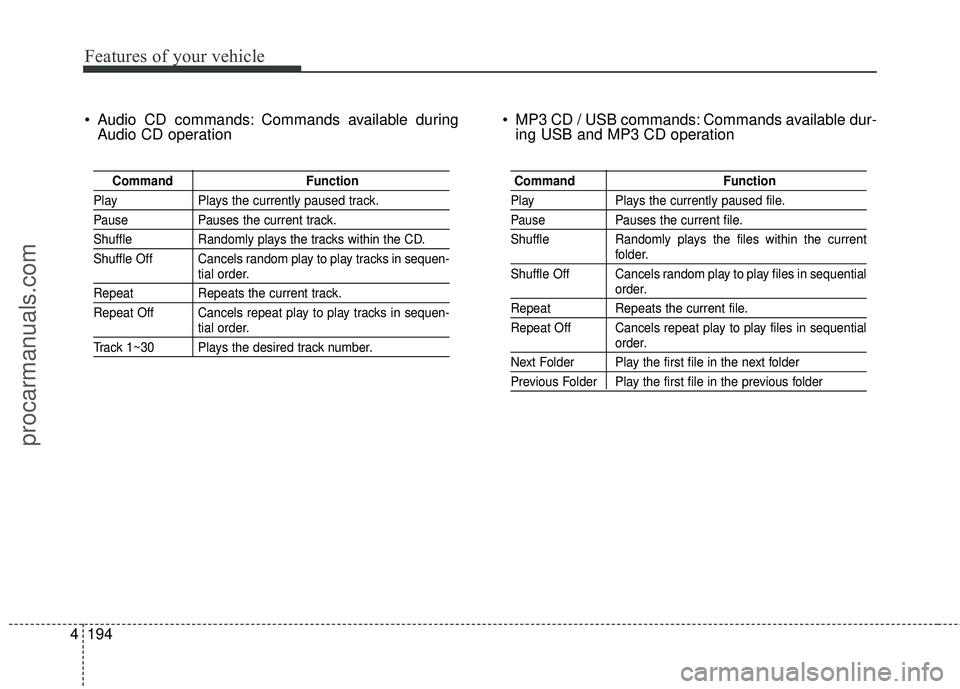
Audio CD commands: Commands available during
Audio CD operation MP3 CD / USB commands: Commands available dur-
ing USB and MP3 CD operation
Command Function
PlayPlays the currently paused track.
PausePauses the current track.
ShuffleRandomly plays the tracks within the CD.
Shuffle Off Cancels random play to play tracks in sequen-
tial order.
Repeat Repeats the current track.
Repeat Off Cancels repeat play to play tracks in sequen-
tial order.
Track 1~30 Plays the desired track number.
Command Function
PlayPlays the currently paused file.
PausePauses the current file.
Shuffle Randomly plays the files within the current
folder.
Shuffle Off Cancels random play to play files in sequential
order.
Repeat Repeats the current file.
Repeat Off Cancels repeat play to play files in sequential
order.
Next Folder Play the first file in the next folder
Previous Folder Play the first file in the previous folder
procarmanuals.com

![HYUNDAI COUPE 2016 Owners Manual Features of your vehicle
158
4
MEDIA MODE
Pressing the key will change
the operating mode in order of CD ➟
USB (iPod) ➟ AUX ➟My Music ➟
BT Audio.
If [Mode Pop up] is turned on within [Display](/manual-img/35/57912/w960_57912-240.png "HYUNDAI COUPE 2016 Owners Manual Features of your vehicle
158
4
MEDIA MODE
Pressing the key will change
the operating mode in order of CD ➟
USB (iPod) ➟ AUX ➟My Music ➟
BT Audio.
If [Mode Pop up] is turned on within [Display")